display TOYOTA COROLLA 2013 11.G Owner's Manual
[x] Cancel search | Manufacturer: TOYOTA, Model Year: 2013, Model line: COROLLA, Model: TOYOTA COROLLA 2013 11.GPages: 532, PDF Size: 8.55 MB
Page 233 of 532
233
3-2. Using the audio system
3
Interior features
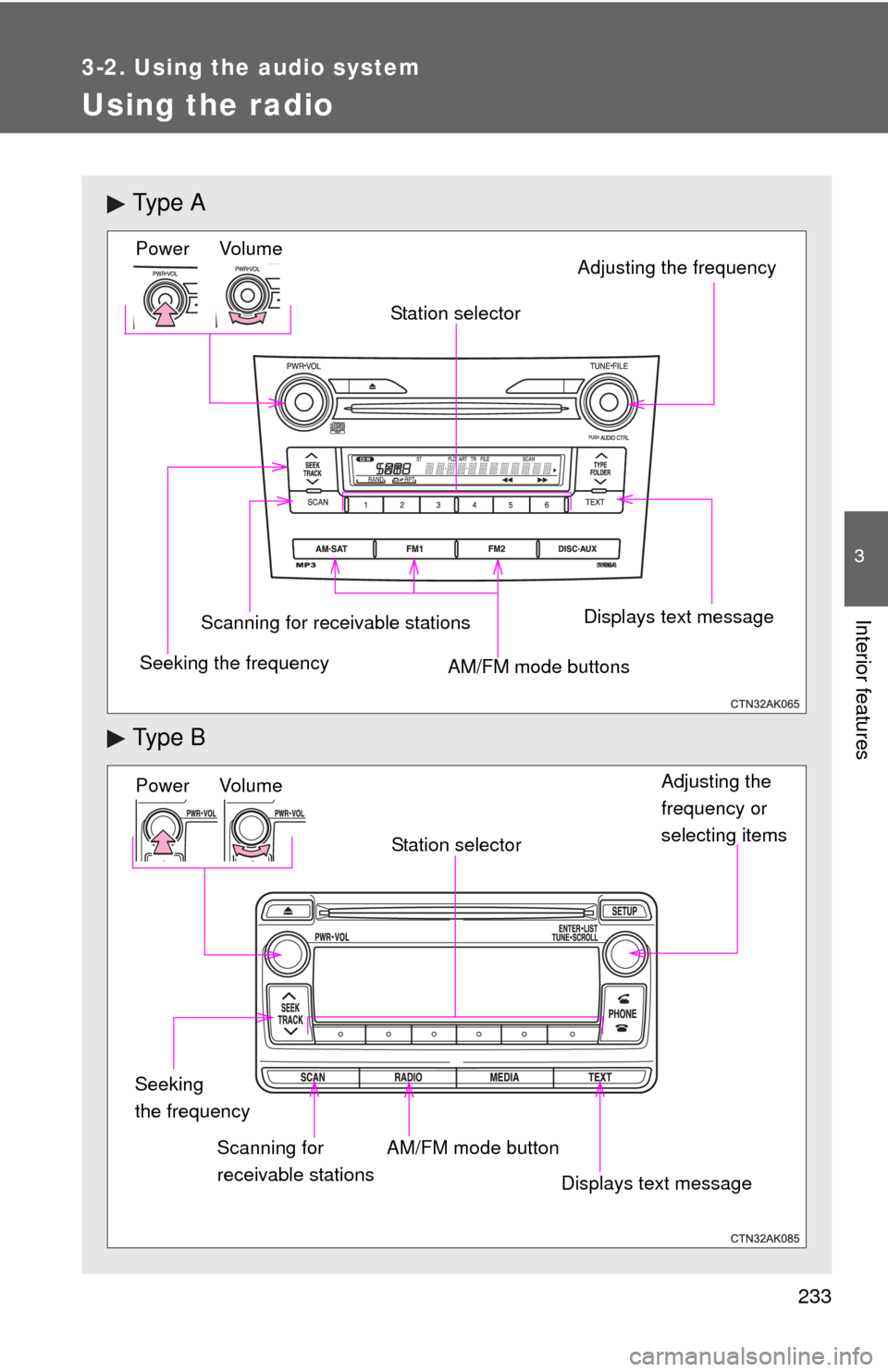
Using the radio
Ty p e A
Ty p e B
Vo lu m e
Seeking the frequency Station selector
AM/FM mode buttons Adjusting the frequency Power
Scanning for receivable stationsDisplays text message
Power Volume
Adjusting the
frequency or
selecting items
Seeking
the frequency AM/FM mode button
Scanning for
receivable stations Station selector
Displays text message
Page 235 of 532

235
3-2. Using the audio system
3
Interior features
Switching the display
Type A
Press .
Each time is pressed, the display changes in the following
order:
Title (song/program title) Name (artist name/feature) Title (song/pro-
gram title).
Type B
Press .
If the text continues past the end of the display, “ ” is displayed. Press .
■When the battery is disconnected (type A)
All preset stations are erased.
■ Reception sensitivity
●Maintaining perfect radio reception at all times is difficult due to the con-
tinually changing position of the antenna, differences in signal strength
and surrounding objects, such as trains and transmitters.
● The radio antenna is mounted inside the rear window. To maintain clear
radio reception, do not attach metallic window tinting or other metallic
objects to the antenna wire mounted inside the rear window.
Page 237 of 532
237
3-2. Using the audio system
3
Interior features
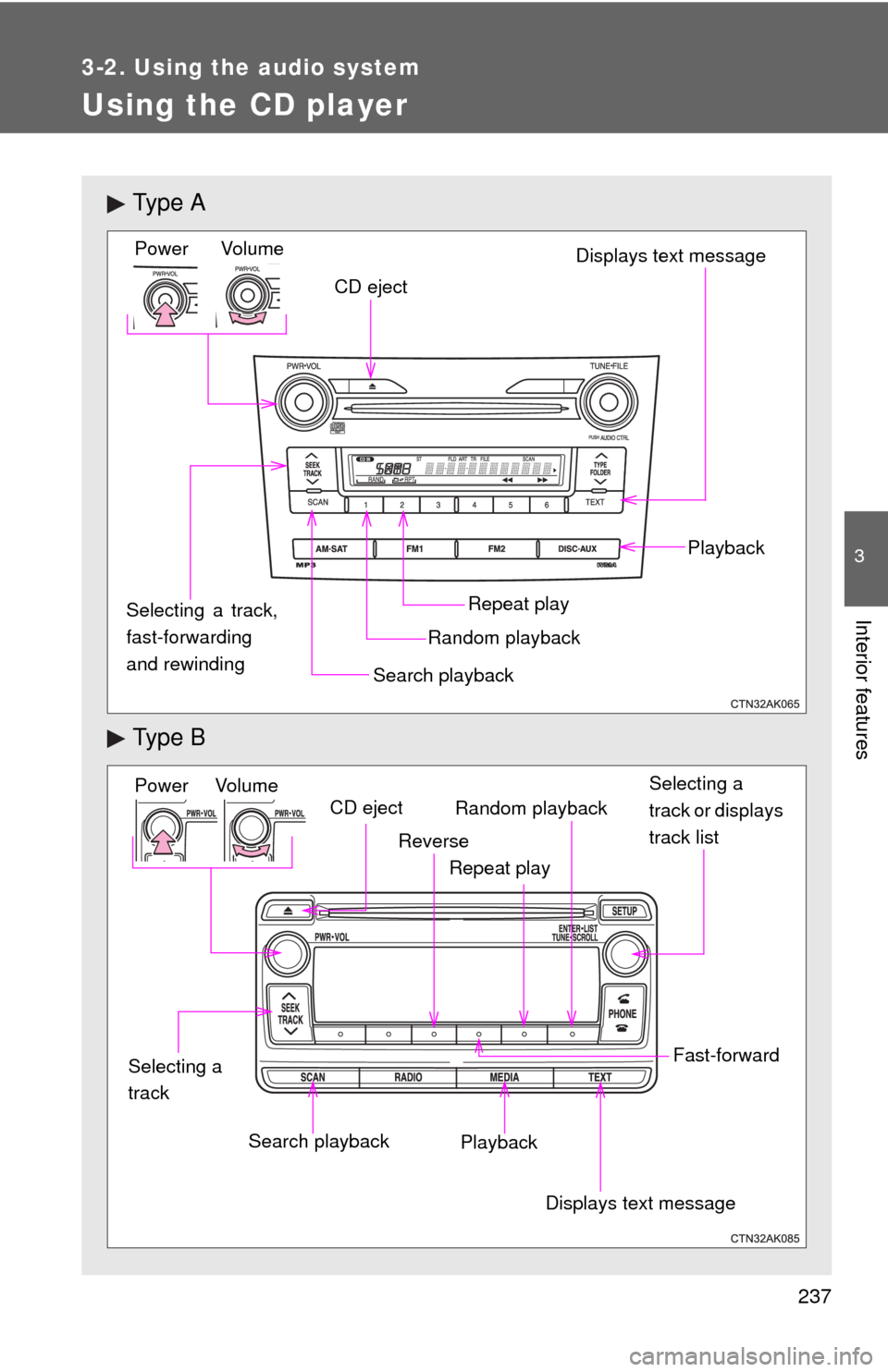
Using the CD player
Ty p e A
Ty p e B
Vol um eRandom playbackRepeat play Playback
Power
CD eject
Displays text message
Search playback
Selecting a track,
fast-forwarding
and rewinding
Power Volume Search playbackCD eject
Displays text message
Playback Selecting a
track or displays
track list
Repeat play
Random playback
Selecting a
track
Reverse
Fast-forward
Page 238 of 532
238 3-2. Using the audio system
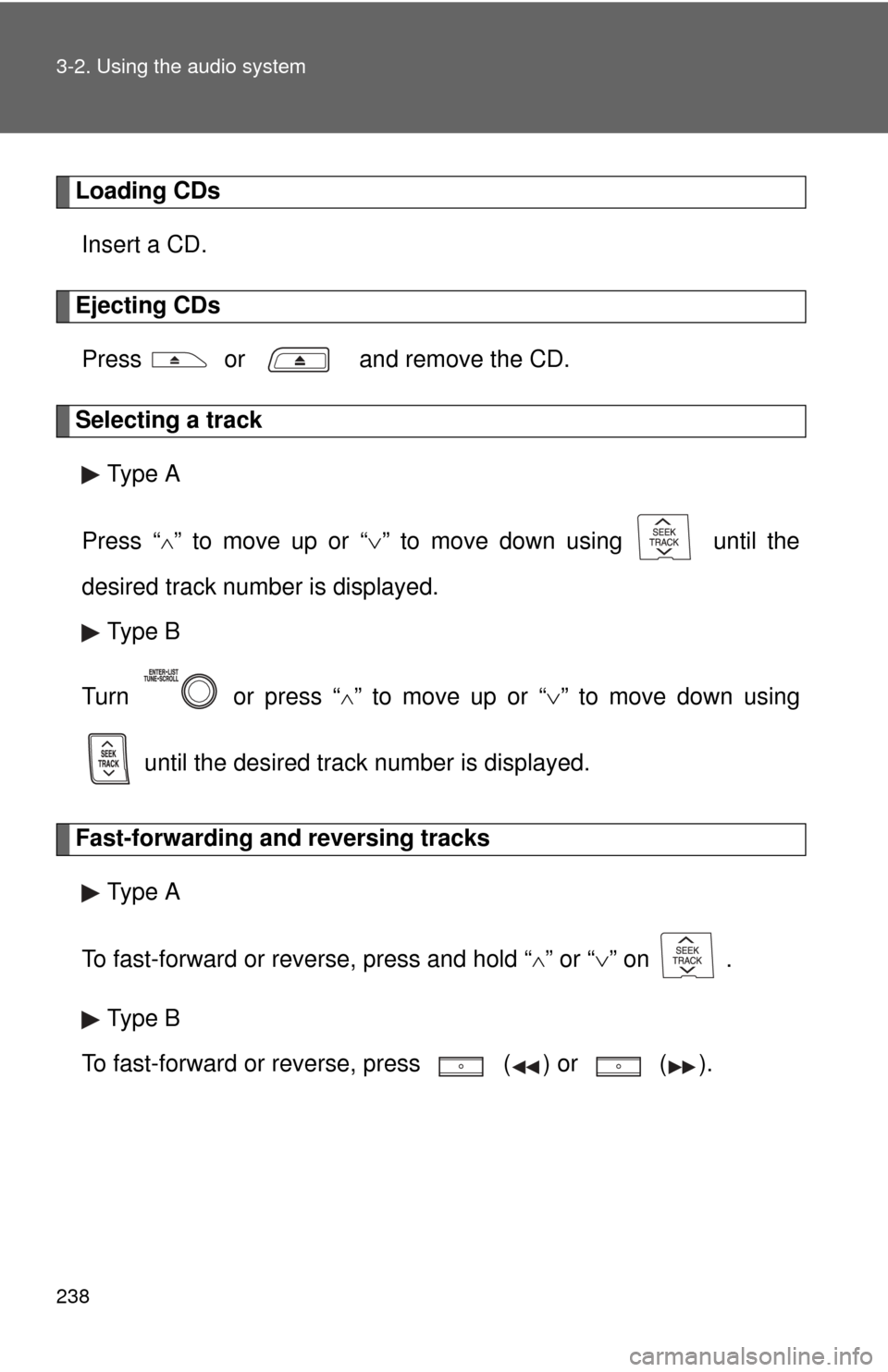
Loading CDsInsert a CD.
Ejecting CDsPress or and remove the CD.
Selecting a track Type A
Press “
” to move up or “ ” to move down using until the
desired track number is displayed. Type B
Turn or press “
” to move up or “ ” to move down using
until the desired track number is displayed.
Fast-forwarding and reversing tracks Type A
To fast-forward or reverse, press and hold “
” or “ ” on .
Type B
To fast-forward or reverse, press ( ) or
().
Page 239 of 532
239
3-2. Using the audio system
3
Interior features
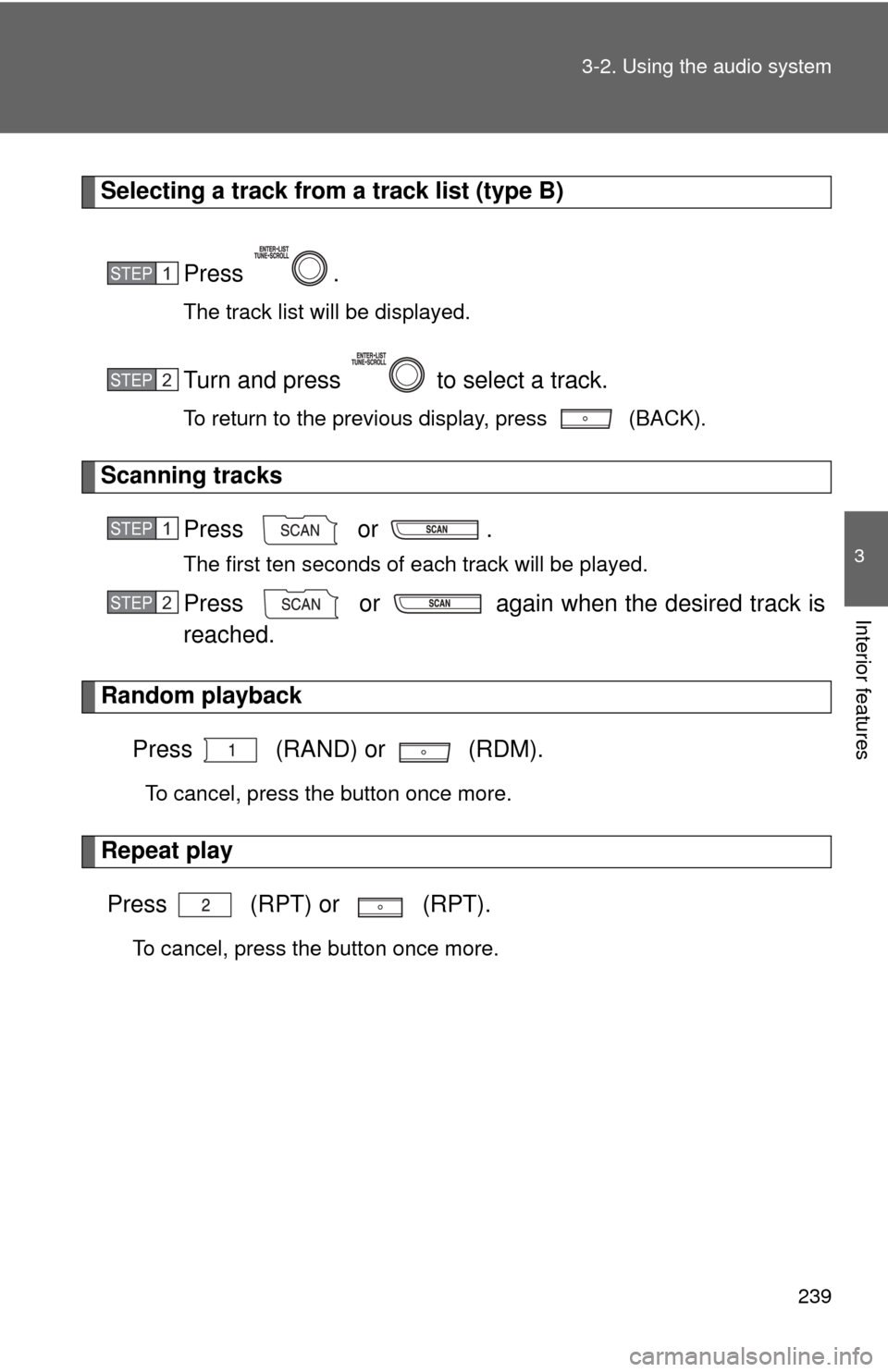
Selecting a track from a track list (type B)
Press .
The track list will be displayed.
Turn and press to select a track.
To return to the previous display, press (BACK).
Scanning tracksPress or .
The first ten seconds of each track will be played.
Press or again when the desired track is
reached.
Random playbackPress (RAND) or (RDM).
To cancel, press the button once more.
Repeat playPress (RPT) or (RPT).
To cancel, press the button once more.
STEP 1
STEP 2
STEP 1
STEP 2
Page 240 of 532

240 3-2. Using the audio system
Switching the displayType A
Press .
Each time is pressed, the display changes in the following
order:
Track no./Elapsed time CD title Track name.
Type B
Press .
Track title, Artist name and Disc title are shown on the display.
To return to the previous display, press or (BACK).
■ Display
Up to 12 characters can be displayed at a time.
If there are 13 characters or more, pressing and holding or
for 1 second or more will display the remaining characters.
A maximum of 24 (type A) or 64 (type B) characters can be displayed.\
If or is pressed for 1 second or more again, or has not
been pressed for 6 seconds or more, the display will return to the first 12
characters.
Depending on the contents recorded, the characters may not be displayed
properly or may not be displayed at all.
Page 244 of 532
244
3-2. Using the audio system
Playing back MP3 and WMA discs
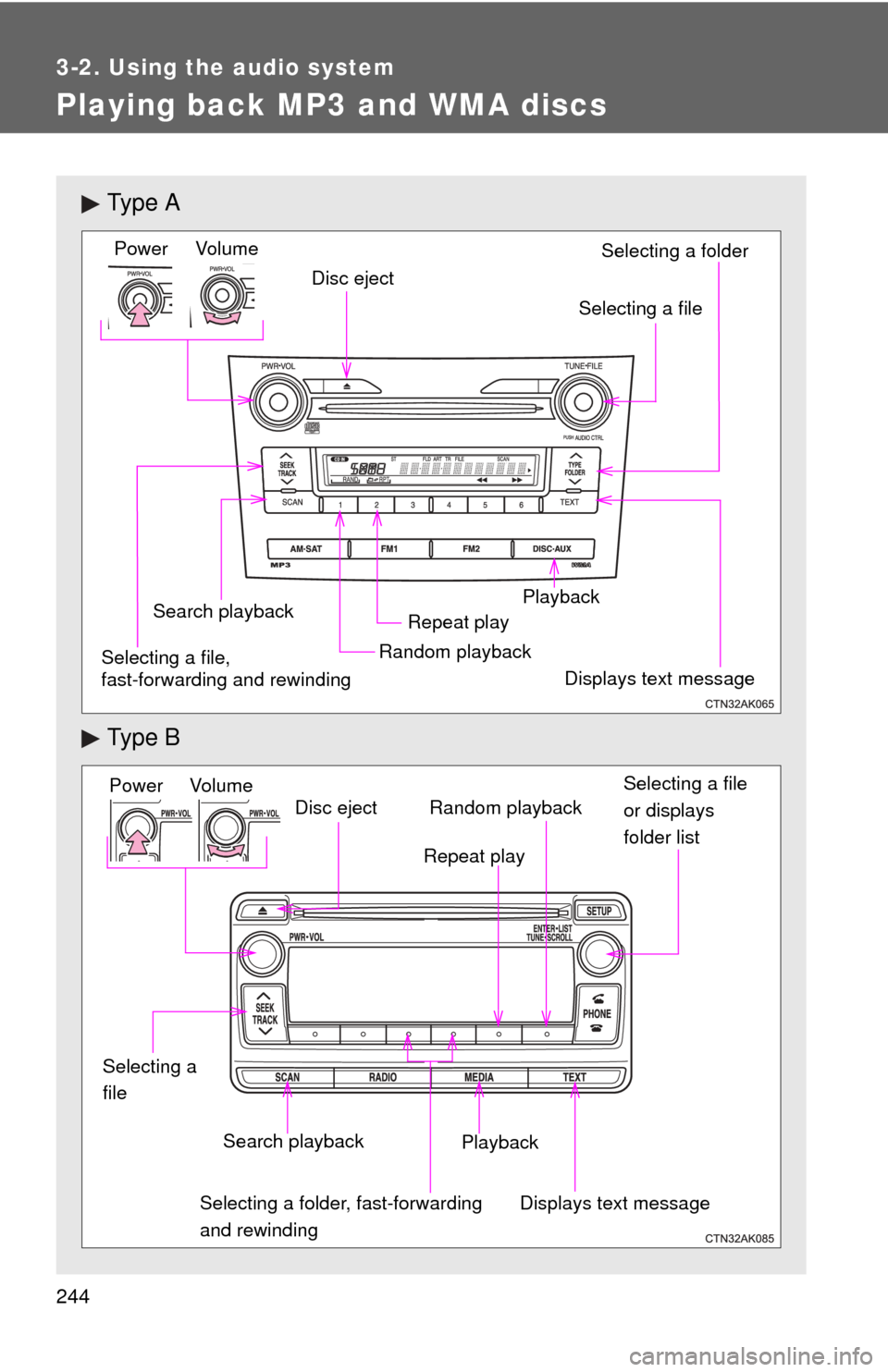
Ty p e A
Ty p e B
Vol um eRandom playbackRepeat play
Playback
Power
Disc eject
Displays text message
Search playback
Selecting a file
Selecting a folder
Selecting a file,
fast-forwarding and rewinding
Power Volume Search playbackDisc eject
Displays text message
Playback Selecting a file
or displays
folder list
Repeat play
Random playback
Selecting a folder, fast-forwarding
and rewinding
Selecting a
file
Page 245 of 532
245
3-2. Using the audio system
3
Interior features
Loading and ejecting MP3 and WMA discs
P. 2 3 8
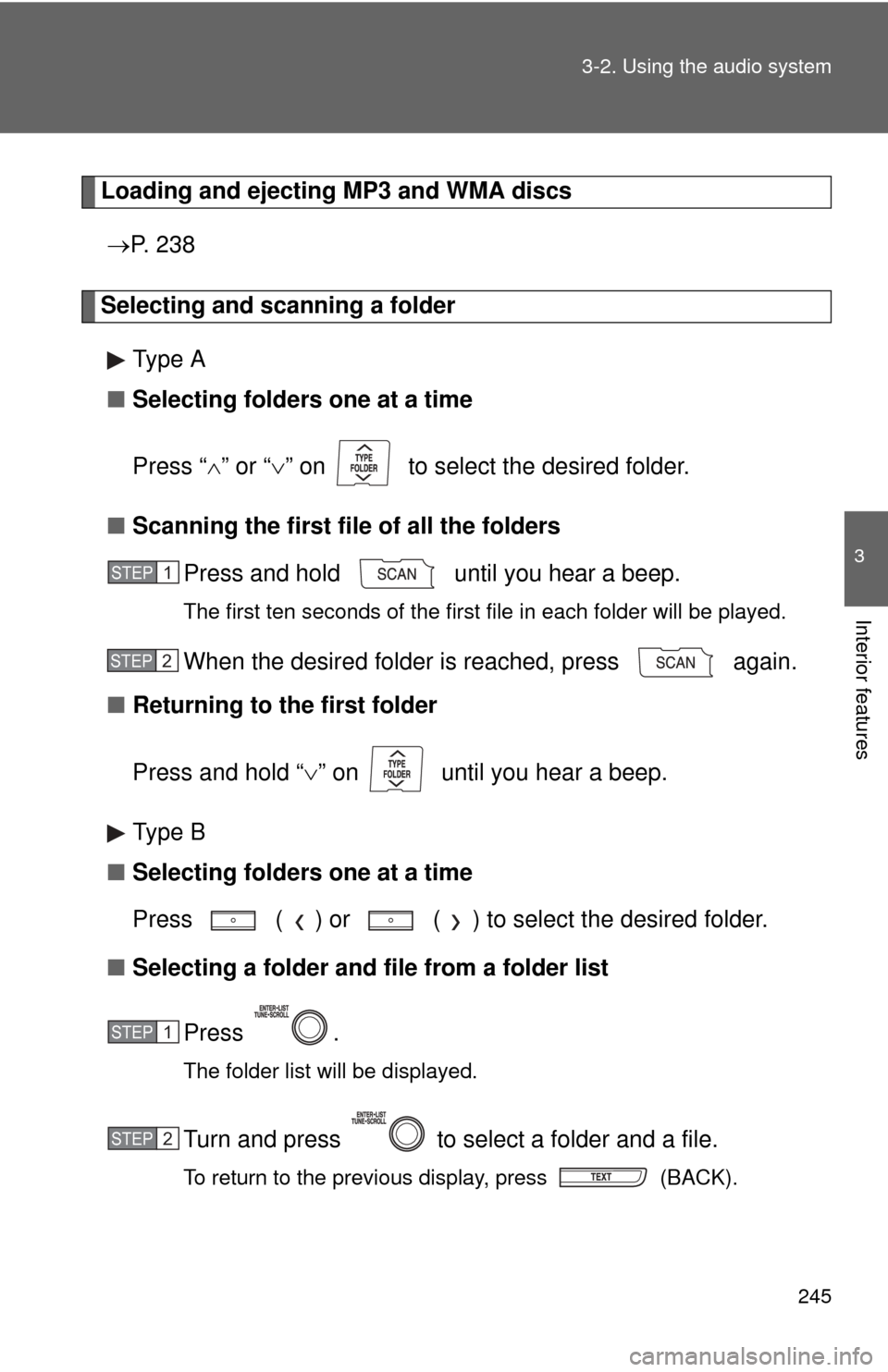
Selecting and scanning a folder
Type A
■ Selecting folders one at a time
Press “ ” or “ ” on to select the desired folder.
■ Scanning the first file of all the folders
Press and hold until you hear a beep.
The first ten seconds of the first file in each folder will be played.
When the desired folder is reached, press again.
■ Returning to the first folder
Press and hold “ ” on until you hear a beep.
Type B
■ Selecting folders one at a time
Press ( ) or ( ) to select the desired folder.
■ Selecting a folder and file from a folder list
Press .
The folder list will be displayed.
Turn and press to select a folder and a file.
To return to the previous display, press (BACK).
STEP 1
STEP 2
STEP 1
STEP 2
Page 248 of 532

248 3-2. Using the audio system
Switching the displayType A
Press .
Each time is pressed, the display changes in the following
order:
Folder no./File no./Elapsed time Folder name File name Album
title (MP3 only) Track title Artist name.
Type B
Press .
Track title, Artist name and Album title (MP3 only) are shown on the dis-
play.
To return to the previous display, press or (BACK).
Page 249 of 532
249
3-2. Using the audio system
3
Interior features
■
Display
P. 240
■ Error messages
“CD CHECK”: This indicates a problem eit her in the CD or inside the player.
The CD may be dirty, damaged or inserted up-side down.
“NO MUSIC” (type A): This indicates that MP3/WMA files are not included in the CD.
“WAIT” or “PLEASE WAIT” (type A): Operation has stopped due to a high temperature inside the player. Wait for
a while and then press .
Contact your Toyota dealer if the CD
still cannot be played.
“ERROR” (type B): This indicates a problem either in the CD or inside the player.
“NO SUPPORT” (type B):This indicates that MP3/WMA files are not included in the CD.
■ Discs that can be used
P. 241
■ CD player protection feature
P. 241
■ If CDs are left inside the CD player or in the ejected position for
extended periods
P. 241
■ Lens cleaners
P. 241