audio TOYOTA COROLLA 2014 11.G Manual PDF
[x] Cancel search | Manufacturer: TOYOTA, Model Year: 2014, Model line: COROLLA, Model: TOYOTA COROLLA 2014 11.GPages: 612, PDF Size: 12.58 MB
Page 313 of 612
3135-16. Using an external device (Multimedia system)
5
Interior features
COROLLA_TMMMS_TMMC_U (OM12F00U)
P. 2 8 6
Pressing the “AUDIO” button displays the audio control screen from
any screens of the selected source.
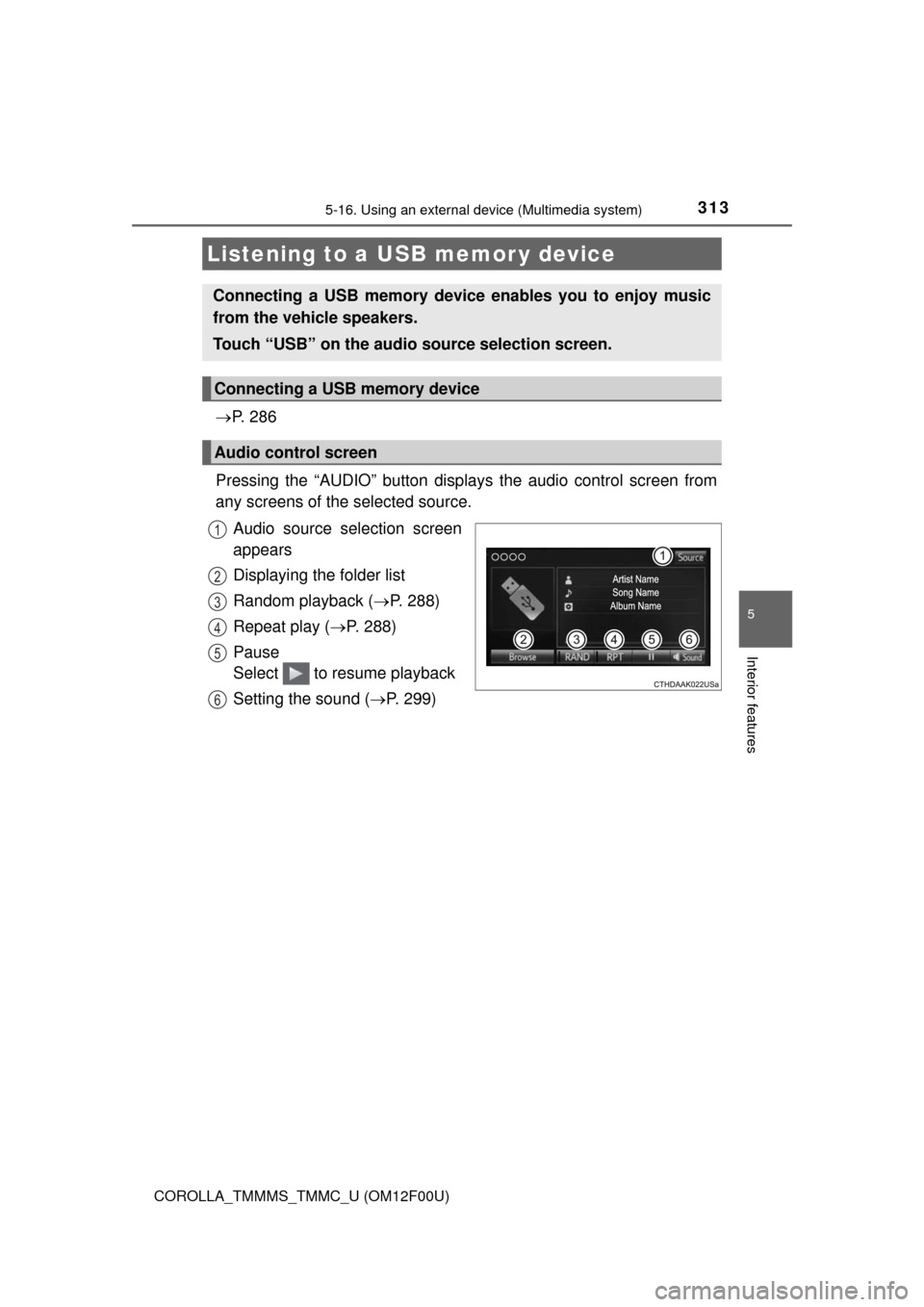
Audio source selection screen
appears
Displaying the folder list
Random playback (P. 288)
Repeat play (P. 288)
Pause
Select to resume playback
Setting the sound (P. 299)
Listening to a USB memor y device
Connecting a USB memory device enables you to enjoy music
from the vehicle speakers.
Touch “USB” on the audio source selection screen.
Connecting a USB memory device
Audio control screen
1
2
3
4
5
6
Page 314 of 612
3145-16. Using an external device (Multimedia system)
COROLLA_TMMMS_TMMC_U (OM12F00U)
■USB memory functions
●Depending on the USB memory device that is connected to the system, the
device itself may not be operable and certain functions may not be avail-
able. If the device is inoperable or a function is unavailable due to a mal-
function (as opposed to a system specification), disconnecting the device
and reconnecting it may resolve the problem.
●If the USB memory device still does not begin operation after being discon-
nected and reconnected, format the memory.
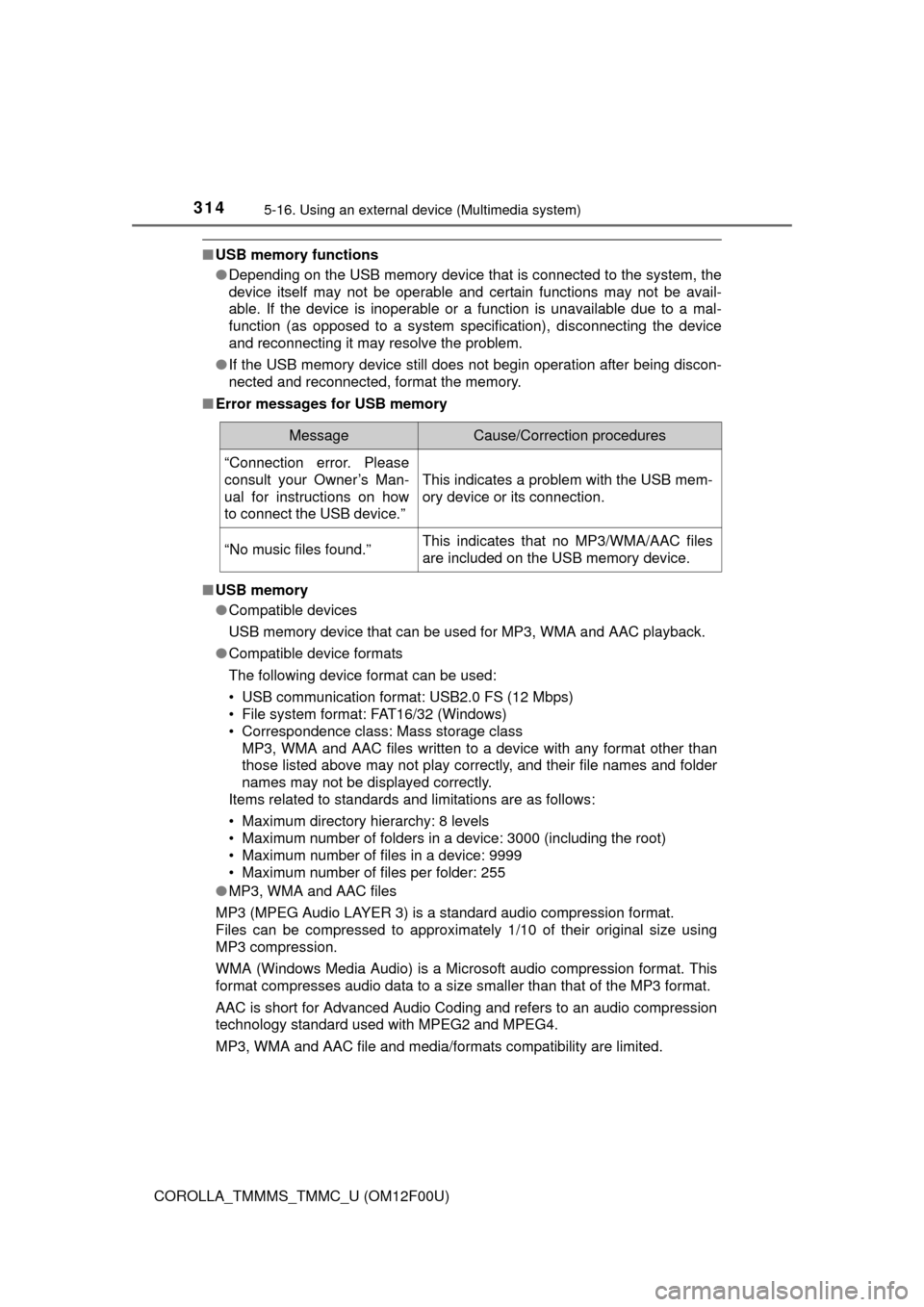
■Error messages for USB memory
■USB memory
●Compatible devices
USB memory device that can be used for MP3, WMA and AAC playback.
●Compatible device formats
The following device format can be used:
• USB communication format: USB2.0 FS (12 Mbps)
• File system format: FAT16/32 (Windows)
• Correspondence class: Mass storage class
MP3, WMA and AAC files written to a device with any format other than
those listed above may not play correctly, and their file names and folder
names may not be displayed correctly.
Items related to standards and limitations are as follows:
• Maximum directory hierarchy: 8 levels
• Maximum number of folders in a device: 3000 (including the root)
• Maximum number of files in a device: 9999
• Maximum number of files per folder: 255
●MP3, WMA and AAC files
MP3 (MPEG Audio LAYER 3) is a standard audio compression format.
Files can be compressed to approximately 1/10 of their original size using
MP3 compression.
WMA (Windows Media Audio) is a Microsoft audio compression format. This
format compresses audio data to a size smaller than that of the MP3 format.
AAC is short for Advanced Audio Coding and refers to an audio compression
technology standard used with MPEG2 and MPEG4.
MP3, WMA and AAC file and media/formats compatibility are limited.
MessageCause/Correction procedures
“Connection error. Please
consult your Owner’s Man-
ual for instructions on how
to connect the USB device.”
This indicates a problem with the USB mem-
ory device or its connection.
“No music files found.”This indicates that no MP3/WMA/AAC files
are included on the USB memory device.
Page 315 of 612

3155-16. Using an external device (Multimedia system)
5
Interior features
COROLLA_TMMMS_TMMC_U (OM12F00U)●MP3 file compatibility
• Compatible standards
MP3 (MPEG1 AUDIO LAYERII, III, MPEG2 AUDIO LAYERII, III,
MPEG2.5)
• Compatible sampling frequencies
MPEG1 AUDIO LAYERII, III: 32, 44.1, 48 (kHz)
MPEG2 AUDIO LAYERII, III: 16, 22.05, 24 (kHz)
• Compatible bit rates (compatible with VBR)
MPEG1 AUDIO LAYERII, III: 32-320 (kbps)
MPEG2 AUDIO LAYERII, III: 8-160 (kbps)
• Compatible channel modes: stereo, joint stereo, dual channel and mon-
aural
●WMA file compatibility
• Compatible standards
WMA Ver. 7, 8, 9
• Compatible sampling frequencies
HIGH PROFILE 32, 44.1, 48 (kHz)
• Compatible bit rates
HIGH PROFILE 48-320 (kbps, VBR)
●AAC file compatibility
• Compatible standards
MPEG4/AAC-LC
• Compatible sampling frequencies
11.025/12/16/22.05/24/32/44.1/48 (kHz)
• Compatible bit rates
16-320 (kbps)
• Compatible channel modes: 1 ch and 2 ch
●File names
The only files that can be recognized as MP3/WMA/AAC and played are
those with the extension .mp3 or .wma.
●ID3, WMA and AAC tags
ID3 tags can be added to MP3 files, making it possible to record the track
title, artist name, etc.
The system is compatible with ID3 Ver. 1.0, 1.1, and Ver. 2.2, 2.3, 2.4 ID3
tags. (The number of characters is based on ID3 Ver. 1.0 and 1.1.)
WMA tags can be added to WMA files, making it possible to record the
track title and artist name in the same way as with ID3 tags.
AAC tags can be added to AAC files, making it possible to record the track
title and artist name in the same way as with ID3 tags.
Page 316 of 612
3165-16. Using an external device (Multimedia system)
COROLLA_TMMMS_TMMC_U (OM12F00U)●MP3, WMA and AAC playback
• When a device containing MP3, WMA and AAC files is connected, all
files in the USB memory device are checked. Once the file check is fin-
ished, the first MP3, WMA and AAC file is played. To make the file check
finish more quickly, we recommend that you do not include any files other
than MP3, WMA and AAC files or create any unnecessary folders.
• When a USB memory device is connected and the audio source is
changed to USB memory mode, the USB memory device will start play-
ing the first file in the first folder. If the same device is removed and
reconnected (and the con- tents have not been changed), the USB mem-
ory device will resume play from the same point in which it was last used.
●Extensions
If the file extensions .mp3, .wma and .m4a are used for files other than
MP3, WMA and AAC files, they will be skipped (not played).
●Playback
• To play MP3 files with steady sound quality, we recommend a fixed bit
rate of at least 128 kbps and a sampling frequency of 44.1 kHz.
• There is a wide variety of freeware and other encoding software for MP3,
WMA and AAC files on the market, and depending on the status of the
encoding and the file format, poor sound quality or noise at the start of
playback may result. In some cases, playback may not be possible at all.
• Microsoft, Windows, and Windows Media are the registered trademarks
of Microsoft Corporation in the U.S.A. and other countries.
CAUTION
■While driving
Do not connect a USB memory device or operate the device controls.
NOTICE
■To prevent damage to the USB memory device or its terminals
●Do not leave the USB memory device in the vehicle. The temperature
inside the vehicle may become high, resulting in damage to the USB
memory device.
●Do not push down on or apply unnecessary pressure to the USB memory
device while it is connected.
●Do not insert foreign objects into the port.
Page 317 of 612
3175-16. Using an external device (Multimedia system)
5
Interior features
COROLLA_TMMMS_TMMC_U (OM12F00U)
P. 2 8 6
■Operating portable audio players connected to the multimedia system
The volume can be adjusted using the vehicle's audio controls. All other
adjustments must be made on the portable audio player itself.
■When using a portable audio player connected to the power outlet
Noise may occur during playback. Use the power source of the portable
audio player.
Using the AUX port
To use the AUX port, connect a portable player, press the
“AUDIO” button, then select “AUX” to display the audio control
screen.
Connecting a portable audio player
CAUTION
■While driving
Do not connect a portable audio player or operate the device controls.
Page 320 of 612
320
COROLLA_TMMMS_TMMC_U (OM12F00U)5-17.
C
onnecting Bluetooth®
(Multimedia system)
■About Bluetooth®
Preparations to use wireless communica-
tion
The following can be performed using Bluetooth® wireless com-
munication:
■A portable audio player can be operated and listened to via
multimedia system
■Hands-free phone calls can be made via a cellular phone
In order to use wireless communication, register and connect a
Bluetooth
® device by performing the following procedures.
The Bluetooth® word mark and logos are
registered trademarks owned Bluetooth
SIG, Inc. and any use of such marks by
Fujitsu Ten Limited is under license.
Other trademarks and trade names are
those of their respective owners.
CAUTION
■ Certifications for the Bluetooth
FCC ID: BABFT0049A
Page 322 of 612

3225-17. Connecting Bluetooth® (Multimedia system)
COROLLA_TMMMS_TMMC_U (OM12F00U)
Device registration/connection flow
1. Register the Bluetooth® device to be used with multimedia
system ( P. 324, 325, 326)
2. Connect the Bluetooth® device to be used
( P. 329)
To be used for audio To be used for hands-free
phone
3. Start Bluetooth® connec-
tion ( P. 329)3. Start Bluetooth® connec-
tion ( P. 329)
4. Check connection status
( P. 336)4. Check connection status
( P. 339)
5. Use Bluetooth® audio
( P. 336)5. Use Bluetooth® phone
( P. 338)
Page 324 of 612
3245-17. Connecting Bluetooth® (Multimedia system)
COROLLA_TMMMS_TMMC_U (OM12F00U)
Turn the Bluetooth® connection setting of your audio player on.
Press the “AUDIO” button.
Select “ Audio”.
Select “Select Device”.
Follow the steps in “How to registering a Bluetooth
® device” from
“STEP 2”. ( P. 326)
Registering a Bluetooth® audio player for
the first time
To use the Bluetooth® Audio, it is necessary to register an audio
player with the system.
Once the player has been registered, it is possible to use the
Bluetooth
® Audio.
For details about registering a Bluetooth
® device ( P. 326)
1
2
3
4
5
Page 326 of 612
3265-17. Connecting Bluetooth® (Multimedia system)
COROLLA_TMMMS_TMMC_U (OM12F00U)
Display the “Bluetooth* Setup” screen. (P. 323)
*: Bluetooth is a registered trademark of Bluetooth SIG, Inc.
Select “Add”.
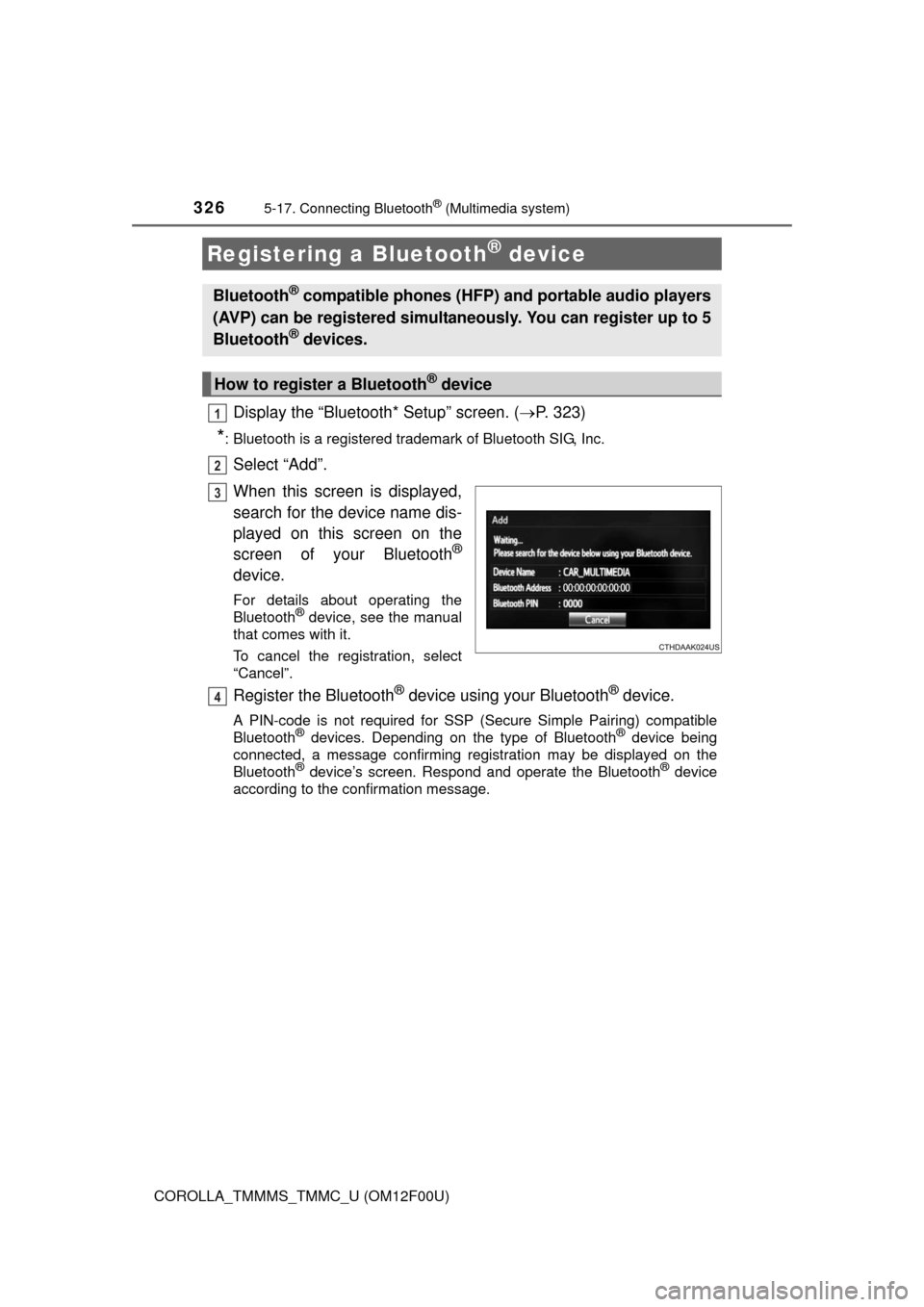
When this screen is displayed,
search for the device name dis-
played on this screen on the
screen of your Bluetooth
®
device.
For details about operating the
Bluetooth® device, see the manual
that comes with it.
To cancel the registration, select
“Cancel”.
Register the Bluetooth® device using your Bluetooth® device.
A PIN-code is not required for SSP (S ecure Simple Pairing) compatible
Bluetooth® devices. Depending on the type of Bluetooth® device being
connected, a message confirming registration may be displayed on the
Bluetooth
® device’s screen. Respond and operate the Bluetooth® device
according to the confirmation message.
Registering a Bluetooth® device
Bluetooth® compatible phones (HFP) and portable audio players
(AVP) can be registered simultaneously. You can register up to 5
Bluetooth
® devices.
How to register a Bluetooth® device
1
2
3
4
Page 327 of 612
3275-17. Connecting Bluetooth® (Multimedia system)
5
Interior features
COROLLA_TMMMS_TMMC_U (OM12F00U)
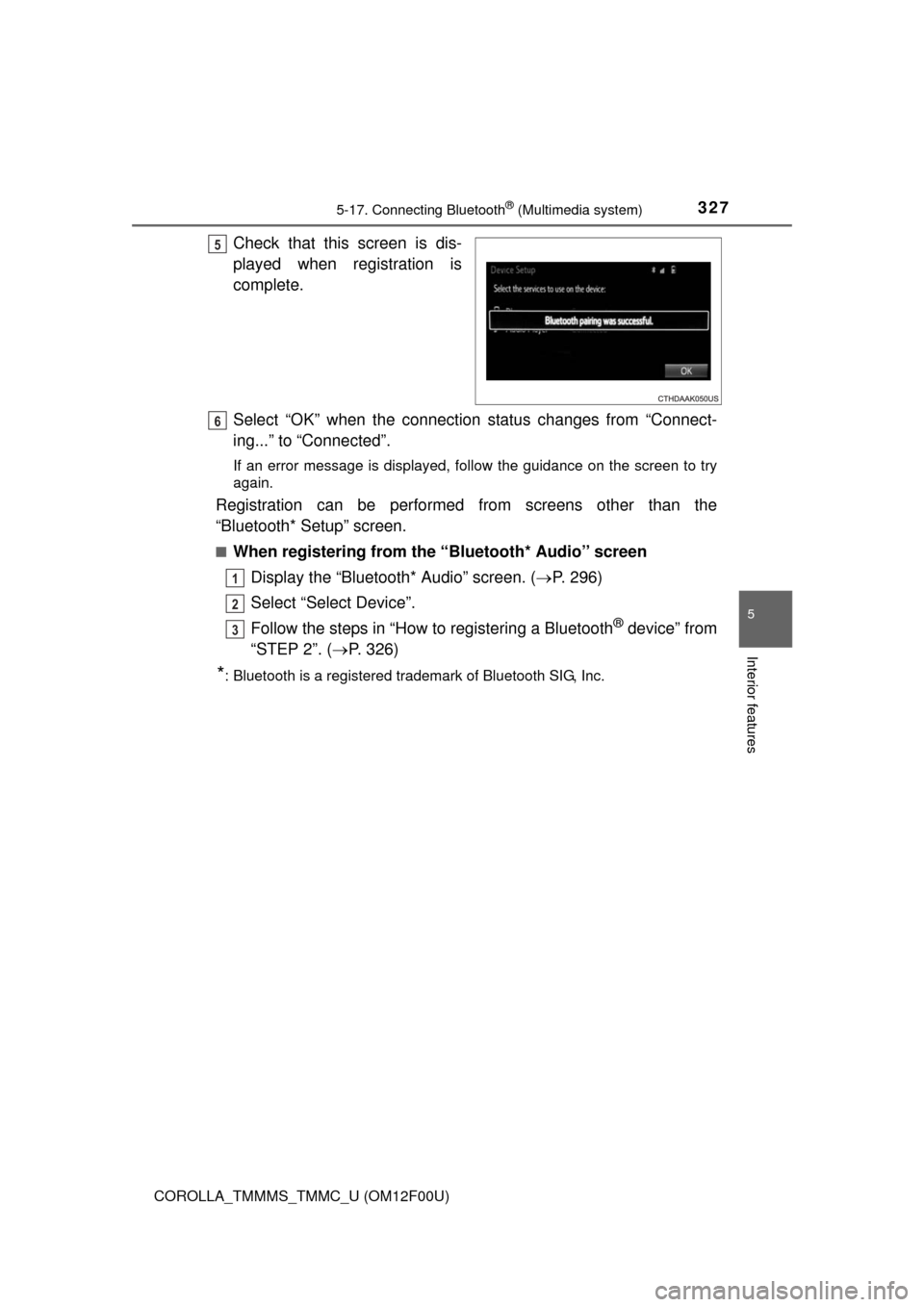
Check that this screen is dis-
played when registration is
complete.
Select “OK” when the connection status changes from “Connect-
ing...” to “Connected”.
If an error message is displayed, follow the guidance on the screen to try
again.
Registration can be performed from screens other than the
“Bluetooth* Setup” screen.
■When registering from the “Bluetooth* Audio” screen
Display the “Bluetooth* Audio” screen. (P. 296)
Select “Select Device”.
Follow the steps in “How to registering a Bluetooth
® device” from
“STEP 2”. (P. 326)
*: Bluetooth is a registered trademark of Bluetooth SIG, Inc.
5
6
1
2
3