Cover TOYOTA COROLLA 2015 11.G User Guide
[x] Cancel search | Manufacturer: TOYOTA, Model Year: 2015, Model line: COROLLA, Model: TOYOTA COROLLA 2015 11.GPages: 612, PDF Size: 8.48 MB
Page 227 of 612
2275-1. Basic Operations
5
Audio system
COROLLA_TMMMS_TMMC_U (OM12F00U)■
iPod
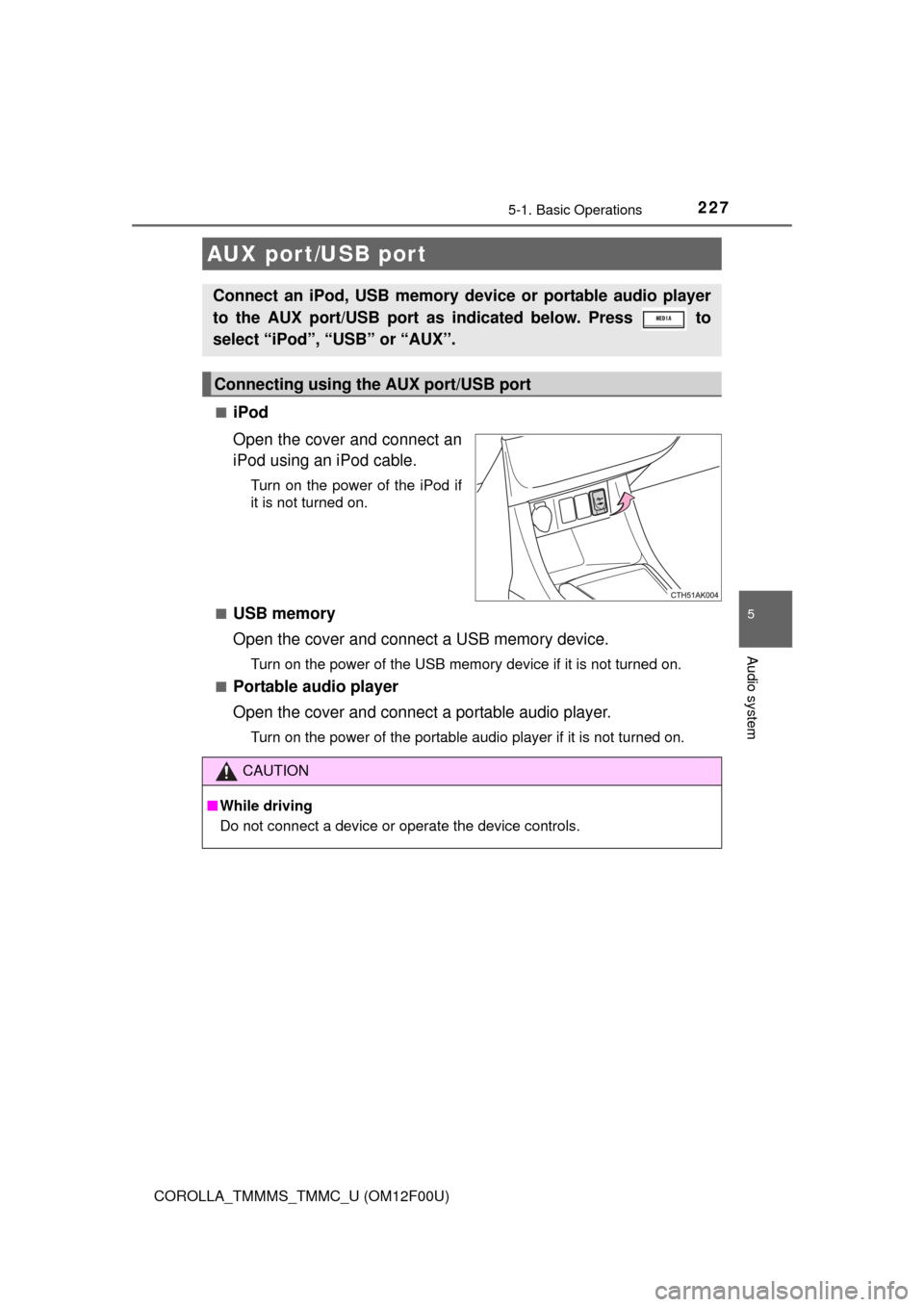
Open the cover and connect an
iPod using an iPod cable.
Turn on the power of the iPod if
it is not turned on.
■
USB memory
Open the cover and connect a USB memory device.
Turn on the power of the USB memory device if it is not turned on.
■
Portable audio player
Open the cover and connect a portable audio player.
Turn on the power of the portable audio player if it is not turned on.
AUX port/USB port
Connect an iPod, USB memory device or portable audio player
to the AUX port/USB port as indicated below. Press to
select “iPod”, “USB” or “AUX”.
Connecting using the AUX port/USB port
CAUTION
■ While driving
Do not connect a device or operate the device controls.
Page 239 of 612

2395-4. Playing audio CDs and MP3/WMA discs
5
Audio system
COROLLA_TMMMS_TMMC_U (OM12F00U)●
Extensions
If the file extensions .mp3 and .wma are used for files other than MP3 and
WMA files, they will be mistakenly recognized and played as MP3 and
WMA files. This may result in large amounts of interference and damage to
the speakers.
● Playback
• To play MP3 files with steady sound quality, we recommend a fixed bit
rate of at least 128 kbps and a sampling frequency of 44.1 kHz.
• CD-R or CD-RW playback may not be possible in some instances, depending on the characteristics of the disc.
• There is a wide variety of freeware and other encoding software for MP3 and WMA files on the market, and depending on the status of the encod-
ing and the file format, poor sound quality or noise at the start of playback
may result. In some cases, playback may not be possible at all.
• When files other than MP3 or WMA files are recorded on a disc, it may take more time to recognize the disc and in some cases, playback may
not be possible at all.
• Microsoft, Windows, and Windows Media are the registered trademarks of Microsoft Corporation in the U.S. and other countries.
CAUTION
■Certification for the CD player
This product is a class I laser product.
Do not open the cover of the player or attempt to repair the unit yourself.
Refer servicing to qualified personnel.
Page 281 of 612
281
5
Audio system
COROLLA_TMMMS_TMMC_U (OM12F00U)
5-10. Bluetooth®
■When using the Bluetooth® audio system
● In the following situations, the system may not function.
• The portable player does not support Bluetooth
®
• The cellular phone is located outside the service area
• The Bluetooth® device is switched off
• The Bluetooth® device has a low battery
• The Bluetooth® device is not connected to the system
• The Bluetooth® device is behind the seat or in the glove box or console
box, or is touching or covered by metal objects
● There may be a delay if a cellular phone connection is made during
Bluetooth
® audio playback.
● Depending on the type of portable audio player that is connected to the sys-
tem, operation may differ slightly and certain functions may not be available.
■ When transferring ownership of the vehicle
Be sure to initialize the system to prevent personal data from being improp-
erly accessed. ( P. 266)
■ About Bluetooth
®
■Compatible models
●Bluetooth® specifications:
Ver. 1.1, or higher (recommended: Ver. 2.1 + EDR or higher)
● Following Profiles:
• A2DP (Advanced Audio Distribution Profile) Ver. 1.0, or higher (recom-
mended: Ver. 1.2 or higher)
• AVRCP (Audio/Video Remote Control Profile) Ver. 1.0 or higher (recom-
mended: Ver. 1.3 or higher)
Portable players must correspond to the above specifications in order to be
connected to the Bluetooth
® audio system. However, please note that some
functions may be limited depending on the type of portable player.
● Cellular phone
• HFP (Hands Free Profile) Ver. 1.0 or higher (recommended: Ver. 1.5)
• OPP (Object Push Profile) Ver. 1.1
• PBAP (Phone Book Access Profile) Ver. 1.0
Bluetooth®
Bluetooth is a registered trademark of
Bluetooth SIG. Inc.
Page 286 of 612
2865-11. Basic Operations (Multimedia system)
COROLLA_TMMMS_TMMC_U (OM12F00U)■
iPod
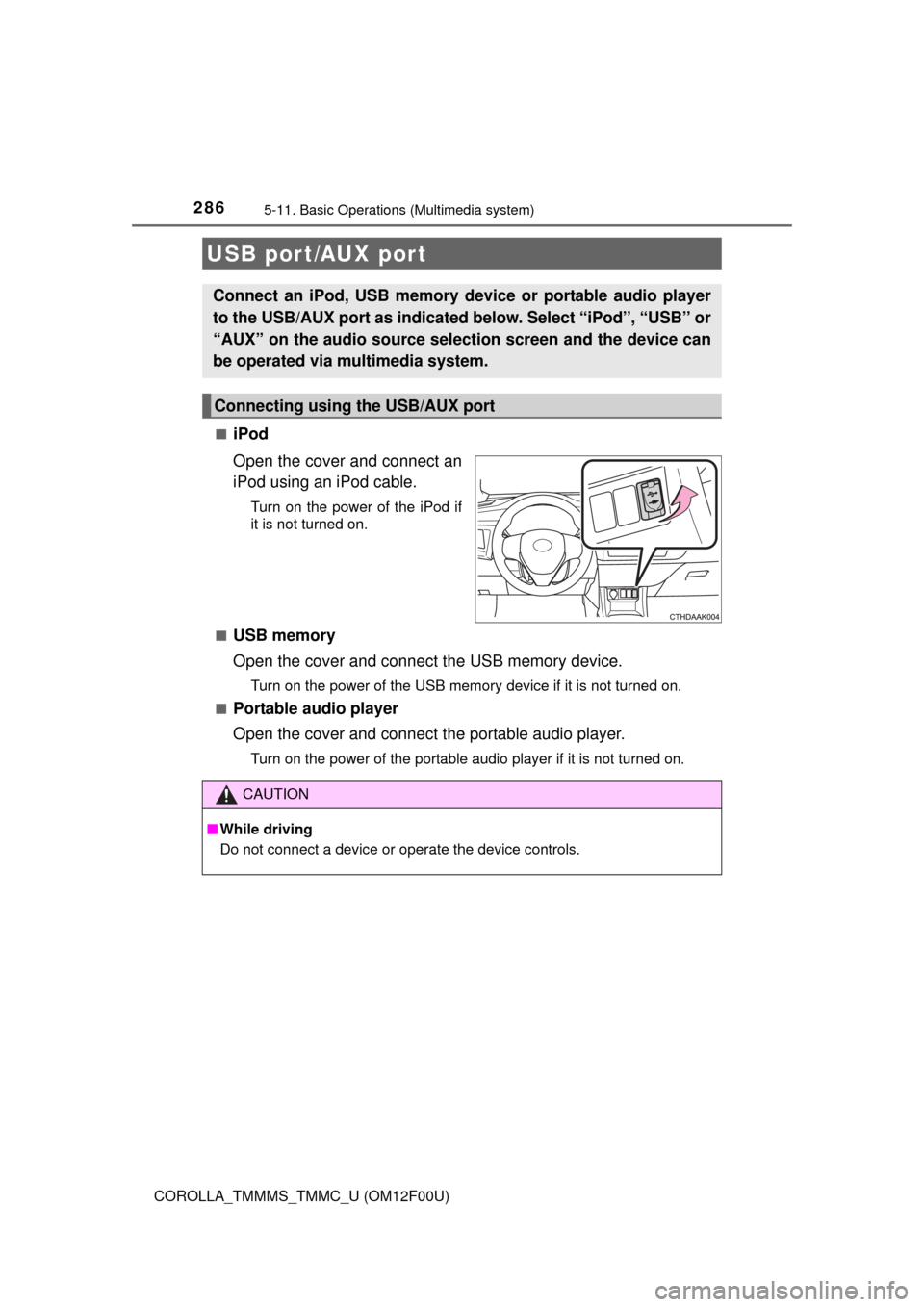
Open the cover and connect an
iPod using an iPod cable.
Turn on the power of the iPod if
it is not turned on.
■
USB memory
Open the cover and connect the USB memory device.
Turn on the power of the USB memory device if it is not turned on.
■
Portable audio player
Open the cover and connect the portable audio player.
Turn on the power of the portable audio player if it is not turned on.
USB port/AUX port
Connect an iPod, USB memory device or portable audio player
to the USB/AUX port as indicated below. Select “iPod”, “USB” or
“AUX” on the audio sour ce selection screen and the device can
be operated via multimedia system.
Connecting using the USB/AUX port
CAUTION
■ While driving
Do not connect a device or operate the device controls.
Page 288 of 612
2885-11. Basic Operations (Multimedia system)
COROLLA_TMMMS_TMMC_U (OM12F00U)
Select to change on/off.
Select to change on/off.
■Using cellular phones
Interference may be heard through the multimedia system's speakers if a cel-
lular phone is being used inside or close to the vehicle while the multimedia
system is operating.
Random playback
Repeat play
CAUTION
■Laser product
This product is a class 1 laser product.
Do not open the cover of the player or attempt to repair the unit yourself.
Refer servicing to qualified personnel.
● Laser products
• Do not take this unit apart or attempt to make any changes yourself.
This is an intricate unit that uses a laser pickup to retrieve information
from the surface of compact discs. The laser is carefully shielded so
that its rays remain inside the cabinet. Therefore, never try to disassem-
ble the player or alter any of its parts since you may be exposed to laser
rays and dangerous voltages.
• This product utilizes a laser.
Use of controls or adjustments or performance of procedures other than
those specified herein may result in hazardous radiation exposure.
THE USE OF OPTICAL INSTRUMENTS WITH THIS PRODUCT WILL
INCREASE EYE HAZARD.
NOTICE
■To prevent battery discharge
Do not leave the multimedia system on longer than necessary when the
engine is off.
■ To avoid damaging the multimedia system
Take care not to spill drinks or other fluids on the multimedia system.
Page 292 of 612
2925-12. Setup (Multimedia system)
COROLLA_TMMMS_TMMC_U (OM12F00U)
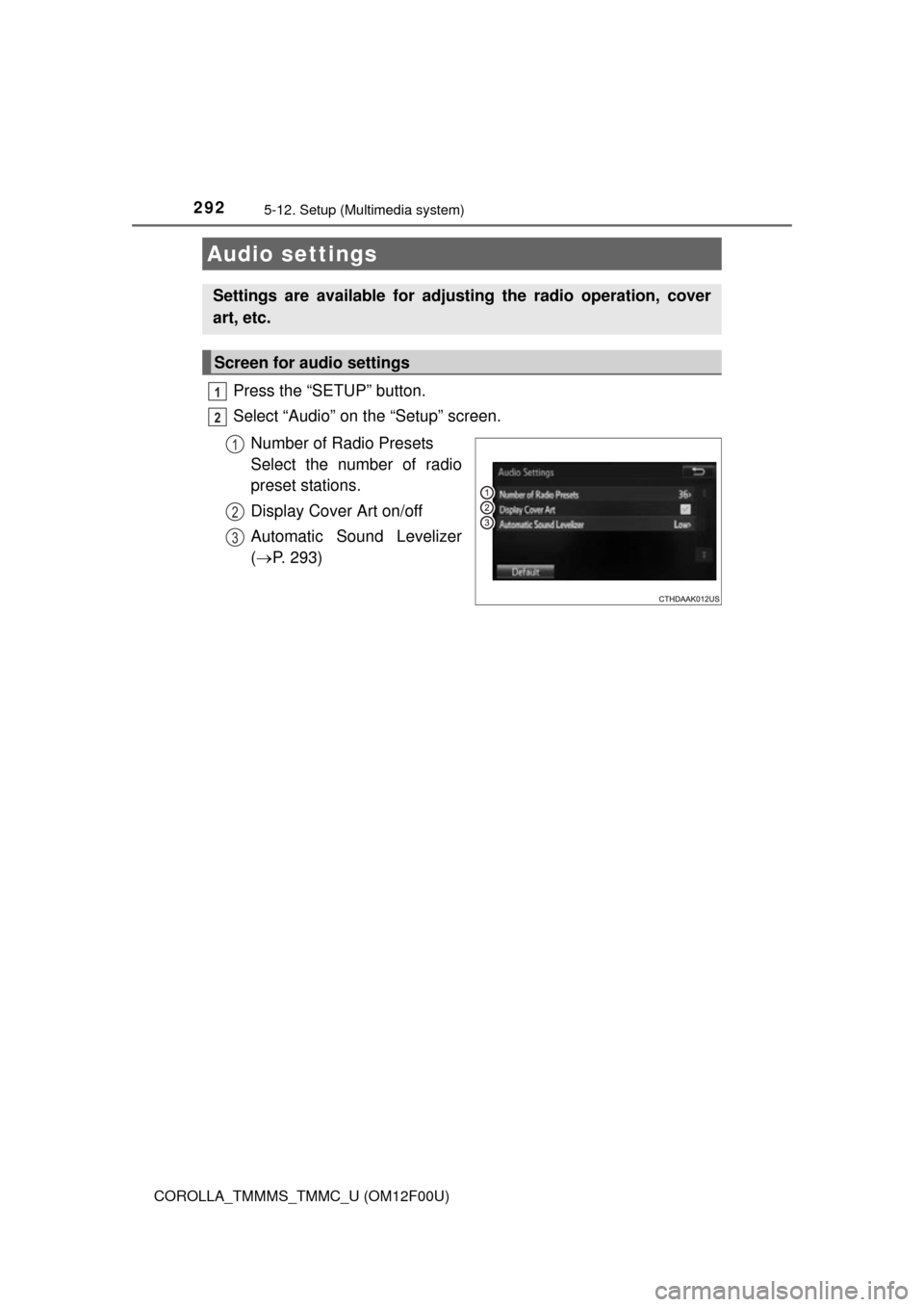
Press the “SETUP” button.
Select “Audio” on the “Setup” screen.Number of Radio Presets
Select the number of radio
preset stations.
Display Cover Art on/off
Automatic Sound Levelizer
( P. 293)
Audio settings
Settings are available for adjusting the radio operation, cover
art, etc.
Screen for audio settings
1
2
1
2
3
Page 298 of 612
2985-13. Using the Multimedia system
COROLLA_TMMMS_TMMC_U (OM12F00U)■
Selecting a track/file/song
Press the “
” or “ ” button on “SEEK/TRAC K” or turn the “TUNE/
SCROLL” knob to select the desired track/file/song number.
To fast-forward or reverse, press and hold the “ ” or “ ” button on
“SEEK/TRACK”.
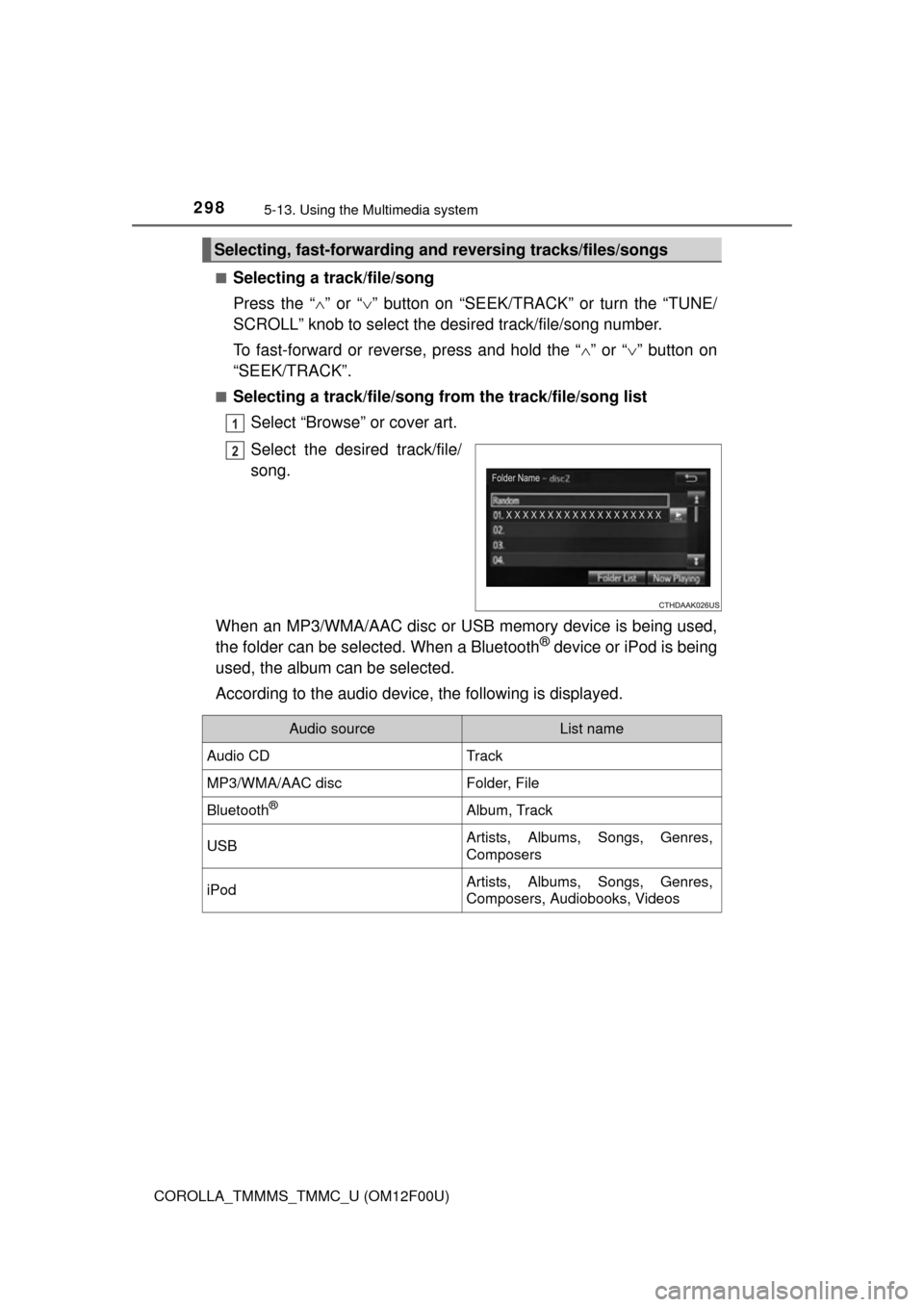
■Selecting a track/file/song from the track/file/song list
Select “Browse” or cover art.
Select the desired track/file/
song.
When an MP3/WMA/AAC disc or USB memory device is being used,
the folder can be selected. When a Bluetooth
® device or iPod is being
used, the album can be selected.
According to the audio device, the following is displayed.
Selecting, fast-forwarding a nd reversing tracks/files/songs
1
2
Audio sourceList name
Audio CDTrack
MP3/WMA/AAC discFolder, File
Bluetooth®Album, Track
USBArtists, Albums, Songs, Genres,
Composers
iPodArtists, Albums, Songs, Genres,
Composers, Audiobooks, Videos
Page 308 of 612
308
COROLLA_TMMMS_TMMC_U (OM12F00U)
5-16.Using an external device (Multimedia system)
P. 2 8 6
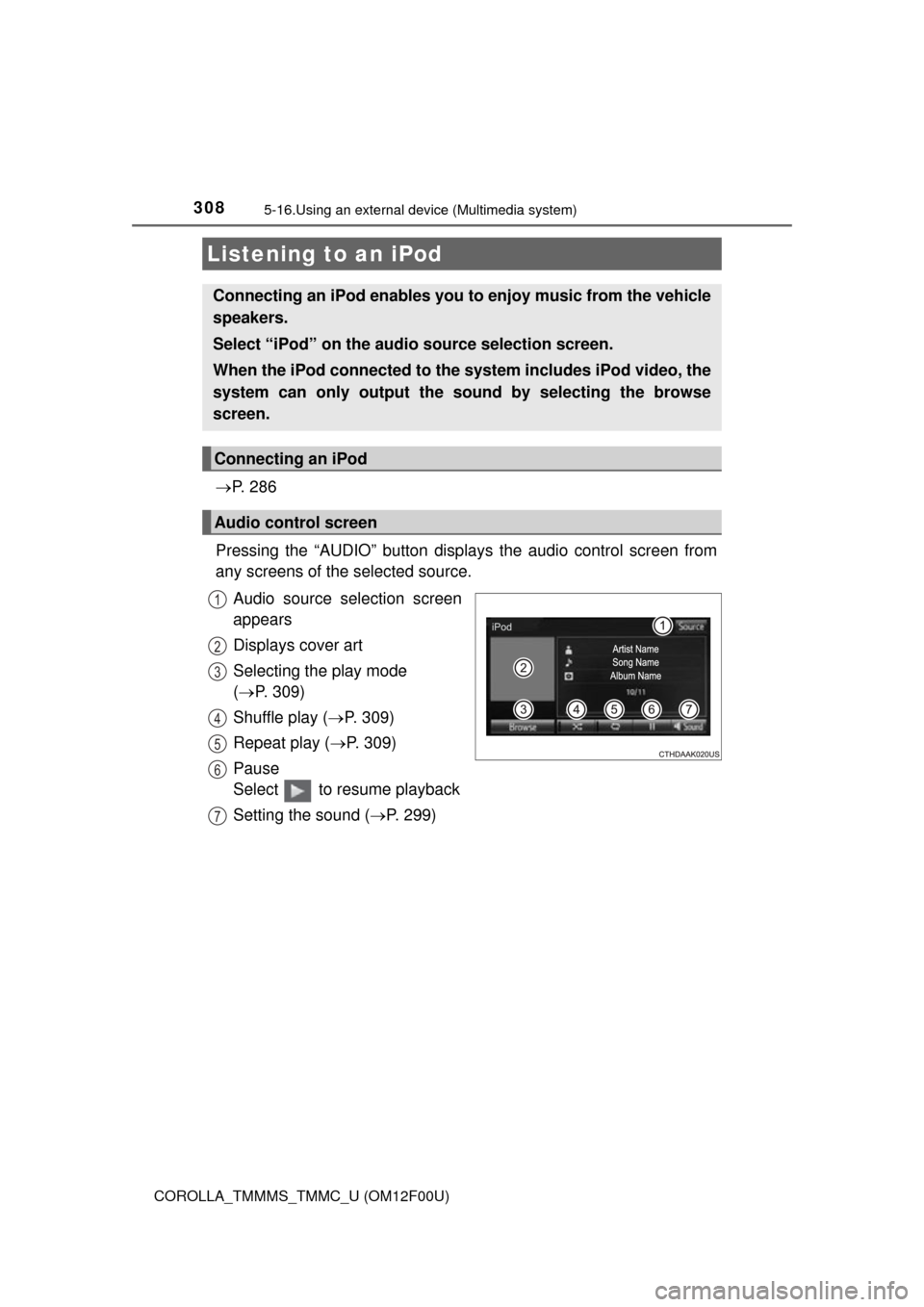
Pressing the “AUDIO” button disp lays the audio control screen from
any screens of the selected source.
Audio source selection screen
appears
Displays cover art
Selecting the play mode
( P. 309)
Shuffle play ( P. 309)
Repeat play ( P. 309)
Pause
Select to resume playback
Setting the sound ( P. 299)
Listening to an iPod
Connecting an iPod enables you to enjoy music from the vehicle
speakers.
Select “iPod” on the audi o source selection screen.
When the iPod connected to the system includes iPod video, the
system can only output the sound by selecting the browse
screen.
Connecting an iPod
Audio control screen
1
2
3
4
5
6
7
Page 310 of 612
3105-16. Using an external device (Multimedia system)
COROLLA_TMMMS_TMMC_U (OM12F00U)
■About iPod
●“Made for iPod” and “Made for iPhone” mean that an electronic accessory
has been designed to connect specifically to iPod or iPhone, respectively,
and has been certified by the developer to meet Apple performance stan-
dards.
● Apple is not responsible for the operation of this device or its compliance
with safety and regulatory standards. Please note that the use of this acces-
sory with iPod or iPhone may affect wireless performance.
● iPhone, iPod, iPod classic, iPod nano, and iPod touch are trademarks of
Apple Inc., registered in the U.S. and other countries. Lightning is a trade-
mark of Apple Inc.
■ iPod cover art
●Depending on the iPod and songs in the iPod, iPod cover art may be dis-
played.
● This function can be changed to on/off. ( P. 292)
● It may take time to display iPod cover art, and the iPod may not be operated
while the cover art display is in process.
● Only iPod cover art that is saved in JPEG format can be displayed.
■ iPod functions
●When an iPod is connected and the audio source is changed to iPod mode,
the iPod will resume play from the same point in which it was last used.
● Depending on the iPod that is connected to the system, certain functions
may not be available. If a function is unavailable due to a malfunction (as
opposed to a system specification), disconnecting the device and recon-
necting it may resolve the problem.
● While connected to the system, the iPod cannot be operated with its own
controls. It is necessary to use the controls of the vehicle's multimedia sys-
tem instead.
● When the battery level of an iPod is very low, the iPod may not operate. If
so, charge the iPod before use.
● Compatible models ( P. 312)
Page 313 of 612
3135-16. Using an external device (Multimedia system)
5
Audio system
COROLLA_TMMMS_TMMC_U (OM12F00U)
P. 2 8 6
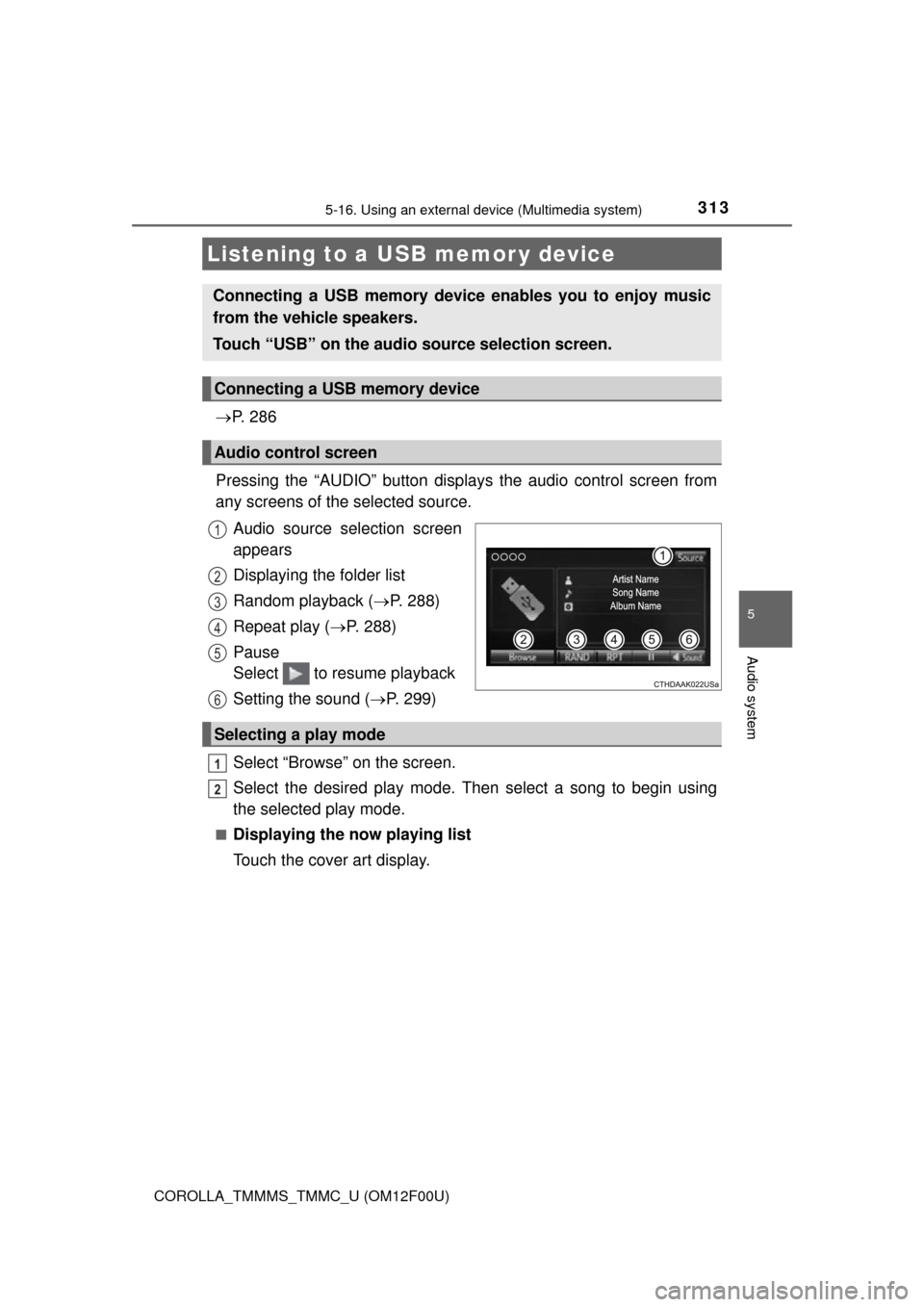
Pressing the “AUDIO” button disp lays the audio control screen from
any screens of the selected source.
Audio source selection screen
appears
Displaying the folder list
Random playback ( P. 288)
Repeat play ( P. 288)
Pause
Select to resume playback
Setting the sound ( P. 299)
Select “Browse” on the screen.
Select the desired play mode. Then select a song to begin using
the selected play mode.
■Displaying the now playing list
Touch the cover art display.
Listening to a USB memor y device
Connecting a USB memory device enables you to enjoy music
from the vehicle speakers.
Touch “USB” on the audio source selection screen.
Connecting a USB memory device
Audio control screen
1
2
3
4
5
6
Selecting a play mode
1
2