phone TOYOTA COROLLA 2021 Accessories, Audio & Navigation (in English)
[x] Cancel search | Manufacturer: TOYOTA, Model Year: 2021, Model line: COROLLA, Model: TOYOTA COROLLA 2021Pages: 262, PDF Size: 8.16 MB
Page 237 of 262
2379-2. Connected Services operation
COROLLA_COROLLA
HV(TMMMS)_Navi_(U)
9
Connected Services
When the Toyota apps is acti-
vated, an application may need
to be updated. To update an
application, it is necessary to
download update data and
install it.
■Downloading update
If an update is available,
“Update” can be selected.
1 Select “Update” on the appli-
cation screen. ( P.236)
2 Check that downloading
starts.
“Download in Background”: Select
to operate other functions while
downloading.
“Cancel”: Select to cancel updating.
3Check that downloading is
complete.
“Later”: Select to install later. When
this screen button is selected, the
screen will re turn to the last dis-
played screen. To install the update
data: ( P.237)
“See Detail”: Select to display
detailed information on the update
data.
“Install”: Select to install the update
data. Follow the steps “Installing
the update data” from step 2.
( P.237)
■Installing the update data
After the downloading is com-
plete, “Update” will be changed
to “Install”.
1 Select “Install” on the appli-
cation screen. ( P.236)
2 Select “Continue”.
“Later”: Select to postpone the
installation of the update data and
go back to the previous screen.
3Check that installing is
started.
“Install in Backgr ound”: Select to
operate other fu nctions while
installing.
4 Select “OK” after the install-
ing is complete.
●The Toyota apps cannot be oper-
ated while installing.
When problems occur with start-
ing the application player, a
message will appear on the
screen. Referring to the follow-
ing items, identify the problem
and take the suggested correc-
tive action.
“When it is safe and legal to
do so, please ensure your
mobile application is running
and logged in on your phone.”
The Toyota mobile application can-
not be connected to Bluetooth
®
SPP.
Refer to
https://www.toyota.com/
connected-services
in the United States,
https://www.toyota.ca/connected
in Canada, and
http://www.toyotapr.com/
connected-services
in Puerto Rico, to confirm if the
phone is Bluetooth
® SPP compati-
ble or not, and then activate the
Updating an application
If a message appears on
the screen
Page 238 of 262

2389-2. Connected Services operation
COROLLA_COROLLA
HV(TMMMS)_Navi_(U)Toyota mobile application.
“Installation failed, please try
again”
Installation can be attempted again
by changing to the application
screen and pressing the “Install”
switch.
“Application download error.
Please try again later.”
Downloading can be attempted
again by checking the communica-
tion status, chang ing to the applica-
tion screen and pressing the
“Download” switch again.
“Download error, some mobile
application functions may not
work as expected. Please
reinitiate the download pro-
cess.”
The Toyota mobile application can-
not be connected to Bluetooth
®
SPP.
Refer to
https://www.toyota.com/
connected-services
in the United States,
https://www.toyota.ca/connected
in Canada, and
http://www.toyotapr.com/
connected-services
in Puerto Rico, to confirm if the
phone is Bluetooth
® SPP compati-
ble or not, and then activate the
Toyota mobile application.
Please ensure your Toyota mobile
application is running and logged in
on your phone while vehicle is not
moving.
“To use the services, mobile
application needs to be run- ning on your phone. For more
information, please visit
toyota.com or call
1-800-331-4331 in the United
States, 1-888-869-6828 in
Canada, and 1-877-855-8377
in Puerto Rico.”
The Toyota mobile application can-
not be connected to Bluetooth
®
SPP.
Refer to
https://www.toyota.com/
connected-services
in the United States,
https://www.toyota.ca/connected
in Canada, and
http://www.toyotapr.com/
connected-services
in Puerto Rico, to confirm if the
phone is Bluetooth
® SPP compati-
ble or not, and then activate the
Toyota mobile application.
“Communication unsuccess-
ful. Please try again.”
Communication was disconnected.
After a few moments, retry the
operation.
Page 241 of 262

2419-2. Connected Services operation
COROLLA_COROLLA
HV(TMMMS)_Navi_(U)
9
Connected Services
wheel during the call.
To hang up the phone, select
“End” or press the switch
on the steering wheel.
5 After the agent helps you
determine your location of
choice, select the screen but-
ton of the desired action.
“Save”: Select to register as a
memory point.
“Go”: Select to set as a destination.
: Select to call the registered
number.
Page 242 of 262
2429-3. Setup
COROLLA_COROLLA
HV(TMMMS)_Navi_(U)
9-3.Setup
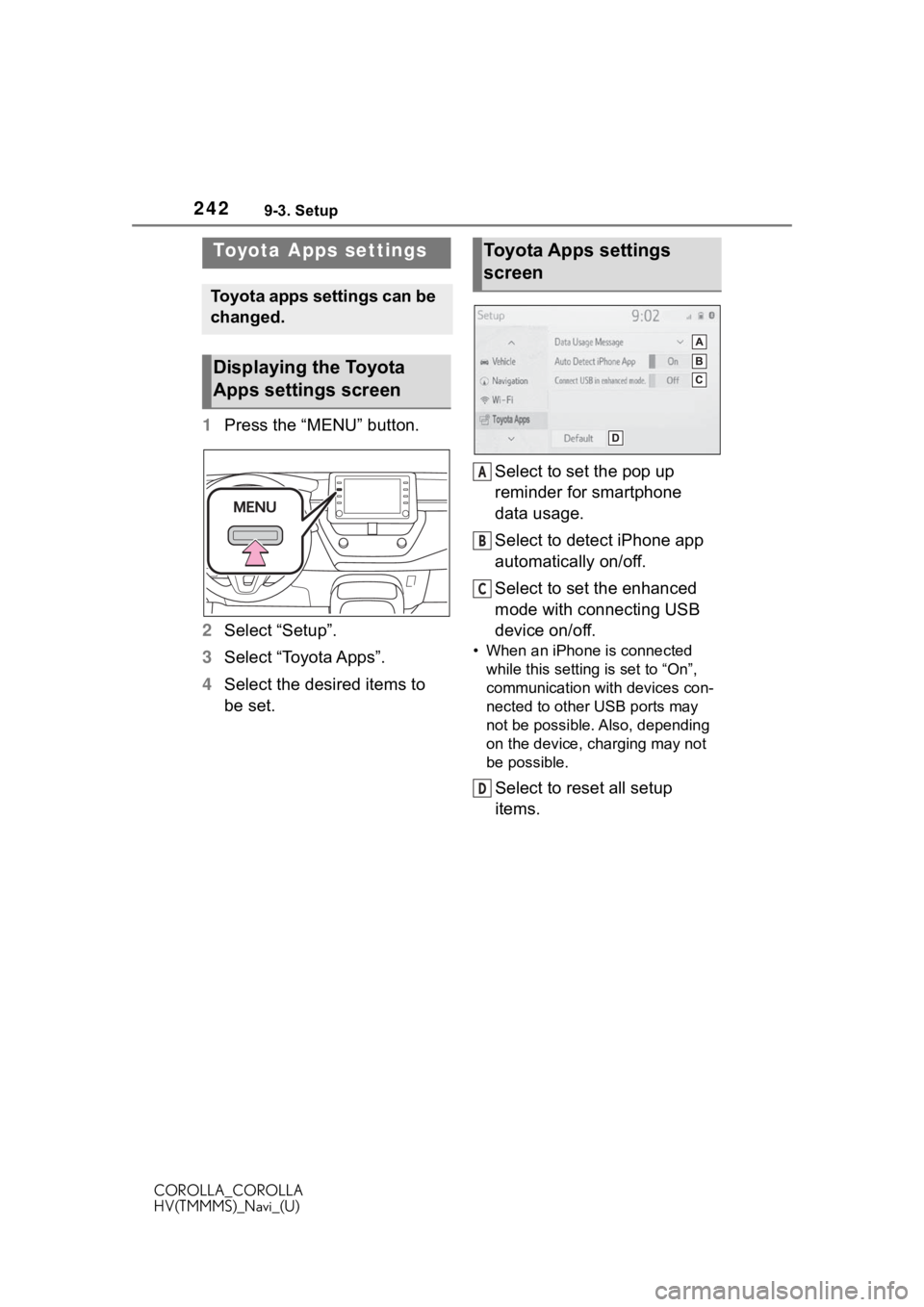
1Press the “MENU” button.
2 Select “Setup”.
3 Select “Toyota Apps”.
4 Select the desired items to
be set. Select to set the pop up
reminder for smartphone
data usage.
Select to detect iPhone app
automatically on/off.
Select to set the enhanced
mode with connecting USB
device on/off.
• When an iPhone is connected
while this setting is set to “On”,
communication with devices con-
nected to other USB ports may
not be possible. Also, depending
on the device, charging may not
be possible.
Select to reset all setup
items.
Toyota Apps settings
Toyota apps settings can be
changed.
Displaying the Toyota
Apps settings screen
Toyota Apps settings
screen
A
B
C
D
Page 244 of 262

244Alphabetical Index
COROLLA_COROLLA
HV(TMMMS)_Navi_(U)
Alphabetical Index
A
A route from the Cloud ............ 99
AM ............................................ 134
Android Auto .......................... 148
Android Auto button (Menu screen) .................................... 14
Apple CarPlay button (Menu screen) .................................... 14
Apple CarPlay/Android Auto ... 56 Troubleshooting...................... 60
APPS button ........... .................. 12
Apps button (Menu screen) ..... 14
Audio ....................................... 128 Audio source ........................ 129
Operating information........... 157
Reordering the audio source 130
Screen adjustment ............... 132
Some basics......................... 129
Sound settings ..................... 130
Turning the system on and off........................................... 129
USB port............................... 130
Voice command system ....... 133
AUDIO button............................ 12
Audio button (Menu screen).... 14
Audio button (Setup screen) ... 19
Audio settings ........................ 155 Common settings ................. 155
Radio settings ...................... 156
Audio source .......................... 129
B
Basic operation ........................ 76
Bluetooth® audio .................... 149
Registering/Conn ecting a Blue-
tooth
® device...................... 152
Bluetooth® button (Setup
screen) .................................... 19
Bluetooth
® details settings ..... 43
Bluetooth® setup screen ........ 43 Connecting a Bluetooth
® device
.............................................44
Deleting a Bluetooth
® device..46
Detailed settings screen .........48
Displaying the Bluetooth
® setup
screen...................................43
Editing the Bluetooth
® device
information............................47
Registering a Bluetooth
® device
.............................................46
Bluetooth
® hands-free system
...............................................192
Bluetooth
® phone message func-
tion .........................................204 Calling the message sender .208
Checking received messages ...........................................206
Displaying the message screen ...........................................205
Receiving a mess age ...........205
Replying to a message (dicta- tion reply)............................207
Replying to a message (quick reply) ..................................207
Buttons overview......................12
C
Clock settings ...........................66
Command list ..........................172
D
Data service button (Setup screen) .....................................19
Data services settings............180
DCM .........................230, 232, 234
Destination Assist ..................240
Destination button (Menu screen) .....................................14
Destination search ...................87
Destination search operation Address ..................................91
Page 245 of 262
245Alphabetical Index
COROLLA_COROLLA
HV(TMMMS)_Navi_(U)
Contact ................................... 90
Destination Assist ................... 89
Emergency ............................. 90
Favorite list ............................. 89
Home................................ 25, 88
Keyword ................................. 88
One-touch setting home/favorite ............................................. 94
Point of interest ...................... 91
Recent destinations................ 89
Search area............................ 88
Detailed navigation settings ....................................... 109, 114
Display button (Menu screen) . 14
E
ECO button (Information screen) ................................................. 20
Editing route ........................... 105
Entering letters and num- bers/list screen operation ..... 32Entering letters and numbers . 32
List screen .............................. 34
F
FM ............................................ 134
Functional overview ............... 226
G
General button (Setup screen)
........................................... 19, 64
General settings ....................... 64 Displaying the general settings screen .................................. 64
General settings screen ......... 64
GPS (Global Positioning System) ............................................... 123
Guiding the route ..................... 23 Deleting destinations .............. 24
H
Hands-free system .................192
HOME button.......................12, 31
Home screen .............................31
I
Info button (Menu screen) .14, 20
Information screen ...................20
Initial screen..............................28Caution screen .......................28
Maintenance information ........28
Restarting the system .............28
iPod/iPhone(Apple Carplay) ..145
L
Linking multi-information display and the system .......................37
M
MAP button ...................12, 76, 78
Map database ..........................125 Temporary updates of the map...........................................126
Map screen information ...........80 Map icons ...............................84
Map options screen ................80
Map screen operation ........22, 78 Current position d isplay ....22, 78
Map scale .........................22, 78
Orientation of the map ............79
Scrolling the map ..............22, 80
Map screen overview ...............76
Memory points settings .........109 Areas to avoid ...................... 113
Favorites list ......................... 111
Home .................................... 110
MENU button .......................12, 14
Menu screen..............................14 Menu screen operation...........14
Page 246 of 262
246Alphabetical Index
COROLLA_COROLLA
HV(TMMMS)_Navi_(U)
Microphone ..................... 168, 195
N
Natural language understanding ............................................... 171
Navigation ................................. 76
Navigation button (Setup screen) ................................................. 19
P
Phone ...................................... 192 About the contacts in the contact list ....................................... 196
Phone screen operation ....... 192
Registering/Conn ecting a Blue-
tooth
® phone ...................... 194
Some basics......................... 193
Troubleshooting.................... 221
Voice command system ....... 196
When selling or disposing of the vehicle ................................ 197
PHONE button .................. 12, 192
Phone button (Menu screen) ... 14
Phone button (Setup screen) .. 19
Phone settings ....................... 210 Contacts/Call history settings213
Message settings ................. 219
Notifications/display settings 212
Sounds settings.................... 211
Placing a call u sing the Blue-
tooth
® hands-free system ... 197
By call history ....................... 198
By contacts list ..................... 199
By favorites list ..................... 198
By home screen ................... 200
By keypad ............................ 200
POWER VOLUME knob .... 12, 129
Projection button (Menu screen) ................................................. 14
R
Radio........................................134 Available HD Radio technology...........................................139
Displaying the radi o ID .........141
How to subscribe to SiriusXM Radio Services ...................140
Presetting a station ...............135
Radio broadcast data system138
Refer to the tabl e below to iden-
tify the problem and take the
suggested corrective action 142
Troubleshooting guide ..........139
Using HD Radio technology .138
Rear view monitor system .....182 Camera.................................184
Differences between the screen and the actual roa d.............185
Driving precautions ...............182
Precautions ..........................184
Screen description................183
Things you should know .......189
When approaching three-dimen- sional objects......................187
Receiving a cal l using the Blue-
tooth
® hands-free system....201
Registering home ............. 24, 110
Registering/Connecting a Blue- tooth
® device ..........................38
Profiles ...................................41
Registering a Bluetooth
® audio
player for the first time ..........41
Registering a Bluetooth
® phone
for the first time.....................38
Remote Connect .....................234
Route guidance.................95, 100
Route guidance screen ..........100 Freeway................................101
Intersection ...........................103
Lane recommendation..........101
Turn list screen .....................104