carplay TOYOTA COROLLA 2021 (in English) Owner's Manual
[x] Cancel search | Manufacturer: TOYOTA, Model Year: 2021, Model line: COROLLA, Model: TOYOTA COROLLA 2021Pages: 624, PDF Size: 20.3 MB
Page 341 of 624
3415-7. Media operation
5
Audio
COROLLA_U
Files/tracks or folders/albums
can be automatically and ran-
domly selected.
Select .
Each time is selected, the
mode changes as follows:
Random (1 folder/album random)
folder/album random (all
folder/album random) off
*: This function is not made avail-
able in some countries or areas.
The iPod/iPhone(Apple Car-
Play) operation screen can be
reached by the following meth-
ods: P.329
Connecting an iPod/iPhone
( P.314, 330)
When an Android Auto connec-
tion is established, this function
will be unavailable.
*
*: This function is not made avail- able in some countries or areas.
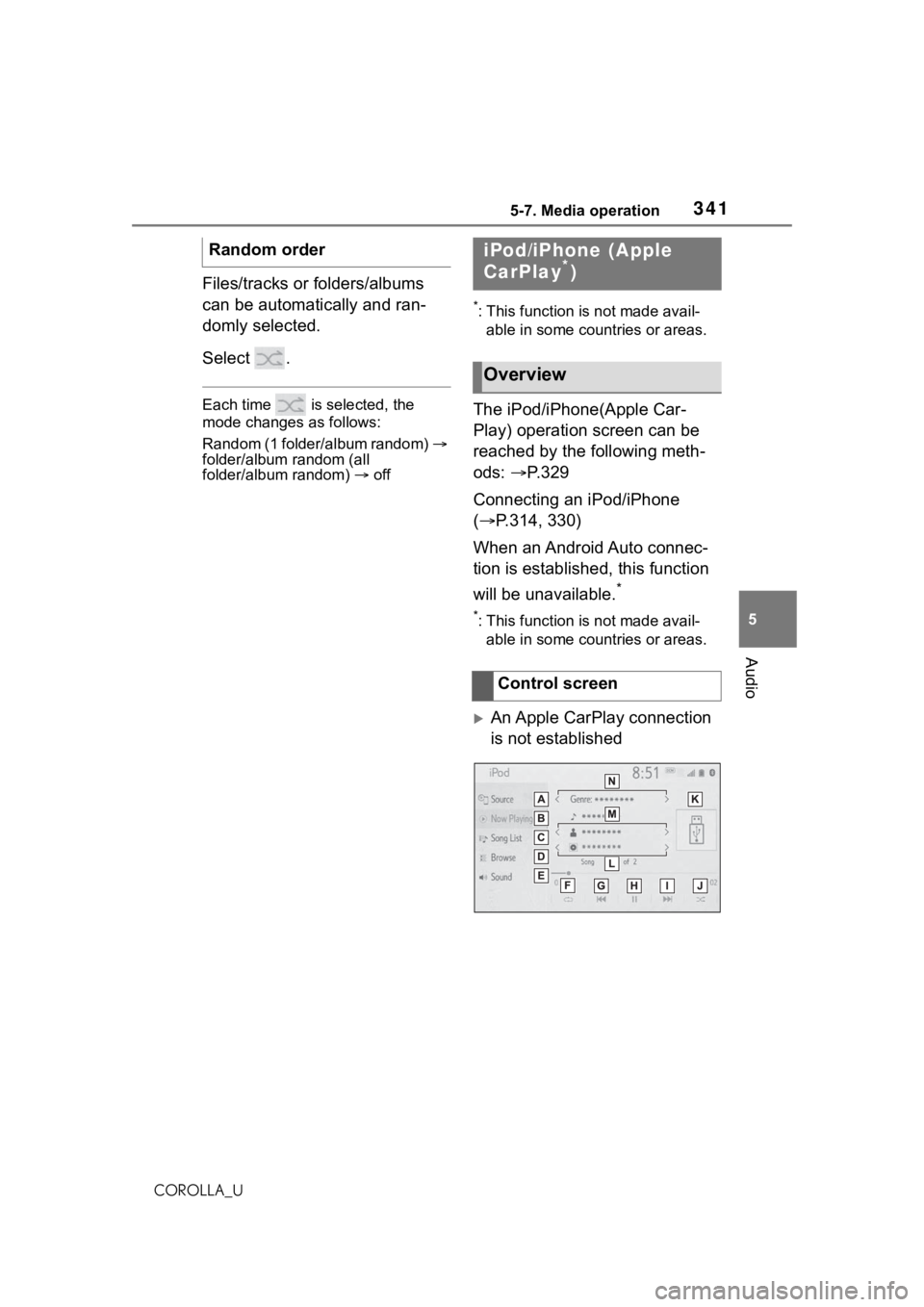
An Apple CarPlay connection
is not established
Random order
iPod/iPhone (Apple
CarPlay*)
Overview
Control screen
Page 342 of 624
3425-7. Media operation
COROLLA_U
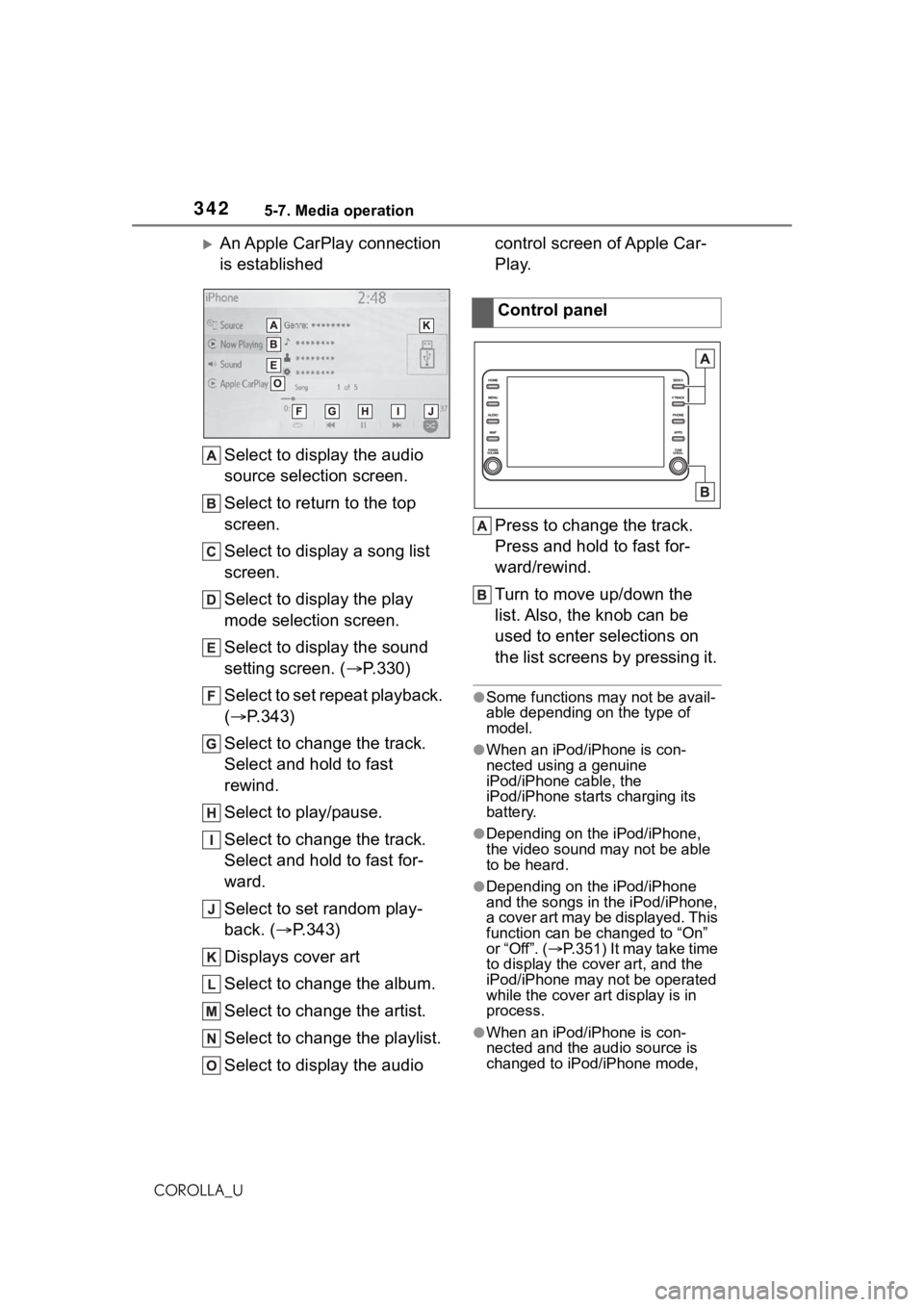
An Apple CarPlay connection
is establishedSelect to display the audio
source selection screen.
Select to return to the top
screen.
Select to display a song list
screen.
Select to display the play
mode selection screen.
Select to display the sound
setting screen. ( P.330)
Select to set repeat playback.
( P.343)
Select to change the track.
Select and hold to fast
rewind.
Select to play/pause.
Select to change the track.
Select and hold to fast for-
ward.
Select to set random play-
back. ( P.343)
Displays cover art
Select to change the album.
Select to change the artist.
Select to change the playlist.
Select to display the audio control screen of Apple Car-
Play.
Press to change the track.
Press and hold to fast for-
ward/rewind.
Turn to move up/down the
list. Also, the knob can be
used to enter selections on
the list screens by pressing it.
●Some functions may not be avail-
able depending on the type of
model.
●When an iPod/iPhone is con-
nected using a genuine
iPod/iPhone cable, the
iPod/iPhone starts charging its
battery.
●Depending on the iPod/iPhone,
the video sound
may not be able
to be heard.
●Depending on the iPod/iPhone
and the songs in the iPod/iPhone,
a cover art may be displayed. This
function can be changed to “On”
or “Off”. ( P.351) It may take time
to display the cov er art, and the
iPod/iPhone may not be operated
while the cover art display is in
process.
●When an iPod/iPhone is con-
nected and the audio source is
changed to iPod/iPhone mode,
Control panel
Page 344 of 624
3445-7. Media operation
COROLLA_U
*: This function is not made avail-able in some countries or areas.
The Android Auto operation
screen can be reached by the
following methods: P. 3 2 9
Connecting an Android device
( P.314, 330)
When an Apple CarPlay con-
nection is established, this func-
tion will be unavailable.
*
*: This function is not made avail- able in some countries or areas.
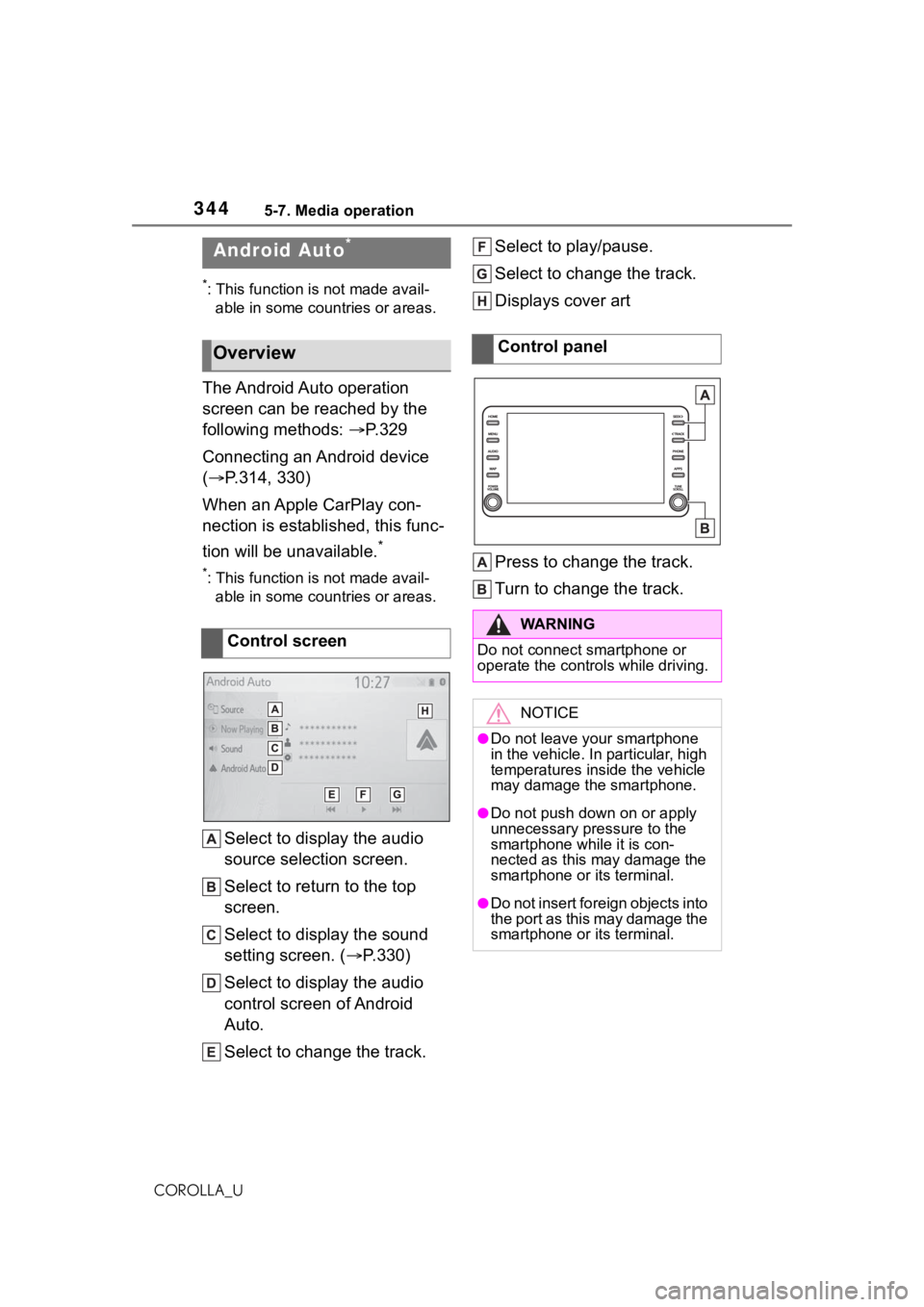
Select to display the audio
source selection screen.
Select to return to the top
screen.
Select to display the sound
setting screen. ( P.330)
Select to display the audio
control screen of Android
Auto.
Select to change the track. Select to play/pause.
Select to change the track.
Displays cover art
Press to change the track.
Turn to change the track.
Android Auto*
Overview
Control screen
Control panel
WA R N I N G
Do not connect smartphone or
operate the controls while driving.
NOTICE
●Do not leave your smartphone
in the vehicle. In particular, high
temperatures inside the vehicle
may damage the smartphone.
●Do not push down on or apply
unnecessary pressure to the
smartphone while it is con-
nected as this may damage the
smartphone or its terminal.
●Do not insert foreign objects into
the port as this may damage the
smartphone or its terminal.
Page 346 of 624
3465-7. Media operation
COROLLA_U
The Bluetooth® audio operation
screen can be reached by the
following methods: P. 3 2 9
Connecting a Bluetooth
® audio
device ( P.347)
Depending on the type of porta-
ble player connected, some
functions may not be available and/or the screen may look dif-
ferently than shown in this man-
ual.
When an Apple CarPlay/Android
Auto connection is established,
Bluetooth
® audio will be sus-
pended and become unavail-
able
*.
*: This function is not made avail- able in some countries or areas.
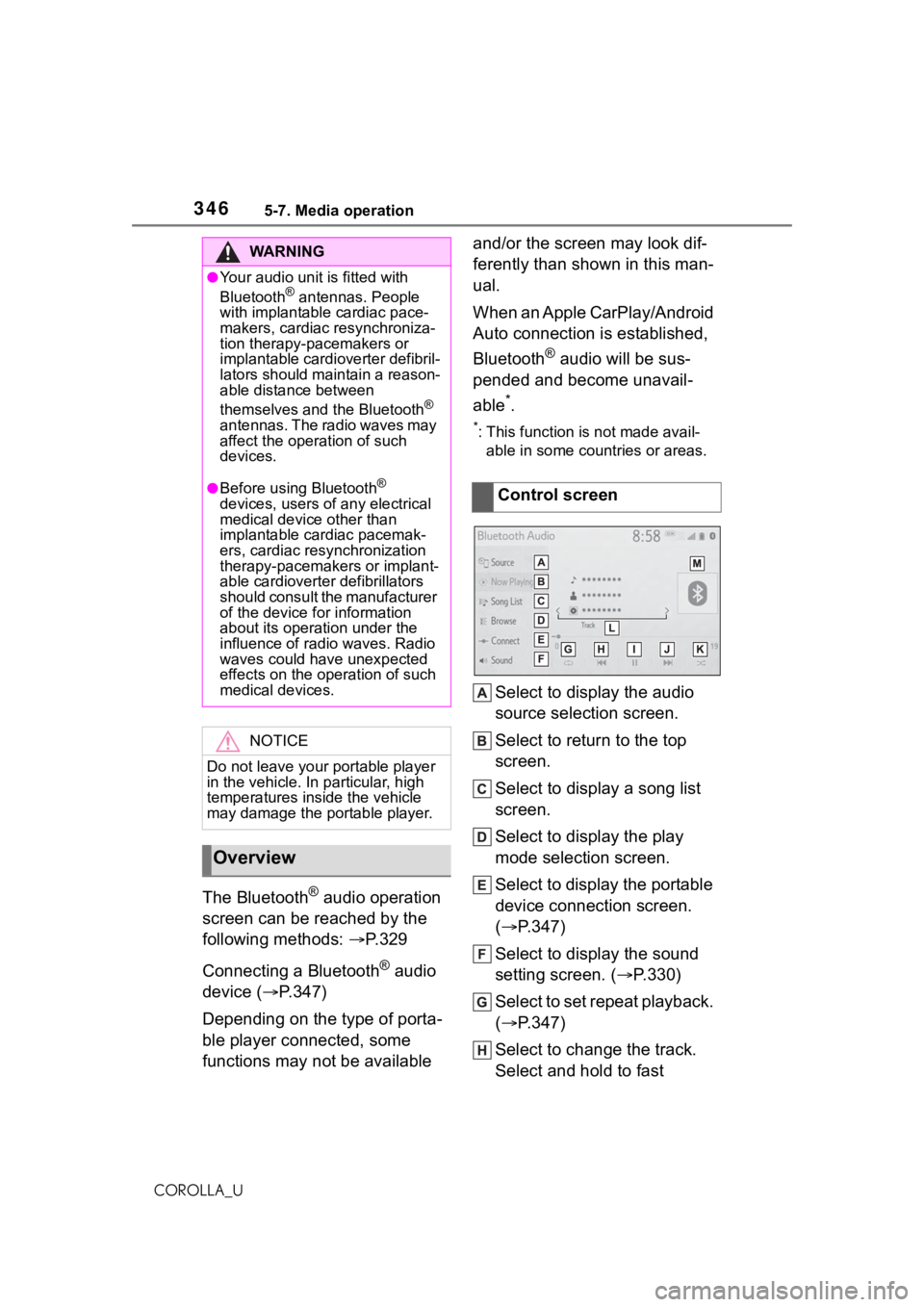
Select to display the audio
source selection screen.
Select to return to the top
screen.
Select to display a song list
screen.
Select to display the play
mode selection screen.
Select to display the portable
device connection screen.
( P.347)
Select to display the sound
setting screen. ( P.330)
Select to set repeat playback.
( P.347)
Select to change the track.
Select and hold to fast
WA R N I N G
●Your audio unit is fitted with
Bluetooth® antennas. People
with implantable cardiac pace-
makers, cardiac resynchroniza-
tion therapy-pacemakers or
implantable cardioverter defibril-
lators should maintain a reason-
able distance between
themselves and the Bluetooth
®
antennas. The radio waves may
affect the operation of such
devices.
●Before using Bluetooth®
devices, users of any electrical
medical device other than
implantable cardiac pacemak-
ers, cardiac resynchronization
therapy-pacemakers or implant-
able cardioverter defibrillators
should consult the manufacturer
of the device for information
about its operation under the
influence of radio waves. Radio
waves could have unexpected
effects on the operation of such
medical devices.
NOTICE
Do not leave your portable player
in the vehicle. In particular, high
temperatures inside the vehicle
may damage the portable player.
Overview
Control screen
Page 349 of 624
3495-8. Audio/visual remote controls
5
Audio
COROLLA_U
5-8.Audio/visual remote controls
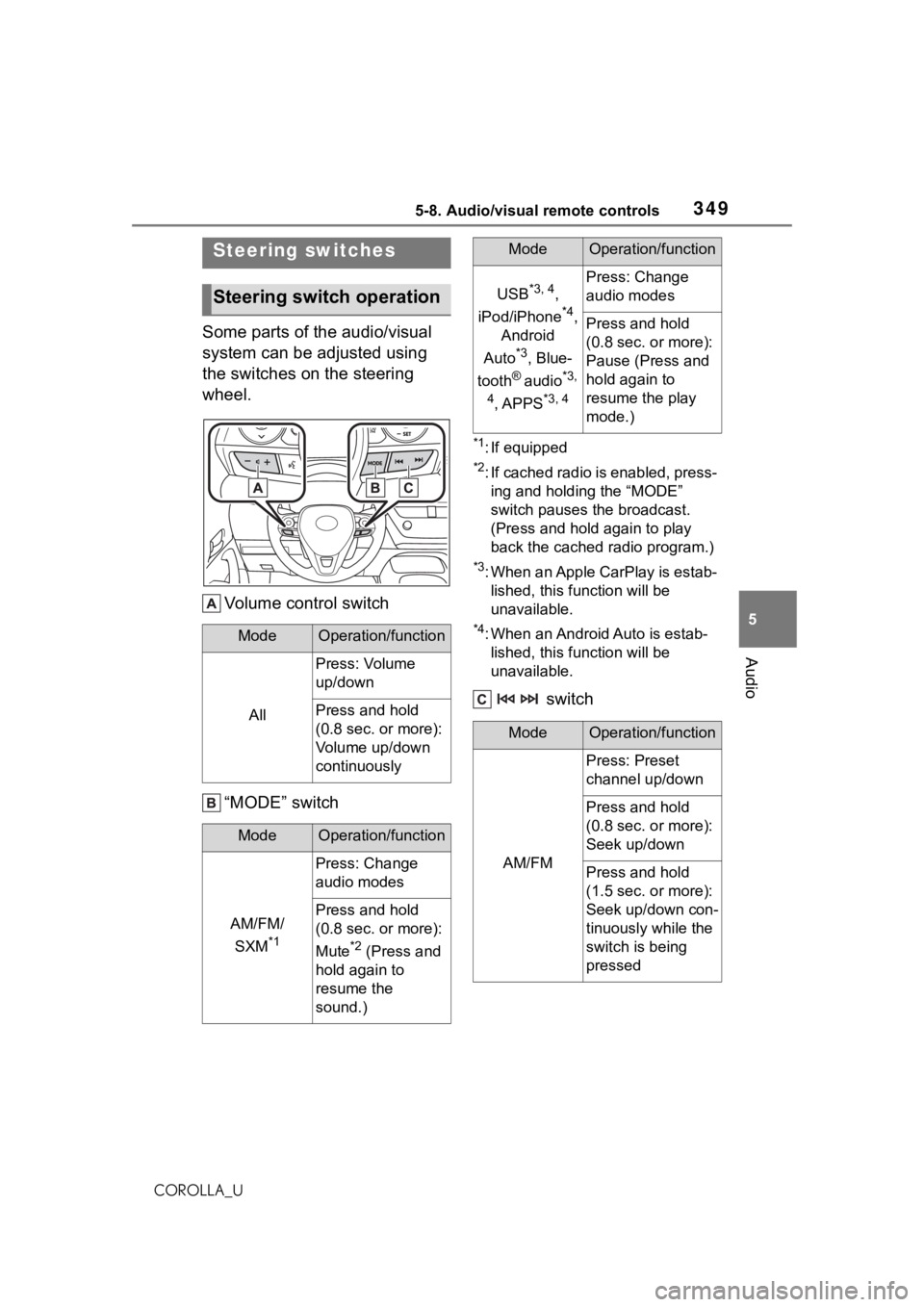
Some parts of the audio/visual
system can be adjusted using
the switches on the steering
wheel.Volume control switch
“MODE” switch
*1: If equipped
*2: If cached radio is enabled, press-ing and holding the “MODE”
switch pauses the broadcast.
(Press and hold again to play
back the cached radio program.)
*3: When an Apple CarPlay is estab-lished, this function will be
unavailable.
*4: When an Android Auto is estab-lished, this function will be
unavailable.
switch
Steering switches
Steering switch operation
ModeOperation/function
All
Press: Volume
up/down
Press and hold
(0.8 sec. or more):
Volume up/down
continuously
ModeOperation/function
AM/FM/
SXM
*1
Press: Change
audio modes
Press and hold
(0.8 sec. or more):
Mute
*2 (Press and
hold again to
resume the
sound.)
USB*3, 4,
iPod/iPhone
*4,
Android
Auto
*3, Blue-
tooth
® audio*3,
4
, APPS*3, 4
Press: Change
audio modes
Press and hold
(0.8 sec. or more):
Pause (Press and
hold again to
resume the play
mode.)
ModeOperation/function
AM/FM
Press: Preset
channel up/down
Press and hold
(0.8 sec. or more):
Seek up/down
Press and hold
(1.5 sec. or more):
Seek up/down con-
tinuously while the
switch is being
pressed
ModeOperation/function
Page 350 of 624
3505-8. Audio/visual remote controls
COROLLA_U
*1: If equipped
*2: When an Apple CarPlay is estab-lished, this function will be
unavailable.
*3: When an Android Auto is estab-lished, this function will be
unavailable.
In the APPS mode, s ome operation
may be done on the screen depend
on the selected APPS.
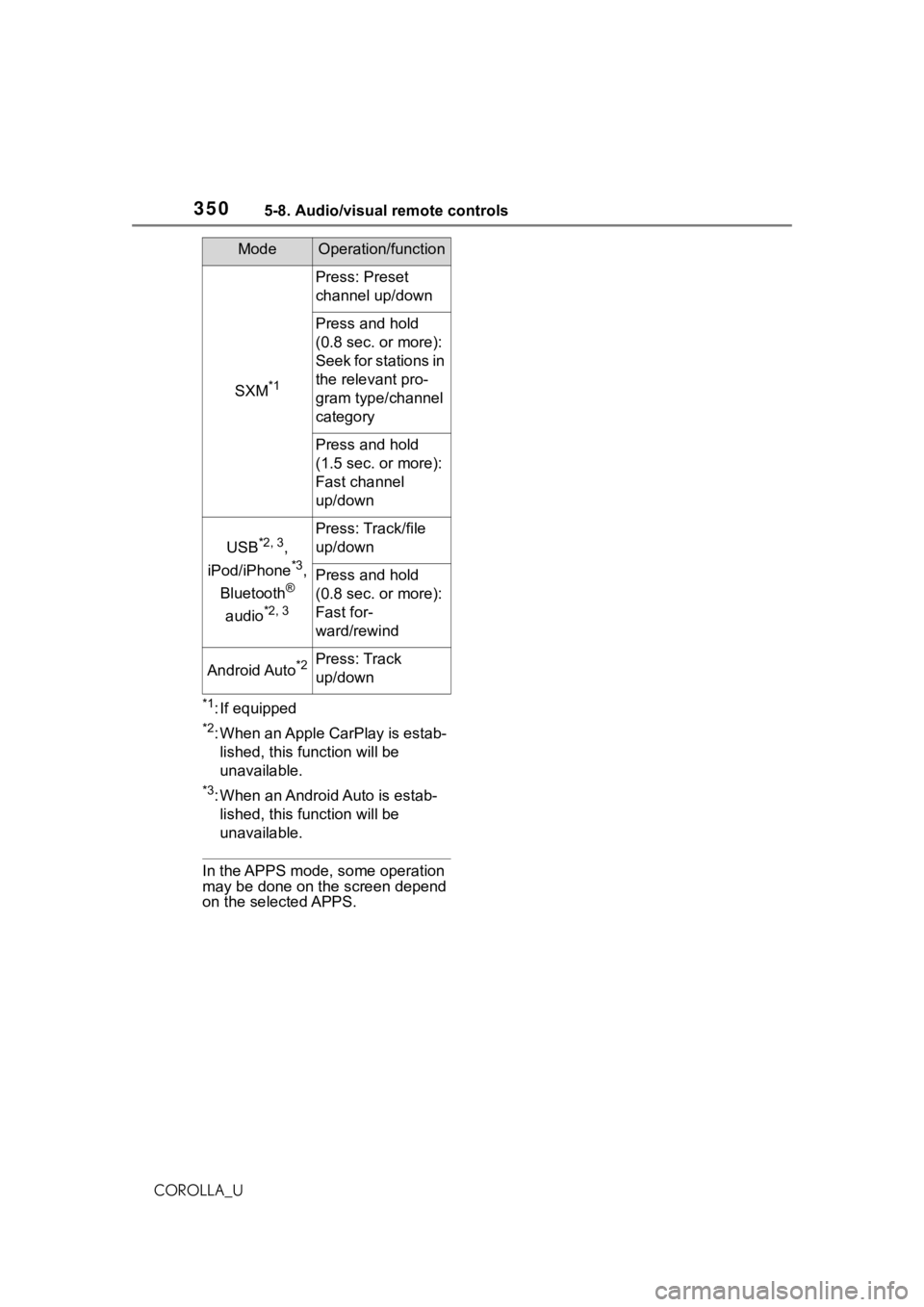
SXM*1
Press: Preset
channel up/down
Press and hold
(0.8 sec. or more):
S e e k f o r s t a t i o n s i n
the relevant pro-
gram type/channel
category
Press and hold
(1.5 sec. or more):
Fast channel
up/down
USB*2, 3,
iPod/iPhone
*3,
Bluetooth
®
audio
*2, 3
Press: Track/file
up/down
Press and hold
(0.8 sec. or more):
Fast for-
ward/rewind
Android Auto*2Press: Track
up/down
ModeOperation/function
Page 368 of 624
3685-11. Voice command system operation
COROLLA_U
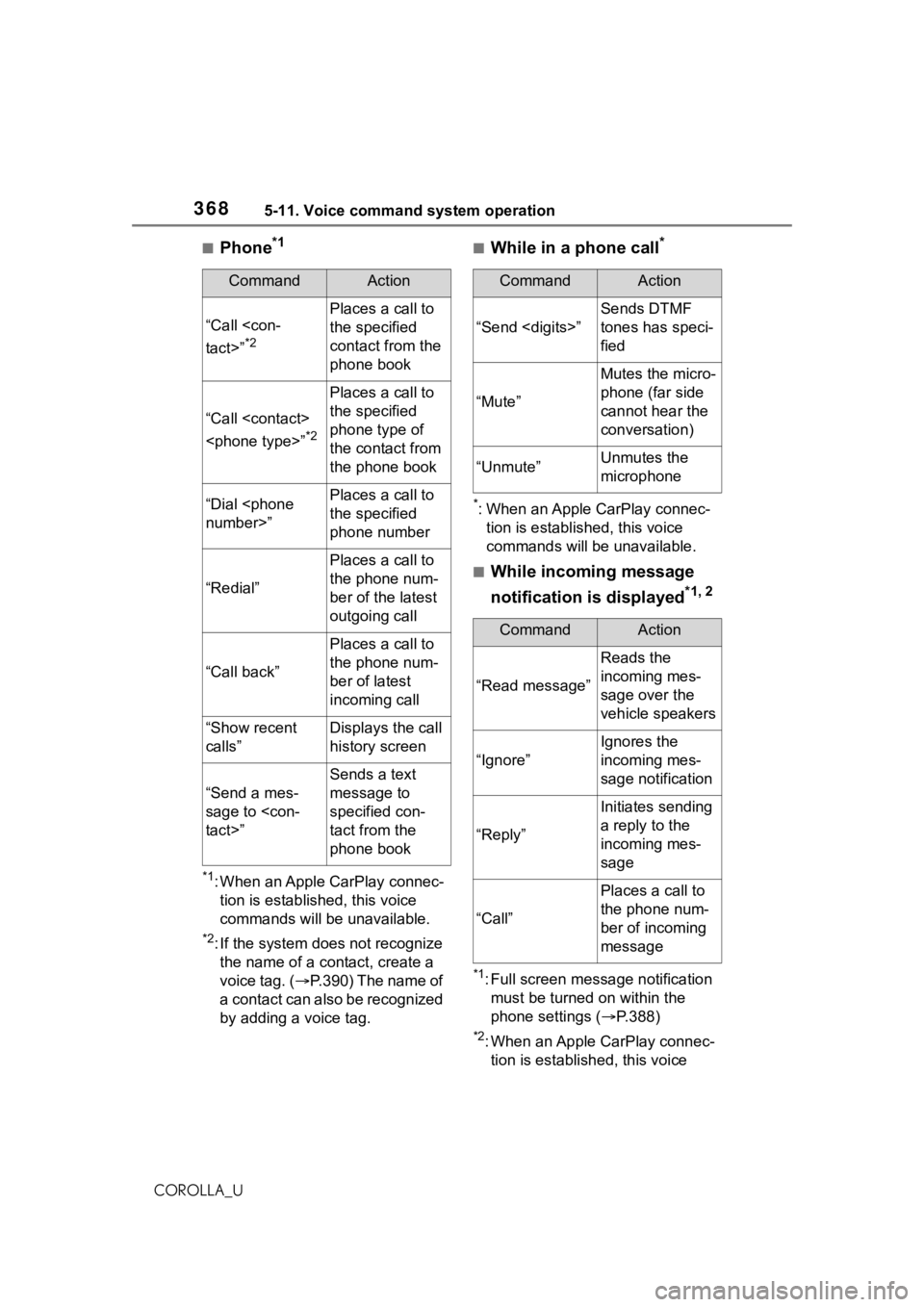
■Phone*1
*1: When an Apple CarPlay connec-tion is established, this voice
commands will be unavailable.
*2: If the system does not recognize the name of a con tact, create a
voice tag. ( P.390) The name of
a contact can also be recognized
by adding a voice tag.
■While in a phone call*
*: When an Apple CarPlay connec- tion is established, this voice
commands will be unavailable.
■While incoming message
notification is displayed
*1, 2
*1: Full screen message notification must be turned on within the
phone settings ( P.388)
*2: When an Apple CarPlay connec-
tion is established, this voice
CommandAction
“Call
*2
Places a call to
the specified
contact from the
phone book
“Call
*2
Places a call to
the specified
phone type of
the contact from
the phone book
“Dial
the specified
phone number
“Redial”
Places a call to
the phone num-
ber of the latest
outgoing call
“Call back”
Places a call to
the phone num-
ber of latest
incoming call
“Show recent
calls”Displays the call
history screen
“Send a mes-
sage to
Sends a text
message to
specified con-
tact from the
phone book
CommandAction
“Send
Sends DTMF
tones has speci-
fied
“Mute”
Mutes the micro-
phone (far side
cannot hear the
conversation)
“Unmute”Unmutes the
microphone
CommandAction
“Read message”
Reads the
incoming mes-
sage over the
vehicle speakers
“Ignore”
Ignores the
incoming mes-
sage notification
“Reply”
Initiates sending
a reply to the
incoming mes-
sage
“Call”
Places a call to
the phone num-
ber of incoming
message
Page 370 of 624
3705-11. Voice command system operation
COROLLA_Uthe functionality in this section
*2: When an Apple CarPlay connec-
tion is established, this voice
commands will be unavailable.
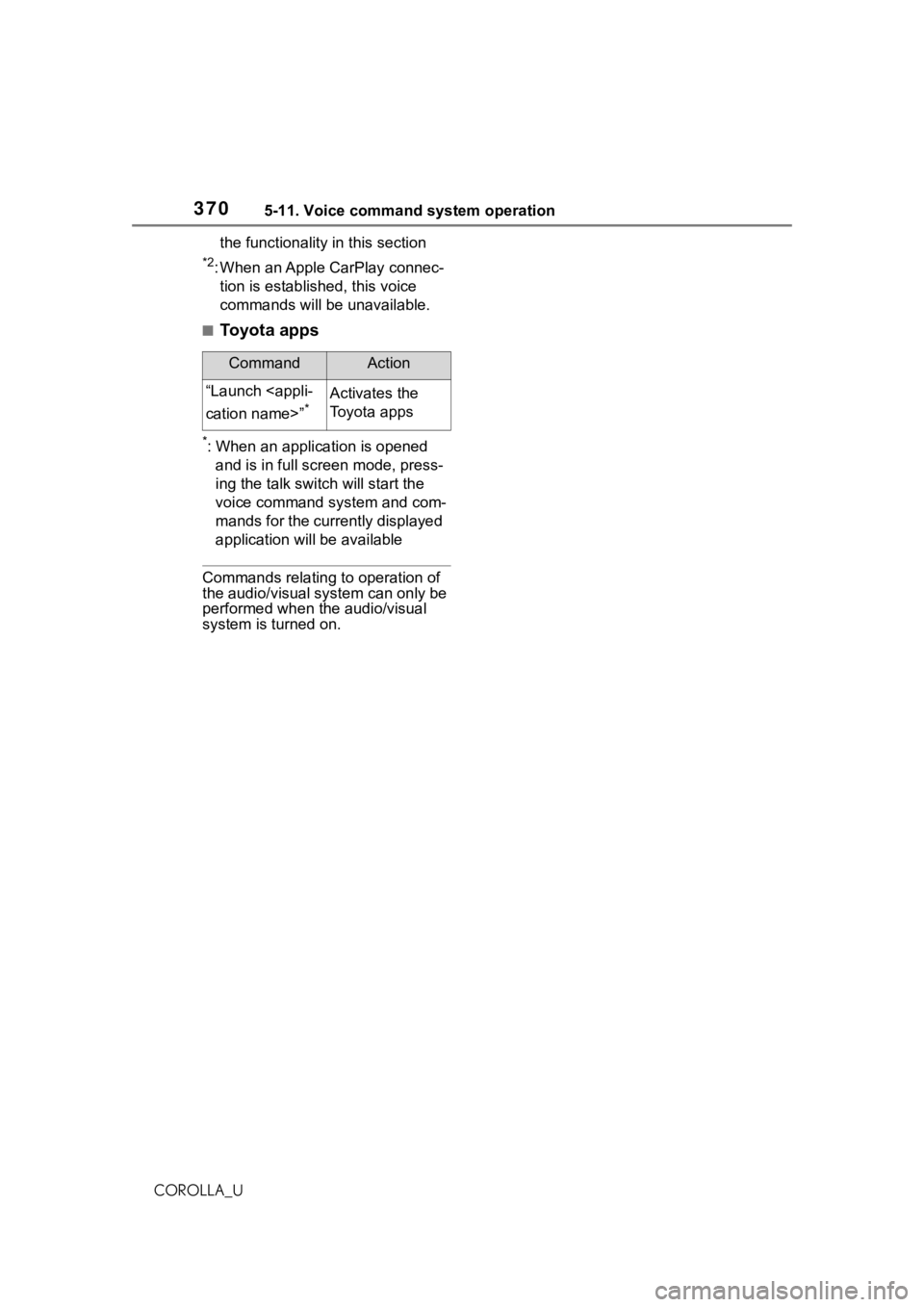
■Toyota apps
*: When an application is opened and is in full screen mode, press-
ing the talk switch will start the
voice command system and com-
mands for the currently displayed
application will be available
Commands relating to operation of
the audio/visual system can only be
performed when the audio/visual
system is turned on.
CommandAction
“Launch
*Activates the
Toyota apps
Page 371 of 624
3715-12. Mobile Assistant operation
5
Audio
COROLLA_U
5-12.Mobile Assistant operation
●While a phone call is active, the
Mobile Assistant cannot be used.
●If using the navig ation feature of
the cellular phone, ensure the
active audio source is Bluetooth
®
audio or iPod in order to hear turn
by turn direction prompts.
●Wait for the listening beeps before
using the Mobile Assistant.
●The Mobile Assistant may not rec-
ognize commands in the following
situations:
• Spoken too quickly.
• Spoken at a low or high volume. • The windows are open.
• Passengers are talking while the
Mobile Assistant is being used.
• The fan speed of the air condition- ing system is set at high.
• The air conditioning vents are
turned toward the microphone.
Mobile Assist supports the Siri
Eyes Free Mode and Google
App. The available features and
functions may vary based on the
iOS/Android version installed on
the connected device.
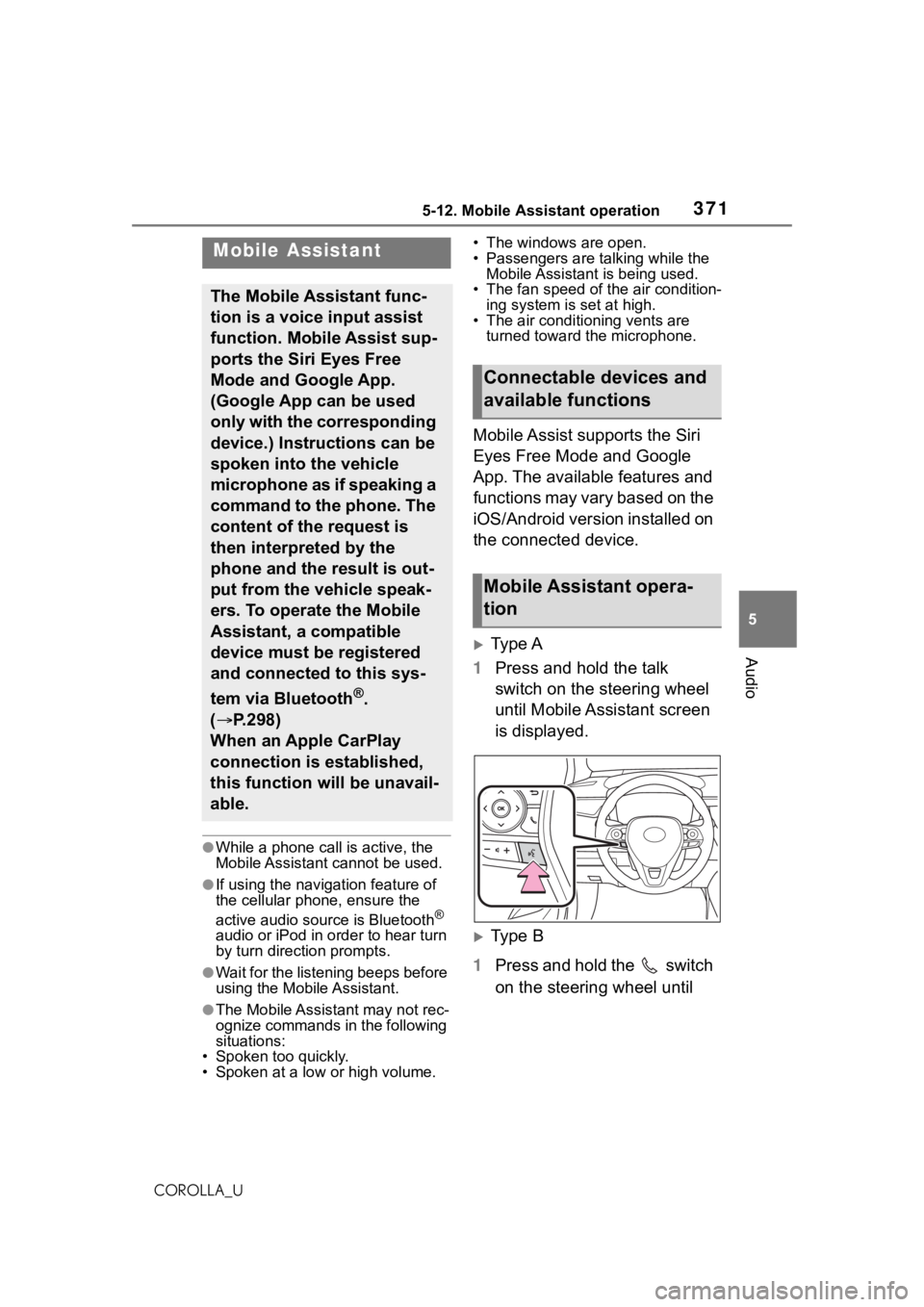
Type A
1 Press and hold the talk
switch on the steering wheel
until Mobile Assistant screen
is displayed.
Type B
1 Press and hold the switch
on the steering wheel until
Mobile Assistant
The Mobile Assistant func-
tion is a voice input assist
function. Mobile Assist sup-
ports the Siri Eyes Free
Mode and Google App.
(Google App can be used
only with the corresponding
device.) Instructions can be
spoken into the vehicle
microphone as if speaking a
command to the phone. The
content of the request is
then interpreted by the
phone and the result is out-
put from the vehicle speak-
ers. To operate the Mobile
Assistant, a compatible
device must be registered
and connected to this sys-
tem via Bluetooth
®.
( P.298)
When an Apple CarPlay
connection is established,
this function will be unavail-
able.
Connectable devices and
available functions
Mobile Assistant opera-
tion
Page 374 of 624
3745-13. Phone operation (Hands-free system for cellular phones)
COROLLA_U
●This system is not guaranteed to
operate with all Bluetooth®
devices.
●If your cellular phone does not
support Bluetooth®, this system
cannot function.
●In the following conditions, the
system may not function:
• The cellular phone is turned off.
• The current position is outside the
communication area.
• The cellular phone is not con-
nected.
• The cellular phone has a low bat- tery.
●Depending on the type of Blue-
tooth® phone, some function is
not available.
●When using the hands-free sys-
tem or Bluetooth® audio and
Wi-Fi® Hotspot functions at the
same time, the following problems
may occur:
• The Bluetooth
® connection may
be cut.
• Noise may be heard on the Blue-
tooth
® audio playback.
• A noise may be heard during phone calls.
●Bluetooth® uses the 2.4 GHz fre-
quency band. If both a Wi-Fi® con-
nection and Bluetooth®
connection are being used simul-
taneously, each connection may
be affected.
●If a Bluetooth® device is attempt-
ing to connect to the vehicle while
another device is connected as a
Bluetooth
® audio device or con-
nected using the hands-free sys-
tem or Wi-Fi
® Hotspot function,
the communication speed may
decrease or malfunctions may
occur, such as image distortion or
audio skipping. If a Bluetooth
®
device is connected to the system,
the interference it may cause will
be reduced. When carrying a
device with its Bluetooth
® connec-
tion enabled, make sure to regis-
ter it to the system and connect it
or disable its Bluetooth
® function.
●When a device is connected via
Bluetooth®, the Bluetooth® icon
on the status bar will be displayed
in blue. ( P.286)
Some basics
The hands-free system
enables calls to be made
and received without having
to take your hands off the
steering wheel.
This system supports Blue-
tooth
®. Bluetooth® is a wire-
less data system that
enables cellular phones to
be used without being con-
nected by a cable or placed
in a cradle.
The operating procedure of
the phone is explained here.
When an Apple CarPlay
connection is established,
phone functions will be per-
formed by Apple CarPlay
instead of the hands-free
system.
WA R N I N G
●While driving, do not operate a
cellular phone.