apple carplay TOYOTA COROLLA 2021 Owners Manual (in English)
[x] Cancel search | Manufacturer: TOYOTA, Model Year: 2021, Model line: COROLLA, Model: TOYOTA COROLLA 2021Pages: 624, PDF Size: 20.3 MB
Page 3 of 624
3TABLE OF CONTENTS
1
2
3
4
5
6
7
8
9
10
COROLLA_U
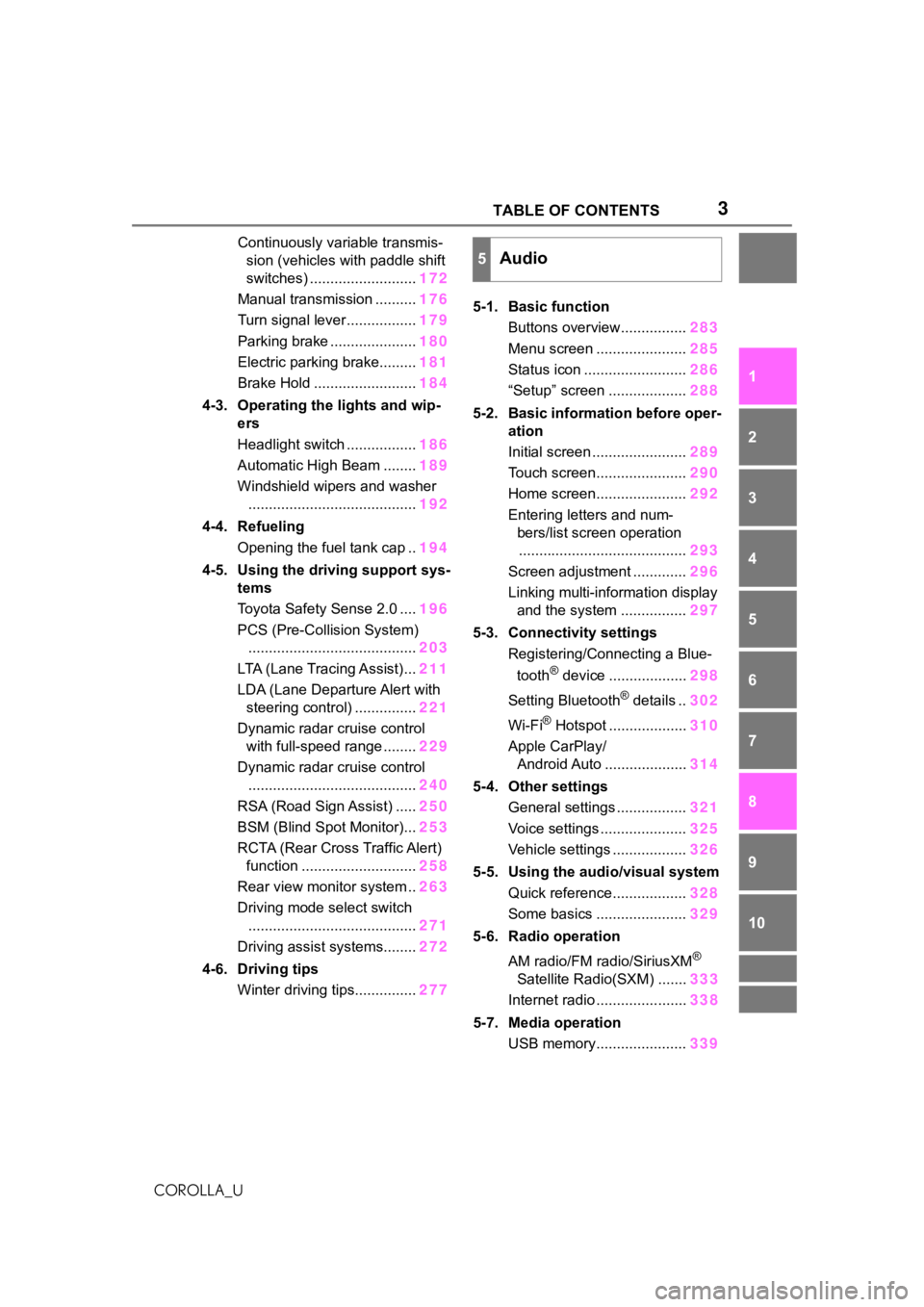
Continuously variable transmis- sion (vehicles with paddle shift
switches) .......................... 172
Manual transmission .......... 176
Turn signal lever................. 179
Parking brake ..................... 180
Electric parking brake......... 181
Brake Hold ......................... 184
4-3. Operating the lights and wip- ers
Headlight switch ................. 186
Automatic High Beam ........ 189
Windshield wipers and washer ......................................... 192
4-4. Refueling Opening the fuel tank cap .. 194
4-5. Using the driving support sys- tems
Toyota Safety Sense 2.0 .... 196
PCS (Pre-Collision System) ......................................... 203
LTA (Lane Tracing Assist)... 211
LDA (Lane Departure Alert with steering control) ............... 221
Dynamic radar cruise control with full-speed range ........ 229
Dynamic radar cruise control ......................................... 240
RSA (Road Sign Assist) ..... 250
BSM (Blind Spot Monitor)... 253
RCTA (Rear Cross Traffic Alert) function ............................ 258
Rear view monitor system .. 263
Driving mode select switch ......................................... 271
Driving assist systems........ 272
4-6. Driving tips Winter driving tips............... 2775-1. Basic function
Buttons overview................ 283
Menu screen ...................... 285
Status icon ......................... 286
“Setup” screen ................... 288
5-2. Basic information before oper- ation
Initial screen ....................... 289
Touch screen...................... 290
Home screen...................... 292
Entering letters and num- bers/list screen operation......................................... 293
Screen adjustment ............. 296
Linking multi-information display and the system ................ 297
5-3. Connectivity settings Registering/Connecting a Blue-
tooth
® device ................... 298
Setting Bluetooth
® details .. 302
Wi-Fi
® Hotspot ................... 310
Apple CarPlay/ Android Auto .................... 314
5-4. Other settings General settings ................. 321
Voice settings ..................... 325
Vehicle settings .................. 326
5-5. Using the audio/visual system Quick reference.................. 328
Some basics ...................... 329
5-6. Radio operation
AM radio/FM radio/SiriusXM
®
Satellite Radio(SXM) ....... 333
Internet radio ...................... 338
5-7. Media operation USB memory...................... 339
5Audio
Page 4 of 624
4TABLE OF CONTENTS
COROLLA_U
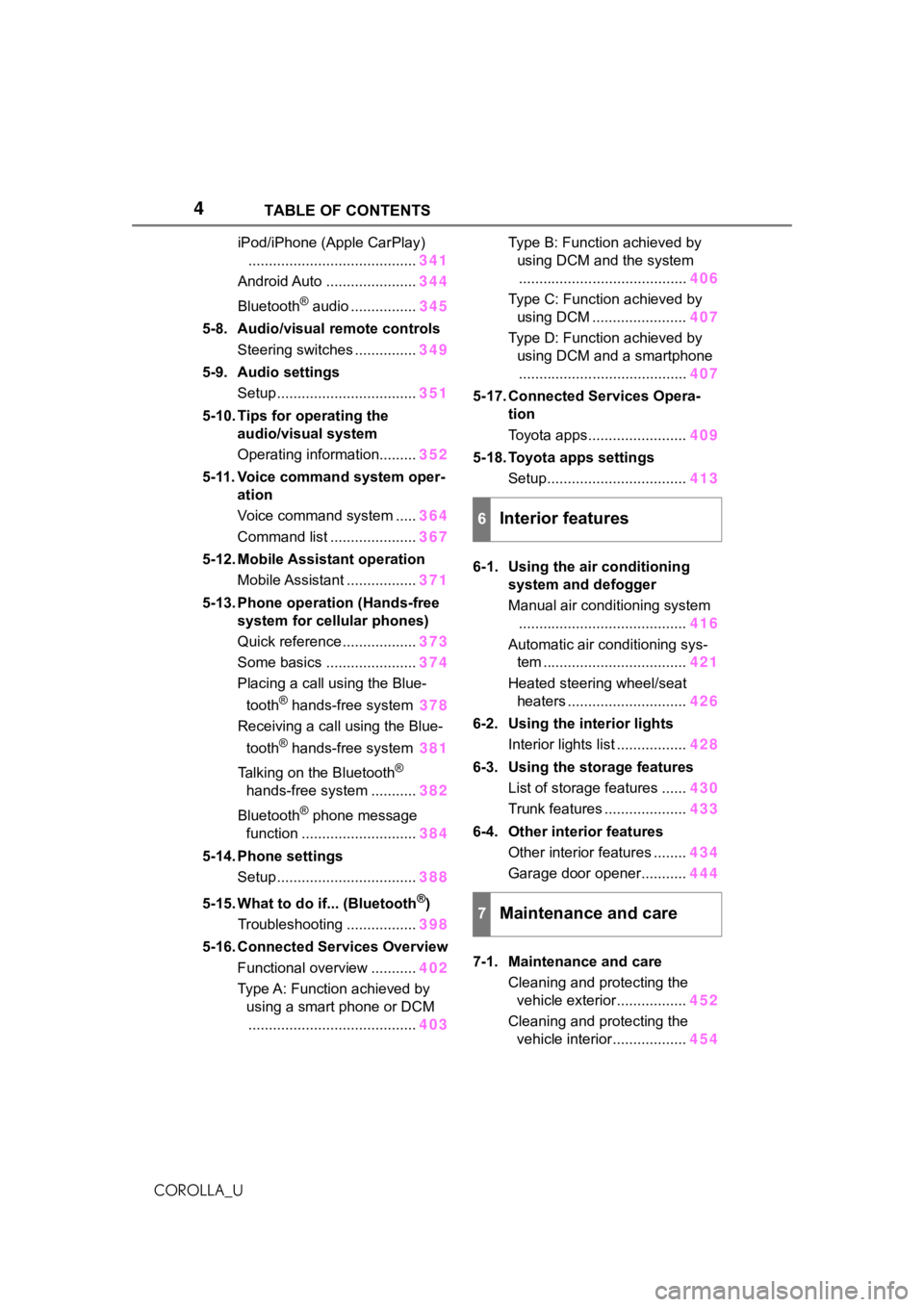
iPod/iPhone (Apple CarPlay)......................................... 341
Android Auto ...................... 344
Bluetooth
® audio ................ 345
5-8. Audio/visual remote controls Steering switches ............... 349
5-9. Audio settings Setup .................................. 351
5-10. Tips for operating the audio/visual system
Operating information......... 352
5-11. Voice command system oper- ation
Voice command system ..... 364
Command list ..................... 367
5-12. Mobile Assistant operation Mobile Assistant ................. 371
5-13. Phone operation (Hands-free system for cellular phones)
Quick reference .................. 373
Some basics ...................... 374
Placing a call using the Blue-
tooth
® hands-free system 378
Receiving a call using the Blue-
tooth
® hands-free system 381
Talking on the Bluetooth
®
hands-free system ........... 382
Bluetooth
® phone message
function ............................ 384
5-14. Phone settings Setup .................................. 388
5-15. What to do if... (Bluetooth
®)
Troubleshooting ................. 398
5-16. Connected Services Overview Functional overview ........... 402
Type A: Function achieved by using a smart phone or DCM......................................... 403Type B: Function achieved by
using DCM and the system......................................... 406
Type C: Function achieved by using DCM ....................... 407
Type D: Function achieved by using DCM and a smartphone......................................... 407
5-17. Connected Services Opera- tion
Toyota apps........................ 409
5-18. Toyota apps settings Setup.................................. 413
6-1. Using the air conditioning system and defogger
Manual air conditioning system......................................... 416
Automatic air conditioning sys- tem ................................... 421
Heated steering wheel/seat heaters ............................. 426
6-2. Using the interior lights Interior lights list ................. 428
6-3. Using the storage features List of storage features ...... 430
Trunk features .................... 433
6-4. Other interior features Other interior features ........ 434
Garage door opener........... 444
7-1. Maintenance and care Cleaning and protecting the vehicle exterior................. 452
Cleaning and protecting the vehicle interior.................. 454
6Interior features
7Maintenance and care
Page 281 of 624
281
5
5
Audio
COROLLA_U
Audio
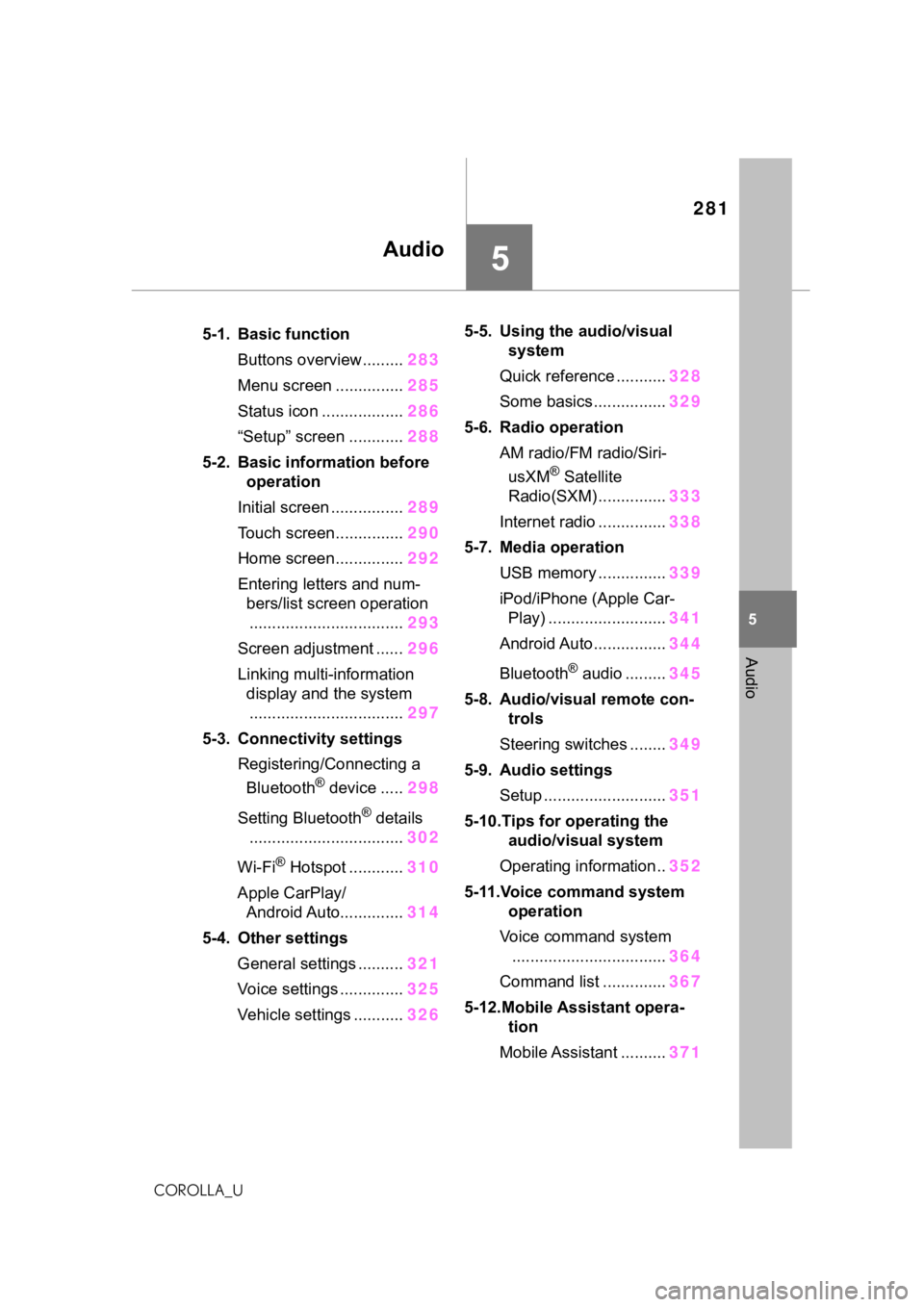
.5-1. Basic functionButtons overview......... 283
Menu screen ............... 285
Status icon .................. 286
“Setup” screen ............ 288
5-2. Basic information before operation
Initial screen ................ 289
Touch screen............... 290
Home screen............... 292
Entering letters and num- bers/list screen operation
.................................. 293
Screen adjustment ...... 296
Linking multi-information display and the system
.................................. 297
5-3. Connectivity settings Registering/Connecting a Bluetooth
® device ..... 298
Setting Bluetooth
® details
.................................. 302
Wi-Fi
® Hotspot ............ 310
Apple CarPlay/ Android Auto.............. 314
5-4. Other settings General settings .......... 321
Voice settings .............. 325
Vehicle settings ........... 3265-5. Using the audio/visual
system
Quick reference ........... 328
Some basics................ 329
5-6. Radio operation AM radio/FM radio/Siri-usXM
® Satellite
Radio(SXM) ............... 333
Internet radio ............... 338
5-7. Media operation USB memory ............... 339
iPod/iPhone (Apple Car- Play) .......................... 341
Android Auto................ 344
Bluetooth
® audio ......... 345
5-8. Audio/visual remote con- trols
Steering switches ........ 349
5-9. Audio settings Setup ........................... 351
5-10.Tips for operating the audio/visual system
Operating information.. 352
5-11.Voice command system operation
Voice command system .................................. 364
Command list .............. 367
5-12.Mobile Assistant opera- tion
Mobile Assistant .......... 371
Page 283 of 624
2835-1. Basic function
5
Audio
COROLLA_U
5-1.Basic function
*: If equipped
Audio Plus/Premium Audio
Owners of this system should refer to the “NAVIGATION AND MUL-
TIMEDIA SYSTEM OWNER’S MANUAL”.
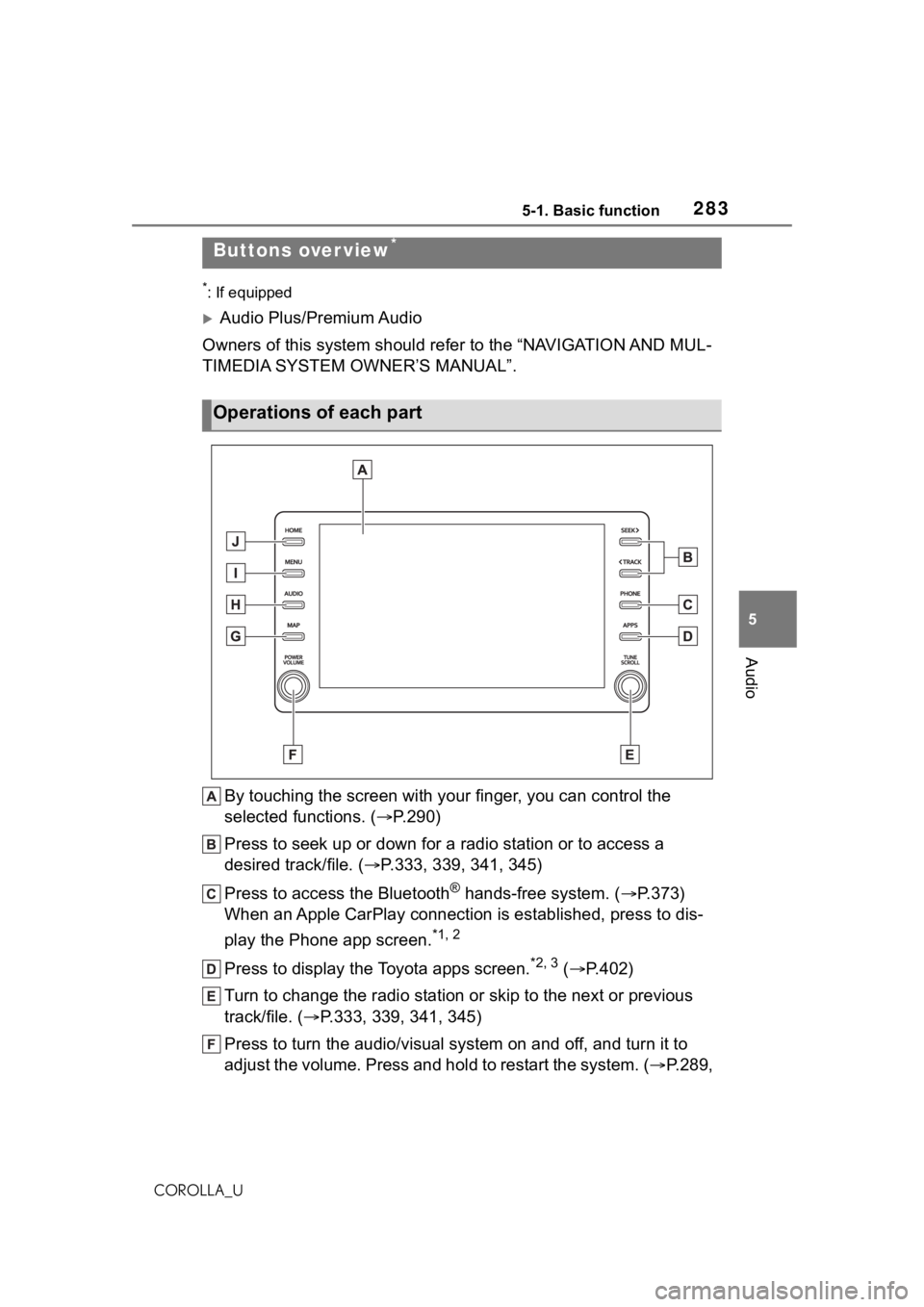
By touching the screen with y our finger, you can control the
selected functions. ( P.290)
Press to seek up or down for a radio station or to access a
desired track/file. ( P.333, 339, 341, 345)
Press to access the Bluetooth
® hands-free system. ( P.373)
When an Apple CarPlay connection is established, press to dis-
play the Phone app screen.
*1, 2
Press to display the Toyota apps screen.*2, 3 ( P.402)
Turn to change the radio station or skip to the next or previou s
track/file. ( P.333, 339, 341, 345)
Press to turn the audio/visual system on and off, and turn it t o
adjust the volume. Press and hold to restart the system. ( P.289,
Buttons over view*
Operations of each part
Page 284 of 624
2845-1. Basic function
COROLLA_U
329)
When an Apple CarPlay/Android Auto connection is established,
press to display the Maps app screen.
*1, 2
Press to display the audio/visual system screen. (P.328, 329)
Press to display the “Menu” screen. ( P.285)
Press to display the home screen. ( P.292)
*1: For details about Apple CarPlay/Android Auto: P. 3 1 4
*2: This function is not made available in some countries or areas .
*3: When an Apple CarPlay/Android Auto connection is established, this
function will be unavailable.
The screen shots in this document
and the actual screens of the sys-
tem differ depending on whether the
functions and/or a contract existed.
WA R N I N G
For safety, the driver should not
operate the system while he/she
is driving. Insufficient attention to
the road and traffic may cause an
accident.
Page 285 of 624
2855-1. Basic function
5
Audio
COROLLA_U
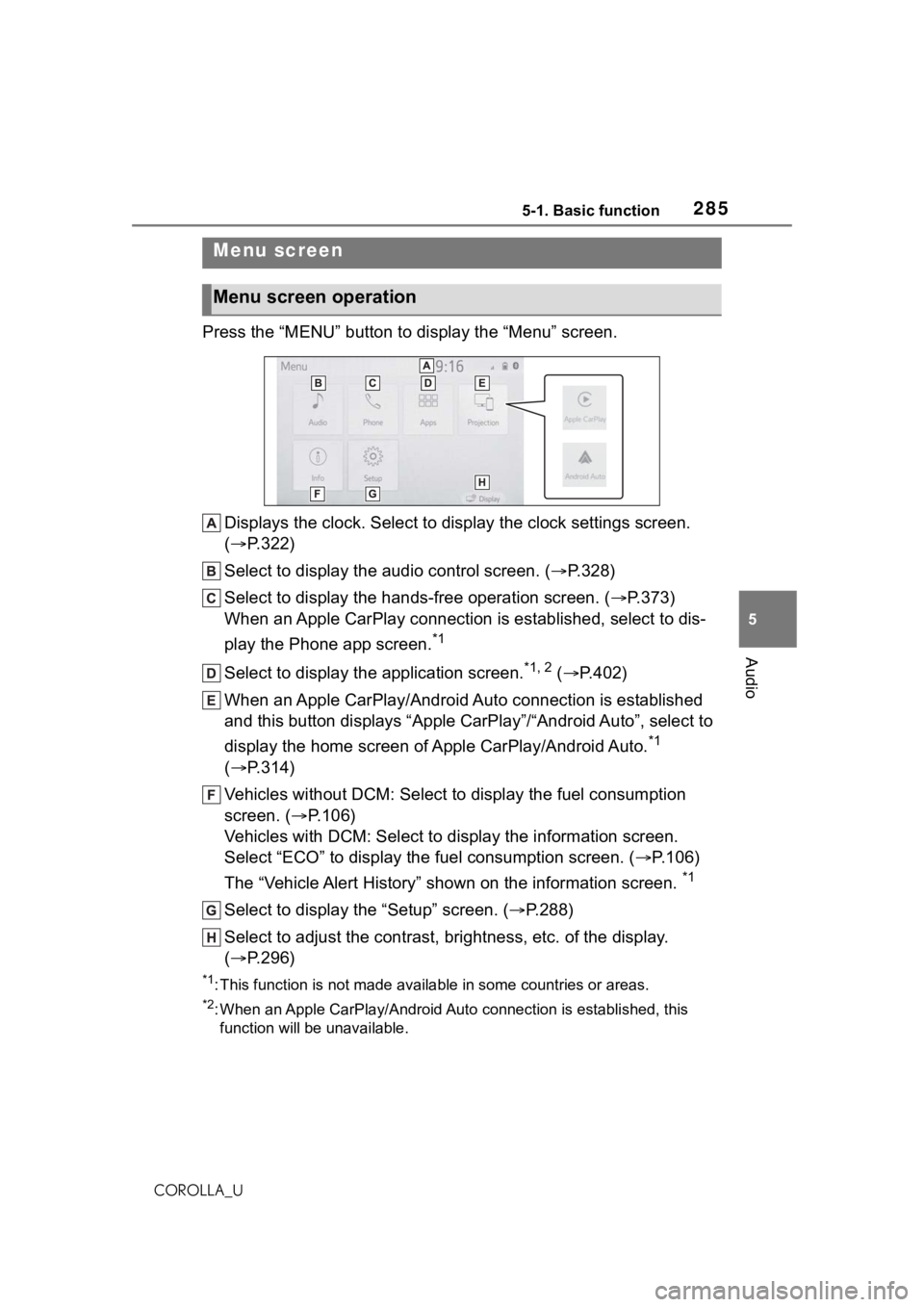
Press the “MENU” button to display the “Menu” screen.
Displays the clock. Select to display the clock settings screen.
( P.322)
Select to display the audio control screen. ( P.328)
Select to display the hands-free operation screen. ( P.373)
When an Apple CarPlay connection is established, select to dis-
play the Phone app screen.
*1
Select to display the application screen.*1, 2 ( P.402)
When an Apple CarPlay/Android Auto connection is established
and this button displays “Apple CarPlay”/“Android Auto”, select to
display the home screen of Apple CarPlay/Android Auto.
*1
( P.314)
Vehicles without DCM: Select to d isplay the fuel consumption
screen. ( P.106)
Vehicles with DCM: Select to display the information screen.
Select “ECO” to display the fuel consumption screen. ( P.106)
The “Vehicle Alert History” shown on the information screen.
*1
Select to display the “Setup” screen. ( P.288)
Select to adjust the contrast, brightness, etc. of the display.
( P.296)
*1: This function is not made available in some countries or areas .
*2: When an Apple CarPlay/Android Auto connection is established, this
function will be unavailable.
Menu screen
Menu screen operation
Page 297 of 624
2975-2. Basic information before operation
5
Audio
COROLLA_USelect “<” or “>
” to select the
desired display.
“Contrast”
“+”: Select to strengthen the con-
trast of the screen.
“-”: Select to weaken the contrast of
the screen.
“Brightness”
“+”: Select to brighten the screen.
“-”: Select to darken the screen.
Linking multi-informa-
tion display and the
system
The following functions of
the system are linked with
the multi-information dis-
play in the instrument clus-
ter:
Audio
Phone
*
etc.
These functions can be
operated using multi-infor-
mation display control
switches on the steering
wheel. ( P.101)
*: When an Apple CarPlay con-
nection is esta blished, this
function will be unavailable.
Page 298 of 624
2985-3. Connectivity settings
COROLLA_U
5-3.Connectivity settings
●This system is not guaranteed to
operate with all Bluetooth®
devices.
●If your cellular phone does not
support HFP, registering the Blue-
tooth
® phone or using OPP,
PBAP, MAP or SPP profiles indi-
vidually will not be possible.
●If the connected Bluetooth®
device version is older than rec-
ommended or incompatible, the
Bluetooth
® device function may
not work properly.
●Refer to
https://www.toyota.com/
audio-multimedia in the United
States,
https://www.toyota.ca/connected
in Canada, and
http://www.toyotapr.com/
audio-multimedia in Puerto Rico,
to find approved Bluetooth®
phones for this system.
●Certification
Bluetooth is a registered trademark
of Bluetooth SIG, Inc.
■Registering from the sys-
tem
1 Turn the Bluetooth
® connec-
tion setting of your cellular
phone on.
This function is not available when
Bluetooth® connection setting of
your cellular phone is set to off.
Registering/Connect-
ing a Bluetooth®
device
To use the hands-free sys-
tem, it is necessary to regis-
ter a Bluetooth
® phone with
the system.
Once the phone has been
registered, it is possible to
use the hands-free system.
This operation cannot be
performed while driving.
When an Apple CarPlay
connection is established,
Bluetooth
® functions of the
system will become unavail-
able and any connected
Bluetooth
® devices will be
disconnected.
*
When connecting to
Android Auto, a Bluetooth
®
connection will be made
automatically.
*
When an Android Auto con-
nection is established,
some Bluetooth
® functions
other than hands-free sys-
tem cannot be used.
*
*: This function is not made avail- able in some countries or
areas.
Registering a Bluetooth®
phone for the first time
Page 302 of 624
3025-3. Connectivity settings
COROLLA_U
1.2)
This is a profile to transfer contacts
data.
PBAP (Phone Book Access
Profile) Ver. 1.0 (Recom-
mended: Ver. 1.2)
This is a profile to transfer phone-
book data.
MAP (Message Access Pro-
file) Ver. 1.0 (Recommended:
Ver. 1.2)
This is a profile to use phone mes-
sage functions.
SPP (Serial Port Profile) Rec-
ommended: Ver. 1.2
This is a profile to use the Toyota
audio multimedia function.
A2DP (Advanced Audio Dis-
tribution Profile) Ver. 1.0 (Rec-
ommended: Ver. 1.3)
This is a profile to transmit stereo
audio or high quality sound to the
audio/visual system.
AVRCP (Audio/Video Remote
Control Profile) Ver. 1.0 (Rec-
ommended: Ver. 1.6)
This is a profile to allow remote
control the A/V equipment.
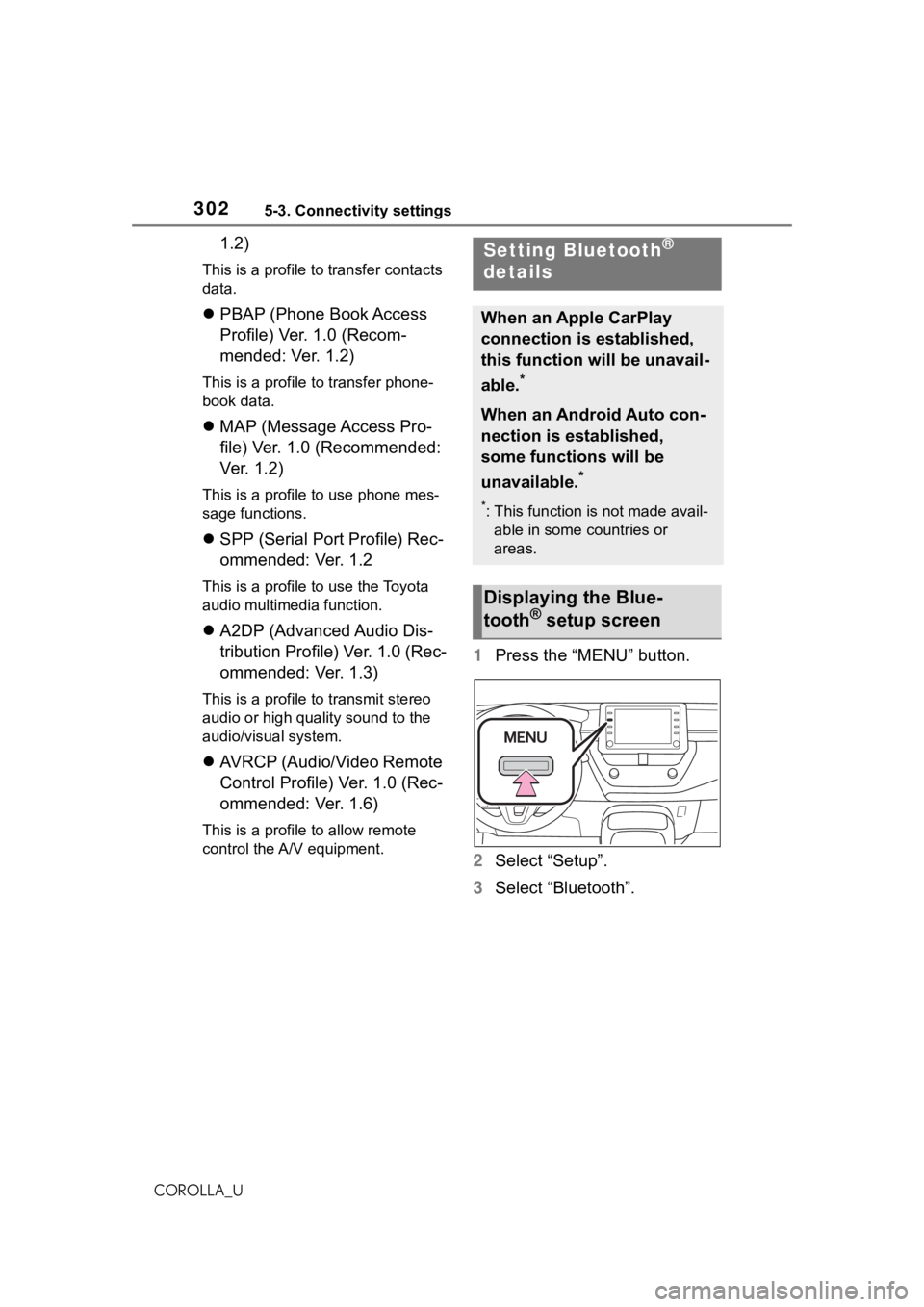
1 Press the “MENU” button.
2 Select “Setup”.
3 Select “Bluetooth”.
Setting Bluetooth®
details
When an Apple CarPlay
connection is established,
this function will be unavail-
able.
*
When an Android Auto con-
nection is established,
some functions will be
unavailable.
*
*: This function is not made avail-
able in some countries or
areas.
Displaying the Blue-
tooth® setup screen
Page 314 of 624
3145-3. Connectivity settings
COROLLA_U
Communication standards
IEEE 802.11b
IEEE 802.11g
IEEE 802.11n (2.4GHz)
Security
WPA™
WPA2™
• WPA™ and WPA2™ are trade-
marks of Wi-Fi Alliance
®.
*: This function is not made avail-able in some countries or areas.
1 Enable Siri on the device to
be connected.
Specifications
Apple CarPlay/
Android Auto*
Apple CarPlay allows some
applications, such as Map,
Phone, and Music, to be
used on the system.
When an Apple CarPlay
connection is established,
Apple CarPlay compatible
applications will be dis-
played on the system dis-
play.
Compatible devices
Apple iPhone (iOS Ver. 9.3 or
later) that supports Apple Car-
Play.
For details, refer to
https://www.apple.com/ios/car
play/.*
Android™ devices with Android
OS Ver. 5.0 or higher which sup-
port Android Auto and have the
Android Auto application
installed.
For details, refer to
https://www.android.com/auto/
.*
*: Some devices may not operate
with this system.
Establishing an Apple
CarPlay connection