navigation system TOYOTA COROLLA 2022 Owners Manual (in English)
[x] Cancel search | Manufacturer: TOYOTA, Model Year: 2022, Model line: COROLLA, Model: TOYOTA COROLLA 2022Pages: 678, PDF Size: 147.24 MB
Page 16 of 678
14Pictorial index
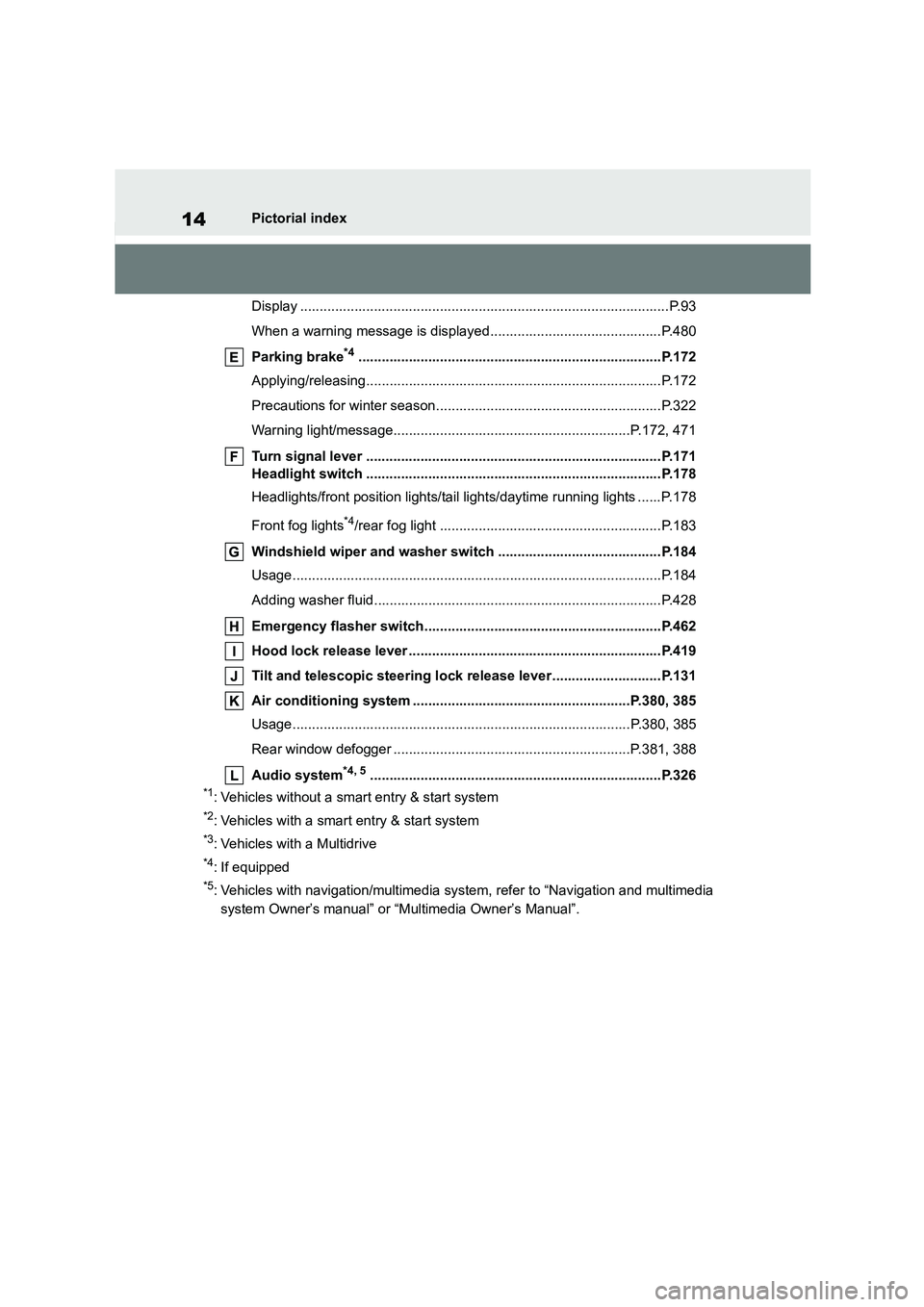
Display ...............................................................................................P.93
When a warning message is displayed............................................P.480
Parking brake*4..............................................................................P.172
Applying/releasing............................................................................P.172
Precautions for winter season..........................................................P.322
Warning light/message.............................................................P.172, 471
Turn signal lever ............................................................................P.171
Headlight switch ............................................................................P.178
Headlights/front position lights/tail lights/daytime running lights ......P.178
Front fog lights*4/rear fog light .........................................................P.183
Windshield wiper and washer switch ..........................................P.184
Usage...............................................................................................P.184
Adding washer fluid..........................................................................P.428
Emergency flasher switch.............................................................P.462
Hood lock release lever .................................................................P.419
Tilt and telescopic steering lock release lever ............................P.131
Air conditioning system ........................................................P.380, 385
Usage.......................................................................................P.380, 385
Rear window defogger .............................................................P.381, 388
Audio system*4, 5...........................................................................P.326
*1: Vehicles without a smart entry & start system
*2: Vehicles with a smart entry & start system
*3: Vehicles with a Multidrive
*4: If equipped
*5: Vehicles with navigation/mu ltimedia system, refer to “Navigation and multimedia
system Owner’s manual” or “Multimedia Owner’s Manual”.
Page 18 of 678
16Pictorial index
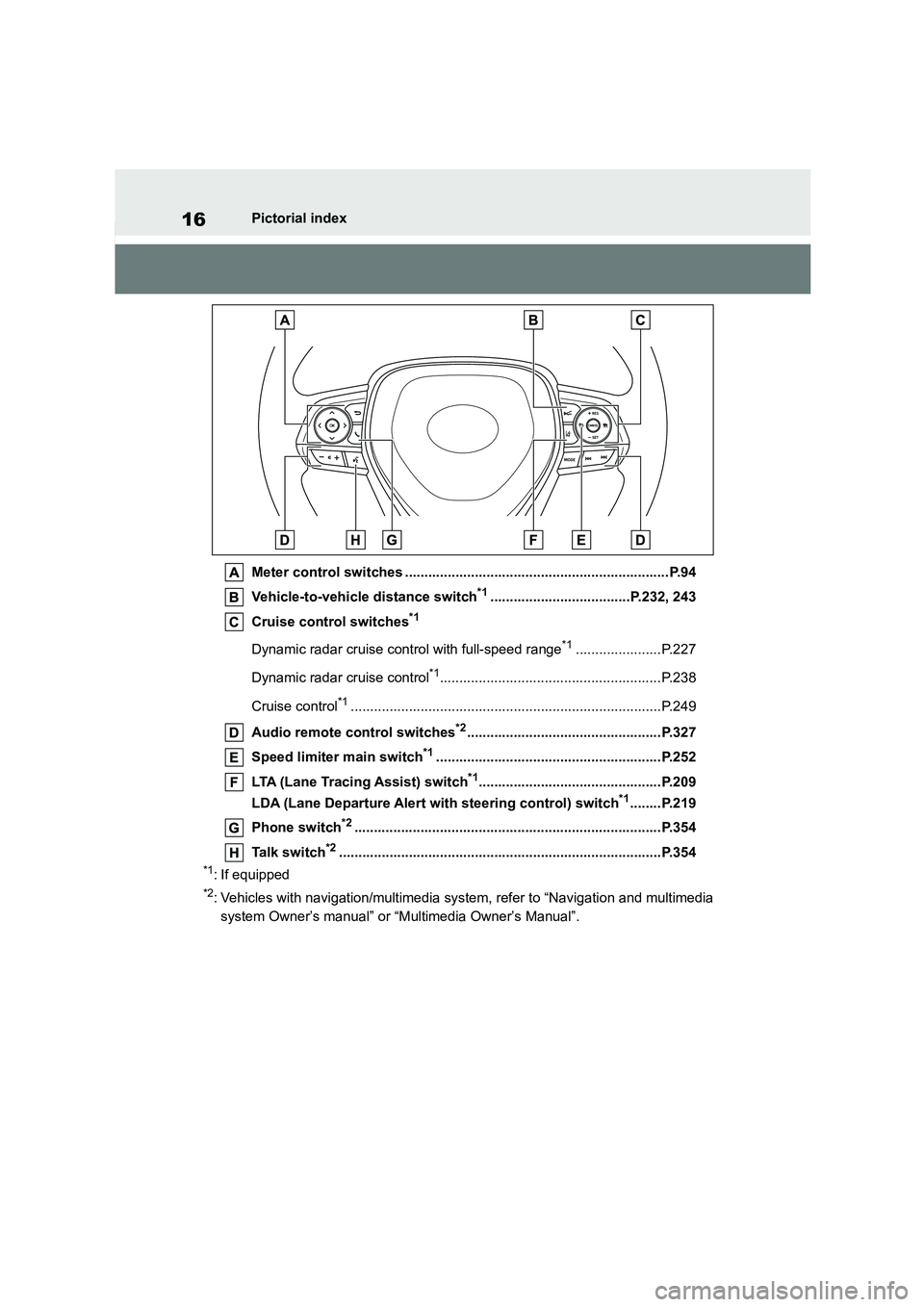
Meter control switches ....................................................................P.94
Vehicle-to-vehicle distance switch*1....................................P.232, 243
Cruise control switches*1
Dynamic radar cruise control with full-speed range*1......................P.227
Dynamic radar cruise control*1.........................................................P.238
Cruise control*1................................................................................P.249
Audio remote control switches*2..................................................P.327
Speed limiter main switch*1..........................................................P.252
LTA (Lane Tracing Assist) switch*1...............................................P.209
LDA (Lane Departure Alert with steering control) switch*1........P.219
Phone switch*2...............................................................................P.354
Talk switch*2...................................................................................P.354
*1: If equipped
*2: Vehicles with navigation/mu ltimedia system, refer to “Navigation and multimedia
system Owner’s manual” or “Multimedia Owner’s Manual”.
Page 23 of 678
21Pictorial index
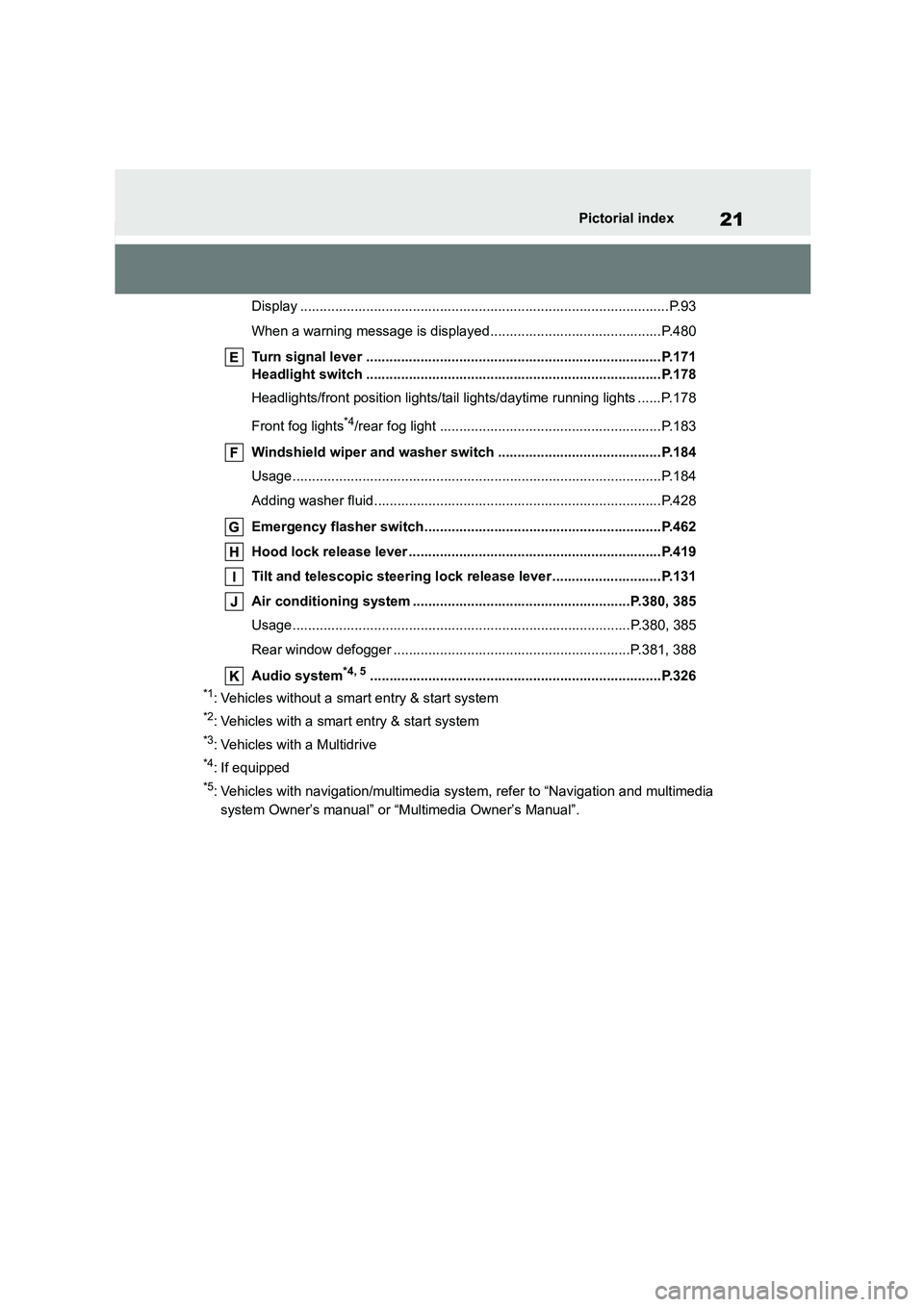
Display ...............................................................................................P.93
When a warning message is displayed............................................P.480
Turn signal lever ............................................................................P.171
Headlight switch ............................................................................P.178
Headlights/front position lights/tail lights/daytime running lights ......P.178
Front fog lights*4/rear fog light .........................................................P.183
Windshield wiper and washer switch ..........................................P.184
Usage...............................................................................................P.184
Adding washer fluid..........................................................................P.428
Emergency flasher switch.............................................................P.462
Hood lock release lever .................................................................P.419
Tilt and telescopic steering lock release lever ............................P.131
Air conditioning system ........................................................P.380, 385
Usage.......................................................................................P.380, 385
Rear window defogger .............................................................P.381, 388
Audio system*4, 5...........................................................................P.326
*1: Vehicles without a smart entry & start system
*2: Vehicles with a smart entry & start system
*3: Vehicles with a Multidrive
*4: If equipped
*5: Vehicles with navigation/mu ltimedia system, refer to “Navigation and multimedia
system Owner’s manual” or “Multimedia Owner’s Manual”.
Page 25 of 678
23Pictorial index
Meter control switches ....................................................................P.94
Vehicle-to-vehicle distance switch .......................................P.232, 243
Cruise control switches
Dynamic radar cruise control with full-speed range*1......................P.227
Dynamic radar cruise control*1.........................................................P.238
Audio remote control switches*2..................................................P.327
Speed limiter main switch .............................................................P.252
LTA (Lane Tracing Assist) switch*1...............................................P.209
LDA (Lane Departure Alert with steering control) switch*1........P.219
Phone switch*2...............................................................................P.354
Talk switch*2...................................................................................P.354
*1: If equipped
*2: Vehicles with navigation/mu ltimedia system, refer to “Navigation and multimedia
system Owner’s manual” or “Multimedia Owner’s Manual”.
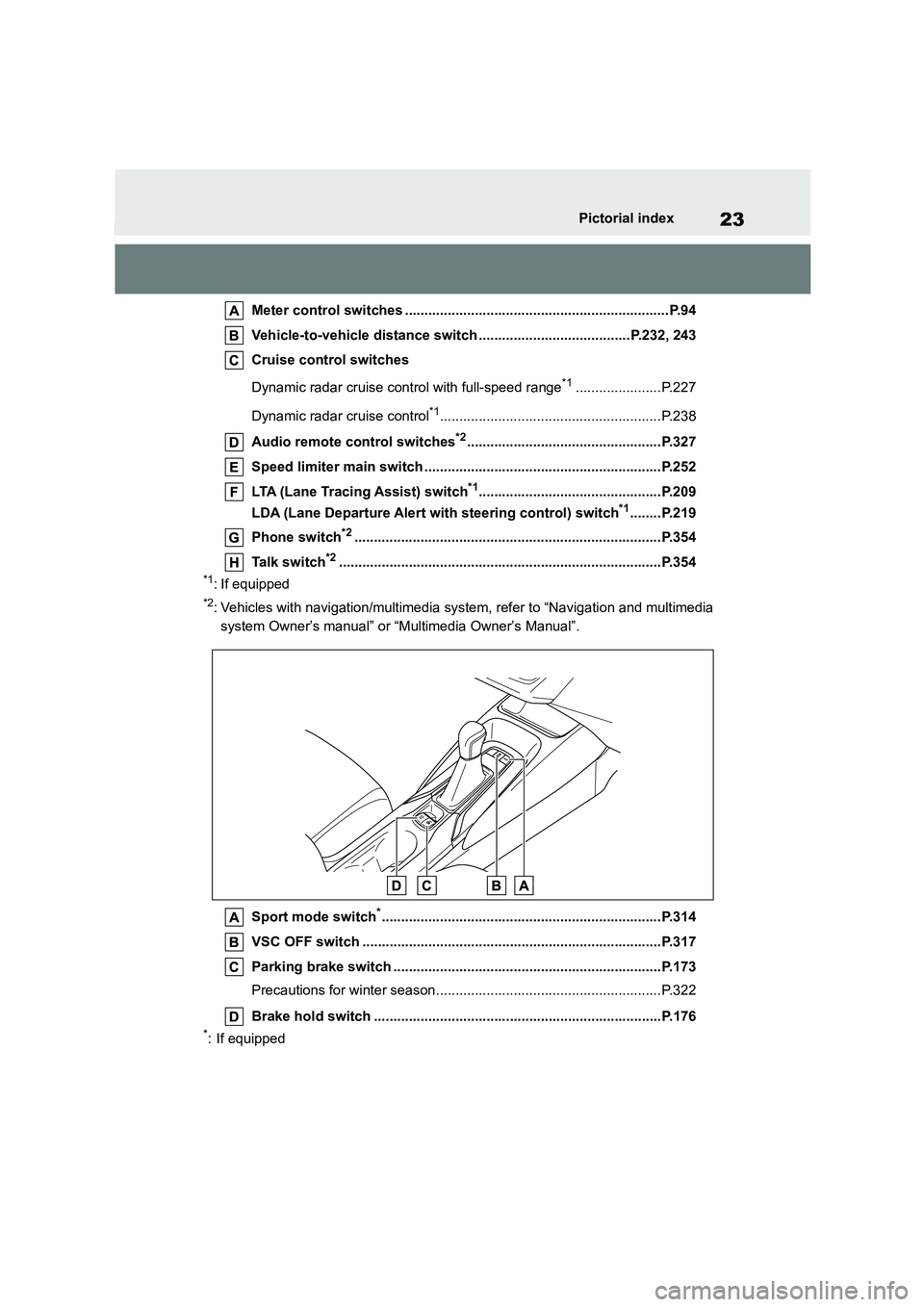
Sport mode switch*........................................................................P.314
VSC OFF switch .............................................................................P.317
Parking brake switch .....................................................................P.173
Precautions for winter season..........................................................P.322
Brake hold switch ..........................................................................P.176
*: If equipped
Page 66 of 678
641-3. Emergency assistance
1-3.Emergency assistance
*1: If equipped
*2: Operates within the eCall coverage.
The system name differs depending
on the country.
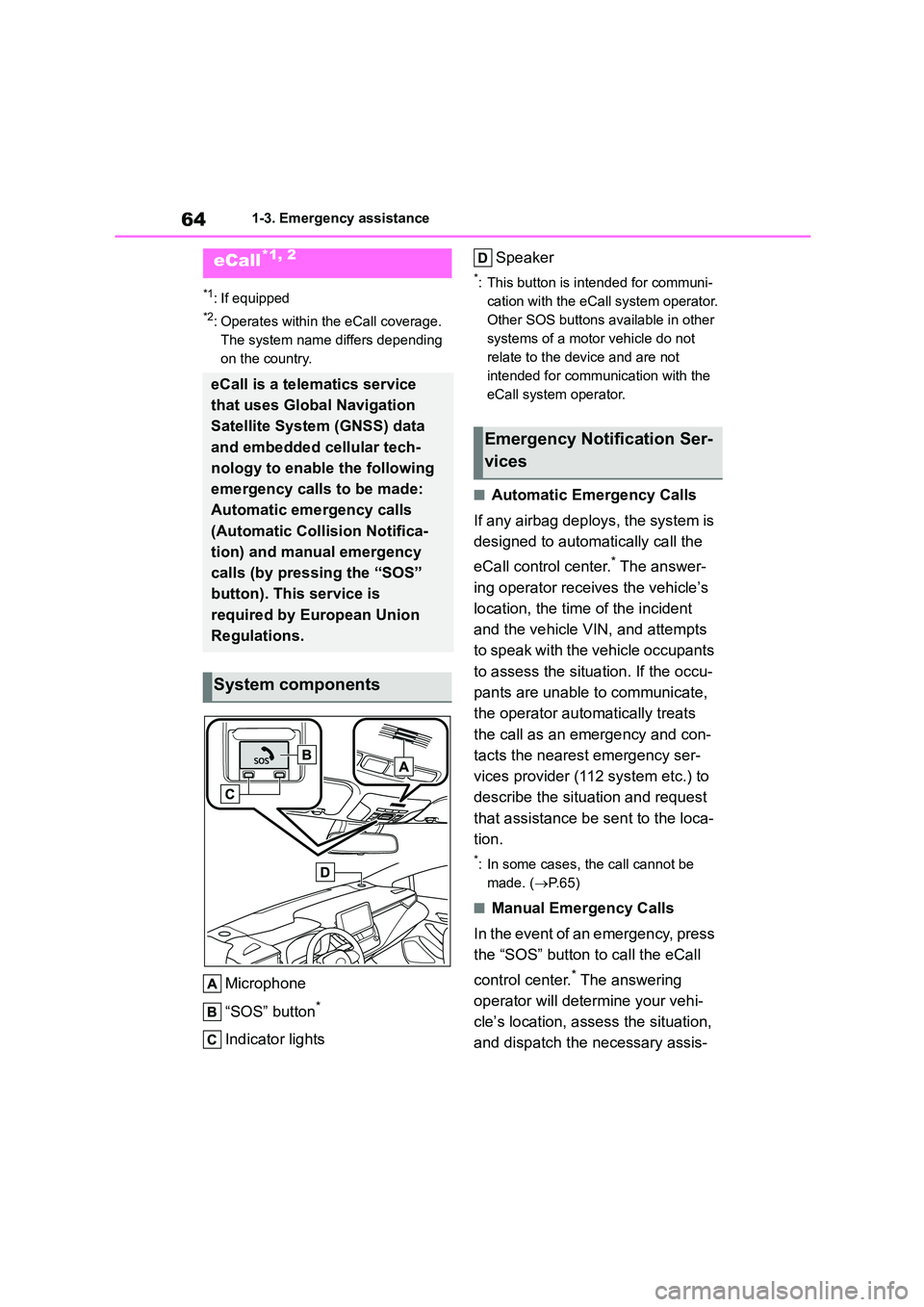
Microphone
“SOS” button*
Indicator lights
Speaker
*: This button is intended for communi-
cation with the eCall system operator.
Other SOS buttons available in other
systems of a motor vehicle do not
relate to the device and are not
intended for communication with the
eCall system operator.
■Automatic Emergency Calls
If any airbag deploys, the system is
designed to automatically call the
eCall control center.* The answer-
ing operator receives the vehicle’s
location, the time of the incident
and the vehicle VIN, and attempts
to speak with the vehicle occupants
to assess the situation. If the occu-
pants are unable to communicate,
the operator automatically treats
the call as an emergency and con-
tacts the nearest emergency ser-
vices provider (112 system etc.) to
describe the situation and request
that assistance be sent to the loca-
tion.
*: In some cases, th e call cannot be
made. ( P.65)
■Manual Emergency Calls
In the event of an emergency, press
the “SOS” button to call the eCall
control center.* The answering
operator will dete rmine your vehi-
cle’s location, assess the situation,
and dispatch the necessary assis-
eCall*1, 2
eCall is a telematics service
that uses Global Navigation
Satellite System (GNSS) data
and embedded cellular tech-
nology to enable the following
emergency calls to be made:
Automatic emergency calls
(Automatic Collision Notifica-
tion) and manual emergency
calls (by pressing the “SOS”
button). This service is
required by European Union
Regulations.
System components
Emergency Notification Ser-
vices
Page 89 of 678
87
2
2-1. Instrument cluster
Vehicle status information and indicators
lights are on and off.
• To adjust the brightness, display the
meter light control display and press
and hold the display change button.
■Adjusting the minute to “00”
1 Press or to select of
the multi-information display.
2 Press or to select “Clock
: 00”.
Press the to set the clock to
the beginning of the nearest hour.
e.g.
1:00 to 1:29 1:00
1:30 to 1:59 2:00
■Changing the clock
1 Press or to select of
the multi-information display.
2 Press or to select “Clock
: 00”.
3 Press and hold the .
4 Press or to select an
item to be changed.
5 Press or to change the
setting.
The following can be changed:
12-hour/24-hour format
Hour
Minute
■Clock adjustment
The clocks on the following can be
adjusted on the audio system
screen.
Multi-information display
Audio system screen
For details, refer to “Navigation and
multimedia system Owner’s manual” or
“Multimedia Owner’s Manual”.
■Clock settings screen (vehicles
with navigation/multimedia system)
If “Clock : 00” is displayed when is
selected on the multi-information dis-
play, the system may be malfunctioning.
Have the vehicle inspected by any authorized Toyota retailer or Toyota
authorized repairer, or any reliable
repairer.
Adjusting the clock (vehi-
cles without navigation/mul-
timedia system)
Adjusting the clock (vehi-
cles with navigation/multi-
media system)
Page 94 of 678
922-1. Instrument cluster
■Adjusting the minute to “00”
1 Press or to select of
the multi-information display.
2 Press or to select “Clock
: 00”.
Press the to set the clock to
the beginning of the nearest hour.
e.g.
1:00 to 1:29 1:00
1:30 to 1:59 2:00
■Changing the clock
1 Press or to select of
the multi-information display.
2 Press or to select “Clock
: 00”.
3 Press and hold the .
4 Press or to select an
item to be changed.
5 Press or to change the
setting.
The following can be changed:
12-hour/24-hour format
Hour
Minute
■Clock adjustment
The clocks on the following can be
adjusted on the audio system
screen.
Multi-information display
Audio system screen
For details, refer to “Navigation and
multimedia system Owner’s manual” or
“Multimedia Owner’s Manual”.
■Clock settings screen (vehicles
with navigation/multimedia system)
If “Clock : 00” is displayed when is
selected on the multi-information dis-
play, the system may be malfunctioning.
Have the vehicle inspected by any authorized Toyota retailer or Toyota
authorized repairer, or any reliable
repairer.
Adjusting the clock (vehi-
cles without navigation/mul-
timedia system)
Adjusting the clock (vehi-
cles with navigation/multi-
media system)
Page 96 of 678
942-1. Instrument cluster
■Liquid crystal display
Small spots or light spots may appear
on the display. This phenomenon is characteristic of liq uid crystal displays,
and there is no problem continuing to
use the display.
The multi-informat ion display is
operated using the meter control
switches.
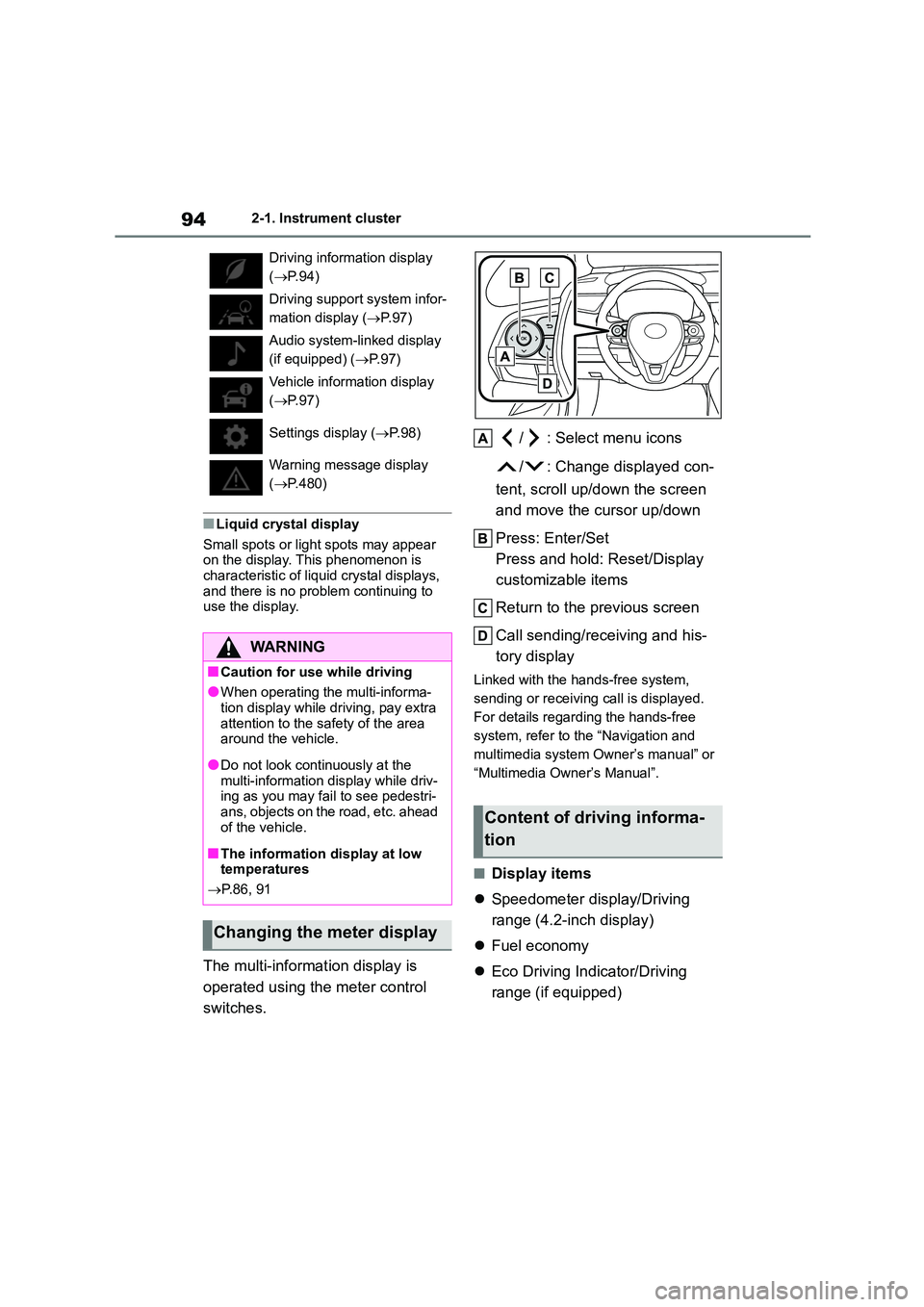
/ : Select menu icons
/ : Change displayed con-
tent, scroll up/down the screen
and move the cursor up/down
Press: Enter/Set
Press and hold: Reset/Display
customizable items
Return to the previous screen
Call sending/receiving and his-
tory display
Linked with the hands-free system,
sending or receiving call is displayed.
For details regarding the hands-free
system, refer to the “Navigation and
multimedia system Owner’s manual” or
“Multimedia Owner’s Manual”.
■Display items
Speedometer display/Driving
range (4.2-inch display)
Fuel economy
Eco Driving Indicator/Driving
range (if equipped)
Driving information display
( P. 9 4 )
Driving suppor t system infor-
mation display ( P. 9 7 )
Audio system-linked display
(if equipped) ( P. 9 7 )
Vehicle information display
( P. 9 7 )
Settings display ( P. 9 8 )
Warning message display
( P.480)
WA R N I N G
■Caution for use while driving
●When operating the multi-informa-
tion display while driving, pay extra
attention to the safety of the area around the vehicle.
●Do not look continuously at the multi-information display while driv-
ing as you may fail to see pedestri-
ans, objects on the road, etc. ahead of the vehicle.
■The information display at low temperatures
P.86, 91
Changing the meter display
Content of driving informa-
tion
Page 99 of 678
97
2
2-1. Instrument cluster
Vehicle status information and indicators
■Driving support system infor-
mation
Select to display the operational
status of the following systems:
LTA (Lane Tracing Assist) (if
equipped) ( P.209)
LDA (Lane Departure Alert with
steering control) (if equipped)
( P.219)
Cruise control (if equipped)
( P.249)
Dynamic radar cruise control (if
equipped) ( P.238)
Dynamic radar cruise control
with full-speed range (if
equipped) ( P.227)
■Navigation system-linked dis-
play (if equipped)
Select to display the following navi-
gation system-linked information:
Route guidance to destination
Compass display (heading-up
display)
■Route guidance to destination dis-
play
When the route guidance to destination
display is enabled on the head-up dis-
play, it will not be displayed on the multi-information display. ( P.101)
Select to enable selection of an
audio source or track on the meter
using the meter control switches.
This menu icon can be set to be dis-
played/not displayed in .
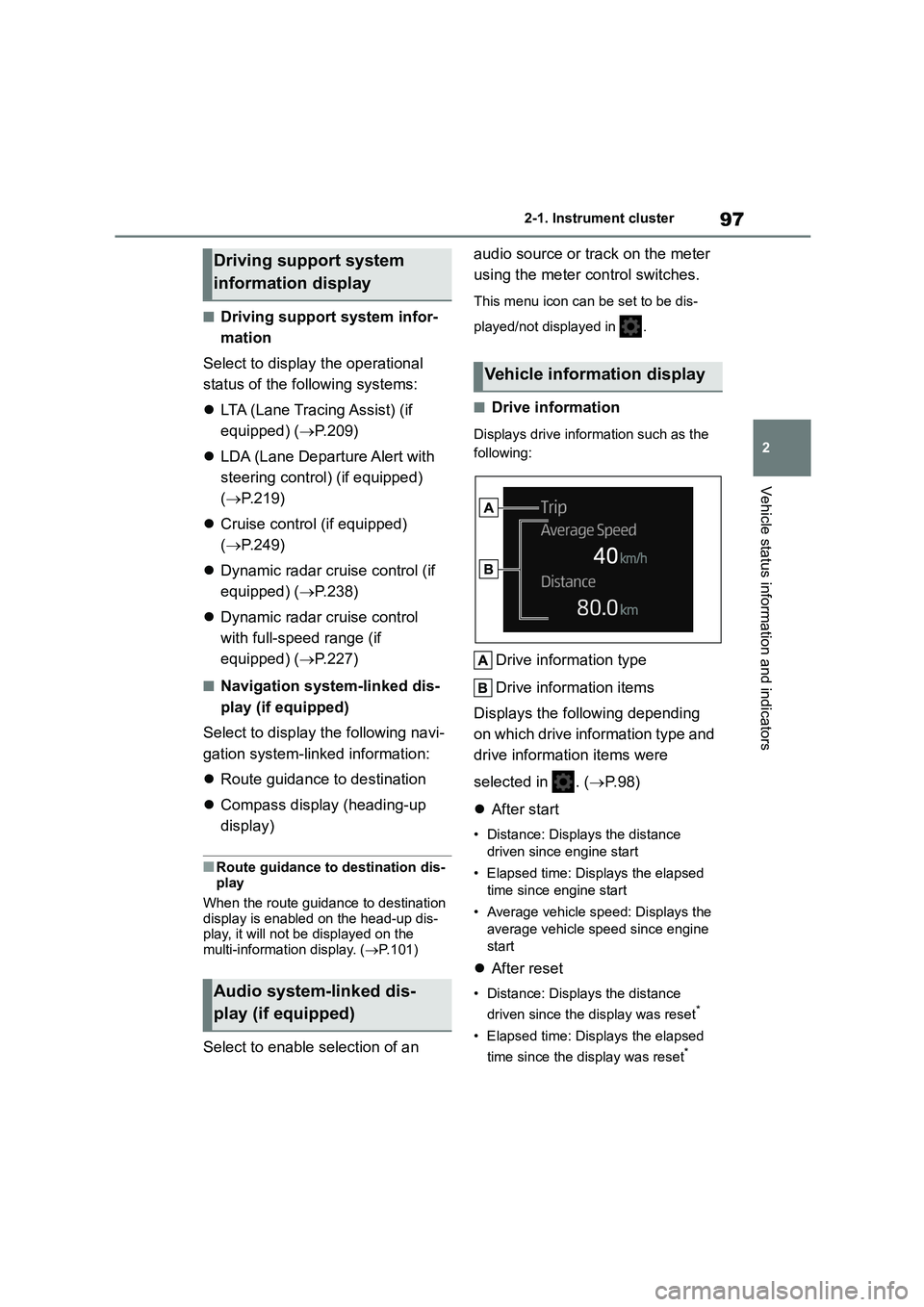
■Drive information
Displays drive information such as the
following:
Drive information type
Drive information items
Displays the following depending
on which drive information type and
drive information items were
selected in . ( P. 9 8 )
After start
• Distance: Displays the distance
driven since engine start
• Elapsed time: Displays the elapsed
time since engine start
• Average vehicle speed: Displays the
average vehicle speed since engine
start
After reset
• Distance: Displays the distance
driven since the display was reset*
• Elapsed time: Displays the elapsed
time since the display was reset*
Driving support system
information display
Audio system-linked dis-
play (if equipped)
Vehicle information display
Page 100 of 678
982-1. Instrument cluster
• Average vehicle speed: Displays the
average vehicle speed since the dis-
play was reset*
*: To reset, display the desired item and
press and hold the meter control
switch.
■Meter display settings that can
be changed
Clock setting (vehicles without
navigation/multimedia system)
P.87, 92
Language
Select to change the language dis-
played.
Units
Select to change the units of measure
displayed.
Speedometer display (7-inch dis-
play)
Select to set the display of the speed-
ometer to analog/digital/digital+ (if
equipped).
Eco Driving Indicator Light (if
equipped)
Select to enable/disable the Eco Driv-
ing Indicator Light.
• Fuel economy display
Select to change the average fuel con-
sumption display between after
start/after reset. ( P. 9 5 )
(if equipped)
Select to display/not display the audio
system linked display.
Select to change the displayed content
of the following:
• Drive information type
Select to change the drive information
type display between after start/after
reset.
• Drive information items
Select to set the first and second items
of the drive information display to any of
the following: average vehicle
speed/distance/elapsed time.
Pop-up display
Select to enable/disable pop-up dis-
plays for each relevant system.
Multi-information display off
(when analog/digital speedome-
ter is displayed)
Select to turn the multi-information dis-
play off.
To turn the multi-information display on
again, press any of the following meter
control sw itches
//// /.
Analog clock (when digital+
speedometer is displayed) (if
equipped)
Display the analog clock.
To turn the multi-information display on
again, press any of the following meter
control sw itches
//// /.
Default setting
Select to reset the meter display set-
tings to the default setting.
Settings display