apple carplay TOYOTA COROLLA HATCHBACK 2020 (in English) User Guide
[x] Cancel search | Manufacturer: TOYOTA, Model Year: 2020, Model line: COROLLA HATCHBACK, Model: TOYOTA COROLLA HATCHBACK 2020Pages: 572, PDF Size: 13.8 MB
Page 284 of 572
2845-3. Connectivity settings
COROLLA H/B_U
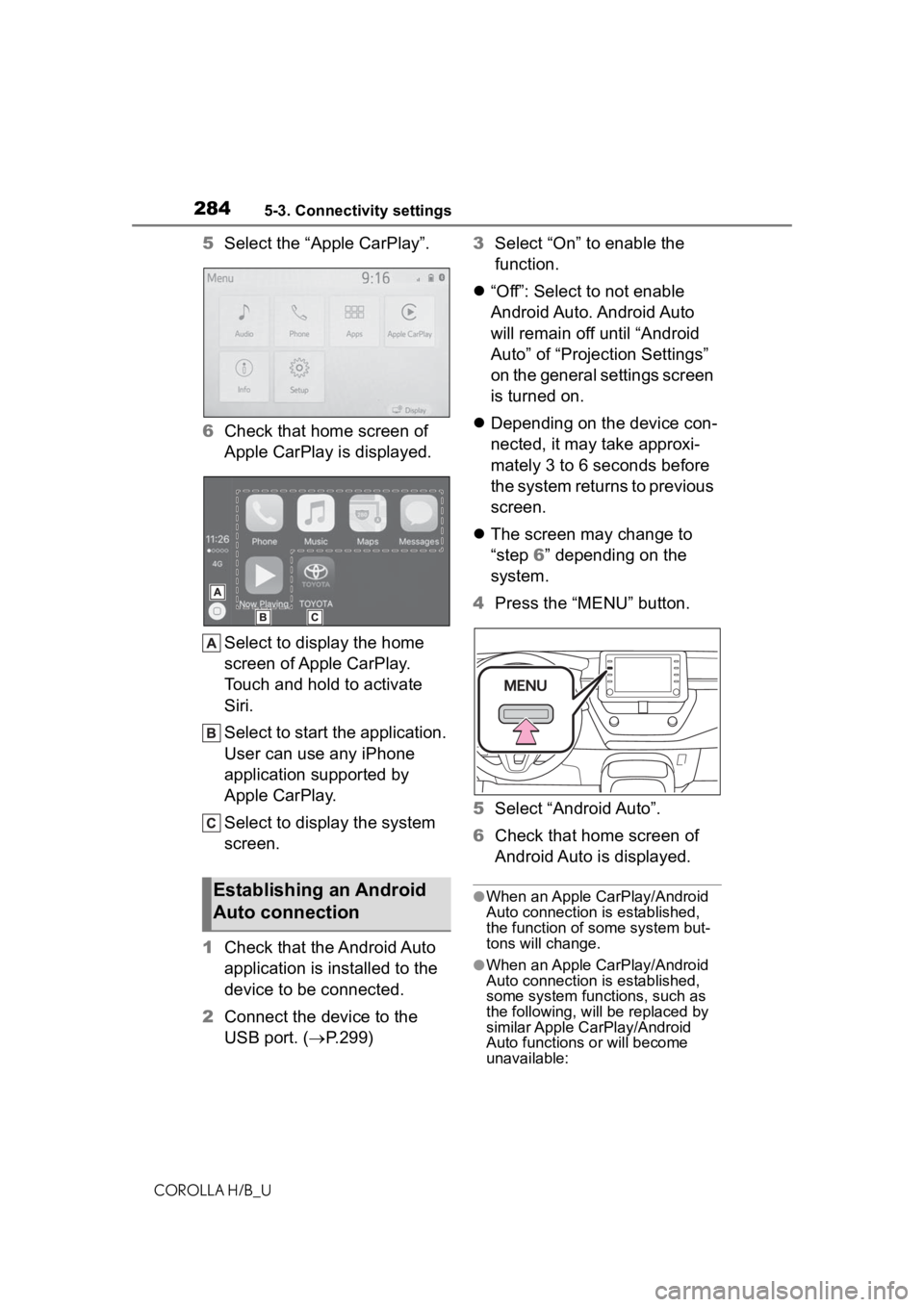
5Select the “Apple CarPlay”.
6 Check that home screen of
Apple CarPlay is displayed.
Select to display the home
screen of Apple CarPlay.
Touch and hold to activate
Siri.
Select to start the application.
User can use any iPhone
application supported by
Apple CarPlay.
Select to display the system
screen.
1 Check that the Android Auto
application is installed to the
device to be connected.
2 Connect the device to the
USB port. ( P.299) 3
Select “On” to enable the
function.
“Off”: Select to not enable
Android Auto. Android Auto
will remain off until “Android
Auto” of “Projection Settings”
on the general settings screen
is turned on.
Depending on the device con-
nected, it may take approxi-
mately 3 to 6 seconds before
the system returns to previous
screen.
The screen may change to
“step 6” depending on the
system.
4 Press the “MENU” button.
5 Select “Android Auto”.
6 Check that home screen of
Android Auto is displayed.
●When an Apple CarPlay/Android
Auto connection is established,
the function of some system but-
tons will change.
●When an Apple CarPlay/Android
Auto connection is established,
some system functions, such as
the following, will be replaced by
similar Apple CarPlay/Android
Auto functions or will become
unavailable:
Establishing an Android
Auto connection
Page 285 of 572
2855-3. Connectivity settings
COROLLA H/B_U
5
Audio
• iPod (Audio Playback)
• Hands-free Phone
• USB audio/USB video
• Bluetooth
® audio
• Bluetooth® phone (Apple CarPlay
only)
• Toyota apps
●The guidance volume can be
changed on the voice settings
screen. ( P.294)
●To disable Apple CarPlay while a
device is connected, set “Apple
CarPlay” on the general settings
screen to off. ( P.290)
●Apple CarPlay/Android Auto is an
application developed by Apple
Inc/Google LLC. Its functions and
services may be terminated or
changed without notice depending
on the connected device’s opera-
tion system, hardware and soft-
ware, or due to changes in Apple
CarPlay/Android Auto specifica-
tions.
●For a list of the apps supported by
Apple CarPlay or Android Auto,
refer to their respective website.
●While using these functions, vehi-
cle and user information, such as
location and vehicle speed, will be
shared with the respective appli-
cation publisher and the cellular
service provider.
●By downloading and using each
application, you agree to their
terms of use.
●Data for these functions is trans-
mitted using the internet and may
incur charges.
For information about data trans-
mission fees, contact your cellular
service provider.
●Depending on the application, cer-
tain functions, such as music play-
back, may be restricted.
●As the applications for each func-
tion are provided by a third-party,
they may be subject to change or
discontinuation without notice.
For details, refer t o the website of the function.
●If the USB cable is disconnected,
operation of Apple Car-
Play/Android Auto will end.
At this time, sound output will stop
and change to the system screen.
●Use of the Apple CarPlay logo
means that a vehicle user inter-
face meets Apple performance
standards. Apple is not responsi-
ble for the operation of this vehicle
or its compliance with safety and
regulatory standards. Please note
that the use of this product with
iPhone or iPod may affect wire-
less performance.
●CarPlay, iPhone, iPod, iPod nano,
iPod touch, and Lightning are
trademarks of Apple Inc., regis-
tered in the U.S. and other coun-
tries. Apple CarPlay is a
trademark of Apple Inc.
●Android and Android Auto are
trademarks of Google LLC.
WARNING
●Do not connect iPhone or oper-
ate the controls while driving.
Page 286 of 572
2865-3. Connectivity settings
COROLLA H/B_U
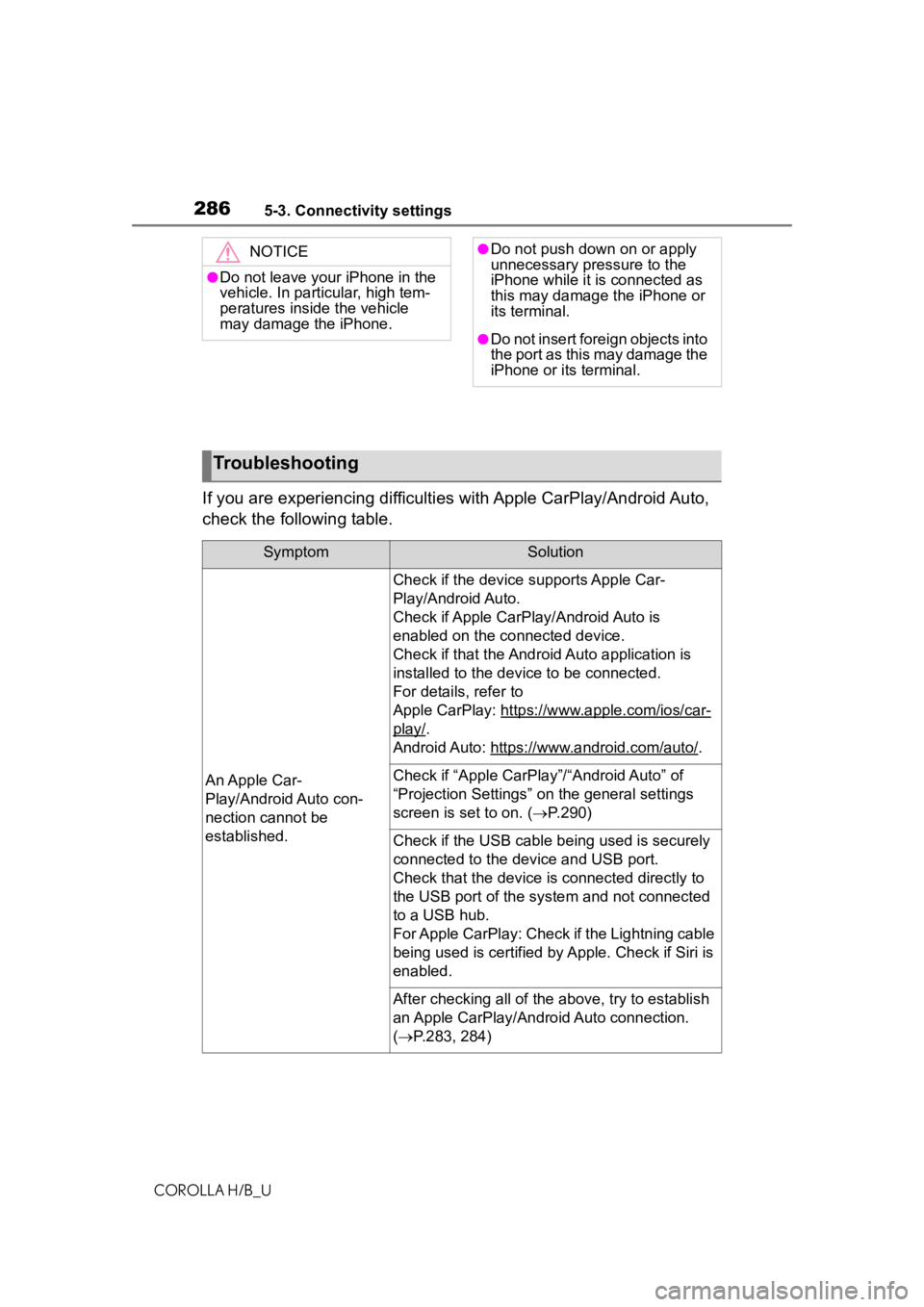
If you are experiencing difficulties with Apple CarPlay/Android Auto,
check the following table.
NOTICE
●Do not leave your iPhone in the
vehicle. In particular, high tem-
peratures inside the vehicle
may damage the iPhone.
●Do not push down on or apply
unnecessary pressure to the
iPhone while it is connected as
this may damage the iPhone or
its terminal.
●Do not insert foreign objects into
the port as this may damage the
iPhone or its terminal.
Troubleshooting
SymptomSolution
An Apple Car-
Play/Android Auto con-
nection cannot be
established.
Check if the device supports Apple Car-
Play/Android Auto.
Check if Apple CarPl ay/Android Auto is
enabled on the connected device.
Check if that the Androi d Auto application is
installed to the device to be connected.
For details, refer to
Apple CarPlay: https://w ww.apple.com/ios/car-
play/.
Android Auto: https://w ww.android.com/auto/
.
Check if “Apple CarPla y”/“Android Auto” of
“Projection Settings” on the general settings
screen is set to on. ( P.290)
Check if the USB cable be ing used is securely
connected to the device and USB port.
Check that the device is connected directly to
the USB port of the system and not connected
to a USB hub.
For Apple CarPlay: Check if the Lightning cable
being used is certified by Apple. Check if Siri is
enabled.
After checking all of the above, try to establish
an Apple CarPlay/Android Auto connection.
( P.283, 284)
Page 287 of 572
2875-3. Connectivity settings
COROLLA H/B_U
5
Audio
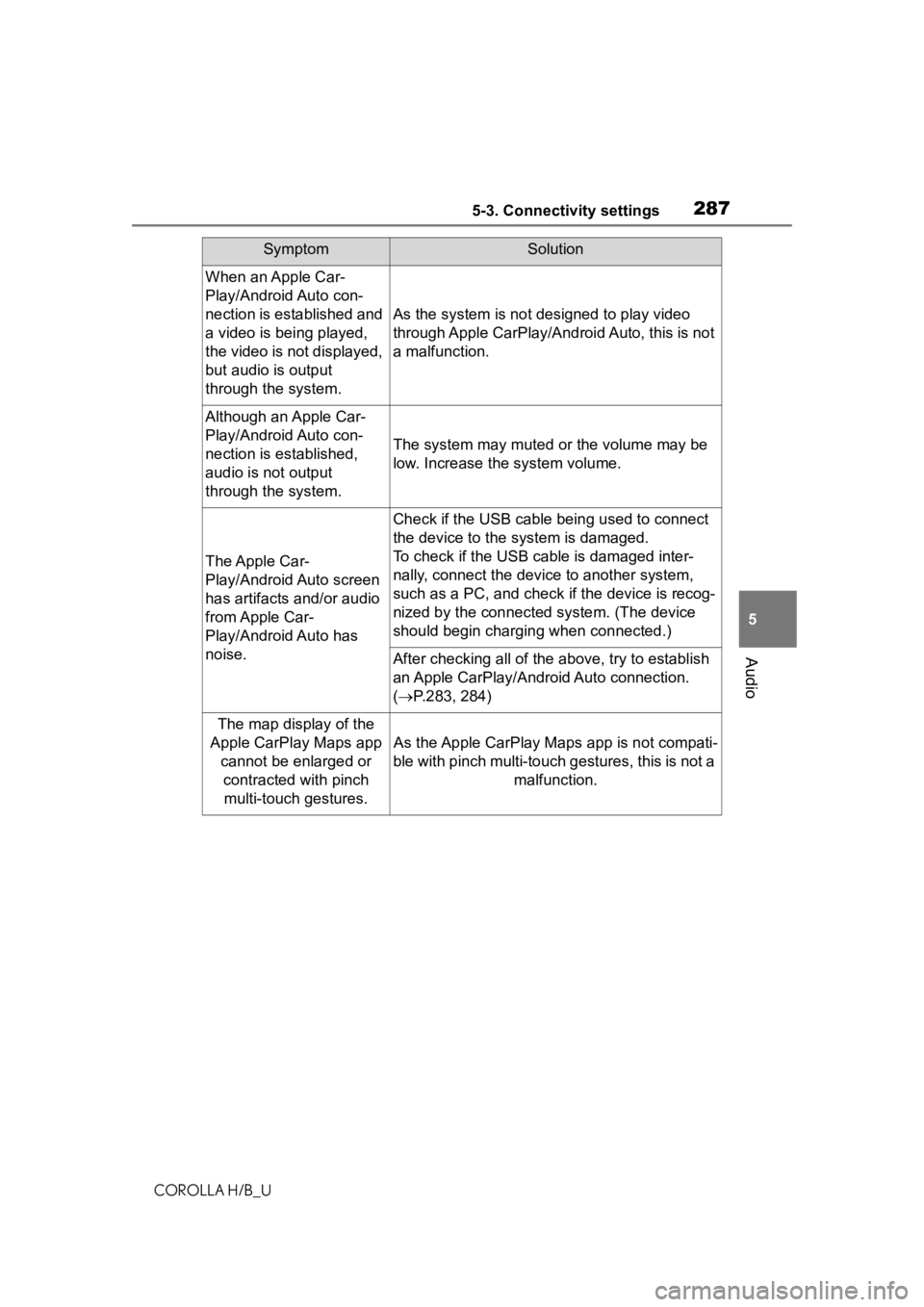
When an Apple Car-
Play/Android Auto con-
nection is established and
a video is being played,
the video is not displayed,
but audio is output
through the system.
As the system is not designed to play video
through Apple CarPlay/Android Auto, this is not
a malfunction.
Although an Apple Car-
Play/Android Auto con-
nection is established,
audio is not output
through the system.
The system may muted or the volume may be
low. Increase the system volume.
The Apple Car-
Play/Android Auto screen
has artifacts and/or audio
from Apple Car-
Play/Android Auto has
noise.
Check if the USB cable being used to connect
the device to the system is damaged.
To check if the USB cable is damaged inter-
nally, connect the devic e to another system,
such as a PC, and check i f the device is recog-
nized by the connect ed system. (The device
should begin charging when connected.)
After checking all of the above, try to establish
an Apple CarPlay/Android Auto connection.
( P.283, 284)
The map display of the
Apple CarPlay Maps app cannot be enlarged or contracted with pinch multi-touch gestures.
As the Apple CarPlay M aps app is not compati-
ble with pinch multi-touch gestures, this is not a malfunction.
SymptomSolution
Page 288 of 572
2885-3. Connectivity settings
COROLLA H/B_U
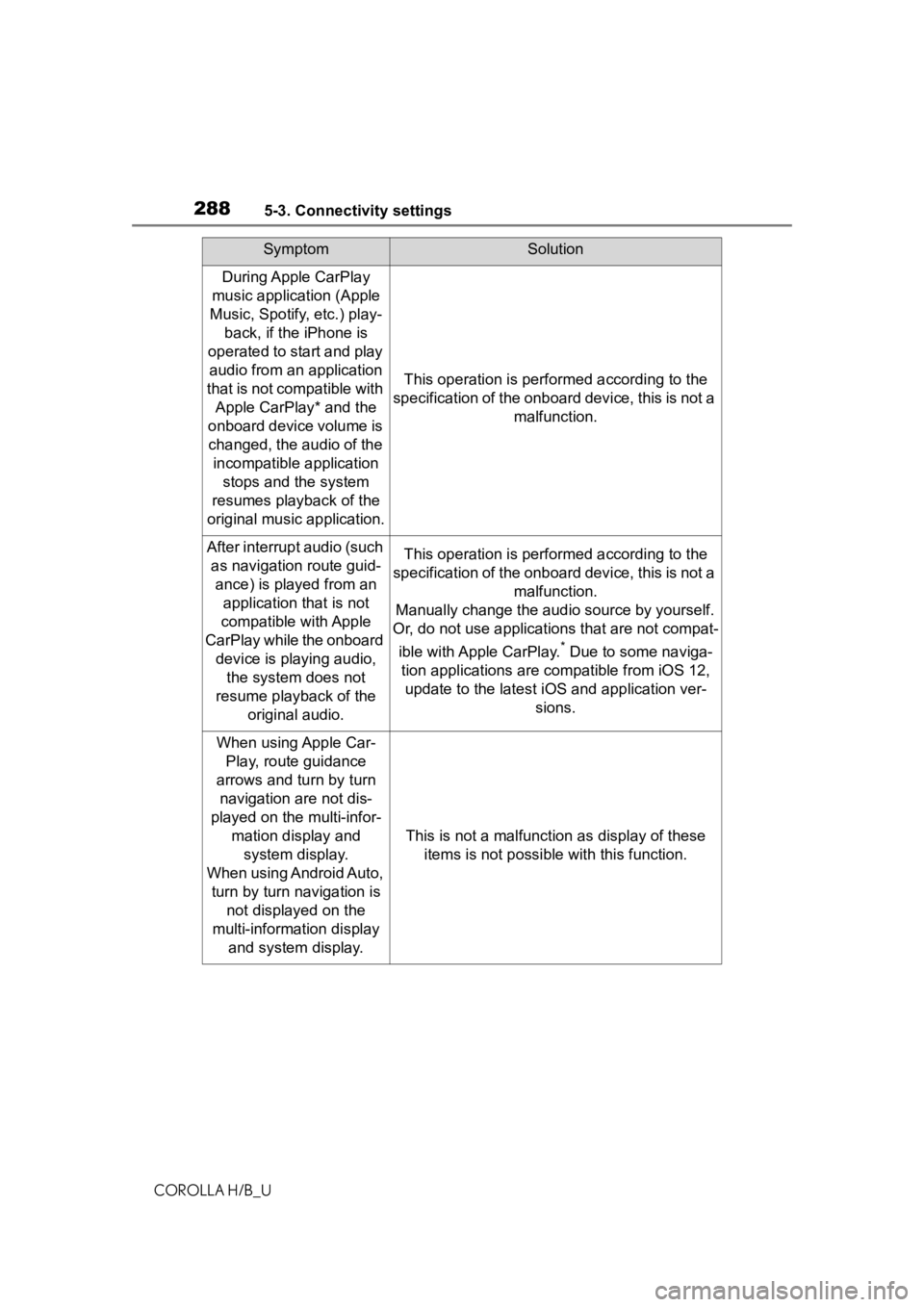
During Apple CarPlay
music application (Apple
Music, Spotify, etc.) play- back, if the iPhone is
operated to start and play audio from an application
that is not compatible with Apple CarPlay* and the
onboard device volume is changed, the audio of the incompatible application stops and the system
resumes playback of the
original music application.
This operation is perf ormed according to the
specification of the onboard device, this is not a malfunction.
After interrupt audio (such as navigation route guid- ance) is played from an application that is not
compatible with Apple
CarPlay while the onboard device is playing audio, the system does not
resume playback of the original audio.This operation is perf ormed according to the
specification of the onboard device, this is not a malfunction.
Manually change the audio source by yourself.
Or, do not use applications that are not compat-
ible with Apple CarPlay.
* Due to some naviga-
tion applications are compatible from iOS 12, update to the latest i OS and application ver-
sions.
When using Apple Car- Play, route guidance
arrows and tu rn by turn
navigation are not dis-
played on the multi-infor- mation display and system display.
When using Android Auto, turn by turn navigation is not displayed on the
multi-information display and system display.
This is not a malfunction as display of these
items is not possibl e with this function.
SymptomSolution
Page 289 of 572
2895-3. Connectivity settings
COROLLA H/B_U
5
Audio
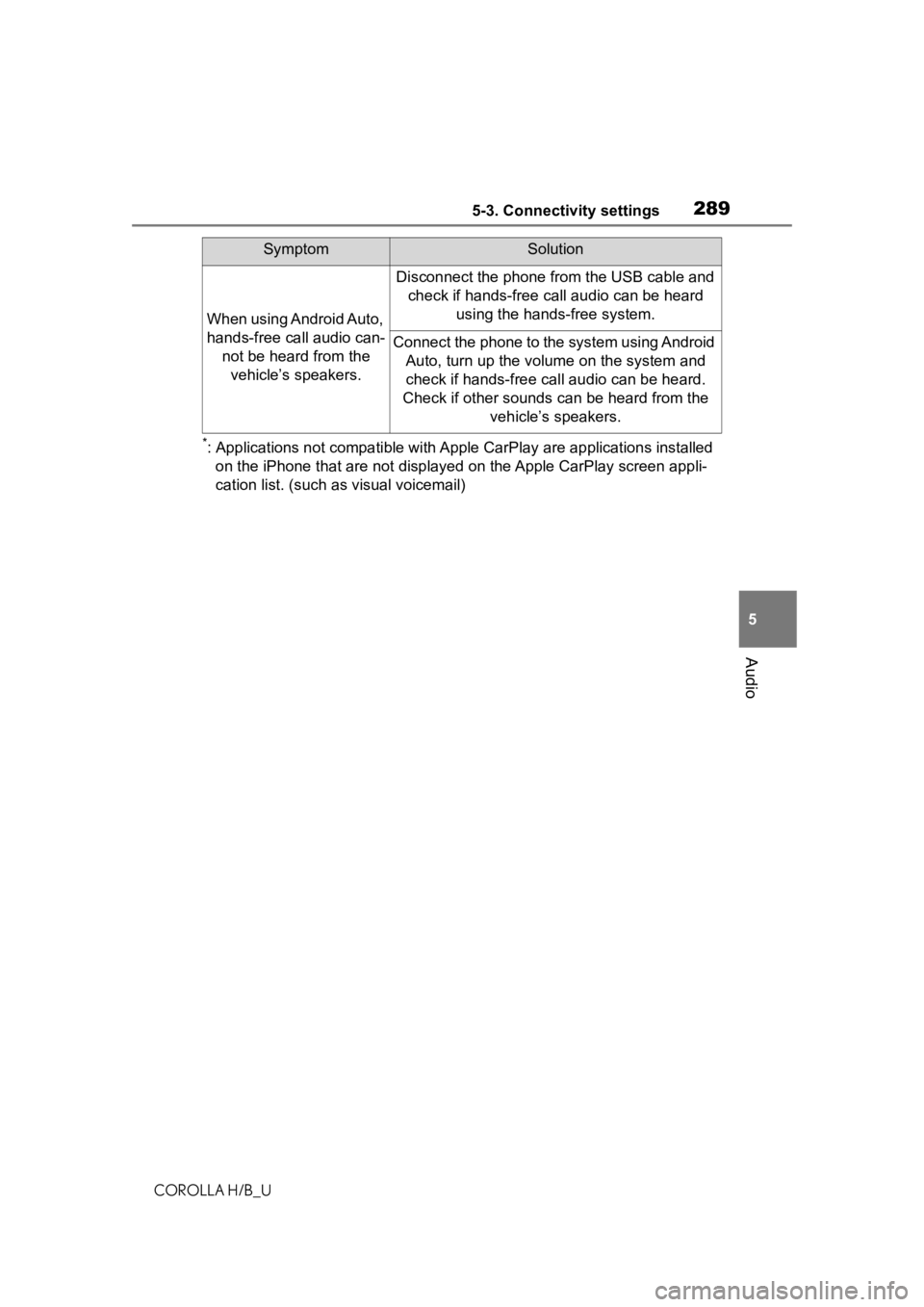
*: Applications not compatible with Apple CarPlay are applications installed
on the iPhone that are not disp layed on the Apple CarPlay scree n appli-
cation list. (such as visual voicemail)
When using Android Auto,
hands-free call audio can- not be heard from the vehicle’s speakers.
Disconnect the phone from the USB cable and check if hands-free call audio can be heard using the hands-free system.
Connect the phone to the system using Android Auto, turn up the volu me on the system and
check if hands-free call audio can be heard.
Check if other sounds can be heard from the vehicle’s speakers.
SymptomSolution
Page 292 of 572
2925-4. Other settings
COROLLA H/B_U
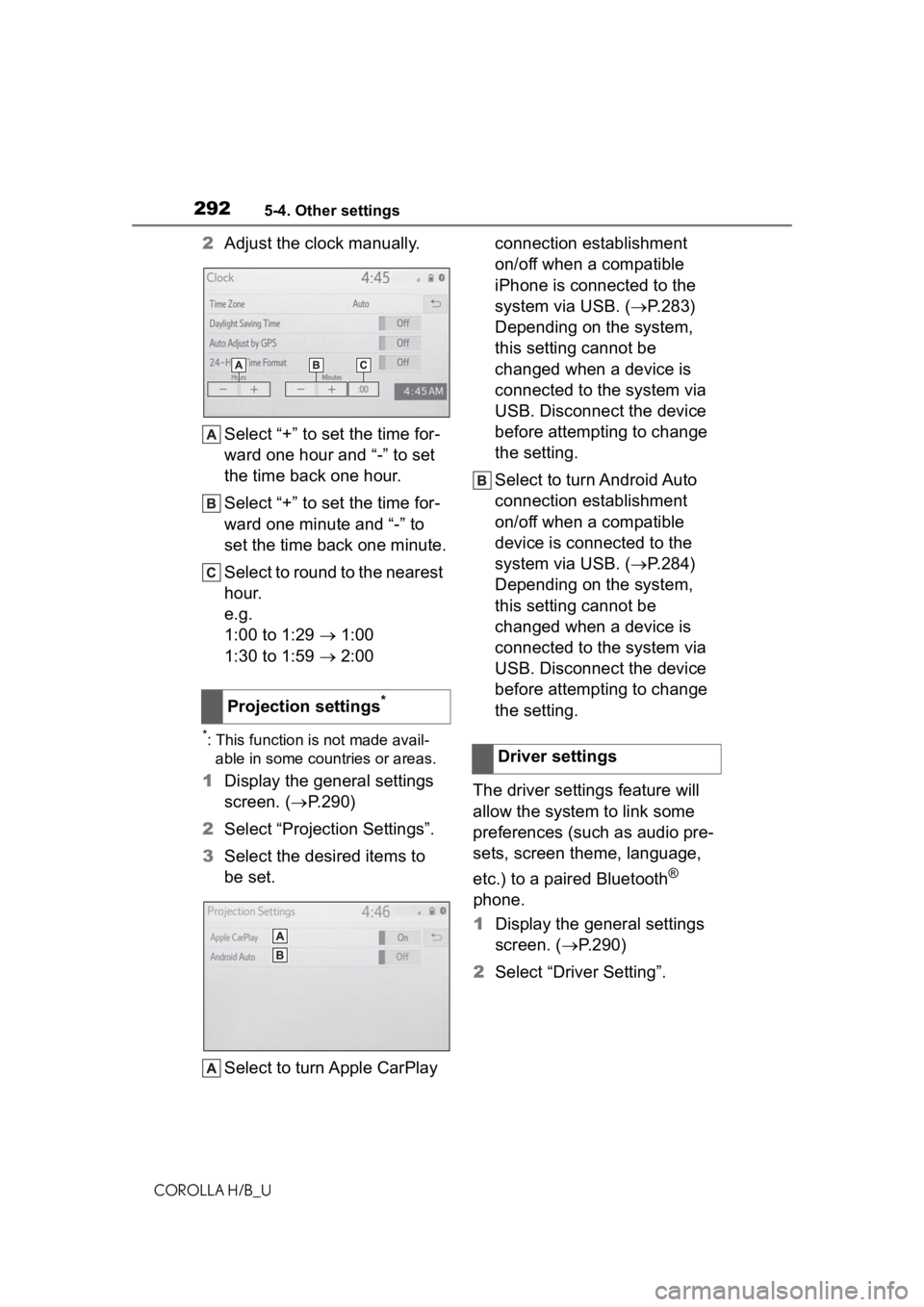
2Adjust the clock manually.
Select “+” to set the time for-
ward one hour and “-” to set
the time back one hour.
Select “+” to set the time for-
ward one minute and “-” to
set the time back one minute.
Select to round to the nearest
hour.
e.g.
1:00 to 1:29 1:00
1:30 to 1:59 2:00
*: This function is not made avail-
able in some countries or areas.
1 Display the general settings
screen. ( P.290)
2 Select “Projection Settings”.
3 Select the desired items to
be set.
Select to turn Apple CarPlay connection establishment
on/off when a compatible
iPhone is connected to the
system via USB. (
P.283)
Depending on the system,
this setting cannot be
changed when a device is
connected to the system via
USB. Disconnect the device
before attempting to change
the setting.
Select to turn Android Auto
connection establishment
on/off when a compatible
device is connected to the
system via USB. ( P.284)
Depending on the system,
this setting cannot be
changed when a device is
connected to the system via
USB. Disconnect the device
before attempting to change
the setting.
The driver settings feature will
allow the system to link some
preferences (such as audio pre-
sets, screen theme, language,
etc.) to a paired Bluetooth
®
phone.
1 Display the general settings
screen. ( P.290)
2 Select “Driver Setting”.
Projection settings
*
Driver settings
Page 297 of 572
2975-5. Using the audio/visual system
COROLLA H/B_U
5
Audio
5-5.Using the audio/visual system
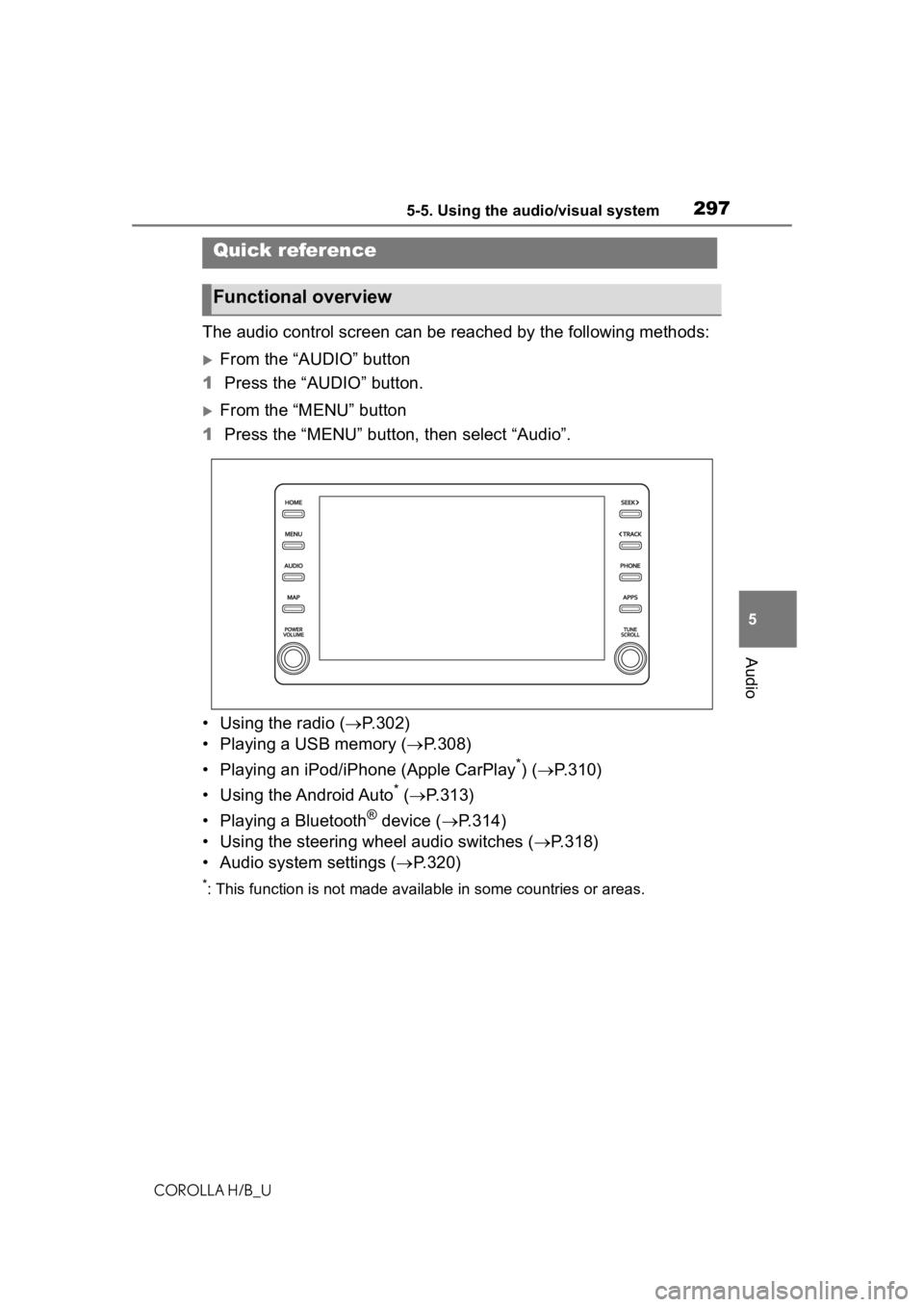
The audio control screen can be reached by the following method s:
From the “AUDIO” button
1 Press the “AUDIO” button.
From the “MENU” button
1 Press the “MENU” button, then select “Audio”.
• Using the radio ( P.302)
• Playing a USB memory ( P.308)
• Playing an iPod/iPhone (Apple CarPlay
*) ( P.310)
• Using the Android Auto
* ( P.313)
• Playing a Bluetooth
® device ( P.314)
• Using the steering wheel audio switches ( P.318)
• Audio system settings ( P.320)
*: This function is not made availa ble in some countries or areas.
Quick reference
Functional overview
Page 298 of 572
2985-5. Using the audio/visual system
COROLLA H/B_U
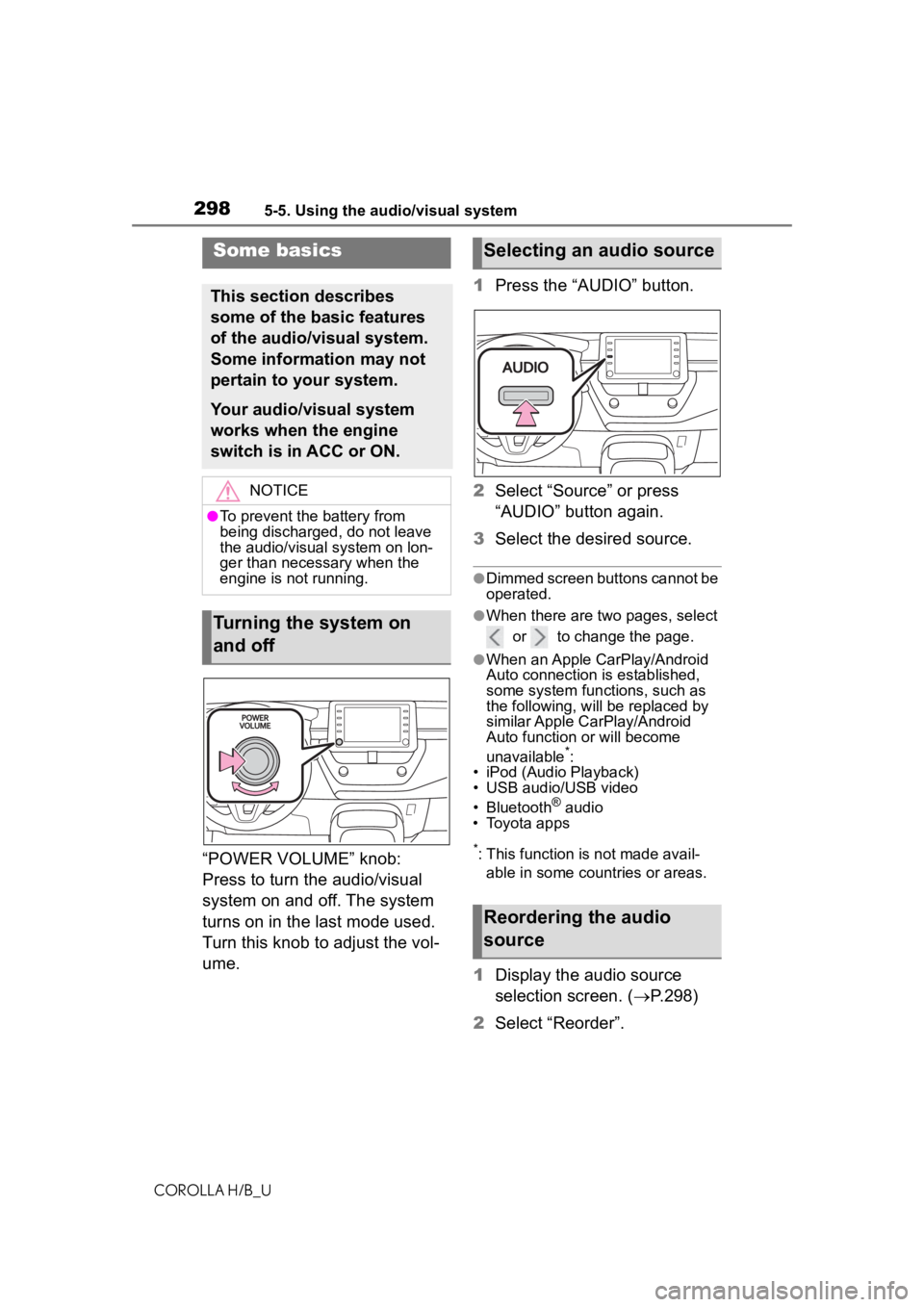
“POWER VOLUME” knob:
Press to turn the audio/visual
system on and off. The system
turns on in the last mode used.
Turn this knob to adjust the vol-
ume.1
Press the “AUDIO” button.
2 Select “Source” or press
“AUDIO” button again.
3 Select the desired source.
●Dimmed screen buttons cannot be
operated.
●When there are tw o pages, select
or to change the page.
●When an Apple CarPlay/Android
Auto connection is established,
some system functions, such as
the following, will be replaced by
similar Apple CarPlay/Android
Auto function or will become
unavailable
*:
• iPod (Audio Playback)
• USB audio/USB video
• Bluetooth
® audio
• Toyota apps
*: This function is not made avail-
able in some countries or areas.
1 Display the audio source
selection screen. ( P.298)
2 Select “Reorder”.
Some basics
This section describes
some of the basic features
of the audio/visual system.
Some information may not
pertain to your system.
Your audio/visual system
works when the engine
switch is in ACC or ON.
NOTICE
●To prevent the battery from
being discharged, do not leave
the audio/visual system on lon-
ger than necessary when the
engine is not running.
Turning the system on
and off
Selecting an audio source
Reordering the audio
source
Page 308 of 572
3085-7. Media operation
COROLLA H/B_U
5-7.Media operation
The USB memory operation
screen can be reached by the
following methods: P. 2 9 8
Connecting a USB memory
( P.299)
When an Apple CarPlay/Android
Auto connection is established,
this function will be unavailable.
*
*: This function is not made avail- able in some countries or areas.
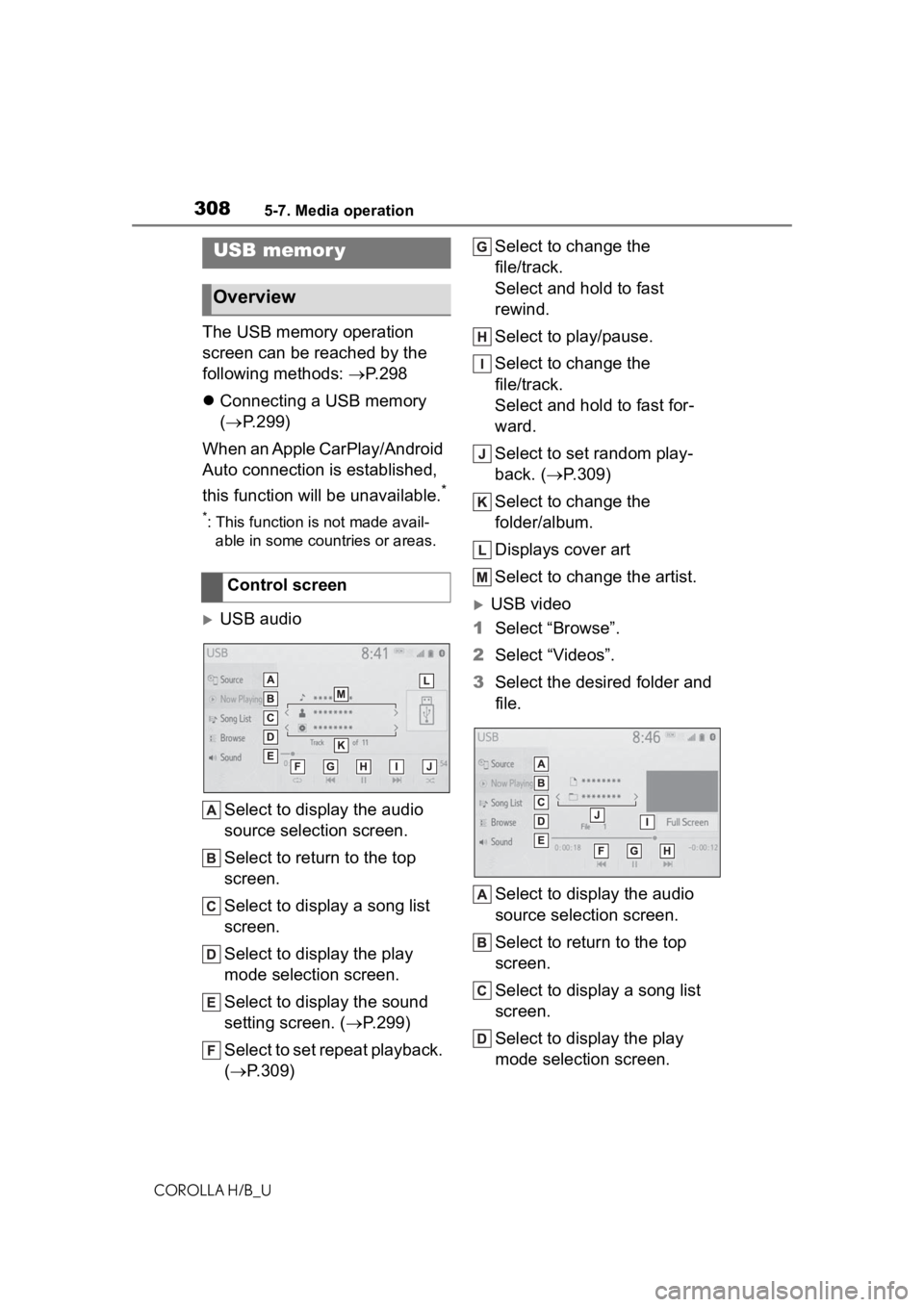
USB audio
Select to display the audio
source selection screen.
Select to return to the top
screen.
Select to display a song list
screen.
Select to display the play
mode selection screen.
Select to display the sound
setting screen. ( P.299)
Select to set repeat playback.
( P.309) Select to change the
file/track.
Select and hold to fast
rewind.
Select to play/pause.
Select to change the
file/track.
Select and hold to fast for-
ward.
Select to set random play-
back. (
P.309)
Select to change the
folder/album.
Displays cover art
Select to change the artist.USB video
1 Select “Browse”.
2 Select “Videos”.
3 Select the desired folder and
file.
Select to display the audio
source selection screen.
Select to return to the top
screen.
Select to display a song list
screen.
Select to display the play
mode selection screen.
USB memor y
Overview
Control screen