bluetooth TOYOTA GT86 2018 Accessories, Audio & Navigation (in English)
[x] Cancel search | Manufacturer: TOYOTA, Model Year: 2018, Model line: GT86, Model: TOYOTA GT86 2018Pages: 164, PDF Size: 6.35 MB
Page 39 of 164
3.MEDIAOPERATION
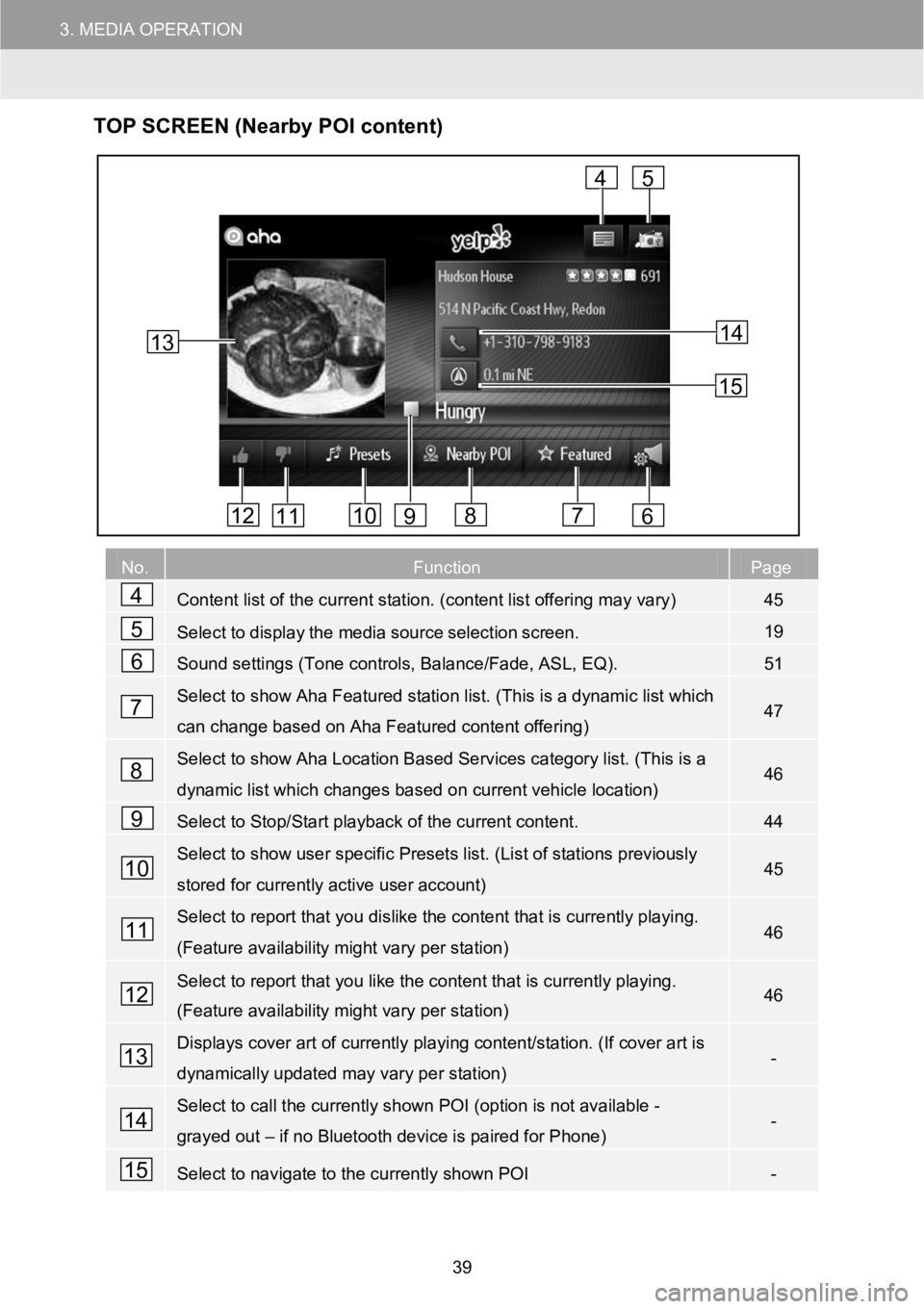
TOP SCR EEN (Nearby POI content)
No.FunctionPage
Content list of the current station. (content list offering may vary)45
Selecttodisplaythemediasourceselectionscreen.19
Sound settings (Tone controls, Balance/Fade, ASL, EQ).51
Select to show Aha Featured station list. (This is a dynamic list which
can change based on Aha Featured content offering)47
Select to show Aha Location Based Services category list. (This is a
dynamic list which changes based oncurrent vehicle location)46
Select to Stop/Start playback of the current content.44
Select to show user specific Presets list. (List of stations previously
stored for currently active user account)45
Select to report that you dislike the content that is currently playing.
(Feature availability might vary per station)46
Select to report that you like the content that is currently playing.
(Feature availability might vary per station)46
Displays cover art of currently playing content/station. (If cover art is
dynamically updated may vary per station)-
Select to call the currently shown POI (option is not available -
grayed out–if no Bluetooth device is paired for Phone)-
Select to navigate to the currently shown POI-
13
4
678101112
5
9
14
15
4
5
6
7
8
9
10
11
12
13
14
15
39
Page 41 of 164
1. AUDIO SYSTEM OPERATION 3. MEDIA OPERATION
CONNECTING AN iPhone CON NECTING AN Android
PHONE
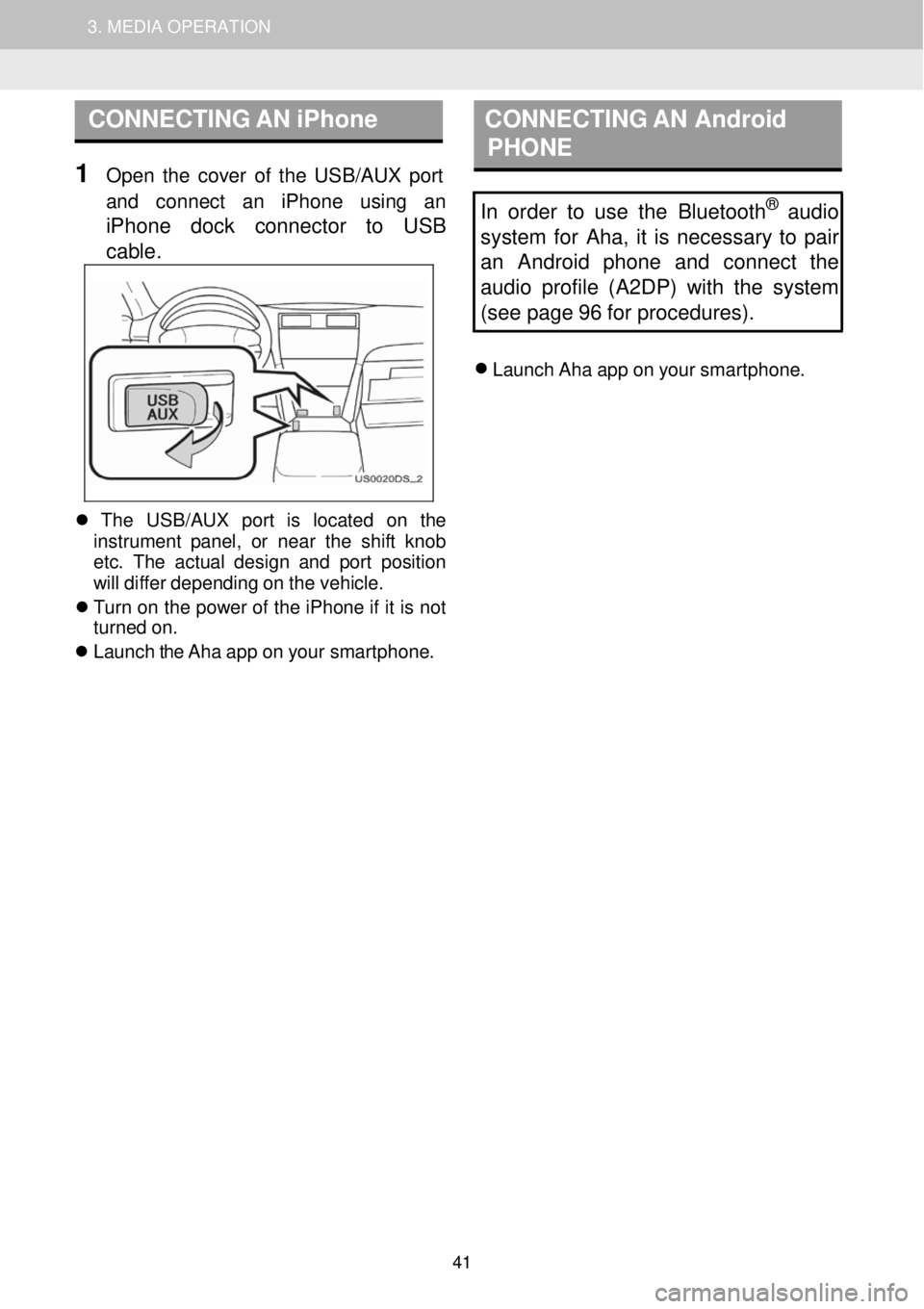
1 Op en the cover of the USB/AUX port
and conn ect an iPhone usi ng an
iPhone dock connector to USB
cab le
.
In order to use the Bluetooth® audio
system for Aha, it is necessary to pair
an Android phone and connect the
audio profile (A2DP) with the system
(see page 96 for procedures).
Launch Aha app on your smar tphone.
Th e USB/AUX port is l ocate d on th e
in strume nt pan el, or near the shift knob
et c. The actual design and p ort positio n
will diffe r depending on the vehicle.
Tu rn on the po wer of the iPhone if it is not
turn ed on.
Launch the Aha app on your smar tphone.
41
Page 48 of 164
1. AUDIO SYSTEM OPERATION 3. MEDIA OPERATION
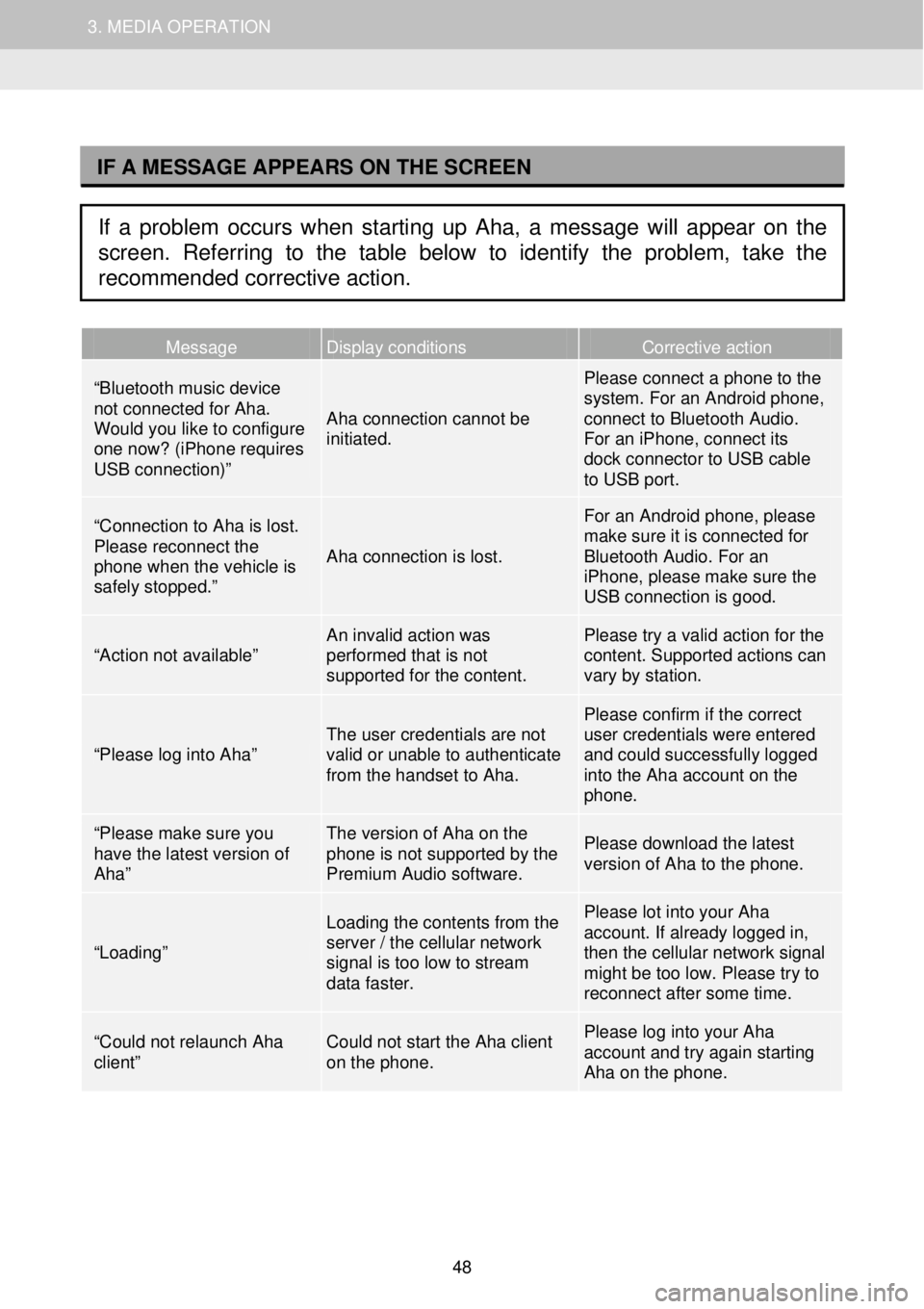
I
Message Display conditions Corrective action
“Bluetooth music device not connected for Aha. Would you like to configure one now? (iPhone requires USB connection)”
Aha connection cannot be initiated.
Please connect a phone to the system. For an Android phone, connect to Bluetooth Audio. For an iPhone, connect its dock connector to USB cable to USB port.
“Connection to Aha is lost. Please reconnect the phone when the vehicle is safely stopped.”
Aha connection is lost.
For an Android phone, please make sure it is connected for Bluetooth Audio. For an iPhone, please make sure the USB connection is good.
“Action not available” An invalid action was performed that is not supported for the content.
Please try a valid action for the content. Supported actions can vary by station.
“Please log into Aha” The user credentials are not valid or unable to authenticate from the handset to Aha.
Please confirm if the correct user credentials were entered and could successfully logged into the Aha account on the phone.
“Please make sure you have the latest version of Aha”
The version of Aha on the phone is not supported by the Premium Audio software.
Please download the latest version of Aha to the phone.
“Loading”
Loading the contents from the server / the cellular network signal is too low to stream data faster.
Please lot into your Aha account. If already logged in, then the cellular network signal might be too low. Please try to reconnect after some time.
“Could not relaunch Aha client” Could not start the Aha client on the phone.
Please log into your Aha account and try again starting Aha on the phone.
IF A MESSAGE APPEARS ON THE SCREEN
If a problem occurs when starting up Aha, a message will appear on the
screen. Referring to the table below to identify the problem, take the
recommended corrective action.
48
Page 57 of 164
3
Bluetooth® HANDS-FREE SYSTEM
1
BASIC INFORMATION
BEFORE OPERATION
1. QUICK REFERENCE ...... .... ........ 58
2. HANDS -FREE SYSTEM... ........... 60
USING THE PHONE SWITCH OR
MICROPHONE..................................... 61
ABOUT THE PHONE BOOK IN THIS
SYS TEM............................................... 62
WHEN YOU SELL YOUR CAR............ 62
CONNECT A Bluetooth® PHON E....... 63
3. REGISTERING AN ENTRY ...... .... 64
REGISTERING A NEW ENTRY............ 64
DISPLAYING AND EDITING THE
ENTRY INFORMATION...................... 66
SENDING STORED CONTACTS TO A
USB MEMORY ................................... 67
2 PHO NE OP ERATION
1 . CALLING ON A Blu etooth ®
PHONE……………….. .......... . 68
BY DIAL ............................................. 68
BY FAVORITES LIST........................... 69
BY PH ONE BOOK ............................... 69
BY CALL LISTS ................................... 70
BY A SHORT MESSAGE….................. 71
BY POI* ENTRY. ................................... 71
2. RECEIVIN G CALLS ON A
Bluet ooth® PHONE
.... ..... ..... 72
3. TALKING ON A Blueto oth
®
PHONE .. .................................... 73
SEN DING TONES ............................... 74
DIALING A SECOND NUMBER ......... 75
AD JUSTING THE RECEIVER
VOLUME............................................. 76
3 SHORT MESSAGE FUNCTION
1. SHORT MESSAGE FUNCTION . 77
RECEIVING A SHORT MESSAGE ... 77
CHECKING RECEIVED SHORT
MESSA GES........................................ 77
CHECKING SENT SHORT
MESSA GES........................................ 78
SENDING A NEW SHORT
MESSAGE........................................... 79
4
WH AT TO DO IF...
1. TROUBLESHOOT ING. ..... ... ..... ... 82
Some of the functions cannot be operated
while driving.
*: Point of Interest
57
Page 60 of 164

1. BASIC INFORMATION BEFORE OPER ATION
2. HANDS -FREE SYSTEM
Bluetooth® h
ands -free system al lows
you to make or receive a call without
taking your hands off the steering
wheel by conn ecting your cellular
phone.
This system supports Bluetooth
®.
Bluetooth® is a wire less data system
by which you can call without your
ce llular phone bei ng conn ected with a
ca ble or placed on a cradle.
The operating procedure of the system
is explained in this section.
WARNING
• Us e a ce llular p hone or conn ect the
Bl uet ooth® phone only when sa fe and
le gal to do so.
• Your audio unit is f itte d wi th Bl uet ooth
®
antennas. Pe ople with imp lantabl e
car diac pacemakers , cardiac
resy nchronizat ion t herapy-p acemakers
or imp lant able card iovert er defi brillat ors
shou ld ma intain a reasonable d istance
between themselves and the Bl uetooth
®
antennas. The radio waves may aff ect
th e o peration o f such devic es.
• Be for e us ing
Bluet ooth® devices, users
o f an y electr ica l medi cal device othe r
th an i mplant able cardiac p acemakers,
card iac resynchro niz ation ther apy -
pac emaker s or implan table cardi overter
def ibrillat ors should cons ult the
ma nufa ctur er of the device for
inf orma tion abo ut its operation under
the influence of radio waves. Rad io
wav es could have unex pected eff ects
on the op eratio n of such medica l
dev ices.
NOTICE
INFORMA
TION
•
If your cellular phone does not suppo rt
• Bl uetooth®, this sys tem will not f unction.
• In the follow ing conditions, the system
ma y not funct ion:
• The cellular phone is turned of f.
• Th e cu rrent posi tio n i
s out side t he
c ommun ication ar ea.
• The cellular phone is not connected.
• The cellular phone has a low batter y.
• Whe n us ing Blue tooth® aud io and
hands- free at the same ti me, the
fol lowi ng pr oblems may occur.
• The Blue tooth
® connect ion may be
c ut .
• Noise may be h eard on the Bl uetooth
®
audio playback.
Do not leave your cellular phone in the
veh icle. The tempera tur e in side ma y rise
to a le vel that cou ld dama ge the ph one.
60
Page 63 of 164
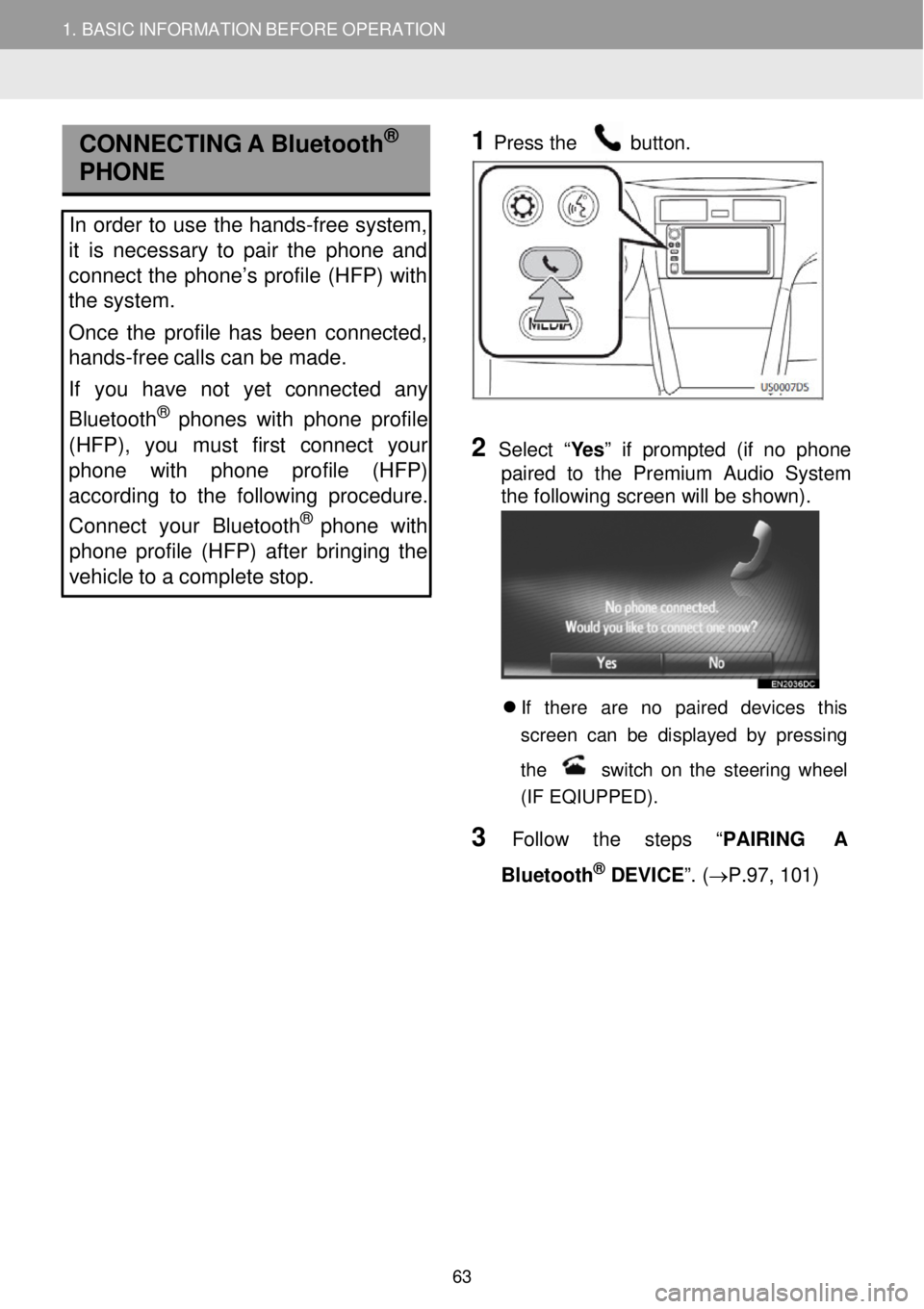
1. BASIC INFORMATION BEFORE OPERATION
CONNECTI NG A Bluetooth®
PHONE
In order to us e the hands -free system,
it is necessary to pair the phone and
connect the phone’s profile (HFP) with
the system.
Once the profile has been connected,
hands -free calls can be made.
If you have not yet connected any
Bluetooth
® phone s with phone profile
(HFP), you must first connec t your
phone with phone profile (HFP)
according to the following procedure.
Connect your Bluet ooth
® phone with
phone profile (HFP) after bringing the
vehicle to a complete stop.
1
Pres
s the button.
2 Selec t “Yes” if prompted (if no phone
paired to the Premium Audio System
the following screen will be shown) .
If there are no paired devices t his
s creen can be d ispla yed by pressing
the
switch on the s teering wheel
(IF EQIUPPED) .
3 Follow the step s “PAI RING A
Bl uetooth
® DEVICE”. ( →P.97, 101)
63
Page 68 of 164
How to make a call listPage
Bydial68
By“Favorites ”list69
By phone book69
Bycall lists70
By using a short messa ge71
ByPOI call71
2.PHONEOPERATION
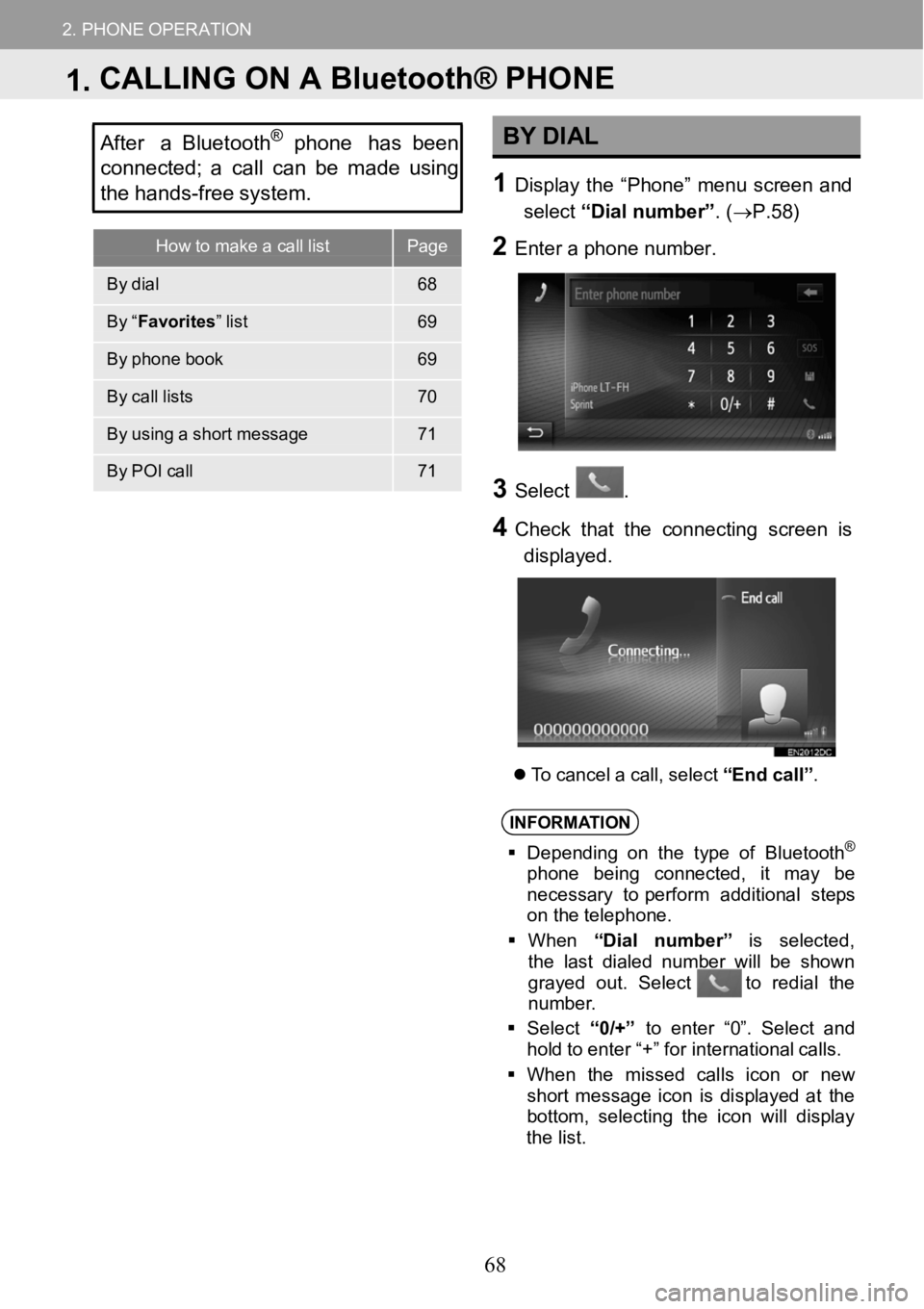
After a Bluetooth®phone has been
co nnected; acall can be made using
the hands -fr ee system.BY DIAL
1Displ aythe “Phon e” menuscreen and
select “Dialnum ber” . (→P. 58)
2Ente r a ph one numb er.
3
3Select.
4Check that the conn ectingscreenis
displayed.
To ca ncel a cal l,sel ect “End call”.
INFORM ATION
Depending on the type of Bl uetooth®
phone beingconnect ed , it may be
necessary to perfor m add itional steps
on t heteleph one.
When “Dial n umber ” is select ed,
t he l ast dia led num berwillbe sh own
gra yed out. Select to redia l the
nu mbe r.
Se lect “0/+” to enter “0”. Select and
hold to en ter“+ ” for i nter nat ional calls.
When the missed cal lsicon or new
short messag e icon isdisp lay ed at the
bottom, selecting t he i con w illdis pla y
t he l ist.
1.CALLING ON A Bluetooth® PHONE
68
Page 72 of 164
2. PHONE OPERATION
2. RECEIVING CALLS ON A Bluetooth® PHONE
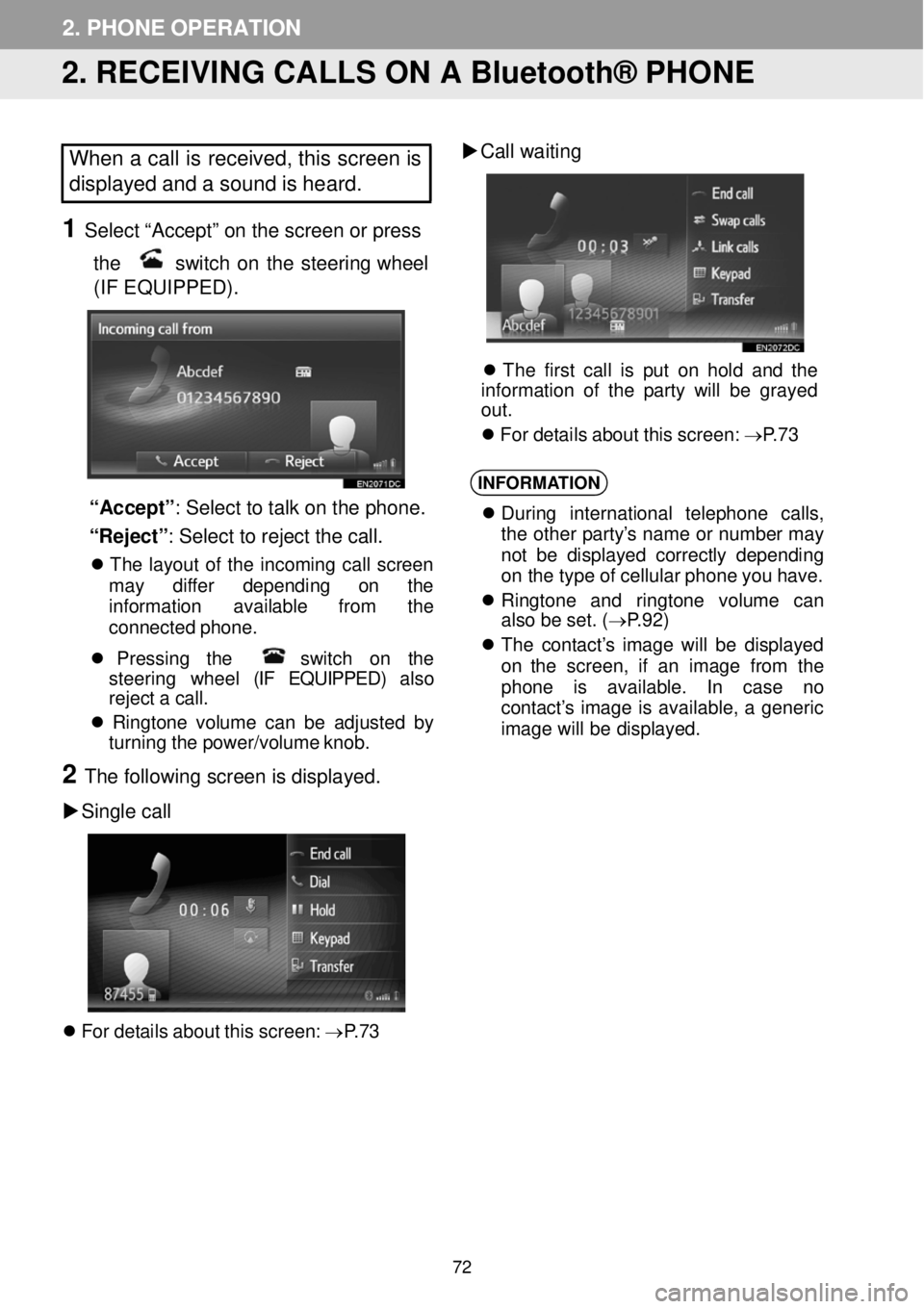
When a call is received, this screen is
displayed and a sound is heard.
1 Select “Accept” on the screen or p ress
the
switch on the steering wheel
(IF EQUIPPED) .
“Accept ”: Select to talk on the ph one.
“Reject” : Sel ect t o re jec t th e ca ll.
The la yout of the in coming ca ll screen
ma y diffe r d epending on the
info rmati on availab le from the
conn ected phon e.
Pr essing the sw itc h on the
st eer ing wheel (IF EQUIPPED) also
re ject a call.
Ringt one volum e can be a djust ed by
tu rning the p ower/volume knob.
2 The fol lowi ng scre en is displ ayed.
Si ngle call
For d etails about this screen: →P.73
Call w aiting
Th e fi rst call is put on hold and the
information o f the p arty w ill be grayed
out .
Fo r det ails about this screen: →P.73
INFORMA TION
Duri ng intern ationa l telep hon e calls,
t he ot her p arty’s nam e or numbe r ma y
no t be displa yed co rrectly de pend ing
on t he typ e o f cel lular p hone you h ave.
Ri ngt one and ringt one volume can
al so b e set. ( →P.92)
Th e c ontact’s i mage will be displ aye d
on the screen, if an image from the
phone is av ailab le. In case no
con tact’s i mage is avail able, a generic
i mag e wi ll be d ispl ay ed.
72
Page 73 of 164
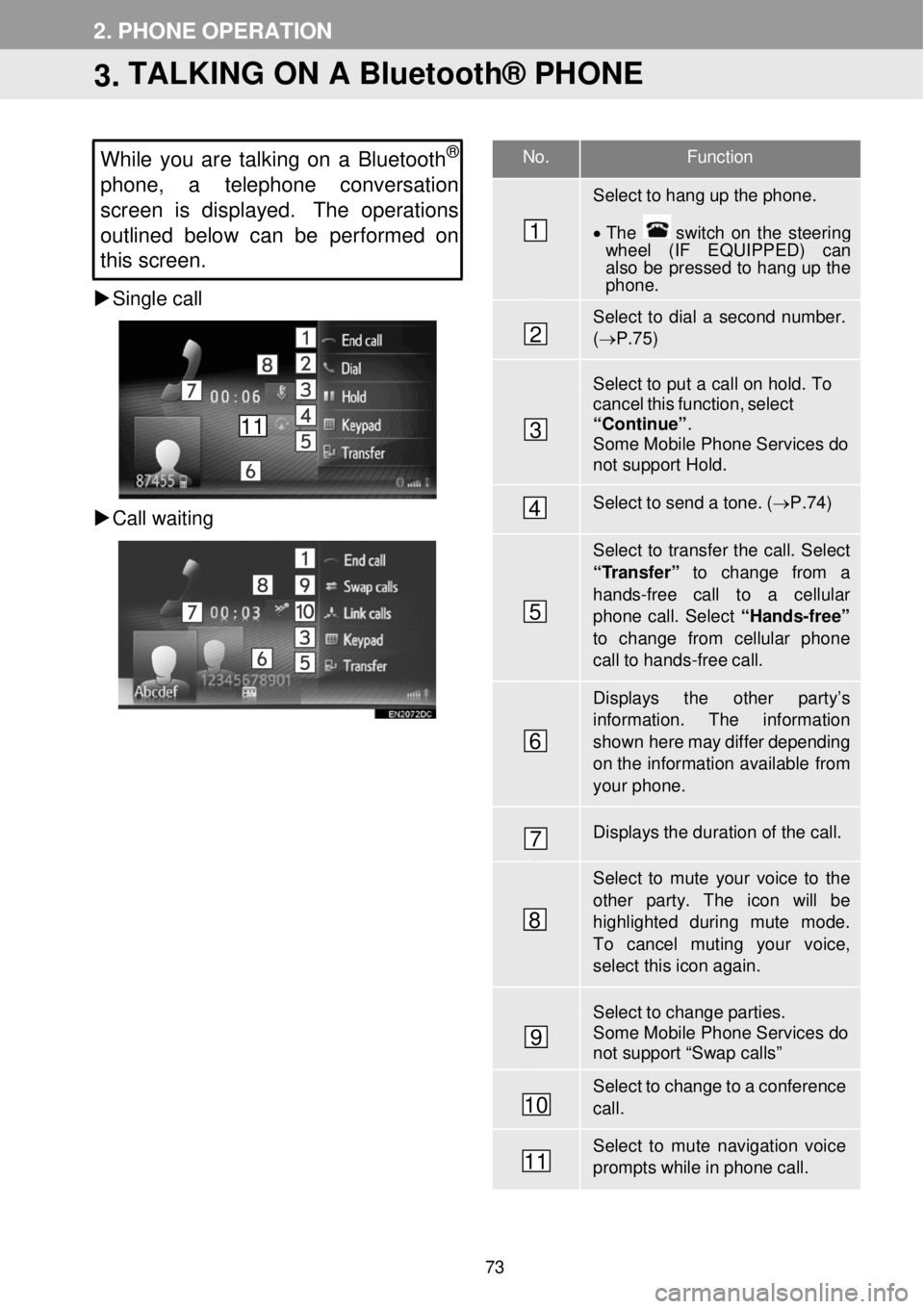
No. Function
Select to hang up the phone.
• The switch on the stee rin g wh eel (IF EQUIPPED) can also be pressed to hang up the phone.
Select to dial a second number. (→ P.75)
Select to put a ca ll on hold. To cancel this function, select “Continue” . Some Mobile Phone Services do not support Hold.
Select to send a tone. ( →P.74)
Select to transfer the call. Select
“Transfer” to change from a hands-free call to a cellular phone call. Select “Hands-free” to change from cellular phone call to hands-free ca ll.
Displays the other par ty’s information. The information
shown here may differ depending on th e infor mation available from your phone.
Displays the duration of the call.
Select to mute your voice to th e other par ty. The icon wi ll be highlighted d uring mute mode. To cancel muting your voice,
select this icon again.
Select to change parties. Some Mobile Phone Services do not support “Swap calls”
Select to change to a conference call.
Select to mute navigation voice prompts while in phone call.
2. PHONE OPERATION
3. TALKING ON A Bluetooth® PHONE
While you are talking on a Bluetooth®
phone, a telephon e conversation
s creen is displayed. The operations
outlined below can be performed on
this screen.
Single call
Ca ll waiting
1
2
3
4
5
6
7
8
9
10
11
11
73
Page 74 of 164
2. PHONE OPERATION 2. PHONE OPERATION
INFORMATION
• When you c hange from a c ellular
phone ca ll to a hands- free c all, the
hands-free screen will be d ispla yed
and the call can be controlled through
the scre en of the Premium Audio
system .
• D epending on the cellu lar ph one
c onnected, the Bluetooth
® conne ction
may b e cance led if and when a c all is
tra nsfe rred to the cellular phone.
• Tra nsferring methods will be diff erent
depending on the t ype of cellular
phone which you have.
• Fo r the operation of the cellular
ph one, se e the man ual t hat co mes
wi th your cellu lar pho ne.
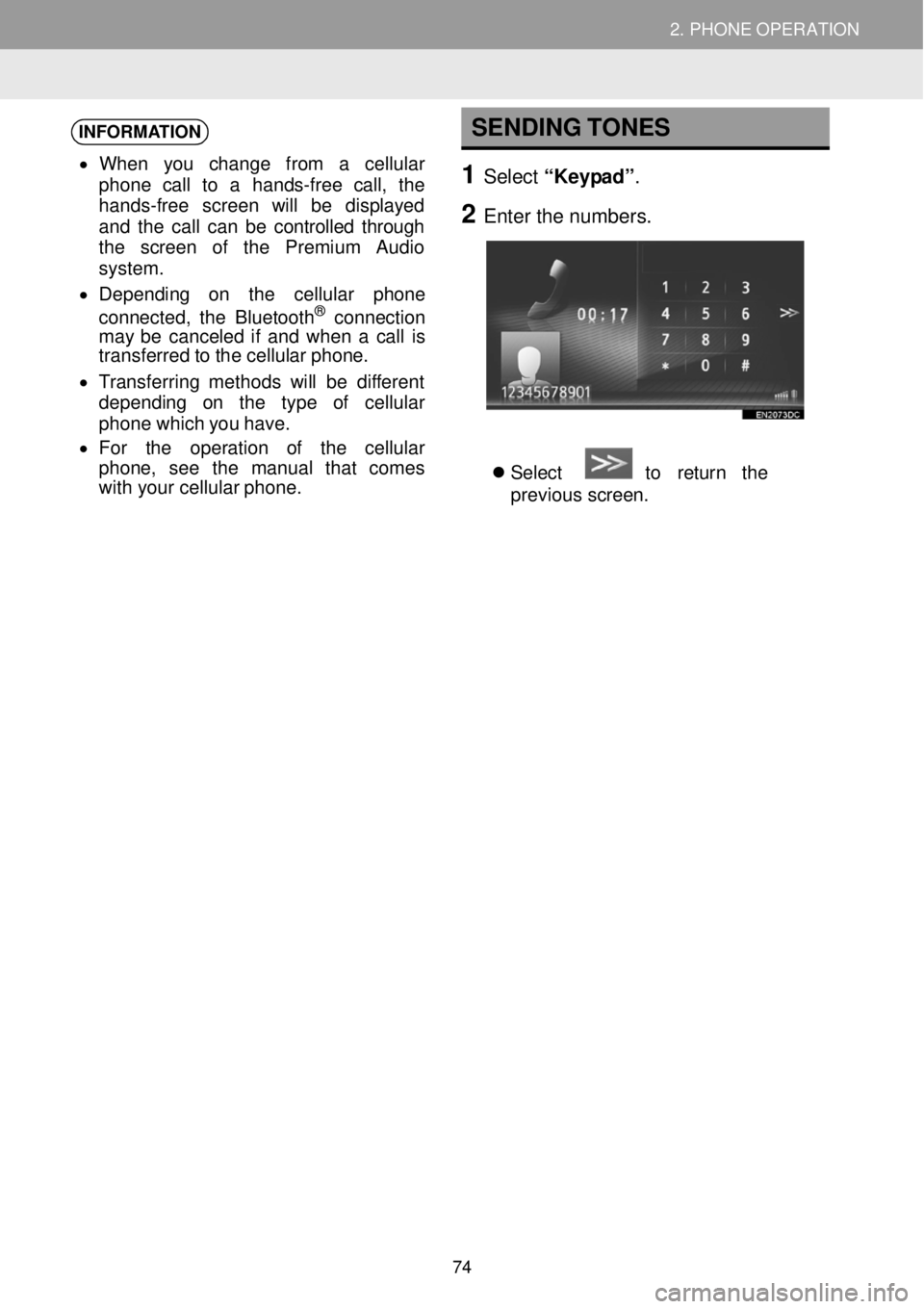
SENDING TONES
1 Select “Keypad”.
2 Enter t he numbers.
Select to retur n the
prev ious screen.
74