audio TOYOTA LAND CRUISER 2015 J200 Navigation Manual
[x] Cancel search | Manufacturer: TOYOTA, Model Year: 2015, Model line: LAND CRUISER, Model: TOYOTA LAND CRUISER 2015 J200Pages: 427, PDF Size: 7.69 MB
Page 134 of 427
134
1. PHONE OPERATION
L/C200_Navi_OM60M04U_(U)
14.05.28 15:38
2. PHONE (HANDS-FREE SYSTEM FOR CELLULAR PHONE)
*: This profile is necessary when using
Entune App Suite. (See “Entune App
Suite SERVICE” on page 348.)
The hands-free system enables calls
to be made and received without hav-
ing to take your hands off the steering
wheel.
This system supports Bluetooth
®.
Bluetooth
® is a wireless data system
that enables cellular phones to be used
without being connected by a cable or
placed in a cradle.
The operating procedure of the phone
is explained here.
For registering and setting of the phone,
see “PHONE SETTINGS” on page 156
and “Bluetooth
® SETTINGS” on page
178.
CAUTION
● While driving, do not use a cellular
phone or connect the Bluetooth® phone.
● Your audio unit is fitted with Bluetooth®
antennas. People with implantable car-
diac pacemakers, cardiac resynchroni-
zation therapy-pacemakers or
implantable cardioverter defibrillators
should maintain a reasonable distance
between themselves and the Bluetooth
®
antennas. The radio waves may affect
the operation of such devices.
● Before using Bluetooth
® devices, users
of any electrical medical device other
than implantable cardiac pacemakers,
cardiac resynchronization therapy-pace-
makers or implantable cardioverter
defibrillators should consult the manu-
facturer of the device for information
about its operation under the influence
of radio waves. Radio waves could have
unexpected effects on the operation of
such medical devices.
NOTICE
● Do not leave your cellular phone in the
vehicle. The temperature inside may rise
to a level that could damage the phone.
INFORMATION
●If your cellular phone does not support
Bluetooth®, this system cannot function.
● In the following conditions, the system
may not function:
• The cellular phone is turned off.
• The current position is outside the
communication area.
• The cellular phone is not connected.
• The cellular phone has a low battery.
● When using Bluetooth
® audio and
hands-free at the same time, the follow-
ing problems may occur:
• The Bluetooth
® connection may be
cut.
• Noise may be heard on the Bluetooth
®
audio playback.
● This system supports the following ser-
vices:
•Bluetooth
® Specification
Ver.1.1 or higher
(Recommended: Ver.2.1 + EDR or
higher)
•Profiles HFP (Hands Free Profile)
Ver.1.0 or higher
(Recommended: Ver.1.5 or higher)
OPP (Object Push Profile)
Ver.1.1 or higher
PBAP (Phone Book Access Profile)
Ver.1.0 or higher
MAP (Message Access Profile)
Ver.1.0 or higher
SPP (Serial Port Profile)
Ver.1.1 or higher*
Page 136 of 427
136
1. PHONE OPERATION
L/C200_Navi_OM60M04U_(U)
14.05.28 15:38
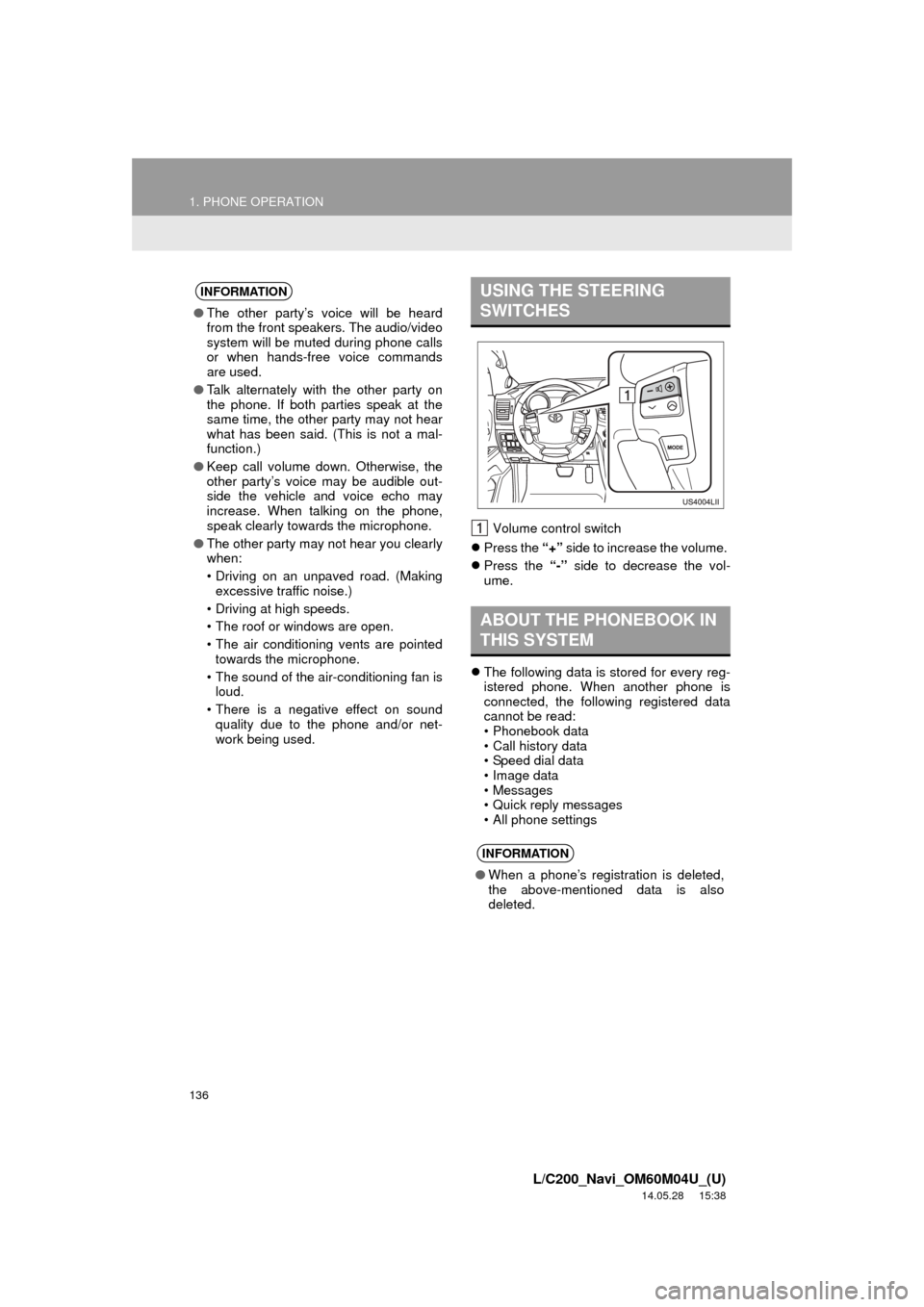
Volume control switch
Press the “+” side to increase the volume.
Press the “-” side to decrease the vol-
ume.
The following data is stored for every reg-
istered phone. When another phone is
connected, the following registered data
cannot be read:
• Phonebook data
• Call history data
• Speed dial data
• Image data
• Messages
• Quick reply messages
• All phone settings
INFORMATION
●The other party’s voice will be heard
from the front speakers. The audio/video
system will be muted during phone calls
or when hands-free voice commands
are used.
● Talk alternately with the other party on
the phone. If both parties speak at the
same time, the other party may not hear
what has been said. (This is not a mal-
function.)
● Keep call volume down. Otherwise, the
other party’s voice may be audible out-
side the vehicle and voice echo may
increase. When talking on the phone,
speak clearly towards the microphone.
● The other party may not hear you clearly
when:
• Driving on an unpaved road. (Making
excessive traffic noise.)
• Driving at high speeds.
• The roof or windows are open.
• The air conditioning vents are pointed towards the microphone.
• The sound of the air-conditioning fan is loud.
• There is a negative effect on sound quality due to the phone and/or net-
work being used.
USING THE STEERING
SWITCHES
ABOUT THE PHONEBOOK IN
THIS SYSTEM
INFORMATION
● When a phone’s registration is deleted,
the above-mentioned data is also
deleted.
Page 138 of 427
138
1. PHONE OPERATION
L/C200_Navi_OM60M04U_(U)
14.05.28 15:38
3. REGISTER A Bluetooth® PHONE
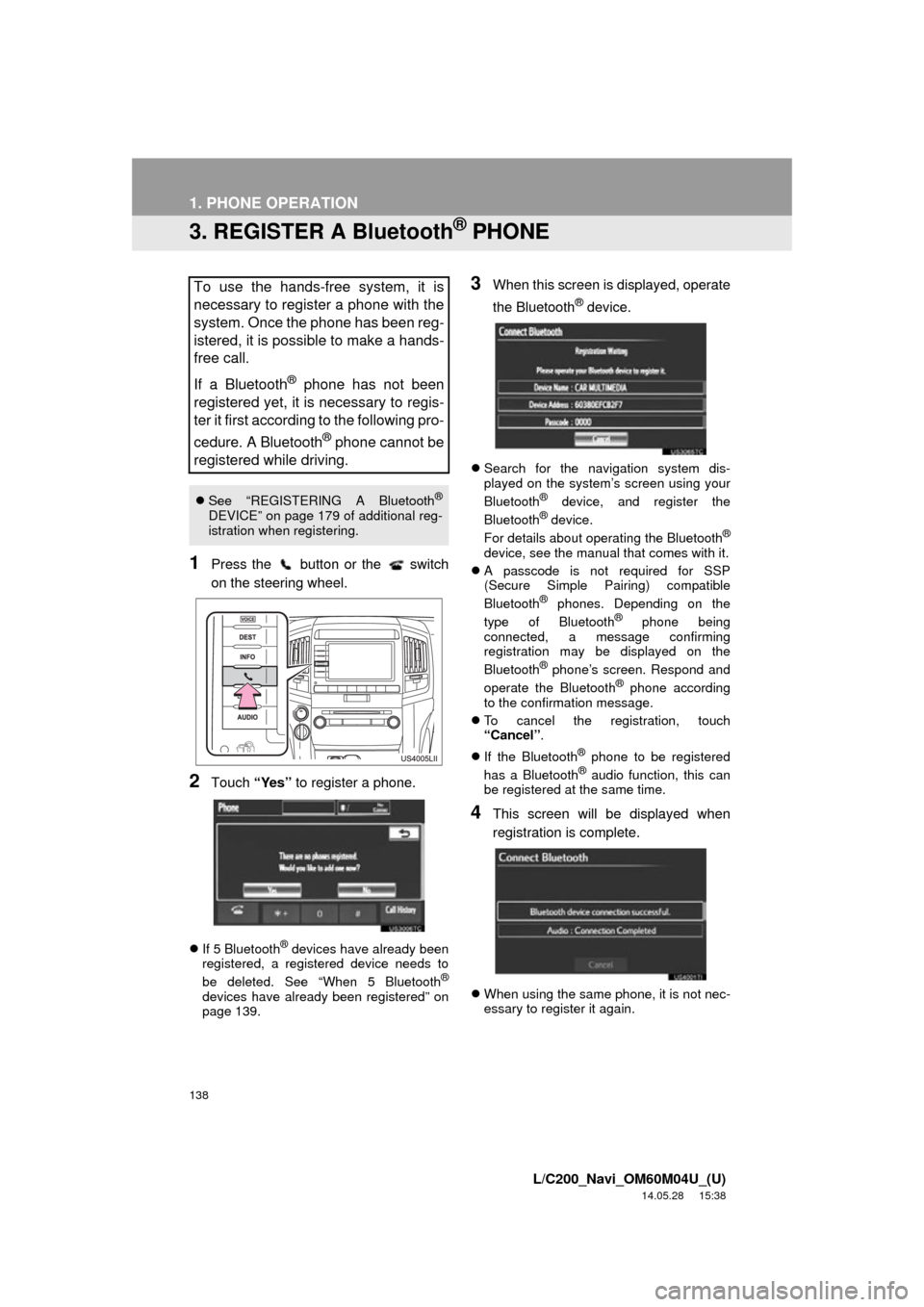
1Press the button or the switch
on the steering wheel.
2Touch “Yes” to register a phone.
If 5 Bluetooth® devices have already been
registered, a registered device needs to
be deleted. See “When 5 Bluetooth
®
devices have already been registered” on
page 139.
3When this screen is displayed, operate
the Bluetooth
® device.
Search for the navigation system dis-
played on the system’s screen using your
Bluetooth
® device, and register the
Bluetooth® device.
For details about operating the Bluetooth®
device, see the manual that comes with it.
A passcode is not required for SSP
(Secure Simple Pairing) compatible
Bluetooth
® phones. Depending on the
type of Bluetooth® phone being
connected, a message confirming
registration may be displayed on the
Bluetooth
® phone’s screen. Respond and
operate the Bluetooth® phone according
to the confirmation message.
To cancel the registration, touch
“Cancel” .
If the Bluetooth
® phone to be registered
has a Bluetooth® audio function, this can
be registered at the same time.
4This screen will be displayed when
registration is complete.
When using the same phone, it is not nec-
essary to register it again.
To use the hands-free system, it is
necessary to register a phone with the
system. Once the phone has been reg-
istered, it is possible to make a hands-
free call.
If a Bluetooth
® phone has not been
registered yet, it is necessary to regis-
ter it first according to the following pro-
cedure. A Bluetooth
® phone cannot be
registered while driving.
See “REGISTERING A Bluetooth®
DEVICE” on page 179 of additional reg-
istration when registering.
Page 139 of 427
139
1. PHONE OPERATION
4
PHONE
L/C200_Navi_OM60M04U_(U)
14.05.28 15:38
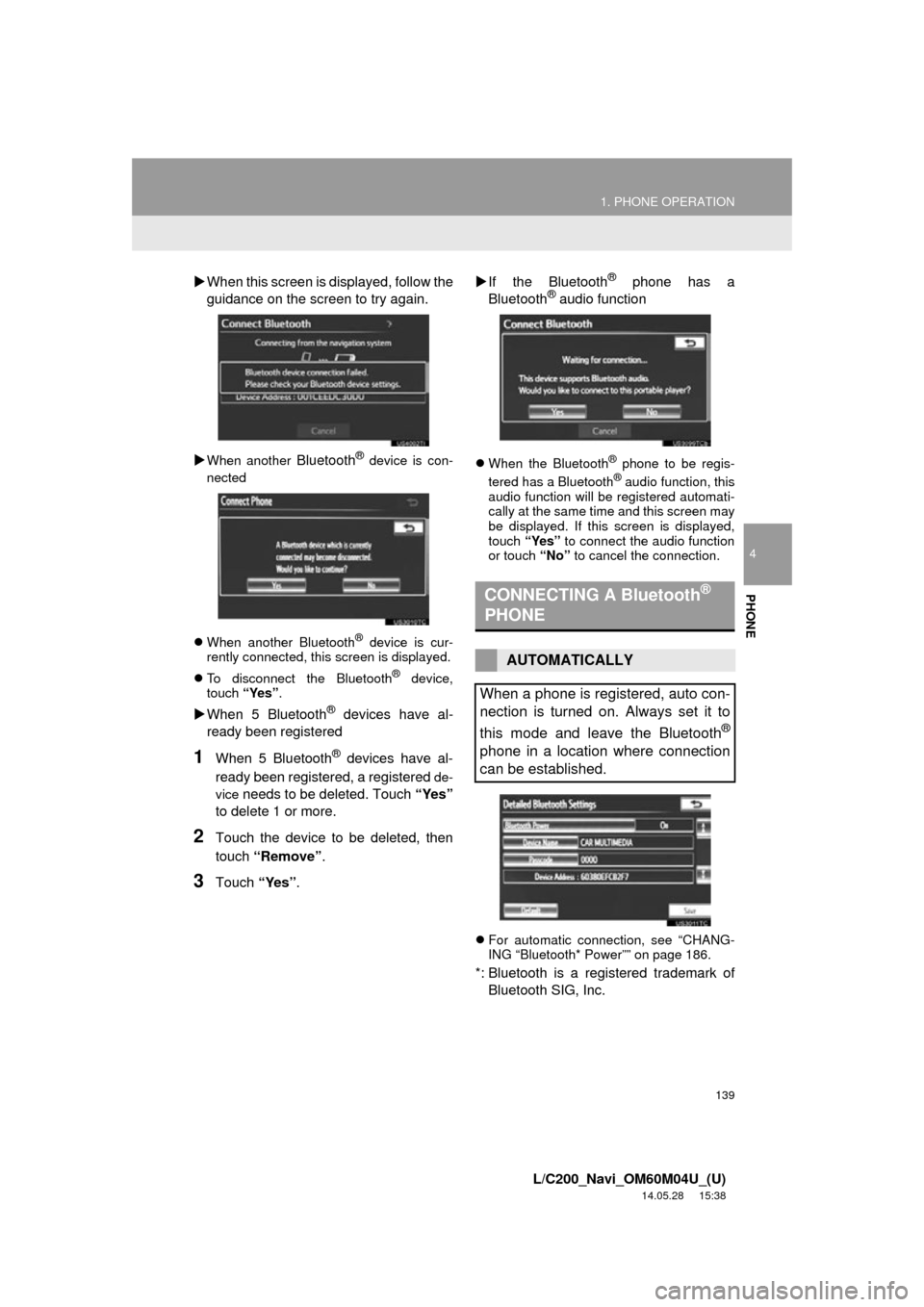
When this screen is di splayed, follow the
guidance on the screen to try again.
When another Bluetooth® device is con-
nected
When another Bluetooth
® device is cur-
rently connected, this screen is displayed.
To disconnect the Bluetooth
® device,
touch “Yes”.
When 5 Bluetooth® devices have al-
ready been registered
1When 5 Bluetooth® devices have al-
ready been registered, a registered
de-
vice
needs to be deleted. Touch “Yes”
to delete 1 or more.
2Touch the device to be deleted, then
touch “Remove” .
3Touch “Yes”.
If the Bluetooth
® phone has a
Bluetooth® audio function
When the Bluetooth® phone to be regis-
tered has a Bluetooth® audio function, this
audio function will be registered automati-
cally at the same time and this screen may
be displayed. If this screen is displayed,
touch “Yes” to connect the audio function
or touch “No” to cancel the connection.
For automatic connection, see “CHANG-
ING “Bluetooth* Power”” on page 186.
*: Bluetooth is a regi stered trademark of
Bluetooth SIG, Inc.
CONNECTING A Bluetooth®
PHONE
AUTOMATICALLY
When a phone is registered, auto con-
nection is turned on. Always set it to
this mode and leave the Bluetooth
®
phone in a location where connection
can be established.
Page 141 of 427
141
1. PHONE OPERATION
4
PHONE
L/C200_Navi_OM60M04U_(U)
14.05.28 15:38
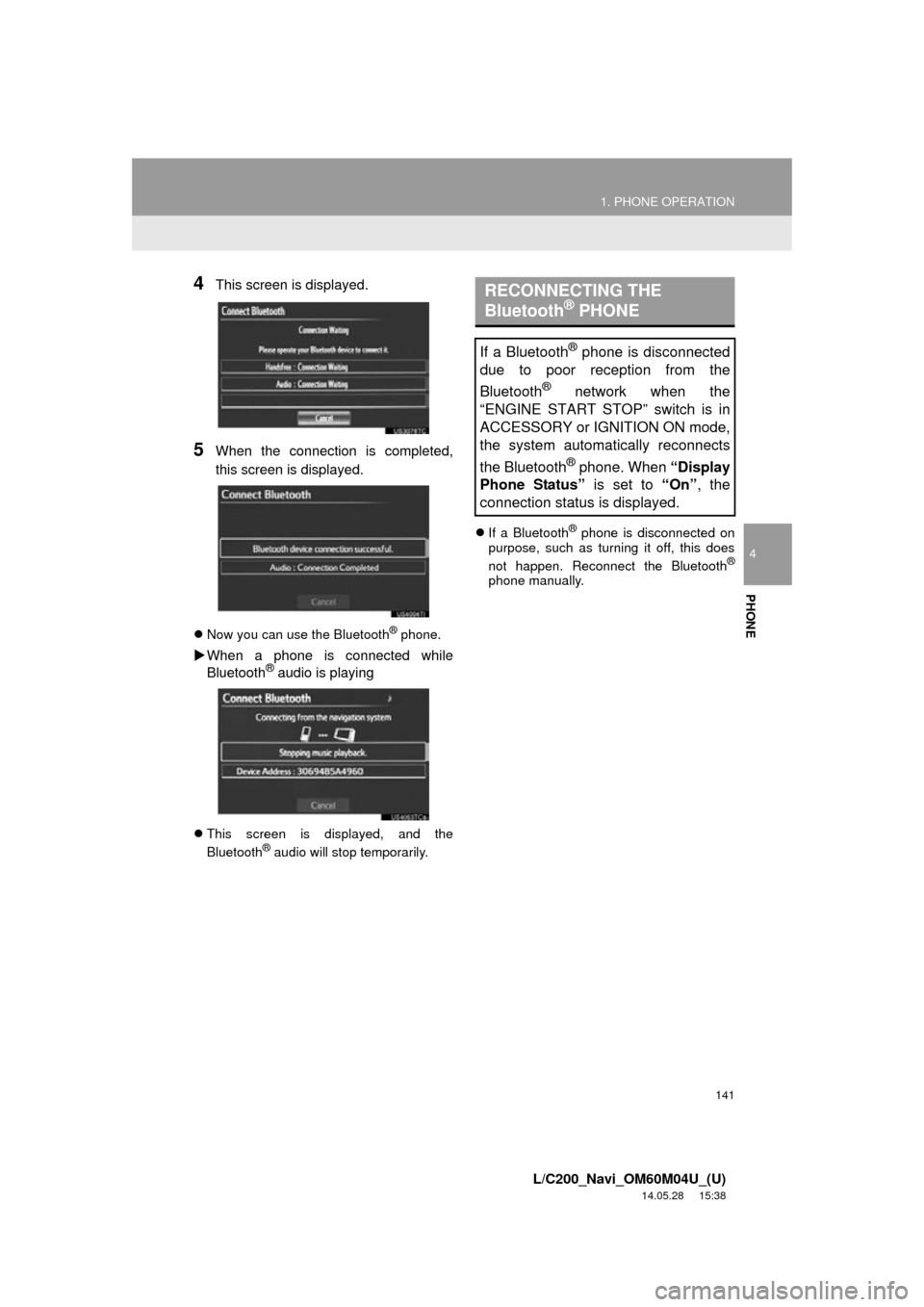
4This screen is displayed.
5When the connection is completed,
this screen is displayed.
Now you can use the Bluetooth® phone.
When a phone is connected while
Bluetooth® audio is playing
This screen is displayed, and the
Bluetooth® audio will stop temporarily.
If a Bluetooth
® phone is disconnected on
purpose, such as turning it off, this does
not happen. Reconnect the Bluetooth
®
phone manually.
RECONNECTING THE
Bluetooth® PHONE
If a Bluetooth® phone is disconnected
due to poor reception from the
Bluetooth
® network when the
“ENGINE START STOP” switch is in
ACCESSORY or IG NITION ON mode,
the system automatically reconnects
the Bluetooth
® phone. When “Display
Phone Status” is set to “On”, the
connection status is displayed.
Page 182 of 427
182
2. SETUP
L/C200_Navi_OM60M04U_(U)
14.05.28 15:38
■SETTING PORTABLE PLAYER
CONNECTION METHOD
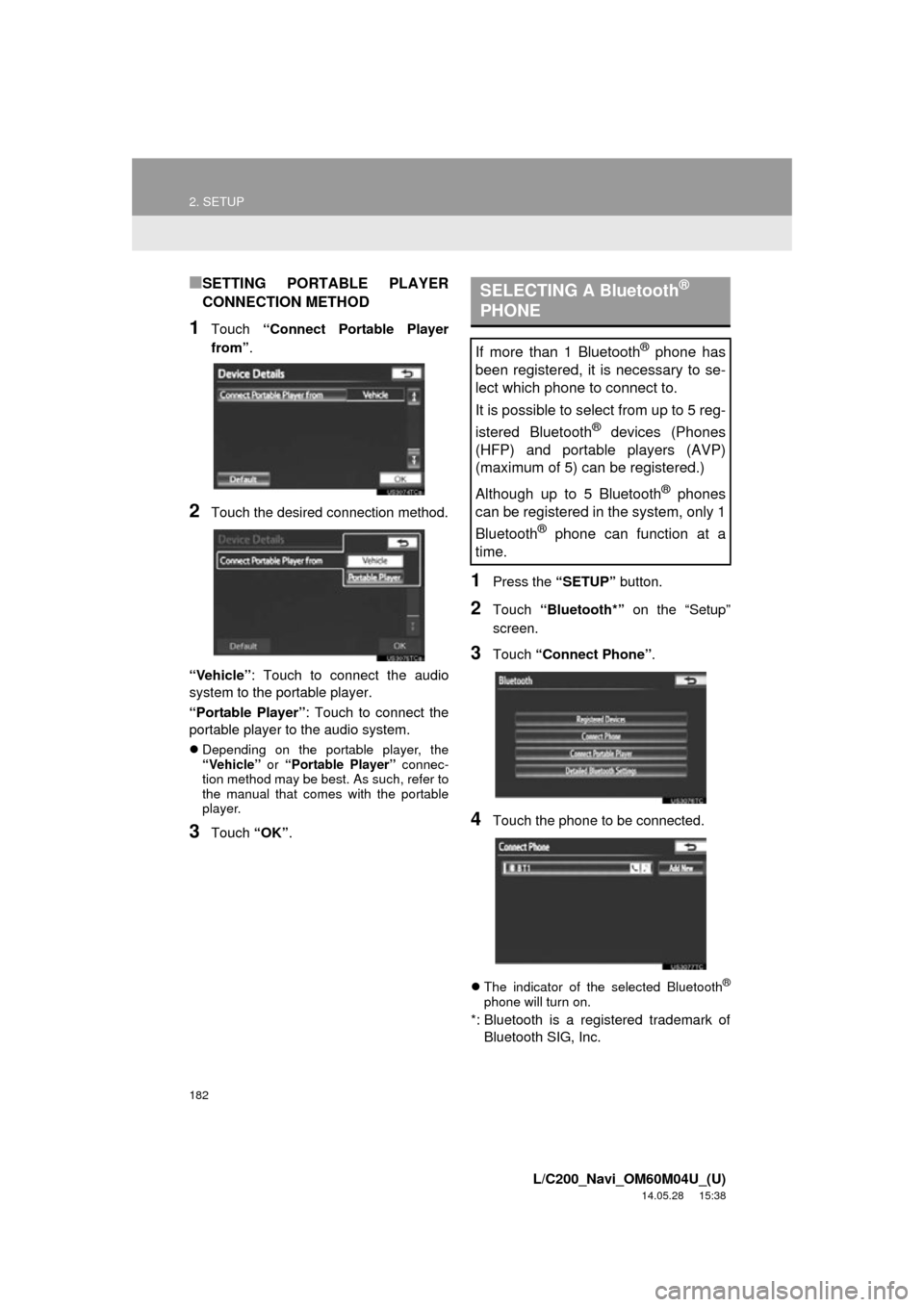
1Touch “Connect Portable Player
from” .
2Touch the desired connection method.
“Vehicle” : Touch to connect the audio
system to the portable player.
“Portable Player” : Touch to connect the
portable player to the audio system.
Depending on the portable player, the
“Vehicle” or “Portable Player” connec-
tion method may be best. As such, refer to
the manual that comes with the portable
player.
3Touch “OK”.
1Press the “SETUP” button.
2Touch “Bluetooth*” on the “Setup”
screen.
3Touch “Connect Phone” .
4Touch the phone to be connected.
The indicator of the selected Bluetooth®
phone will turn on.
*: Bluetooth is a registered trademark of
Bluetooth SIG, Inc.
SELECTING A Bluetooth®
PHONE
If more than 1 Bluetooth® phone has
been registered, it is necessary to se-
lect which phone to connect to.
It is possible to select from up to 5 reg-
istered Bluetooth
® devices (Phones
(HFP) and portable players (AVP)
(maximum of 5) can be registered.)
Although up to 5 Bluetooth
® phones
can be registered in the system, only 1
Bluetooth
® phone can function at a
time.
Page 183 of 427
183
2. SETUP
4
PHONE
L/C200_Navi_OM60M04U_(U)
14.05.28 15:38
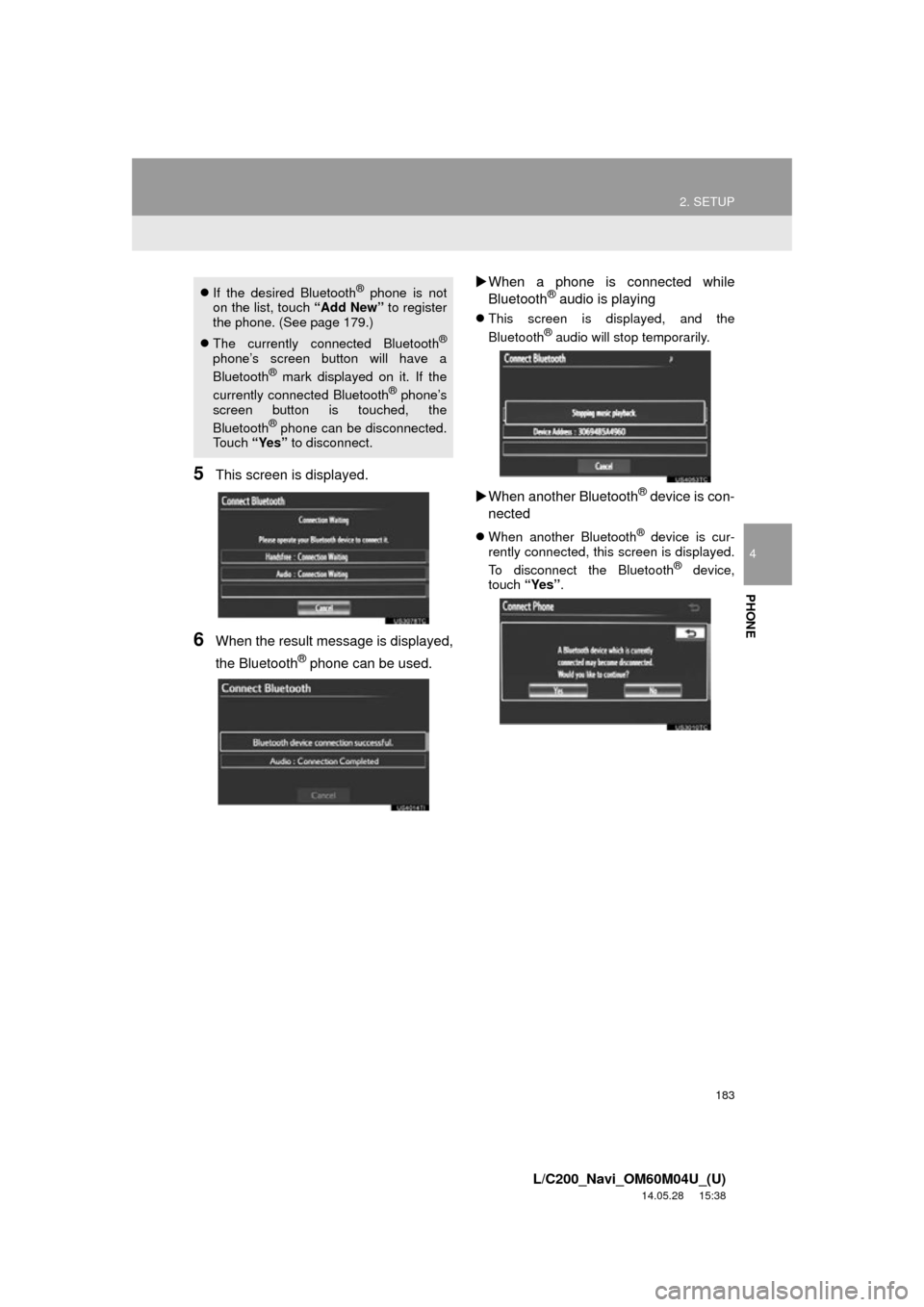
5This screen is displayed.
6When the result message is displayed,
the Bluetooth
® phone can be used.
When a phone is connected while
Bluetooth
® audio is playing
This screen is displayed, and the
Bluetooth® audio will stop temporarily.
When another Bluetooth® device is con-
nected
When another Bluetooth® device is cur-
rently connected, this screen is displayed.
To disconnect the Bluetooth
® device,
touch “Yes”.
If the desired Bluetooth® phone is not
on the list, touch “Add New” to register
the phone. (See page 179.)
The currently connected Bluetooth
®
phone’s screen button will have a
Bluetooth® mark displayed on it. If the
currently connected Bluetooth® phone’s
screen button is touched, the
Bluetooth
® phone can be disconnected.
Touch “Yes” to disconnect.
Page 190 of 427
190
L/C200_Navi_OM60M04U_(U)
14.05.01 20:55
1. QUICK REFERENCE ................... 192
2. SOME BASICS............................. 194
VOICE COMMAND SYSTEM .............. 195
AUDIO SPLIT SCREEN DISPLAY ...... 195
TURNING THE SYSTEM ON AND OFF .................................... 195
SWITCHING BETWEEN FUNCTIONS ..................................... 196
DSP CONTROL ................................... 197
TONE AND BALANCE......................... 197
SELECTING SCREEN SIZE................ 198
DVD PLAYER ...................................... 199
AUX PORT........................................... 200
A/V INPUT PORT ................................ 200
USB PORT........................................... 200
3. RADIO OPERATION .................... 201
LISTENING TO THE RADIO ............... 201
PRESETTING A STATION .................. 201
SELECTING A STATION..................... 202
RADIO BROADCAST DATA SYSTEM............................................ 202
TRAFFIC ANNOUNCEMENT .............. 203
4. HD Radio™ TECHNOLOGY INFORMATION .......................... 204
USING HD Radio™
TECHNOLOGY
................................. 204
AVAILABLE HD Radio™ TECHNOLOGY ................................. 205
TROUBLESHOOTING GUIDE ............ 206
5. RADIO OPERATION (XM Satellite Radio
BROADCAST) ............. .............. 208
HOW TO SUBSCRIBE TO
AN XM Satellite Radio ....................... 208
DISPLAYING THE RADIO ID............... 209
LISTENING TO SATELLITE RADIO ............................................... 209
CHANNEL CATEGORY ....................... 210
PRESETTING A CHANNEL ................. 210
SELECTING A CHANNEL ................... 210
DISPLAYING THE TITLE AND NAME ........................................ 211
IF THE SATELLITE RADIO TUNER MALFUNCTIONS .............................. 212
6. RADIO OPERATION (INTERNET RADIO
BROADCAST) ............. .............. 214
LISTENING TO INTERNET
RADIO ............................................... 214
7. DVD PLAYER OPERATION........ 215
INSERTING A DISC ............................. 215
EJECTING A DISC............................... 215
PLAYING A DISC ................................. 216
PLAYING AN AUDIO DISC .................. 216
PLAYING AN MP3/WMA DISC ............ 218
OPERATING A DVD DISC................... 221
PLAYING A DVD DISC ........................ 222
DVD OPTIONS..................................... 224
IF THE PLAYER MALFUNCTIONS ..... 233
DVD PLAYER AND DVD VIDEO DISC INFORMATION ........................ 234
1AUDIO/VIDEO SYSTEM
OPERATION
5
AUDIO/VIDEO SYSTEM
Page 191 of 427
5
191
1
2
3
4
5
6
7
8
L/C200_Navi_OM60M04U_(U)
14.05.01 20:55
9
10
8. USB MEMORY OPERATION ...... 236
CONNECTING A USB MEMORY ....... 236
PLAYING A USB MEMORY ................ 237
9. iPod OPERATION ....................... 241
CONNECTING iPod ............................ 241
PLAYING iPod MUSIC ........................ 242
PLAYING iPod VIDEO......................... 245
iPod VIDEO OPTIONS ........................ 248
10. Bluetooth® AUDIO
OPERATION .............................. 249
CONNECTING A Bluetooth®
AUDIO PLAYE R
................................ 252
PLAYING Bluetooth
® AUDIO .............. 253
11. VTR OPERATION ........................ 258
CONNECTING AUDIO/VIDEO DEVICE ............................................. 258
PLAYING VTR ..................................... 259
VTR OPTIONS .................................... 259
12. REAR SEAT ENTERTAINMENT SYSTEM FEATURES ................ 260
DISPLAY ............................................. 261
REAR SEAT ENTERTAINMENT SYSTEM CONTROLLER .................. 261
HEADPHONE JACKS ......................... 262
HEADPHONES ................................... 262
VOLUME ............................................. 262
OPENING AND CLOSING THE DISPLAY ........................................... 263
TILTING THE DISPLAY ...................... 263
CAUTION SCREEN ............................ 263
CHANGING THE SOURCE ................. 264
CHANGING THE SPEAKER OUTPUT ........................................... 264 OPERATION FROM THE
FRONT SEATS ................................. 266
USING THE RADIO ............................. 266
USING THE RADIO (INTERNET RADIO BROADCAST)....................... 267
PLAYING iPod ..................................... 268
PLAYING A USB MEMORY ................ 269
PLAYING Bluetooth
® AUDIO ............... 269
PLAYING AN AUDIO CD/CD TEXT ..................................... 270
PLAYING MP3/WMA DISCS ............... 271
PLAYING DVD VIDEO......................... 271
USING THE VIDEO MODE ................. 277
CHANGING SETTINGS....................... 278
13. AUDIO/VIDEO REMOTE CONTROLS (STEERING
SWITCHES)............................... 281
14. AUDIO/VIDEO SYSTEM OPERATING HINTS.................. 283
RADIO RECEPTION............................ 283
iPod ...................................................... 284
USB MEMORY .................................... 285
CARING FOR YOUR DVD PLAYER AND DISC.................. 285
MP3/WMA FILES ................................. 287
CD-R AND CD-RW DISCS .................. 289
TERMS ................................................ 289
1. AUDIO SETTINGS ...................... 293
HD Radio™ SYSTEM SETTINGS ....... 293
iPod AND EXTERNAL VIDEO SETTINGS ........................................ 294
2SETUP
AUDIO/VIDEO SYSTEM
Page 192 of 427
192
L/C200_Navi_OM60M04U_(U)
14.05.28 15:38
1. AUDIO/VIDEO SYSTEM OPERATION
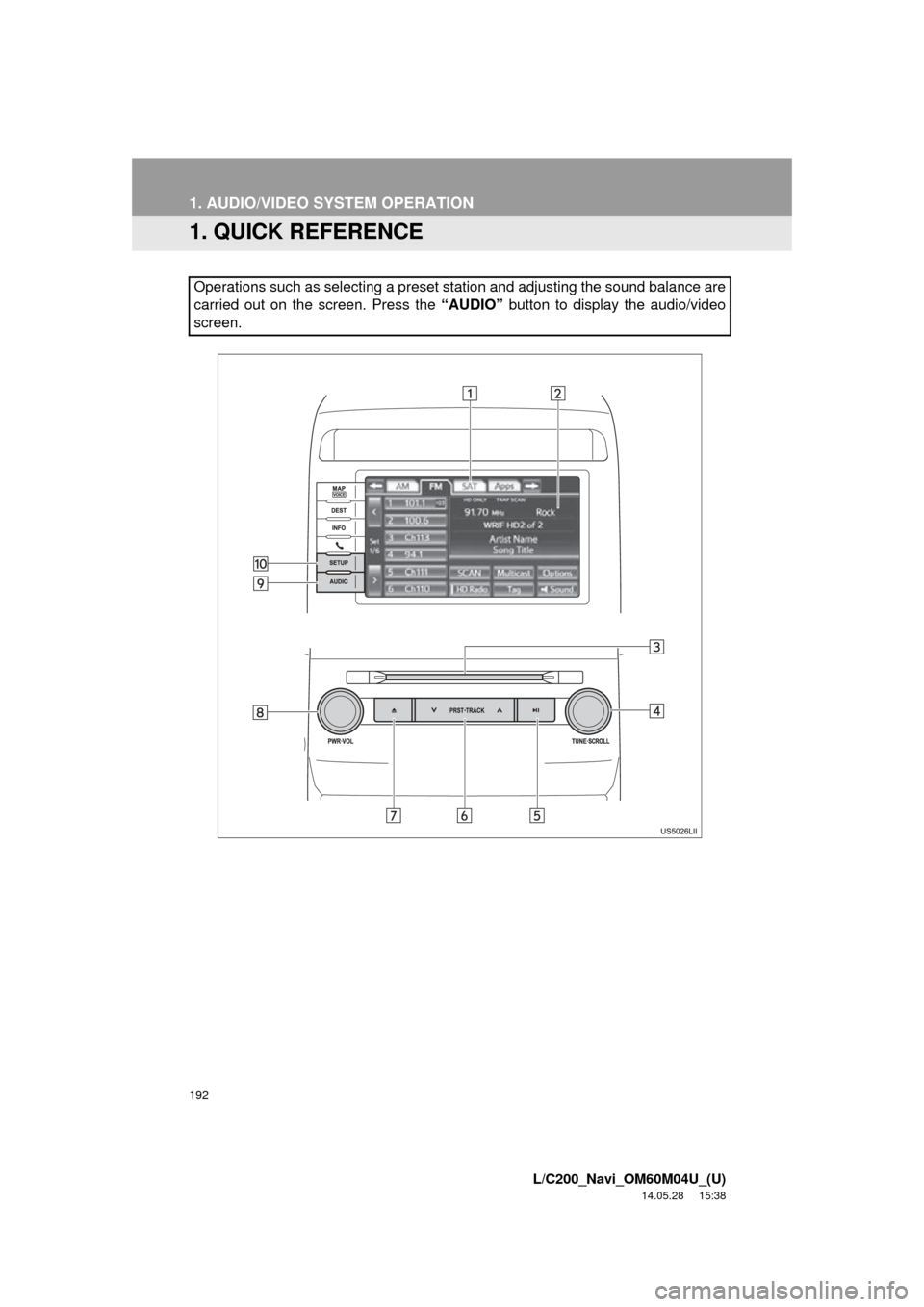
1. QUICK REFERENCE
Operations such as selecting a preset station and adjusting the sound balance are
carried out on the screen. Press the “AUDIO” button to display the audio/video
screen.