ad blue TOYOTA LAND CRUISER 2015 J200 Owners Manual
[x] Cancel search | Manufacturer: TOYOTA, Model Year: 2015, Model line: LAND CRUISER, Model: TOYOTA LAND CRUISER 2015 J200Pages: 728, PDF Size: 10.53 MB
Page 4 of 728

TABLE OF CONTENTSIndex
4
LC200_OM_OM60L83U_(U)
3-1. Using the air conditioning system and defogger
Front air conditioning system .............................. 340
Rear air conditioning system .............................. 351
Rear window and outside rear view mirror
defoggers ......................... 355
Windshield wiper de-icer .............................. 356
3-2. Using the audio system Audio system type .............. 357
Using the radio ................... 360
Using the CD player ........... 369
Playing back MP3 and WMA discs ....................... 377
Operating an iPod .............. 384
Operating a USB memory .................... 391
Optimal use of the audio system .............................. 399
Using the AUX port ............ 401
Using the steering switches ........................... 402 3-3. Using the Bluetooth
®
audio system
Bluetooth
® audio system .... 406
Using the Bluetooth®
audio system .................... 410
Operating a Bluetooth
®
enabled portable player .... 416
Setting up a Bluetooth
®
enabled portable player .... 419
Bluetooth
® audio system
setup ................................. 426
3-4. Using the hands-free system (for cellular phone)
Hands-free system (for cellular phone) ........... 427
Using the hands-free system .............................. 432
Making a phone call............ 440
Setting a cellular phone ...... 445
Security and system setup ................................. 451
Using the phone book......... 457
3-5. Using the interior lights Interior lights list.................. 466
• Interior lights ..................... 467
• Personal lights .................. 468
3Interior features
Page 269 of 728
269
2-4. Using other
driving systems
2
When driving
LC200_OM_OM60L83U_(U) Minimum projected turning cir-
cle (blue)
Displays the smallest turning cir-
cle projected by the system if the
steering wheel is turned to full
lock. Displayed when the steering
wheel is turned to the right (fur-
ther than 90
from straight
ahead).
Vehicle width line (blue)
Indicates the width of the vehicle
including the outside rear view
mirror.
Rear wheel contact point
Shows the position of the vehi-
cle’s rear tire.
Automatic display mode
Switches the projected course
mode
Page 274 of 728
274 2-4. Using other driving systems
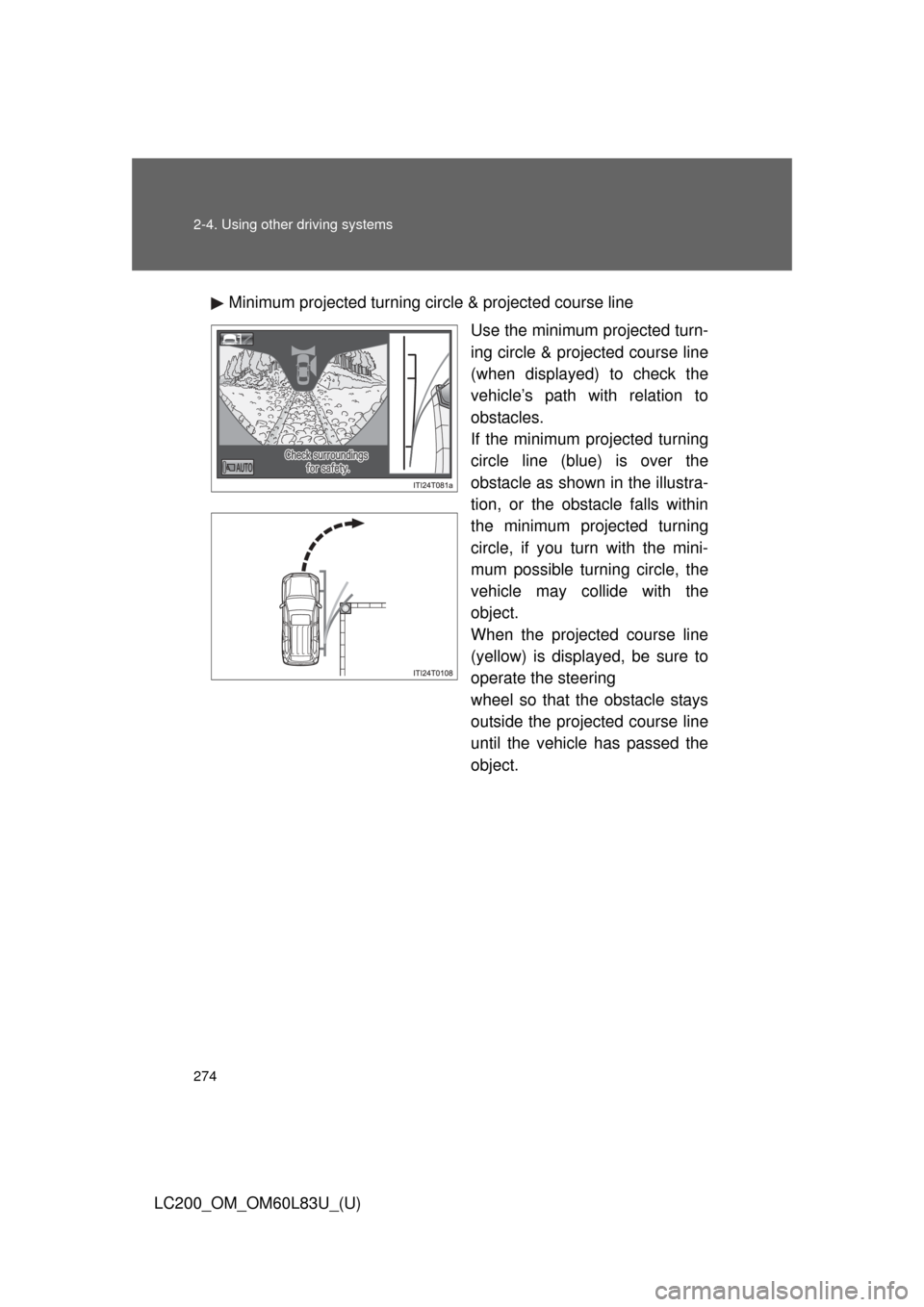
LC200_OM_OM60L83U_(U)Minimum projected turning circle & projected course line
Use the minimum projected turn-
ing circle & projected course line
(when displayed) to check the
vehicle’s path with relation to
obstacles.
If the minimum projected turning
circle line (blue) is over the
obstacle as shown in the illustra-
tion, or the obstacle falls within
the minimum projected turning
circle, if you turn with the mini-
mum possible turning circle, the
vehicle may collide with the
object.
When the projected course line
(yellow) is displayed, be sure to
operate the steering
wheel so that the obstacle stays
outside the projected course line
until the vehicle has passed the
object.
Page 339 of 728
339
LC200_OM_OM60L83U_(U)
3-3. Using the Bluetooth®
audio system
Bluetooth
® audio
system ........................... 406
Using the Bluetooth
®
audio system.................. 410
Operating a Bluetooth
®
enabled portable
player ............................. 416
Setting up a Bluetooth
®
enabled portable
player ............................. 419
Bluetooth
® audio system
setup .............................. 426
3-4. Using the hands-free system (for cellular phone)
Hands-free system (for cellular phone) ......... 427
Using the hands-free system ........................... 432
Making a phone call ......... 440
Setting a cellular phone ............................. 445
Security and system setup .............................. 451
Using the phone book ...... 457
3-5. Using the interior lights Interior lights list ............... 466
• Interior lights .................. 467
• Personal lights ............... 468 3-6. Using the storage features
List of storage features .... 470
• Glove box....................... 471
• Console box ................... 472
• Overhead console .......... 473
• Cup holders ................... 474
• Bottle holders ................. 476
• Card holders .................. 478
• Auxiliary boxes............... 478
3-7. Other interior features Cool box ........................... 479
Sun visors ........................ 481
Vanity mirror..................... 482
Clock ................................ 483
Outside temperature display............................ 484
Ashtrays ........................... 486
Cigarette lighter................ 488
Power outlets ................... 489
Heated steering wheel ..... 491
Seat heaters and ventilators ...................... 493
Armrest ............................ 495
Assist grips....................... 496
Floor mats ........................ 497
Luggage compartment features .......................... 499
Garage door opener......... 501
Safety Connect ................ 508
Page 364 of 728
364 3-2. Using the audio system
LC200_OM_OM60L83U_(U)
RDS (Radio Data System)This feature allows your radio to receive station identification informa-
tion and program information (classic al, jazz, etc.) from radio stations
which broadcast this information.
■ Receiving RDS broadcasts
Press “ ” or “ ” on the during FM reception.
The type of program changes each time the button is pressed.
● ROCK
● EASYLIS (Easy listening)
● CLS/JAZZ (Classical music and Jazz)
● R & B (Rhythm and Blues)
● INFORM (Information)
● RELIGION
● MISC (Miscellaneous)
● ALERT (Emergency messages)
Press , or “ ” or “ ” on .
The radio seeks scans the station by the relevant program type.
If no radio station of that type is found, “NOTHING” appears on the
display.
■ Displaying radio station names
Press .
STEP1
STEP2
Page 402 of 728
402
3-2. Using the audio system
LC200_OM_OM60L83U_(U)
Using the steering switches
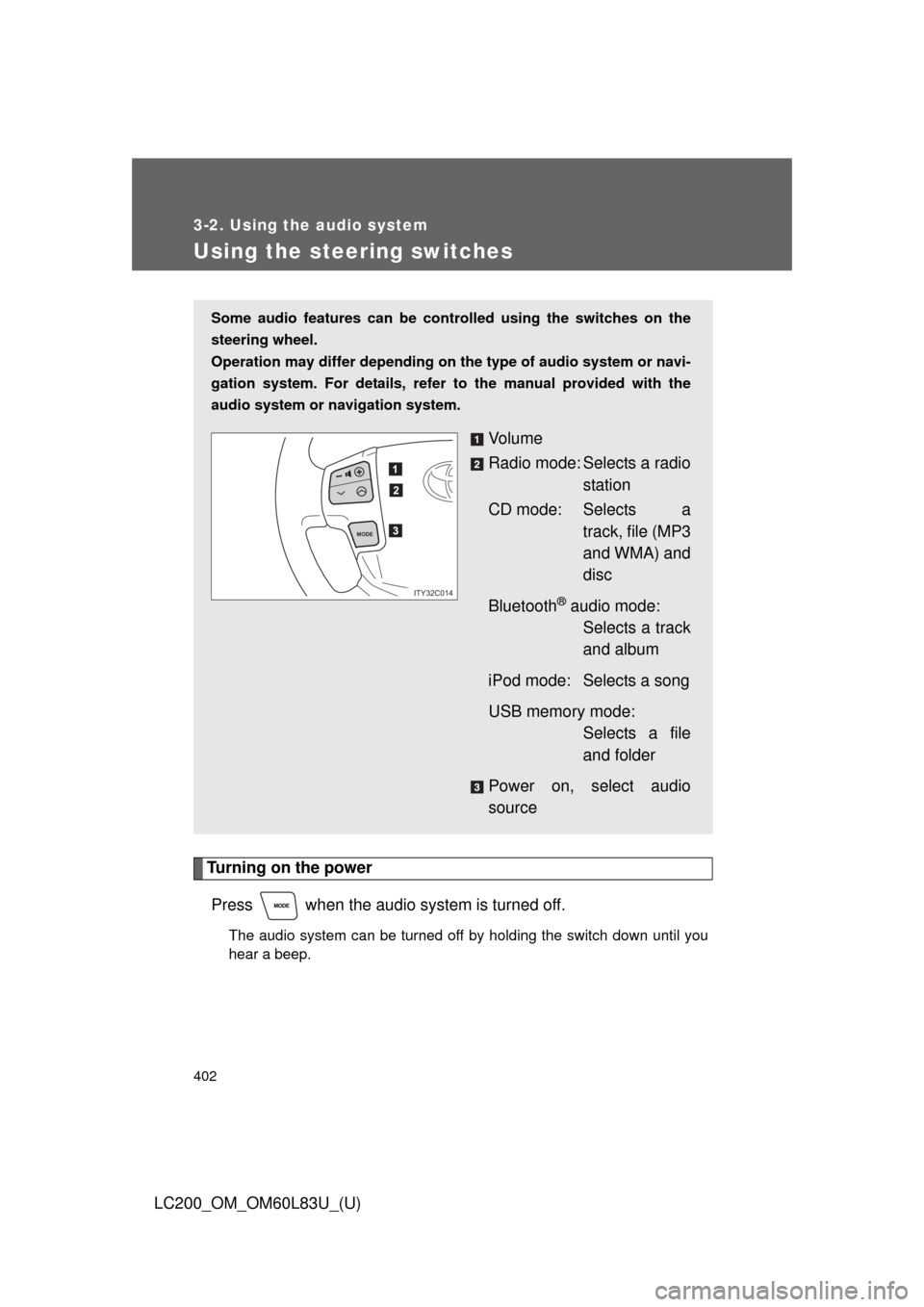
Turning on the powerPress when the audio system is turned off.
The audio system can be turned off by holding the switch down until you
hear a beep.
Some audio features can be cont rolled using the switches on the
steering wheel.
Operation may differ depending on th e type of audio system or navi-
gation system. For details, refer to the manual provided with the
audio system or navigation system.
Vo l u m e
Radio mode: Selects a radio station
CD mode: Selects a track, file (MP3
and WMA) and
disc
Bluetooth
® audio mode: Selects a track
and album
iPod mode: Selects a song
USB memory mode: Selects a file
and folder
Power on, select audio
source
MODE
ITY32C014
Page 403 of 728
403
3-2. Using the audio system
3
Interior features
LC200_OM_OM60L83U_(U)
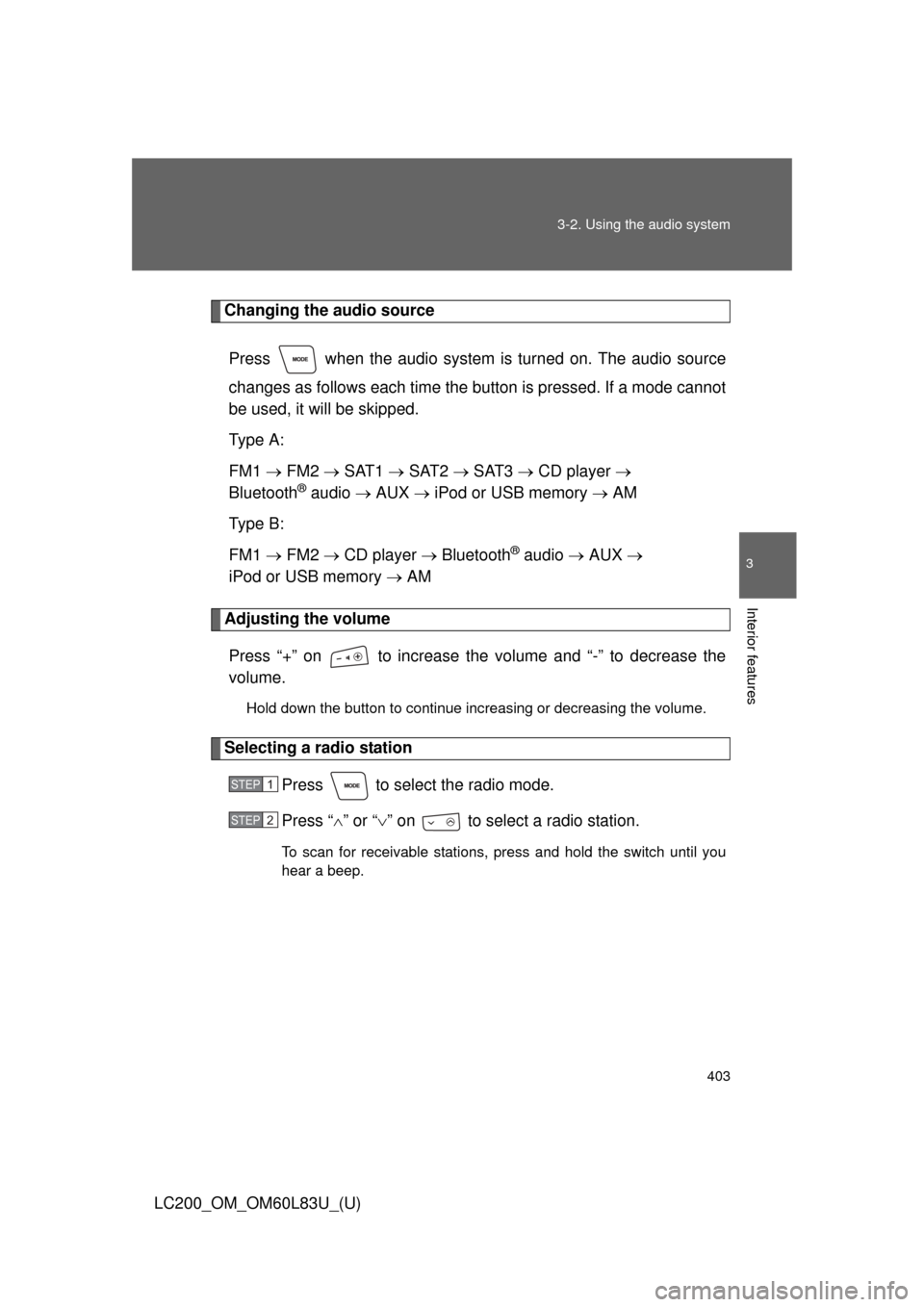
Changing the audio source
Press when the audio system is turned on. The audio source
changes as follows each time the button is pressed. If a mode cannot
be used, it will be skipped.
Type A:
FM1 FM2 SAT1 SAT2 SAT3 CD player
Bluetooth
® audio AUX iPod or USB memory AM
Type B:
FM1 FM2 CD player Bluetooth
® audio AUX
iPod or USB memory AM
Adjusting the volume
Press “+” on to increase the volume and “-” to decrease the
volume.
Hold down the button to continue increasing or decreasing the volume.
Selecting a radio station Press to select the radio mode.
Press “” or “ ” on to select a radio station.
To scan for receivable stations, press and hold the switch until you
hear a beep.
STEP1
STEP2
Page 404 of 728
404 3-2. Using the audio system
LC200_OM_OM60L83U_(U)
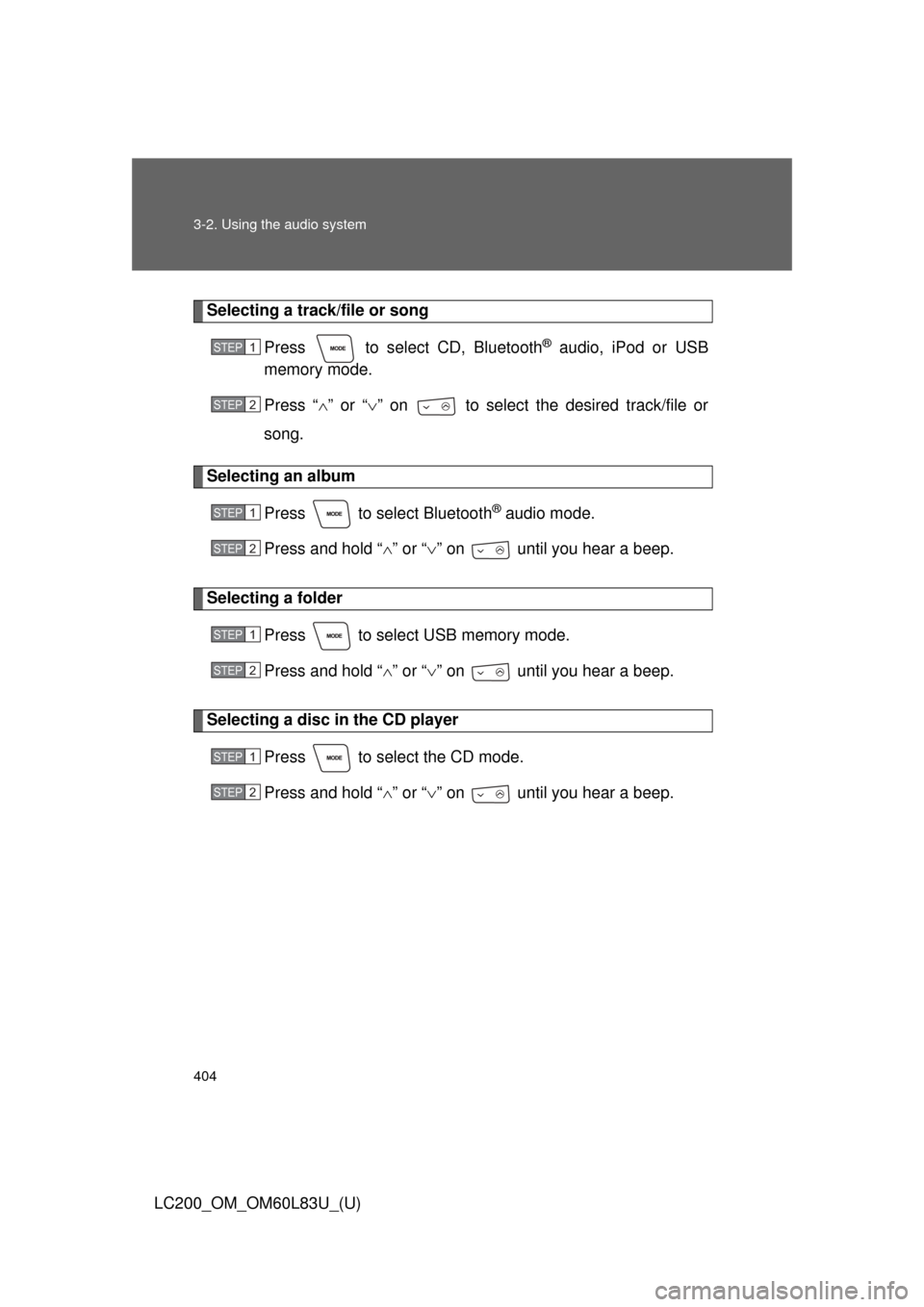
Selecting a track/file or songPress to select CD, Bluetooth
® audio, iPod or USB
memory mode.
Press “ ” or “ ” on to select the desired track/file or
song.
Selecting an album
Press to select Bluetooth
® audio mode.
Press and hold “ ” or “ ” on until you hear a beep.
Selecting a folder
Press to select USB memory mode.
Press and hold “ ” or “ ” on until you hear a beep.
Selecting a disc in the CD player
Press to select the CD mode.
Press and hold “ ” or “ ” on until you hear a beep.
STEP1
STEP2
STEP1
STEP2
STEP1
STEP2
STEP1
STEP2
Page 406 of 728
406
LC200_OM_OM60L83U_(U)
3-3. Using the Bluetooth® audio system
Bluetooth® audio system
■Conditions under which th e system will not operate
● If using a portable player that does not support Bluetooth
®
●If the portable player is switched off
● If the portable player is not connected
● If the portable player’s battery is low
● If the portable player is behind the seat or in the glove box or console box
● If metal is covering or touching the portable player
The Bluetooth® audio system enables you to enjoy music played on
a portable digital audio player (portable player) from the vehicle
speakers via wireless communication.
This audio system supports Bluetooth
®, a wireless data system
capable of playing portable audio music without cables. If your por-
table player does not support Bluetooth
®, the Bluetooth® audio sys-
tem will not function.
Vehicles with a navigation system
Refer to the “Navigation System Owner’s Manual”.
Vehicles without a navigation system
TitlePage
Using the Bluetooth® audio systemP. 410
Operating a Bluetooth® enabled portable playerP. 416
Setting up a Bluetooth® enabled portable playerP. 419
Bluetooth® audio system setupP. 426
Page 407 of 728
407
3-3. Using the Bluetooth
® audio system
3
Interior features
LC200_OM_OM60L83U_(U)
■
When transferring ownership of the vehicle
Be sure to initialize the system to prevent personal data from being improp-
erly accessed. ( P. 455)
■ About Bluetooth
®
■Compatible models
●Bluetooth
® specifications:
Ver. 1.2, or higher (Recommended: Ver. 2.0+EDR or higher)
● Following Profiles:
• A2DP (Advanced Audio Distribution Profile) Ver. 1.0 or higher
• AVRCP (Audio/Video Remote Control Profile) Ver. 1.0 or higher
(Ver. 1.3 or higher recommended)
Portable players must correspond to the above specifications in order to be
connected to the Bluetooth
® audio system. However, please note that some
functions may be limited depending on the type of portable player.
Please go to “http://www.toyota.com/bluetooth” to find approved Bluetooth
®
phones for this system.
■ Certification for the Bluetooth
® audio system
FCC ID: AJDK018
MADE IN JAPAN
This device complies with Part 15 of the FCC Rules and RSS-Gen of IC
Rules. Operation is subject to the following two conditions: (1) This device
may not cause harmful interference, and (2) This device must accept any
interference received, including interference that may cause undesired oper-
ation.
Bluetooth is a registered trademark of
Bluetooth SIG, Inc.