audio TOYOTA LAND CRUISER 2018 Owners Manual (in English)
[x] Cancel search | Manufacturer: TOYOTA, Model Year: 2018, Model line: LAND CRUISER, Model: TOYOTA LAND CRUISER 2018Pages: 56, PDF Size: 2.57 MB
Page 3 of 56
1
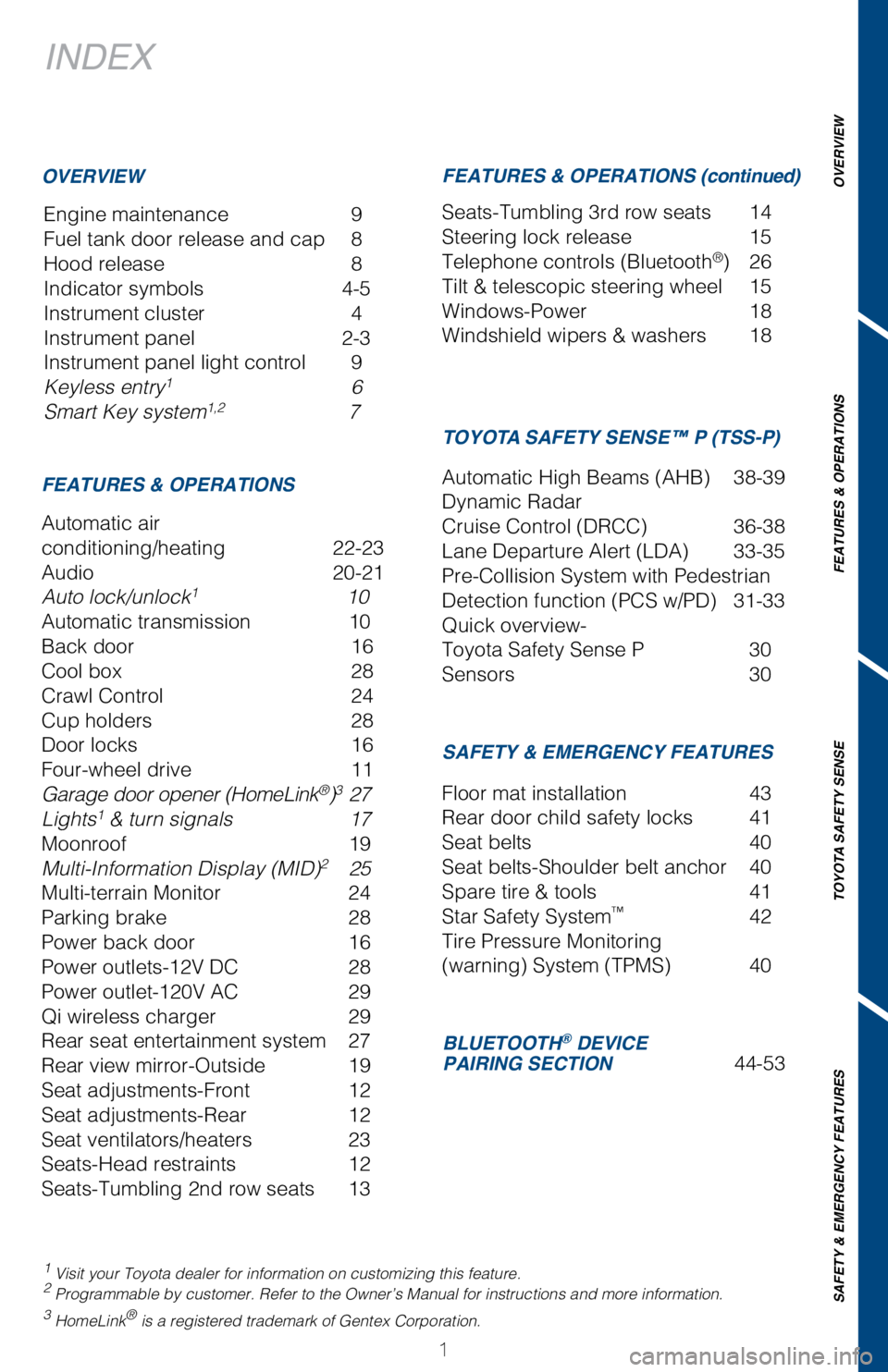
INDEX
Engine maintenance 9
Fuel tank door release and cap
8
Hood release
8
Indicator symbols
4-5
Instrument cluster
4
Instrument panel
2-3
Instrument panel light control
9
Keyless entry1 6
Smart Key system1,2 7
1 Visit your Toyota dealer for information on customizing this feature.2 Programmable by customer. Refer to the Owner’s Manual for instructio\
ns and more information.3 HomeLink® is a registered trademark of Gentex Corporation.
OVERVIEW
FEATURES & OPERATIONS FEATURES & OPERATIONS (continued)
SAFETY & EMERGENCY FEATURES TOYOTA SAFETY SENSE™ P (TSS-P)
Automatic air
conditioning/heating
22-23
Audio
20-21
Auto lock/unlock1 10
Automatic transmission
10
Back door
16
Cool box
28
Crawl Control
24
Cup holders
28
Door locks
16
Four-wheel drive
11
Garage door opener (HomeLink®)3 27
Lights1 & turn signals 17
Moonroof
19
Multi-Information Display (MID)2 25
Multi-terrain Monitor
24
Parking brake
28
Power back door
16
Power outlets-12V DC
28
Power outlet-120V AC
29
Qi wireless charger
29
Rear seat entertainment system
27
Rear view mirror-Outside
19
Seat adjustments-Front
12
Seat adjustments-Rear
12
Seat ventilators/heaters
23
Seats-Head restraints
12
Seats-Tumbling 2nd row seats
13 Seats-Tumbling 3rd row seats
14
Steering lock release
15
Telephone controls (Bluetooth®) 26
Tilt & telescopic steering wheel
15
Windows-Power
18
Windshield wipers & washers
18
Floor mat installation
43
Rear door child safety locks
41
Seat belts
40
Seat belts-Shoulder belt anchor
40
Spare tire & tools
41
Star Safety System™ 42
Tire Pressure Monitoring
(warning) System (TPMS)
40
Automatic High Beams (AHB) 38-39
Dynamic Radar
Cruise Control (DRCC)
36-38
Lane Departure Alert (LDA)
33-35
Pre-Collision System with Pedestrian
Detection function (PCS w/PD)
31-33
Quick overview-
Toyota Safety Sense P
30
Sensors
30
BLUETOOTH® DEVICE
PAIRING SECTION 44-53
OVERVIEW
FEATURES & OPERATIONS
TOYOTA SAFETY SENSE
SAFETY & EMERGENCY FEATURES
Page 4 of 56
2
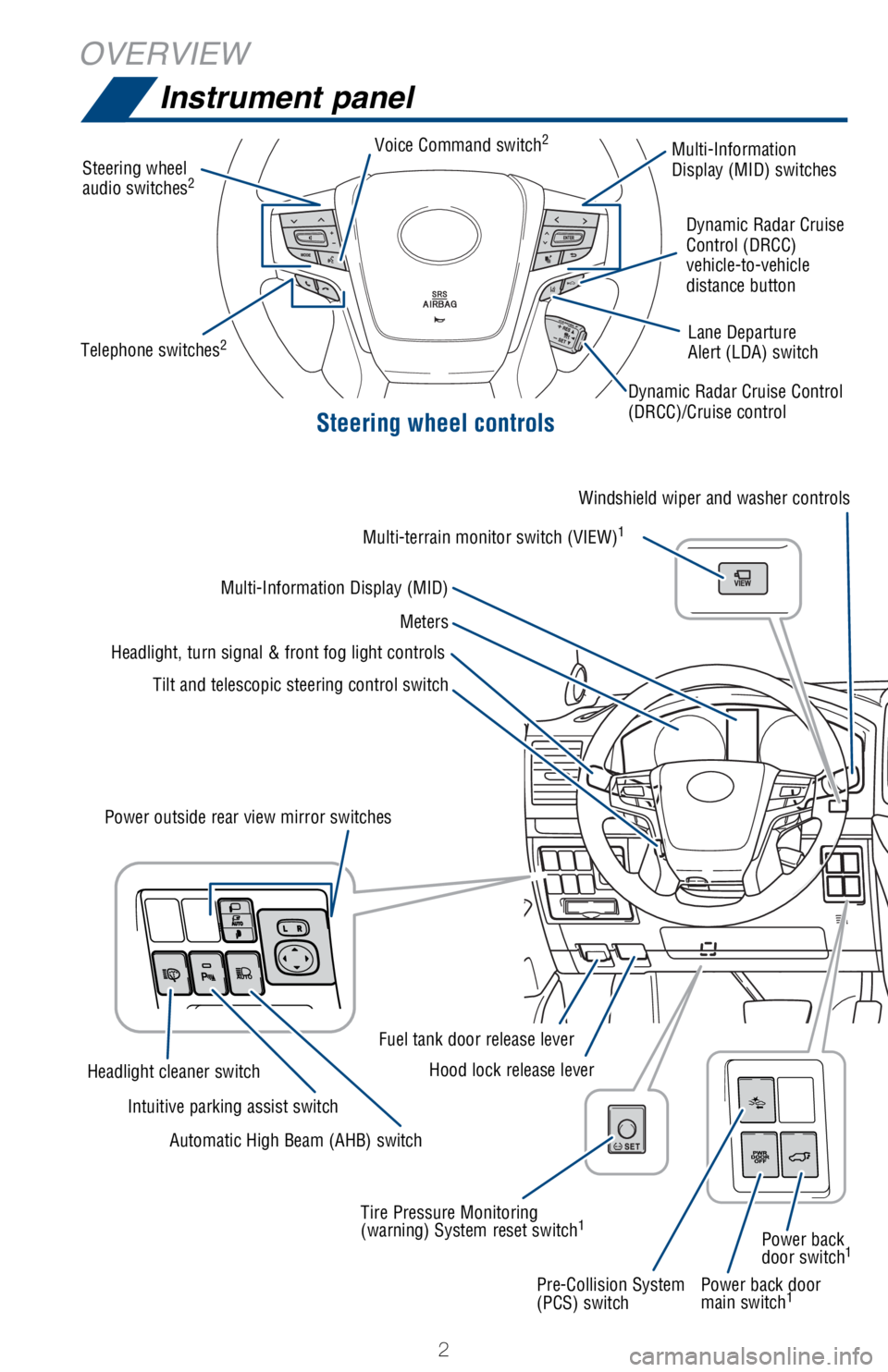
OVERVIEWInstrument panel
Steering wheel controls
Power back door
main switch1
Steering wheel
audio switches2
Multi-Information
Display (MID) switches
Dynamic Radar Cruise Control
(DRCC)/Cruise control Dynamic Radar Cruise
Control (DRCC)
vehicle-to-vehicle
distance button
Lane Departure
Alert (LDA) switch
Tilt and telescopic steering control switch
Headlight, turn signal & front fog light controls
Meters
Multi-Information Display (MID) Windshield wiper and washer controls
Multi-terrain monitor switch (VIEW)
1
Pre-Collision System
(PCS) switch Power back
door switch
1
Tire Pressure Monitoring
(warning) System reset switch1
Hood lock release lever
Fuel tank door release lever
Power outside rear view mirror switches
Automatic High Beam (AHB) switch
Intuitive parking assist switch
Headlight cleaner switch Voice Command switch
2
Telephone switches2
Page 5 of 56
OVERVIEW
FEATURES/OPERATIONS
TOYOTA SAFETY SENSE
SAFETY AND EMERGENCY FEATURES
3
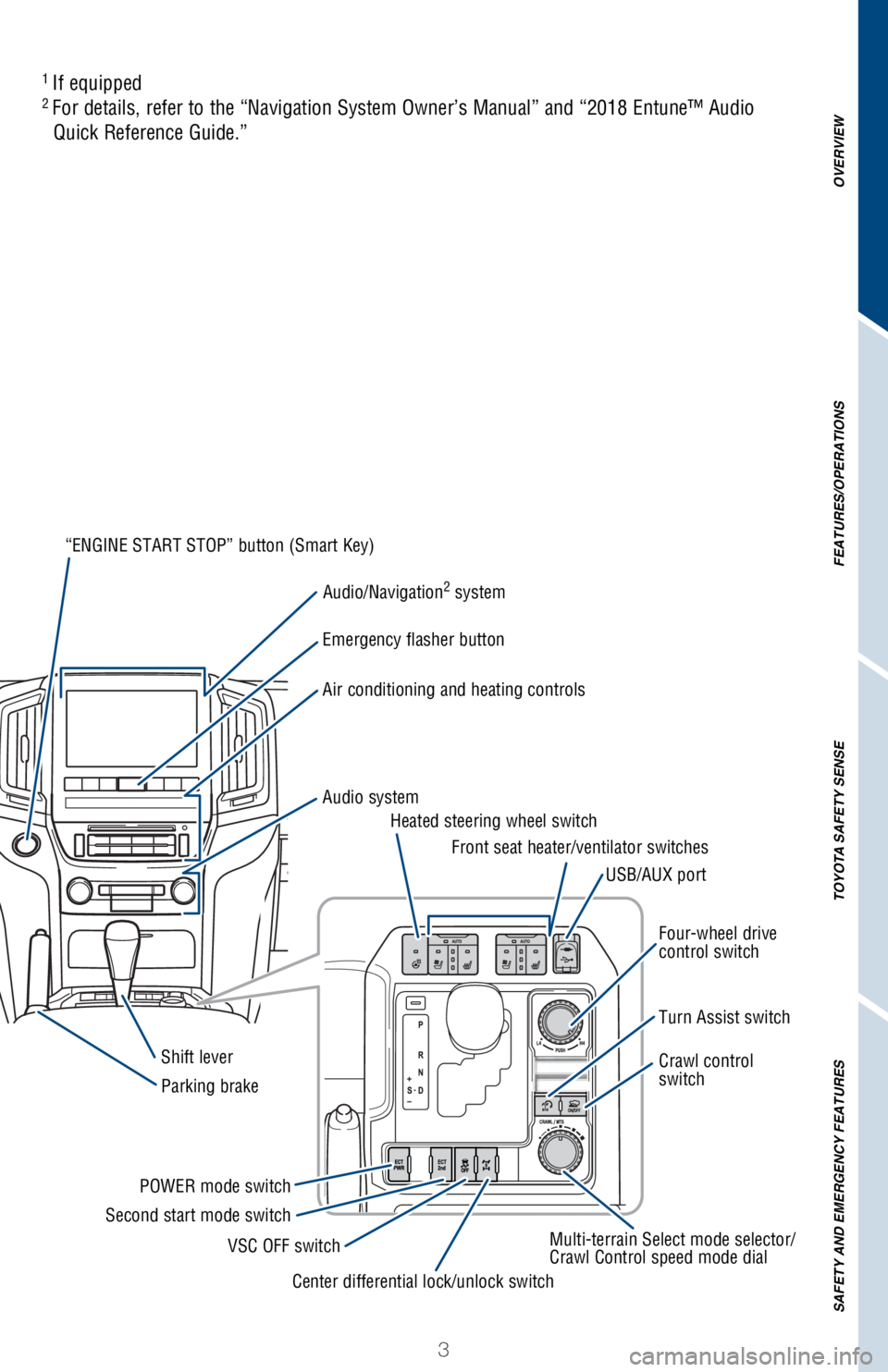
“ENGINE START STOP” button (Smart Key)
Audio/Navigation
2 system
Emergency flasher button
Air conditioning and heating controls
Front seat heater/ventilator switches
Heated steering wheel switch
USB/AUX port
Four-wheel drive
control switch
Crawl control
switch
Multi-terrain Select mode selector/
Crawl Control speed mode dial
Center differential lock/unlock switch
VSC OFF switch
Second start mode switch
POWER mode switch Turn Assist switch
Audio system
Shift lever
Parking brake
1 If equipped2 For details, refer to the “Navigation System Owner’s Manual” an\
d “2018 Entune™ Audio
Quick Reference Guide.”
Page 22 of 56
20
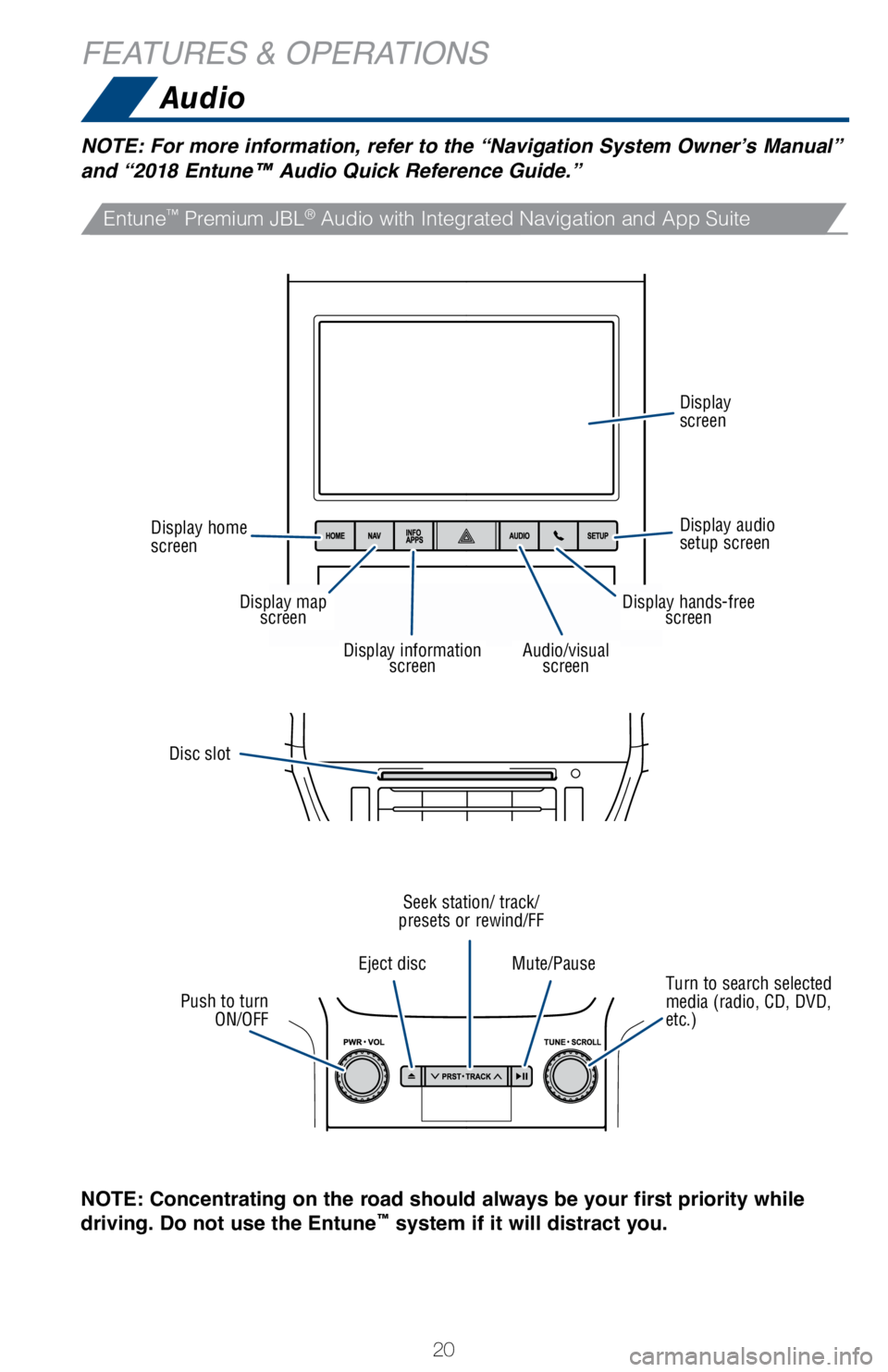
Audio
FEATURES & OPERATIONS
NOTE: For more information, refer to the “Navigation System Owner’s Manual”
and “2018 Entune™ Audio Quick Reference Guide.”
NOTE: Concentrating on the road should always be your first priority while
driving. Do not use the Entune
™ system if it will distract you.
Disc slot
Turn to search selected
media (radio, CD, DVD,
etc.)
Eject disc
Mute/Pause
Seek station/ track/
presets or rewind/FF
Push to turn ON/OFF
Display home
screen Display audio
setup screen Display
screen
Display map
screen
Audio/visualscreenDisplay information screen
Display hands-freescreen
Entune™ Premium JBL® Audio with Integrated Navigation and App Suite
Page 23 of 56
21
OVERVIEW
FEATURES & OPERATIONS
TOYOTA SAFETY SENSE
SAFETY & EMERGENCY FEATURES
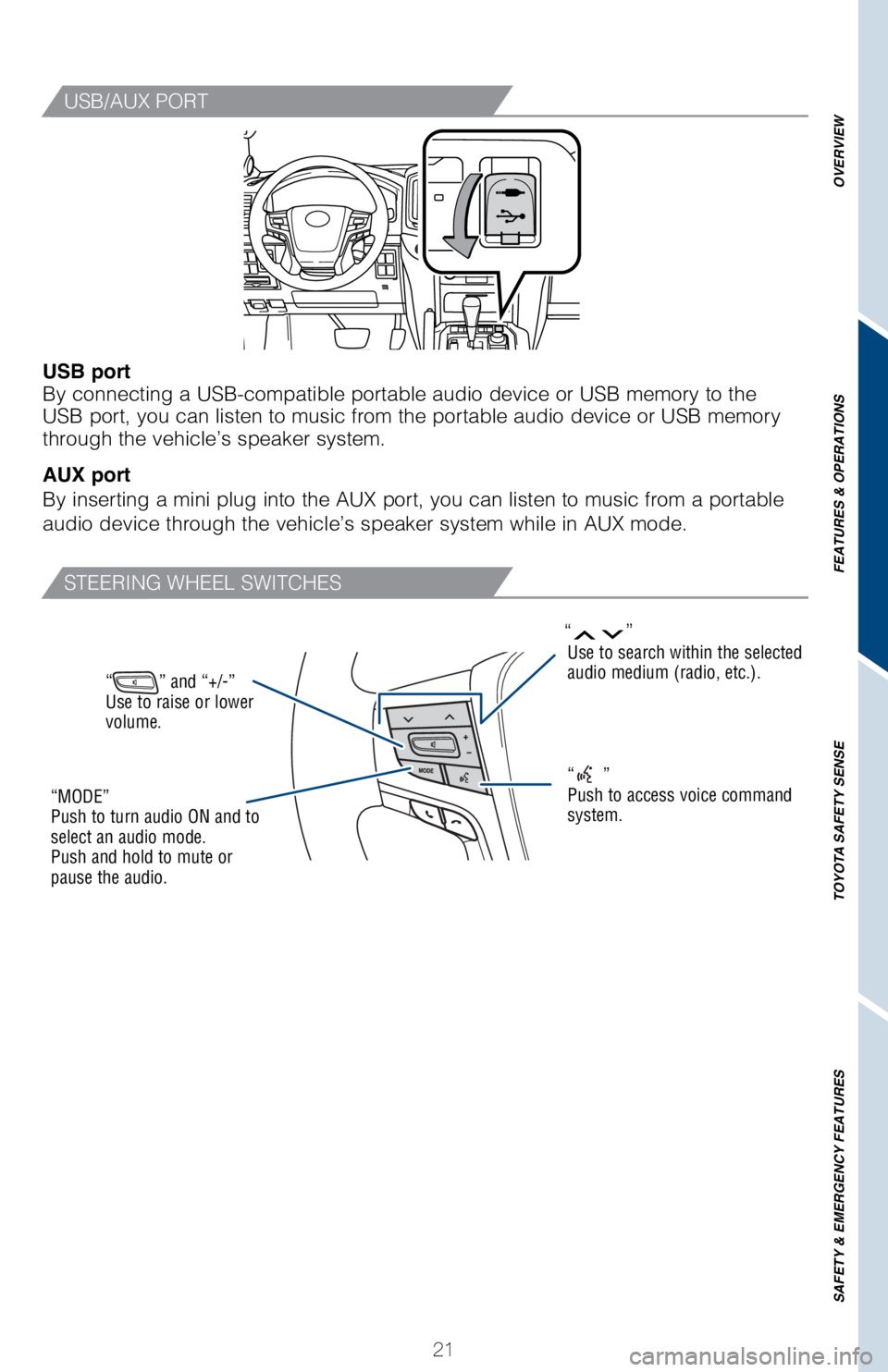
“” and “+/-”
Use to raise or lower
volume.
USB/AUX PORT
STEERING WHEEL SWITCHES
“”Use to search within the selected
audio medium (radio, etc.).
“”
Push to access voice command
system.“MODE”
Push to turn audio ON and to
select an audio mode.
Push and hold to mute or
pause the audio.
USB port
By connecting a USB-compatible portable audio device or USB memory to th\
e
USB port, you can listen to music from the portable audio device or USB \
memory
through the vehicle’s speaker system.
AUX port
By inserting a mini plug into the AUX port, you can listen to music from\
a portable
audio device through the vehicle’s speaker system while in AUX mode.
Page 27 of 56
25
OVERVIEW
FEATURES & OPERATIONS
TOYOTA SAFETY SENSE
SAFETY & EMERGENCY FEATURES
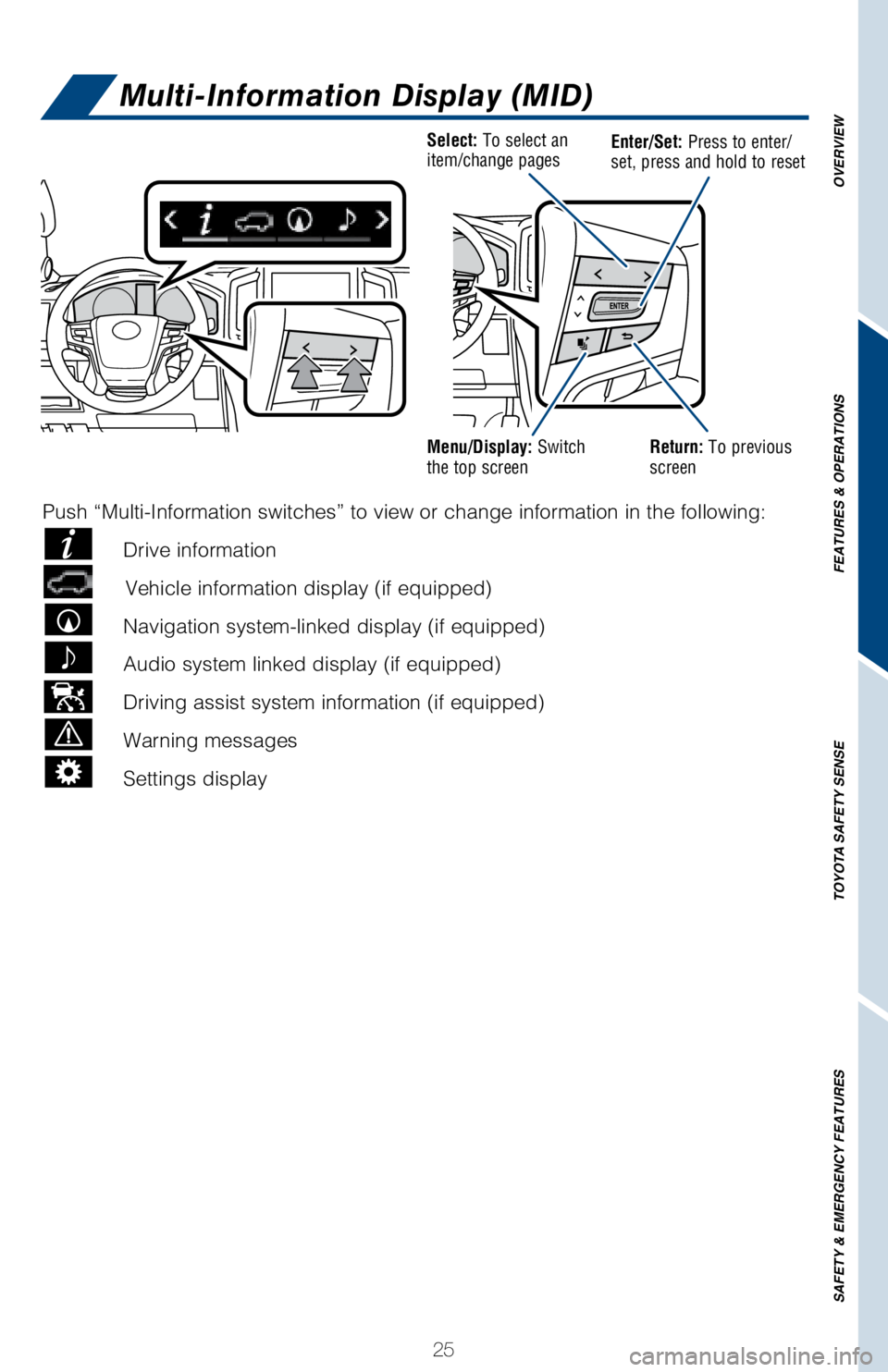
Multi-Information Display (MID)
Select: To select an
item/change pagesEnter/Set: Press to enter/
set, press and hold to reset
Menu/Display: Switch
the top screenReturn: To previous
screen
Push “Multi-Information switches” to view or change information in\
the following:
Drive information
Vehicle information display (if equipped)
Navigation system-linked display (if equipped)
Audio system linked display (if equipped)
Driving assist system information (if equipped)
Warning messages
Settings display
Page 29 of 56
27
OVERVIEW
FEATURES & OPERATIONS
TOYOTA SAFETY SENSE
SAFETY & EMERGENCY FEATURES
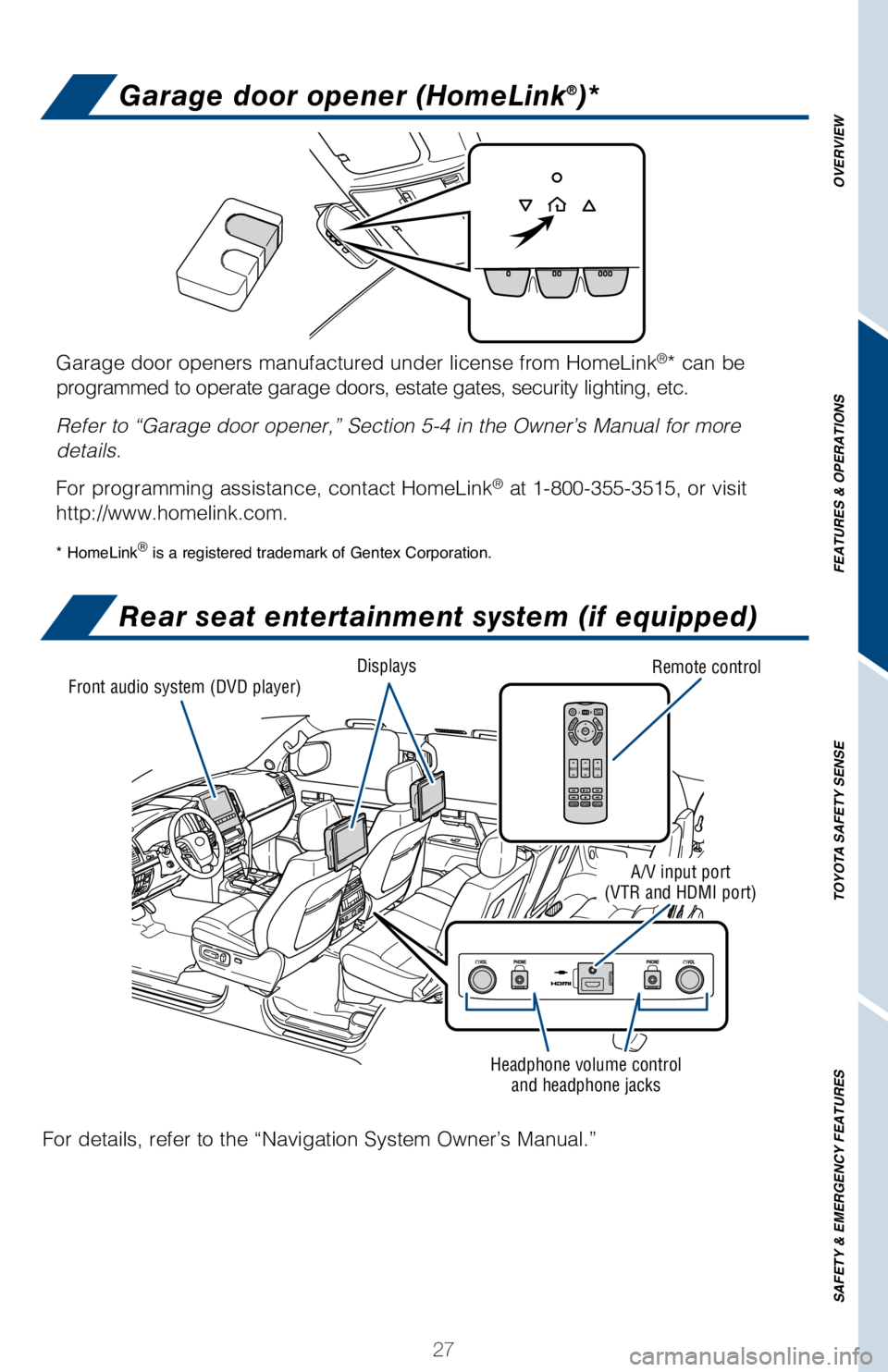
Garage door opener (HomeLink®)*
Rear seat entertainment system (if equipped)
Garage door openers manufactured under license from HomeLink®* can be
programmed to operate garage doors, estate gates, security lighting, etc\
.
Refer to “Garage door opener,” Section 5-4 in the Owner’s Manua\
l for more
details.
For programming assistance, contact HomeLink
® at 1-800-355-3515, or visit
http://www.homelink.com.
* HomeLink® is a registered trademark of Gentex Corporation.
Front audio system (DVD player) Displays
Remote control
Headphone volume control and headphone jacks
A/V input port
(VTR and HDMI port)
For details, refer to the “Navigation System Owner’s Manual.”
Page 47 of 56
 45
Pairing your phone is the first step in connecting with your Toyota for \
hands-free
calling and for audio streaming via Bluetooth. This pairing process is q\
uick and
easy: all Android mobile di")
45
Pairing your phone is the first step in connecting with your Toyota for \
hands-free
calling and for audio streaming via Bluetooth. This pairing process is q\
uick and
easy: all Android mobile digital devices have Bluetooth integrated; all \
you have to
do is setup the phone and multimedia system to “talk” to each othe\
r and form a
connection.
2
Initiate Bluetooth® on your Android®
STEP 1
STEP 5
STEP 2STEP 3STEP 4
From your APPS
SCREEN, select
SETTINGS. Select
CONNECTIONS and
select
BLUETOOTH. Ensure
BLUETOOTH
is
ON. Select
YOUR PHONE
DEVICE to make it
discoverable.
Phone will seek out
Bluetooth devices
while remaining
discoverable.
While your Android device is seeking
out Bluetooth devices, proceed to
your Entune Multimedia Head Unit on
your Toyota vehicle.
1 To determine which head unit is installed in your vehicle, refer to the\
Audio section in this guide. Entune™ Premium Audio screens are shown in this section. Screens and features \
may vary by
Entune™ system. 2 Some Android devices may have slightly different SETTINGS screen layout\
depending on manu- facturer of device and Android OS version.
To begin the Bluetooth® Pairing process, press the HOME button on the faceplate of
your Toyota Vehicle Entune™ Multimedia Head Unit.1
Bluetooth® Pairing for Android phone and
Entune™ touch screen system
Page 48 of 56
 46
Initiate Bluetooth® on your Entune™ Multimedia Head Unit
Once you have Bluetooth enabled on your phone and ready to pair, you wil\
l need to
initiate Bluetooth on your Entune head unit. Please")
46
Initiate Bluetooth® on your Entune™ Multimedia Head Unit
Once you have Bluetooth enabled on your phone and ready to pair, you wil\
l need to
initiate Bluetooth on your Entune head unit. Please follow the instructi\
ons below to
pair your Bluetooth enabled phone to your Entune system.
BLUETOOTH® DEVICE PAIRING
On your Toyota Vehicle Entune
Multimedia Head Unit, Select
SETUP BUTTON on the Home
Screen.
For Entune
™ Audio System,
press the SETUP BUTTON
on the faceplate to access the
Setup Screen. Select BLUETOOTH.
Image shown is a sample
image, features may vary.
Select ADD, to add your
phone device.
Back on your smartphone,
you can now select your
TOYOTA VEHICLE in
Bluetooth Settings.
You may need to enter the
provided Bluetooth PIN on
your phone.Your smartphone is now
paired with Entune.Once paired, Entune will
attempt to connect audio and
contacts on your phone.
STEP 6STEP 7STEP 8
STEP 9STEP 11STEP 10
Page 50 of 56
 48
Pairing your phone is the first step in connecting with your Toyota for \
hands-free
calling and for audio streaming via Bluetooth. This pairing process is q\
uick and
easy: all iPhone mobile dig")
48
Pairing your phone is the first step in connecting with your Toyota for \
hands-free
calling and for audio streaming via Bluetooth. This pairing process is q\
uick and
easy: all iPhone mobile digital devices have Bluetooth integrated; all y\
ou have to
do is setup the phone and multimedia system to “talk” to each othe\
r and form a
connection.
Initiate Bluetooth® on your iPhone®
From the HOME
SCREEN, select
SETTINGS. Select
BLUETOOTH. Ensure
BLUETOOTH
is
ON. Your iPhone will seek
out Bluetooth devices
while remaining
discoverable.
While your iPhone device is seeking
out Bluetooth devices, proceed to
your Entune Multimedia Head Unit on
your Toyota vehicle.
STEP 1STEP 2STEP 3STEP 4
STEP 5
Bluetooth® Pairing for iPhone and
Entune™ touch screen system
BLUETOOTH® DEVICE PAIRING
**Do not attempt the Bluetooth® Pairing process while driving.**