radio TOYOTA MIRAI 2018 Accessories, Audio & Navigation (in English)
[x] Cancel search | Manufacturer: TOYOTA, Model Year: 2018, Model line: MIRAI, Model: TOYOTA MIRAI 2018Pages: 292, PDF Size: 4.36 MB
Page 191 of 292
191
3. WHAT TO DO IF...
PHONE
7
MIRAI_Navi_USA_OM62029U_17CY
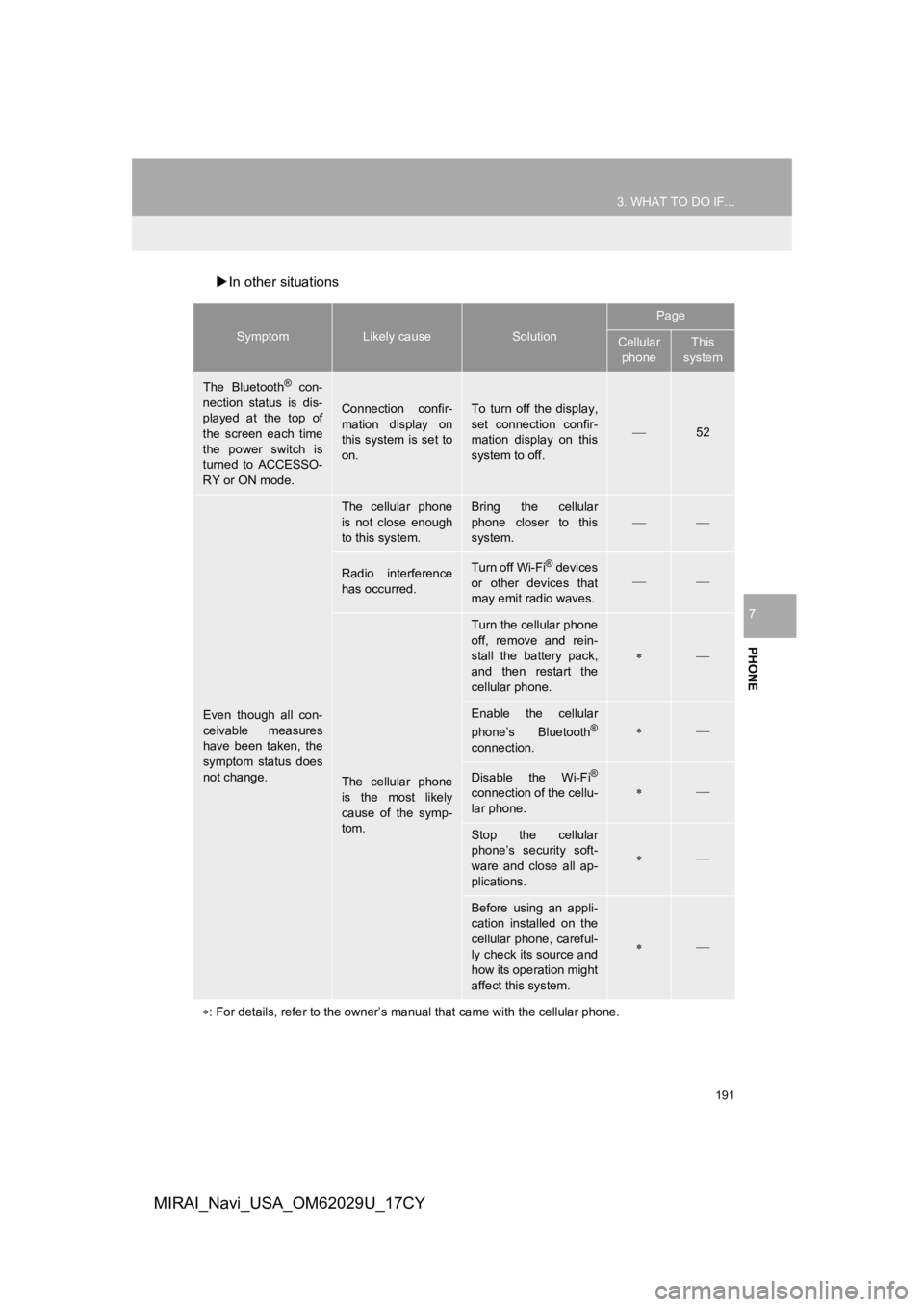
In other situations
SymptomLikely causeSolution
Page
Cellular
phoneThis
system
The Bluetooth® con-
nection status is dis-
played at the top of
the screen each time
the power switch is
turned to ACCESSO-
RY or ON mode.
Connection confir-
mation display on
this system is set to
on.To turn off the display,
set connection confir-
mation display on this
system to off.
52
Even though all con-
ceivable measures
have been taken, the
symptom status does
not change.
The cellular phone
is not close enough
to this system.Bring the cellular
phone closer to this
system.
Radio interference
has occurred.Turn off Wi-Fi® devices
or other devices that
may emit radio waves.
The cellular phone
is the most likely
cause of the symp-
tom.
Turn the cellular phone
off, remove and rein-
stall the battery pack,
and then restart the
cellular phone.
Enable the cellular
phone’s Bluetooth®
connection.
Disable the Wi-Fi®
connection of the cellu-
lar phone.
Stop the cellular
phone’s security soft-
ware and close all ap-
plications.
Before using an appli-
cation installed on the
cellular phone, careful-
ly check its source and
how its operation might
affect this system.
: For details, refer to the owner’s manual that came with the ce llular phone.
Page 204 of 292
204
1. BASIC OPERATION
MIRAI_Navi_USA_OM62029U_17CY
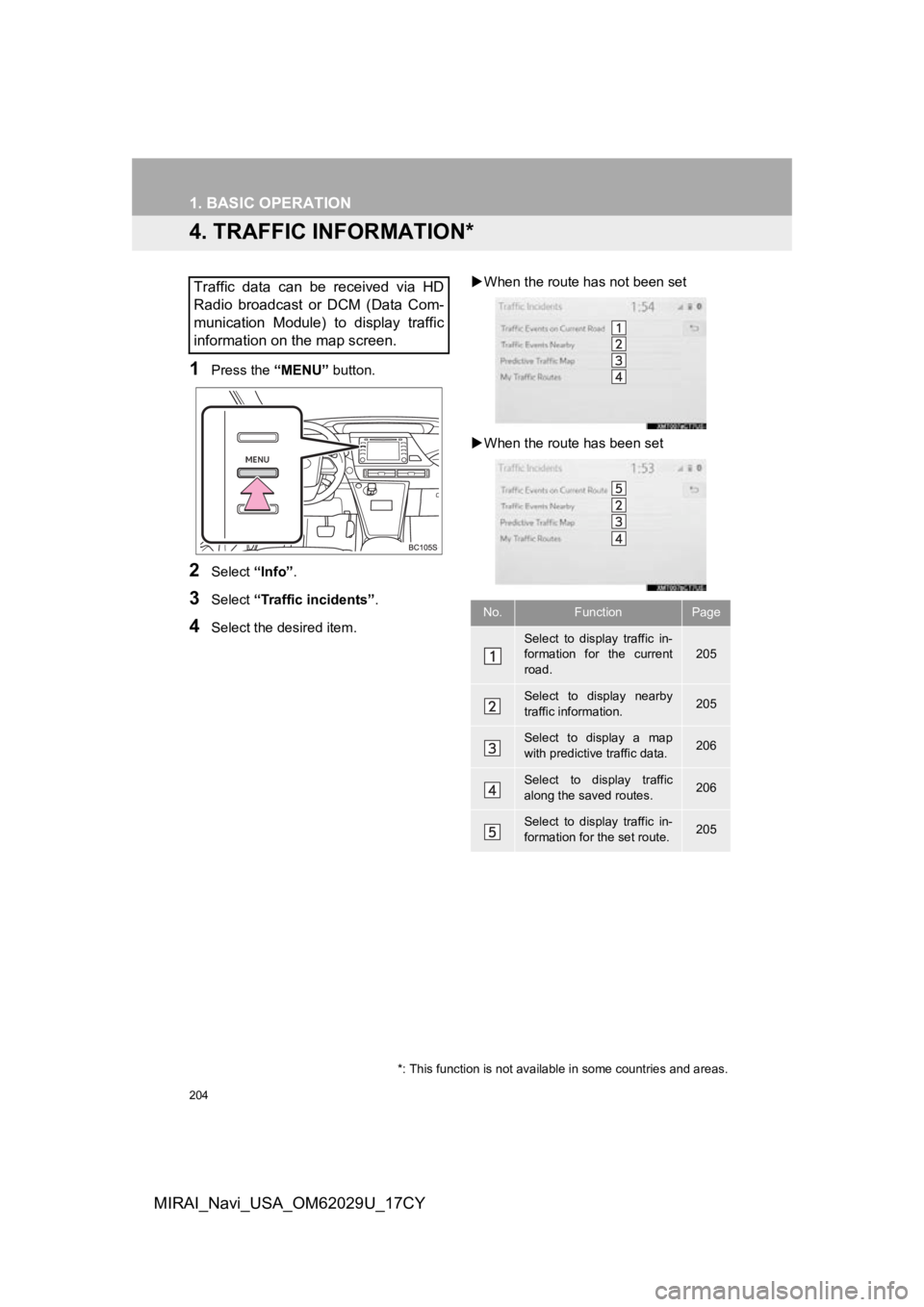
4. TRAFFIC INFORMATION*
1Press the “MENU” button.
2Select “Info”.
3Select “Traffic incidents” .
4Select the desired item.
When the route ha s not been set
When the route has been set
Traffic data can be received via HD
Radio broadcast or DCM (Data Com-
munication Module) to display traffic
information on the map screen.
No.FunctionPage
Select to display traffic in-
formation for the current
road.205
Select to display nearby
traffic information.205
Select to display a map
with predictive traffic data.206
Select to display traffic
along the saved routes.206
Select to display traffic in-
formation for the set route.205
*: This function is not available in some countries and areas.
Page 205 of 292

205
1. BASIC OPERATION
NAVIGATION SYSTEM
8
MIRAI_Navi_USA_OM62029U_17CY
1Display the traffic incidents screen.
(P.204)
2Select “Traffic Events on Current
Road” , “Traffic Events on Current
Route” or “Traffic Events Nearby” .
3Select the desired traffic information.
When “Traffic Events Nearby” is se-
lected, depending on whether the traffic
flow information is enabled/disabled, the
following will be displayed:
When enabled: Traffic event and conges-
tion information
When disabled: Traffic event information
only
4Check that the traffic information is dis-
played.
“Detail” : Select to display detailed traffic
information.
INFORMATION
● If a large amount of information is being
received, it may take longer than normal
for the information to be displayed on
the screen.
● If traffic information cannot be received
because the vehicle is outside of HD
Radio coverage area, it may still be able
to be received using DCM. ( P.144)
DISPLAYING TRAFFIC
INFORMATION
A list of current traffic information can
be displayed along with information on
the location of each incident.
Page 259 of 292
259
1. Toyota Entune-OVERVIEW
Toyota Entune
9
MIRAI_Navi_USA_OM62029U_17CY
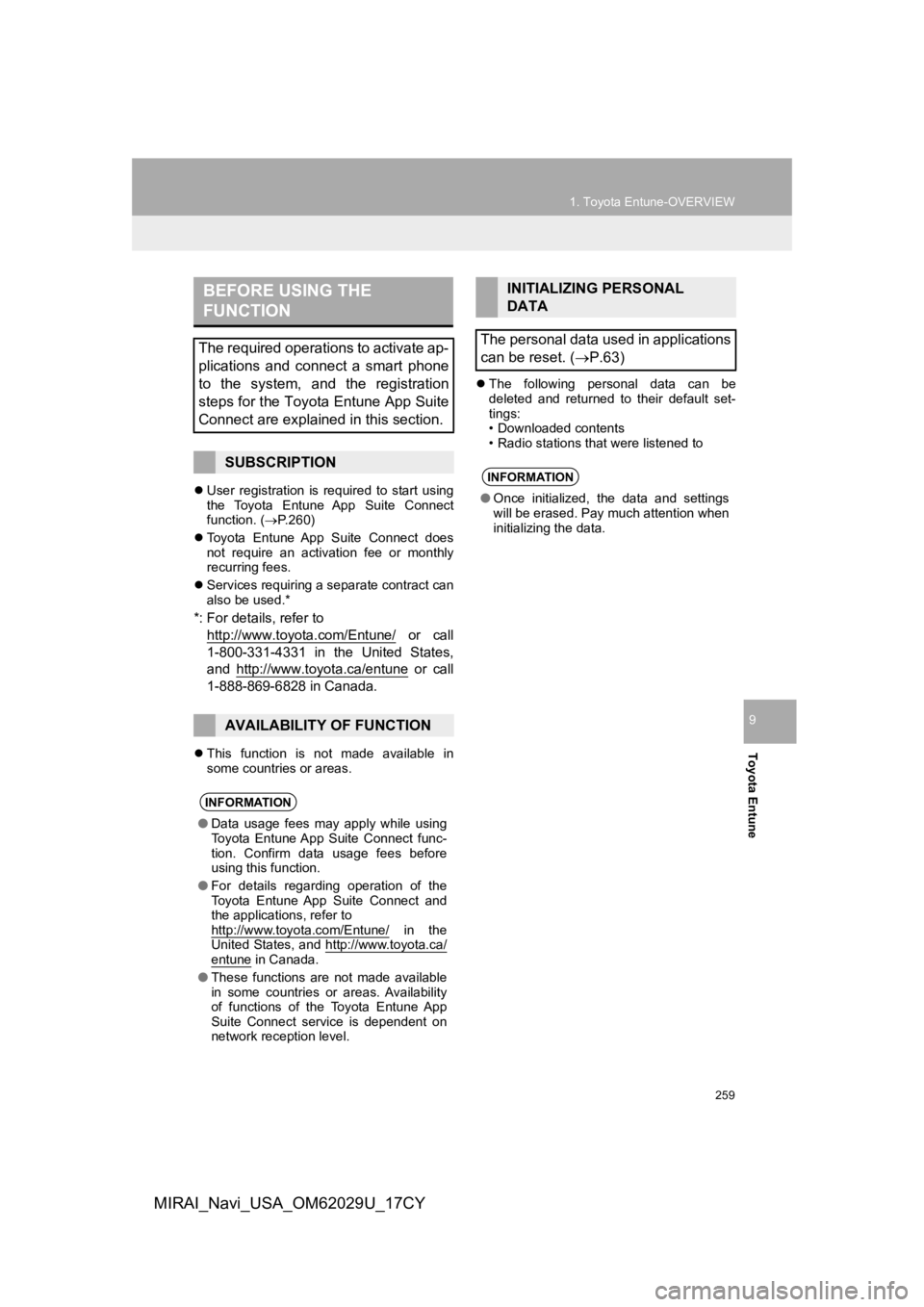
User registration is required to start using
the Toyota Entune App Suite Connect
function. ( P.260)
Toyota Entune App Suite Connect does
not require an activation fee or monthly
recurring fees.
Services requiring a separate contract can
also be used.*
*: For details, refer to
http://www.toyota.com/Entune/
or call
1-800-331-4331 in the United States,
and http://www.toyota.ca/entune
or call
1-888-869-6828 in Canada.
This function is not made available in
some countries or areas.
The following personal data can be
deleted and returned to their default set-
tings:
• Downloaded contents
• Radio stations that were listened to
BEFORE USING THE
FUNCTION
The required operations to activate ap-
plications and connect a smart phone
to the system, and the registration
steps for the Toyota Entune App Suite
Connect are explained in this section.
SUBSCRIPTION
AVAILABILITY OF FUNCTION
INFORMATION
●Data usage fees may apply while using
Toyota Entune App Suite Connect func-
tion. Confirm data usage fees before
using this function.
● For details regarding operation of the
Toyota Entune App Suite Connect and
the applications, refer to
http://www.toyota.com/Entune/
in the
United States, and http://www.toyota.ca/
entune in Canada.
● These functions are not made available
in some countries or areas. Availability
of functions of the Toyota Entune App
Suite Connect service is dependent on
network reception level.
INITIALIZING PERSONAL
DATA
The personal data used in applications
can be reset. ( P.63)
INFORMATION
●Once initialized, the data and settings
will be erased. Pay much attention when
initializing the data.
Page 264 of 292

264
1. Toyota Entune-OVERVIEW
MIRAI_Navi_USA_OM62029U_17CY
4. TYPE C: FUNCTION ACHIEVED BY USING DCM*
Safety Connect
The functionality of Safety Connect is made possible by the use of a DCM.
For details, refer to “Owner’s Manual”.
INFORMATION
● Free/Open Source Software Information
This product contains Free/O pen Source Software (FOSS).
The license information and/or the source code of such FOSS can be found at the follow-
ing URL. https://www.toyota.com/opensource/dcm
● Exposure to radio frequency signals:
The Toyota Entune system installed in your vehicle includes a l ow power radio transmitter
and receiver. The system receives and also sends out radio frequency (RF) signals.
● In August 1996, the Federal Communications Commission (FCC) adopted RF exposure
guidelines with safety levels for mobile wireless phones. Those guidelines are consistent
with the safety standards previously set by both U.S. and inter national standards bodies.
• ANSI (American National Standards Institute) C95.1 [1992]
• NCRP (National Council on Radiation Protection and Measurement ) Report 86 [1986]
• ICNIRP (International Commission on Non-Ionizing Radiation Pro tection) [1996]
● These standards are based on comprehensive and periodic evaluat ions of the relevant
scientific literature. Over 120 scientists, engineers, and phys icians from universities, gov-
ernment health agencies, and industry reviewed the available bo dy of research to
develop the ANSI Standard (C95.1).
● The design of Toyota Entune system complies with the FCC guidel ines in addition to
those standards.
● Contact with the Toyota Entune center is dependent upon the telematics device being in
operative condition, cellular connection availability, navigati on map data, and GPS satel-
lite signal reception, which can limit the ability to reach the Toyota Entune center or
receive support. Enrollment and Telematics Subscription Service Agreement required. A
variety of subscription terms are available; charges vary by subscription term selected.
● The Toyota Entune center offers support in multiple languages.
● Select Safety Connect-subscribed vehicles are capable of commun icating vehicle infor-
mation. Please see the terms and conditions for additional deta ils.
Owners who do not wish to have their vehicle transmit this information can opt out at the
time of enrollment or by calling 1-800-331-4331 in the United S tates, and 1-888-869-6828
in Canada, and following the prompts for Safety Connect.
● For further details about the service, contact your Toyota deal er.
● Toyota Entune functions are not subject to section 255 of the T elecommunications Act
and the system is not TTY compatible.
*: Vehicles with DCM
Page 288 of 292

288
ALPHABETICAL INDEX
MIRAI_Navi_USA_OM62029U_17CY
A
AM/FM/SiriusXM (SXM) radio ................... 80Available HD Radio™ technology ......... 86
Caching a radio program ....................... 82
Displaying the radio ID .......................... 90
HD Radio™ troubleshooting guide ........ 87
How to subscribe to SiriusXM Satellite Radio.................................... 88
If the satellite radio tuner malfunctions....................................... 91
Overview ............................................... 80
Presetting a station................................ 82
Radio broadcast data system ................ 85
Radio options ........................................ 85
Selecting a station from the list ............. 84
Using HD Radio™ technology............... 86
Audio settings ......................................... 111 Audio settings screen .......................... 111
Audio/visual remote controls ................... 109
Audio/visual system .................................. 71
AUX......................................................... 107 Overview ............................................. 107
B
Basic function...................................... 12, 29
Basic information before operation ........... 30
Basic operation ................................. 72, 194
Bluetooth
® audio ..................................... 102
Overview ............................................. 102
Registering/connecting a Bluetooth
®
device .............................................. 106 Bluetooth
® phone message function.......170
Calling the message sender ................174
Checking received messages..............171
Displaying the message screen...........170
Receiving a message ..........................170
Replying to a message (Dictation reply) ................................172
Replying to a message (Quick reply).....................................173
Buttons overview .......................................12
C
CD ............................................................. 93
Overview................................................93
Command list ..........................................131
Connectivity settings .................................42
D
Data services settings .............................144 Setting download methods ..................144
Destination search ..................................208
Destination search operation ..................208 One-touch setting home/favorite as a destination.....................................216
Searching by address ..........................212
Searching by contact ...........................212
Searching by destination assist connect ............................................211
Searching by emergency .....................212
Searching by favorites list....................211
Searching by keyword .........................210
Searching by point of interest ..............213
Searching by recent destinations ........211
Selecting search area ..........................210
Setting home as destination ................210
Detailed navigation settings ....................241
Screens for navigation settings ...........241
ALPHABETICAL INDEX
Page 289 of 292
289
MIRAI_Navi_USA_OM62029U_17CY
E
Entering letters and numbers/list screen operation ............................................... 35
Entering letters and numbers ................ 35
List screen ............................................. 36
F
Function index .......................................... 26
Functional overview ................................ 256
G
General settings........................................ 60
General settings screen ........................ 60
GPS (Global Positioning System) ........... 251 Limitations of the navigation system ... 251
H
Home screen ............................................ 16Status display ........................................ 18
Home screen operation ............................ 34
I
Information .............................................. 139
Information screen .................................. 140 Displaying information screen ............. 140
Initial screen.............................................. 30
Internet radio............................................. 92 Listening to internet radio ...................... 92
iPod........................................................... 99
Overview ............................................... 99
L
Linking multi-information display and the system ............................................. 41
M
Map database version and covered area ..................................................... 253
Map information................................... 253
Temporary updates of the map (Vehicles with DCM) ........................ 253
Map options operation ............................ 200 Route trace .......................................... 203
Selecting the POI icons ....................... 202
Switching the map mode ..................... 200
Map screen operation ............................. 196 Adjusting location in small increments ....................................... 198
Current position display ....................... 196
Displaying information about the icon where the cursor is set ............. 199
Map scale ............................................ 196
Map scroll operation ............................ 198
Orientation of the map ......................... 197
Standard map icons ............................ 199
Media operation ........................................ 93
Memory points ........................................ 234
Memory points settings ........................... 234 Setting up areas to avoid..................... 239
Setting up favorites list ........................ 236
Setting up home .................................. 235
“Menu” screen ........................................... 14
Mobile assistant ...................................... 137
Connectable devices and available functions .......................................... 137
Mobile assistant operation................... 137
Mobile assistant operation ...................... 137
Page 290 of 292

290
ALPHABETICAL INDEX
MIRAI_Navi_USA_OM62029U_17CY
N
Natural language understanding ............. 130
Navigation operation ................................. 22
Navigation system................................ ... 193
O
Operating information ............................. 113
CD player and disc .............................. 114
Error messages ................................... 123
File information .................................... 118
High-resolution sound source.............. 118
iPod ..................................................... 116
Radio ................................................... 113
Terms .................................................. 121
Operation flow: Route guidance................ 24
Other settings............................................ 60
P
Peripheral monitoring system ................. 145
Phone...................................................... 155
Phone operation (Hands-free system for cellular phones) .............................. 156
Phone settings ........................................ 175 Contact/call history settings screen ..... 178
Message settings screen..................... 185
Notification settings screen ................. 177
Phone settings screen ......................... 175
Sound settings screen ......................... 176
Placing a call using the Bluetooth
®
hands-free system ............................... 161
By call history ...................................... 161
By contacts list .................................... 162
By favorites list .................................... 162
By home screen .................................. 165
By keypad............................................ 164
Q
Quick guide ...............................................11
Quick reference ...................20, 72, 156, 194
Map screen ..........................................194
R
Radio operation .........................................80
Rear view monitor system .......................146
Driving precautions ..............................146
Screen description ...............................148
Rear view monitor system precautions ...149 Area displayed on screen ....................149
Differences between the screen and the actual road .................................150
The camera .........................................149
When approaching three-dimensional objects..............................................152
Receiving a call using the Bluetooth
®
hands-free system ...............................166
Incoming calls ......................................166
Receiving weather information ................141
Displaying weather screen ..................141
Weather guidance service ...................143
Registering favorite destinations ...............23
Registering home ......................................22
Registering/connecting a Bluetooth
®
device ....................................................42
Profiles...................................................45
Registering a Bluetooth
® audio player
for the first time ..................................44
Registering a Bluetooth
® phone for
the first time .......................................42