ESP TOYOTA MIRAI 2018 Accessories, Audio & Navigation (in English)
[x] Cancel search | Manufacturer: TOYOTA, Model Year: 2018, Model line: MIRAI, Model: TOYOTA MIRAI 2018Pages: 292, PDF Size: 4.36 MB
Page 6 of 292
6
MIRAI_Navi_USA_OM62029U_17CY
To use this system in the safest possible
manner, follow all the safety tips shown
below.
This system is intended to assist in reach-
ing the destination and, if used properly,
can do so. The driver i s solely responsible
for the safe operation of your vehicle and
the safety of your passengers.
Do not use any feature of this system to
the extent it becomes a distraction and
prevents safe drivin g. The first priority
while driving should always be the safe op-
eration of the vehicle. While driving, be
sure to observe all traffic regulations.
Prior to the actual use of this system, learn
how to use it and become thoroughly famil-
iar with it. Read the entire manual to make
sure you understand the system. Do not
allow other people to use this system until
they have read and understood the in-
structions in this manual.
For your safety, some functions may be-
come inoperable when driving. Unavail-
able screen buttons are dimmed.
SAFETY INSTRUCTIONWA R N I N G
● For safety, the driver should not operate
the system while he/she is driving. Insuf-
ficient attention to the road and traffic
may cause an accident.
● While driving, be sure to obey the traffic
regulations and maintain awareness of
the road conditions. If a traffic sign on
the road has been changed, route guid-
ance may not have the updated informa-
tion such as the direction of a one way
street.
Page 19 of 292
19
1. BASIC FUNCTION
QUICK GUIDE
1
MIRAI_Navi_USA_OM62029U_17CY
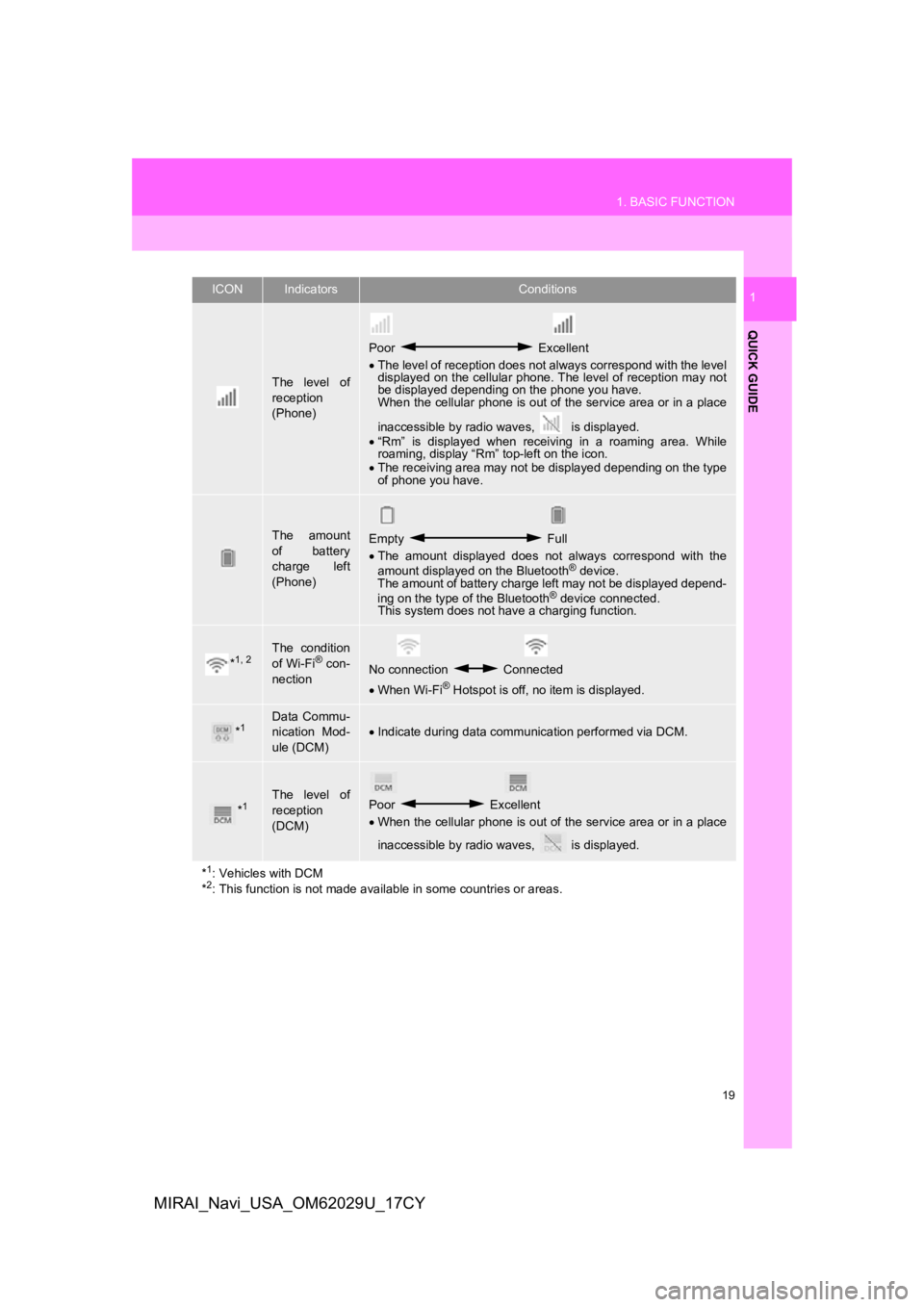
The level of
reception
(Phone)
Poor Excellent
The level of reception does not always correspond with the leve l
displayed on the cellular phone. The level of reception may not
be displayed depending on the phone you have.
When the cellular phone is out of the service area or in a place
inaccessible by radio waves, is displayed.
“Rm” is displayed when receiving in a roaming area. While
roaming, display “Rm” top-left on the icon.
The receiving area may not be displayed depending on the type
of phone you have.
The amount
of battery
charge left
(Phone)Empty Full
The amount displayed does not always correspond with the
amount displayed on the Bluetooth
® device.
The amount of battery charge left may not be displayed depend-
ing on the type of the Bluetooth
® device connected.
This system does not have a charging function.
*1, 2The condition
of Wi-Fi® con-
nectionNo connection Connected
When Wi-Fi® Hotspot is off, no item is displayed.
*1Data Commu-
nication Mod-
ule (DCM)Indicate during data communication performed via DCM.
*1The level of
reception
(DCM)Poor Excellent
When the cellular phone is out of the service area or in a place
inaccessible by radio waves, is displayed.
*
1: Vehicles with DCM
*2: This function is not made avail able in some countries or areas.
ICONIndicatorsConditions
Page 26 of 292
26
MIRAI_Navi_USA_OM62029U_17CY
4. FUNCTION INDEX
1. FUNCTION INDEX
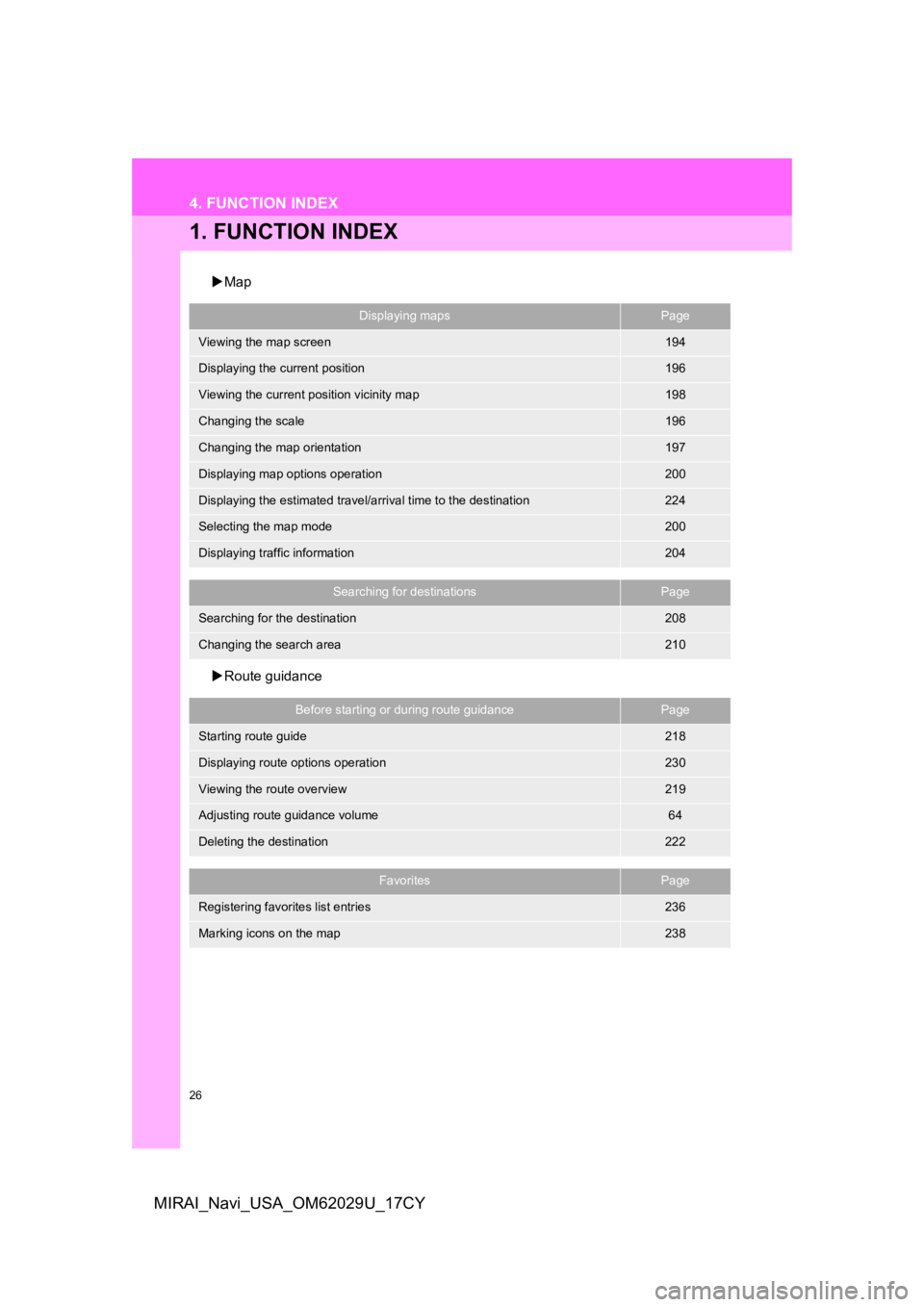
Map
Route guidance
Displaying mapsPage
Viewing the map screen194
Displaying the current position196
Viewing the current position vicinity map198
Changing the scale196
Changing the map orientation197
Displaying map options operation200
Displaying the estimated travel/arrival time to the destination224
Selecting the map mode200
Displaying traffic information204
Searching for destinationsPage
Searching for the destination208
Changing the search area210
Before starting or during route guidancePage
Starting route guide218
Displaying route options operation230
Viewing the route overview219
Adjusting route guidance volume64
Deleting the destination222
FavoritesPage
Registering favorites list entries236
Marking icons on the map238
Page 30 of 292
30
MIRAI_Navi_USA_OM62029U_17CY
1. BASIC INFORMATION BEFORE OPERATION
1. INITIAL SCREEN
When the power switch is turned to AC-
CESSORY or ON mode, the initial screen
will be displayed and the system will begin
operating.
After a few seconds, the caution screen
will be displayed.
After about 5 seconds or selecting “Con-
tinue” , the caution screen switches to the
next screen.
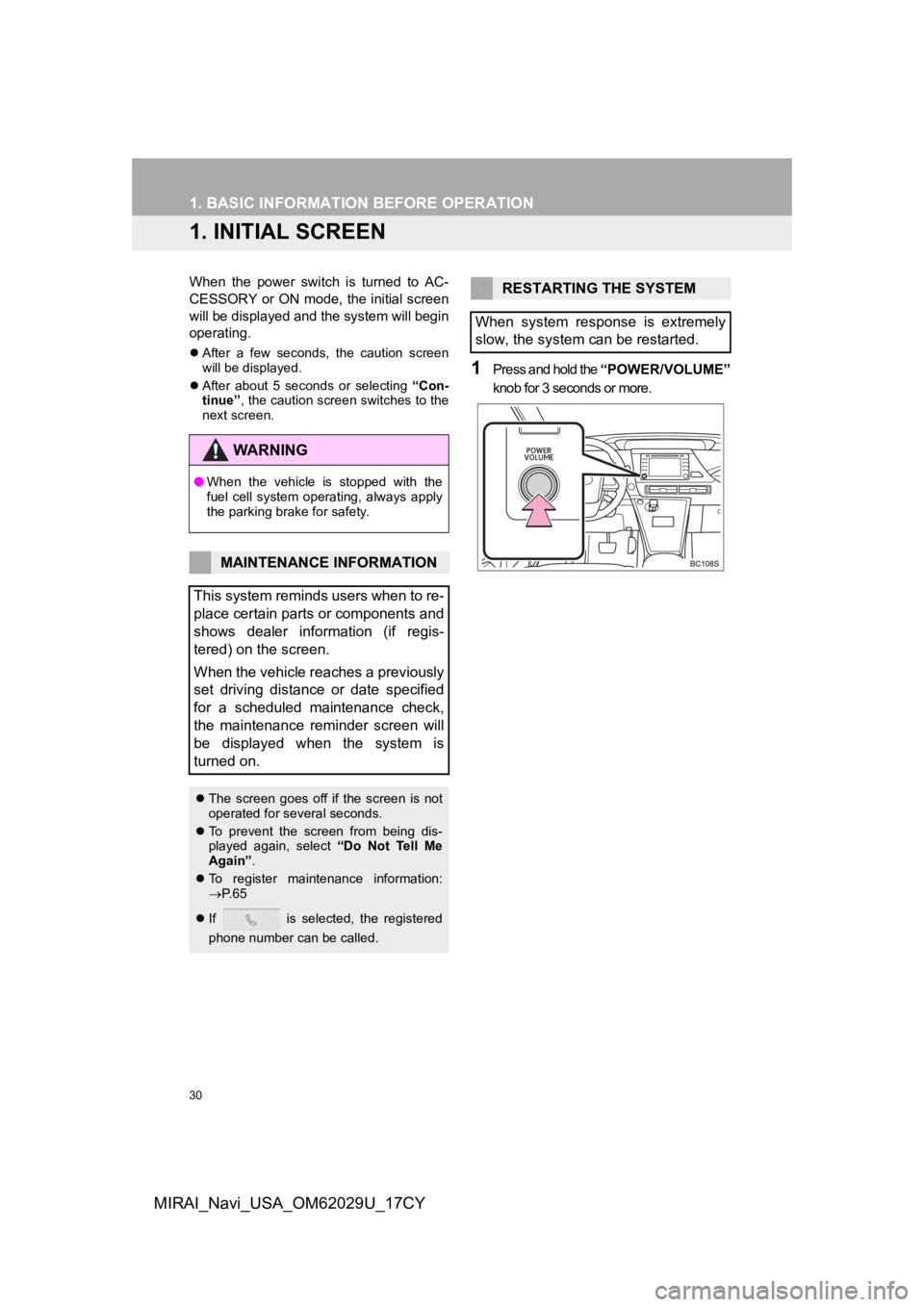
1Press and hold the “POWER/VOLUME”
knob for 3 seconds or more.
WA R N I N G
● When the vehicle is stopped with the
fuel cell system operating, always apply
the parking brake for safety.
MAINTENANCE INFORMATION
This system reminds users when to re-
place certain parts or components and
shows dealer information (if regis-
tered) on the screen.
When the vehicle reaches a previously
set driving distance or date specified
for a scheduled maintenance check,
the maintenance reminder screen will
be displayed when the system is
turned on.
The screen goes off if the screen is not
operated for several seconds.
To prevent the screen from being dis-
played again, select “Do Not Tell Me
Again” .
To register maintenance information:
P. 6 5
If is selected, the registered
phone number can be called.
RESTARTING THE SYSTEM
When system response is extremely
slow, the system can be restarted.
Page 32 of 292
32
1. BASIC INFORMATION BEFORE OPERATION
MIRAI_Navi_USA_OM62029U_17CY
3. TOUCH SCREEN OPERATION
This system is operated mainly by the
buttons on the screen. (Referred to as
screen buttons in this manual.)
When a screen button is touched, a
beep sounds. (To set the beep sound:
P. 6 0 )
NOTICE
● To prevent damaging the screen, lightly
touch the screen buttons with your fin-
ger.
● Do not use objects other than your finger
to touch the screen.
● Wipe off fingerprints using a glass clean-
ing cloth. Do not use chemical cleaners
to clean the screen, as they may dam-
age the touch screen.
INFORMATION
●If the system does n ot respond to touch-
ing a screen button, move your finger
away from the screen and then touch it
again.
● Dimmed screen buttons cannot be oper-
ated.
● The displayed image may become
darker and moving images may be
slightly distorted when the screen is
cold.
● In extremely cold conditions, the screen
may not be displayed and the data input
by a user may be deleted. Also, the
screen buttons may be harder than
usual to depress.
● When you look at the screen through
polarized material such as polarized
sunglasses, the screen may be dark and
hard to see. If so, look at the screen
from different angles, adjust the screen
settings on the display settings screen
or take off your sunglasses.
● When is displayed on the screen,
select to return to the previous
screen.
Page 43 of 292
43
2. CONNECTIVITY SETTINGS
BASIC FUNCTION
2
MIRAI_Navi_USA_OM62029U_17CY
A PIN-code is not required for SSP
(Secure Simple Pairing) compatible
Bluetooth
® devices. Depending on the
type of Bluetooth® device being con-
nected, a message confirming registra-
tion may be displayed on the Bluetooth
®
device’s screen. Respond and operate the
Bluetooth® device according to the confir-
mation message.
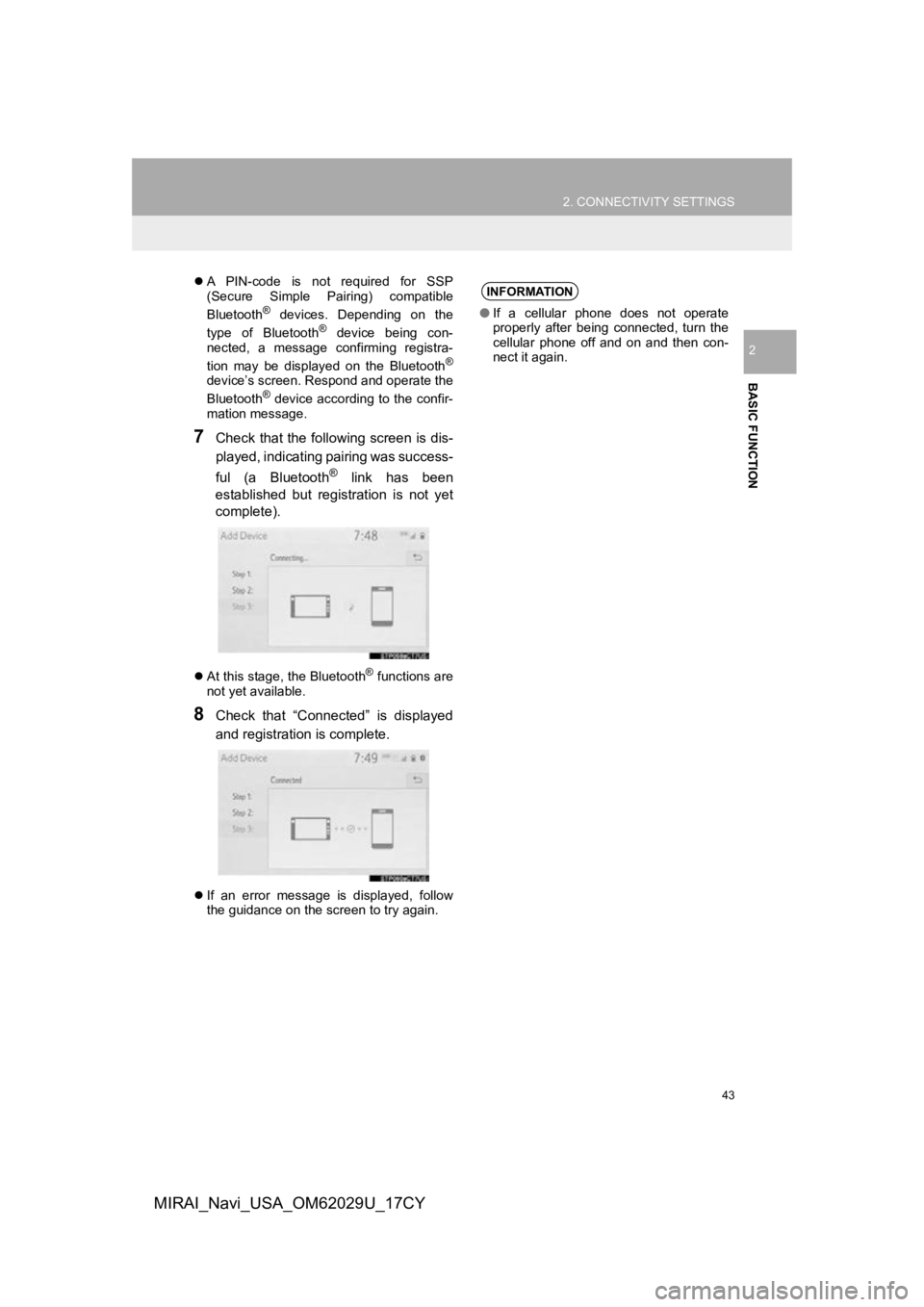
7Check that the following screen is dis-
played, indicating pairing was success-
ful (a Bluetooth
® link has been
established but registration is not yet
complete).
At this stage, the Bluetooth® functions are
not yet available.
8Check that “Connected” is displayed
and registration is complete.
If an error message is displayed, follow
the guidance on the screen to try again.
INFORMATION
●If a cellular phone does not operate
properly after being connected, turn the
cellular phone off and on and then con-
nect it again.
Page 45 of 292
45
2. CONNECTIVITY SETTINGS
BASIC FUNCTION
2
MIRAI_Navi_USA_OM62029U_17CY
PROFILES
This system supports the following services.
Bluetooth®
DeviceSpec.FunctionRequiredRecom-
mended
Bluetooth®
Phone/
Bluetooth®
Audio
Player
Bluetooth® Core Specifi-
cationRegistering a
Bluetooth® de-
viceVer. 2.0Ver. 4.1+ EDR
Bluetooth®
DeviceProfileFunctionRequiredRecom-
mended
Bluetooth®
Phone
HFP (Hands-Free Profile)Hands-free
systemVer. 1.0Ve r. 1 . 7
OPP (Object Push Profile)Transferring the
contactsVer. 1.1Ve r. 1 . 2
PBAP (Phone Book Ac-
cess profile)Ver. 1.0Ve r. 1 . 2
MAP (Message Access
Profile)Bluetooth®
phone messageVer. 1.0Ve r. 1 . 2
SPP (Serial Port Profile)
Toyota Entune
App Suite Con-
nect
Ver. 1.1Ve r. 1 . 2
Bluetooth®
Audio
Player
A2DP (Advanced Audio
Distribution Profile)
Bluetooth® audio
systemVer. 1.0Ve r. 1 . 3
AVRCP (Audio/Video Re-
mote Control Profile)Ver. 1.0Ve r. 1 . 6
INFORMATION
● This system is not guaranteed to operate with all Bluetooth® devices.
● If your cellular phone does not support HFP, registering the Bluetooth® phone or using
OPP, PBAP, MAP or SPP profiles individually will not be possibl e.
● If the connected Bluetooth
® device version is older than recommended or incompatible,
the Bluetooth® device function may not work properly.
● Refer to http://www.toyota.com/Entune/
in the United States, and http://www.toyota.ca/entune in Canada, to find approved Bluetooth® phones for this system.
Page 89 of 292
89
2. RADIO OPERATION
AUDIO/VISUAL SYSTEM
3
MIRAI_Navi_USA_OM62029U_17CY
NOTICE
●It is prohibited to copy, decompile, disas-
semble, reverse engineer, hack, manip-
ulate, or otherwise make available any
technology or software incorporated in
receivers compatible with the SiriusXM
Satellite Radio System or that support
the SXM website, the Online Service or
any of its content. Furthermore, the
AMBE
® voice compression software
included in this product is protected by
intellectual property rights including pat-
ent rights, copyrights, and trade secrets
of Digital Voice Systems, Inc.
● Note: this applies to SiriusXM Satellite
Radio receivers only and not SXM
Ready devices.
INFORMATION
●SiriusXM Radio Services Descriptions
• Radio and Entertainment SiriusXM offers more than 170 satellite
radio channels of commercial-free
music and premier sports, news, talk,
and entertainment. SiriusXM is broad-
cast via satellites to millions of listen-
ers across the continental United
States. SiriusXM subscribers listen to
SiriusXM on satellite radio receivers for
the car, home, and portable use. More
information about SiriusXM is available
online at www.siriusxm.com
(U.S.A.) or
www.siriusxm.ca (Canada).
• Infotainment and Data services Siri- usXM offers a variety of advanced
Infotainment and data services.
INFORMATION
● SiriusXM Radio Services Subscription
Instructions
• For SiriusXM Services requiring a sub- scription (such as SiriusXM Radio, and
some Infotainment & data services),
the following paragraph shall be
included.
Required SiriusXM Radio and some
Infotainment & data services monthly
subscriptions sold separately after trial
period. Subscription fee is consumer
only. All fees and programming subject
to change. Subscriptions are subject to
the Customer Agreement available at
www.siriusxm.com
(U.S.A.) or www.sir-iusxm.ca (Canada). SXM service only
available in the 48 contiguous United
States (U.S.A.) or 10 Canadian prov-
inces (Canada). 2011 Sirius XM
Radio Inc. Sirius, XM and all related
marks and logos are trademarks of Sir-
ius XM Radio Inc. All other marks,
channel names and logos are the
property of their respective owners.
For more information, program sched-
ules, and to subscribe or extend sub-
scription after complimentary trial
period; more information is available
at:
USA Customers:
Visit www.siriusxm.com
or call
1-877-447-0011
Canadian Customers:
Visit www.siriusxm.ca
or call
1-877-438-9677
Page 90 of 292
90
2. RADIO OPERATION
MIRAI_Navi_USA_OM62029U_17CY
If “Ch 000” is selected using the
“TUNE/SCROLL” knob, the ID code,
which is 8 alphanumeric characters,
will be displayed. If another channel is
selected, the ID code will no longer be
displayed. The channel (000) alter-
nates between displaying the radio ID
and the specific radio code.
INFORMATION
● SiriusXM Satellite Radio is solely
responsible for the quality, availability
and content of the satellite radio ser-
vices provided, which are subject to the
terms and conditions of the SiriusXM
Satellite Radio customer service agree-
ment.
● Customers should have their radio ID
ready; the radio ID can be found by tun-
ing to “Ch 000” on the radio. For details,
see “DISPLAYING THE RADIO ID”
below.
● All fees and programming are the
responsibility of SiriusXM Satellite Radio
and are subject to change.
SATELLITE TUNER
TECHNOLOGY NOTICE
Toyota’s satellite radio tuners are
awarded Type Approval Certificates
from Sirius XM Satellite Radio Inc. as
proof of compatibility with the services
offered by SiriusXM Satellite Radio.
INFORMATION
● Satellite tuner
The tuner supports only Audio Services
(Music and Talk) and the accompanying
Text Information of XM
® Satellite Radio.
DISPLAYING THE RADIO ID
Each SiriusXM tuner is identified with a
unique radio ID. The radio ID is re-
quired when activating an SiriusXM
service or when reporting a problem.
Page 113 of 292
113
AUDIO/VISUAL SYSTEM
3
MIRAI_Navi_USA_OM62029U_17CY
6. TIPS FOR OPERATING THE AUDIO/VISUAL SYSTEM
1. OPERATING INFORMATION
Fading and drifting stations: Generally, the
effective range of FM is about 25 miles (40
km). Once outside this range, you may no-
tice fading and drifti ng, which increase with
the distance from the radio transmitter.
They are often accompanied by distortion.
Multi-path: FM signals are reflective, mak-
ing it possible for 2 signals to reach the ve-
hicle’s antenna at the same time. If this
happens, the signals will cancel each other
out, causing a momentar y flutter or loss of
reception.
Static and fluttering: These occur when
signals are blocked by buildings, trees or
other large objects. Increasing the bass
level may reduce static and fluttering.
Station swapping: If the FM signal being
listened to is interrupted or weakened, and
there is another str ong station nearby on
the FM band, the radio may tune in the
second station until the original signal can
be picked up again.
Fading: AM broadcasts are reflected by
the upper atmosphere — especially at
night. These reflected signals can interfere
with those received directly from the radio
station, causing the radio station to sound
alternately strong and weak.
NOTICE
● To avoid damage to the audio/visual
system:
• Be careful not to spill beverages over
the audio/visual system.
• Do not put anything other than an appropriate disc into the disc slot.
INFORMATION
● The use of a cellular phone inside or
near the vehicle may cause a noise from
the speakers of the audio/visual system
which you are listening to. However, this
does not indicate a malfunction.
RADIO
Usually, a problem with radio reception
does not mean there is a problem with
the radio — it is just the normal result
of conditions outside the vehicle.
For example, nearby buildings and ter-
rain can interfere with FM reception.
Power lines or phone wires can inter-
fere with AM signals. And of course, ra-
dio signals have a limited range. The
farther the vehicle is from a station, the
weaker its signal will be. In addition, re-
ception conditions change constantly
as the vehicle moves.
Here, some common reception prob-
lems that probably do not indicate a
problem with the radio are described.
FM
AM