TOYOTA PRIUS 2008 2.G Owner's Guide
PRIUS 2008 2.G
TOYOTA
TOYOTA
https://www.carmanualsonline.info/img/14/6582/w960_6582-0.png
TOYOTA PRIUS 2008 2.G Owner's Guide
Page 293 of 512
293
3-4. Using the hands-free system
3
Interior features
PRIUS_U_(L/O_0802)
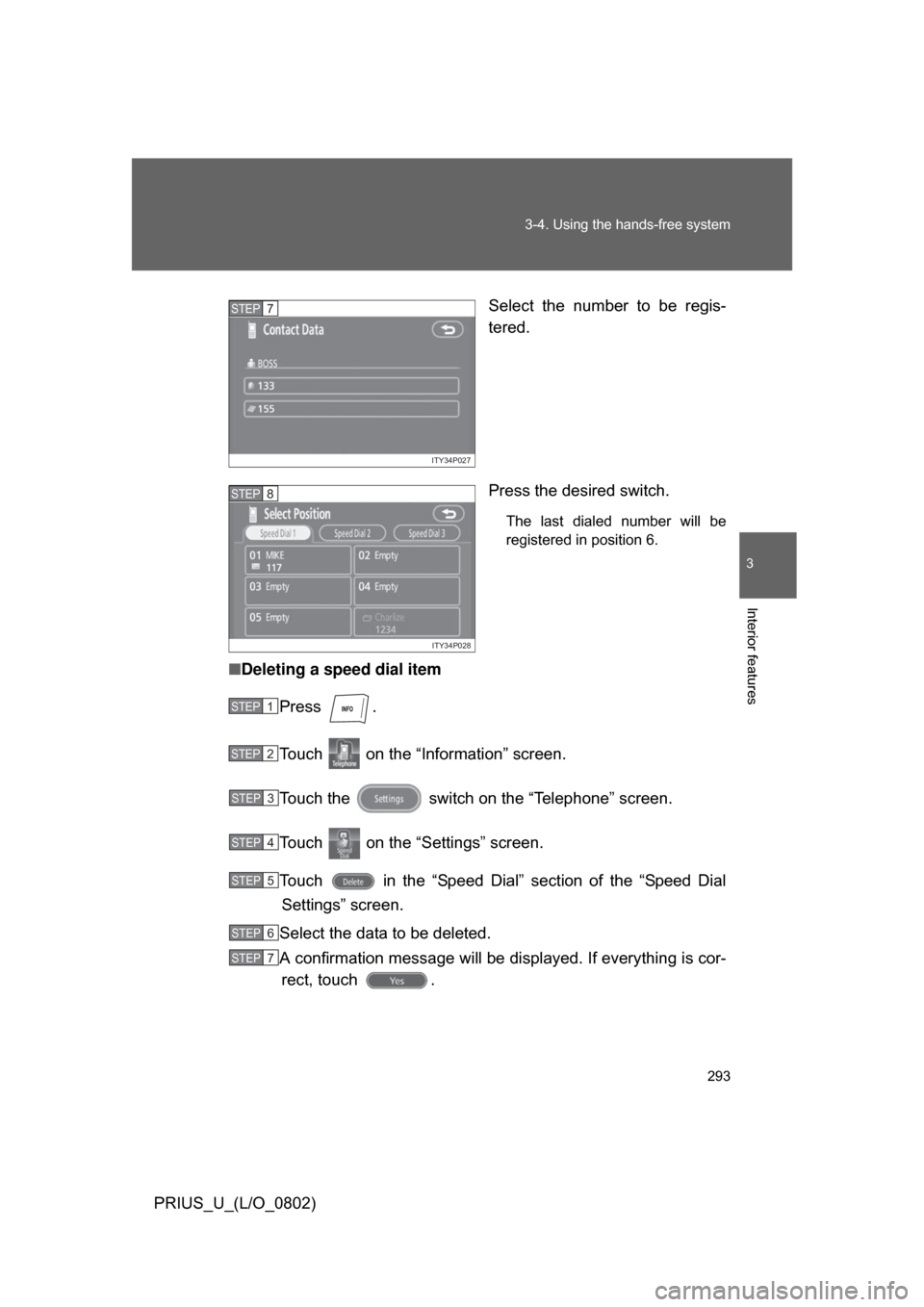
Select the number to be regis-
tered.
Press the desired switch.
The last dialed number will be
registered in position 6.
■
Deleting a speed dial item
Press .
Touch on the “Information” screen.
Touch the switch on the “Telephone” screen.
Touch on the “Settings” screen.
Touch in the “Speed Dial” section of the “Speed DialSettings” screen.
Select the data to be deleted.
A confirmation message will be di splayed. If everything is cor-
rect, touch .
ITY34P027
STEP7
ITY34P028
STEP8
STEP1
STEP2
STEP3
STEP4
STEP5
STEP6
STEP7
Page 294 of 512
294 3-4. Using the hands-free system
PRIUS_U_(L/O_0802)
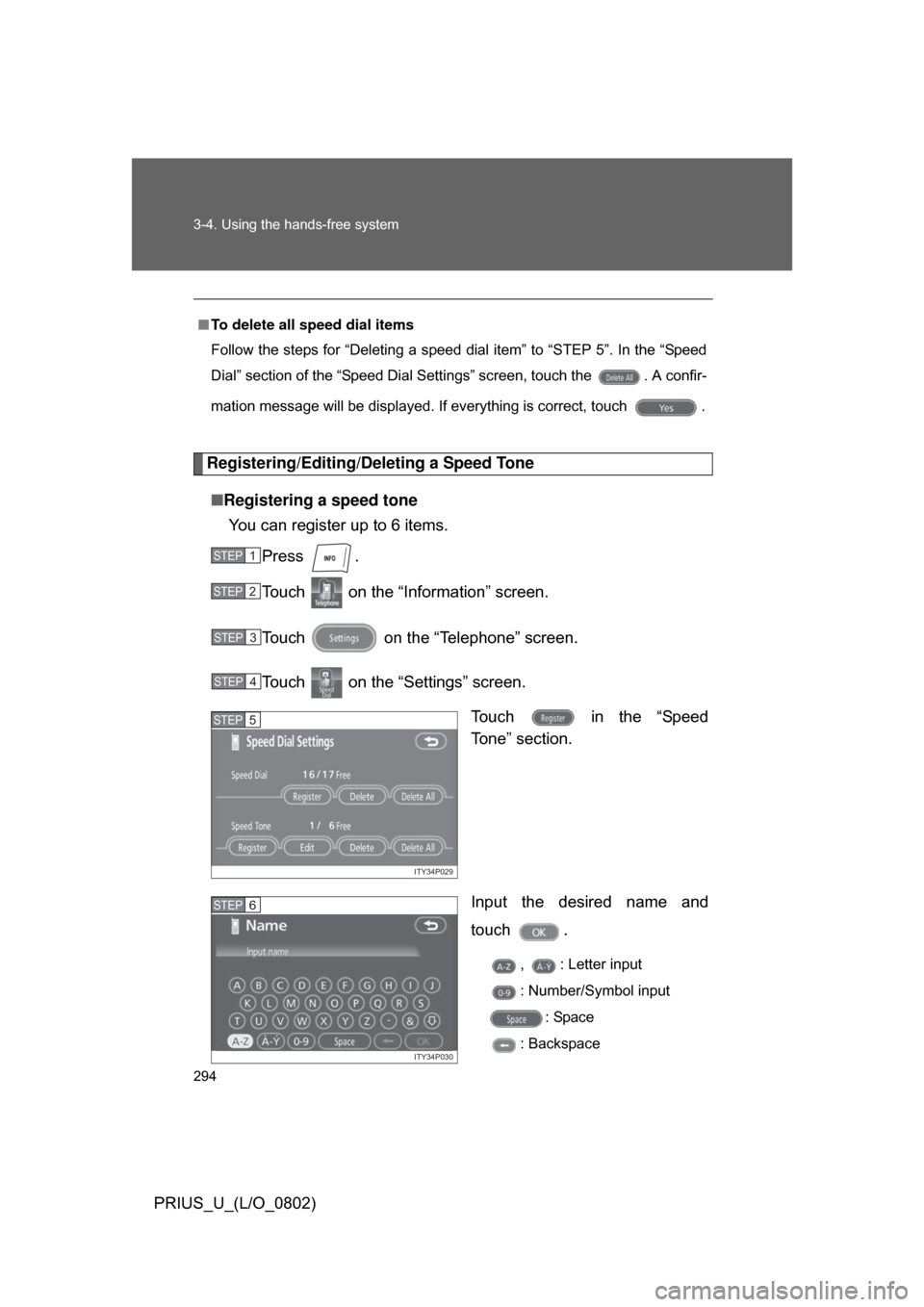
Registering/Editing/Deleting a Speed Tone■ Registering a speed tone
You can register up to 6 items.
Press .
Touch on the “Inf ormation” screen.
Touch on the “Telephone” screen.
Touch on the “Settings” screen. Touch in the “Speed
To n e ” s e c t i o n .
Input the desired name and
touch .
, : Letter input
: Number/Symbol input: Space
: Backspace
■
To delete all speed dial items
Follow the steps for “Deleting a speed dial item” to “STEP 5”. In the “Speed
Dial” section of the “Speed Dial Settings” screen, touch the . A confir-
mation message will be displayed. If everything is correct, touch .
STEP1
STEP2
STEP3
STEP4
ITY34P029
STEP5
ITY34P030
STEP6
Page 295 of 512
295
3-4. Using the hands-free system
3
Interior features
PRIUS_U_(L/O_0802)
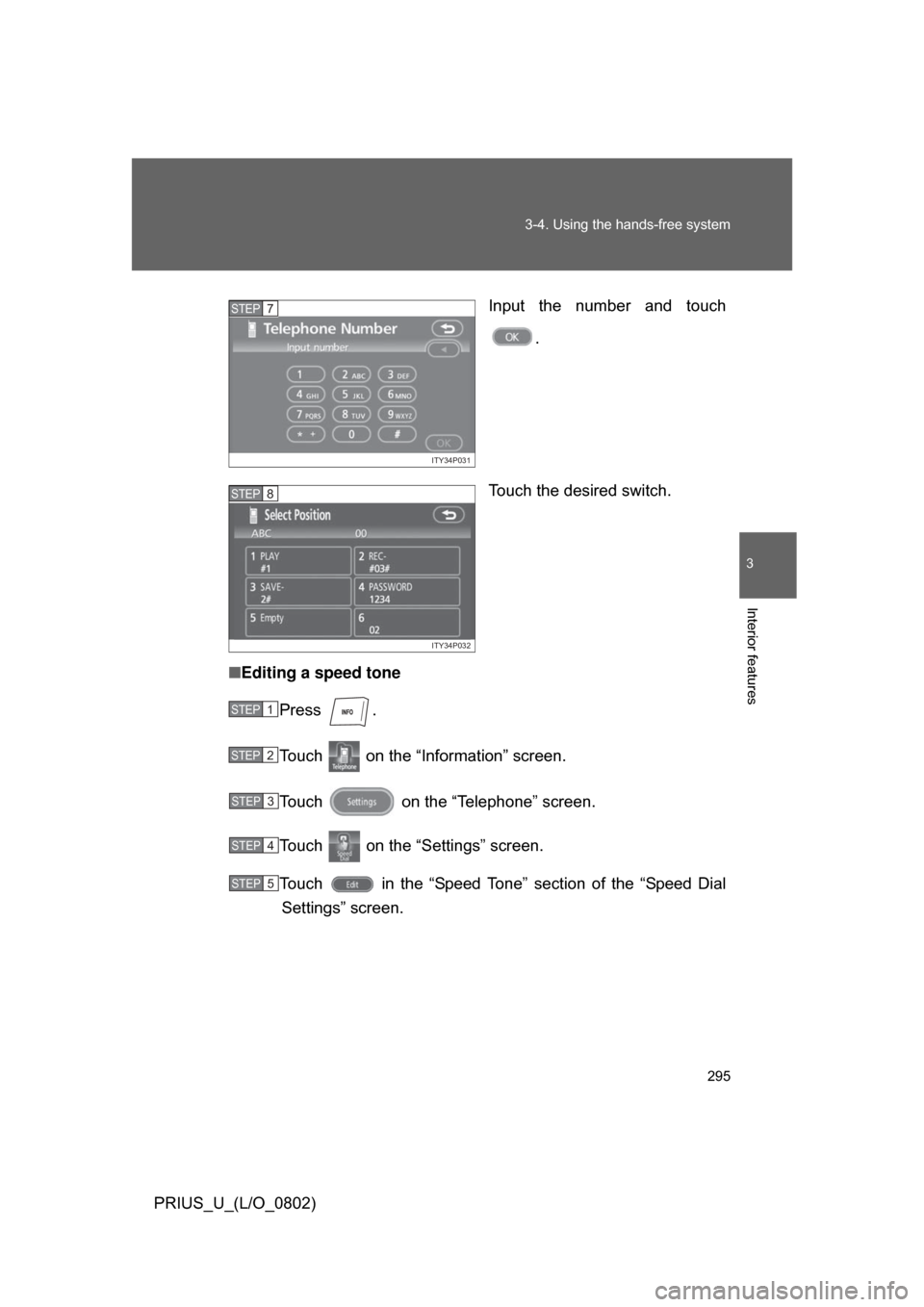
Input the number and touch
.
Touch the desired switch.
■ Editing a speed tone
Press .
Touch on the “Information” screen.
Touch on the “Telephone” screen.
Touch on the “Settings” screen.
Touch in the “Speed Tone” section of the “Speed DialSettings” screen.
ITY34P031
STEP7
ITY34P032
STEP8
STEP1
STEP2
STEP3
STEP4
STEP5
Page 296 of 512
296 3-4. Using the hands-free system
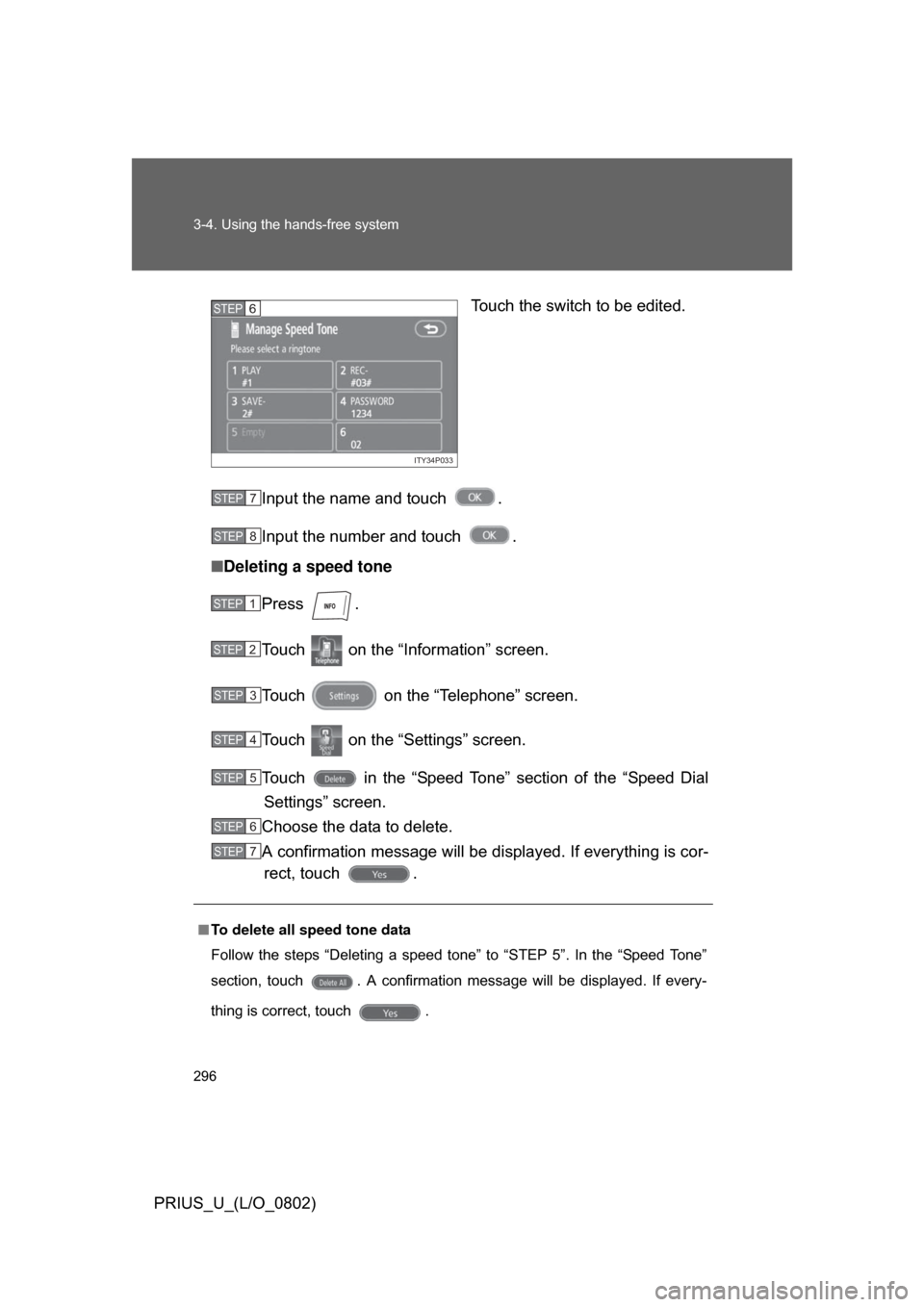
PRIUS_U_(L/O_0802)Touch the switch to be edited.
Input the name and touch .
Input the number and touch .
■ Deleting a speed tone
Press .
Touch on the “Inf ormation” screen.
Touch on the “Telephone” screen.
Touch on the “Settings” screen.
Touch in the “Speed Tone” section of the “Speed Dial Settings” screen.
Choose the data to delete.
A confirmation message will be di splayed. If everything is cor-
rect, touch .
ITY34P033
STEP6
■ To delete all speed tone data
Follow the steps “Deleting a speed tone” to “STEP 5”. In the “Speed Tone”
section, touch . A confirmation message will be displayed. If every-
thing is correct, touch .
STEP7
STEP8
STEP1
STEP2
STEP3
STEP4
STEP5
STEP6
STEP7
Page 297 of 512
297
3-4. Using the hands-free system
3
Interior features
PRIUS_U_(L/O_0802)
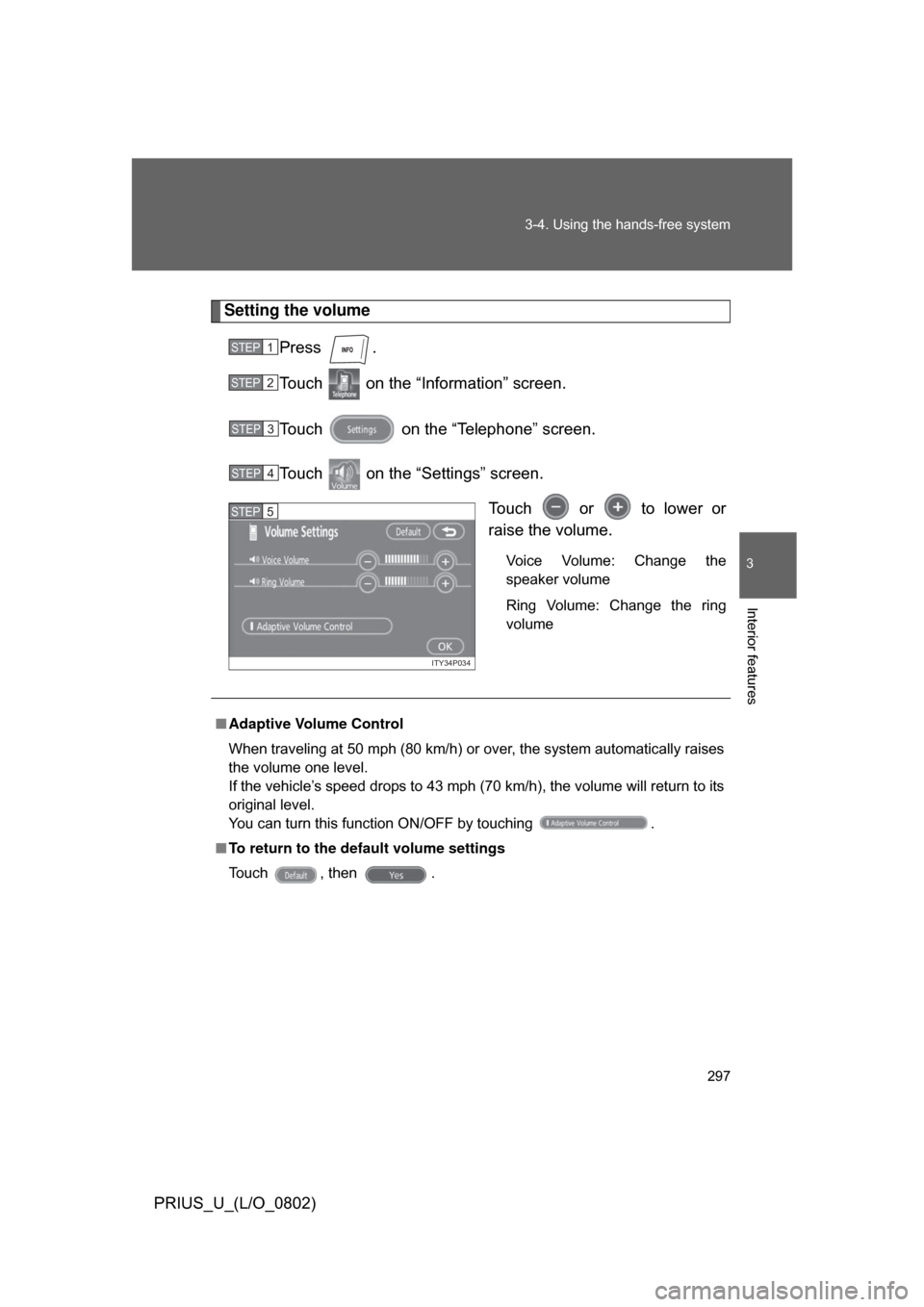
Setting the volume
Press .
Touch on the “Information” screen.
Touch on the “Telephone” screen.
Touch on the “Settings” screen. Touch or to lower or
raise the volume.
Voice Volume: Change the
speaker volume
Ring Volume: Change the ring
volume
STEP1
STEP2
STEP3
STEP4
ITY34P034
STEP5
■Adaptive Volume Control
When traveling at 50 mph (80 km/h) or over, the system automatically raises
the volume one level.
If the vehicle’s speed drops to 43 mph (70 km/h), the volume will return to its
original level.
You can turn this function ON/OFF by touching .
■ To return to the default volume settings
Touch , then .
Page 299 of 512
299
3-4. Using the hands-free system
3
Interior features
PRIUS_U_(L/O_0802)
■
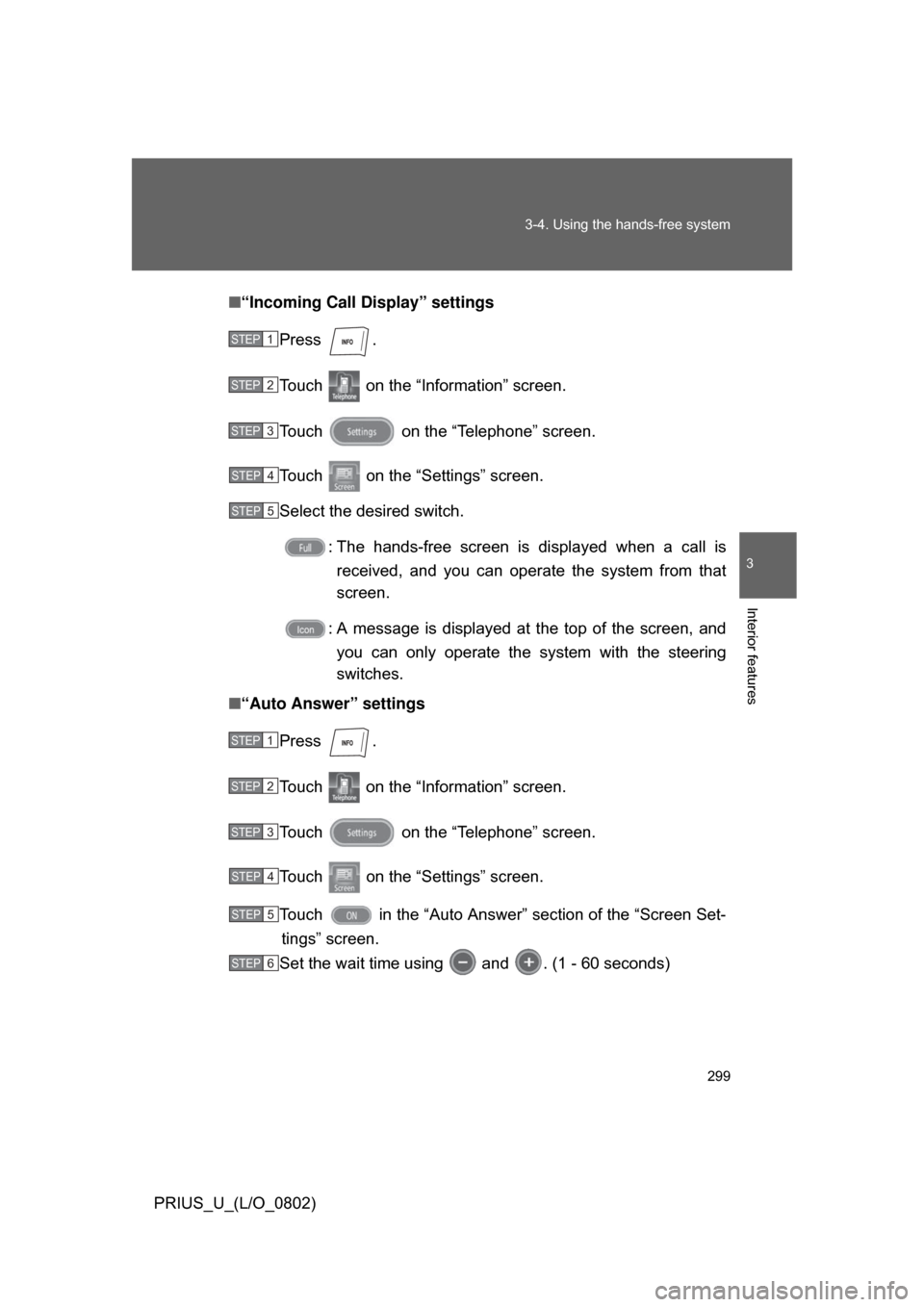
“Incoming Call Display” settings
Press .
Touch on the “Information” screen.
Touch on the “Telephone” screen.
Touch on the “Settings” screen.
Select the desired switch. : The hands-free screen is displayed when a call isreceived, and you can opera te the system from that
screen.
: A message is displayed at the top of the screen, and you can only operate the system with the steering
switches.
■ “Auto Answer” settings
Press .
Touch on the “Information” screen.
Touch on the “Telephone” screen.
Touch on the “Settings” screen.
Touch in the “Auto Answer” section of the “Screen Set-tings” screen.
Set the wait time using and . (1 - 60 seconds)
STEP1
STEP2
STEP3
STEP4
STEP5
STEP1
STEP2
STEP3
STEP4
STEP5
STEP6
Page 300 of 512
300 3-4. Using the hands-free system
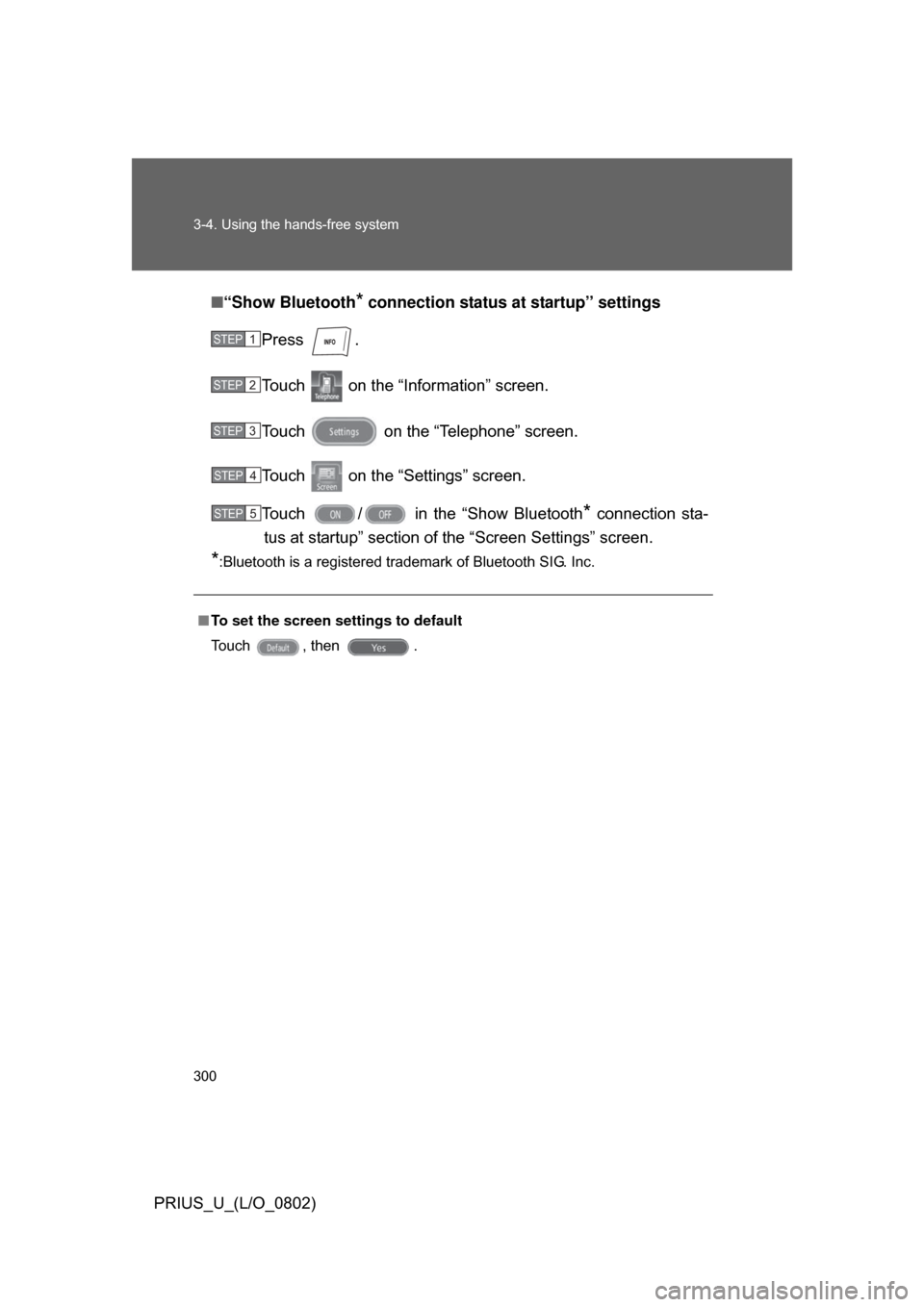
PRIUS_U_(L/O_0802)■
“Show Bluetooth
* connection status at startup” settings
Press .
Touch on the “Inf ormation” screen.
Touch on the “Telephone” screen.
Touch on the “Settings” screen.
Touch / in the “Show Bluetooth
* connection sta-
tus at startup” section of the “Screen Settings” screen.
*:Bluetooth is a registered trademark of Bluetooth SIG. Inc.
■ To set the screen settings to default
Touch , then .
STEP1
STEP2
STEP3
STEP4
STEP5
Page 301 of 512
301
3-4. Using the hands-free system
3
Interior features
PRIUS_U_(L/O_0802)
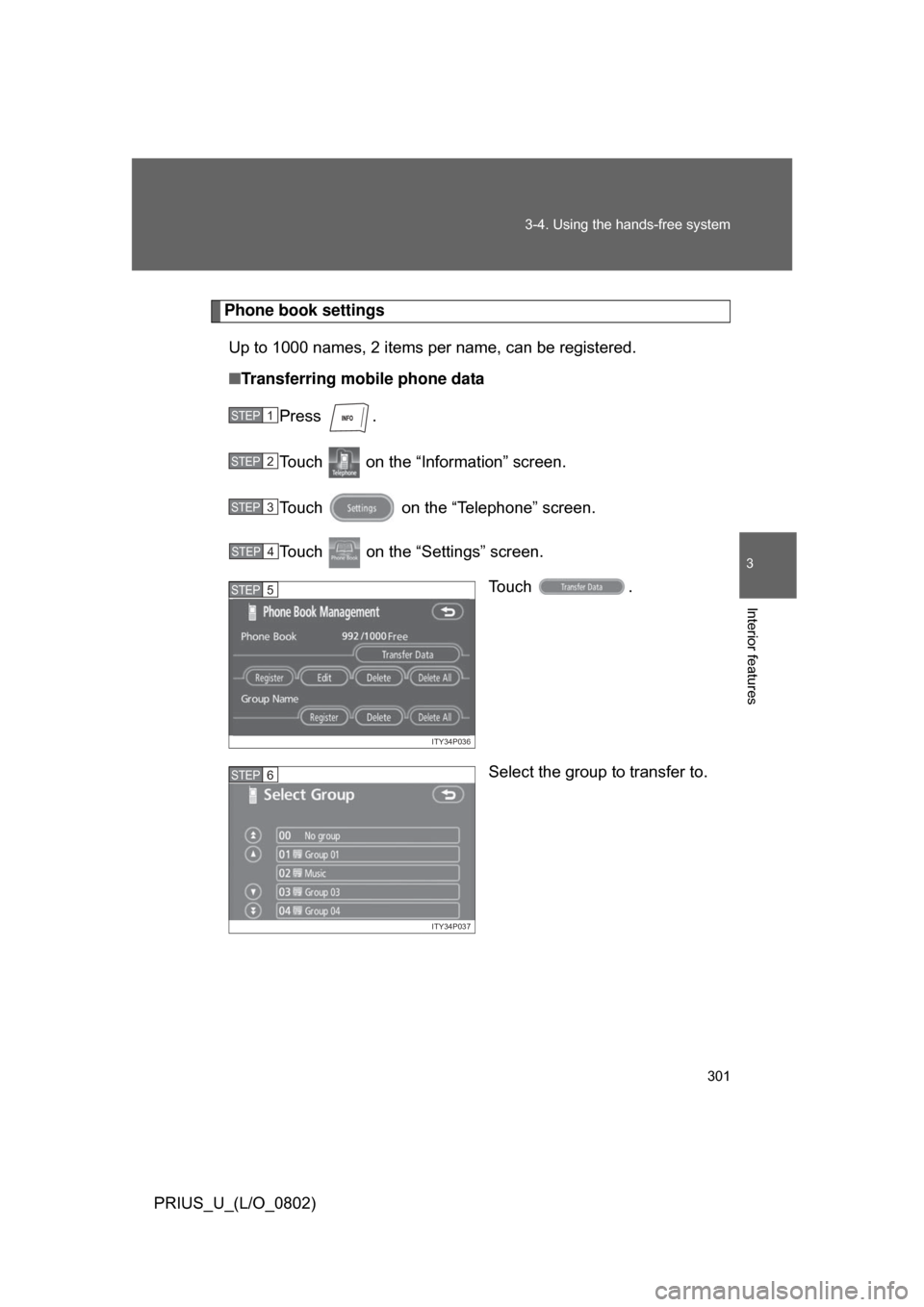
Phone book settings
Up to 1000 names, 2 items per name, can be registered.
■ Transferring mobile phone data
Press .
Touch on the “Information” screen.
Touch on the “Telephone” screen.
Touch on the “Settings” screen. Touch .
Select the group to transfer to.
STEP1
STEP2
STEP3
STEP4
ITY34P036
STEP5
ITY34P037
STEP6
Page 302 of 512
302 3-4. Using the hands-free system
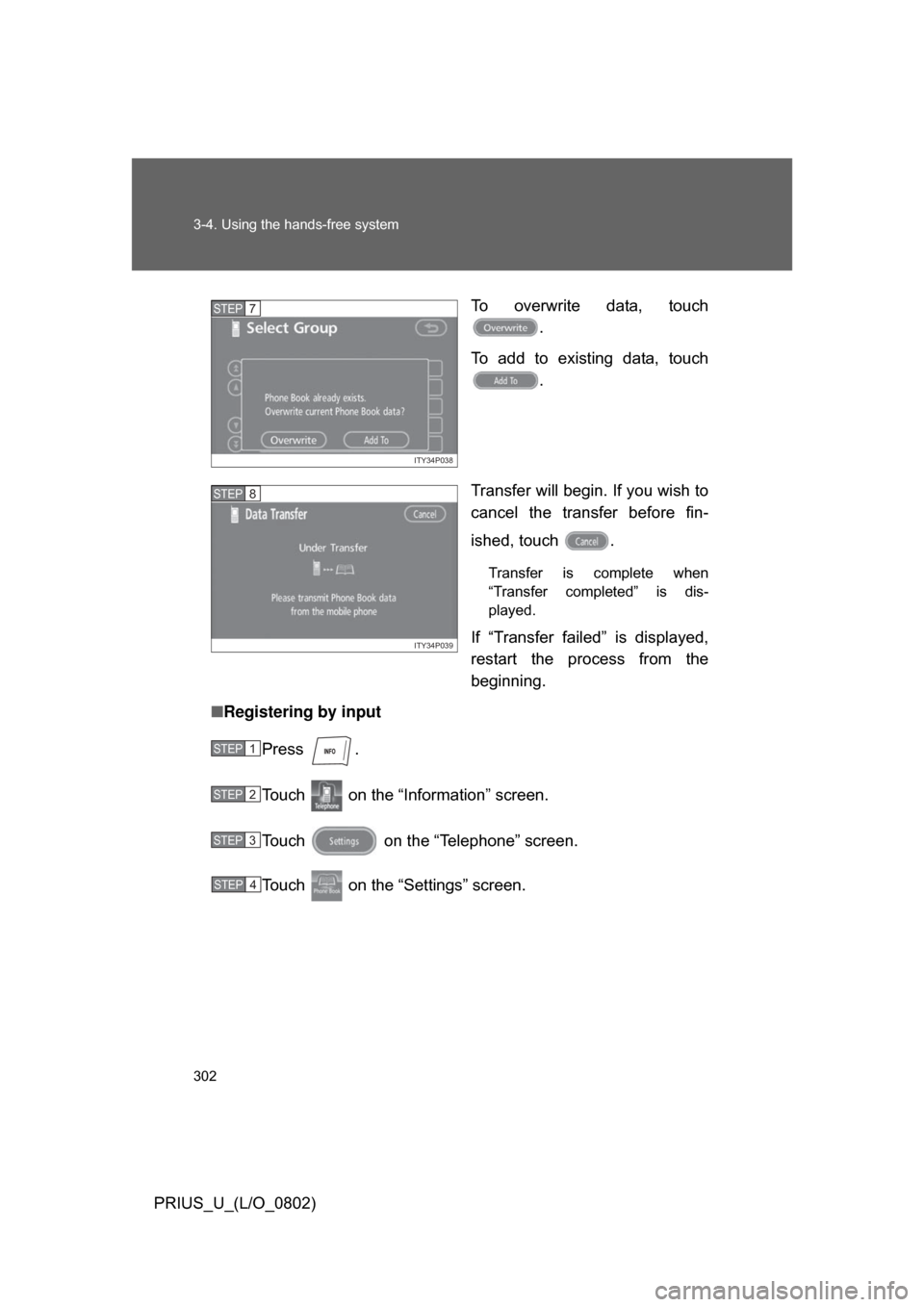
PRIUS_U_(L/O_0802)To overwrite data, touch
.
To add to existing data, touch .
Transfer will begin. If you wish to
cancel the transfer before fin-
ished, touch .
Transfer is complete when
“Transfer completed” is dis-
played.
If “Transfer failed” is displayed,
restart the process from the
beginning.
■ Registering by input
Press .
Touch on the “Inf ormation” screen.
Touch on the “Telephone” screen.
Touch on the “Settings” screen.
ITY34P038
STEP7
ITY34P039
STEP8
STEP1
STEP2
STEP3
STEP4
Page 303 of 512
303
3-4. Using the hands-free system
3
Interior features
PRIUS_U_(L/O_0802)
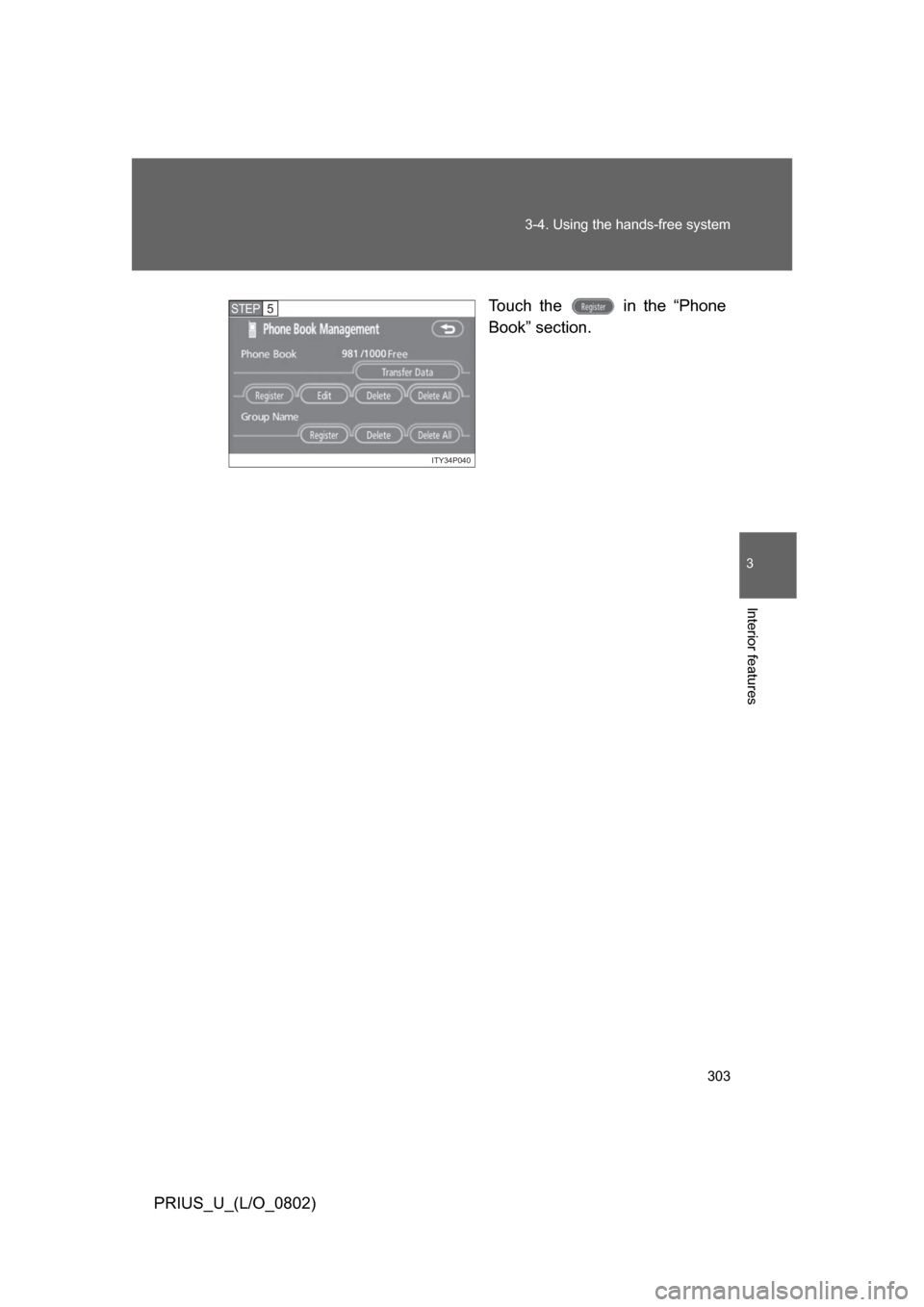
Touch the in the “Phone
Book” section.
ITY34P040
STEP5