Radio TOYOTA PRIUS 2010 3.G User Guide
[x] Cancel search | Manufacturer: TOYOTA, Model Year: 2010, Model line: PRIUS, Model: TOYOTA PRIUS 2010 3.GPages: 616, PDF Size: 10.45 MB
Page 295 of 616
295
3-2. Using the audio system
3
Interior features
PRIUS_U (OM47668U) U.S.A.
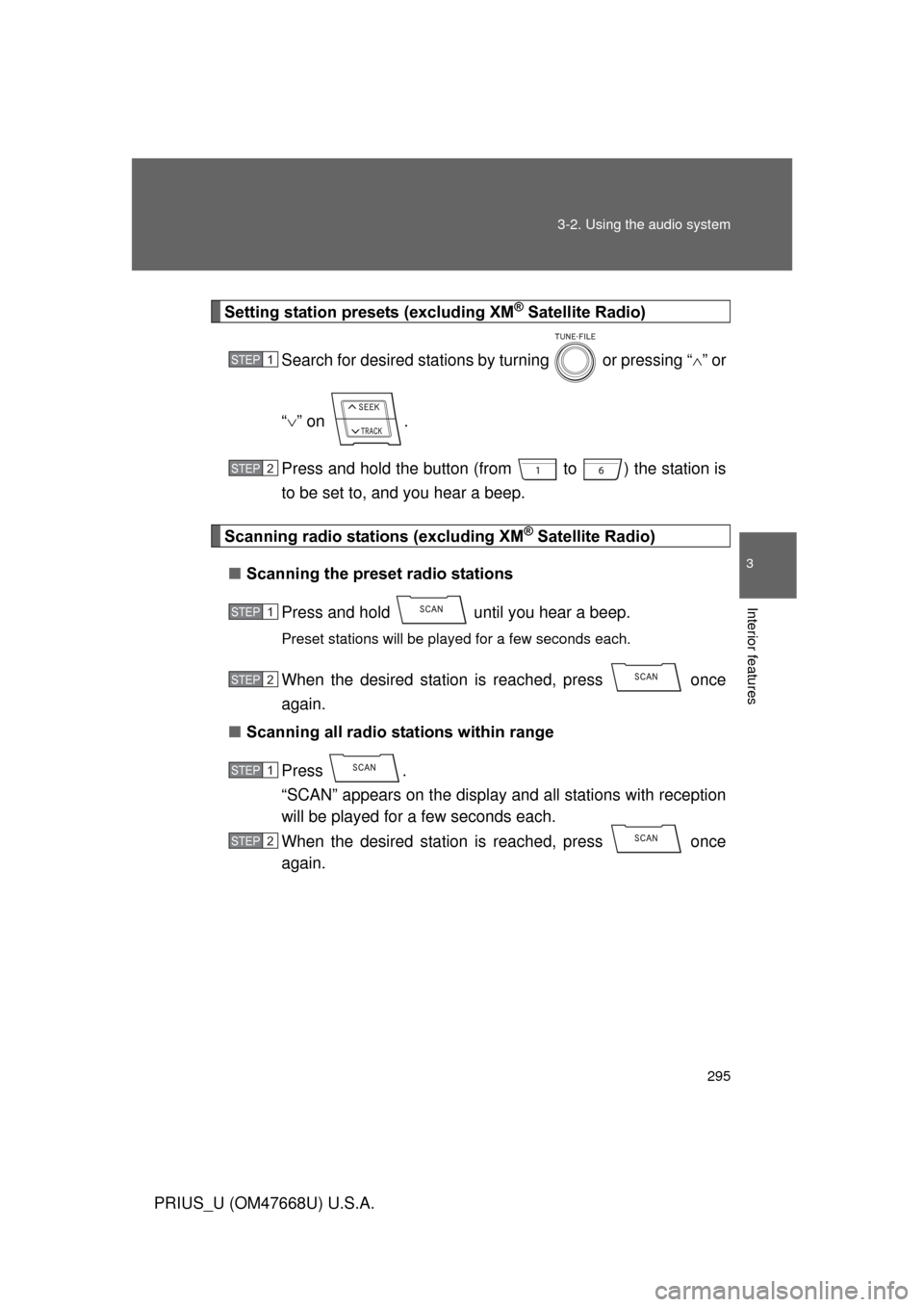
Setting station presets (excluding XM® Satellite Radio)
Search for desired stations by turning or pressing “ ” or
“ ” on .
Press and hold the button (fro m to ) the station is
to be set to, and you hear a beep.
Scanning radio stations (excluding XM® Satellite Radio)
■ Scanning the preset radio stations
Press and hold until you hear a beep.
Preset stations will be played for a few seconds each.
When the desired station is reached, press once
again.
■ Scanning all radio stations within range
Press .
“SCAN” appears on the display and all stations with reception
will be played for a few seconds each.
When the desired station is reached, press once
again.
STEP1
STEP2
STEP1
STEP2
STEP1
STEP2
Page 296 of 616
296 3-2. Using the audio system
PRIUS_U (OM47668U) U.S.A.
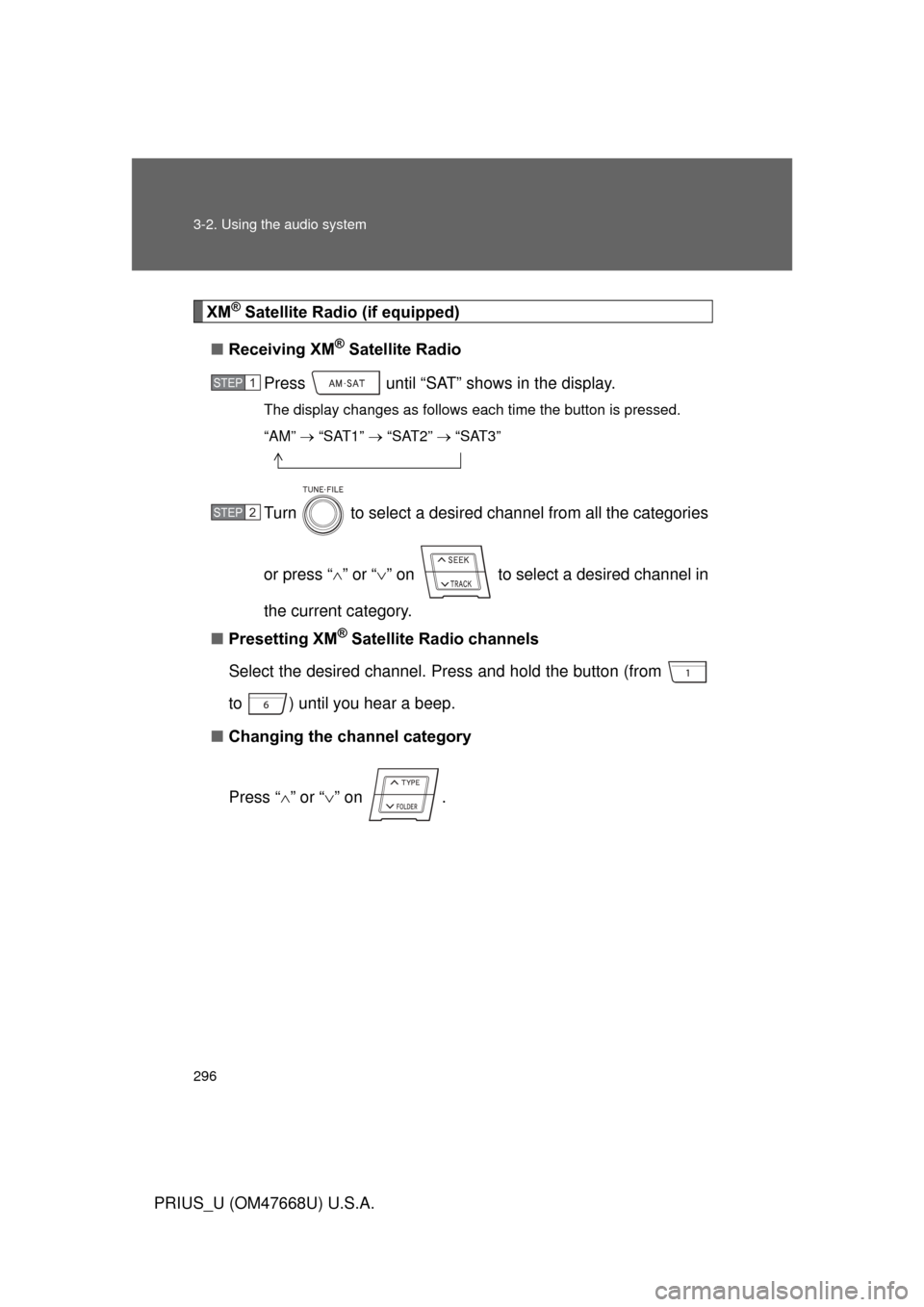
XM® Satellite Radio (if equipped)
■ Receiving XM
® Satellite Radio
Press until “SAT” shows in the display.
The display changes as follows each time the button is pressed.
“AM” “SAT1” “SAT2” “SAT3”
Turn to select a desired channel from all the categories
or press “ ” or “ ” on to select a desired channel in
the current category.
■ Presetting XM
® Satellite Radio channels
Select the desired channel. Press and hold the button (from
to ) until you hear a beep.
■ Changing the channel category
Press “ ” or “ ” on .
STEP1
STEP2
Page 297 of 616
297
3-2. Using the audio system
3
Interior features
PRIUS_U (OM47668U) U.S.A.
■
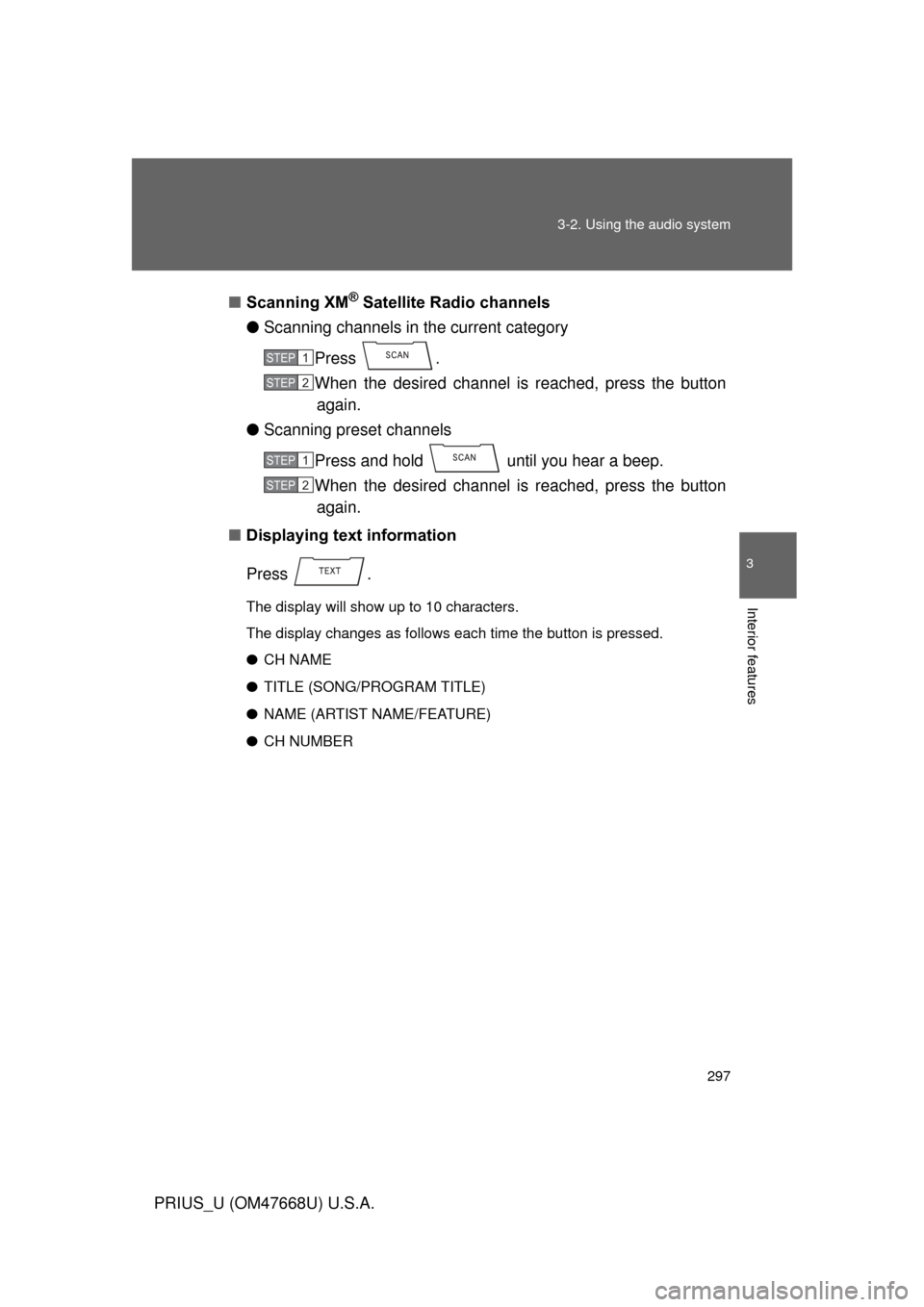
Scanning XM
® Satellite Radio channels
● Scanning channels in the current category
Press .
When the desired channel is reached, press the button again.
● Scanning preset channels
Press and hold until you hear a beep.
When the desired channel is reached, press the button again.
■ Displaying text information
Press .
The display will show up to 10 characters.
The display changes as follows each time the button is pressed.
● CH NAME
● TITLE (SONG/PROGRAM TITLE)
● NAME (ARTIST NAME/FEATURE)
● CH NUMBER
STEP1
STEP2
STEP1
STEP2
Page 298 of 616
298 3-2. Using the audio system
PRIUS_U (OM47668U) U.S.A.
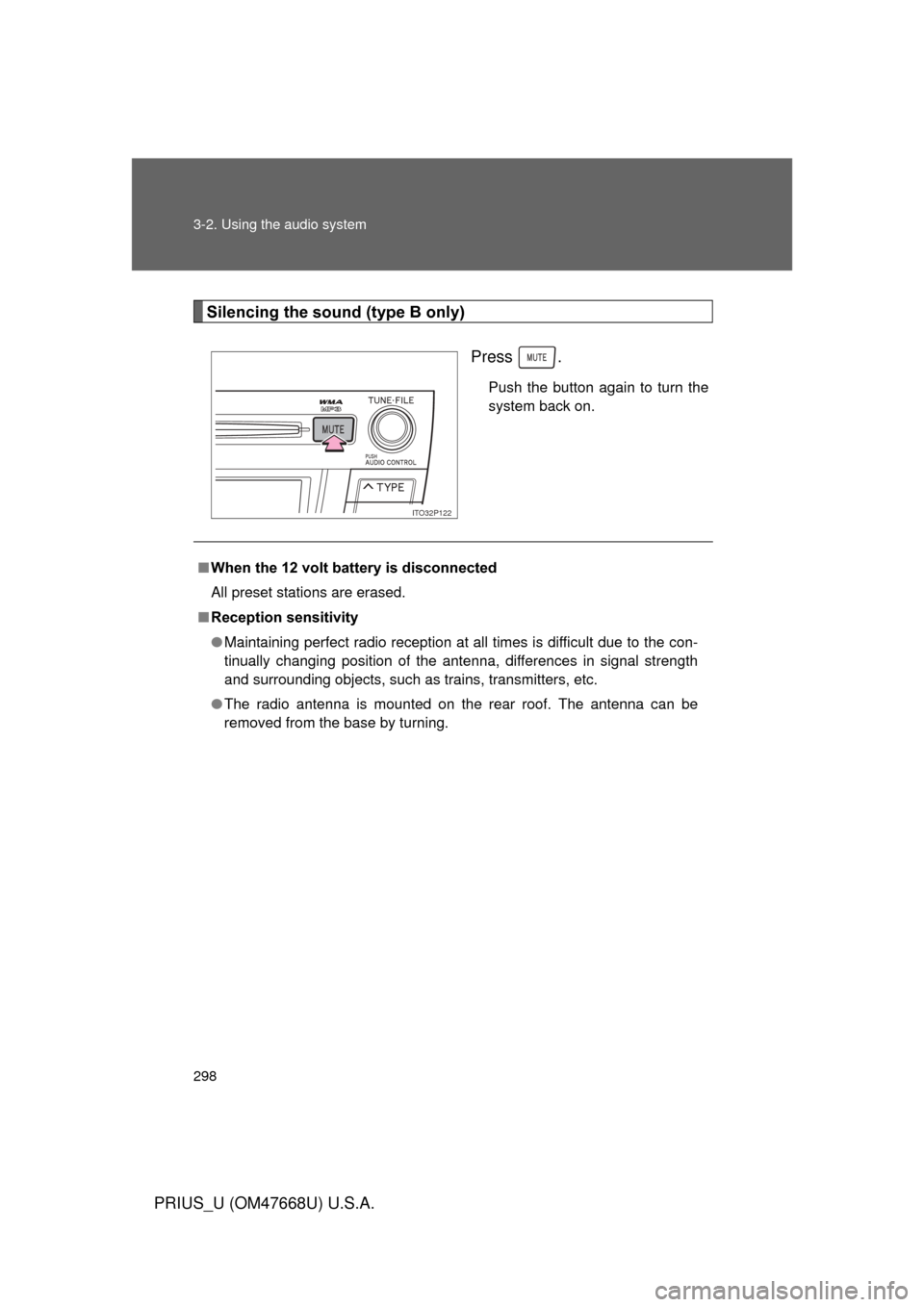
Silencing the sound (type B only)Press .
Push the button again to turn the
system back on.
ITO32P122
■When the 12 volt battery is disconnected
All preset stations are erased.
■ Reception sensitivity
● Maintaining perfect radio reception at all times is difficult due to the con-
tinually changing position of the antenna, differences in signal strength
and surrounding objects, such as trains, transmitters, etc.
● The radio antenna is mounted on the rear roof. The antenna can be
removed from the base by turning.
Page 299 of 616
299
3-2. Using the audio system
3
Interior features
PRIUS_U (OM47668U) U.S.A.
■
Receiving XM® Satellite Radio
An XM
® Satellite Radio is a tuner designed exclusively to receive broadcasts
provided under a separate subscription. Availability is limited to the 48 con-
tiguous states and 10 Canadian provinces.
● XM
® subscriptions
For detailed information about XM® Satellite Radio or to subscribe:
U.S.A–
Visit on the web at www.xmradio.com
or call 1-800-967-2346.
Canada–
Visit on the web at www.xmradio.ca
or call 1-877-438-9677.
● Radio ID
You will need the radio ID when activating XM
® service or reporting a
problem. Select “CH000” using , and the receiver’s 8-character ID
number will appear.
● Satellite tuner
The tuner supports only Audio Services (Music and Talk) and the accom-
panying Text Information of XM
® Satellite Radio.
Page 300 of 616
300 3-2. Using the audio system
PRIUS_U (OM47668U) U.S.A.
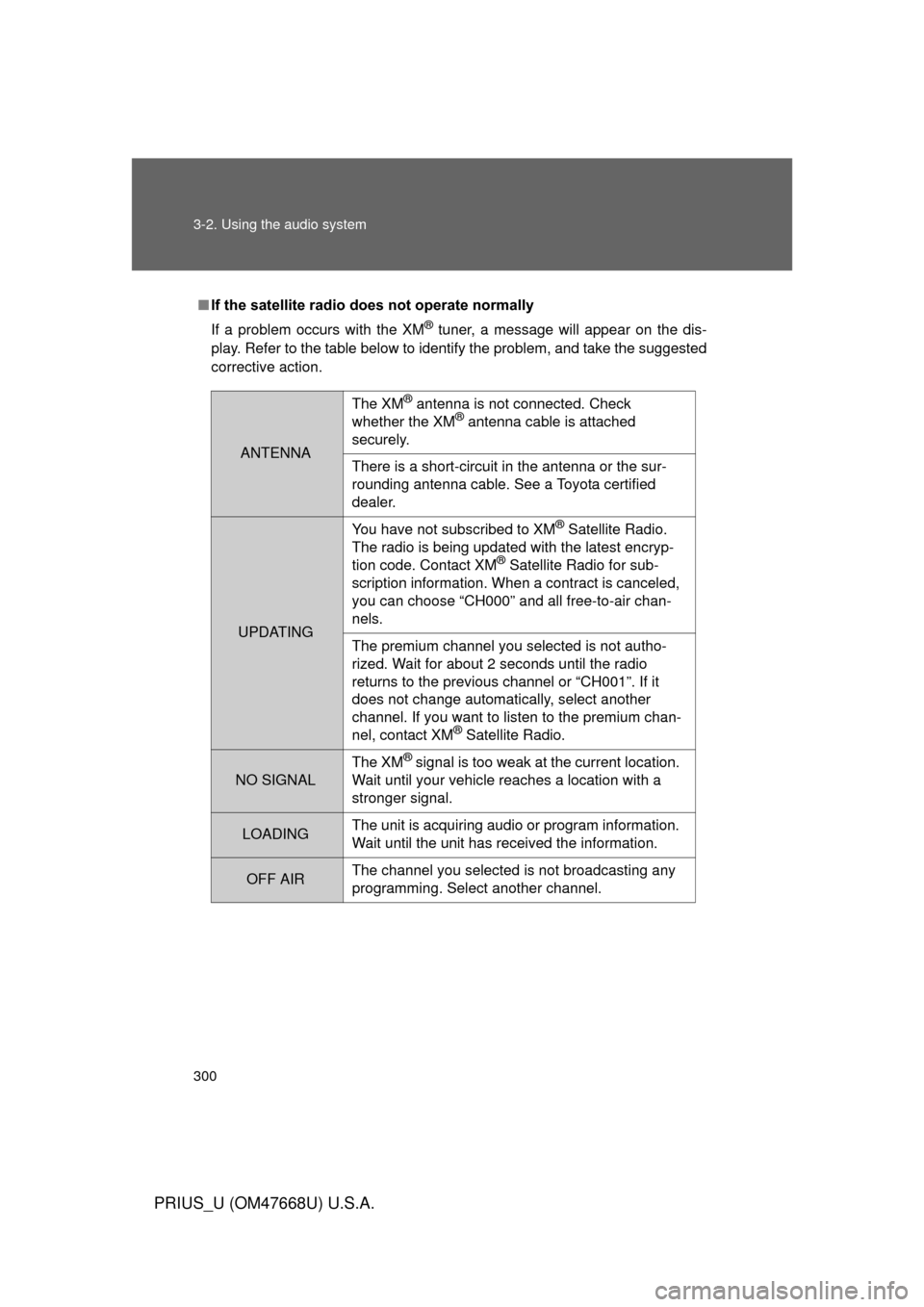
■If the satellite radio does not operate normally
If a problem occurs with the XM
® tuner, a message will appear on the dis-
play. Refer to the table below to identify the problem, and take the suggested
corrective action.
ANTENNA
The XM® antenna is not connected. Check
whether the XM® antenna cable is attached
securely.
There is a short-circuit in the antenna or the sur-
rounding antenna cable. See a Toyota certified
dealer.
UPDATING You have not subscribed to XM
® Satellite Radio.
The radio is being updated with the latest encryp-
tion code. Contact XM
® Satellite Radio for sub-
scription information. When a contract is canceled,
you can choose “CH000” and all free-to-air chan-
nels.
The premium channel you selected is not autho-
rized. Wait for about 2 seconds until the radio
returns to the previous channel or “CH001”. If it
does not change automatically, select another
channel. If you want to listen to the premium chan-
nel, contact XM
® Satellite Radio.
NO SIGNAL The XM
® signal is too weak at the current location.
Wait until your vehicle reaches a location with a
stronger signal.
LOADING The unit is acquiring audio or program information.
Wait until the unit has received the information.
OFF AIRThe channel you selected is not broadcasting any
programming. Select another channel.
Page 301 of 616
301
3-2. Using the audio system
3
Interior features
PRIUS_U (OM47668U) U.S.A.
Contact the XM® Listener Care Center at 1-800-967-2346 (U.S.A.) or 1-877-
438-9677 (Canada).
■ Certifications for the radio tuner
This equipment has been tested and found to comply with the limits for a
class B digital device, pursuant to Part 15 of the FCC Rules. These limits are
designed to provide reasonable protection against harmful interference in a
residential installation. This equipment generates, uses and can radiate
radio frequency energy and, if not installed and used in accordance with the
instructions, may cause harmful interference to radio communications. How-
ever, there is no guarantee that interference will not occur in a particular
installation.
If this equipment does cause harmful interference to radio or television
reception, which can be determined by turning the equipment off and on, the
user is encouraged to try to correct the interference by trying one or more of
the following:
● Reorienting or relocating the receiving antenna.
● Increasing the separation between the equipment and receiver.
● Connecting the equipment into an outlet on a circuit different from that to
which the receiver is connected.
● Consulting the dealer or an experienc ed radio/TV technician for help.
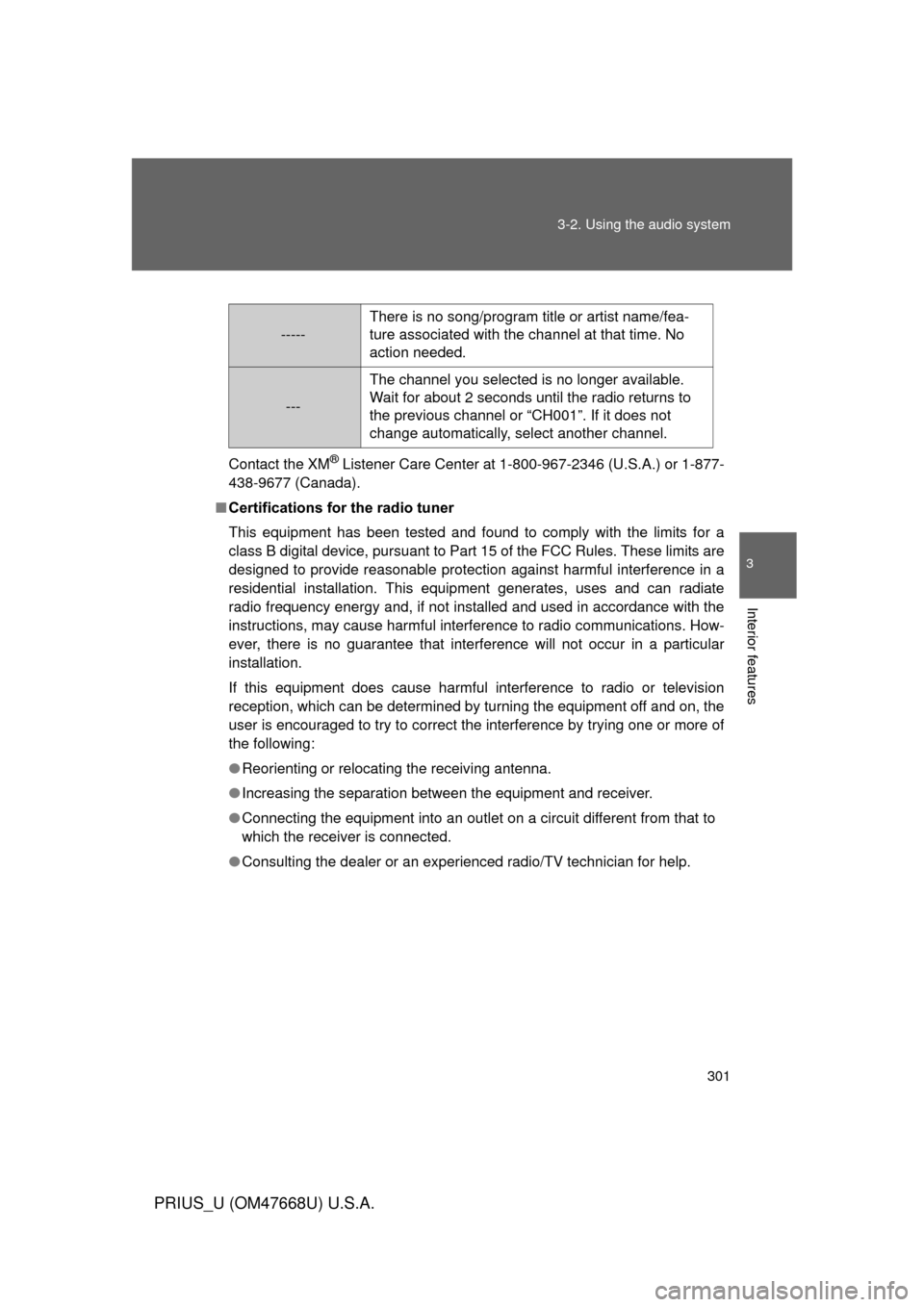
-----There is no song/program title or artist name/fea-
ture associated with the channel at that time. No
action needed.
---
The channel you selected is no longer available.
Wait for about 2 seconds until the radio returns to
the previous channel or “CH001”. If it does not
change automatically, select another channel.
Page 320 of 616
320 3-2. Using the audio system
PRIUS_U (OM47668U) U.S.A.■
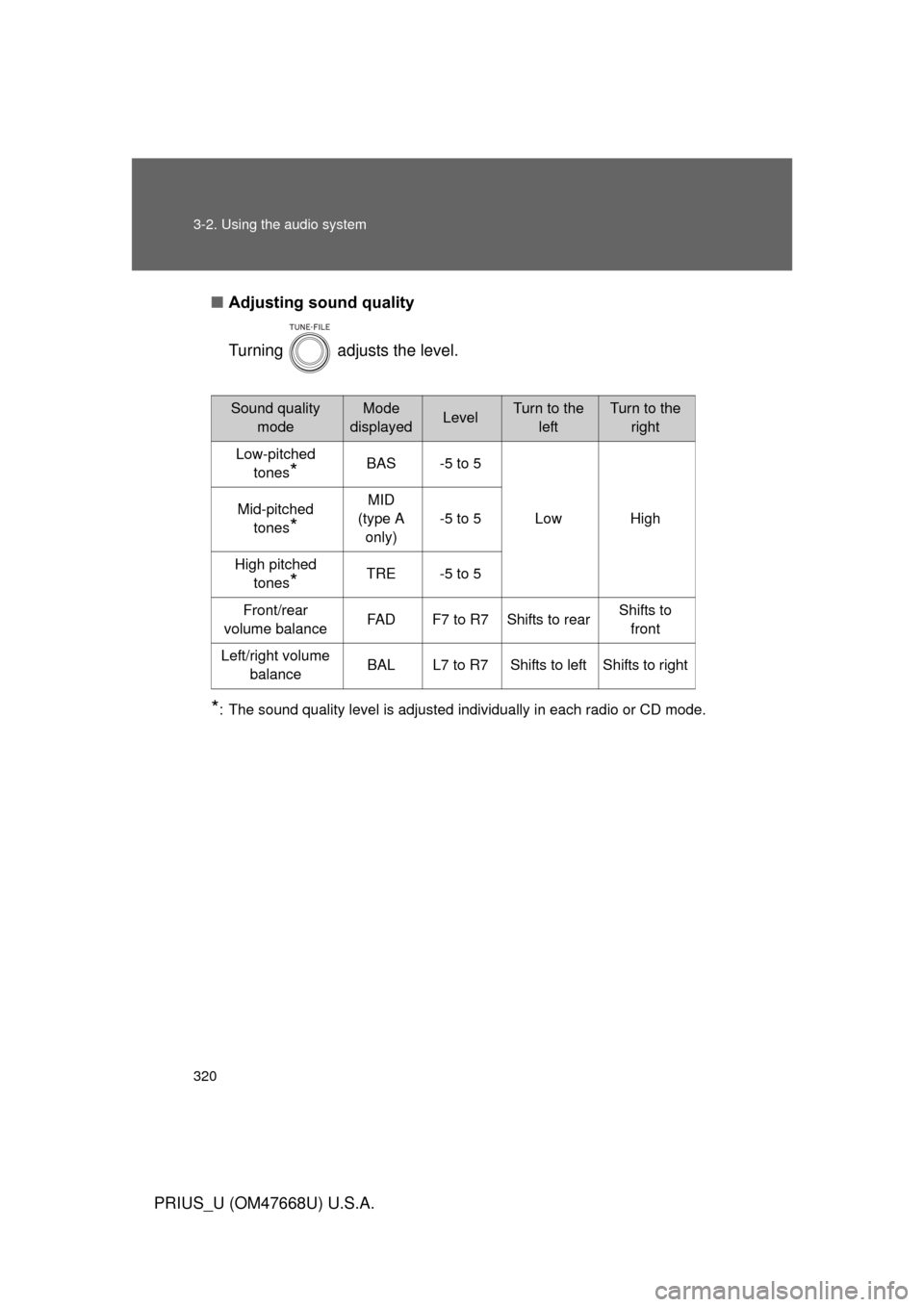
Adjusting sound quality
Turning adjusts the level.
*: The sound quality level is adjusted individually in each radio or CD mode.
Sound quality
modeMode
displayedLevelTurn to the leftTurn to the right
Low-pitched tones
*BAS -5 to 5
Low High
Mid-pitched
tones
*
MID
(type A only) -5 to 5
High pitched tones
*TRE -5 to 5
Front/rear
volume balance FAD F7 to R7 Shifts to rear Shifts to
front
Left/right volume balance BAL L7 to R7 Shifts to left Shifts to right
Page 323 of 616
323
3-2. Using the audio system
3
Interior features
PRIUS_U (OM47668U) U.S.A.
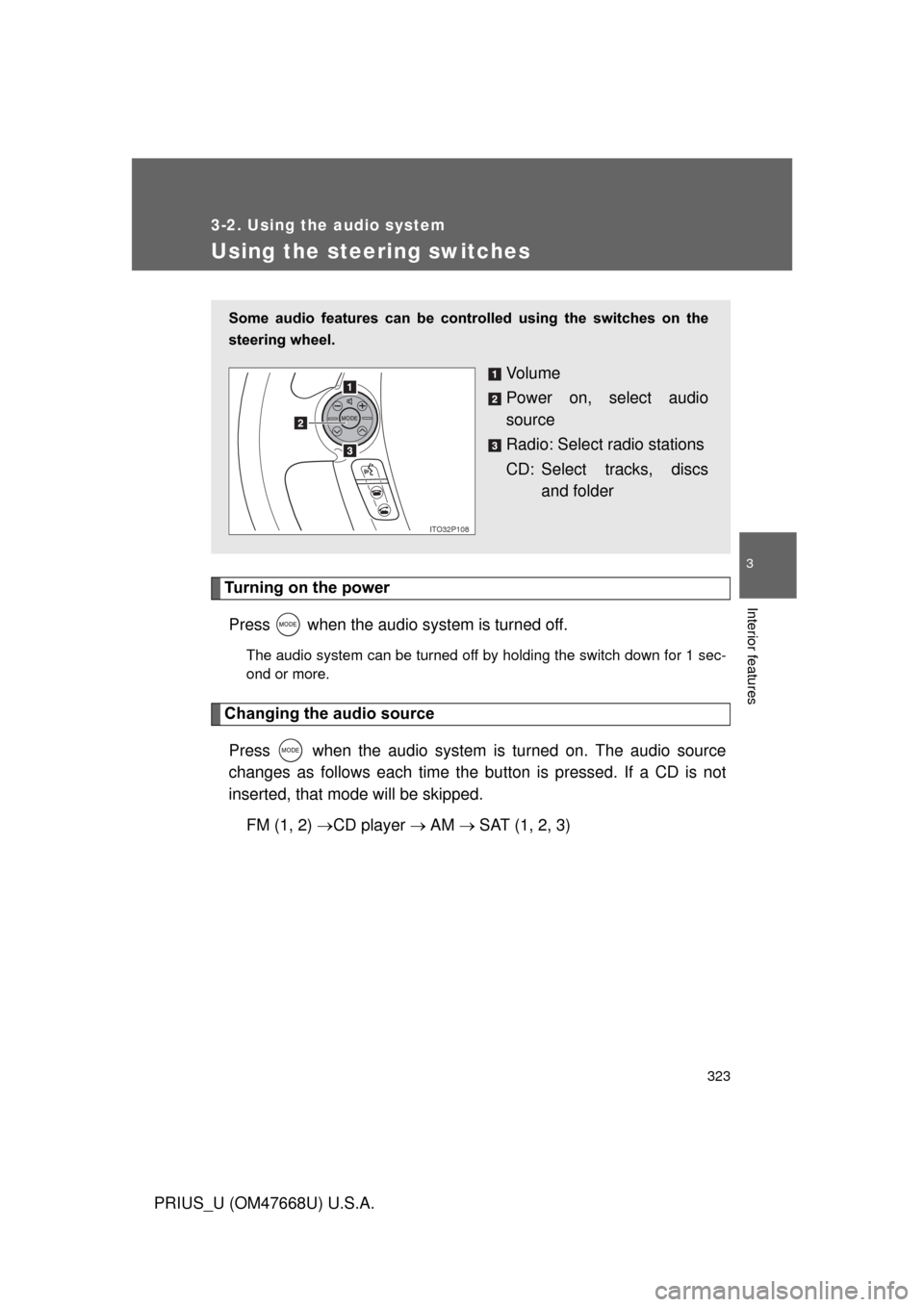
Using the steering switches
Turning on the powerPress when the audio system is turned off.
The audio system can be turned off by holding the switch down for 1 sec-
ond or more.
Changing the audio sourcePress when the audio system is turned on. The audio source
changes as follows each time the bu tton is pressed. If a CD is not
inserted, that mode will be skipped.
FM (1, 2) CD player AM SAT (1, 2, 3)
Some audio features can be cont rolled using the switches on the
steering wheel.
Vo l u m e
Power on, select audio
source
Radio: Select radio stations
CD: Select tracks, discs and folder
ITO32P108
Page 324 of 616
324 3-2. Using the audio system
PRIUS_U (OM47668U) U.S.A.
Adjusting the volumePress “+” on to increase the volume and “-” to decrease the
volume.
Hold down the button to continue increasing or decreasing the volume.
Selecting a radio station Press to select the radio mode.
Press or on to select a radio station.
To scan for receivable stations, press and hold the switch until you
hear a beep.
Selecting a track
Press to select the CD mode.
Press or on to select the desired track.
Selecting a disc or folder in th e CD player (Folder selection is
available only when MP3/WMA disc is in use.)
Press to select the CD player.
Press and hold or on until you hear a beep.
STEP1
STEP2
STEP1
STEP2
STEP1
STEP2