air TOYOTA PRIUS 2017 4.G Quick Reference Guide
[x] Cancel search | Manufacturer: TOYOTA, Model Year: 2017, Model line: PRIUS, Model: TOYOTA PRIUS 2017 4.GPages: 56, PDF Size: 4.12 MB
Page 39 of 56

OVERVIEW
FEATURES & OPERATIONS
TOYOTA SAFETY SENSE
SAFETY & EMERGENCY FEATURES
37
AHB is a safety system designed to help drivers see more of what’s ah\
ead at
nighttime without dazzling other drivers. When enabled, AHB uses an in-v\
ehicle
camera to help detect the headlights of oncoming vehicles and tail light\
s of
preceding vehicles, then automatically switches between high and low bea\
ms
as appropriate to provide the most light possible and enhance forward vi\
sibility.
By using high beams more frequently, the system may allow earlier detect\
ion of
pedestrians and obstacles.
Refer to a Toyota Owner’s Manual for additional information on AHB op\
eration,
settings adjustments, limitations, and precautions before attempting to \
use it.
Automatic High Beams (AHB)
(1) With the engine switch in IGNITION ON mode and headlight switch tu\
rned to
“AUTO” or “
” position, push lever away from you.
(2) Depress the Automatic High Beam “
” switch.
The AHB indicator will come on when the headlights are turned on automat\
ically
to indicate that the system is active.
Note: Pull the lever back toward you to turn the AHB system off.
The AHB indicator will turn off and the high beam indicator “
” turns on.
When all of these conditions are met, high beams will be automatically t\
urned on
(after approximately 1 second): • Vehicle speed is above approximately 25 mph (40 km/h.)
• The area ahead of the vehicle is dark.
• There are no oncoming or preceding vehicles with headlights or tail lights turned on.
• There are few street lights on the road ahead.
If any of these conditions occur, the system is designed to automaticall\
y turn off
high beams: • Vehicle speed drops below approximately 17 mph (27 km/h.)
• The area ahead of the vehicle is not dark.
• Oncoming or preceding vehicles have headlights or tail lightsturned on.
• There are many streetlights on the road ahead.
If the Tire Pressure Warning indicator “” illuminates without blinking, adjust tire
pressures to factory-specified levels.* The light will turn off after a \
few minutes. The
warning light may come on due to temperature changes or changes in tire \
pressure
from natural air leakage.
If the tire pressure indicator flashes for more than 60 seconds and then remains on,
take the vehicle to your local Toyota dealer.
Refer to the Owner’s Manual for more details.
* Refer to load label on door jamb or the Owner’s Manual for tire inf\
lation
specifications.
SAFETY & EMERGENCY FEATURES
Seat belts
Seat belts - Shoulder belt anchor
Tire Pressure Monitoring (warning) System (TPMS)
NOTE: If a passenger’s seat belt is fully extended, then retracted ev\
en slightly,
the Automatic Locking Retractor (ALR) will prevent it from being re-ex\
tended
beyond that point, unless fully retracted again. This feature is used to\
help
hold child restraint systems securely.
To find more information about seat belts, and how to install a child re\
straint system,
refer to the Owner’s Manual.
Keep as low on
hips as possible
Take up slack
Too high
Push up, or squeeze lock release to lower
2017_Prius_D6_1.indd 379/25/16 2:38 AM
Page 40 of 56
38
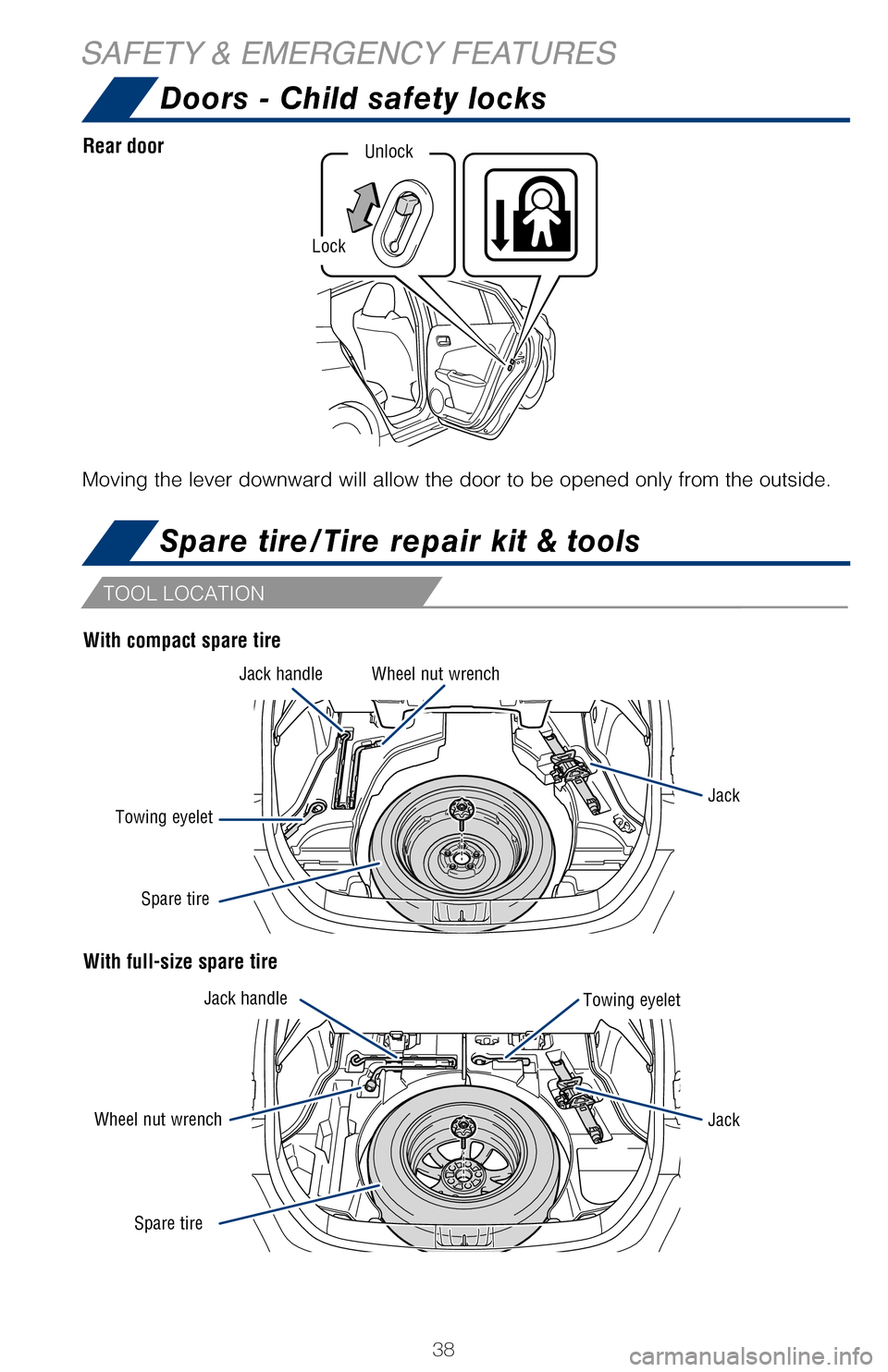
Doors - Child safety locks
SAFETY & EMERGENCY FEATURESSpare tire/Tire repair kit & tools
Tire repair kit components
With compact spare tire
With full-size spare tire
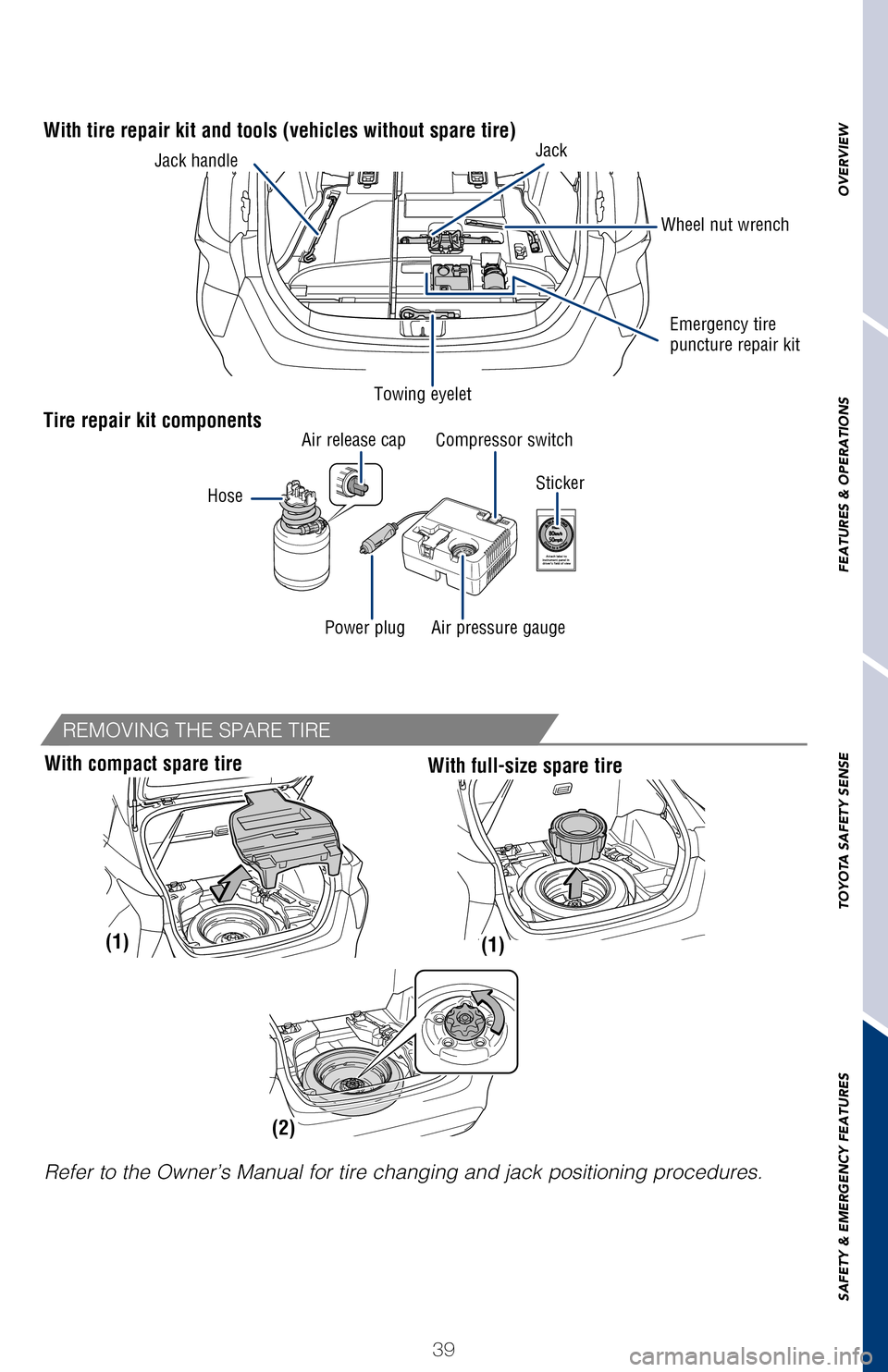
With tire repair kit and tools (vehicles without spare tire)
TOOL LOCATION
Jack handle
Jack handle Jack
Jack
Towing eyelet
Towing eyelet
Wheel nut wrench
Spare tire
Spare tire
Refer to the Owner’s Manual for tire changing and jack positioning pr\
ocedures.
With compact spare tire
Wheel nut wrench
Moving the lever downward will allow the door to be opened only from the\
outside.
Rear door
Lock
Unlock
REMOVING THE SPARE TIRE
2017_Prius_D6_1.indd 389/25/16 2:38 AM
Page 41 of 56
OVERVIEW
FEATURES & OPERATIONS
TOYOTA SAFETY SENSE
SAFETY & EMERGENCY FEATURES
39
Doors - Child safety locks
Tire repair kit components
Sticker
With tire repair kit and tools (vehicles without spare tire)Jack
Towing eyelet Wheel nut wrench
Emergency tire
puncture repair kit
Jack handle
Refer to the Owner’s Manual for tire changing and jack positioning pr\
ocedures.
With compact spare tireWith full-size spare tire
(1)(1)
(2)
Moving the lever downward will allow the door to be opened only from the\
outside.Hose
Air release cap
Power plug Air pressure gauge Compressor switch
REMOVING THE SPARE TIRE
2017_Prius_D6_1.indd 399/25/16 2:38 AM
Page 44 of 56

BLUETOOTH® DEVICE PAIRING
SECTION
Pairing your phone is the first step in connecting with your Toyota for hands-f\
ree
calling and for audio streaming via Bluetooth. This pairing process is quick an\
d
easy: all Android mobile digital devices have Bluetooth integrated; all you h\
ave to
do is setup the phone and multimedia system to “talk” to each other \
and form a
connection.2
Initiate Bluetooth® on your Android®
STEP 1
From your APPS
SCREEN, select
SETTINGS.
1 To determine which head unit is installed in your vehicle, refer to the Au\
dio section in this guide.
Entune™ Premium Audio screens are shown in this section. Screens and features \
may vary by
Entune™ system. 2 Some Android devices may have slightly different SETTINGS screen layout\
depending on manu- facturer of device and Android OS version.
To begin the Bluetooth® Pairing process, press the HOME button on the faceplate of
your Toyota Vehicle Entune™ Multimedia Head Unit.1
Do not attempt the Bluetooth® Pairing process while driving.
42
2017_Prius_D6_1.indd 429/25/16 2:38 AM
Page 45 of 56

BLUETOOTH® DEVICE PAIRING
SECTION
Pairing your phone is the first step in connecting with your Toyota for hands-f\
ree
calling and for audio streaming via Bluetooth. This pairing process is quick an\
d
easy: all Android mobile digital devices have Bluetooth integrated; all you h\
ave to
do is setup the phone and multimedia system to “talk” to each other \
and form a
connection.
2
Initiate Bluetooth® on your Android®
STEP 1
STEP 5
STEP 2STEP 3STEP 4
From your APPS
SCREEN, select
SETTINGS. Select
CONNECTIONS and
select
BLUETOOTH. Ensure
BLUETOOTH
is
ON. Select
YOUR PHONE
DEVICE to make it
discoverable.
Phone will seek out
Bluetooth devices
while remaining
discoverable.
While your Android device is seeking
out Bluetooth devices, proceed to
your Entune Multimedia Head Unit on
your Toyota vehicle.
1 To determine which head unit is installed in your vehicle, refer to the\
Audio section in this guide. Entune™ Premium Audio screens are shown in this section. Screens and features \
may vary by
Entune™ system. 2 Some Android devices may have slightly different SETTINGS screen layout\
depending on manu- facturer of device and Android OS version.
To begin the Bluetooth® Pairing process, press the HOME button on the faceplate of
your Toyota Vehicle Entune™ Multimedia Head Unit.1
Bluetooth® Pairing for Android phone and
Entune™ touch screen system
43
2017_Prius_D6_1.indd 439/25/16 2:38 AM
Page 46 of 56

Initiate Bluetooth® on your Entune™ Multimedia Head Unit
Once you have Bluetooth enabled on your phone and ready to pair, you will ne\
ed to
initiate Bluetooth on your Entune head unit. Please follow the instructions belo\
w to
pair your Bluetooth enabled phone to your Entune system.Initiate Bluetooth® on your Entune™ Multimedia Head Unit
Using your smartphone, you will
need to allow Entune access to
your messaging and contacts.
It is recommended to check the
“Don’t ask again” box, so as not
to have to press OK every time the
phone makes a Bluetooth connec -
tion with your Toyota.
STEP 12
BLUETOOTH® DEVICE PAIRING
DisclosuresThis brochure is accurate at the time of print; content subject to change ba\
sed on periodic multimedia
software updates.
1. Concentrating on the road should always be your first priority while driving. Do not use the hands-free phone system if it will distract you.
2. The Bluetooth word mark and logos are registered trademarks owned by Bl\
uetooth SIG, Inc. and any use of such marks by Toyota is under license. A compatible Bluetooth enabled phone must first be paired.
Phone performance depends on software, coverage & carrier.
3. Android is a trademark of Google Inc.4. Apps/services vary by phone/carrier; functionality depends on many fact\
ors. Select apps use large amounts of data; you are responsible for charges. Apps & services subjec\
t to change. See Toyota.com/
entune for details.
On your Toyota Vehicle Entune
Multimedia Head Unit, Select
SETUP BUTTON on the Home
Screen.
For Entune
™ Audio System,
press the SETUP BUTTON
on the faceplate to access the
Setup Screen. Select BLUETOOTH.
Image shown is a sample
image, features may vary.
Select ADD, to add your
phone device.
Back on your smartphone,
you can now select your
TOYOTA VEHICLE in
Bluetooth Settings.
You may need to enter the
provided Bluetooth PIN on
your phone.Your smartphone is now
paired with Entune.Once paired, Entune will
attempt to connect audio and
contacts on your phone.
STEP 6STEP 7STEP 8
STEP 9STEP 11STEP 10
44
2017_Prius_D6_1.indd 449/25/16 2:38 AM
Page 47 of 56

Initiate Bluetooth® on your Entune™ Multimedia Head Unit
Once you have Bluetooth enabled on your phone and ready to pair, you will ne\
ed
to
initiate Bluetooth on your Entune head unit. Please follow the instructions belo\
w to
pair your Bluetooth enabled phone to your Entune system.
Initiate Bluetooth® on your Entune™ Multimedia Head Unit
A confirmation will ap-
pear once your phone
has been paired and
connected.Using your smartphone, you will
need to allow Entune access to
your messaging and contacts.
It is recommended to check the
“Don’t ask again” box, so as not
to have to press OK every time the
phone makes a Bluetooth connec -
tion with your Toyota.
STEP 12STEP 13
Additional Resources
If you’re having trouble pairing your phone, Toyota has you covered. Yo u can get more information
from the following sources:
Online Pairing Guide:
www.toyota.com/connect
Your Toyota Owner’s Manual
Located in the vehicle glovebox
Toyota Customer
Experience Center
(800) 331-4331
Disclosures
This brochure is accurate at the time of print; content subject to chang\
e based on periodic multimedia
software updates.
1. Concentrating on the road should always be your first priority while driving. Do not use the hands-free phone system if it will distract you.
2. The Bluetooth word mark and logos are registered trademarks owned by \
Bluetooth SIG, Inc. and any use of such marks by Toyota is under license. A compatible Bluetooth enabled phone must first be paired.
Phone performance depends on software, coverage & carrier.
3. Android is a trademark of Google Inc.
4. Apps/services vary by phone/carrier; functionality depends on many fa\
ctors. Select apps use large amounts of data; you are responsible for charges. Apps & services subjec\
t to change. See Toyota.com/
entune for details.
Select ADD, to add your
phone device.
Once paired, Entune will
attempt to connect audio and contacts on your phone.
45
2017_Prius_D6_1.indd 459/25/16 2:38 AM
Page 48 of 56

Pairing your phone is the first step in connecting with your Toyota for hands-f\
ree
calling and for audio streaming via Bluetooth. This pairing process is quick an\
d
easy: all iPhone mobile digital devices have Bluetooth integrated; all you ha\
ve to
do is setup the phone and multimedia system to “talk” to each other \
and form a
connection.
Initiate Bluetooth® on your iPhone®
From the HOME
SCREEN, select
SETTINGS. Select
BLUETOOTH. Ensure
BLUETOOTH
is
ON. Your iPhone will seek
out Bluetooth devices
while remaining
discoverable.
While your iPhone device is seeking
out Bluetooth devices, proceed to
your Entune Multimedia Head Unit on
your Toyota vehicle.
Initiate Bluetooth® on your Entune™ Multimedia Head Unit
Once you have Bluetooth enabled on your phone and ready to pair, you will ne\
ed to
initiate Bluetooth on your Entune head unit. Please follow the instructions belo\
w to
pair your Bluetooth enabled phone to your Entune system.
STEP 1STEP 2STEP 3STEP 4
STEP 5
Bluetooth® Pairing for iPhone® and
Entune™ touch screen system
BLUETOOTH® DEVICE PAIRING
On your Toyota Vehicle Entune
Multimedia Head Unit, Select
SETUP BUTTON on the Home
Screen.
For Entune™ Audio System,
press the SETUP BUTTON
on the faceplate to access the
Setup Screen.
Back on your smartphone,
you can now select your
TOYOTA VEHICLE in
Bluetooth Settings.
You may need to enter the
provided Bluetooth PIN on
your phone.
STEP 6
STEP 9
**Do not attempt the Bluetooth® Pairing process while driving.**
46
2017_Prius_D6_1.indd 469/25/16 2:38 AM
Page 49 of 56

Pairing your phone is the first step in connecting with your Toyota for hands-f\
ree
calling and for audio streaming via Bluetooth. This pairing process is quick an\
d
easy: all iPhone mobile digital devices have Bluetooth integrated; all you ha\
ve to
do is setup the phone and multimedia system to “talk” to each other \
and form a
connection.
Initiate Bluetooth® on your iPhone®
Your iPhone will seek out Bluetooth devices while remaining
discoverable.
While your iPhone device is seeking
out Bluetooth devices, proceed to
your Entune Multimedia Head Unit on your Toyota vehicle.
Initiate Bluetooth® on your Entune™ Multimedia Head Unit
Once you have Bluetooth enabled on your phone and ready to pair, you will ne\
ed to
initiate Bluetooth on your Entune head unit. Please follow the instructions belo\
w to
pair your Bluetooth enabled phone to your Entune system.
On your Toyota Vehicle Entune
Multimedia Head Unit, Select
SETUP BUTTON on the Home
Screen.
For Entune
™ Audio System,
press the SETUP BUTTON
on the faceplate to access the
Setup Screen. Select BLUETOOTH.
Image shown is a sample
image, features may vary.
Select ADD, to add your
phone device.
Back on your smartphone,
you can now select your
TOYOTA VEHICLE in
Bluetooth Settings.
You may need to enter the
provided Bluetooth PIN on
your phone.
Your smartphone is now
paired with Entune.Once paired, Entune will
attempt to connect audio and
contacts on your phone.
STEP 6STEP 7STEP 8
STEP 9STEP 11STEP 10
47
2017_Prius_D6_1.indd 479/25/16 2:38 AM
Page 50 of 56
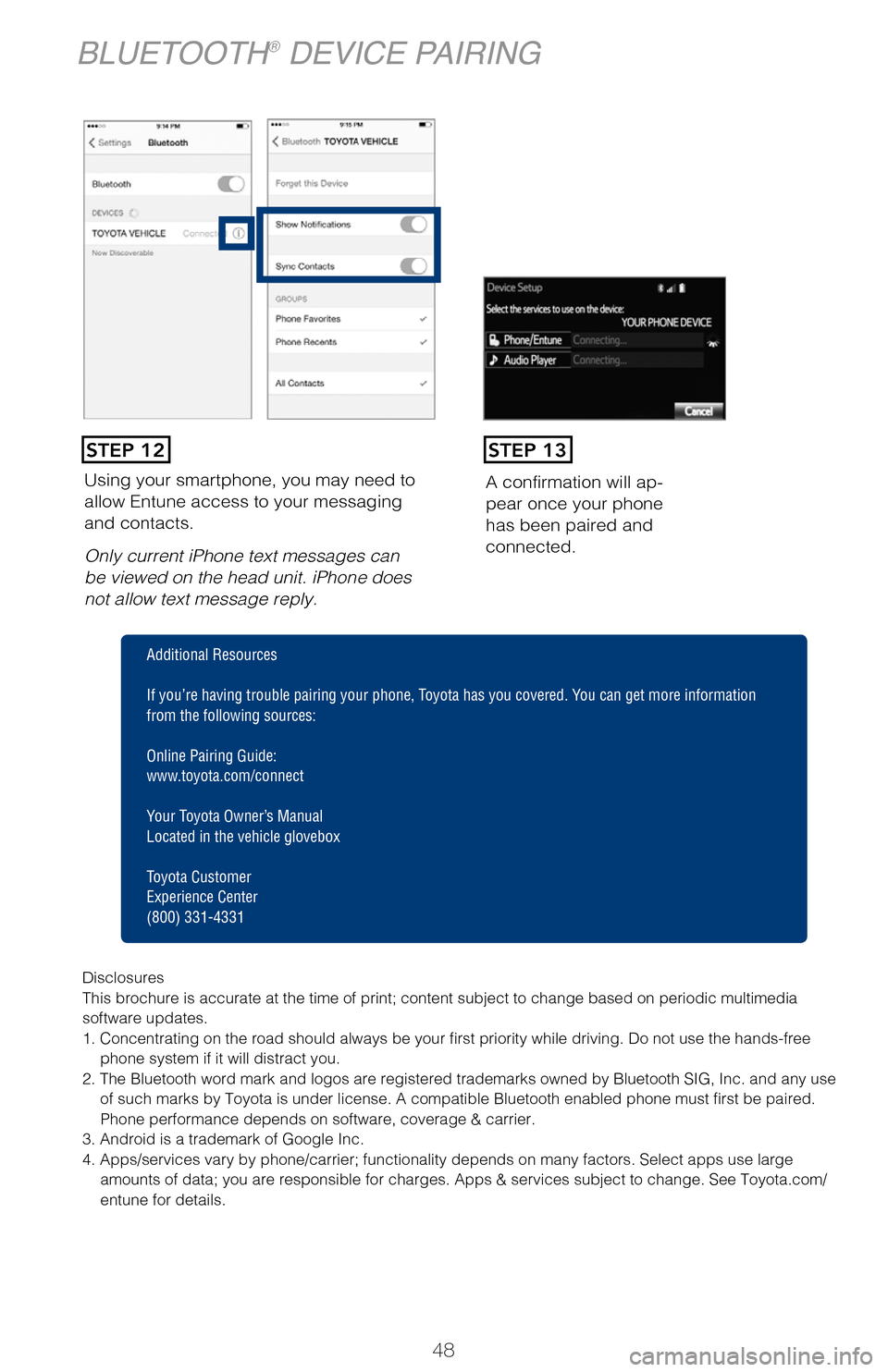
Using your smartphone, you may need to
allow Entune access to your messaging
and contacts.
Only current iPhone text messages can
be viewed on the head unit. iPhone does
not allow text message reply.A confirmation will ap
-
pear once your phone
has been paired and
connected.
Pairing your phone is the first step in connecting with your Toyota for hands-f\
ree
calling and for audio streaming via Bluetooth. This pairing process is quick an\
d
easy: all Windows Phone mobile digital devices have Bluetooth integrated; all\
you
have to do is setup the phone and multimedia system to “talk” to each \
other and
form a connection.
Initiate Bluetooth® on your Windows Phone®
From your APP LIST,
select SETTINGS.
STEP 1
STEP 12STEP 13
BLUETOOTH® DEVICE PAIRING
Disclosures
This brochure is accurate at the time of print; content subject to chang\
e based on periodic multimedia
software updates.
1. Concentrating on the road should always be your first priority while driving. Do not use the hands-free
phone system if it will distract you.
2. The Bluetooth word mark and logos are registered trademarks owned by \
Bluetooth SIG, Inc. and any use of such marks by Toyota is under license. A compatible Bluetooth enabled phone must first be paired.
Phone performance depends on software, coverage & carrier.
3. Android is a trademark of Google Inc.
4. Apps/services vary by phone/carrier; functionality depends on many fa\
ctors. Select apps use large amounts of data; you are responsible for charges. Apps & services subjec\
t to change. See Toyota.com/
entune for details.
Additional Resources
If you’re having trouble pairing your phone, Toyota has you covered. Yo u can get more information
from the following sources:
Online Pairing Guide:
www.toyota.com/connect
Your Toyota Owner’s Manual
Located in the vehicle glovebox
Toyota Customer
Experience Center
(800) 331-4331
48
2017_Prius_D6_1.indd 489/25/16 2:38 AM