phone TOYOTA PRIUS 2017 4.G Quick Reference Guide
[x] Cancel search | Manufacturer: TOYOTA, Model Year: 2017, Model line: PRIUS, Model: TOYOTA PRIUS 2017 4.GPages: 56, PDF Size: 4.12 MB
Page 3 of 56
OVERVIEW
FEATURES & OPERATIONS
TOYOTA SAFETY SENSE
SAFETY & EMERGENCY FEATURES
1
INDEX
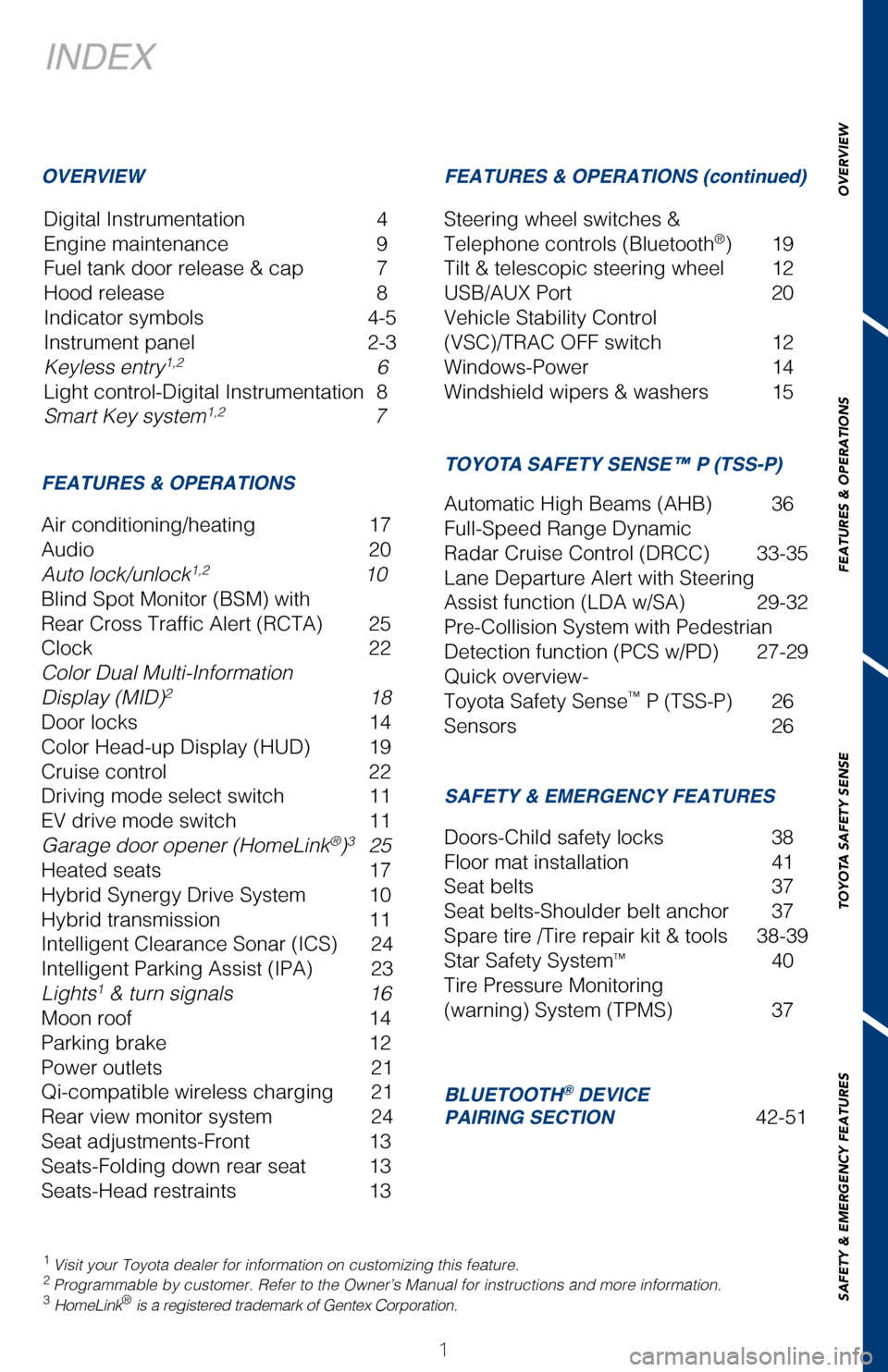
Digital Instrumentation 4
Engine maintenance 9
Fuel tank door release & cap 7
Hood release 8
Indicator symbols 4-5
Instrument panel 2-3
Keyless entry
1,2 6
Light control-Digital Instrumentation 8
Smart Key system
1,2 7
1 Visit your Toyota dealer for information on customizing this feature.2 Programmable by customer. Refer to the Owner’s Manual for instruction\
s and more information.3 HomeLink® is a registered trademark of Gentex Corporation.
OVERVIEW FEATURES & OPERATIONS (continued)
FEATURES & OPERATIONS
SAFETY & EMERGENCY FEATURES TOYOTA SAFETY SENSE™ P (TSS-P)
Air conditioning/heating 17
Audio 20
Auto lock/unlock
1,2 10
Blind Spot Monitor (BSM) with
Rear Cross Traffic Alert (RCTA) 25
Clock 22
Color Dual Multi-Information
Display (MID)
2 18
Door locks 14
Color Head-up Display (HUD) 19
Cruise control 22
Driving mode select switch 11
EV drive mode switch 11
Garage door opener (HomeLink
®)3 25
Heated seats 17
Hybrid Synergy Drive System 10
Hybrid transmission 11
Intelligent Clearance Sonar (ICS) 24
Intelligent Parking Assist (IPA) 23
Lights
1 & turn signals 16
Moon roof 14
Parking brake 12
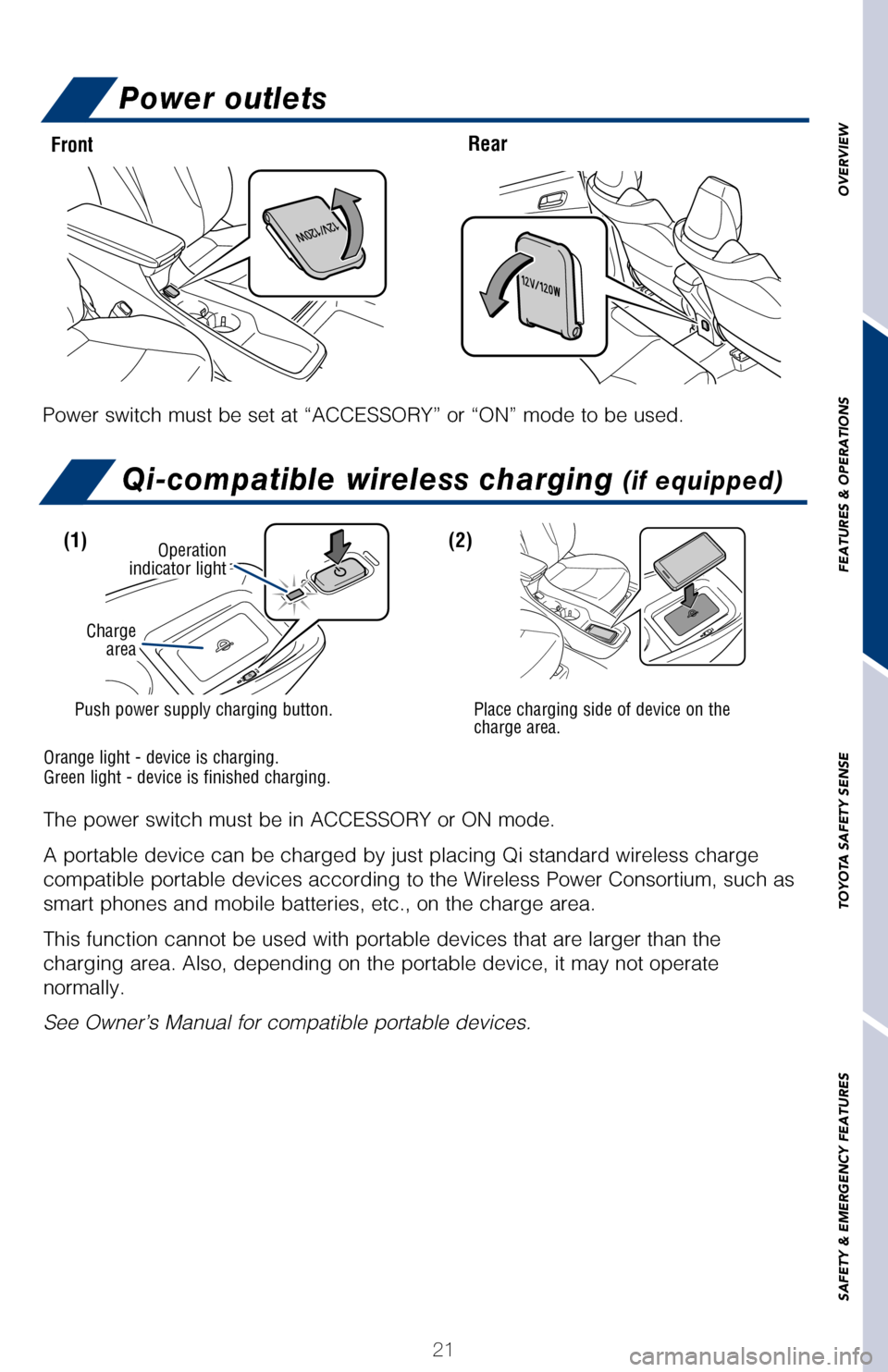
Power outlets 21
Qi-compatible wireless charging 21
Rear view monitor system 24
Seat adjustments-Front 13
Seats-Folding down rear seat 13
Seats-Head restraints 13Doors-Child safety locks
38
Floor mat installation 41
Seat belts 37
Seat belts-Shoulder belt anchor 37
Spare tire /Tire repair kit & tools 38-39
Star Safety System
™ 40
Tire Pressure Monitoring
(warning) System (TPMS) 37 Automatic High Beams (AHB) 36
Full-Speed Range Dynamic
Radar Cruise Control (DRCC) 33-35
Lane Departure Alert with Steering
Assist function (LDA w/SA) 29-32
Pre-Collision System with Pedestrian
Detection function (PCS w/PD) 27-29
Quick overview-
Toyota Safety Sense
™ P (TSS-P) 26
Sensors 26
Steering wheel switches &
Telephone controls (Bluetooth
®) 19
Tilt & telescopic steering wheel 12
USB/AUX Port 20
Vehicle Stability Control
(VSC)/TRAC OFF switch 12
Windows-Power 14
Windshield wipers & washers 15
PRIUS 2017
This Quick Reference Guide is a summary of basic vehicle
operations. It contains brief descriptions of fundamental
operations so you can locate and use the vehicle’s main
equipment quickly and easily.
The Quick Reference Guide is not intended as a substitute for
the Owner’s Manual located in your vehicle’s glove box. We
strongly encourage you to review the Owner’s Manual and
supplementary manuals so you will have a better understanding
of your vehicle’s capabilities and limitations.
Your dealership and the entire staff of Toyota Motor Sales,
U.S.A., Inc. wish you many years of satisfied driving in your new
Prius.
A word about safe vehicle operations
This Quick Reference Guide is not a full description of Prius operations\
. Every
Prius owner should review the Owner’s Manual that accompanies this ve\
hicle.
Pay special attention to the boxed information highlighted in color throughout
the Owner’s Manual. Each box contains safe operating instructions to \
help you
avoid injury or equipment malfunction.
All information in this Quick Reference Guide is current at the time of \
printing.
Toyota reserves the right to make changes at any time without notice.
BLUETOOTH® DEVICE
PAIRING SECTION 42-51
2017_Prius_D6_1.indd 19/25/16 2:37 AM
Page 4 of 56

2
OVERVIEWInstrument panel
1 If equipped2 For details, refer to the “Navigation System Owner’s Manual.”3 For details, refer to the “2017 Entune™ Audio Quick Reference Guid\
e.”
Steering wheel controls
Vehicle Stability Control (VSC) OFF switch
Intelligent Parking Assist (IPA) switch
1
Automatic High Beam
(AHB) switch Color Head-up Display
(HUD) switch
1
Instrument cluster
light control switch
“ENGINE START STOP”
button (Smart key)
Tilt and telescopic steering
lock release lever
Steering wheel
audio controls2,3
Lane Departure Alert (LDA)
switch
Full-Speed Dynamic Radar
Cruise Control (DRCC)/Cruise
control switch
Full-Speed Dynamic Radar
Cruise Control (DRCC)
Vehicle-to-vehicle distance
button
Telephone
controls
2,3
Voice command
switch2,3
“TRIP” switch
Digital instrumentation
“P” position switch
Wiper and washer controls
Fuel tank door opener
Meter control switches
Hood lock release lever
Headlight, turn signal and front
fog light controls
1
137379_PriusQRG_guts.r1.indd 29/27/16 1:45 PM
Page 20 of 56
18
MAIN DISPLAY
MULTI-INFORMATION DISPLAY (MID)
MICROPHONE
STEERING WHEEL AUDIO AND TELEPHONE CONTROLS
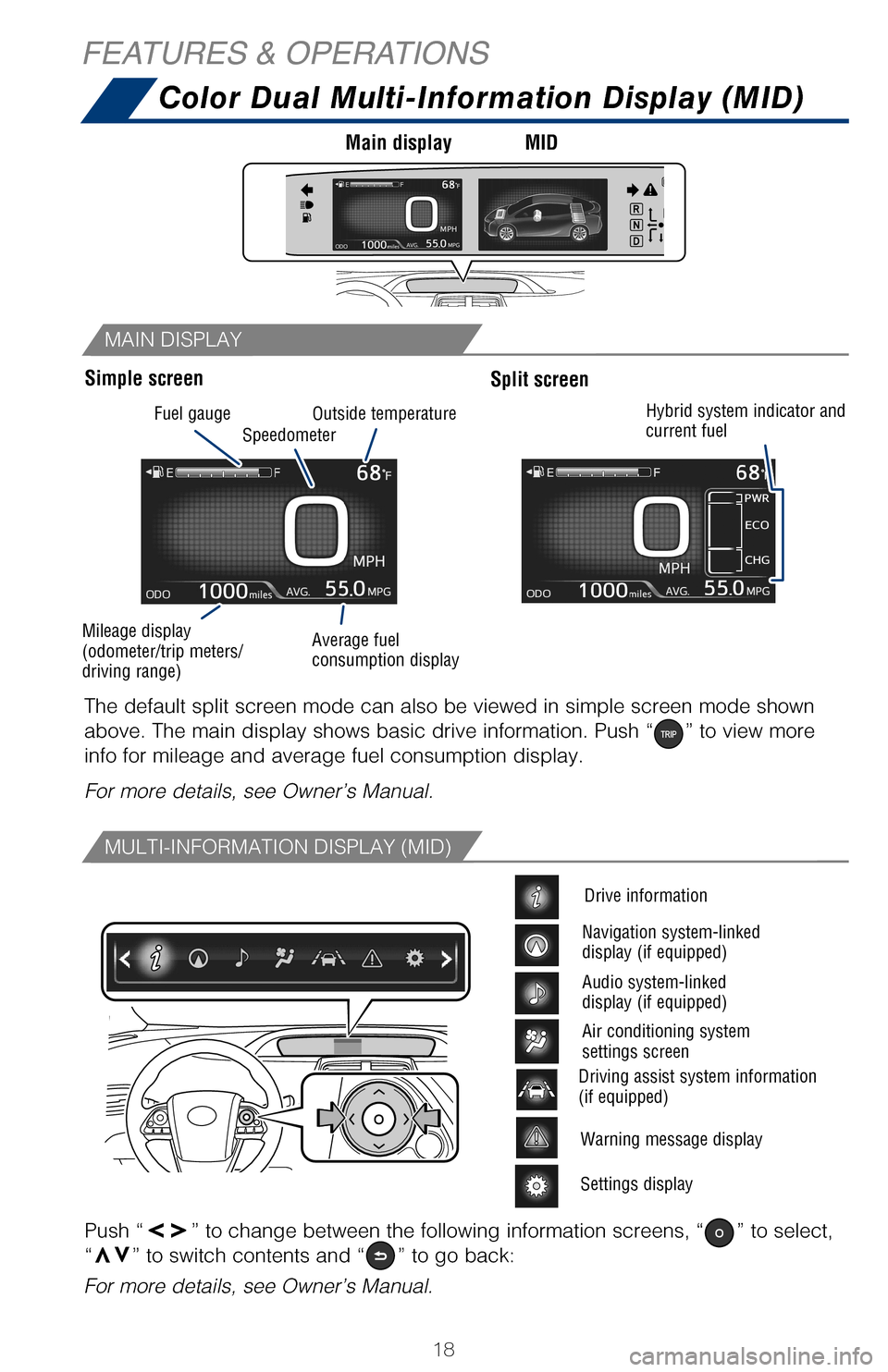
Color Dual Multi-Information Display (MID)
Push “vv” to change between the following information screens, “” to select,
“vv” to switch contents and “” to go back:
The default split screen mode can also be viewed in simple screen mode s\
hown
above. The main display shows basic drive information. Push “
” to view more
info for mileage and average fuel consumption display.
For more details, see Owner’s Manual.
For more details, see Owner’s Manual.
Warning message display
Settings display
Driving assist system information
(if equipped)
Drive information
Navigation system-linked
display (if equipped)
Audio system-linked
display (if equipped)
Air conditioning system
settings screen
Simple screen Main display
MIDSplit screen
Without moon roof
Bluetooth
® technology allows dialing or receipt of calls without taking hands from\
the steering wheel or using a cable to connect the compatible telephone \
and
the system. Refer to “Bluetooth
® Device Pairing Section,” in this guide, for more
information about phone connections and compatibility.
* Position of buttons may vary on some vehicles, for more details please\
refer to the
Owner’s Manual.
FEATURES & OPERATIONS
The color head-up display can display the current vehicle speed and hybr\
id system
indicator in front of the driver. Also, it can display various types of \
information to
assist the driver.
NOTE: Concentrating on the road should always be your first priority whi\
le
driving. Do not use the hands-free phone system if it will distract you\
.
Hybrid system current driving and
energy regeneration status
Insert display driving support
system information
Route guidance display
(if equipped with navigation
system)
Fuel gauge
Mileage display
(odometer/trip meters/
driving range) Average fuel
consumption display
Speedometer
Outside temperature
Hybrid system indicator and
current fuel
2017_Prius_D6_1.indd 189/25/16 2:38 AM
Page 21 of 56
OVERVIEW
FEATURES & OPERATIONS
TOYOTA SAFETY SENSE
SAFETY & EMERGENCY FEATURES
MICROPHONE
STEERING WHEEL AUDIO AND TELEPHONE CONTROLS
19
Color Dual Multi-Information Display (MID)
Steering wheel switches &
telephone controls (Bluetooth®)*
Push “vv” to change between the following information screens, “” to select,
“vv” to switch contents and “” to go back:
The default split screen mode can also be viewed in simple screen mode s\
hown
above. The main display shows basic drive information. Push “
” to view more
info for mileage and average fuel consumption display.
For more details, see Owner’s Manual.
For more details, see Owner’s Manual.
Warning message display
Settings display
Driving assist system information
(if equipped) Navigation system-linked
display (if equipped)
Audio system-linked
display (if equipped)
Air conditioning system
settings screen
Without moon roofWith moon roof
Bluetooth
® technology allows dialing or receipt of calls without taking hands from\
the steering wheel or using a cable to connect the compatible telephone \
and
the system. Refer to “Bluetooth
® Device Pairing Section,” in this guide, for more
information about phone connections and compatibility.
* Position of buttons may vary on some vehicles, for more details please\
refer to the
Owner’s Manual.
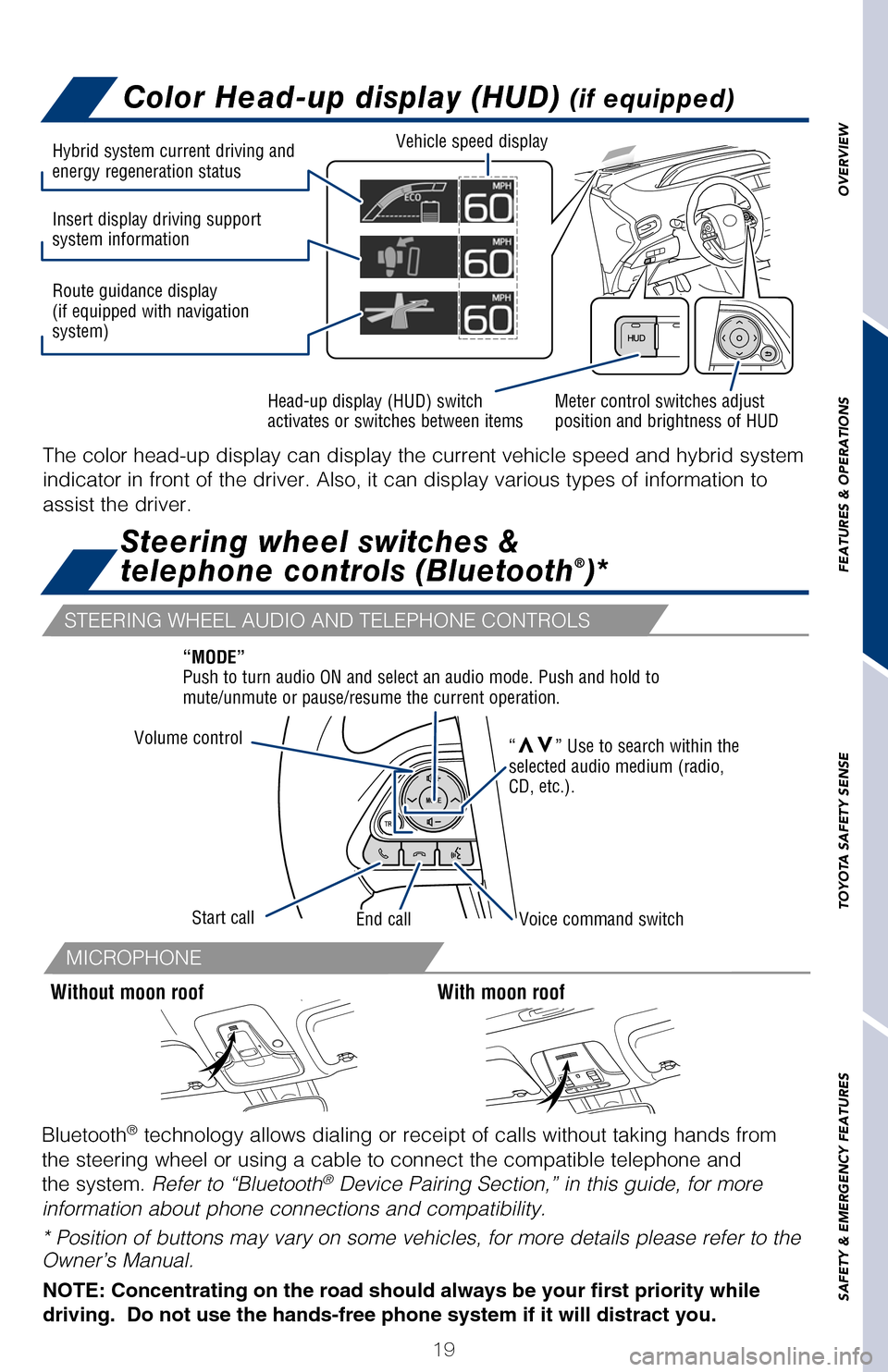
Color Head-up display (HUD) (if equipped)
The color head-up display can display the current vehicle speed and hybr\
id system
indicator in front of the driver. Also, it can display various types of \
information to
assist the driver.
NOTE: Concentrating on the road should always be your first priority whi\
le
driving. Do not use the hands-free phone system if it will distract you\
.
Meter control switches adjust
position and brightness of HUD
Head-up display (HUD) switch
activates or switches between items Vehicle speed display
Hybrid system current driving and
energy regeneration status
Insert display driving support
system information
Route guidance display
(if equipped with navigation
system)Hybrid system indicator and
current fuel
Volume control
Start callEnd callVoice command switch
“MODE”
Push to turn audio ON and select an audio mode. Push and hold to
mute/unmute or pause/resume the current operation.
“
vv” Use to search within the
selected audio medium (radio,
CD, etc.).
2017_Prius_D6_1.indd 199/25/16 2:38 AM
Page 22 of 56
20
TYPE 1 - ENTUNE™ AUDIO
TYPE 2 - ENTUNE™ PREMIUM (JBL®) AUDIO WITH INTEGRATED
NAVIGATION AND APP SUITE
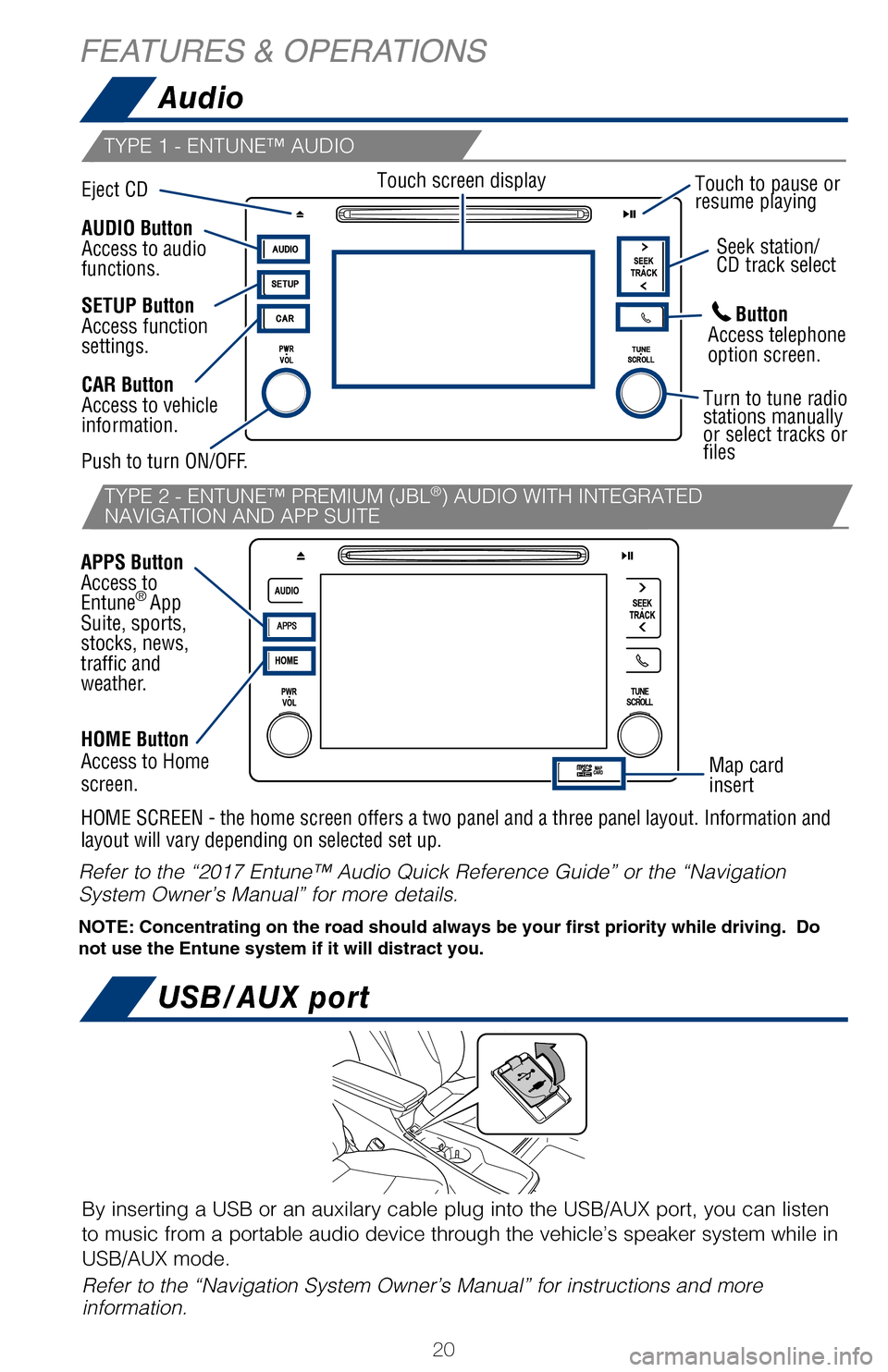
Audio
USB/AUX port
The power switch must be in ACCESSORY or ON mode.
A portable device can be charged by just placing Qi standard wireless cha\
rge
compatible portable devices according to the Wireless Power Consortium, such as
smart phones and mobile batteries, etc., on the charge area.
This function cannot be used with portable devices that are larger than the
charging area. Also, depending on the portable device, it may not operate
normally.
See Owner’s Manual for compatible portable devices.
HOME Button
Access to Home
screen.
HOME SCREEN - the home screen offers a two panel and a three panel layou\
t. Information and
layout will vary depending on selected set up.
FEATURES & OPERATIONS
Front
Power switch must be set at “ACCESSORY” or “ON” mode to be used.
Eject CD Seek station/
CD track select
Map card
insert
SETUP Button
Access function
settings.
Touch screen display
Turn to tune radio
stations manually
or select tracks or
files
Touch to pause or
resume playing
Refer to the “2017 Entune™ Audio Quick Reference Guide” or the “N\
avigation
System Owner’s Manual” for more details.
NOTE: Concentrating on the road should always be your first priority whi\
le driving. Do
not use the Entune system if it will distract you.
By inserting a USB or an auxilary cable plug into the USB/AUX port, you ca\
n listen
to music from a portable audio device through the vehicle’s speaker system while in
USB/AUX mode.
Refer to the “Navigation System Owner’s Manual” for instructions and\
more
information.
Push power supply charging button.
(1)
Charge area
Orange light - device is charging.
Green light - device is finished charging.
Push to turn ON/OFF.
Button
Access telephone
option screen.
AUDIO Button
Access to audio
functions.
CAR Button
Access to vehicle
information.
APPS Button
Access to
Entune
®
App
Suite, sports,
stocks, news,
traffic and
weather.
2017_Prius_D6_1.indd 209/25/16 2:38 AM
Page 23 of 56
OVERVIEW
FEATURES & OPERATIONS
TOYOTA SAFETY SENSE
SAFETY & EMERGENCY FEATURES
TYPE 2 - ENTUNE™ PREMIUM (JBL®) AUDIO WITH INTEGRATED
NAVIGATION AND APP SUITE
21
Qi-compatible wireless charging (if equipped)
The power switch must be in ACCESSORY or ON mode.
A portable device can be charged by just placing Qi standard wireless ch\
arge
compatible portable devices according to the Wireless Power Consortium, \
such as
smart phones and mobile batteries, etc., on the charge area.
This function cannot be used with portable devices that are larger than \
the
charging area. Also, depending on the portable device, it may not operat\
e
normally.
See Owner’s Manual for compatible portable devices.
HOME Button
Access to Home
screen.
HOME SCREEN - the home screen offers a two panel and a three panel layou\
t. Information and
layout will vary depending on selected set up.
Power outlets
Front Rear
Power switch must be set at “ACCESSORY” or “ON” mode to be u\
sed.
Seek station/
CD track select
Turn to tune radio
stations manually
or select tracks or
files
Touch to pause or
resume playing
Refer to the “2017 Entune™ Audio Quick Reference Guide” or the \
“Navigation
System Owner’s Manual” for more details.
NOTE: Concentrating on the road should always be your first priority whi\
le driving. Do
not use the Entune system if it will distract you.
By inserting a USB or an auxilary cable plug into the USB/AUX port, you \
can listen
to music from a portable audio device through the vehicle’s speaker system while in
USB/AUX mode.
Refer to the “Navigation System Owner’s Manual” for instruction\
s and more
information.
Push power supply charging button.
(1)(2)
Place charging side of device on the
charge area.
Operation
indicator light
Charge area
Orange light - device is charging.
Green light - device is finished charging.
Button
Access telephone
option screen.
2017_Prius_D6_1.indd 219/25/16 2:38 AM
Page 44 of 56

BLUETOOTH® DEVICE PAIRING
SECTION
Pairing your phone is the first step in connecting with your Toyota for hands-f\
ree
calling and for audio streaming via Bluetooth. This pairing process is quick an\
d
easy: all Android mobile digital devices have Bluetooth integrated; all you h\
ave to
do is setup the phone and multimedia system to “talk” to each other \
and form a
connection.2
Initiate Bluetooth® on your Android®
STEP 1
From your APPS
SCREEN, select
SETTINGS.
1 To determine which head unit is installed in your vehicle, refer to the Au\
dio section in this guide.
Entune™ Premium Audio screens are shown in this section. Screens and features \
may vary by
Entune™ system. 2 Some Android devices may have slightly different SETTINGS screen layout\
depending on manu- facturer of device and Android OS version.
To begin the Bluetooth® Pairing process, press the HOME button on the faceplate of
your Toyota Vehicle Entune™ Multimedia Head Unit.1
Do not attempt the Bluetooth® Pairing process while driving.
42
2017_Prius_D6_1.indd 429/25/16 2:38 AM
Page 45 of 56

BLUETOOTH® DEVICE PAIRING
SECTION
Pairing your phone is the first step in connecting with your Toyota for hands-f\
ree
calling and for audio streaming via Bluetooth. This pairing process is quick an\
d
easy: all Android mobile digital devices have Bluetooth integrated; all you h\
ave to
do is setup the phone and multimedia system to “talk” to each other \
and form a
connection.
2
Initiate Bluetooth® on your Android®
STEP 1
STEP 5
STEP 2STEP 3STEP 4
From your APPS
SCREEN, select
SETTINGS. Select
CONNECTIONS and
select
BLUETOOTH. Ensure
BLUETOOTH
is
ON. Select
YOUR PHONE
DEVICE to make it
discoverable.
Phone will seek out
Bluetooth devices
while remaining
discoverable.
While your Android device is seeking
out Bluetooth devices, proceed to
your Entune Multimedia Head Unit on
your Toyota vehicle.
1 To determine which head unit is installed in your vehicle, refer to the\
Audio section in this guide. Entune™ Premium Audio screens are shown in this section. Screens and features \
may vary by
Entune™ system. 2 Some Android devices may have slightly different SETTINGS screen layout\
depending on manu- facturer of device and Android OS version.
To begin the Bluetooth® Pairing process, press the HOME button on the faceplate of
your Toyota Vehicle Entune™ Multimedia Head Unit.1
Bluetooth® Pairing for Android phone and
Entune™ touch screen system
43
2017_Prius_D6_1.indd 439/25/16 2:38 AM
Page 46 of 56

Initiate Bluetooth® on your Entune™ Multimedia Head Unit
Once you have Bluetooth enabled on your phone and ready to pair, you will ne\
ed to
initiate Bluetooth on your Entune head unit. Please follow the instructions belo\
w to
pair your Bluetooth enabled phone to your Entune system.Initiate Bluetooth® on your Entune™ Multimedia Head Unit
Using your smartphone, you will
need to allow Entune access to
your messaging and contacts.
It is recommended to check the
“Don’t ask again” box, so as not
to have to press OK every time the
phone makes a Bluetooth connec -
tion with your Toyota.
STEP 12
BLUETOOTH® DEVICE PAIRING
DisclosuresThis brochure is accurate at the time of print; content subject to change ba\
sed on periodic multimedia
software updates.
1. Concentrating on the road should always be your first priority while driving. Do not use the hands-free phone system if it will distract you.
2. The Bluetooth word mark and logos are registered trademarks owned by Bl\
uetooth SIG, Inc. and any use of such marks by Toyota is under license. A compatible Bluetooth enabled phone must first be paired.
Phone performance depends on software, coverage & carrier.
3. Android is a trademark of Google Inc.4. Apps/services vary by phone/carrier; functionality depends on many fact\
ors. Select apps use large amounts of data; you are responsible for charges. Apps & services subjec\
t to change. See Toyota.com/
entune for details.
On your Toyota Vehicle Entune
Multimedia Head Unit, Select
SETUP BUTTON on the Home
Screen.
For Entune
™ Audio System,
press the SETUP BUTTON
on the faceplate to access the
Setup Screen. Select BLUETOOTH.
Image shown is a sample
image, features may vary.
Select ADD, to add your
phone device.
Back on your smartphone,
you can now select your
TOYOTA VEHICLE in
Bluetooth Settings.
You may need to enter the
provided Bluetooth PIN on
your phone.Your smartphone is now
paired with Entune.Once paired, Entune will
attempt to connect audio and
contacts on your phone.
STEP 6STEP 7STEP 8
STEP 9STEP 11STEP 10
44
2017_Prius_D6_1.indd 449/25/16 2:38 AM
Page 47 of 56

Initiate Bluetooth® on your Entune™ Multimedia Head Unit
Once you have Bluetooth enabled on your phone and ready to pair, you will ne\
ed
to
initiate Bluetooth on your Entune head unit. Please follow the instructions belo\
w to
pair your Bluetooth enabled phone to your Entune system.
Initiate Bluetooth® on your Entune™ Multimedia Head Unit
A confirmation will ap-
pear once your phone
has been paired and
connected.Using your smartphone, you will
need to allow Entune access to
your messaging and contacts.
It is recommended to check the
“Don’t ask again” box, so as not
to have to press OK every time the
phone makes a Bluetooth connec -
tion with your Toyota.
STEP 12STEP 13
Additional Resources
If you’re having trouble pairing your phone, Toyota has you covered. Yo u can get more information
from the following sources:
Online Pairing Guide:
www.toyota.com/connect
Your Toyota Owner’s Manual
Located in the vehicle glovebox
Toyota Customer
Experience Center
(800) 331-4331
Disclosures
This brochure is accurate at the time of print; content subject to chang\
e based on periodic multimedia
software updates.
1. Concentrating on the road should always be your first priority while driving. Do not use the hands-free phone system if it will distract you.
2. The Bluetooth word mark and logos are registered trademarks owned by \
Bluetooth SIG, Inc. and any use of such marks by Toyota is under license. A compatible Bluetooth enabled phone must first be paired.
Phone performance depends on software, coverage & carrier.
3. Android is a trademark of Google Inc.
4. Apps/services vary by phone/carrier; functionality depends on many fa\
ctors. Select apps use large amounts of data; you are responsible for charges. Apps & services subjec\
t to change. See Toyota.com/
entune for details.
Select ADD, to add your
phone device.
Once paired, Entune will
attempt to connect audio and contacts on your phone.
45
2017_Prius_D6_1.indd 459/25/16 2:38 AM