USB TOYOTA PRIUS 2018 Accessories, Audio & Navigation (in English)
[x] Cancel search | Manufacturer: TOYOTA, Model Year: 2018, Model line: PRIUS, Model: TOYOTA PRIUS 2018Pages: 294, PDF Size: 4.43 MB
Page 9 of 294
9
PRIUS_Navi_OM47C01U_(U)
17.08.28 17:43
1
2
3
4
5
6
7
8
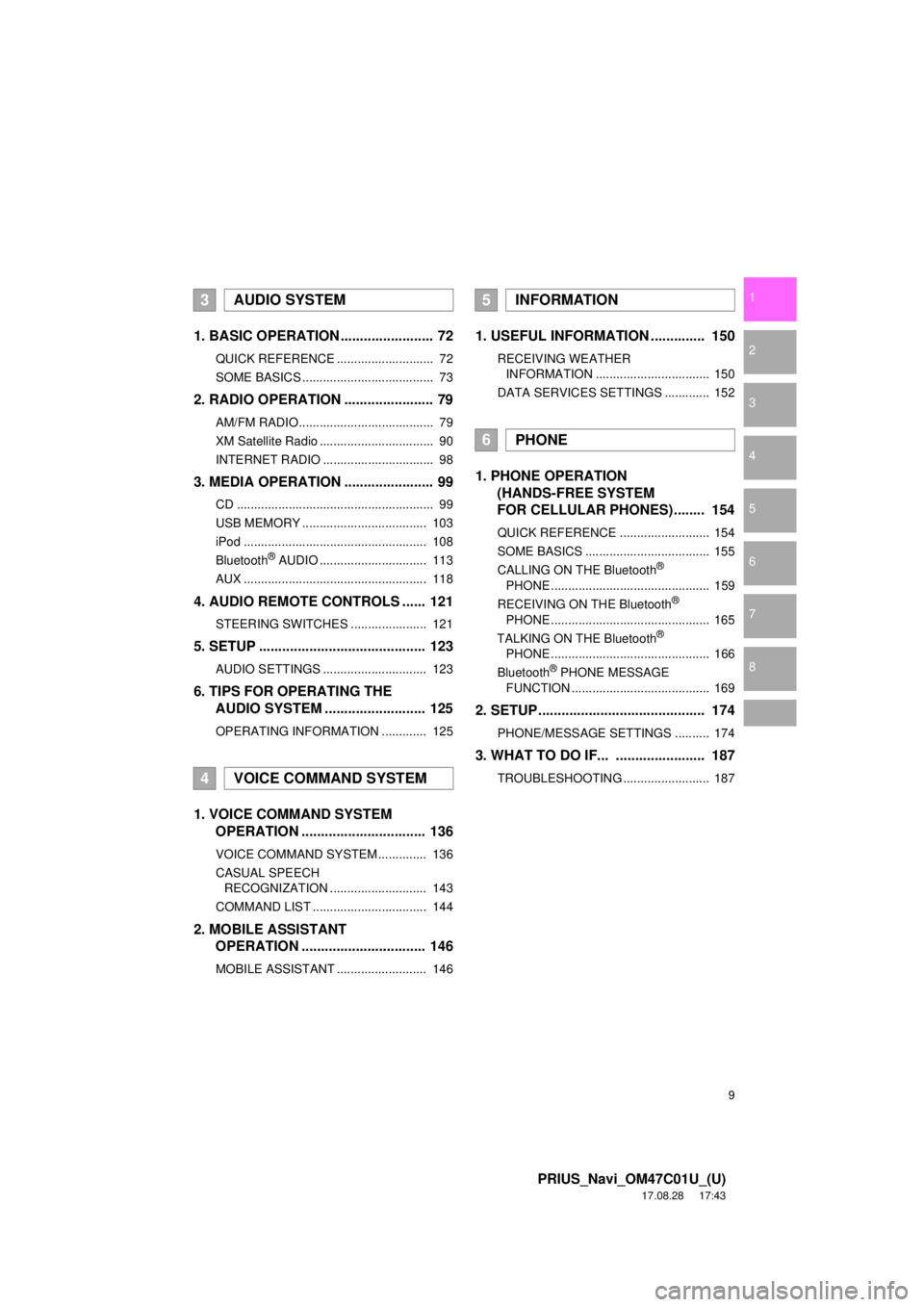
1. BASIC OPERATION ........................ 72
QUICK REFERENCE ............................ 72
SOME BASICS ...................................... 73
2. RADIO OPERATION ....................... 79
AM/FM RADIO....................................... 79
XM Satellite Radio ................................. 90
INTERNET RADIO ................................ 98
3. MEDIA OPERATION ....................... 99
CD ......................................................... 99
USB MEMORY .................................... 103
iPod ..................................................... 108
Bluetooth
® AUDIO ............................... 113
AUX ..................................................... 118
4. AUDIO REMOTE CONTROLS ...... 121
STEERING SWITCHES ...................... 121
5. SETUP ........................................... 123
AUDIO SETTINGS .............................. 123
6. TIPS FOR OPERATING THE AUDIO SYSTEM ........ .................. 125
OPERATING INFORMATION ............. 125
1. VOICE COMMAND SYSTEM
OPERATION ................................ 136
VOICE COMMAND SYSTEM .............. 136
CASUAL SPEECH
RECOGNIZATION ............................ 143
COMMAND LIST ................................. 144
2. MOBILE ASSISTANT OPERATION ................................ 146
MOBILE ASSISTANT .......................... 146
1. USEFUL INFORMATION .............. 150
RECEIVING WEATHER
INFORMATION ................................. 150
DATA SERVICES SETTINGS ............. 152
1. PHONE OPERATION (HANDS-FREE SYSTEM
FOR CELLULAR PHONES)........ 154
QUICK REFERENCE .......................... 154
SOME BASICS .................................... 155
CALLING ON THE Bluetooth
®
PHONE .............................................. 159
RECEIVING ON THE Bluetooth
®
PHONE .............................................. 165
TALKING ON THE Bluetooth
®
PHONE .............................................. 166
Bluetooth
® PHONE MESSAGE
FUNCTION ........................................ 169
2. SETUP........................................... 174
PHONE/MESSAGE SETTINGS .......... 174
3. WHAT TO DO IF... ....................... 187
TROUBLESHOOTING ......................... 187
3AUDIO SYSTEM
4VOICE COMMAND SYSTEM
5INFORMATION
6PHONE
Page 61 of 294
61
3. OTHER SETTINGS
PRIUS_Navi_OM47C01U_(U)
17.08.28 17:21
BASIC FUNCTION
2
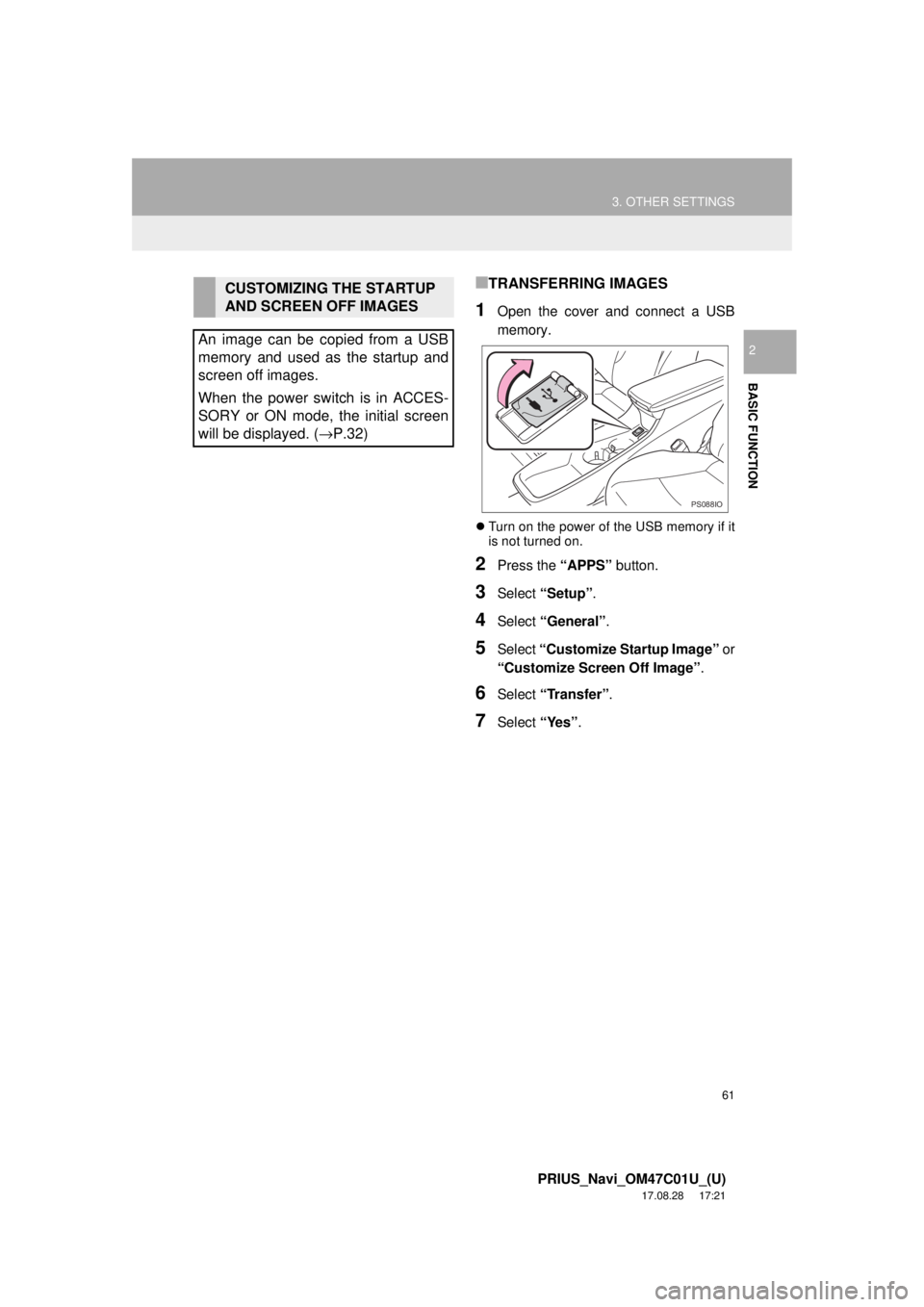
■TRANSFERRING IMAGES
1Open the cover and connect a USB
memory.
Turn on the power of the USB memory if it
is not turned on.
2Press the “APPS” button.
3Select “Setup” .
4Select “General” .
5Select “Customize Startup Image” or
“Customize Screen Off Image” .
6Select “Transfer”.
7Select “Yes”.
CUSTOMIZING THE STARTUP
AND SCREEN OFF IMAGES
An image can be copied from a USB
memory and used as the startup and
screen off images.
When the power switch is in ACCES-
SORY or ON mode, the initial screen
will be displayed. ( →P.32)
PS088IO
Page 62 of 294
62
3. OTHER SETTINGS
PRIUS_Navi_OM47C01U_(U)
17.08.28 17:21
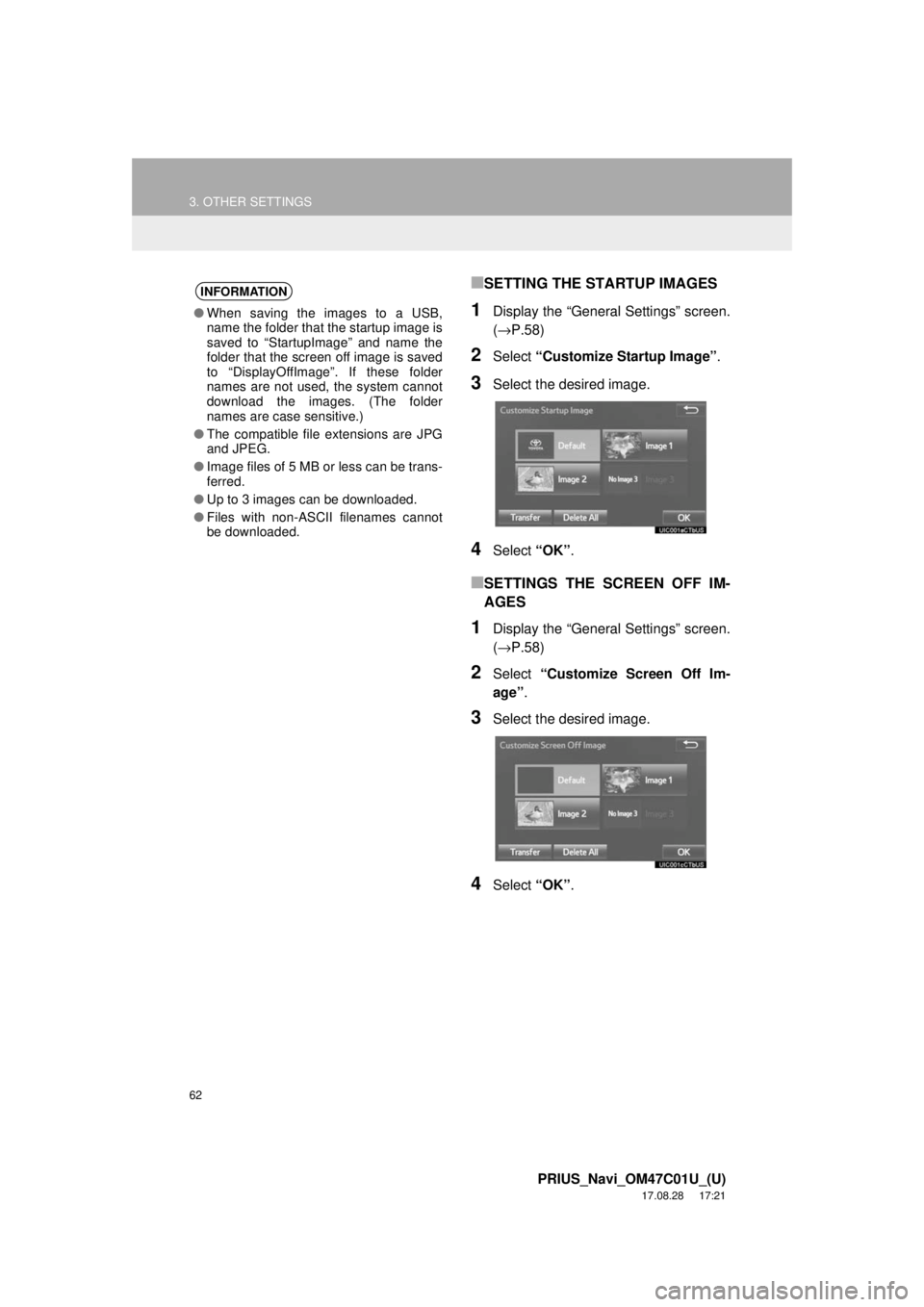
■SETTING THE STARTUP IMAGES
1Display the “General Settings” screen.
(→P.58)
2Select “Customize Startup Image” .
3Select the desired image.
4Select “OK”.
■SETTINGS THE SCREEN OFF IM-
AGES
1Display the “General Settings” screen.
(→P.58)
2Select “Customize Screen Off Im-
age” .
3Select the desired image.
4Select “OK”.
INFORMATION
●When saving the images to a USB,
name the folder that the startup image is
saved to “StartupImage” and name the
folder that the screen off image is saved
to “DisplayOffImage”. If these folder
names are not used, the system cannot
download the images. (The folder
names are case sensitive.)
● The compatible file extensions are JPG
and JPEG.
● Image files of 5 MB or less can be trans-
ferred.
● Up to 3 images can be downloaded.
● Files with non-ASCII filenames cannot
be downloaded.
Page 70 of 294
70
PRIUS_Navi_OM47C01U_(U)
17.08.28 17:48
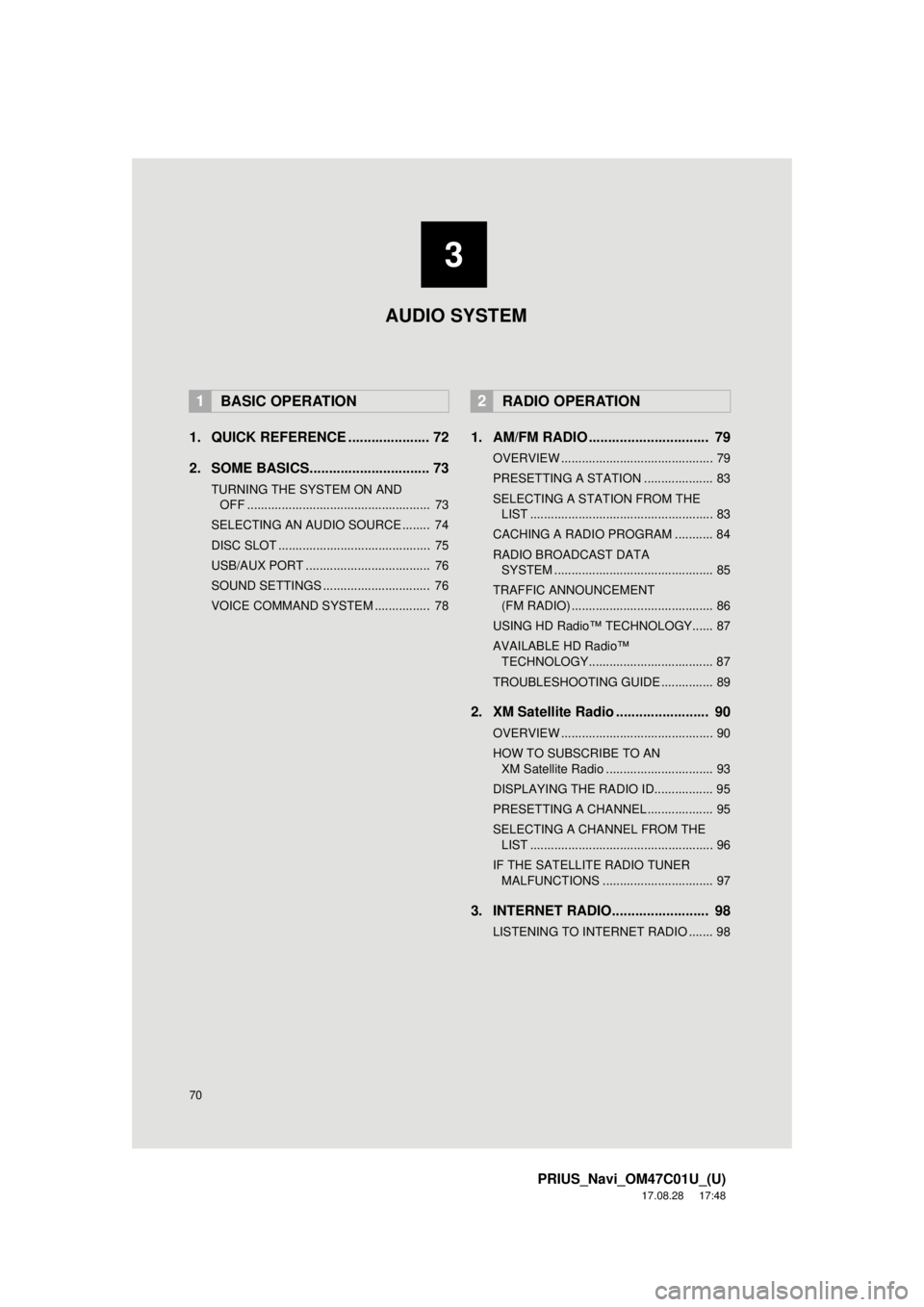
1. QUICK REFERENCE ..................... 72
2. SOME BASICS............................... 73
TURNING THE SYSTEM ON AND OFF ..................................................... 73
SELECTING AN AUDIO SOURCE ........ 74
DISC SLOT ............................................ 75
USB/AUX PORT .................................... 76
SOUND SETTINGS ............................... 76
VOICE COMMAND SYSTEM ................ 78
1. AM/FM RADIO ............................... 79
OVERVIEW ............................................ 79
PRESETTING A STATION .................... 83
SELECTING A STATION FROM THE LIST ..................................................... 83
CACHING A RADIO PROGRAM ........... 84
RADIO BROADCAST DATA SYSTEM .............................................. 85
TRAFFIC ANNOUNCEMENT (FM RADIO) ......................................... 86
USING HD Radio™ TECHNOLOGY...... 87
AVAILABLE HD Radio™ TECHNOLOGY.................................... 87
TROUBLESHOOTING GUIDE ............... 89
2. XM Satellite Radio ........................ 90
OVERVIEW ............................................ 90
HOW TO SUBSCRIBE TO AN XM Satellite Radio ............................... 93
DISPLAYING THE RADIO ID................. 95
PRESETTING A CHANNEL ................... 95
SELECTING A CHANNEL FROM THE LIST ..................................................... 96
IF THE SATELLITE RADIO TUNER MALFUNCTIONS ................................ 97
3. INTERNET RADIO......................... 98
LISTENING TO INTERNET RADIO ....... 98
1BASIC OPERATION2RADIO OPERATION
3
AUDIO SYSTEM
Page 71 of 294
3
71
PRIUS_Navi_OM47C01U_(U)
17.08.28 17:48
1
2
3
4
5
6
7
8
1. CD .................................................. 99
OVERVIEW ........................................... 99
PLAYING AN AUDIO CD .................... 102
PLAYING AN MP3/WMA/AAC DISC ... 102
2. USB MEMORY ............................. 103
OVERVIEW ......................................... 103
PLAYING A USB AUDIO ..................... 107
3. iPod .............................................. 108
OVERVIEW ......................................... 108
iPod AUDIO ......................................... 112
iPod VIDEO ......................................... 112
4. Bluetooth® AUDIO ...................... 113
OVERVIEW ......................................... 113
CONNECTING A Bluetooth®
DEVICE ............................................. 117
LISTENING TO Bluetooth
® AUDIO ..... 117
5. AUX .............................................. 118
OVERVIEW ......................................... 118
1. STEERING SWITCHES............... 121
1. AUDIO SETTINGS ...................... 123
AUDIO SETTINGS SCREEN............... 123
1. OPERATING INFORMATION ..... 125
RADIO.................................................. 125
CD PLAYER AND DISC ...................... 126
iPod ...................................................... 128
FILE INFORMATION ........................... 129
TERMS ................................................ 132
ERROR MESSAGES ........................... 133
3MEDIA OPERATION4AUDIO REMOTE CONTROLS
5SETUP
6TIPS FOR OPERATING THE
AUDIO SYSTEM
AUDIO SYSTEM
Page 72 of 294
72
PRIUS_Navi_OM47C01U_(U)
17.08.28 17:21
1. BASIC OPERATION
1. QUICK REFERENCE
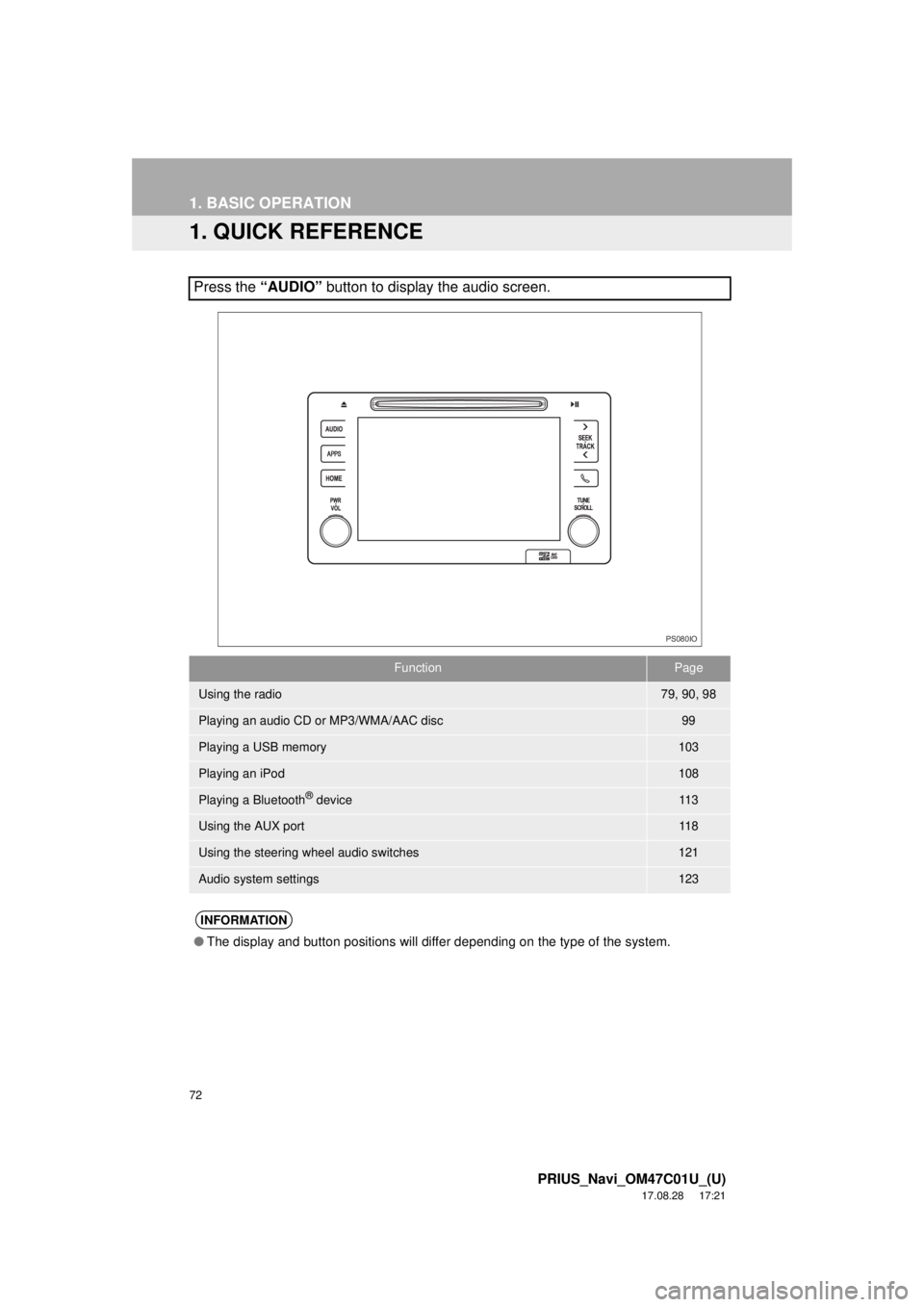
Press the “AUDIO” button to display the audio screen.
FunctionPage
Using the radio79, 90, 98
Playing an audio CD or MP3/WMA/AAC disc99
Playing a USB memory103
Playing an iPod108
Playing a Bluetooth® device11 3
Using the AUX port11 8
Using the steering wheel audio switches121
Audio system settings123
INFORMATION
●The display and button positions will differ depending on the type of the system.
PS080IO
Page 76 of 294
76
1. BASIC OPERATION
PRIUS_Navi_OM47C01U_(U)
17.08.28 17:21
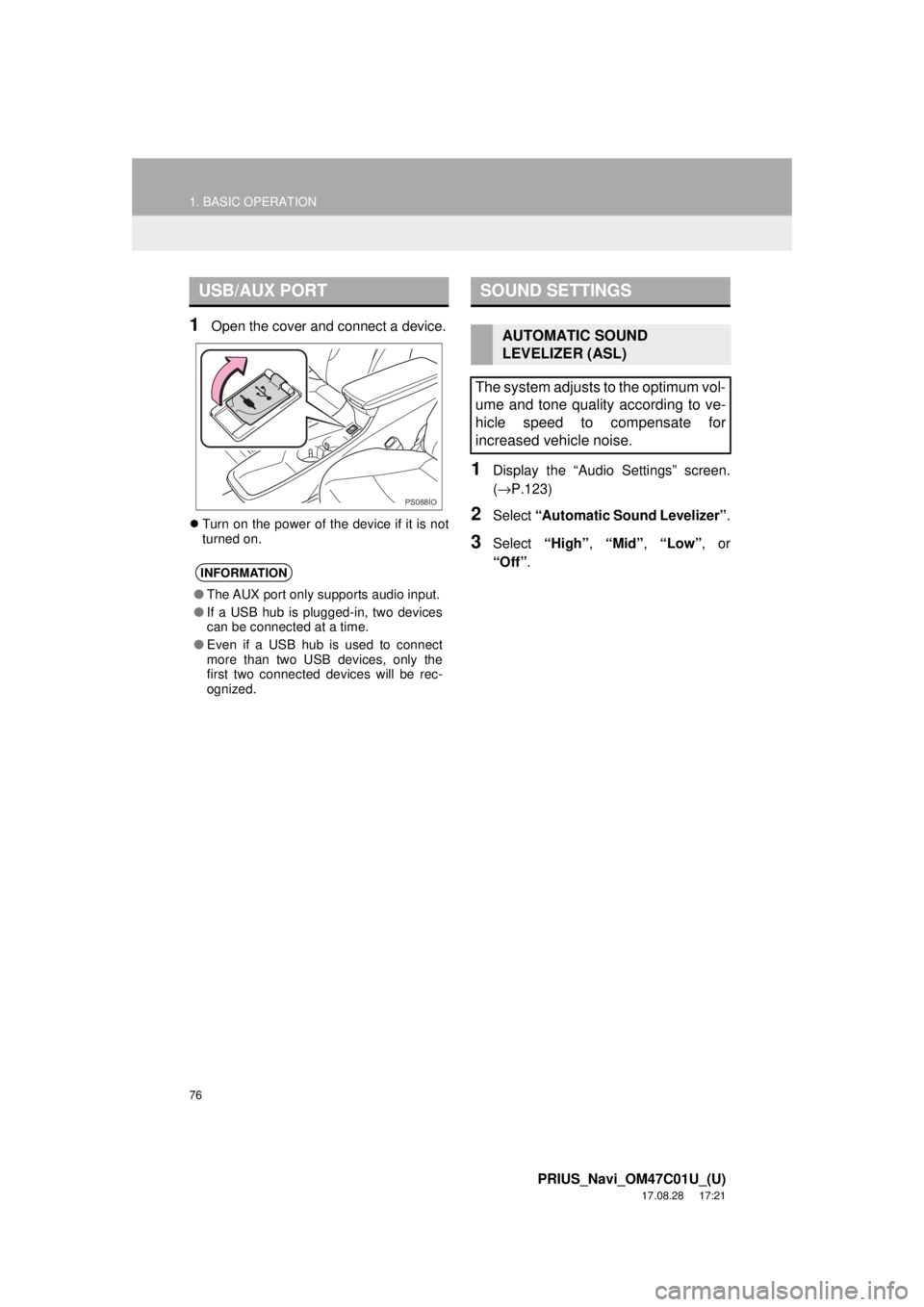
1Open the cover and connect a device.
Turn on the power of the device if it is not
turned on.
1Display the “Audio Settings” screen.
(→ P.123)
2Select “Automatic Sound Levelizer” .
3Select “High”, “Mid” , “Low” , or
“Off” .
USB/AUX PORT
INFORMATION
●The AUX port only supports audio input.
● If a USB hub is plugged-in, two devices
can be connected at a time.
● Even if a USB hub is used to connect
more than two USB devices, only the
first two connected devices will be rec-
ognized.
PS088IO
SOUND SETTINGS
AUTOMATIC SOUND
LEVELIZER (ASL)
The system adjusts to the optimum vol-
ume and tone quality according to ve-
hicle speed to compensate for
increased vehicle noise.
Page 103 of 294
103
3. MEDIA OPERATION
PRIUS_Navi_OM47C01U_(U)
17.08.28 17:21
AUDIO SYSTEM
3
2. USB MEMORY
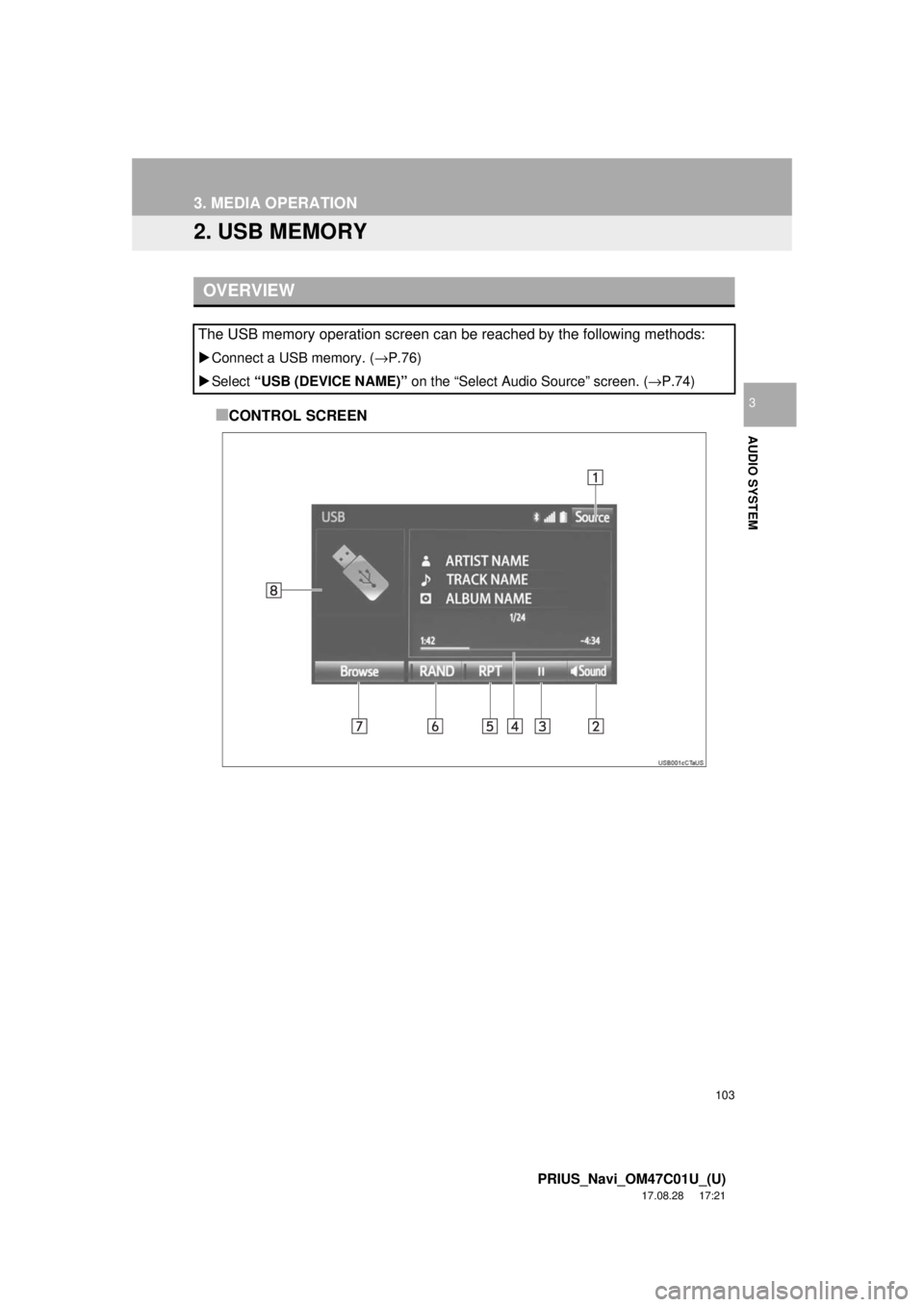
■CONTROL SCREEN
OVERVIEW
The USB memory operation screen can be reached by the following methods:
Connect a USB memory. ( →P.76)
Select “USB (DEVICE NAME)” on the “Select Audio Source” screen. ( →P.74)
Page 106 of 294

106
3. MEDIA OPERATION
PRIUS_Navi_OM47C01U_(U)
17.08.28 17:21
WA R N I N G
●Do not operate the player’s controls or connect the USB memory while driving.
NOTICE
●Do not leave your portable player in the car. In particular, high temperatures inside the
vehicle may damage the portable player.
● Do not push down on or apply unnecessary pressure to the portable player while it is con-
nected as this may damage the portable player or its terminal.
● Do not insert foreign objects into the port as this may damage the portable player or its
terminal.
INFORMATION
●If tag information exists, the file names will be changed to track names.
Page 107 of 294
107
3. MEDIA OPERATION
PRIUS_Navi_OM47C01U_(U)
17.08.28 17:21
AUDIO SYSTEM
31Select the repeat button to change on/
off.
1Select the random button to change
on/off.
PLAYING A USB AUDIO
REPEATING
The file/track currently being listened
to can be repeated.
RANDOM ORDER
Files/tracks can be automatically and
randomly selected.