USB port TOYOTA PRIUS 2018 Accessories, Audio & Navigation (in English)
[x] Cancel search | Manufacturer: TOYOTA, Model Year: 2018, Model line: PRIUS, Model: TOYOTA PRIUS 2018Pages: 294, PDF Size: 4.43 MB
Page 70 of 294
70
PRIUS_Navi_OM47C01U_(U)
17.08.28 17:48
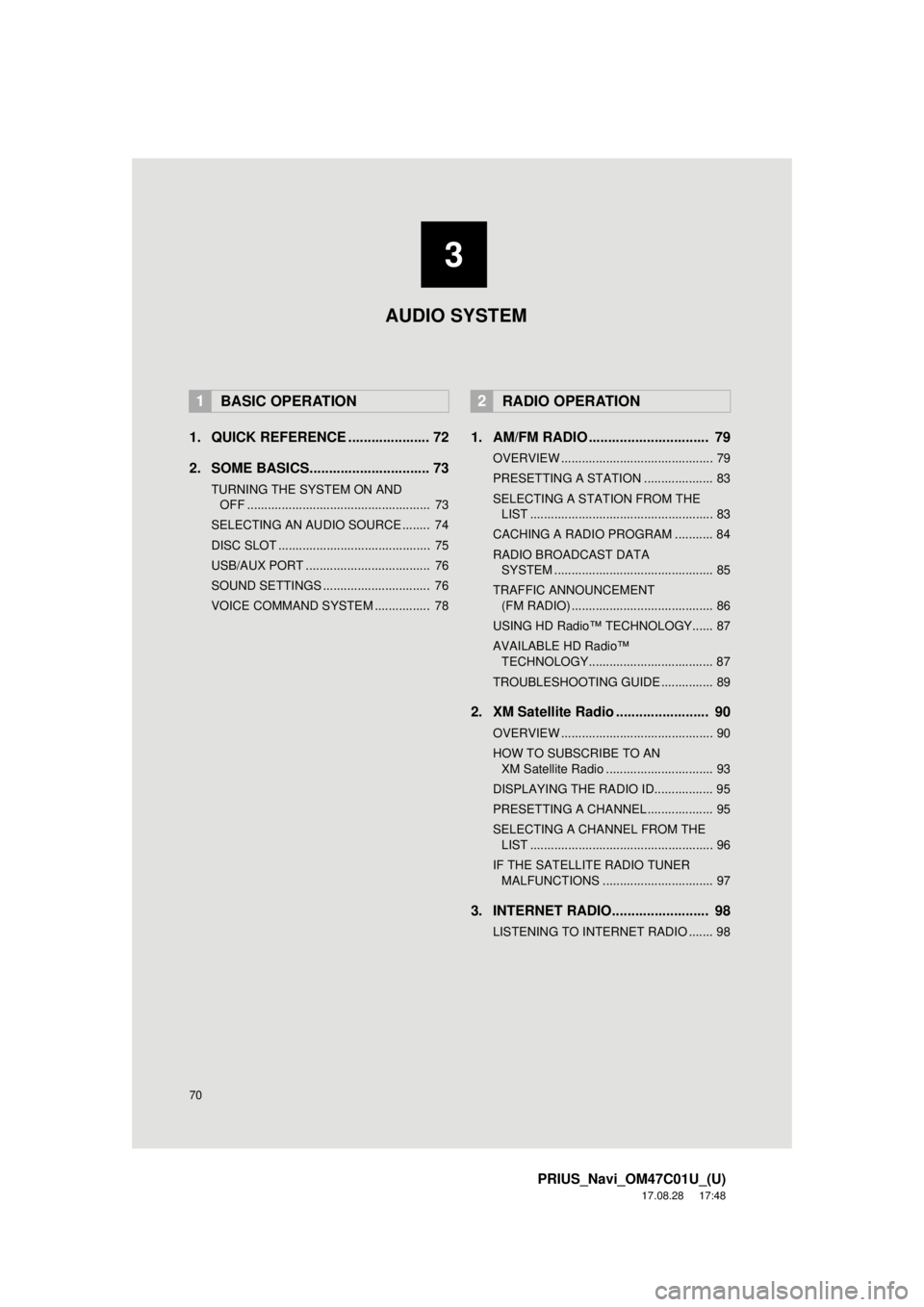
1. QUICK REFERENCE ..................... 72
2. SOME BASICS............................... 73
TURNING THE SYSTEM ON AND OFF ..................................................... 73
SELECTING AN AUDIO SOURCE ........ 74
DISC SLOT ............................................ 75
USB/AUX PORT .................................... 76
SOUND SETTINGS ............................... 76
VOICE COMMAND SYSTEM ................ 78
1. AM/FM RADIO ............................... 79
OVERVIEW ............................................ 79
PRESETTING A STATION .................... 83
SELECTING A STATION FROM THE LIST ..................................................... 83
CACHING A RADIO PROGRAM ........... 84
RADIO BROADCAST DATA SYSTEM .............................................. 85
TRAFFIC ANNOUNCEMENT (FM RADIO) ......................................... 86
USING HD Radio™ TECHNOLOGY...... 87
AVAILABLE HD Radio™ TECHNOLOGY.................................... 87
TROUBLESHOOTING GUIDE ............... 89
2. XM Satellite Radio ........................ 90
OVERVIEW ............................................ 90
HOW TO SUBSCRIBE TO AN XM Satellite Radio ............................... 93
DISPLAYING THE RADIO ID................. 95
PRESETTING A CHANNEL ................... 95
SELECTING A CHANNEL FROM THE LIST ..................................................... 96
IF THE SATELLITE RADIO TUNER MALFUNCTIONS ................................ 97
3. INTERNET RADIO......................... 98
LISTENING TO INTERNET RADIO ....... 98
1BASIC OPERATION2RADIO OPERATION
3
AUDIO SYSTEM
Page 72 of 294
72
PRIUS_Navi_OM47C01U_(U)
17.08.28 17:21
1. BASIC OPERATION
1. QUICK REFERENCE
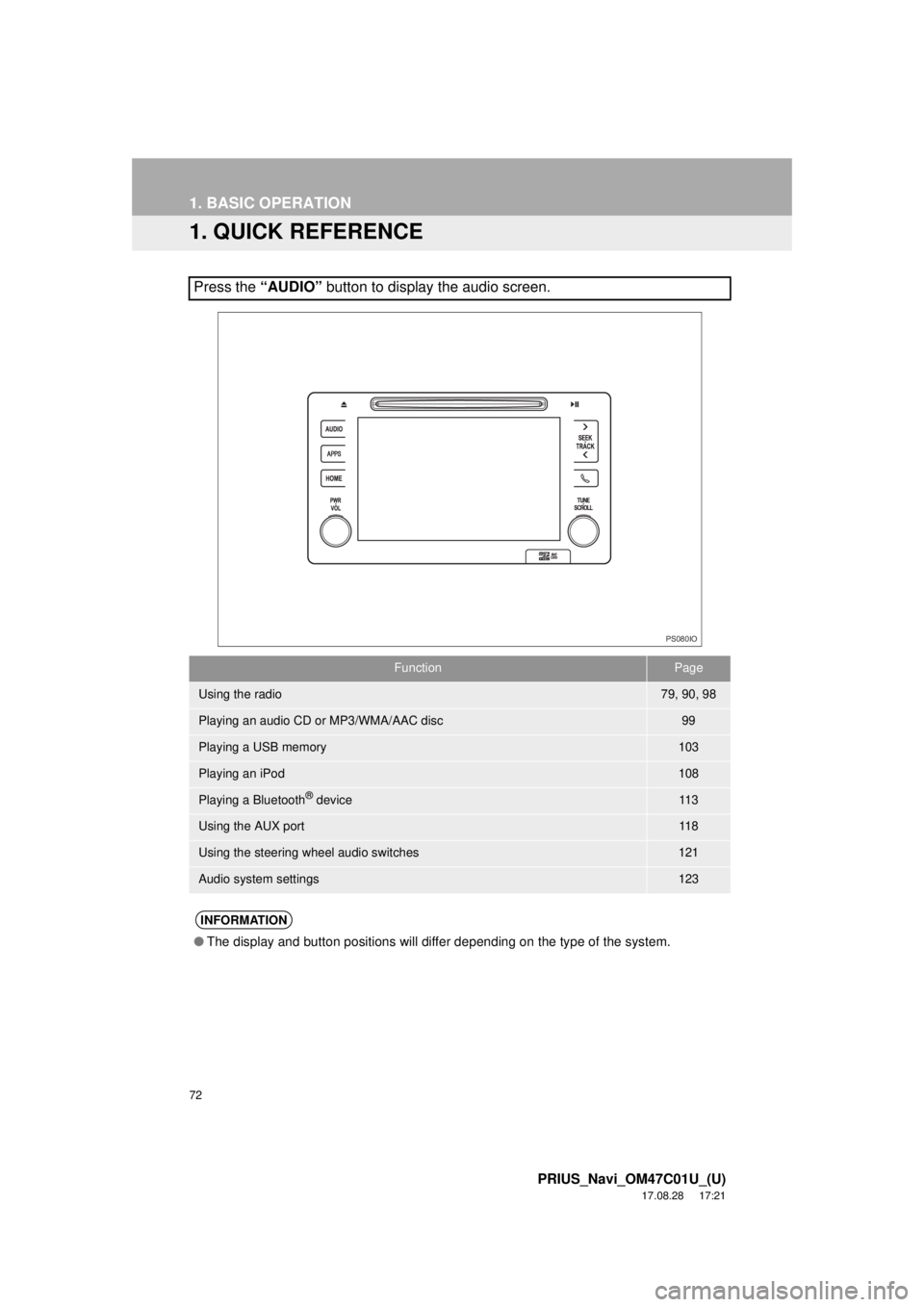
Press the “AUDIO” button to display the audio screen.
FunctionPage
Using the radio79, 90, 98
Playing an audio CD or MP3/WMA/AAC disc99
Playing a USB memory103
Playing an iPod108
Playing a Bluetooth® device11 3
Using the AUX port11 8
Using the steering wheel audio switches121
Audio system settings123
INFORMATION
●The display and button positions will differ depending on the type of the system.
PS080IO
Page 76 of 294
76
1. BASIC OPERATION
PRIUS_Navi_OM47C01U_(U)
17.08.28 17:21
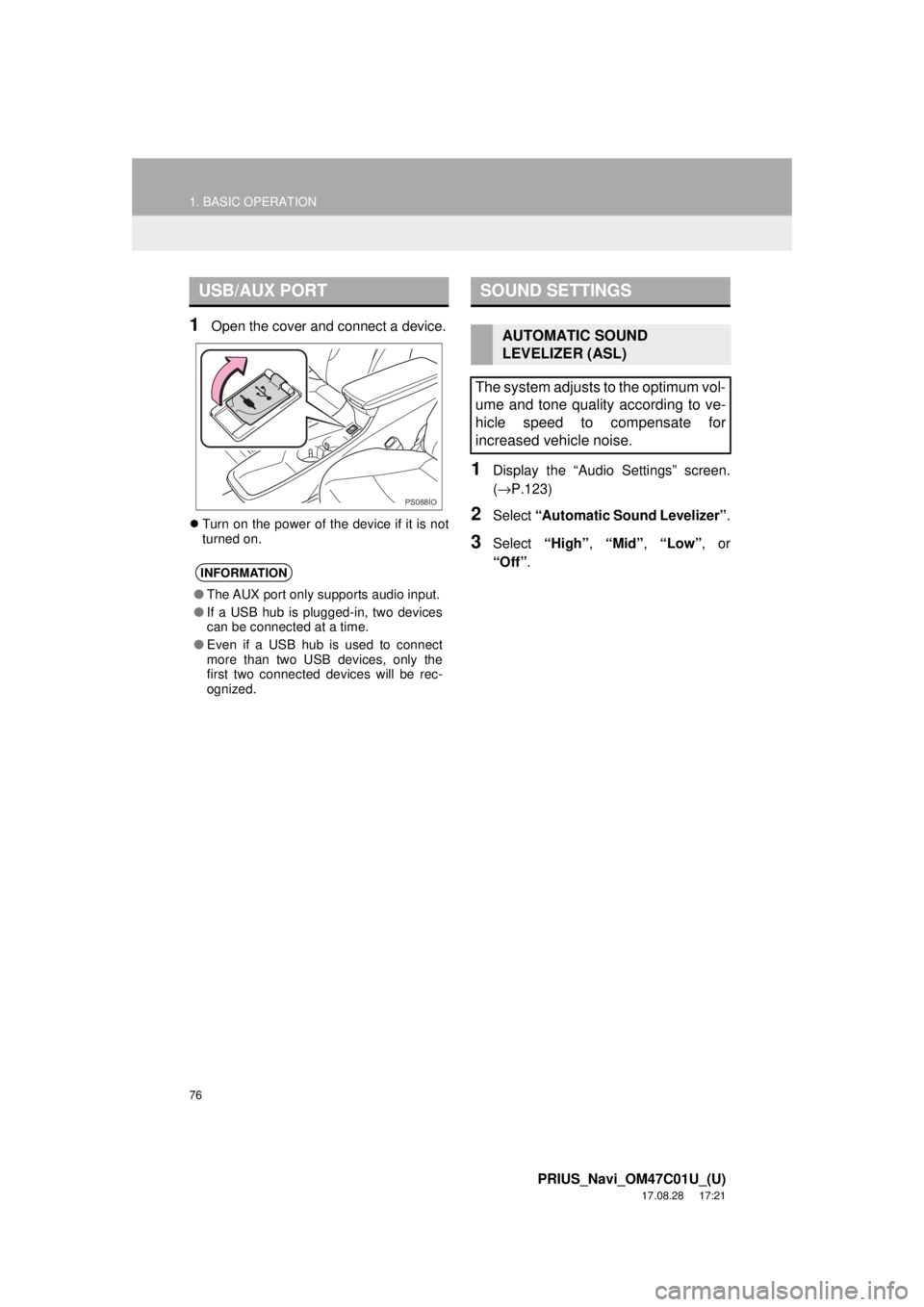
1Open the cover and connect a device.
Turn on the power of the device if it is not
turned on.
1Display the “Audio Settings” screen.
(→ P.123)
2Select “Automatic Sound Levelizer” .
3Select “High”, “Mid” , “Low” , or
“Off” .
USB/AUX PORT
INFORMATION
●The AUX port only supports audio input.
● If a USB hub is plugged-in, two devices
can be connected at a time.
● Even if a USB hub is used to connect
more than two USB devices, only the
first two connected devices will be rec-
ognized.
PS088IO
SOUND SETTINGS
AUTOMATIC SOUND
LEVELIZER (ASL)
The system adjusts to the optimum vol-
ume and tone quality according to ve-
hicle speed to compensate for
increased vehicle noise.
Page 106 of 294

106
3. MEDIA OPERATION
PRIUS_Navi_OM47C01U_(U)
17.08.28 17:21
WA R N I N G
●Do not operate the player’s controls or connect the USB memory while driving.
NOTICE
●Do not leave your portable player in the car. In particular, high temperatures inside the
vehicle may damage the portable player.
● Do not push down on or apply unnecessary pressure to the portable player while it is con-
nected as this may damage the portable player or its terminal.
● Do not insert foreign objects into the port as this may damage the portable player or its
terminal.
INFORMATION
●If tag information exists, the file names will be changed to track names.
Page 129 of 294
129
6. TIPS FOR OPERATING THE AUDIO SYSTEM
PRIUS_Navi_OM47C01U_(U)
17.08.28 17:21
AUDIO SYSTEM
3
The following iPod®, iPod nano®, iPod
classic®, iPod touch® and iPhone® devic-
es can be used with this system.
Made for
• iPod touch (5th generation)
• iPod touch (4th generation)
• iPod touch (3rd generation)
• iPod touch (2nd generation)
• iPod touch (1st generation)
• iPod classic
• iPod with video
• iPod nano (7th generation)
• iPod nano (6th generation)
• iPod nano (5th generation)
• iPod nano (4th generation)
• iPod nano (3rd generation)
• iPhone 6 Plus
• iPhone 6
• iPhone 5s
• iPhone 5c
• iPhone 5
• iPhone 4S
• iPhone 4
• iPhone 3GS
• iPhone 3G
• iPhone
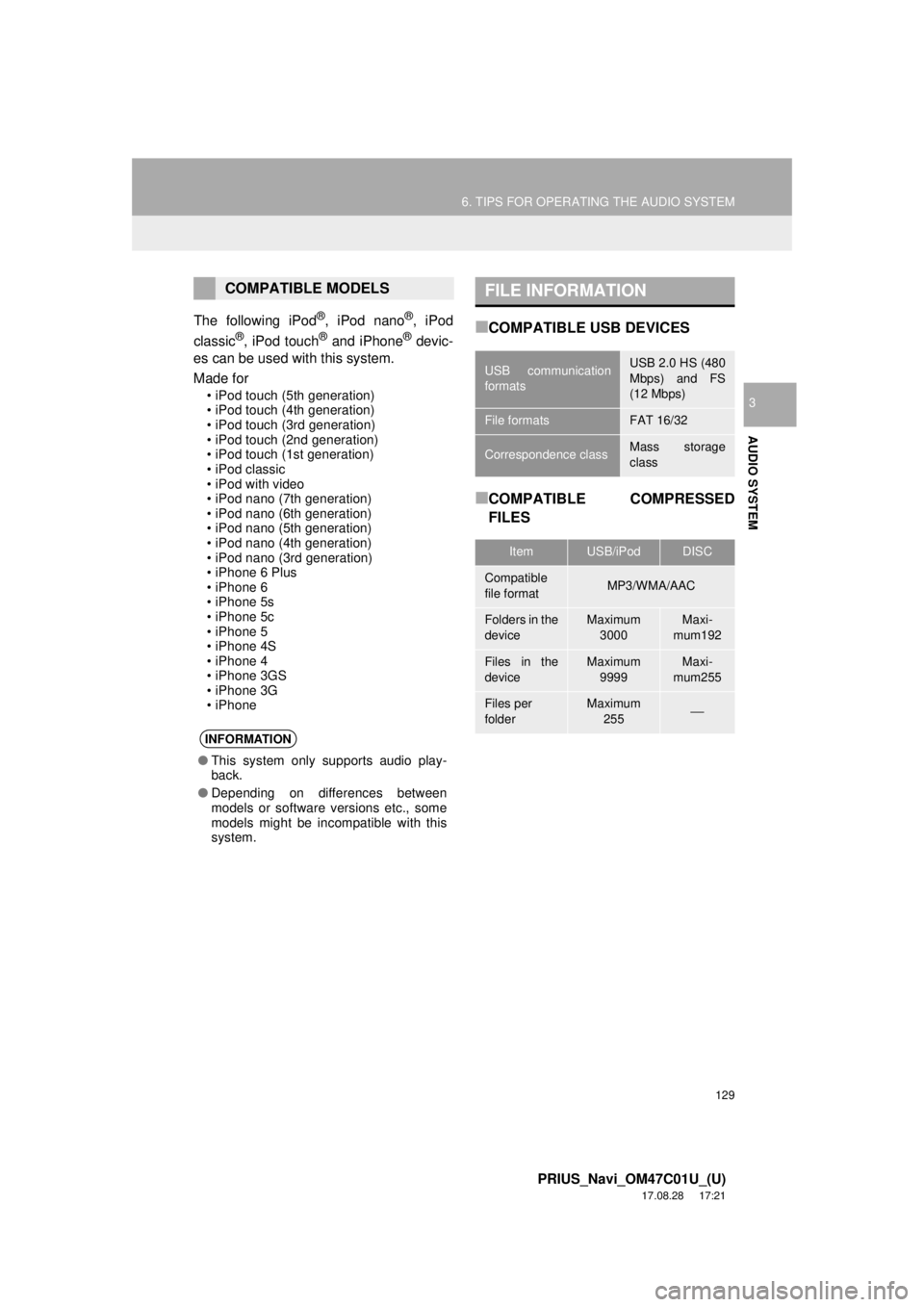
■COMPATIBLE USB DEVICES
■COMPATIBLE COMPRESSED
FILES
COMPATIBLE MODELS
INFORMATION
● This system only supports audio play-
back.
● Depending on differences between
models or software versions etc., some
models might be incompatible with this
system.
FILE INFORMATION
USB communication
formatsUSB 2.0 HS (480
Mbps) and FS
(12 Mbps)
File formatsFAT 16/32
Correspondence classMass storage
class
ItemUSB/iPodDISC
Compatible
file formatMP3/WMA/AAC
Folders in the
deviceMaximum
3000Maxi-
mum192
Files in the
deviceMaximum 9999Maxi-
mum255
Files per
folderMaximum 255⎯
Page 284 of 294

284
ALPHABETICAL INDEX
PRIUS_Navi_OM47C01U_(U)
17.08.28 18:01
Some basics ..................................... 73, 155About the contacts in the contact list ........................................ 158
Disc slot ................................................. 75
Registering/connecting a Bluetooth
®
phone ............................................... 155
Selecting an audio source ..................... 74
Sound settings....................................... 76
Turning the system on and off ............... 73
USB/AUX port ....................................... 76
Using the phone switch/ microphone ...................................... 156
Voice command system ................ 78, 157
When selling or disposing of the vehicle.............................................. 158
Starting route guidance ........................... 224 Pausing guidance ................................ 227
Starting route guidance ....................... 224
Steering switches .................................... 121
T
Talking on the Bluetooth® phone ............ 166
Incoming call waiting ........................... 168
Tips for operating the audio system ........ 125
Tips for the navigation system ................ 259
Touch screen gestures ............................. 35
Touch screen operation ............................ 36
Traffic information ................................... 209 Displaying traffic information on the map .................................................. 211
Traffic settings......................................... 252 Auto avoid traffic.................................. 253
My traffic routes ................................... 254
Screen for traffic settings..................... 252
Troubleshooting ...................................... 187
Typical voice guidance prompts.............. 233
U
USB memory ...........................................103 Overview..............................................103
Playing a USB audio............................107
Useful information ...................................150
V
Voice command system ... ...............135, 136
Using the voice command system .......136
Voice command system operation ......137
Voice command system operation ..........136
Voice settings ............................................64 Voice settings screen ............................64
W
What to do if... ........................................187
X
XM Satellite Radio.....................................90Displaying the radio ID ..........................95
How to subscribe to an XM Satellite Radio..................................................93
If the satellite radio tuner malfunctions .......................................97
Overview................................................90
Presetting a channel ..............................95
Selecting a channel from the list............96