fuel TOYOTA PRIUS 2018 Accessories, Audio & Navigation (in English)
[x] Cancel search | Manufacturer: TOYOTA, Model Year: 2018, Model line: PRIUS, Model: TOYOTA PRIUS 2018Pages: 294, PDF Size: 4.43 MB
Page 1 of 294
1
PRIUS_Navi_OM47C01U_(U)
17.08.28 17:21
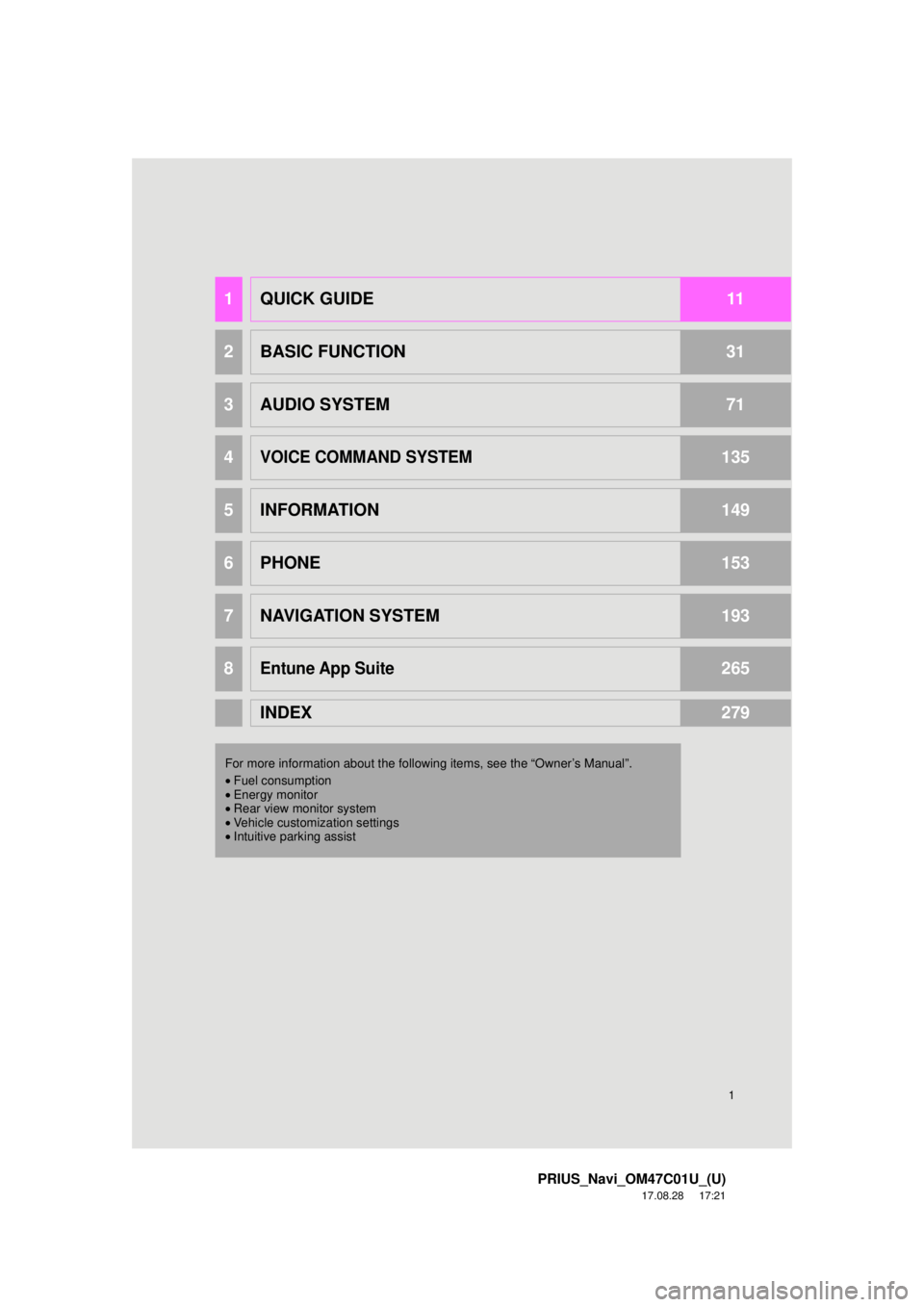
1QUICK GUIDE11
2BASIC FUNCTION31
3AUDIO SYSTEM71
4VOICE COMMAND SYSTEM135
5INFORMATION149
6PHONE153
7NAVIGATION SYSTEM193
8Entune App Suite265
INDEX279
For more information about the following items, see the “Owner’s Manual”.
•Fuel consumption
• Energy monitor
• Rear view monitor system
• Vehicle customization settings
• Intuitive parking assist
Page 15 of 294
15
1. BASIC FUNCTION
PRIUS_Navi_OM47C01U_(U)
17.08.28 17:21
QUICK GUIDE
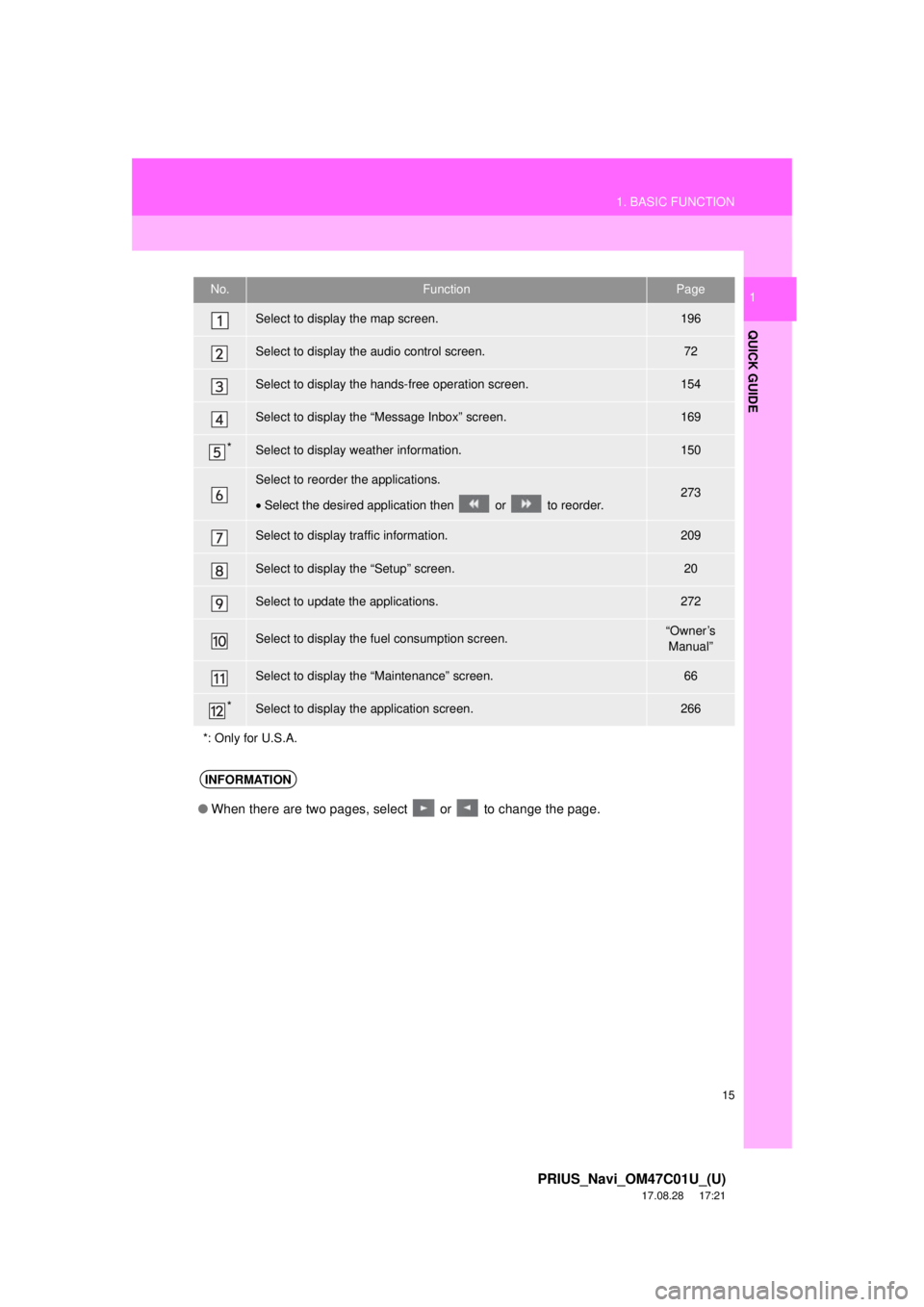
1No.FunctionPage
Select to display the map screen.196
Select to display the audio control screen.72
Select to display the hands-free operation screen.154
Select to display the “Message Inbox” screen.169
*Select to display weather information.150
Select to reorder the applications.
•Select the desired application then or to reorder.273
Select to display traffic information.209
Select to display the “Setup” screen.20
Select to update the applications.272
Select to display the fuel consumption screen.“Owner’s
Manual”
Select to display the “Maintenance” screen.66
*Select to display the application screen.266
*: Only for U.S.A.
INFORMATION
● When there are two pages, select or to change the page.
Page 59 of 294
59
3. OTHER SETTINGS
PRIUS_Navi_OM47C01U_(U)
17.08.28 17:21
BASIC FUNCTION
2
*: If equipped
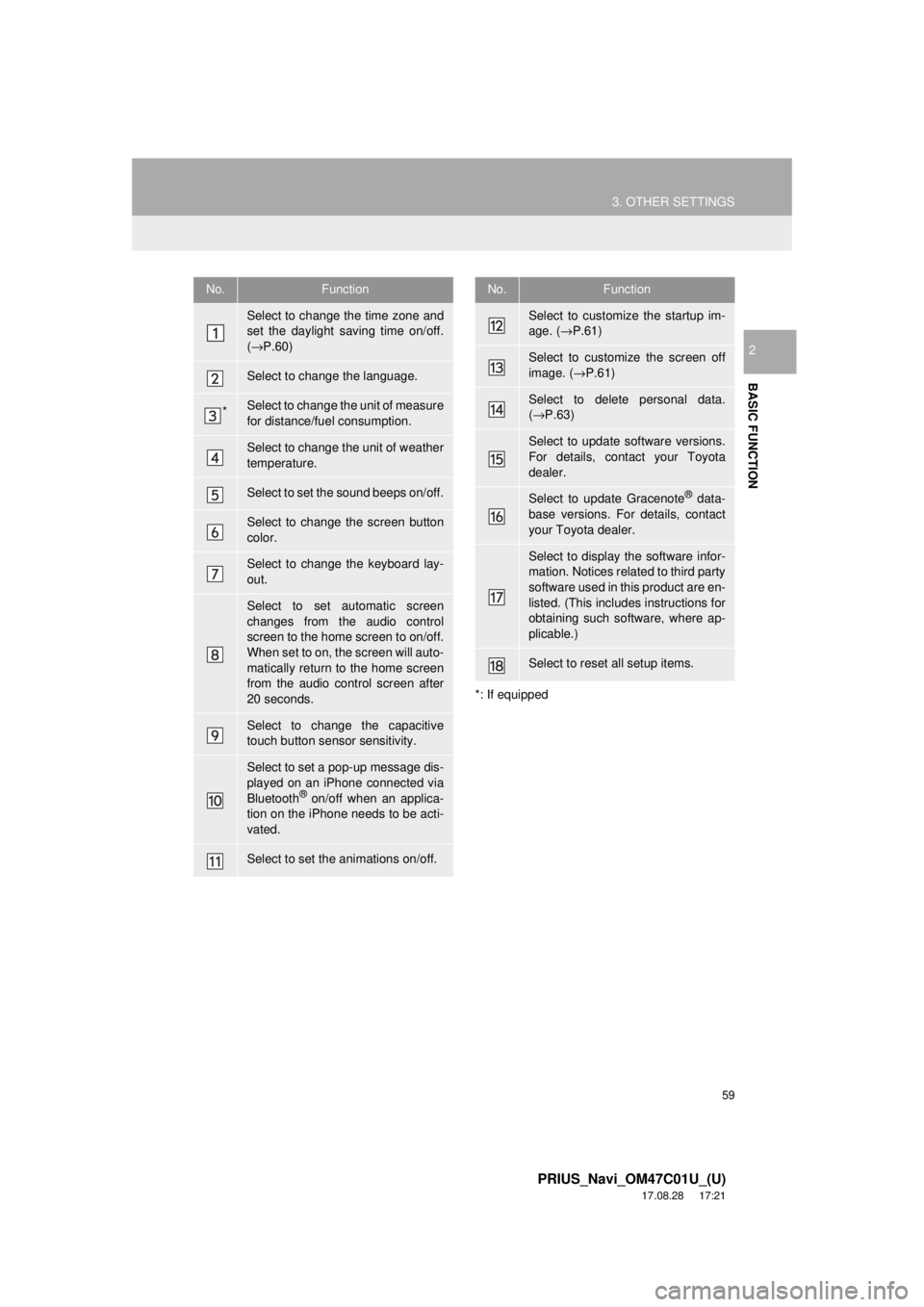
No.Function
Select to change the time zone and
set the daylight saving time on/off.
( → P.60)
Select to change the language.
*Select to change the unit of measure
for distance/fuel consumption.
Select to change the unit of weather
temperature.
Select to set the sound beeps on/off.
Select to change the screen button
color.
Select to change the keyboard lay-
out.
Select to set automatic screen
changes from the audio control
screen to the home screen to on/off.
When set to on, the screen will auto-
matically return to the home screen
from the audio control screen after
20 seconds.
Select to change the capacitive
touch button sensor sensitivity.
Select to set a pop-up message dis-
played on an iPhone connected via
Bluetooth
® on/off when an applica-
tion on the iPhone needs to be acti-
vated.
Select to set the animations on/off.
Select to customize the startup im-
age. ( →P.61)
Select to customize the screen off
image. ( →P.61)
Select to delete personal data.
(→ P.63)
Select to update software versions.
For details, contact your Toyota
dealer.
Select to update Gracenote® data-
base versions. For details, contact
your Toyota dealer.
Select to display the software infor-
mation. Notices related to third party
software used in this product are en-
listed. (This includes instructions for
obtaining such software, where ap-
plicable.)
Select to reset all setup items.
No.Function
Page 248 of 294
248
PRIUS_Navi_OM47C01U_(U)
17.08.28 17:21
5. SETUP
1. DETAILED NAVIGATION SETTINGS
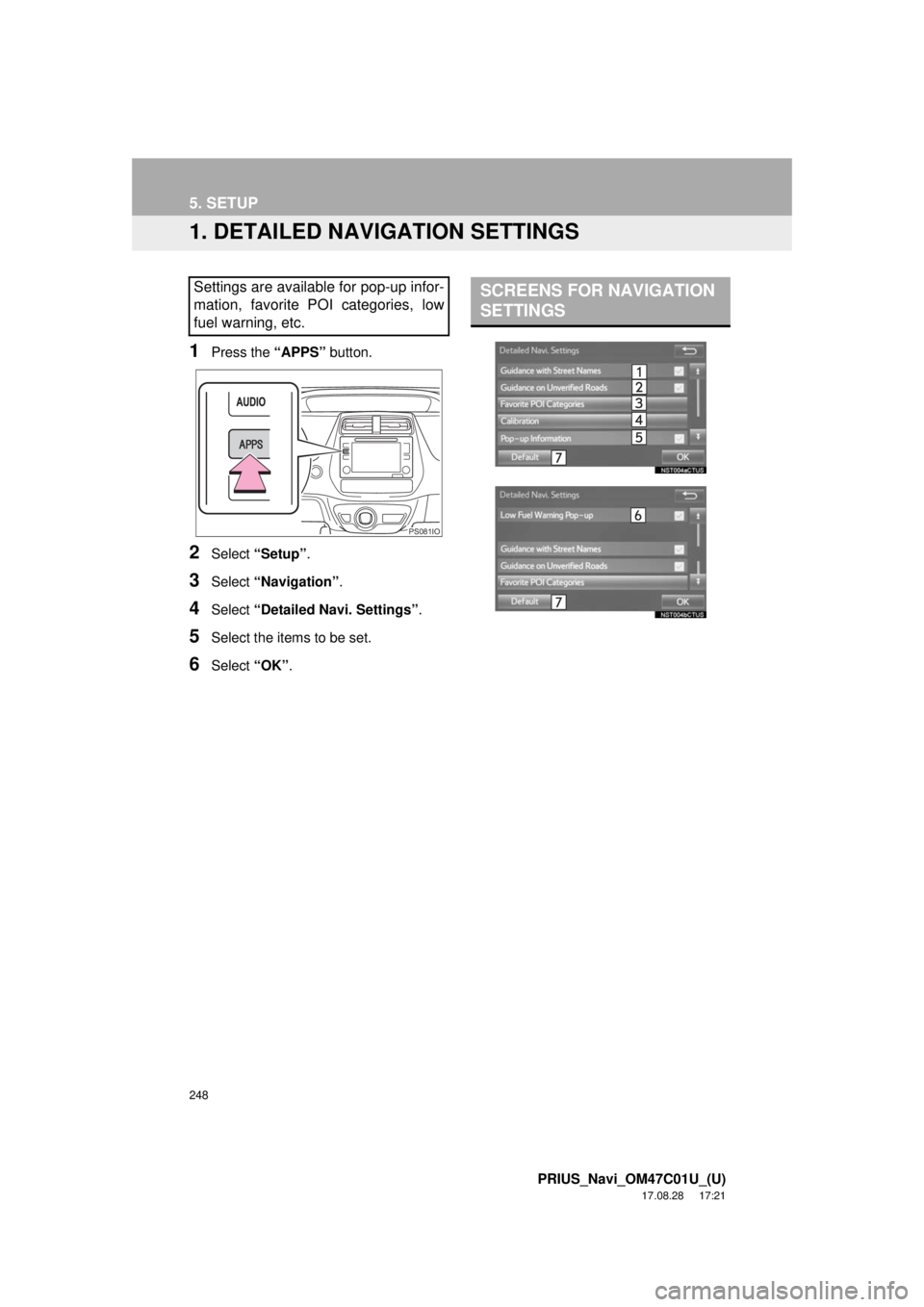
1Press the “APPS” button.
2Select “Setup” .
3Select “Navigation” .
4Select “Detailed Navi. Settings” .
5Select the items to be set.
6Select “OK”.
Settings are available for pop-up infor-
mation, favorite POI categories, low
fuel warning, etc.
PS081IO
SCREENS FOR NAVIGATION
SETTINGS
Page 249 of 294
249
5. SETUP
PRIUS_Navi_OM47C01U_(U)
17.08.28 17:21
NAVIGATION SYSTEM
7
1Display the “Detailed Navi. Settings”
screen.
(→ P.248)
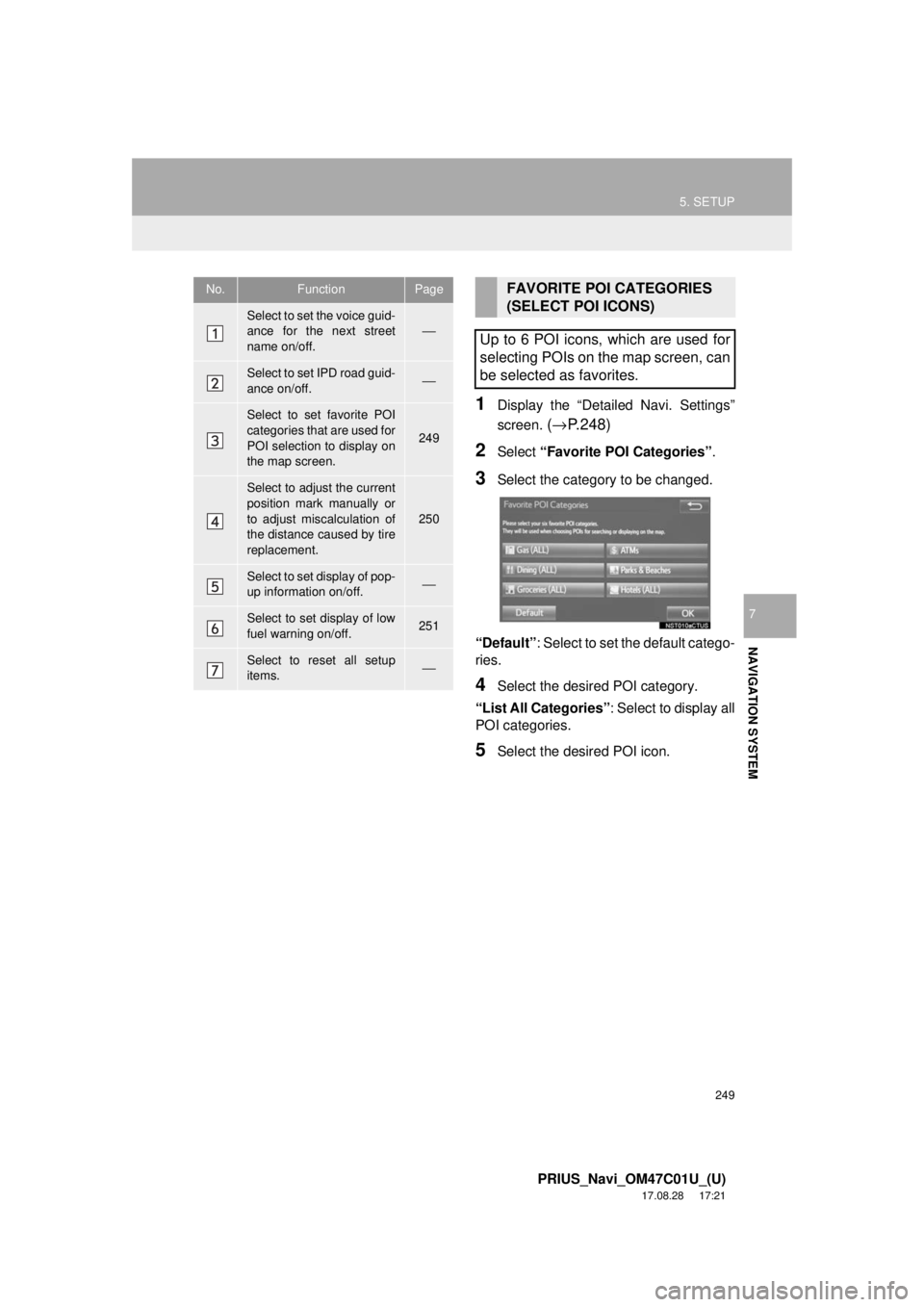
2Select “Favorite POI Categories” .
3Select the category to be changed.
“Default” : Select to set the default catego-
ries.
4Select the desired POI category.
“List All Categories”: Select to display all
POI categories.
5Select the desired POI icon.
No.FunctionPage
Select to set the voice guid-
ance for the next street
name on/off.⎯
Select to set IPD road guid-
ance on/off.⎯
Select to set favorite POI
categories that are used for
POI selection to display on
the map screen.
249
Select to adjust the current
position mark manually or
to adjust miscalculation of
the distance caused by tire
replacement.
250
Select to set display of pop-
up information on/off.⎯
Select to set display of low
fuel warning on/off.251
Select to reset all setup
items.⎯
FAVORITE POI CATEGORIES
(SELECT POI ICONS)
Up to 6 POI icons, which are used for
selecting POIs on the map screen, can
be selected as favorites.
Page 251 of 294
251
5. SETUP
PRIUS_Navi_OM47C01U_(U)
17.08.28 17:21
NAVIGATION SYSTEM
7
■TIRE CHANGE CALIBRATION
1Select “Tire Change”.
The message appears and the quick dis-
tance calibration starts automatically.
1Display the “Detailed Navi. Settings”
screen.
(→ P.248)
2Select “Low Fuel Warning Pop-up” .
■SEARCHING GAS STATION IN LOW
FUEL WARNING
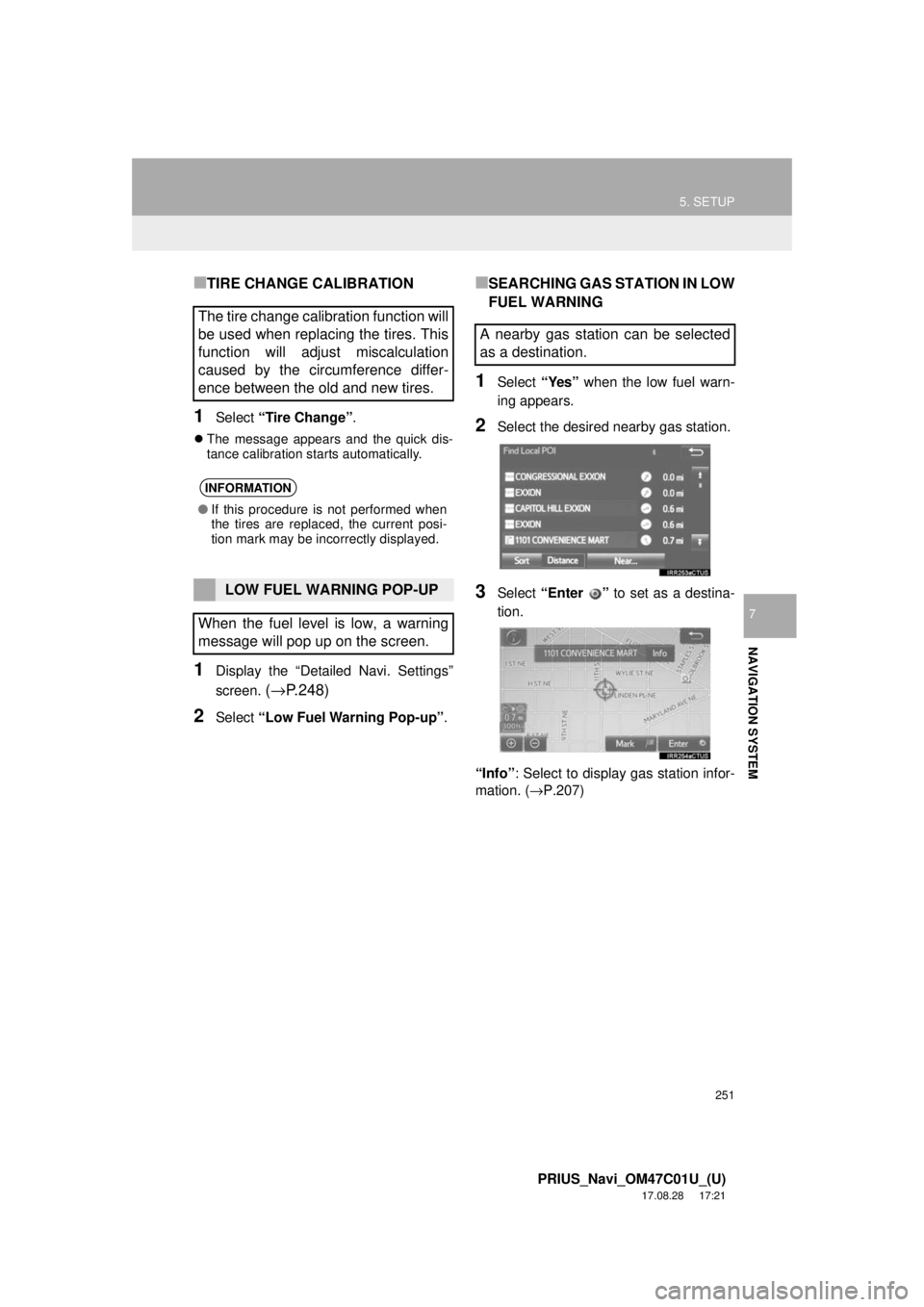
1Select “Yes” when the low fuel warn-
ing appears.
2Select the desired nearby gas station.
3Select “Enter ” to set as a destina-
tion.
“Info” : Select to display gas station infor-
mation. ( →P.207)
The tire change calibration function will
be used when replacing the tires. This
function will adjust miscalculation
caused by the circumference differ-
ence between the old and new tires.
INFORMATION
●If this procedure is not performed when
the tires are replaced, the current posi-
tion mark may be incorrectly displayed.
LOW FUEL WARNING POP-UP
When the fuel level is low, a warning
message will pop up on the screen.
A nearby gas station can be selected
as a destination.