radio controls TOYOTA PRIUS 2018 Accessories, Audio & Navigation (in English)
[x] Cancel search | Manufacturer: TOYOTA, Model Year: 2018, Model line: PRIUS, Model: TOYOTA PRIUS 2018Pages: 292, PDF Size: 5.8 MB
Page 9 of 292
9
PRIUS_Wide Navi_OM47C03U_(U)
17.08.29 10:27
1
2
3
4
5
6
7
8
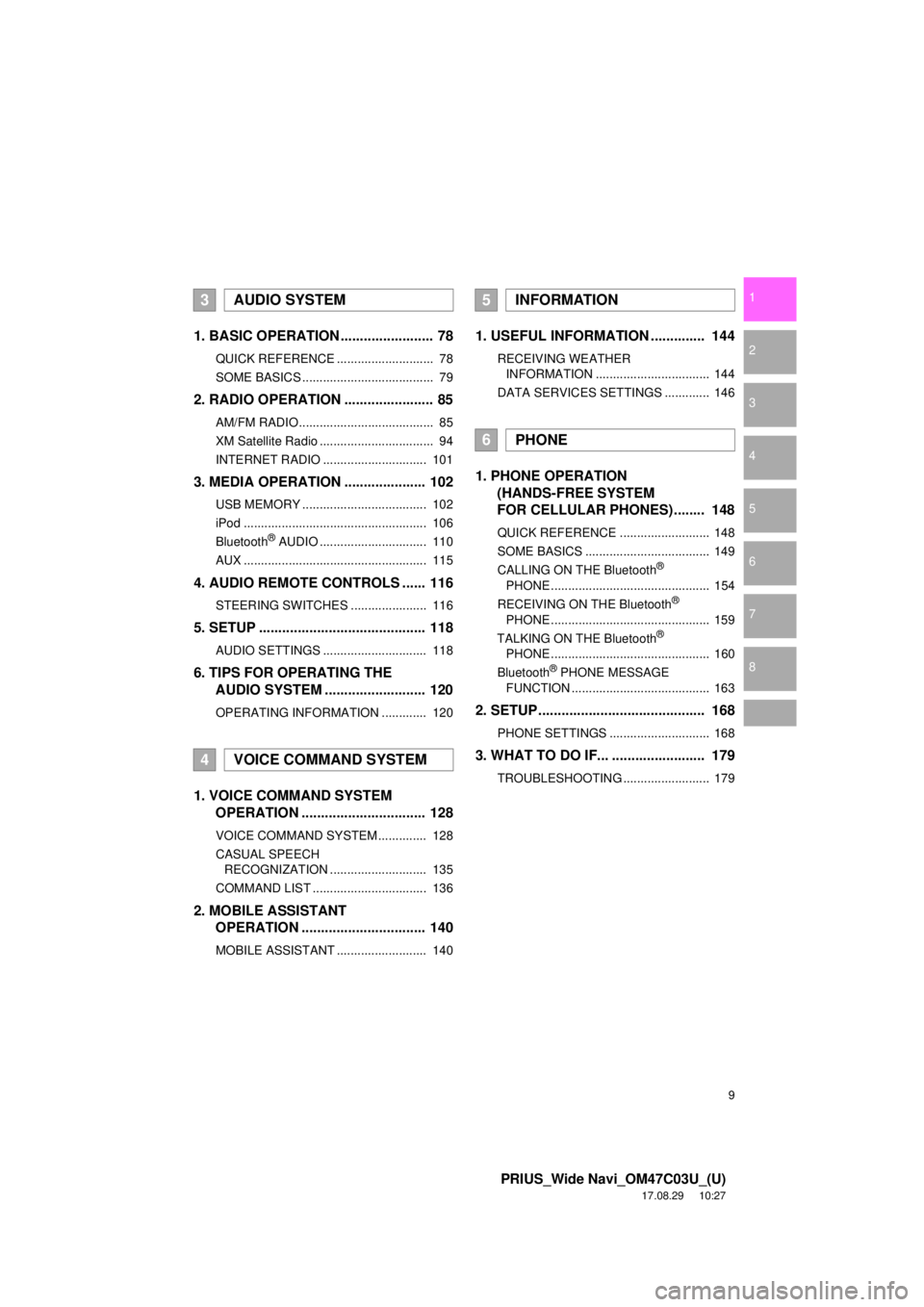
1. BASIC OPERATION ........................ 78
QUICK REFERENCE ............................ 78
SOME BASICS ...................................... 79
2. RADIO OPERATION ....................... 85
AM/FM RADIO....................................... 85
XM Satellite Radio ................................. 94
INTERNET RADIO .............................. 101
3. MEDIA OPERATION ..................... 102
USB MEMORY .................................... 102
iPod ..................................................... 106
Bluetooth
® AUDIO ............................... 110
AUX ..................................................... 115
4. AUDIO REMOTE CONTROLS ...... 116
STEERING SWITCHES ...................... 116
5. SETUP ........................................... 118
AUDIO SETTINGS .............................. 118
6. TIPS FOR OPERATING THE AUDIO SYSTEM ........ .................. 120
OPERATING INFORMATION ............. 120
1. VOICE COMMAND SYSTEM
OPERATION ................................ 128
VOICE COMMAND SYSTEM .............. 128
CASUAL SPEECH
RECOGNIZATION ............................ 135
COMMAND LIST ................................. 136
2. MOBILE ASSISTANT OPERATION ................................ 140
MOBILE ASSISTANT .......................... 140
1. USEFUL INFORMATION .............. 144
RECEIVING WEATHER
INFORMATION ................................. 144
DATA SERVICES SETTINGS ............. 146
1. PHONE OPERATION (HANDS-FREE SYSTEM
FOR CELLULAR PHONES)........ 148
QUICK REFERENCE .......................... 148
SOME BASICS .................................... 149
CALLING ON THE Bluetooth
®
PHONE .............................................. 154
RECEIVING ON THE Bluetooth
®
PHONE .............................................. 159
TALKING ON THE Bluetooth
®
PHONE .............................................. 160
Bluetooth
® PHONE MESSAGE
FUNCTION ........................................ 163
2. SETUP........................................... 168
PHONE SETTINGS ............................. 168
3. WHAT TO DO IF... ........................ 179
TROUBLESHOOTING ......................... 179
3AUDIO SYSTEM
4VOICE COMMAND SYSTEM
5INFORMATION
6PHONE
Page 77 of 292
3
77
PRIUS_Wide Navi_OM47C03U_(U)
17.08.29 10:33
1
2
3
4
5
6
7
8
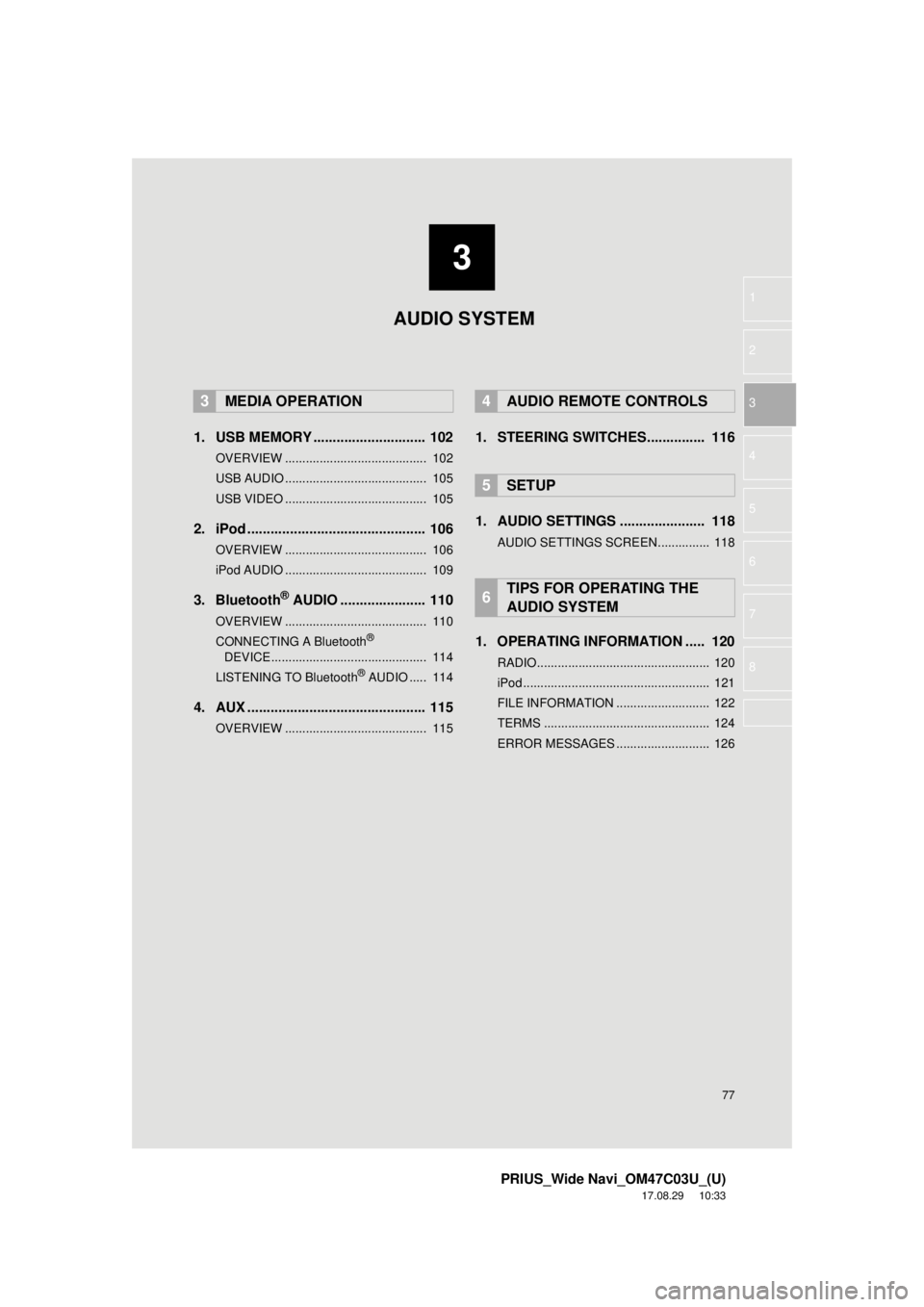
1. USB MEMORY ............................. 102
OVERVIEW ......................................... 102
USB AUDIO ......................................... 105
USB VIDEO ......................................... 105
2. iPod .............................................. 106
OVERVIEW ......................................... 106
iPod AUDIO ......................................... 109
3. Bluetooth® AUDIO ...................... 110
OVERVIEW ......................................... 110
CONNECTING A Bluetooth®
DEVICE ............................................. 114
LISTENING TO Bluetooth
® AUDIO ..... 114
4. AUX .............................................. 115
OVERVIEW ......................................... 115
1. STEERING SWITCHES............... 116
1. AUDIO SETTINGS ...................... 118
AUDIO SETTINGS SCREEN............... 118
1. OPERATING INFORMATION ..... 120
RADIO.................................................. 120
iPod ...................................................... 121
FILE INFORMATION ........................... 122
TERMS ................................................ 124
ERROR MESSAGES ........................... 126
3MEDIA OPERATION4AUDIO REMOTE CONTROLS
5SETUP
6TIPS FOR OPERATING THE
AUDIO SYSTEM
AUDIO SYSTEM
Page 112 of 292

112
3. MEDIA OPERATION
PRIUS_Wide Navi_OM47C03U_(U)
17.08.29 10:11
WA R N I N G
●Do not operate the player’s controls or connect to the Bluetooth® audio system while driv-
ing.
● Your audio unit is fitted with Bluetooth
® antennas. People with implantable cardiac pace-
makers, cardiac resynchronization therapy-pacemakers or implantable cardioverter
defibrillators should maintain a reasonable distance between themselves and the
Bluetooth
® antennas. The radio waves may affect the operation of such devices.
● Before using Bluetooth
® devices, users of any electrical medical device other than
implantable cardiac pacemakers, cardiac resynchronization therapy-pacemakers or
implantable cardioverter defibrillators should consult the manufacturer of the device for
information about its operation under the influence of radio waves. Radio waves could
have unexpected effects on the operation of such medical devices.
NOTICE
● Do not leave your portable player in the vehicle. In particular, high temperatures inside
the vehicle may damage the portable player.
Page 117 of 292
117
4. AUDIO REMOTE CONTROLS
PRIUS_Wide Navi_OM47C03U_(U)
17.08.29 10:11
AUDIO SYSTEM
3
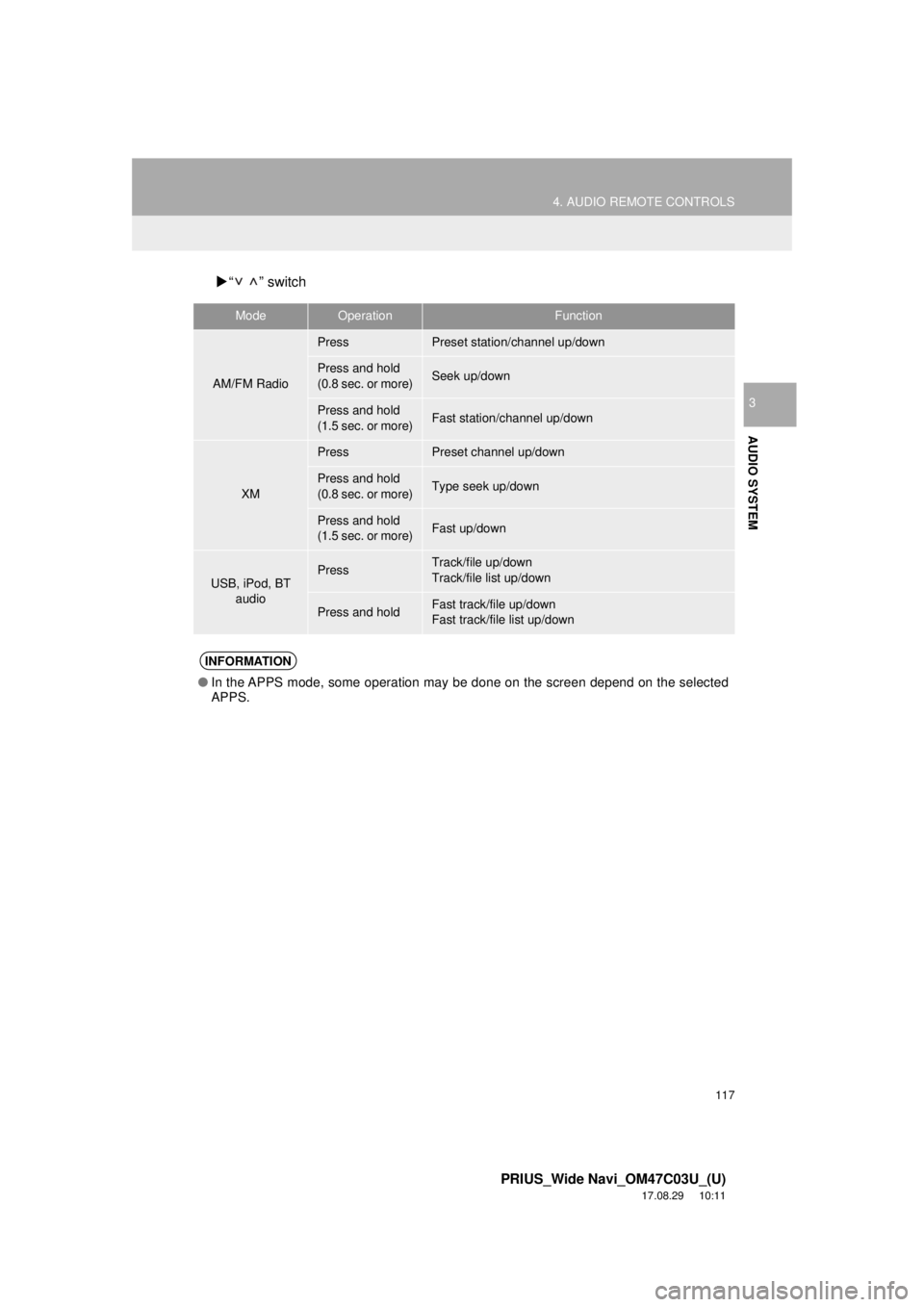
“ ” switch
ModeOperationFunction
AM/FM Radio
PressPreset station/channel up/down
Press and hold
(0.8 sec. or more)Seek up/down
Press and hold
(1.5 sec. or more)Fast station/channel up/down
XM
PressPreset channel up/down
Press and hold
(0.8 sec. or more)Type seek up/down
Press and hold
(1.5 sec. or more)Fast up/down
USB, iPod, BT
audioPressTrack/file up/down
Track/file list up/down
Press and holdFast track/file up/down
Fast track/file list up/down
INFORMATION
●In the APPS mode, some operation may be done on the screen depend on the selected
APPS.
Page 276 of 292

276
ALPHABETICAL INDEX
PRIUS_Wide Navi_OM47C03U_(U)
17.08.29 15:17
A
AM/FM radio ............................................. 85Available HD Radio™ Technology ........ 91
Caching a radio program ....................... 88
Overview ............................................... 85
Preset button screen ............................. 87
Radio broadcast data system ................ 90
Selecting a station from the list ............. 88
Troubleshooting guide ........................... 93
Using HD Radio™ Technology ............. 91
Audio remote controls ............................. 116
Audio settings ......................................... 118 Audio settings screen .......................... 118
Audio system ....... ..................................... 77
AUX......................................................... 115 Overview ............................................. 115
B
Basic function...................................... 12, 35
Basic information before operation ........... 36
Basic operation ................................. 78, 188
Bluetooth
® audio ..................................... 110
Connecting a Bluetooth® device ......... 114
Listening to Bluetooth® audio .............. 114
Overview ............................................. 110
Bluetooth
® phone message function ...... 163
Calling the message sender ................ 167
Checking messages ............................ 165
Message inbox screen ........................ 163
Receiving a message .......................... 164
Replying to a message (Quick reply) .................................... 166
Bluetooth
® settings ................................... 51
C
Calling on the Bluetooth® phone .............154
By call history ......................................155
By contacts list.....................................156
By dial pad ...........................................158
By favorites list ....................................155
By off hook switch................................158
Capacitive touch switches .........................38
Casual speech recognization ..................135
Command list ..........................................136
Controls overview......................................12
D
Data services settings .............................146 Setting download methods ..................146
Destination search ..................................207
Destination search screen.......................207
Detailed navigation settings ....................245 Screens for navigation settings ...........245
E
Editing route ............................................230Adding destinations .............................231
Deleting destinations ...........................231
Detour setting ......................................233
Reordering destinations.......................231
Selecting route type .............................232
Setting route preferences ....................232
Starting from adjacent road .................234
Entering letters and numbers/list screen operation ....................................44
Entering letters and numbers ................44
List screen .............................................45
ALPHABETICAL INDEX