navigation system TOYOTA PRIUS 2019 Accessories, Audio & Navigation (in English)
[x] Cancel search | Manufacturer: TOYOTA, Model Year: 2019, Model line: PRIUS, Model: TOYOTA PRIUS 2019Pages: 294, PDF Size: 5.31 MB
Page 1 of 294
1
PRIUS_Navi_OM47C47U_(U)
18.10.10 12:01
1QUICK GUIDE11
2BASIC FUNCTION31
3AUDIO SYSTEM71
4VOICE COMMAND SYSTEM135
5INFORMATION149
6PHONE153
7NAVIGATION SYSTEM193
8Entune App Suite265
INDEX279
For more information about the foll owing items, see the “Owner’s Manual”.
Fuel consumption
Energy monitor
Rear view monitor system
Vehicle customization settings
Intuitive parking assist
Page 2 of 294

2
PRIUS_Navi_OM47C47U_(U)
18.10.10 12:01
Introduction
This manual explains the operation of this system. Please read this manual
carefully to ensure proper use. Keep this manual in your vehicle at all times.
The screen shots in this document and the actual screens of thi s system differ
depending on whether the functions and/or a contract existed an d the map data
available at the time of producing this document.
Please be aware that the content of this manual may be different from this sys-
tem in some cases, such as when the system’s software is updated.
The Navigation System is one of the most technologically advanc ed vehicle ac-
cessories ever developed. The system receives satellite signals from the Global
Positioning System (GPS) operated by the U.S. Department of Def ense. Using
these signals and other vehicle sensors, the system indicates your present po-
sition and assists in locating a desired destination.
The navigation system is designed to select efficient routes from your present
starting location to your destination. The system is also desig ned to direct you
to a destination that is unfamiliar to you in an efficient manner. Map database is
made based on AISIN AW maps, whose information source comes fro m HERE
maps. The calculated routes may not be the shortest nor the lea st traffic con-
gested. Your own personal local knowledge or “short cut” may at times be faster
than the calculated routes.
The navigation system’s database includes Point of Interest cat egories to allow
you to easily select destinations such as restaurants and hotel s. If a destination
is not in the database, you can enter the street address or a major intersection
close to it and the system will guide you there.
The system will provide both a visual map and audio instruction s. The audio in-
structions will announce the distance remaining and the directi on to turn in when
approaching an intersection. These voice instructions will help you keep your
eyes on the road and are timed to provide enough time to allow you to maneu-
ver, change lanes or slow down.
NAVIGATION SYSTEM OWNER’S MANUAL
NAVIGATION SYSTEM
Page 3 of 294

3
PRIUS_Navi_OM47C47U_(U)
18.10.10 12:01
Please be aware that all current vehicle navigation systems have certain limita-
tions that may affect their ability to perform properly. The accuracy of the vehi-
cle’s position depends on satellite conditions, road configurat ion, vehicle
condition or other circumstances. For more information on the l imitations of the
system, refer to page 259.
Page 7 of 294

7
PRIUS_Navi_OM47C47U_(U)
18.10.10 12:01
While driving, listen to the voice instruc-
tions as much as possible and glance at
the screen briefly and only when it is safe.
However, do not totally rely on voice guid-
ance. Use it just for reference. If the sys-
tem cannot determine the current position
correctly, there is a possibility of incorrect,
late, or non-voice guidance.
The data in the system may occasionally
be incomplete. Road conditions, including
driving restrictions (no left turns, street clo-
sures, etc.) frequently change. Therefore,
before following any instructions from the
system, look to see whet her the instruction
can be done safely and legally.
This system cannot warn about such
things as the safety of an area, condition of
streets, and availability of emergency ser-
vices. If unsure about the safety of an ar-
ea, do not drive into it. Under no
circumstances is this system a substitute
for the driver’s personal judgement.
Use this system only in locations where it
is legal to do so. Some states/provinces
may have laws prohibiting the use of video
and navigation screens next to the driver.
Page 8 of 294

TABLE OF CONTENTS
8
PRIUS_Navi_OM47C47U_(U)
18.10.10 12:01
1. BASIC FUNCTION........................... 12
CONTROLS OVERVIEW....................... 12
“Apps” SCREEN .................................... 14
HOME SCREEN .................................... 16
2. QUICK REFERENCE....................... 20
“Setup” SCREEN ................................... 20
3. NAVIGATION OPERATION ............ 22
REGISTERING HOME .......................... 22
REGISTERING PRESET DESTINATIONS .................................. 24
OPERATION FLOW: GUIDING THE ROUTE ....................... 26
SETTING HOME AS THE DESTINATION .................................... 27
4. FUNCTION INDEX ..... ...................... 28
FUNCTION INDEX ................................ 28
1. BASIC INFORMATION BEFORE
OPERATION .................................. 32
INITIAL SCREEN ................................... 32
CAPACITIVE TOUCH SWITCHES ........ 34
TOUCH SCREEN GESTURES .............. 35
TOUCH SCREEN OPERATION ............ 36
HOME SCREEN OPERATION .............. 37
ENTERING LETTERS AND NUMBERS/
LIST SCREEN OPERATION ............... 38
SCREEN ADJUSTMENT ....................... 41
LINKING MULTI-INFORMATION DISPLAY AND NAVIGATION
SYSTEM .............................................. 43
2. Bluetooth® SETTINGS ................... 44
REGISTERING/CONNECTING
Bluetooth® DEVICE ............................. 44
SETTING Bluetooth® DETAILS ............. 50
3. OTHER SETTINGS ......................... 58
GENERAL SETTINGS ........................... 58
VOICE SETTINGS ................................. 64
DRIVER SETTINGS ............................... 65
MAINTENANCE ..................................... 66
1QUICK GUIDE2BASIC FUNCTION
Page 10 of 294

TABLE OF CONTENTS
10
PRIUS_Navi_OM47C47U_(U)
18.10.10 12:01
1. BASIC OPERATION ...................... 196
QUICK REFERENCE .......................... 196
MAP SCREEN OPERATION ............... 199
MAP SCREEN INFORMATION ........... 205
TRAFFIC INFORMATION.................... 209
2. DESTINATION SEARCH ............... 212
DESTINATION SEARCH SCREEN ..... 212
SEARCH OPERATION ........................ 214
STARTING ROUTE GUIDANCE ......... 224
3. ROUTE GUIDANCE....................... 228
ROUTE GUIDANCE SCREEN ............ 228
TYPICAL VOICE GUIDANCE
PROMPTS......................................... 233
EDITING ROUTE ................................. 234
4. MEMORY POINTS ......................... 238
MEMORY POINTS SETTINGS ........... 238
5. SETUP ........................................... 248
DETAILED NAVIGATION SETTINGS ........................................ 248
TRAFFIC SETTINGS ........................... 252
6. TIPS FOR THE NAVIGATION SYSTEM ....................................... 259
GPS (GLOBAL POSITIONING
SYSTEM) .......................................... 259
MAP DATABASE VERSION AND COVERED AREA .............................. 262
1. Entune App Suite OVERVIEW .... 266
Entune App Suite SERVICE................. 266
2. Entune App Suite OPERATION ................................ 271
Entune App Suite ................................. 271
3. SETUP ........................................... 278
Entune App Suite SETTINGS .............. 278
ALPHABETICAL INDEX ................... 280
7NAVIGATION SYSTEM8Entune App Suite
INDEX
Page 30 of 294
30
PRIUS_Navi_OM47C47U_(U)
18.10.10 12:01
1. INITIAL SCREEN........................... 32
2. CAPACITIVE TOUCHSWITCHES ................................... 34
3. TOUCH SCREEN GESTURES...... 35
4. TOUCH SCREEN OPERATION .... 36
5. HOME SCREEN OPERATION ...... 37
6. ENTERING LETTERS AND NUMBERS/LIST SCREEN
OPERATION ............................... 38
ENTERING LETTERS AND
NUMBERS ........................................... 38
LIST SCREEN ........................................ 38
7. SCREEN ADJUSTMENT............... 41
8. LINKING MULTI-INFORMATION DISPLAY AND NAVIGATION
SYSTEM ........... ....................... .... 43
1BASIC INFORMATION BEFORE
OPERATION
2
BASIC FUNCTION
Page 43 of 294

43
1. BASIC INFORMATION BEFORE OPERATION
PRIUS_Navi_OM47C47U_(U)
18.10.10 12:01
BASIC FUNCTION
2
8. LINKING MULTI-INFORMATION DISPLAY AND NAVIGATION SYSTEM
The following functions of the navigation system are linked with the multi-informa-
tion display in the instrument cluster:
• Navigation
• Audio
etc.
These functions can be operated using multi-information display control switches
on the steering wheel. For details, refer to “Owner’s Manual”.
Page 53 of 294
53
2. Bluetooth® SETTINGS
PRIUS_Navi_OM47C47U_(U)
18.10.10 12:02
BASIC FUNCTION
2
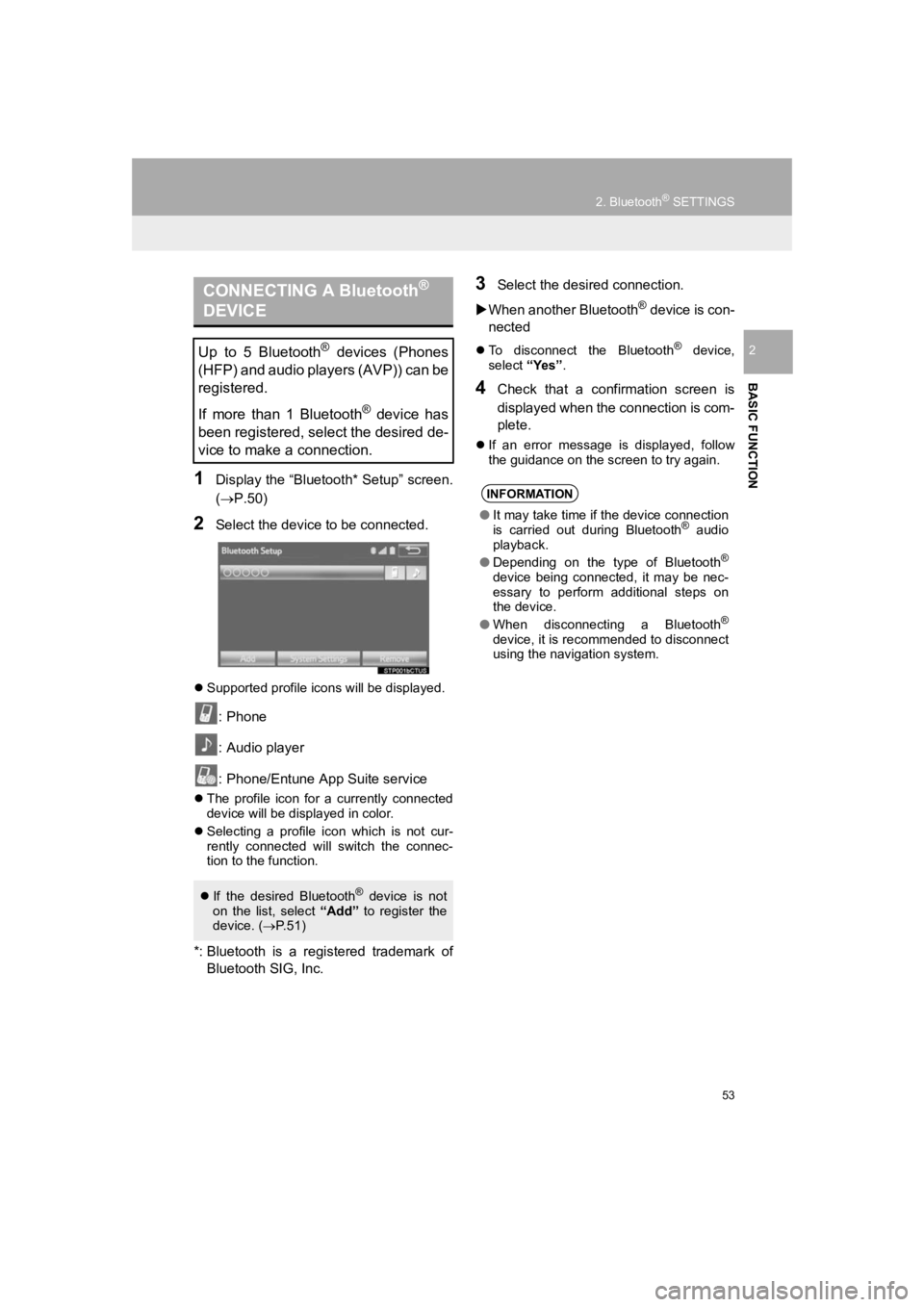
1Display the “Bluetooth* Setup” screen.
(P.50)
2Select the device to be connected.
Supported profile icons will be displayed.
: Phone
: Audio player
: Phone/Entune App Suite service
The profile icon for a currently connected
device will be displayed in color.
Selecting a profile icon which is not cur-
rently connected will switch the connec-
tion to the function.
*: Bluetooth is a registered trademark of
Bluetooth SIG, Inc.
3Select the desired connection.
When another Bluetooth
® device is con-
nected
To disconnect the Bluetooth® device,
select “Yes”.
4Check that a confirmation screen is
displayed when the connection is com-
plete.
If an error message is displayed, follow
the guidance on the screen to try again.
CONNECTING A Bluetooth®
DEVICE
Up to 5 Bluetooth® devices (Phones
(HFP) and audio players (AVP)) can be
registered.
If more than 1 Bluetooth
® device has
been registered, select the desired de-
vice to make a connection.
If the desired Bluetooth® device is not
on the list, select “Add” to register the
device. ( P.51)
INFORMATION
● It may take time if the device connection
is carried out during Bluetooth® audio
playback.
● Depending on the type of Bluetooth
®
device being connected, it may be nec-
essary to perform additional steps on
the device.
● When disconnecting a Bluetooth
®
device, it is recommended to disconnect
using the navigation system.
Page 94 of 294
94
2. RADIO OPERATION
PRIUS_Navi_OM47C47U_(U)
18.10.10 12:02
If “Ch 000” is selected using the
“TUNE SCROLL” knob, the ID code,
which is 8 alphanumeric characters, will
be displayed. If another channel is
selected, the ID code will no longer be dis-
played. The channel (000) alternates
between displaying the radio ID and the
specific radio code.
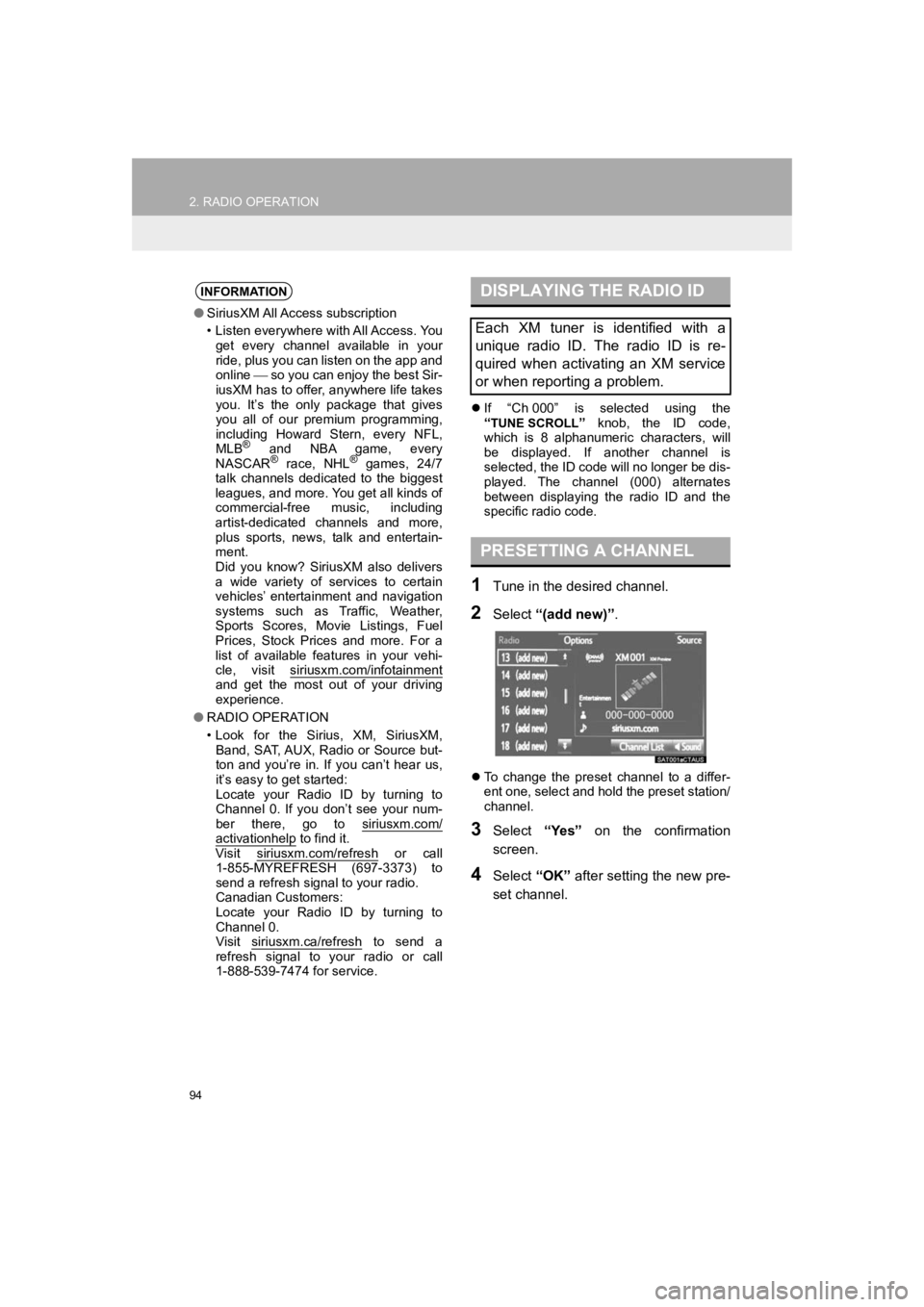
1Tune in the desired channel.
2Select “(add new)” .
To change the preset channel to a differ-
ent one, select and hold the preset station/
channel.
3Select “Yes” on the confirmation
screen.
4Select “OK” after setting the new pre-
set channel.
INFORMATION
● SiriusXM All Access subscription
• Listen everywhere with All Access. You
get every channel available in your
ride, plus you can listen on the app and
online so you can enjoy the best Sir-
iusXM has to offer, anywhere life takes
you. It’s the only package that gives
you all of our premium programming,
including Howard Stern, every NFL,
MLB
® and NBA game, every
NASCAR® race, NHL® games, 24/7
talk channels dedicated to the biggest
leagues, and more. You get all kinds of
commercial-free music, including
artist-dedicated channels and more,
plus sports, news, talk and entertain-
ment.
Did you know? SiriusXM also delivers
a wide variety of services to certain
vehicles’ entertainment and navigation
systems such as Traffic, Weather,
Sports Scores, Movie Listings, Fuel
Prices, Stock Prices and more. For a
list of available features in your vehi-
cle, visit siriusxm.com/infotainment
and get the most out of your driving
experience.
● RADIO OPERATION
• Look for the Sirius, XM, SiriusXM,
Band, SAT, AUX, Radio or Source but-
ton and you’re in. If you can’t hear us,
it’s easy to get started:
Locate your Radio ID by turning to
Channel 0. If you don’t see your num-
ber there, go to siriusxm.com/
activationhelp to find it.
Visit siriusxm.com/refresh or call
1-855-MYREFRESH (697-3373) to
send a refresh signal to your radio.
Canadian Customers:
Locate your Radio ID by turning to
Channel 0.
Visit siriusxm.ca/refresh
to send a
refresh signal to your radio or call
1-888-539-7474 for service.
DISPLAYING THE RADIO ID
Each XM tuner is identified with a
unique radio ID. The radio ID is re-
quired when activating an XM service
or when reporting a problem.
PRESETTING A CHANNEL