ad blue TOYOTA PRIUS 2019 Owners Manual (in English)
[x] Cancel search | Manufacturer: TOYOTA, Model Year: 2019, Model line: PRIUS, Model: TOYOTA PRIUS 2019Pages: 828, PDF Size: 16.9 MB
Page 4 of 828

TABLE OF CONTENTS4
PRIUS_OM_OM47C35U_(U)5-1. Basic Operations
Audio system types .......... 434
Audio system .................... 435
Using the steering wheel audio switches ................ 438
AUX Port/USB Port........... 439
Basic audio operations ..... 440
5-2. Setup Setup menu ...................... 442
General settings ............... 443
Audio settings ................... 445
Display settings ................ 446
Voice settings ................... 447
5-3. Using the Multimedia
system
Selecting the audio source ............................. 448
List screen operation ........ 449
Optimal use of the audio system ............................ 451
5-4. Using the radio Radio operation ................ 452 5-5.
Playing an audio CD and
MP3/WMA/AAC discs
CD player operation .......... 454
5-6. Using an external device iPod player operation ........ 460
USB memory device player operation .............. 465
Using the AUX .................. 470
5-7. Connecting Bluetooth
®
Preparations to use wireless
communication ................ 471
Registering a Bluetooth
®
audio player for the
first time .......................... 474
Registering a Bluetooth
®
phone for the first time .... 475
Registering a Bluetooth
® device ........... 476
Connecting a Bluetooth
® device ........... 478
Displaying a Bluetooth®
device details .................. 480
Detailed Bluetooth
®
settings ........................... 481
5-8. Bluetooth
® Audio
Listening to Bluetooth®
Audio............................... 482
5Audio system
Page 5 of 828
5
1
9 8
7
6 4 3
2
PRIUS_OM_OM47C35U_(U)
10
5
5-9. Bluetooth® phone
Using a Bluetooth®
Phone ............................. 484
Making a call..................... 487
Receiving a call ................ 490
Speaking on the phone..... 491
Bluetooth
® phone
message function ........... 494
Using the steering wheel switches.......................... 498
Bluetooth
® phone
settings ........................... 499
Contact/Call History Settings .......................... 500
What to do if... (Troubleshooting) ........... 509
5-10. Bluetooth
®
Bluetooth®........................ 513
5-11. Using the voice command system
Voice c ommand
system ............................ 519 6-1. Using the air conditioning
system and defogger
Automatic air c onditioning
system (vehicles without
11.6-inch display) ............ 526
Automatic air conditioning system (vehicles with
11.6-inch display) ............ 536
Heated steering wheel/ seat heaters..................... 546
6-2. Using the interior lights Interior lights list................. 548• Front interior light .......... 549
• Front personal lights ...... 549
• Rear interior light ........... 550
6-3. Using the storage features
List of storage features ...... 551 • Glove box ...................... 552
• Console box .................. 552
• Cup holders/bottle holders/
door pockets.................. 553
• Auxiliary boxes .............. 555
• Seat back pockets ......... 556
Luggage compartment features ........................... 557
6Interior features
Page 79 of 828
791-3. Emergency assistance
PRIUS_OM_OM47C35U_(U)
1
For safety and security
■Safety Connect Services Information
●Phone calls using the vehicles Bluetooth® technology will not be possible
during Safety Connect.
● Safety Connect is available beginning Fall 2009 on select Toyot a models (in
the contiguous United States only). Contact with the Safety Con nect
response center is dependent upon the telematics device being i n operative
condition, cellular connection availability, and GPS satellite signal reception,
which can limit the ability to reach the response center or rec eive emer-
gency service support. Enrollment and Telematics Subscription S ervice
Agreement required. A variety of subscription terms is availabl e; charges
vary by subscription term selected and location.
● Automatic Collision Notification, Emergency Assistance and Stolen Vehicle
Location are available in the United States, including Hawaii a nd Alaska,
Puerto Rico and Canada, and Enhanced Roadside Assistance are av ailable
in the United States, Puerto Rico and Canada.
● Automatic Collision Notification, Emergency Assistance, Stolen Vehicle and
Enhanced Road Assistance are not available in the U.S. Virgin I slands.
For vehicles first sold in the U.S. Virgin Islands, no Safety C onnect services
will function in or outside the U.S. Virgin Islands.
● Safety Connect services are not subject to section 255 of the T elecommuni-
cations Act and the device is not TTY compatible.
■ Languages
The Safety Connect response center will offer support in multip le languages.
The Safety Connect system will offer voice prompts in English, Spanish, and
French. Please indicate your language of choice when enrolling.
■ When contacting the response center
You may be unable to contact the response center if the network is busy.
When the power switch is turned to ON mode, the red indicator l ight
comes on for 2 seconds then turns off. Afterward, the green ind icator
light comes on, indicating t hat the service is active.
The following indicator light patterns indicate specific system usage
conditions:
● Green indicator light on = Active service
● Green indicator light flashing = Safety Connect call in process
● Red indicator light (except at vehicle start-up) = System malfunction
(contact your Toyota dealer)
● No indicator light (off) = Saf ety Connect service not active
Safety Connect LED light Indicators
Page 121 of 828
PRIUS_OM_OM47C35U_(U)
1212. Instrument cluster
2
Instrument cluster
■Outside temperature display
●In the following situations, the correct outside temperature ma y not be dis-
played, or the display may take longer than normal to change.
• When stopped, or driving at low speeds (less than 12 mph [20 k m/h])
• When the outside temperature has changed suddenly (at the entr ance/
exit of a garage, tunnel, etc.)
● When “-” or “E” is displayed, the system may be malfunctioning.
Take your vehicle to your Toyota dealer.
■ Distance to empty
●This distance is computed based on your average fuel consumptio n. As a
result, the actual distance that can be driven may differ from that displayed.
● When only a small amount of fuel is added to the tank, the disp lay may not
be updated.
When refueling, turn the power switch off. If the vehicle is re fueled without
turning the power switch off, the display may not be updated.
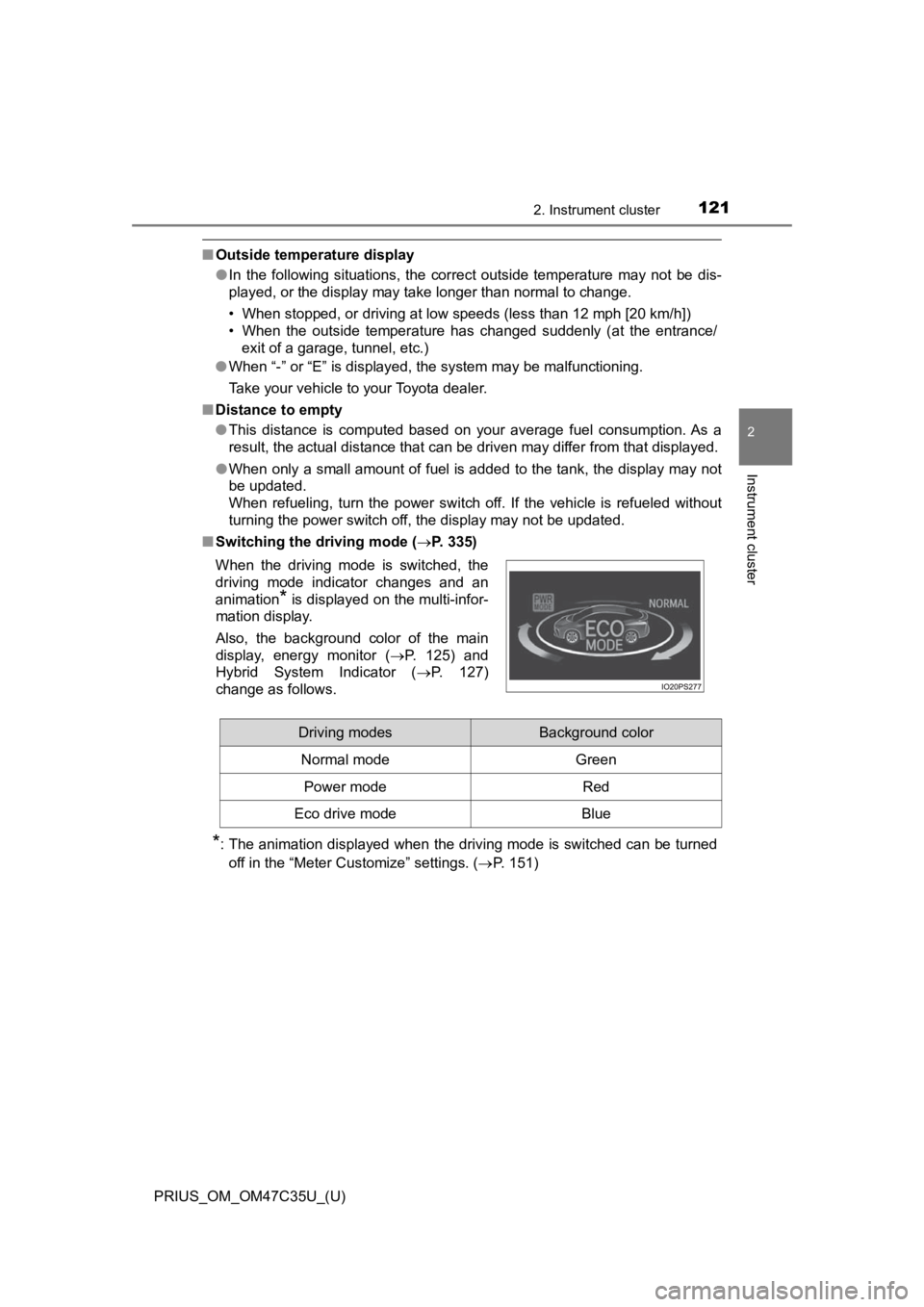
■ Switching the driving mode ( P. 335)
*: The animation displayed when the driving mode is switched can be turned
off in the “Meter Customize” settings. ( P. 151)
When the driving mode is switched, the
driving mode indicator changes and an
animation
* is displayed on the multi-infor-
mation display.
Also, the background color of the main
display, energy monitor ( P. 125) and
Hybrid System Indicator ( P. 127)
change as follows.
Driving modesBackground color
Normal mode Green
Power modeRed
Eco drive modeBlue
Page 128 of 828
128
PRIUS_OM_OM47C35U_(U)
2. Instrument cluster
EV indicator*2, 3
The EV indicator comes on when the vehicle is driven using only the
electric motor (traction motor) or the gasoline engine is stopped.
Hybrid battery (traction battery) status
P. 126
Eco score
P. 129
● By keeping the indicator within Eco area, more Eco-friendly dri v-
ing can be achieved.
● Charge area indicates regeneration
*4 status. Regenerated
energy will be used to charge the hybrid battery (traction battery).
*1: Not displayed on the sub-screen.
*2: Not displayed on the sub-screen or head-up display.
*3: The EV indicator function can be turned off in the “Meter Cust omize”
settings. ( P. 151)
*4: When used in this manual, “regeneration” refers to the conversion of
energy created by the movement of the vehicle into electrical e nergy.
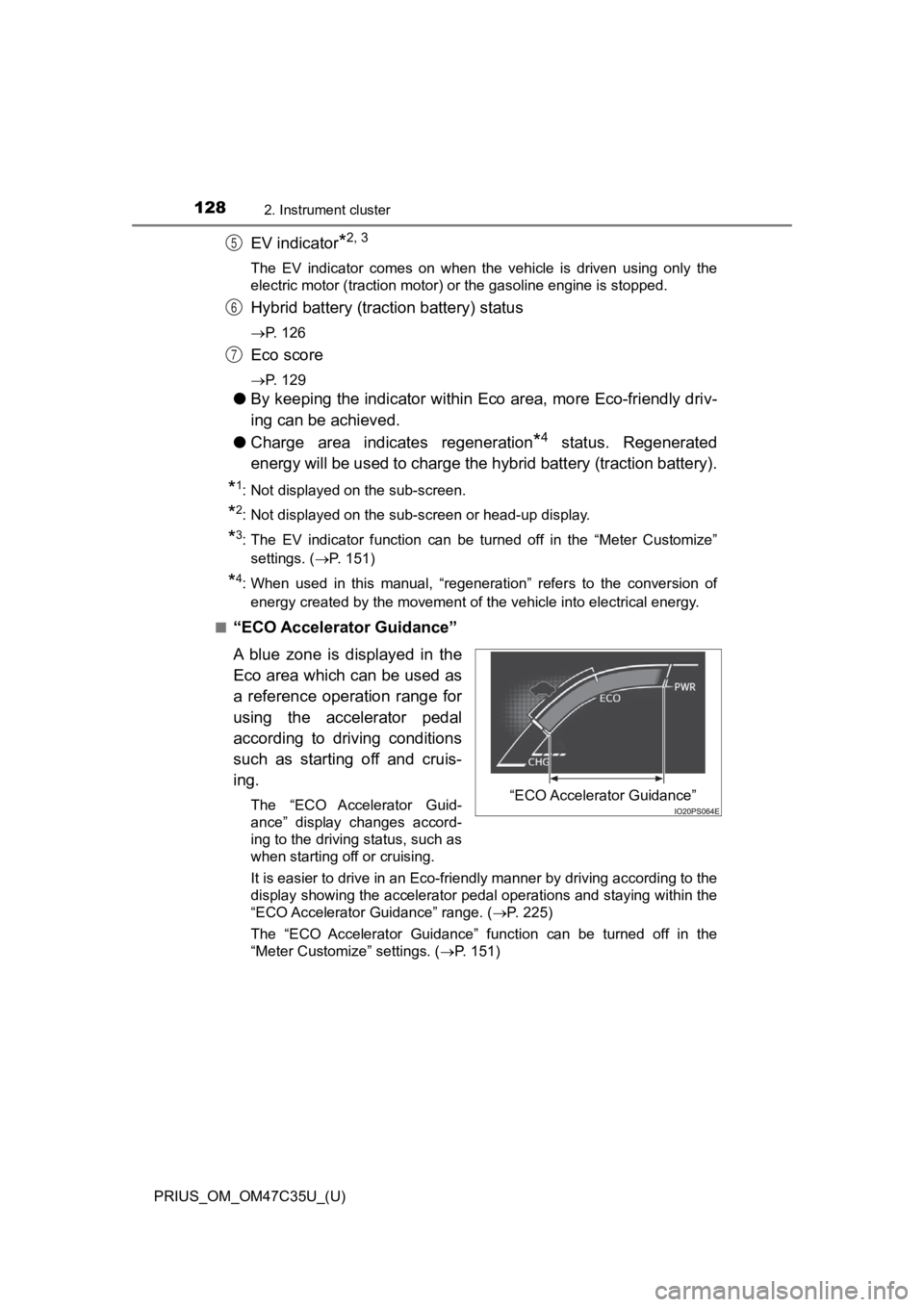
■
“ECO Accelerator Guidance”
A blue zone is displayed in the
Eco area which can be used as
a reference operation range for
using the accelerator pedal
according to driving conditions
such as starting off and cruis-
ing.
The “ECO Accelerator Guid-
ance” display changes accord-
ing to the driving status, such as
when starting off or cruising.
It is easier to drive in an Eco-friendly manner by driving according to the
display showing the accelerator pedal operations and staying wi thin the
“ECO Accelerator Guidance” range. ( P. 225)
The “ECO Accelerator Guidance” function can be turned off in the
“Meter Customize” settings. ( P. 151)
5
6
7
“ECO Accelerator Guidance”
Page 170 of 828
170
PRIUS_OM_OM47C35U_(U)
2. Instrument cluster
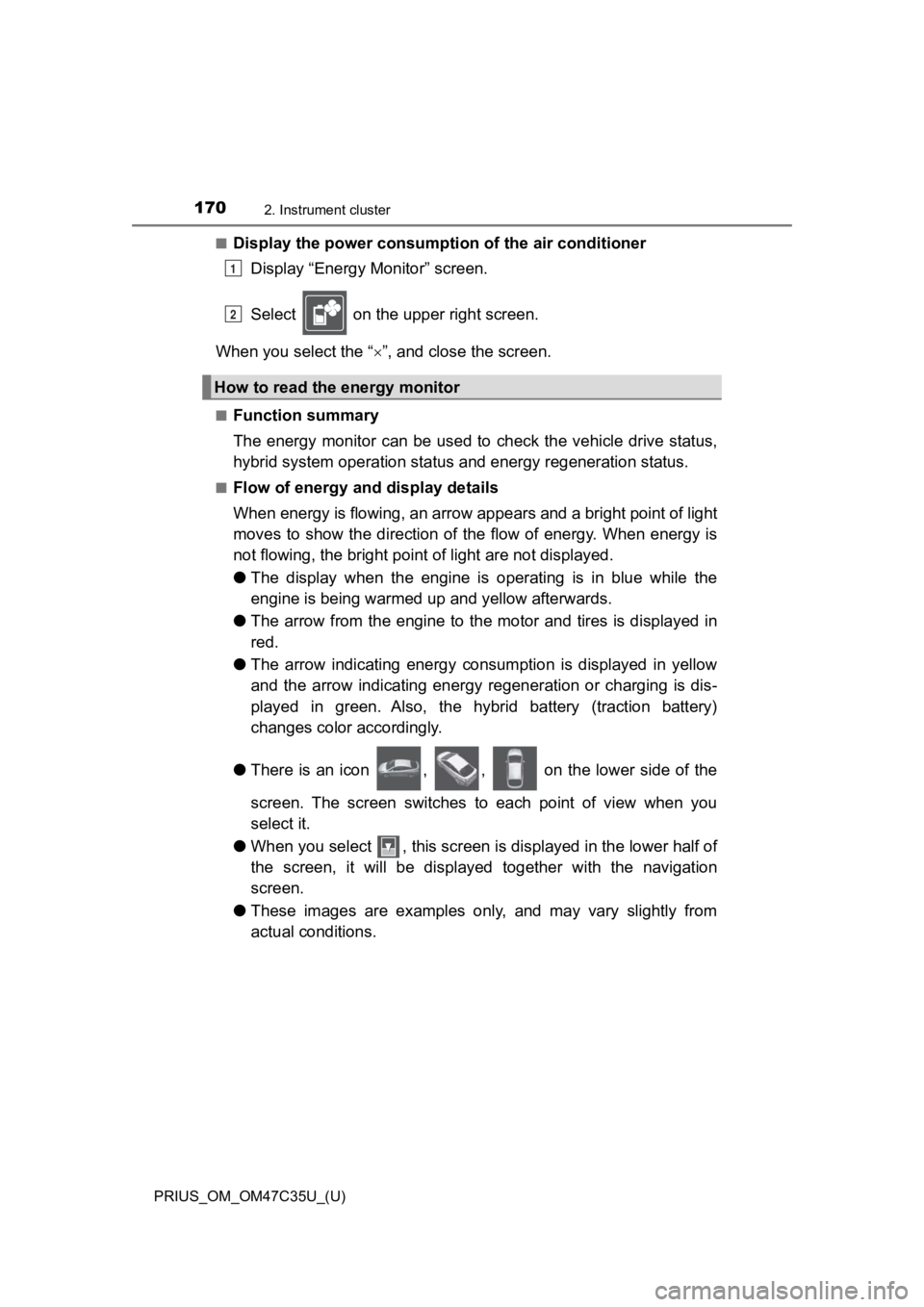
■Display the power consumption of the air conditioner
Display “Energy Monitor” screen.
Select on the upper right screen.
When you select the “ ”, and close the screen.
■Function summary
The energy monitor can be used to check the vehicle drive status,
hybrid system operation status and energy regeneration status.
■Flow of energy and display details
When energy is flowing, an arrow appears and a bright point of light
moves to show the direction of the flow of energy. When energy is
not flowing, the bright poin t of light are not displayed.
● The display when the engine is operating is in blue while the
engine is being warmed up and yellow afterwards.
● The arrow from the engine to the motor and tires is displayed i n
red.
● The arrow indicating energy consumption is displayed in yellow
and the arrow indicating energy regeneration or charging is dis -
played in green. Also, the hybrid battery (traction battery)
changes color accordingly.
● There is an icon , , on the lower side of the
screen. The screen switches to each point of view when you
select it.
● When you select , this screen is displayed in the lower half of
the screen, it will be displayed together with the navigation
screen.
● These images are examples only, and may vary slightly from
actual conditions.
How to read the energy monitor
1
2
Page 408 of 828
408
PRIUS_OM_OM47C35U_(U)
4-5. Using the driving support systems
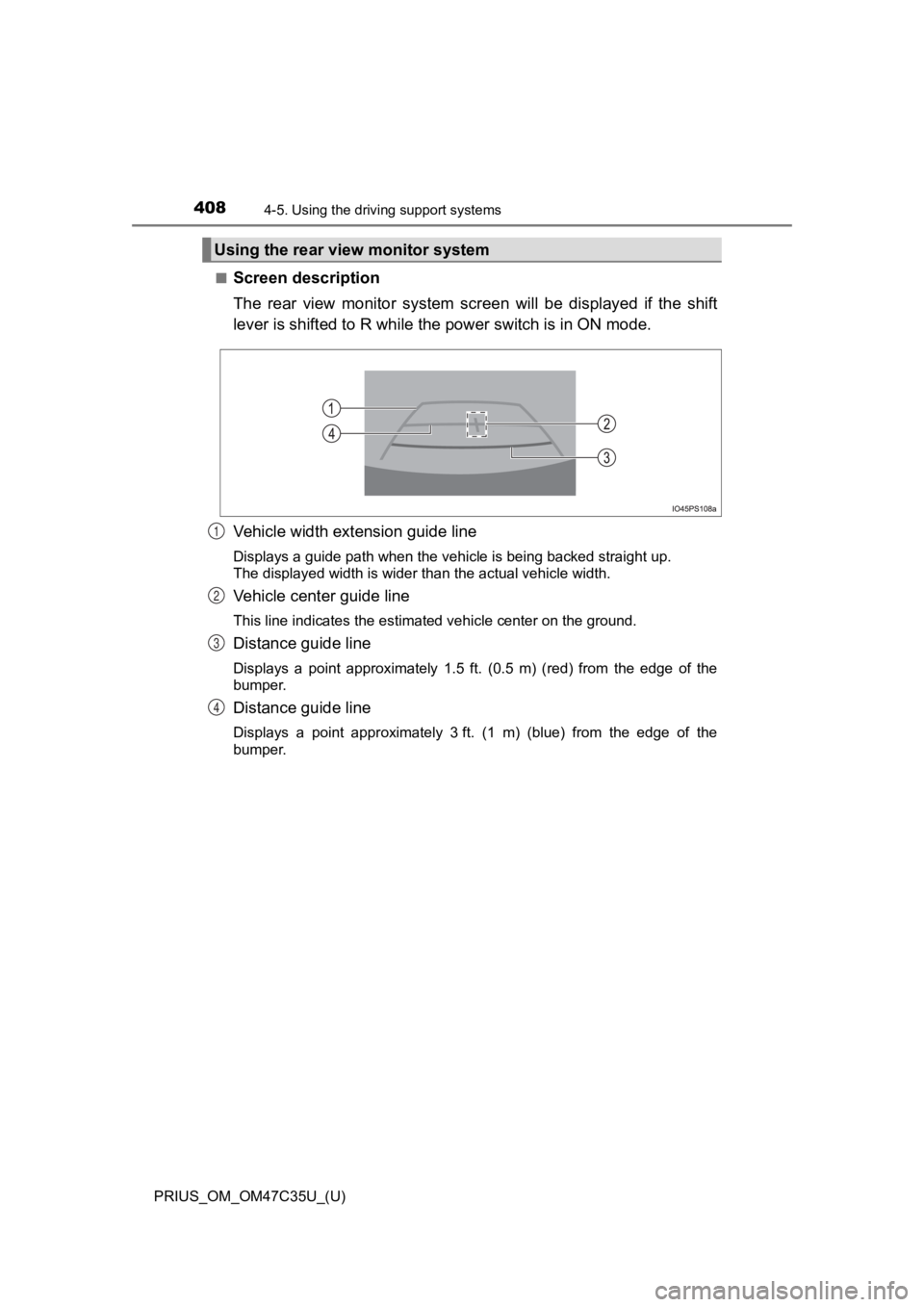
■Screen description
The rear view monito r system screen will be displayed if the sh ift
lever is shifted to R while t he power switch is in ON mode.
Vehicle width ex tension guide line
Displays a guide path when the vehicle is being backed straight up.
The displayed width is wider than the actual vehicle width.
Vehicle center guide line
This line indicates the estimated vehicle center on the ground.
Distance guide line
Displays a point approximately 1.5 ft. (0.5 m) (red) from the edge of the
bumper.
Distance guide line
Displays a point approximately 3 ft. (1 m) (blue) from the edge of the
bumper.
Using the rear view monitor system
1
2
3
4
Page 433 of 828

433
PRIUS_OM_OM47C35U_(U)
5Audio system
5-5. Playing an audio CD andMP3/WMA/AAC discs
CD player operation.......... 454
5-6. Using an external device iPod player operation........ 460
USB memory device player operation.............. 465
Using the AUX .................. 470
5-7. Connecting Bluetooth
®
Preparations to use wireless
communication ............... 471
Registering a Bluetooth
®
audio player for the
first time .......................... 474
Registering a Bluetooth
®
phone for the first time.... 475
Registering a Bluetooth
® device ........... 476
Connecting a Bluetooth
® device ........... 478
Displaying a Bluetooth®
device details.................. 480
Detailed Bluetooth
®
settings ........................... 481
5-8. Bluetooth
® Audio
Listening to Bluetooth®
Audio .............................. 482 5-9. Bluetooth
® phone
Using a Bluetooth®
Phone ............................. 484
Making a call .................... 487
Receiving a call ................ 490
Speaking on the phone .... 491
Bluetooth
® phone
message function ........... 494
Using the steering wheel switches.......................... 498
Bluetooth
® phone
settings ........................... 499
Contact/Call History Settings .......................... 500
What to do if... (Troubleshooting) ........... 509
5-10. Bluetooth
®
Bluetooth®........................ 513
5-11. Using the voice command system
Voice command system ............................ 519
Page 435 of 828
435
PRIUS_OM_OM47C35U_(U)
5-1. Basic Operations
5
Audio system
Audio system
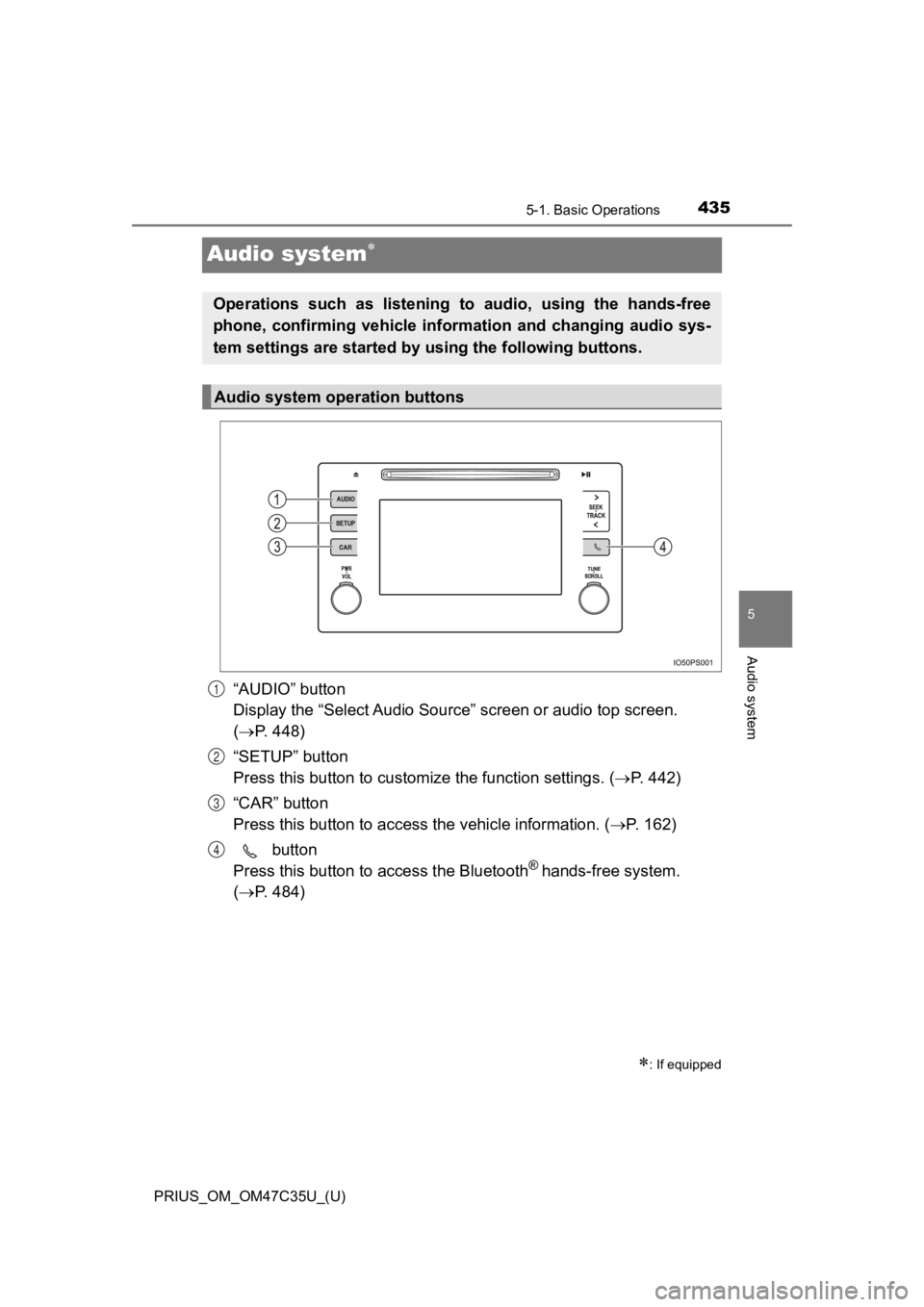
“AUDIO” button
Display the “Select Audio Source” screen or audio top screen.
( P. 448)
“SETUP” button
Press this button to customi ze the function settings. (P. 442)
“CAR” button
Press this button to access the vehicle information. (P. 162)
button
Press this button to a ccess the Bluetooth
® hands-free system.
( P. 484)
: If equipped
Operations such as listening to audio, using the hands-free
phone, confirming vehicle infor mation and changing audio sys-
tem settings are started by using the following buttons.
Audio system operation buttons
1
2
3
4
Page 438 of 828
438
PRIUS_OM_OM47C35U_(U)
5-1. Basic Operations
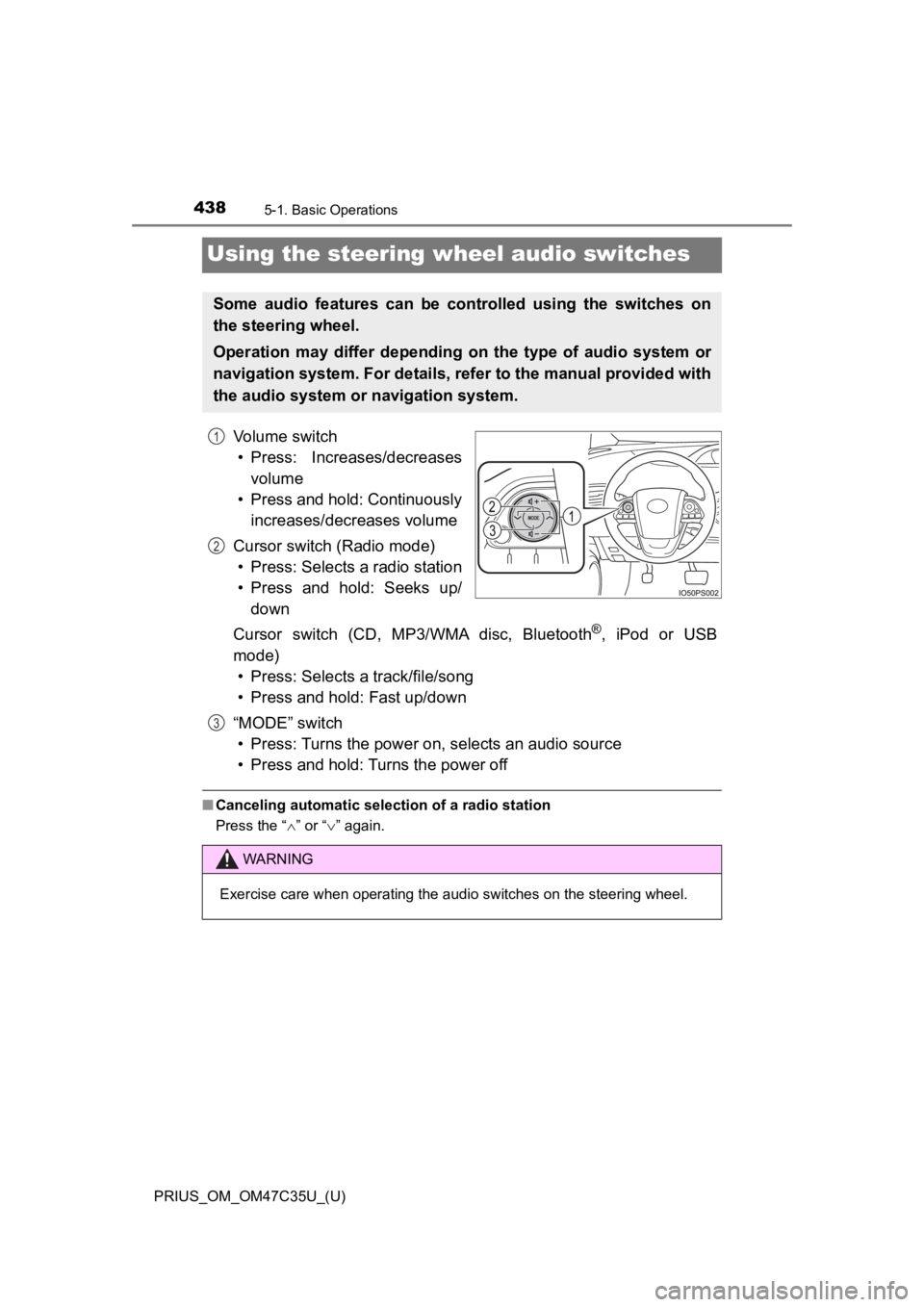
Using the steering wheel audio switches
Volume switch• Press: Increases/decreases volume
• Press and hold: Continuously increases/decreases volume
Cursor switch (Radio mode) • Press: Selects a radio station
• Press and hold: Seeks up/ down
Cursor switch (CD, MP3/WMA disc, Bluetooth
®, iPod or USB
mode) • Press: Selects a track/file/song
• Press and hold: Fast up/down
“MODE” switch • Press: Turns the power on, selects an audio source
• Press and hold: Turns the power off
■ Canceling automatic selection of a radio station
Press the “ ” or “ ” again.
Some audio features can be cont rolled using the switches on
the steering wheel.
Operation may differ depending on the type of audio system or
navigation system. For details, refer to the manual provided wi th
the audio system or navigation system.
1
2
WARNING
Exercise care when operating the audio switches on the steering wheel.
3