ad blue TOYOTA PRIUS C 2015 NHP10 / 1.G Navigation Manual
[x] Cancel search | Manufacturer: TOYOTA, Model Year: 2015, Model line: PRIUS C, Model: TOYOTA PRIUS C 2015 NHP10 / 1.GPages: 285, PDF Size: 4.97 MB
Page 50 of 285
51
2. Bluetooth® SETTINGS
BASIC FUNCTION
21Select “Bluetooth* Power” .
When “Bluetooth* Power” is on :
The Bluetooth
® device is automatically
connected when the power switch is
turned to ACCESSORY or ON mode.
When “Bluetooth* Power” is off :
The Bluetooth
® device is disconnected,
and the system will not connect to it next
time.
1Select “Bluetooth* Name” .
2Enter a name and select “OK”.
1Select “Bluetooth* PIN” .
2Enter a PIN-code and select “OK”.
*: Bluetooth is a regi stered trademark of
Bluetooth SIG, Inc.
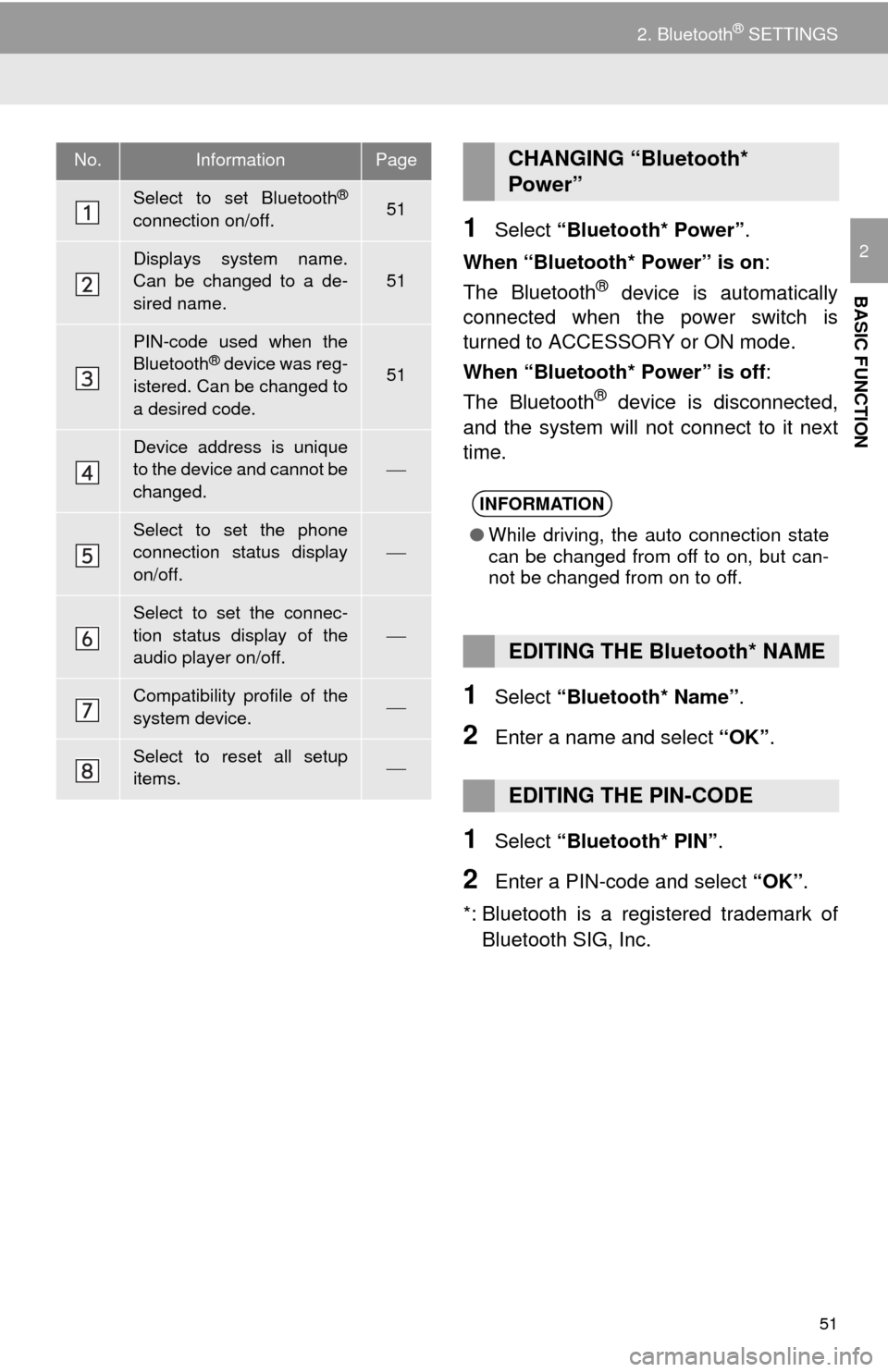
No.InformationPage
Select to set Bluetooth®
connection on/off.51
Displays system name.
Can be changed to a de-
sired name.
51
PIN-code used when the
Bluetooth® device was reg-
istered. Can be changed to
a desired code.51
Device address is unique
to the device and cannot be
changed.
Select to set the phone
connection status display
on/off.
Select to set the connec-
tion status display of the
audio player on/off.
Compatibility profile of the
system device.
Select to reset all setup
items.
CHANGING “Bluetooth*
Power”
INFORMATION
● While driving, the auto connection state
can be changed from off to on, but can-
not be changed from on to off.
EDITING THE Bluetooth* NAME
EDITING THE PIN-CODE
Page 59 of 285
60
3. OTHER SETTINGS
4. DRIVER SETTINGS
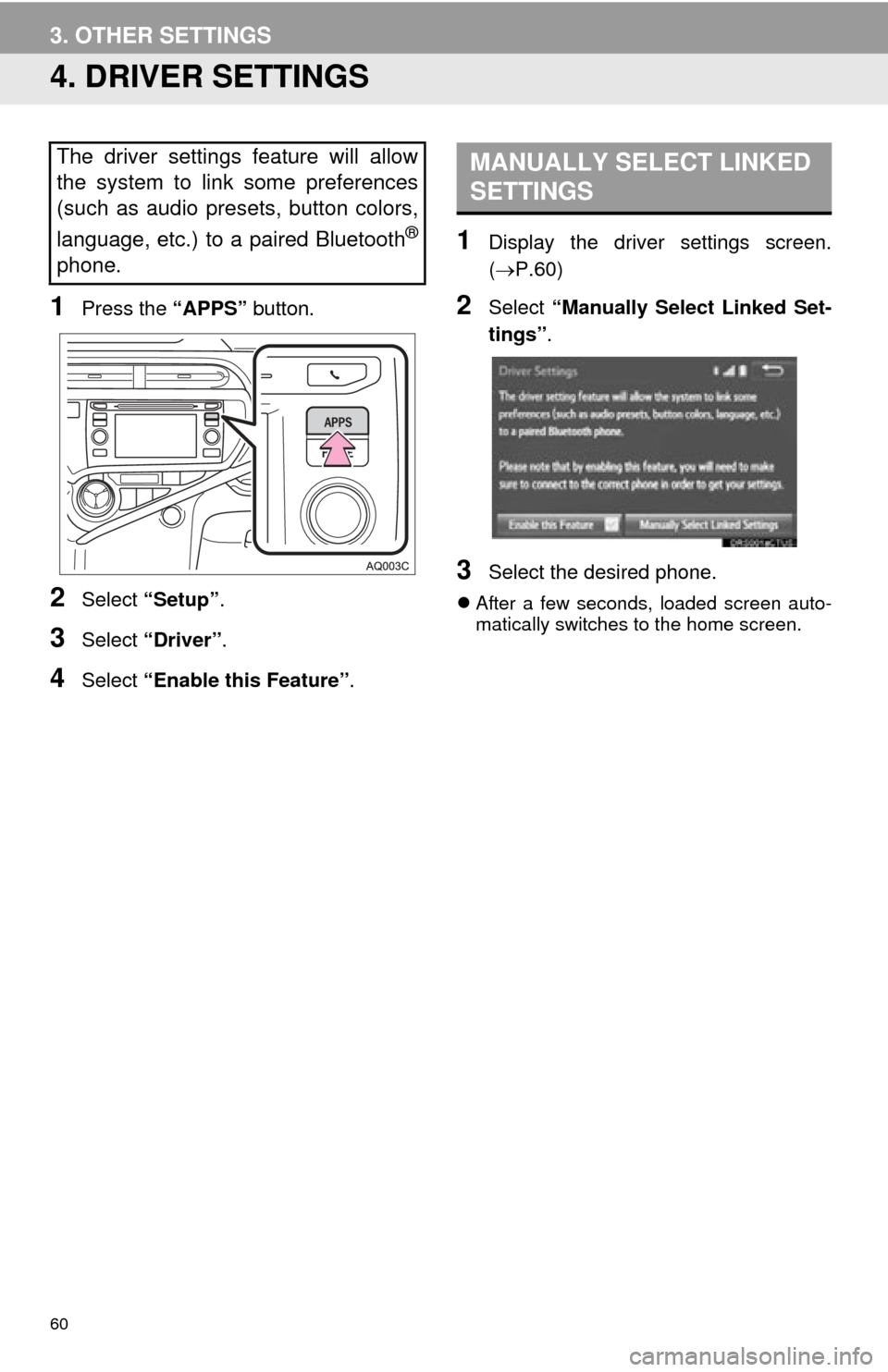
1Press the “APPS” button.
2Select “Setup” .
3Select “Driver” .
4Select “Enable this Feature” .
1Display the driver settings screen.
(P.60)
2Select “Manually Select Linked Set-
tings” .
3Select the desired phone.
After a few seconds, loaded screen auto-
matically switches to the home screen.
The driver settings feature will allow
the system to link some preferences
(such as audio presets, button colors,
language, etc.) to a paired Bluetooth
®
phone.
MANUALLY SELECT LINKED
SETTINGS
Page 64 of 285
3
65
4
5
6
7
8
9
1
2
3
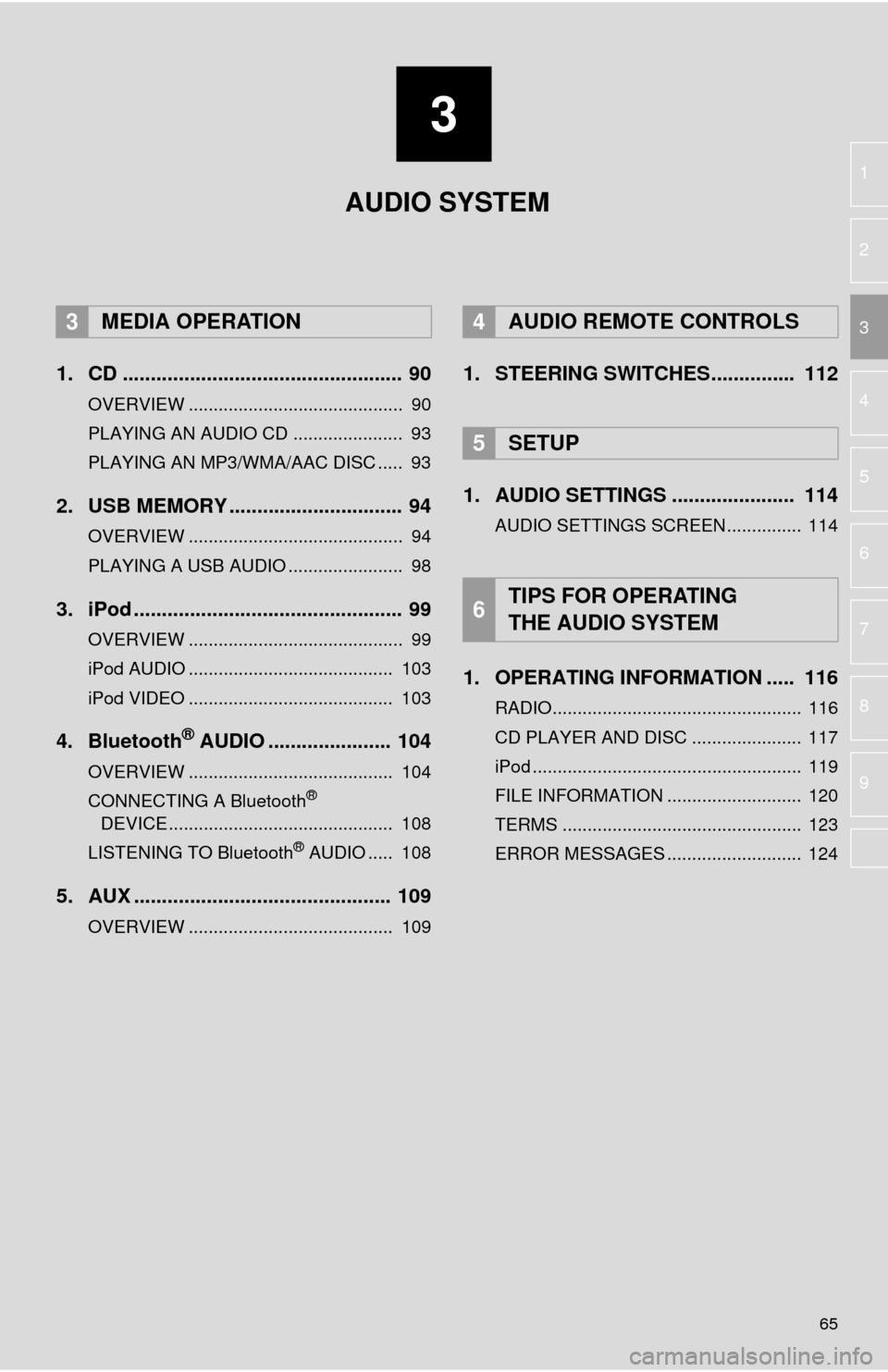
1. CD .................................................. 90
OVERVIEW ........................................... 90
PLAYING AN AUDIO CD ...................... 93
PLAYING AN MP3/WMA/AAC DISC ..... 93
2. USB MEMORY ............................... 94
OVERVIEW ........................................... 94
PLAYING A USB AUDIO ....................... 98
3. iPod ................................................ 99
OVERVIEW ........................................... 99
iPod AUDIO ......................................... 103
iPod VIDEO ......................................... 103
4. Bluetooth® AUDIO ...................... 104
OVERVIEW ......................................... 104
CONNECTING A Bluetooth®
DEVICE ............................................. 108
LISTENING TO Bluetooth
® AUDIO ..... 108
5. AUX .............................................. 109
OVERVIEW ......................................... 109
1. STEERING SWITCHES............... 112
1. AUDIO SETTINGS ...................... 114
AUDIO SETTINGS SCREEN............... 114
1. OPERATING INFORMATION ..... 116
RADIO.................................................. 116
CD PLAYER AND DISC ...................... 117
iPod ...................................................... 119
FILE INFORMATION ........................... 120
TERMS ................................................ 123
ERROR MESSAGES ........................... 124
3MEDIA OPERATION4AUDIO REMOTE CONTROLS
5SETUP
6TIPS FOR OPERATING
THE AUDIO SYSTEM
AUDIO SYSTEM
Page 65 of 285
66
1. BASIC OPERATION
1. QUICK REFERENCE
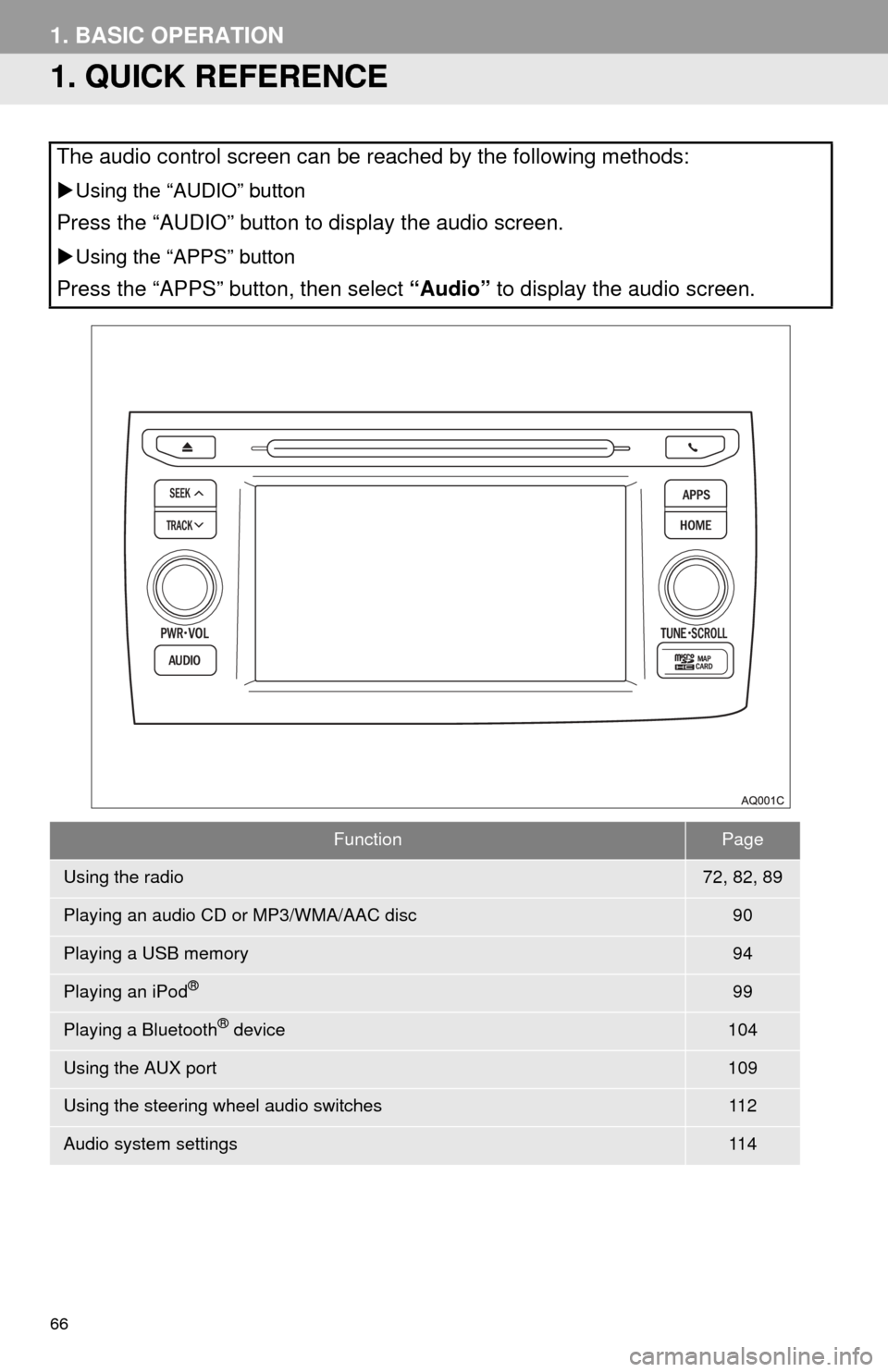
The audio control screen can be reached by the following methods:
Using the “AUDIO” button
Press the “AUDIO” button to display the audio screen.
Using the “APPS” button
Press the “APPS” button, then select “Audio” to display the audio screen.
FunctionPage
Using the radio72, 82, 89
Playing an audio CD or MP3/WMA/AAC disc90
Playing a USB memory94
Playing an iPod®99
Playing a Bluetooth® device104
Using the AUX port109
Using the steering wheel audio switches11 2
Audio system settings11 4
Page 76 of 285
77
2. RADIO OPERATION
AUDIO SYSTEM
3
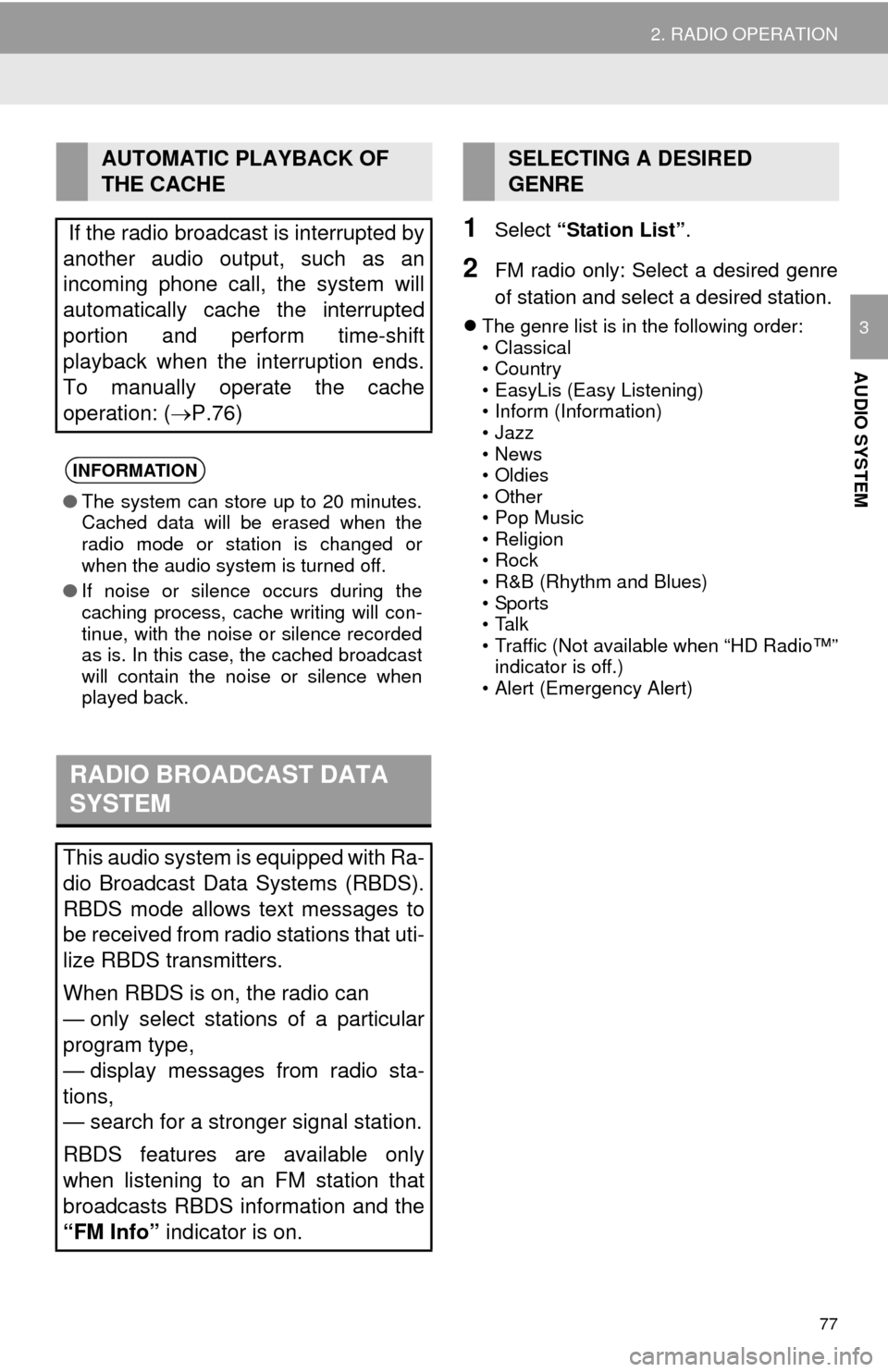
1Select “Station List” .
2FM radio only: Select a desired genre
of station and select a desired station.
The genre list is in the following order:
• Classical
• Country
• EasyLis (Easy Listening)
• Inform (Information)
•Jazz
•News
• Oldies
•Other
• Pop Music
•Religion
•Rock
• R&B (Rhythm and Blues)
•Sports
•Talk
• Traffic (Not available when “HD Radio™”
indicator is off.)
• Alert (Emergency Alert)
AUTOMATIC PLAYBACK OF
THE CACHE
If the radio broadcast is interrupted by
another audio output, such as an
incoming phone call, the system will
automatically cache the interrupted
portion and perform time-shift
playback when the interruption ends.
To manually operate the cache
operation: ( P.76)
INFORMATION
●The system can store up to 20 minutes.
Cached data will be erased when the
radio mode or station is changed or
when the audio system is turned off.
● If noise or silence occurs during the
caching process, cache writing will con-
tinue, with the noise or silence recorded
as is. In this case, the cached broadcast
will contain the noise or silence when
played back.
RADIO BROADCAST DATA
SYSTEM
This audio system is equipped with Ra-
dio Broadcast Data Systems (RBDS).
RBDS mode allows text messages to
be received from radio stations that uti-
lize RBDS transmitters.
When RBDS is on, the radio can
— only select stations of a particular
program type,
— display messages from radio sta-
tions,
— search for a stronger signal station.
RBDS features are available only
when listening to an FM station that
broadcasts RBDS information and the
“FM Info” indicator is on.
SELECTING A DESIRED
GENRE
Page 88 of 285
89
2. RADIO OPERATION
AUDIO SYSTEM
3
3. INTERNET RADIO
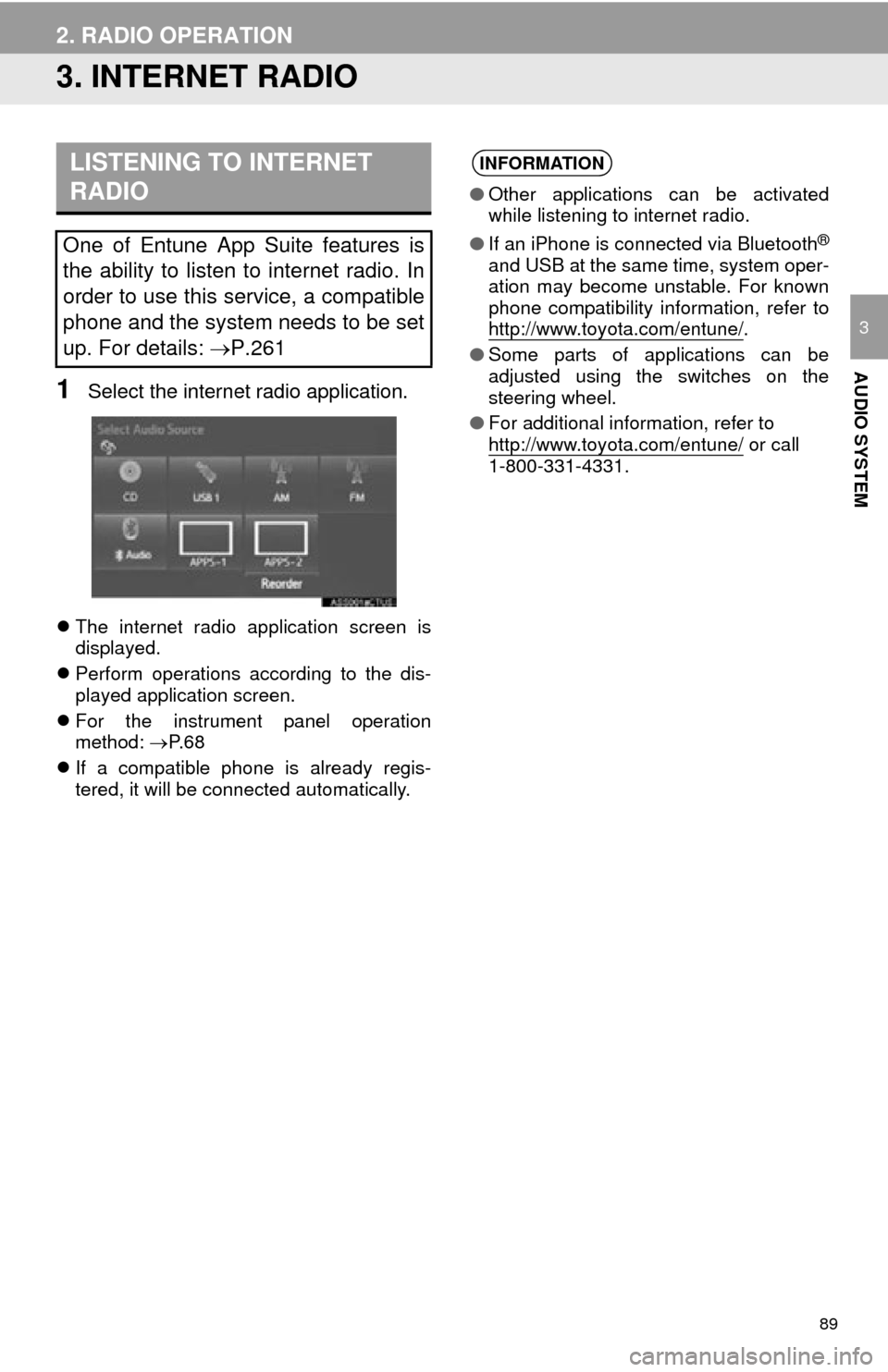
1Select the internet radio application.
The internet radio application screen is
displayed.
Perform operations according to the dis-
played application screen.
For the instrument panel operation
method: P. 6 8
If a compatible phone is already regis-
tered, it will be connected automatically.
LISTENING TO INTERNET
RADIO
One of Entune App Suite features is
the ability to listen to internet radio. In
order to use this service, a compatible
phone and the system needs to be set
up. For details: P.261
INFORMATION
●Other applications can be activated
while listening to internet radio.
● If an iPhone is connected via Bluetooth
®
and USB at the same time, system oper-
ation may become unstable. For known
phone compatibility information, refer to
http://www.toyota.com/entune/
.
● Some parts of applications can be
adjusted using the switches on the
steering wheel.
● For additional information, refer to
http://www.toyota.com/entune/
or call
1-800-331-4331.
Page 101 of 285

102
3. MEDIA OPERATION
WA R N I N G
●Do not operate the player’s controls or connect the iPod while driving.
NOTICE
●Do not leave your portable player in the car. In particular, high temperatures inside the
vehicle may damage the portable player.
● Do not push down on or apply unnecessary pressure to the portable player while it is con-
nected as this may damage the portable player or its terminal.
● Do not insert foreign objects into the port as this may damage the portable player or its
terminal.
INFORMATION
●The system can only output the sound while driving.
● When an iPod is connected using a genuine iPod cable, the iPod starts charging its bat-
tery.
● Depending on the iPod, the video sound may not be able to be heard.
● Depending on the iPod and the songs in the iPod, iPod cover art may be displayed. This
function can be changed to on/off. ( P.114) It may take time to display iPod cover art,
and the iPod may not be operated while the cover art display is in process.
● When an iPod is connected and the audio source is changed to iPod mode, the iPod will
resume playing from the same point it was last used.
● Depending on the iPod that is connected to the system, certain functions may not be
available.
● Files/tracks selected by operating a connected iPod may not be recognized or displayed
properly.
● If an iPhone is connected via Bluetooth
® and USB at the same time, system operation
may become unstable. For known phone compatibility information, refer to
http://www.toyota.com/entune/
.
Page 103 of 285
104
3. MEDIA OPERATION
4. Bluetooth® AUDIO
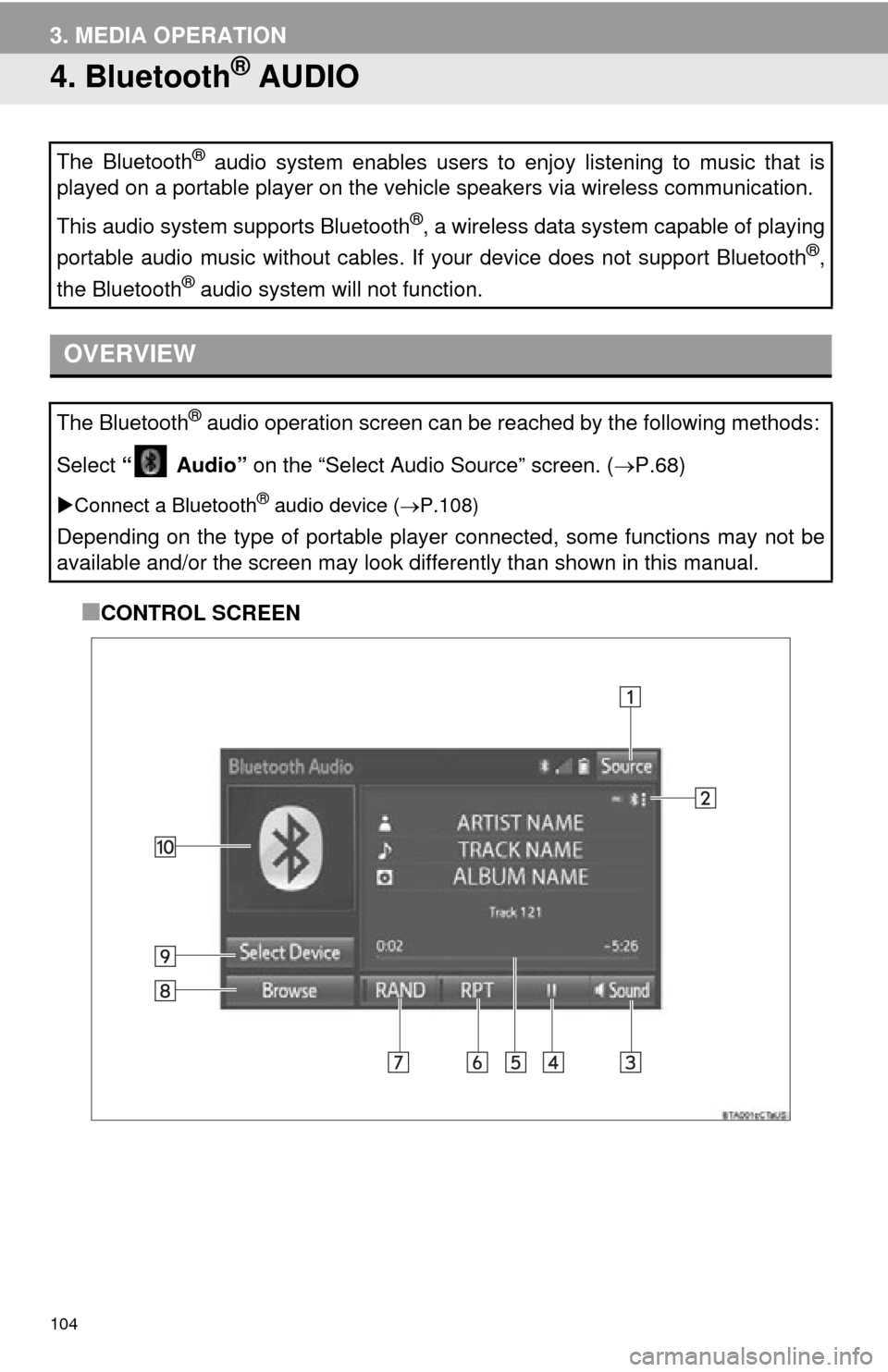
■CONTROL SCREEN
The Bluetooth
® audio system enables users to enjoy listening to music that is
played on a portable player on the vehicle speakers via wireless communication.
This audio system supports Bluetooth
®, a wireless data system capable of playing
portable audio music without cables. If your device does not support Bluetooth
®,
the Bluetooth
® audio system will not function.
OVERVIEW
The Bluetooth® audio operation screen can be reached by the following methods:
Select “ Audio” on the “Select Audio Source” screen. ( P.68)
Connect a Bluetooth® audio device ( P.108)
Depending on the type of portable player connected, some functions may not be
available and/or the screen may look di fferently than shown in this manual.
Page 105 of 285
106
3. MEDIA OPERATION
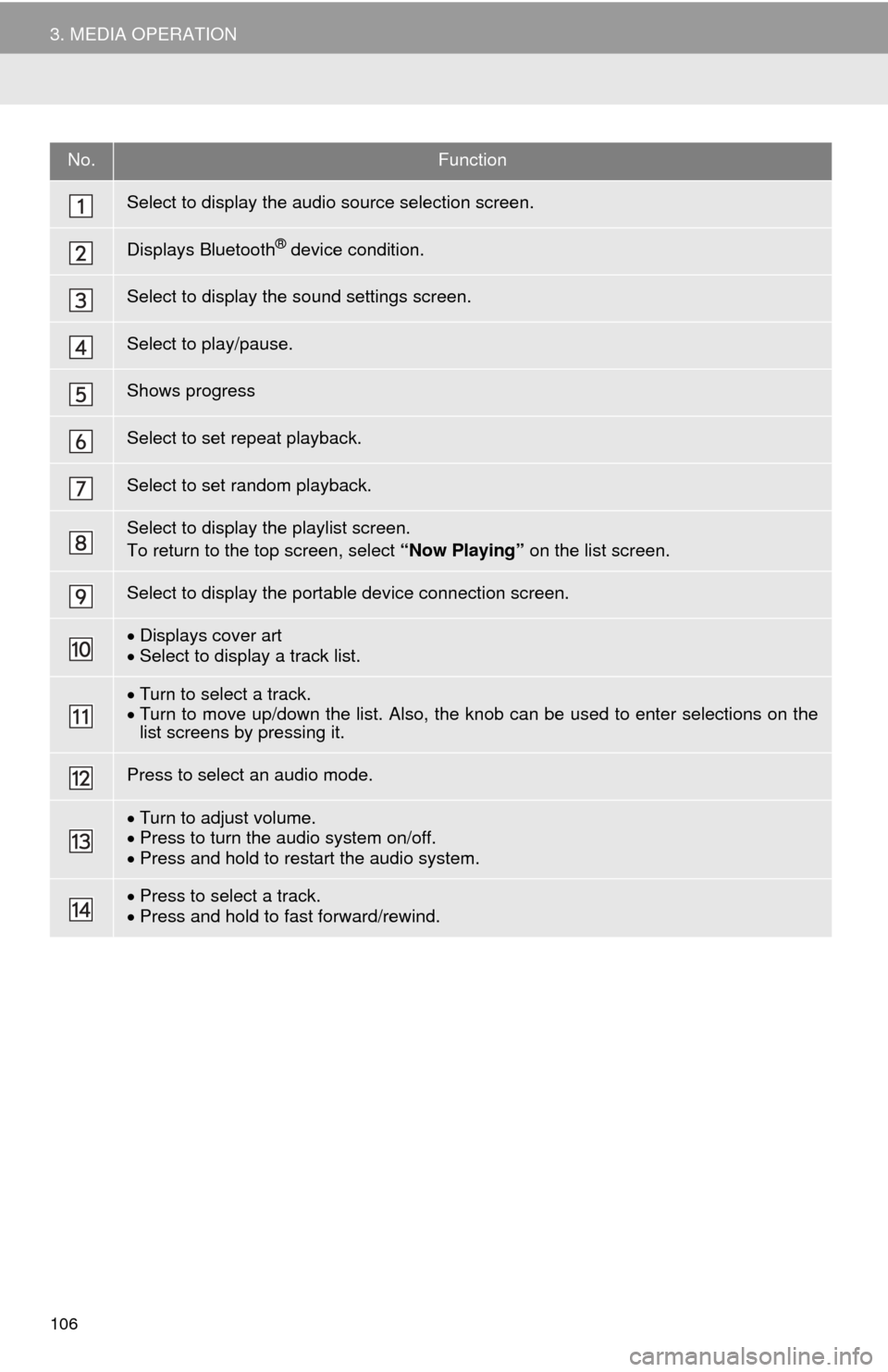
No.Function
Select to display the audio source selection screen.
Displays Bluetooth® device condition.
Select to display the sound settings screen.
Select to play/pause.
Shows progress
Select to set repeat playback.
Select to set random playback.
Select to display the playlist screen.
To return to the top screen, select “Now Playing” on the list screen.
Select to display the portable device connection screen.
Displays cover art
Select to display a track list.
Turn to select a track.
Turn to move up/down the list. Also, the knob can be used to enter selections on the
list screens by pressing it.
Press to select an audio mode.
Turn to adjust volume.
Press to turn the audio system on/off.
Press and hold to restart the audio system.
Press to select a track.
Press and hold to fast forward/rewind.
Page 106 of 285
107
3. MEDIA OPERATION
AUDIO SYSTEM
3
WA R N I N G
●Do not operate the player’s controls or connect to the Bluetooth® audio system while driv-
ing.
● Your audio unit is fitted with Bluetooth
® antennas. People with implantable cardiac pace-
makers, cardiac resynchronization therapy-pacemakers or implantable cardioverter
defibrillators should maintain a reasonable distance between themselves and the
Bluetooth
® antennas. The radio waves may affect the operation of such devices.
● Before using Bluetooth
® devices, users of any electrical medical device other than
implantable cardiac pacemakers, cardiac resynchronization therapy-pacemakers or
implantable cardioverter defibrillators should consult the manufacturer of the device for
information about its operation under the influence of radio waves. Radio waves could
have unexpected effects on the operation of such medical devices.
NOTICE
● Do not leave your portable player in the vehicle. In particular, high temperatures inside
the vehicle may damage the portable player.
INFORMATION
●Depending on the Bluetooth® device that is connected to the system, the music may start
playing when selecting while it is paused. Conversely, the music may pause when
selecting while it is playing.
● In the following conditions, the system may not function:
• The Bluetooth
® device is turned off.
• The Bluetooth
® device is not connected.
• The Bluetooth
® device has a low battery.
● It may take time to connect the phone when Bluetooth
® audio is being played.
● For operating the portable player, see the instruction manual that comes with it.
● If the Bluetooth
® device is disconnected due to poor reception from the Bluetooth® net-
work when the power switch is in ACCESS ORY or ON mode, the system will automati-
cally reconnect to the portable player.
● If the Bluetooth
® device is disconnected on purpose, such as it was turned off, this does
not happen. Reconnect the portable player manually.
● Bluetooth
® device information is registered when the Bluetooth® device is connected to
the Bluetooth® audio system. When selling or disposing of the vehicle, remove the
Bluetooth® audio information from the system. ( P.57)