USB TOYOTA PRIUS C 2016 NHP10 / 1.G Owners Manual
[x] Cancel search | Manufacturer: TOYOTA, Model Year: 2016, Model line: PRIUS C, Model: TOYOTA PRIUS C 2016 NHP10 / 1.GPages: 588, PDF Size: 12.75 MB
Page 3 of 588
3
1
9 8 6 5
4
3
2
PRIUS c_U (OM52F96U)
10
7
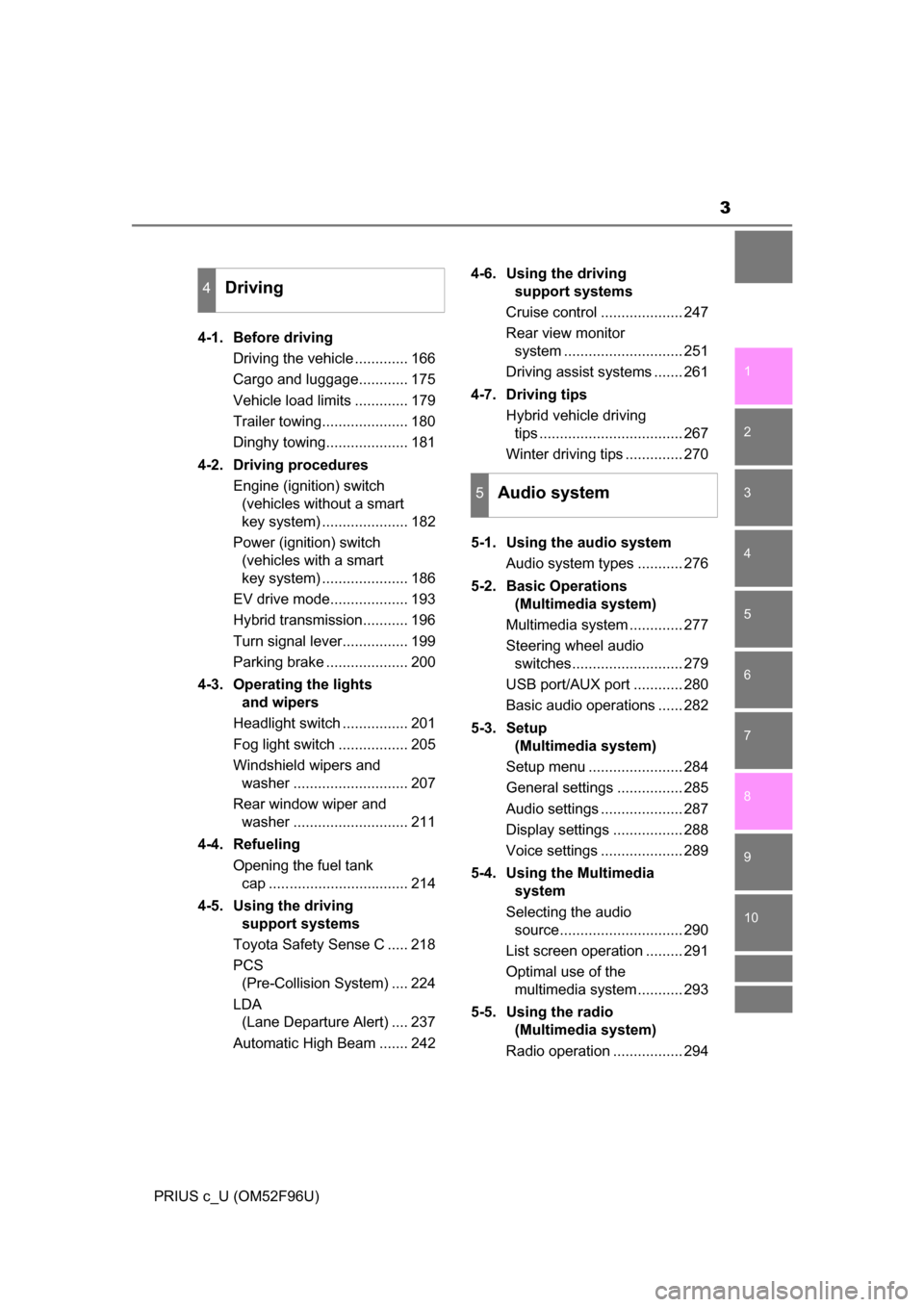
4-1. Before drivingDriving the vehicle ............. 166
Cargo and luggage............ 175
Vehicle load limits ............. 179
Trailer towing..................... 180
Dinghy towing.................... 181
4-2. Driving procedures Engine (ignition) switch (vehicles without a smart
key system) ..................... 182
Power (ignition) switch (vehicles with a smart
key system) ..................... 186
EV drive mode................... 193
Hybrid transmission........... 196
Turn signal lever................ 199
Parking brake .................... 200
4-3. Operating the lights and wipers
Headlight switch ................ 201
Fog light switch ................. 205
Windshield wipers and washer ............................ 207
Rear window wiper and washer ............................ 211
4-4. Refueling Opening the fuel tank cap .................................. 214
4-5. Using the driving support systems
Toyota Safety Sense C ..... 218
PCS (Pre-Collision System) .... 224
LDA (Lane Departure Alert) .... 237
Automatic High Beam ....... 242 4-6. Using the driving
support systems
Cruise control .................... 247
Rear view monitor system ............................. 251
Driving assist systems ....... 261
4-7. Driving tips Hybrid vehicle driving tips ................................... 267
Winter driving tips .............. 270
5-1. Using the audio system Audio system types ........... 276
5-2. Basic Operations (Multimedia system)
Multimedia system ............. 277
Steering wheel audio switches........................... 279
USB port/AUX port ............ 280
Basic audio operations ...... 282
5-3. Setup (Multimedia system)
Setup menu ....................... 284
General settings ................ 285
Audio settings .................... 287
Display settings ................. 288
Voice settings .................... 289
5-4. Using the Multimedia system
Selecting the audio source.............................. 290
List screen operation ......... 291
Optimal use of the multimedia system........... 293
5-5. Using the radio (Multimedia system)
Radio operation ................. 294
4Driving
5Audio system
Page 4 of 588
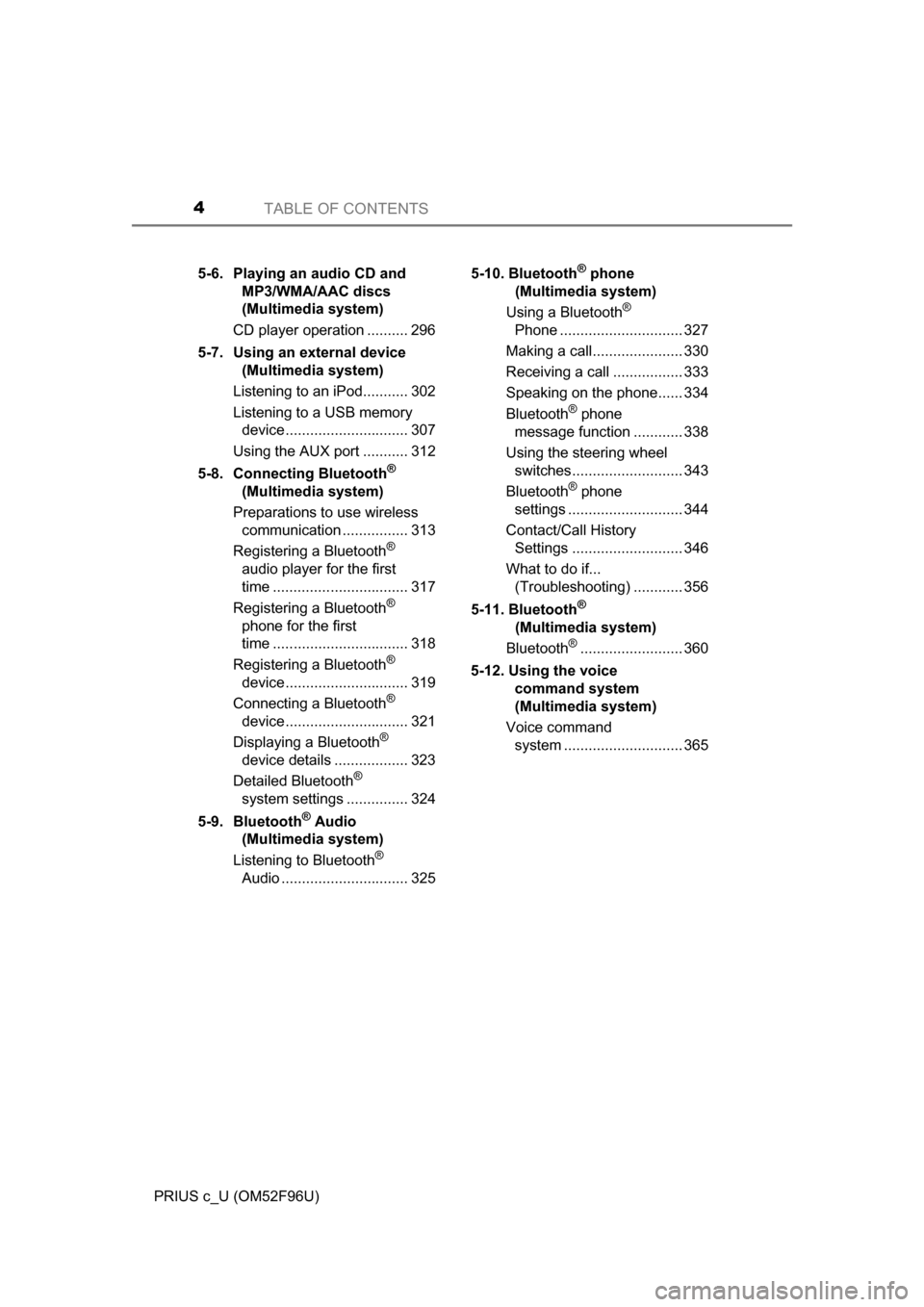
TABLE OF CONTENTS4
PRIUS c_U (OM52F96U)5-6. Playing an audio CD and
MP3/WMA/AAC discs
(Multimedia system)
CD player operation .......... 296
5-7. Using an external device (Multimedia system)
Listening to an iPod........... 302
Listening to a USB memory device.............................. 307
Using the AUX port ........... 312
5-8. Connecting Bluetooth
®
(Multimedia system)
Preparations to use wireless communication ................ 313
Registering a Bluetooth
®
audio player for the first
time ................................. 317
Registering a Bluetooth
®
phone for the first
time ................................. 318
Registering a Bluetooth
®
device.............................. 319
Connecting a Bluetooth
®
device.............................. 321
Displaying a Bluetooth
®
device details .................. 323
Detailed Bluetooth
®
system settings ............... 324
5-9. Bluetooth
® Audio
(Multimedia system)
Listening to Bluetooth
®
Audio ............................... 325 5-10. Bluetooth
® phone
(Multimedia system)
Using a Bluetooth
®
Phone .............................. 327
Making a call...................... 330
Receiving a call ................. 333
Speaking on the phone...... 334
Bluetooth
® phone
message function ............ 338
Using the steering wheel switches........................... 343
Bluetooth
® phone
settings ............................ 344
Contact/Call History Settings ........................... 346
What to do if... (Troubleshooting) ............ 356
5-11. Bluetooth
®
(Multimedia system)
Bluetooth
®......................... 360
5-12. Using the voice command system
(Multimedia system)
Voice command system ............................. 365
Page 18 of 588
18Pictorial index
PRIUS c_U (OM52F96U)
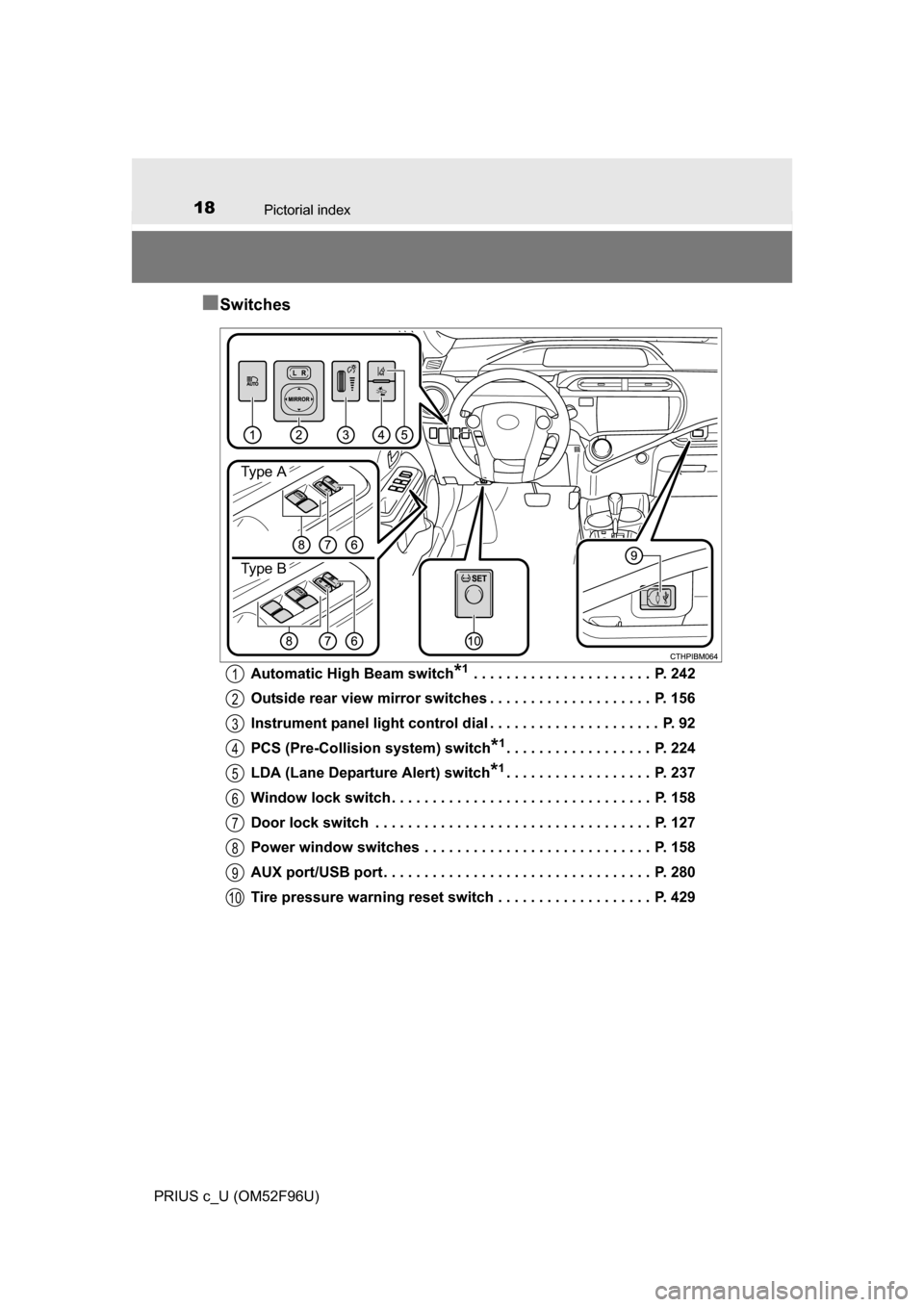
■Switches
Automatic High Beam switch*1 . . . . . . . . . . . . . . . . . . . . . . P. 242
Outside rear view mirror switches . . . . . . . . . . . . . . . . . . . . P. 156
Instrument panel light control dial . . . . . . . . . . . . . . . . . . . . . P. 92
PCS (Pre-Collision system) switch
*1. . . . . . . . . . . . . . . . . . P. 224
LDA (Lane Departure Alert) switch
*1. . . . . . . . . . . . . . . . . . P. 237
Window lock switch . . . . . . . . . . . . . . . . . . . . . . . . . . . . . . . . P. 158
Door lock switch . . . . . . . . . . . . . . . . . . . . . . . . . . . . . . . . . . P. 127
Power window switches . . . . . . . . . . . . . . . . . . . . . . . . . . . . P. 158
AUX port/USB port . . . . . . . . . . . . . . . . . . . . . . . . . . . . . . . . . P. 280
Tire pressure warning reset switch . . . . . . . . . . . . . . . . . . . P. 429
Type A
Type B
1
2
3
4
5
6
7
8
9
10
Page 274 of 588
274
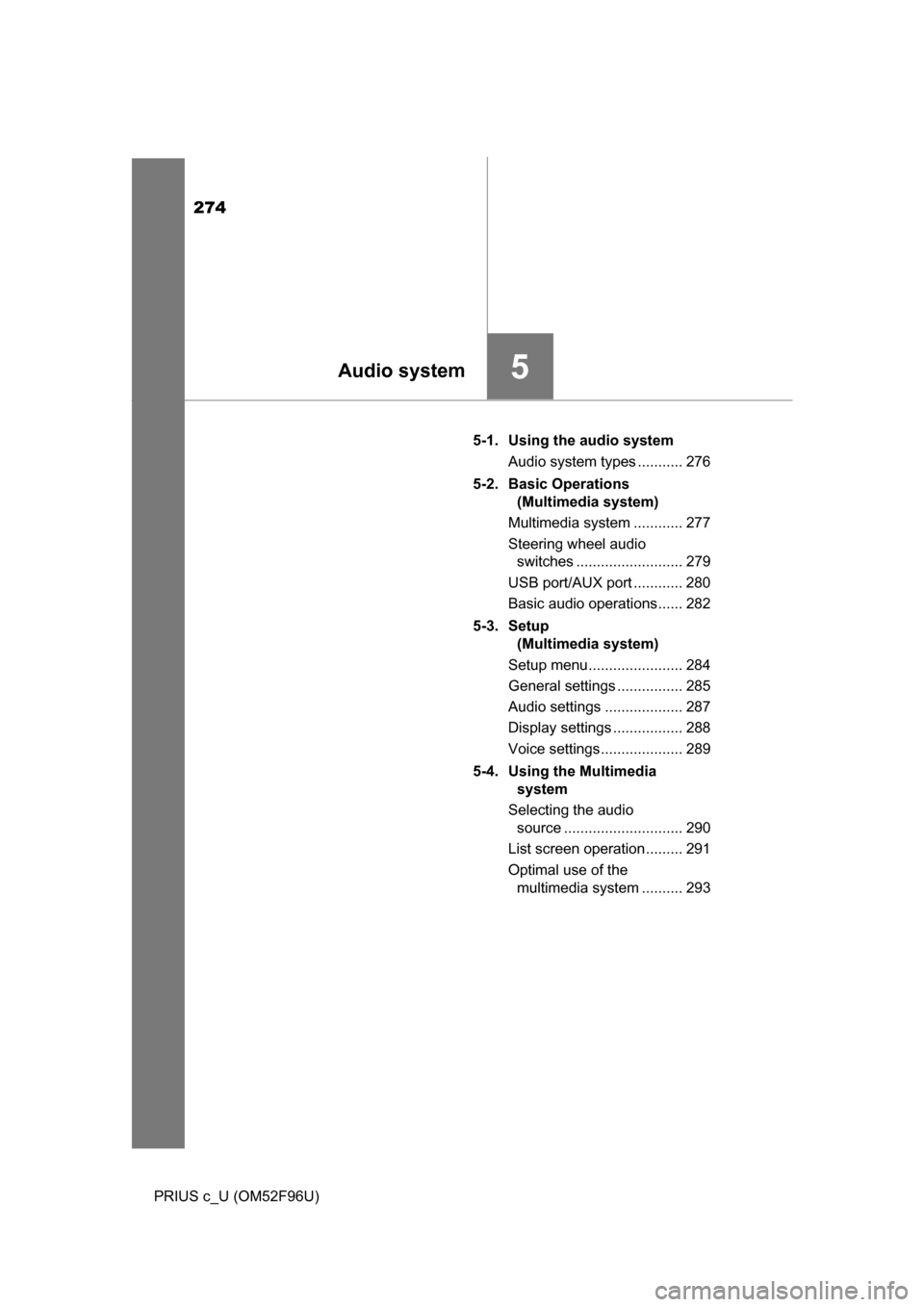
PRIUS c_U (OM52F96U)5-1. Using the audio system
Audio system types ........... 276
5-2. Basic Operations (Multimedia system)
Multimedia system ............ 277
Steering wheel audio switches .......................... 279
USB port/AUX port ............ 280
Basic audio operations...... 282
5-3. Setup (Multimedia system)
Setup menu....................... 284
General settings ................ 285
Audio settings ................... 287
Display settings ................. 288
Voice settings.................... 289
5-4. Using the Multimedia system
Selecting the audio source ............................. 290
List screen operation......... 291
Optimal use of the multimedia system .......... 293
5Audio system
Page 275 of 588
275
5Audio system
PRIUS c_U (OM52F96U)5-5. Using the radio
(Multimedia system)
Radio operation ................. 294
5-6. Playing an audio CD and MP3/WMA/AAC discs
(Multimedia system)
CD player operation .......... 296
5-7. Using an external device (Multimedia system)
Listening to an iPod .......... 302
Listening to a USB memory device................ 307
Using the AUX port ........... 312
5-8. Connecting Bluetooth
®
(Multimedia system)
Preparations to use wireless
communication ................ 313
Registering a Bluetooth
®
audio player for the first
time ................................. 317
Registering a Bluetooth
®
phone for the first time .... 318
Registering a Bluetooth
®
device.............................. 319
Connecting a Bluetooth
®
device.............................. 321
Displaying a Bluetooth
®
device details .................. 323
Detailed Bluetooth
®
system settings ............... 324 5-9. Bluetooth
® Audio
(Multimedia system)
Listening to Bluetooth
®
Audio ............................... 325
5-10. Bluetooth
® phone
(Multimedia system)
Using a Bluetooth
®
Phone ............................. 327
Making a call ..................... 330
Receiving a call ................. 333
Speaking on the phone ..... 334
Bluetooth
® phone message
function ........................... 338
Using the steering wheel switches ................ 343
Bluetooth
® phone
settings ........................... 344
Contact/Call History Settings ........................... 346
What to do if... (Troubleshooting) ............ 356
5-11. Bluetooth
®
(Multimedia system)
Bluetooth
®......................... 360
5-12. Using the voice command system
(Multimedia system)
Voice command system ............................ 365
Page 280 of 588
2805-2. Basic Operations (Multimedia system)
PRIUS c_U (OM52F96U)■
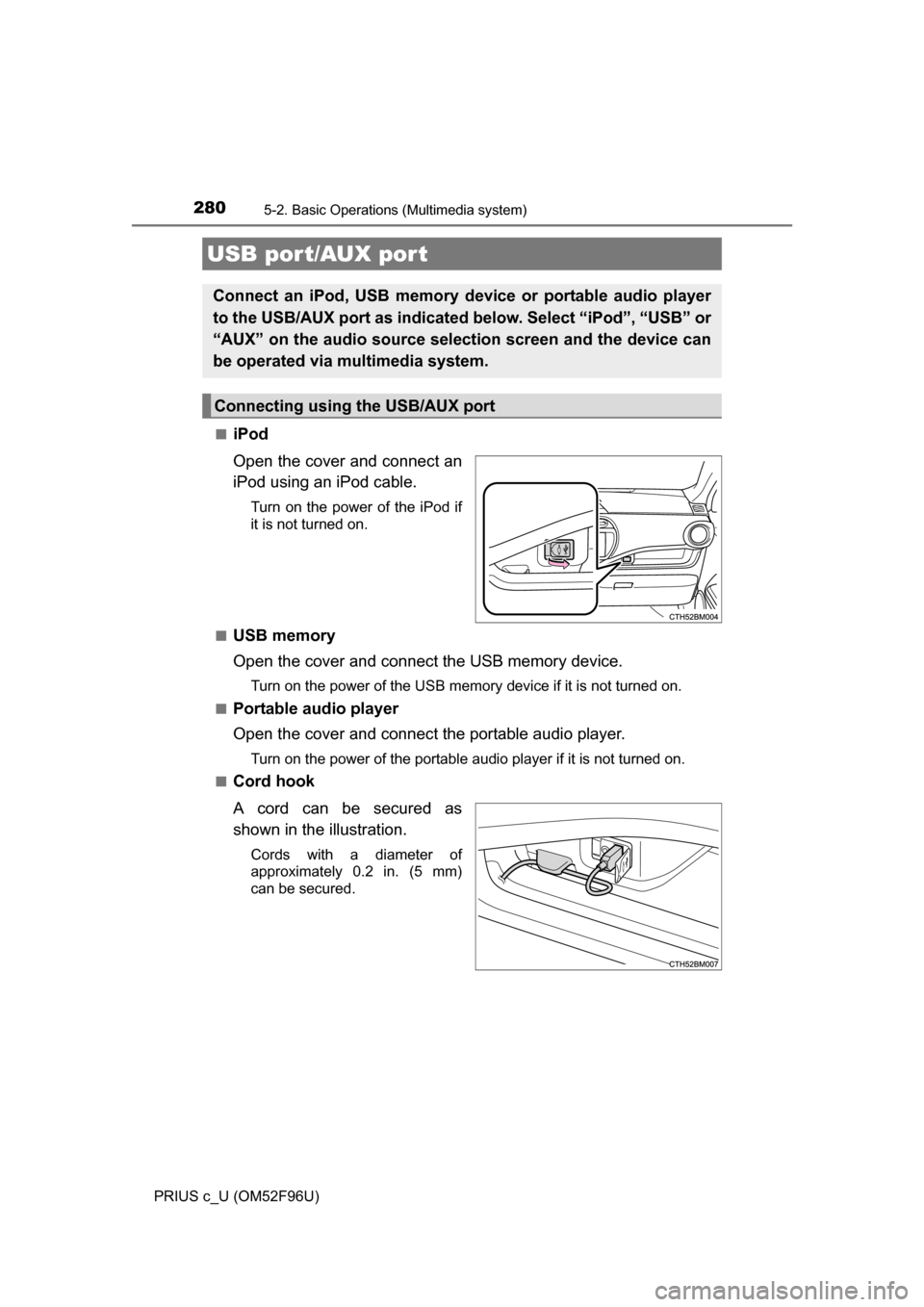
iPod
Open the cover and connect an
iPod using an iPod cable.
Turn on the power of the iPod if
it is not turned on.
■
USB memory
Open the cover and connect the USB memory device.
Turn on the power of the USB memory device if it is not turned on.
■
Portable audio player
Open the cover and connect the portable audio player.
Turn on the power of the portable audio player if it is not turned on.
■
Cord hook
A cord can be secured as
shown in the illustration.
Cords with a diameter of
approximately 0.2 in. (5 mm)
can be secured.
USB port/AUX port
Connect an iPod, USB memory device or portable audio player
to the USB/AUX port as indicated below. Select “iPod”, “USB” or
“AUX” on the audio sour ce selection screen and the device can
be operated via multimedia system.
Connecting using the USB/AUX port
Page 292 of 588
2925-4. Using the Multimedia system
PRIUS c_U (OM52F96U)■
Selecting a track/file/song
Press the “
” or “ ” button on “SEEK/TRACK” or turn the
“TUNE·SCROLL” knob to select the desired track/file/song number.
To fast-forward or reverse, press and hold the “ ” or “ ” button on
“SEEK/TRACK”.
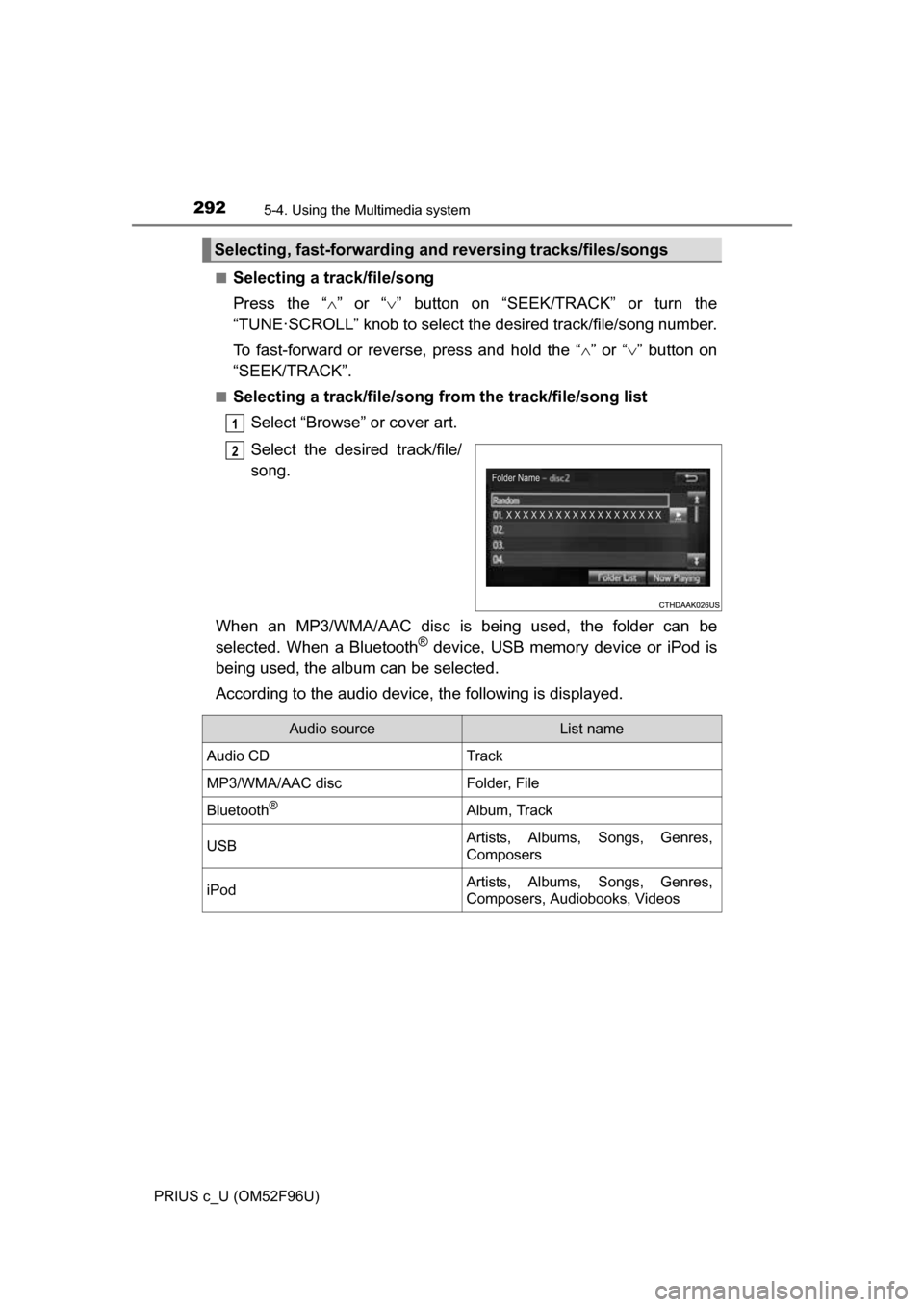
■Selecting a track/file/song from the track/file/song list
Select “Browse” or cover art.
Select the desired track/file/
song.
When an MP3/WMA/AAC disc is being used, the folder can be
selected. When a Bluetooth
® device, USB memory device or iPod is
being used, the album can be selected.
According to the audio device, the following is displayed.
Selecting, fast-forwarding a nd reversing tracks/files/songs
1
2
Audio sourceList name
Audio CDTrack
MP3/WMA/AAC discFolder, File
Bluetooth®Album, Track
USBArtists, Albums, Songs, Genres,
Composers
iPodArtists, Albums, Songs, Genres,
Composers, Audiobooks, Videos
Page 307 of 588
3075-7. Using an external device (Multimedia system)
5
Audio system
PRIUS c_U (OM52F96U)
P. 2 8 0
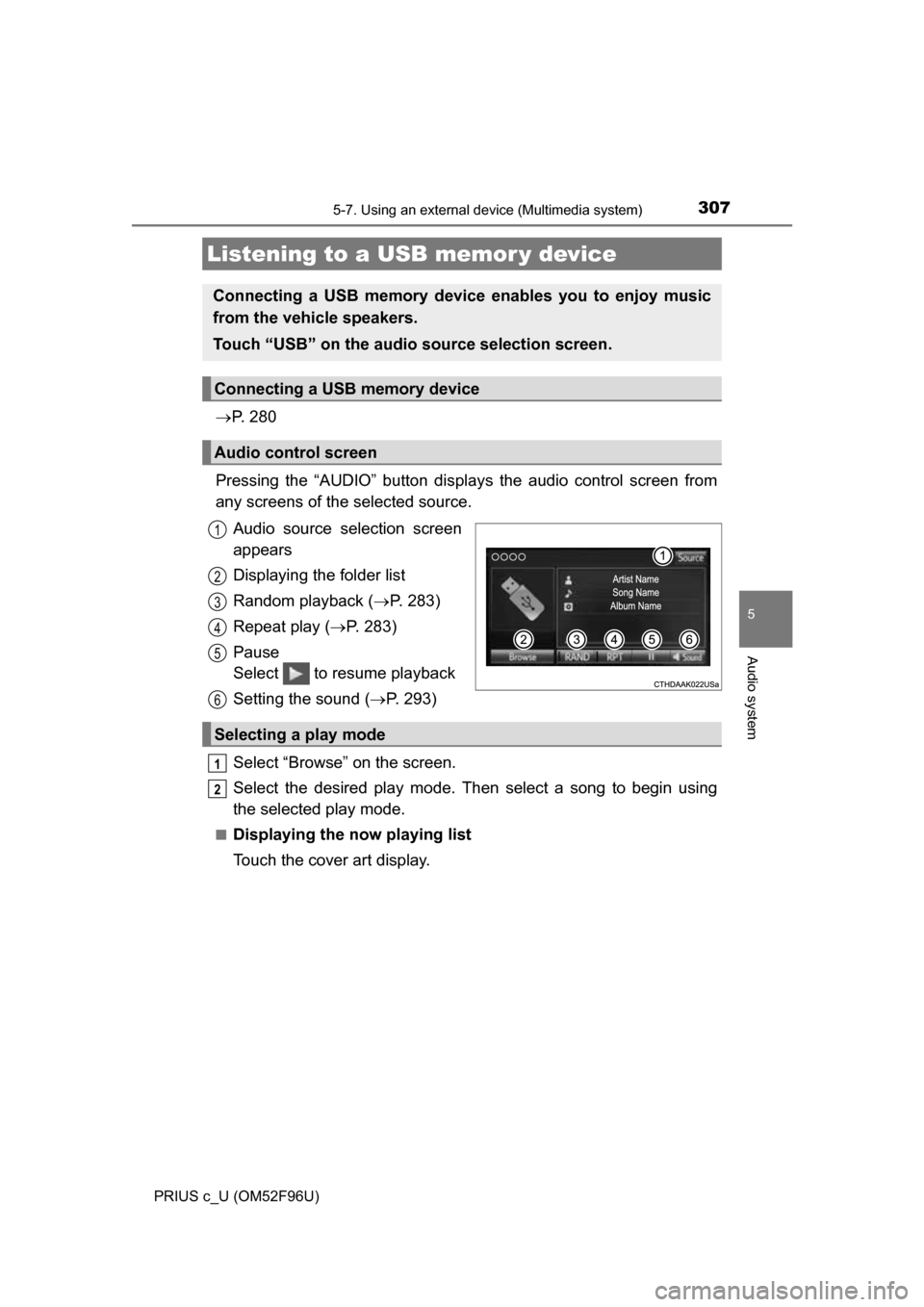
Pressing the “AUDIO” button disp lays the audio control screen from
any screens of the selected source.
Audio source selection screen
appears
Displaying the folder list
Random playback ( P. 283)
Repeat play ( P. 283)
Pause
Select to resume playback
Setting the sound ( P. 293)
Select “Browse” on the screen.
Select the desired play mode. Then select a song to begin using
the selected play mode.
■Displaying the now playing list
Touch the cover art display.
Listening to a USB memor y device
Connecting a USB memory device enables you to enjoy music
from the vehicle speakers.
Touch “USB” on the audio source selection screen.
Connecting a USB memory device
Audio control screen
1
2
3
4
5
6
Selecting a play mode
1
2
Page 308 of 588
3085-7. Using an external device (Multimedia system)
PRIUS c_U (OM52F96U)
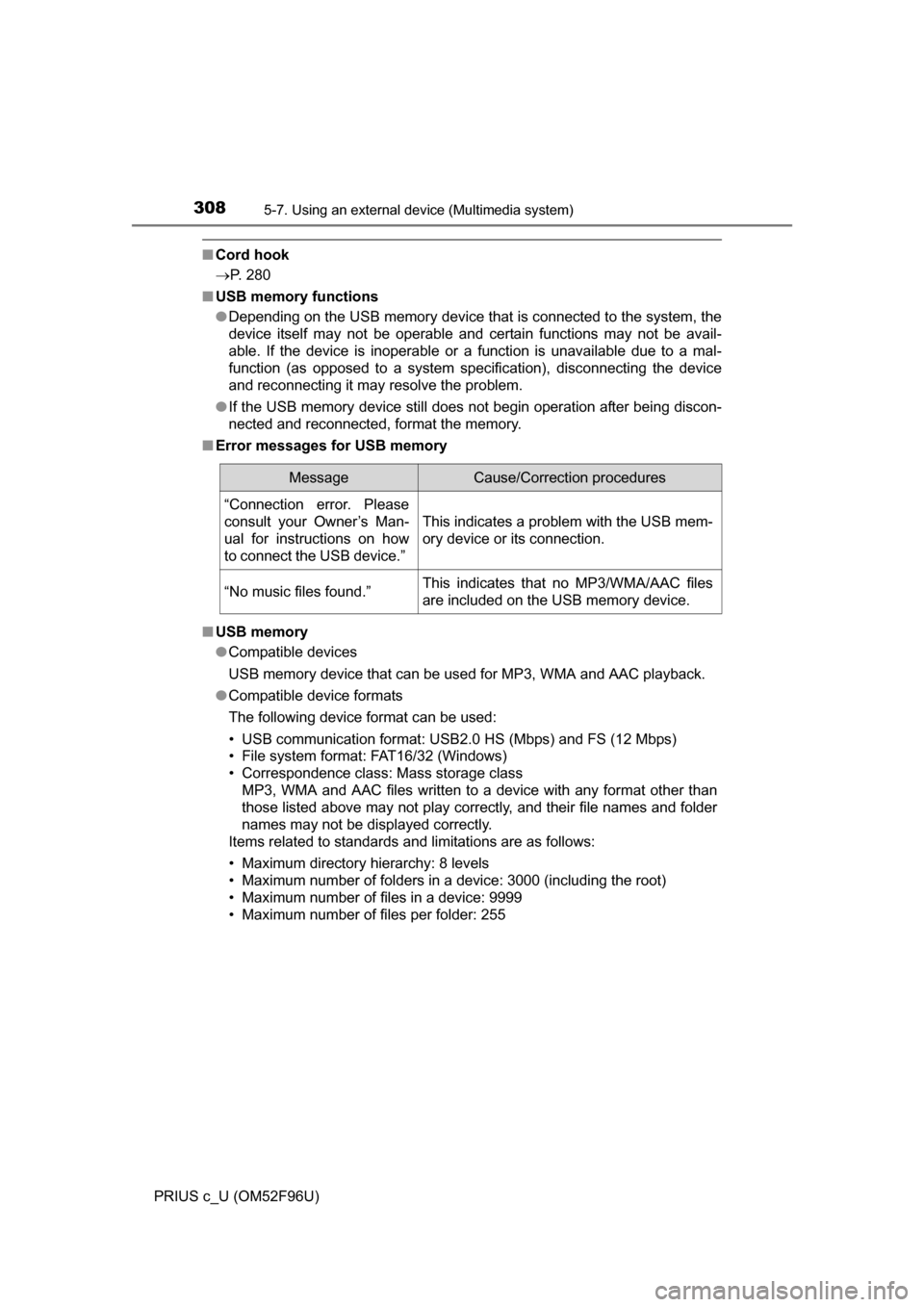
■Cord hook
P. 280
■ USB memory functions
●Depending on the USB memory device that is connected to the system, the
device itself may not be operable and certain functions may not be avail-
able. If the device is inoperable or a function is unavailable due to a mal-
function (as opposed to a system specification), disconnecting the device
and reconnecting it may resolve the problem.
● If the USB memory device still does not begin operation after being discon-
nected and reconnected, format the memory.
■ Error messages for USB memory
■ USB memory
●Compatible devices
USB memory device that can be used for MP3, WMA and AAC playback.
● Compatible device formats
The following device format can be used:
• USB communication format: USB2.0 HS (Mbps) and FS (12 Mbps)
• File system format: FAT16/32 (Windows)
• Correspondence class: Mass storage class
MP3, WMA and AAC files written to a device with any format other than
those listed above may not play correctly, and their file names and folder
names may not be displayed correctly.
Items related to standards and limitations are as follows:
• Maximum directory hierarchy: 8 levels
• Maximum number of folders in a device: 3000 (including the root)
• Maximum number of files in a device: 9999
• Maximum number of files per folder: 255
MessageCause/Correction procedures
“Connection error. Please
consult your Owner’s Man-
ual for instructions on how
to connect the USB device.”
This indicates a problem with the USB mem-
ory device or its connection.
“No music files found.”This indicates that no MP3/WMA/AAC files
are included on the USB memory device.
Page 310 of 588
3105-7. Using an external device (Multimedia system)
PRIUS c_U (OM52F96U)●
ID3, WMA and AAC tags
ID3 tags can be added to MP3 files, making it possible to record the track
title, artist name, etc.
The system is compatible with ID3 Ver. 1.0, 1.1, and Ver. 2.2, 2.3 ID3 tags.
(The number of characters is based on ID3 Ver. 1.0 and 1.1.)
WMA tags can be added to WMA files, making it possible to record the
track title and artist name in the same way as with ID3 tags.
AAC tags can be added to AAC files, making it possible to record the track
title and artist name in the same way as with ID3 tags.
● MP3, WMA and AAC playback
• When a device containing MP3, WMA and AAC files is connected, all
files in the USB memory device are checked. Once the file check is fin-
ished, the first MP3, WMA and AAC file is played. To make the file check
finish more quickly, we recommend that you do not include any files other
than MP3, WMA and AAC files or create any unnecessary folders.
• When a USB memory device is connected and the audio source is
changed to USB memory mode, the USB memory device will start play-
ing the first file in the first folder. If the same device is removed and
reconnected (and the con- tents have not been changed), the USB mem-
ory device will resume play from the same point in which it was last used.
● Extensions
If the file extensions .mp3, .wma and .m4a are used for files other than
MP3, WMA and AAC files, they will be skipped (not played).
● Playback
• To play MP3 files with steady sound quality, we recommend a fixed bit
rate of at least 128 kbps and a sampling frequency of 44.1 kHz.
• There is a wide variety of freeware and other encoding software for MP3, WMA and AAC files on the market, and depending on the status of the
encoding and the file format, poor sound quality or noise at the start of
playback may result. In some cases, playback may not be possible at all.\
• Microsoft, Windows, and Windows Media are the registered trademarks
of Microsoft Corporation in the U.S.A. and other countries.
WARNING
■While driving
Do not connect a USB memory device or operate the device controls.