ad blue TOYOTA PRIUS C 2018 Owners Manual (in English)
[x] Cancel search | Manufacturer: TOYOTA, Model Year: 2018, Model line: PRIUS C, Model: TOYOTA PRIUS C 2018Pages: 600, PDF Size: 10.14 MB
Page 4 of 600

TABLE OF CONTENTS4
PRIUS c_U (OM52G95U)5-1. Using the audio system
Audio system types ........... 282
5-2. Basic Operations (Multimedia system)
Multimedia system ............ 283
Steering wheel audio switches .......................... 285
USB port/AUX port ............ 286
Basic audio operations ...... 288
5-3. Setup (Multimedia system)
Setup menu ....................... 290
General settings ................ 291
Audio settings.................... 293
Display settings ................. 294
Voice settings .................... 295
5-4. Using the Multimedia system
Selecting the audio source ............................. 296
List screen operation ......... 297
Optimal use of the multimedia system .......... 299
5-5. Using the radio (Multimedia system)
Radio operation ................. 300
5-6. Playing an audio CD and MP3/WMA/AAC discs
(Multimedia system)
CD player operation........... 302
5-7. Using an external device (Multimedia system)
Listening to an iPod ........... 308
Listening to a USB memory device ................ 313
Using the AUX port ............ 318
5-8. Connecting Bluetooth
®
(Multimedia system)
Preparations to use wireless
communication ................ 319
Registering a Bluetooth
®
audio player for the
first time ........................... 324
Registering a Bluetooth
®
phone for the first time..... 325
Registering a Bluetooth
®
device .............................. 326
Connecting a Bluetooth
®
device .............................. 328
Displaying a Bluetooth
®
device details................... 330
Detailed Bluetooth
®
system settings................ 331
5Audio system
Page 5 of 600
5
1
9 8 6 5
4
3
2
PRIUS c_U (OM52G95U)
10
7
5-9. Bluetooth® Audio
(Multimedia system)
Listening to Bluetooth
®
Audio ............................... 332
5-10. Bluetooth
® phone
(Multimedia system)
Using a Bluetooth
®
Phone.............................. 334
Making a call ..................... 337
Receiving a call ................. 340
Speaking on the phone ..... 341
Bluetooth
® phone
message function ............ 345
Using the steering wheel switches .......................... 350
Bluetooth
® phone
settings............................ 351
Contact/ Call History Settings........ 353
What to do if... (Troubleshooting) ............ 363
5-11. Bluetooth
®
(Multimedia system)
Bluetooth
®......................... 367
5-12. Using the voice command system
(Multimedia system)
Voice command system .... 372 6-1. Using the air
conditioning system
and defogger
Automatic air conditioning system ............................. 378
Seat heaters ...................... 386
6-2. Using the interior lights Interior lights list................. 387
• Interior lights.................. 388
• Personal lights............... 388
6-3. Using the storage features
List of storage features ...... 390
• Glove box ...................... 391
• Console box .................. 391
• Auxiliary boxes .............. 392
• Cup holders ................... 393
• Bottle holders ................ 394
6-4. Other interior features Other interior features........ 395
• Sun visors ..................... 395
• Vanity mirrors ................ 395
• Power outlet .................. 396
• Coat hooks .................... 397
• Assist grips .................... 398
• Luggage cover .............. 399
6Interior features
Page 257 of 600
2574-6. Using the driving support systems
4
Driving
PRIUS c_U (OM52G95U)■
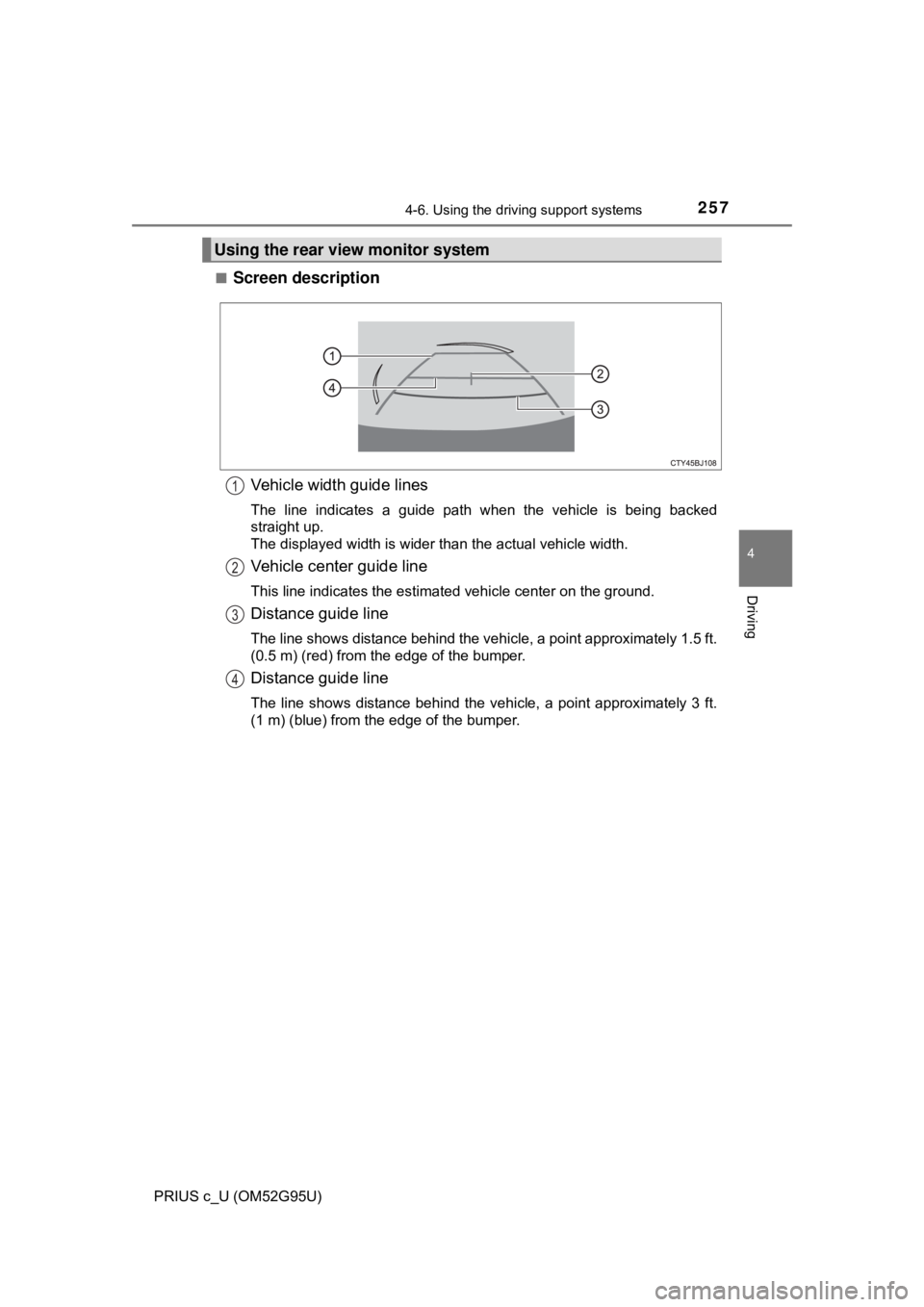
Screen description
Vehicle width guide lines
The line indicates a guide path when the vehicle is being backed
straight up.
The displayed width is wider than the actual vehicle width.
Vehicle center guide line
This line indicates the estimated vehicle center on the ground.
Distance guide line
The line shows distance behind the vehicle, a point approximately 1.5 ft.
(0.5 m) (red) from the edge of the bumper.
Distance guide line
The line shows distance behind the vehicle, a point approximately 3 ft.
(1 m) (blue) from the edge of the bumper.
Using the rear view monitor system
1
2
3
4
Page 281 of 600
281
5Audio system
PRIUS c_U (OM52G95U)
5-6. Playing an audio CD and MP3/WMA/AAC discs
(Multimedia system)
CD player operation .......... 302
5-7. Using an external device (Multimedia system)
Listening to an iPod .......... 308
Listening to a USB memory device................ 313
Using the AUX port ........... 318
5-8. Connecting Bluetooth
®
(Multimedia system)
Preparations to use wireless
communication ................ 319
Registering a Bluetooth
®
audio player for the
first time .......................... 324
Registering a Bluetooth
®
phone for the
first time .......................... 325
Registering a Bluetooth
®
device.............................. 326
Connecting a Bluetooth
®
device.............................. 328
Displaying a Bluetooth
®
device details .................. 330
Detailed Bluetooth
®
system settings ............... 331 5-9. Bluetooth
® Audio
(Multimedia system)
Listening to Bluetooth
®
Audio............................... 332
5-10. Bluetooth
® phone
(Multimedia system)
Using a Bluetooth
®
Phone ............................. 334
Making a call ..................... 337
Receiving a call ................. 340
Speaking on the phone ..... 341
Bluetooth
® phone
message function ............ 345
Using the steering wheel switches ................ 350
Bluetooth
® phone
settings ........................... 351
Contact/ Call History Settings ....... 353
What to do if... (Troubleshooting) ............ 363
5-11. Bluetooth
®
(Multimedia system)
Bluetooth
®......................... 367
5-12. Using the voice command system
(Multimedia system)
Voice command system ............................ 372
Page 283 of 600
283
5
Audio system
PRIUS c_U (OM52G95U)
5-2. Basic Operations (Multimedia system)
Multimedia system∗
∗: If equipped
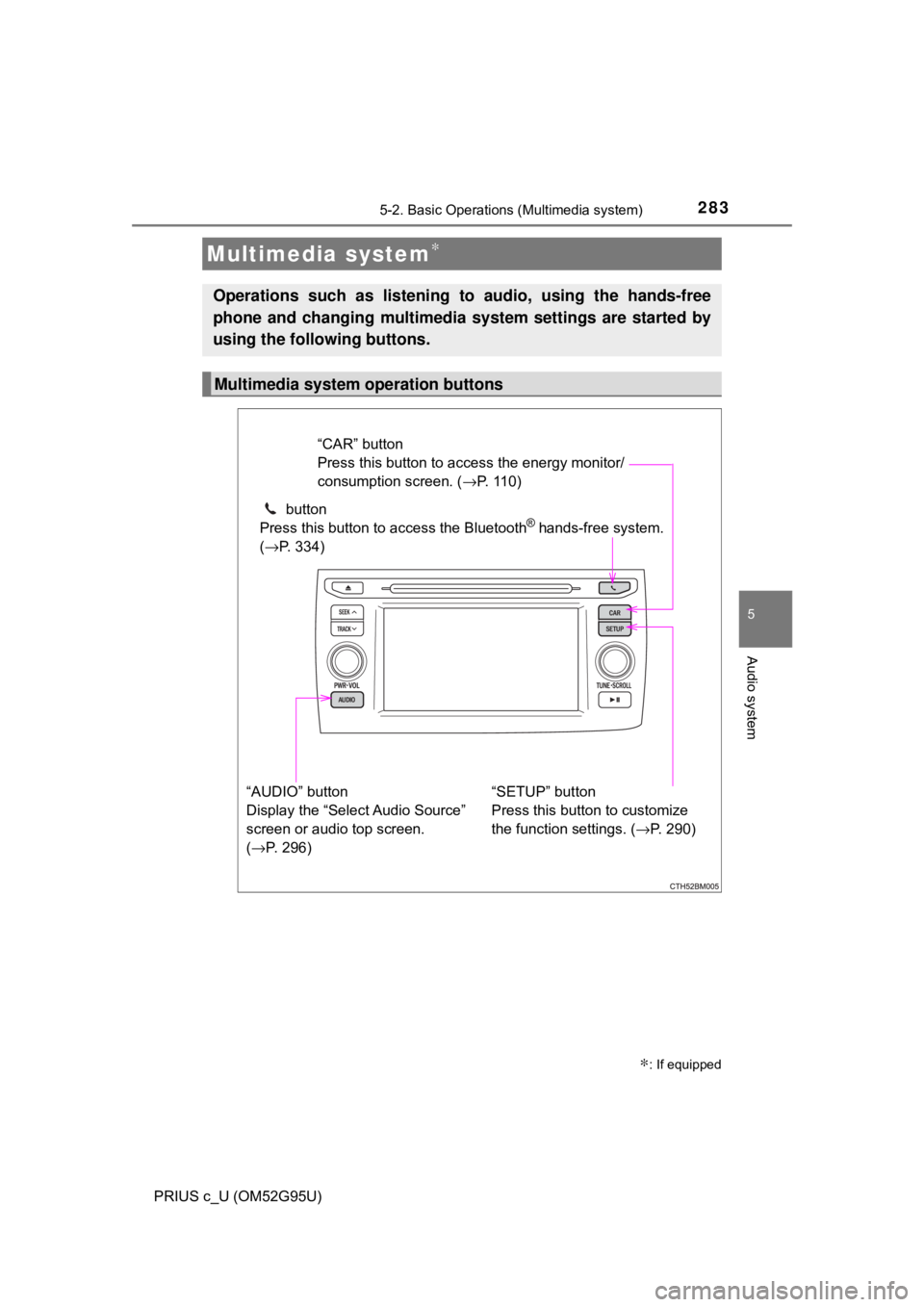
Operations such as listening to audio, using the hands-free
phone and changing multimedia system settings are started by
using the following buttons.
Multimedia system operation buttons
“AUDIO” button
Display the “Select Audio Source”
screen or audio top screen.
(→P. 296) button
Press this button to access the Bluetooth
® hands-free system.
( →P. 334)
“CAR” button
Press this button to access the energy monitor/
consumption screen. ( →P. 1 1 0 )
“SETUP” button
Press this button to customize
the function settings. ( →P. 290)
Page 290 of 600
290
PRIUS c_U (OM52G95U)
5-3. Setup (Multimedia system)
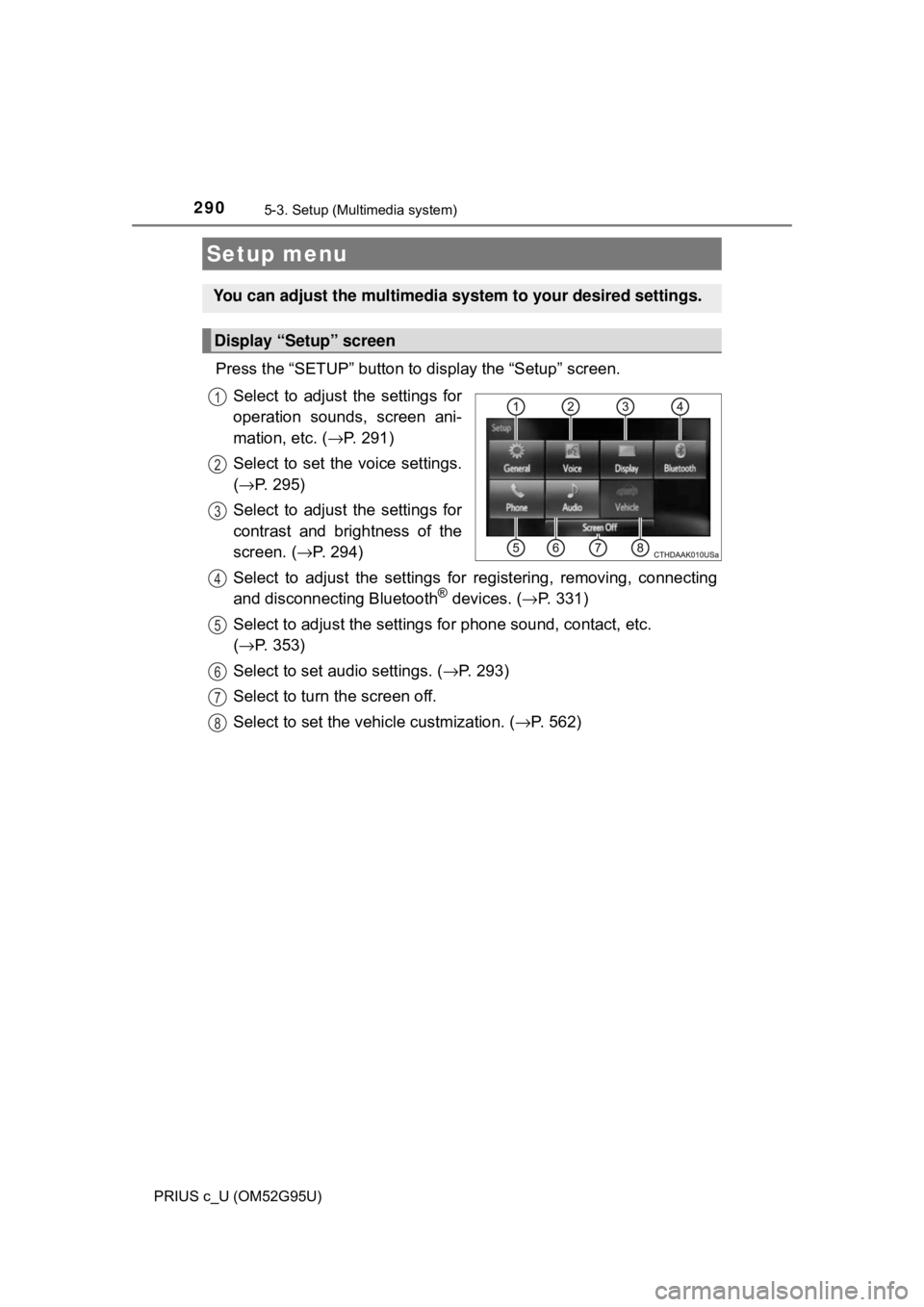
Press the “SETUP” button to display the “Setup” screen.Select to adjust the settings for
operation sounds, screen ani-
mation, etc. ( →P. 291)
Select to set the voice settings.
( → P. 295)
Select to adjust the settings for
contrast and brightness of the
screen. ( →P. 294)
Select to adjust the settings for registering, removing, connecting
and disconnecting Bluetooth
® devices. ( →P. 331)
Select to adjust the settings fo r phone sound, contact, etc.
( → P. 353)
Select to set audio settings. ( →P. 293)
Select to turn the screen off.
Select to set the vehicle custmization. (→ P. 562)
Setup menu
You can adjust the multimedia system to your desired settings.
Display “Setup” screen
1
2
3
4
5
6
7
8
Page 298 of 600
2985-4. Using the Multimedia system
PRIUS c_U (OM52G95U)■
Selecting a track/file/song
Press the “
∧” or “∨ ” button on “SEEK/TRACK” or turn the
“TUNE·SCROLL” knob to select the desired track/file/song number.
To fast-forward or reverse, press and hold the “ ∧” or “∨ ” button on
“SEEK/TRACK”.
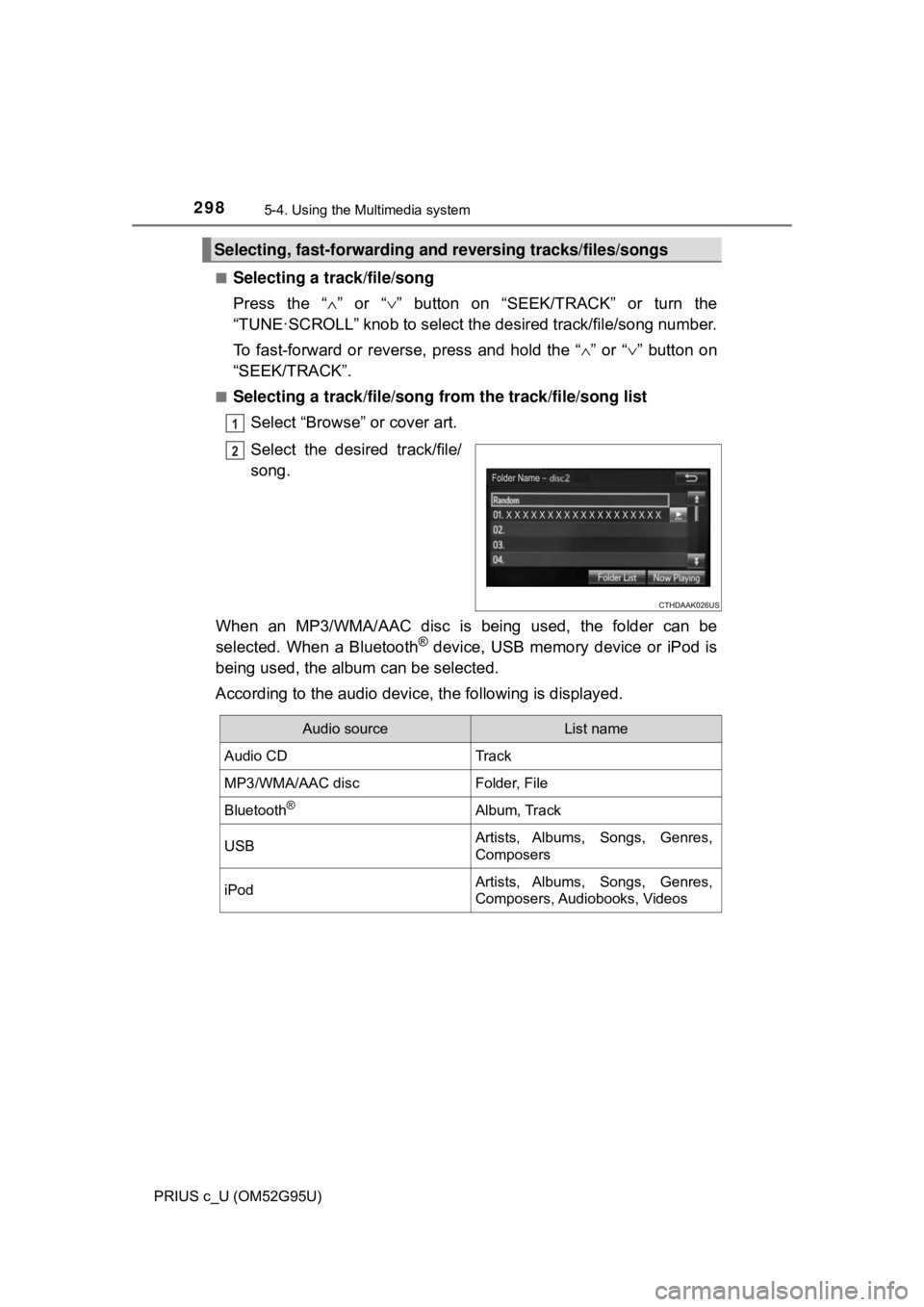
■Selecting a track/file/song from the track/file/song list
Select “Browse” or cover art.
Select the desired track/file/
song.
When an MP3/WMA/AAC disc is being used, the folder can be
selected. When a Bluetooth
® device, USB memory device or iPod is
being used, the album can be selected.
According to the audio device, the following is displayed.
Selecting, fast-forwarding a nd reversing tracks/files/songs
1
2
Audio sourceList name
Audio CDTrack
MP3/WMA/AAC discFolder, File
Bluetooth®Album, Track
USBArtists, Albums, Songs, Genres,
Composers
iPodArtists, Albums, Songs, Genres,
Composers, Audiobooks, Videos
Page 319 of 600
319
5
Audio system
PRIUS c_U (OM52G95U)
5-8. Connecting Bluetooth® (Multimedia system)
■About Bluetooth®
Preparations to use wireless communica-
tion
The following can be performed using Bluetooth® wireless com-
munication:
■A portable audio player can be operated and listened to via
multimedia system
■Hands-free phone calls can be made via a cellular phone
In order to use wireless communication, register and connect a
Bluetooth
® device by performing the following procedures.
The Bluetooth® word mark and logos are
registered trademarks owned Bluetooth
SIG, Inc. and any use of such marks by
Fujitsu Ten Limited is under license.
Other trademarks and trade names are
those of their respective owners.
Page 320 of 600
3205-8. Connecting Bluetooth® (Multimedia system)
PRIUS c_U (OM52G95U)■
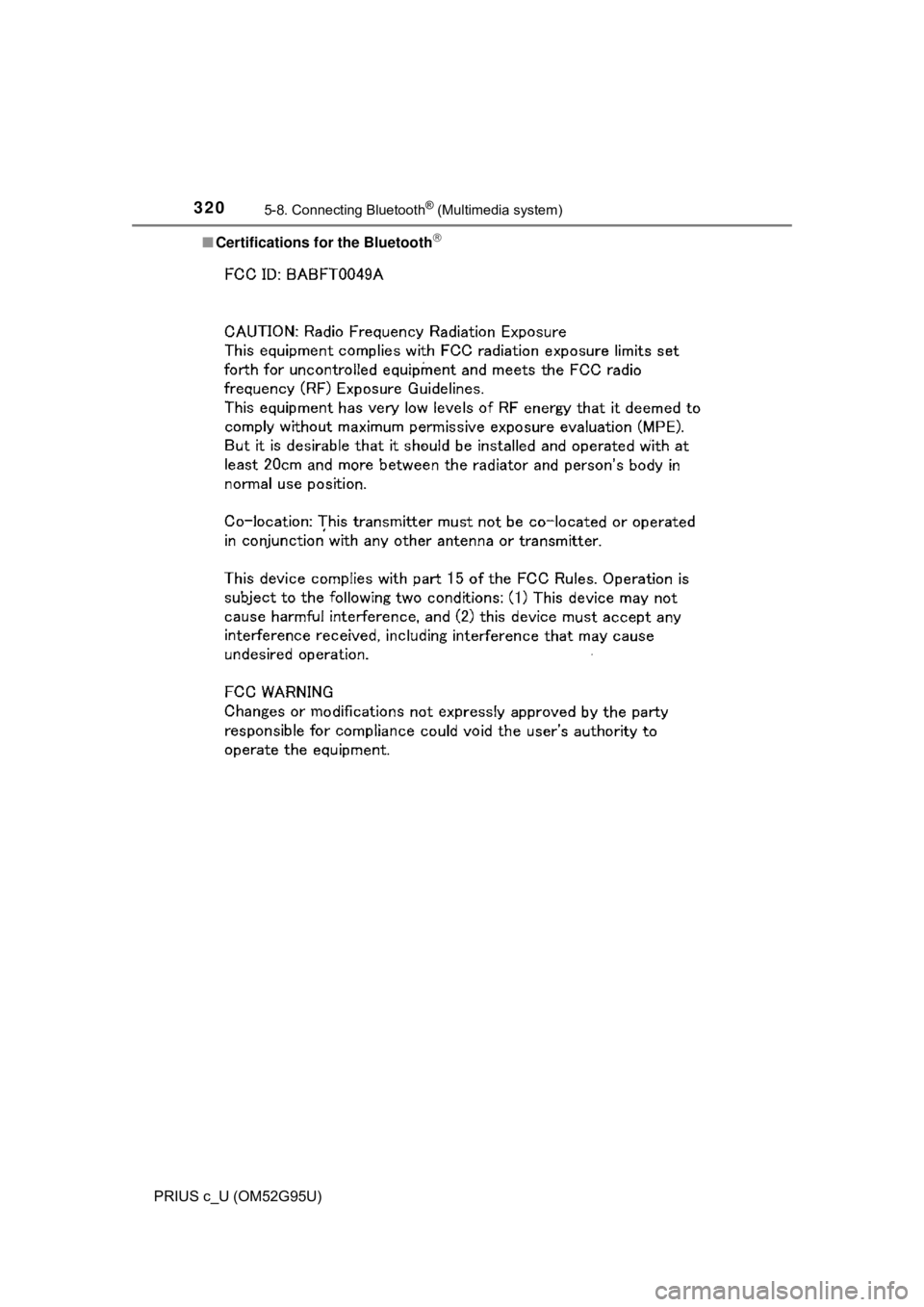
Certifications for the Bluetooth
Page 321 of 600
3215-8. Connecting Bluetooth® (Multimedia system)
5
Audio system
PRIUS c_U (OM52G95U)