pairing phone TOYOTA PRIUS C 2018 Owners Manual (in English)
[x] Cancel search | Manufacturer: TOYOTA, Model Year: 2018, Model line: PRIUS C, Model: TOYOTA PRIUS C 2018Pages: 48, PDF Size: 1.92 MB
Page 3 of 48

1
INDEX
Engine maintenance 9
Fuel tank door release & cap
7
Hood release
8
Indicator symbols
4-5
Instrument cluster
4
Instrument panel
2-3
Instrument panel light control
8
Keyless entry1,2 6
Smart Key system1,2 7
1 Visit your Toyota dealer for information on customizing this feature.2 Programmable by customer. Refer to the Owner’s Manual for instructio\
ns and more information.
OVERVIEW
FEATURES & OPERATIONS SAFETY & EMERGENCY FEATURES
Audio 18
Auto lock/unlock1,2 17
Automatic air conditioning/heating
16
Clock
22
Cruise control
20
Drive mode
11
Hill-start Assist Control (HAC)
23
Hybrid Synergy Drive System
10
Hybrid transmission
11
Lights1,2 & turn signals 15
Moonroof
17
Multi-Information Display (MID)1 21
Parking brake
20
Power outlet-12V DC
18
Rear view monitor system
23
Seat adjustments-Front
12
Seat-Folding down rear seat
13
Seat heaters
16
Seats-Head restraints
12
Steering wheel switches
19
Telephone controls (Bluetooth®) 22
Tilt & telescopic steering wheel
21
Vehicle Stability Control (VSC)/
TRAC OFF switch
23
USB/AUX port
19
Windows-Power
13
Windshield wipers & washers
14 Door locks
31
Floor mat installation
33
Rear door child safety locks
31
Seat belts
30
Spare tire & tools
31
Star Safety System™
32-33
Tire Pressure Monitoring
(warning) System (TPMS)
30
BLUETOOTH® DEVICE
PAIRING SECTION 34-43
TOYOTA SAFETY SENSE™ C (TSS-C)
Automatic High Beams (AHB) 29
Lane Departure Alert (LDA)
27-28
Pre-Collision System (PCS)
25-26
Quick overview-
Toyota Safety Sense™ C (TSS-C)
24
Sensors
24
OVERVIEW
FEATURES & OPERATIONS
TOYOTA SAFETY SENSE
SAFETY & EMERGENCY FEATURES
Page 24 of 48
 22
FEATURES & OPERATIONSClock
Telephone controls (Bluetooth®)
Bluetooth® technology allows dialing or receipt of calls without taking hands from\
the steering wheel or using a cable to connect the")
22
FEATURES & OPERATIONSClock
Telephone controls (Bluetooth®)
Bluetooth® technology allows dialing or receipt of calls without taking hands from\
the steering wheel or using a cable to connect the telephone and the sys\
tem.
Refer to “Bluetooth
® Device Pairing Section,” in this guide, for more information
about phone connections and compatibility.
Microphone (Type A, with moonroof)
Audio unitSteering wheel telephone switches
Volume
Start call or
Siri
® Eyes Free
switch
End call
Microphone (Type B, without moonroof)
Display
Meter control switches
(1) Press “” switches and select from the Multi-Information Display (MID).
(2) Press “
” switches and press “” to select Meter Settings screen.
(3) Press “
” to select Time and date screen.
(4) Press “
” switches and press “” to select Clock screen to adjust time.
You can press “
” to go back to the previous screen at any time.
Scroll up/down or select menu
Enter/select
Previous screen
Page 37 of 48
 35
Pairing your phone is the first step in connecting with your Toyota for \
hands-free
calling and for audio streaming via Bluetooth. This pairing process is q\
uick and
easy: all Android mobile di")
35
Pairing your phone is the first step in connecting with your Toyota for \
hands-free
calling and for audio streaming via Bluetooth. This pairing process is q\
uick and
easy: all Android mobile digital devices have Bluetooth integrated; all \
you have to
do is setup the phone and multimedia system to “talk” to each othe\
r and form a
connection.
2
Initiate Bluetooth® on your Android®
STEP 1
STEP 5
STEP 2STEP 3STEP 4
From your APPS
SCREEN, select
SETTINGS. Select
CONNECTIONS and
select
BLUETOOTH. Ensure
BLUETOOTH
is
ON. Select
YOUR PHONE
DEVICE to make it
discoverable.
Phone will seek out
Bluetooth devices
while remaining
discoverable.
While your Android device is seeking
out Bluetooth devices, proceed to
your Entune Multimedia Head Unit on
your Toyota vehicle.
1 To determine which head unit is installed in your vehicle, refer to the\
Audio section in this guide. Entune™ Premium Audio screens are shown in this section. Screens and features \
may vary by
Entune™ system. 2 Some Android devices may have slightly different SETTINGS screen layout\
depending on manu- facturer of device and Android OS version.
To begin the Bluetooth® Pairing process, press the HOME button on the faceplate of
your Toyota Vehicle Entune™ Multimedia Head Unit.1
Bluetooth® Pairing for Android phone and
Entune™ touch screen system
Page 38 of 48
 36
Initiate Bluetooth® on your Entune™ Multimedia Head Unit
Once you have Bluetooth enabled on your phone and ready to pair, you wil\
l need to
initiate Bluetooth on your Entune head unit. Please")
36
Initiate Bluetooth® on your Entune™ Multimedia Head Unit
Once you have Bluetooth enabled on your phone and ready to pair, you wil\
l need to
initiate Bluetooth on your Entune head unit. Please follow the instructi\
ons below to
pair your Bluetooth enabled phone to your Entune system.
BLUETOOTH® DEVICE PAIRING
On your Toyota Vehicle Entune
Multimedia Head Unit, Select
SETUP BUTTON on the Home
Screen.
For Entune
™ Audio System,
press the SETUP BUTTON
on the faceplate to access the
Setup Screen. Select BLUETOOTH.
Image shown is a sample
image, features may vary.
Select ADD, to add your
phone device.
Back on your smartphone,
you can now select your
TOYOTA VEHICLE in
Bluetooth Settings.
You may need to enter the
provided Bluetooth PIN on
your phone.Your smartphone is now
paired with Entune.Once paired, Entune will
attempt to connect audio and
contacts on your phone.
STEP 6STEP 7STEP 8
STEP 9STEP 11STEP 10
Page 39 of 48
37
Initiate Bluetooth® on your Entune™ Multimedia Head Unit
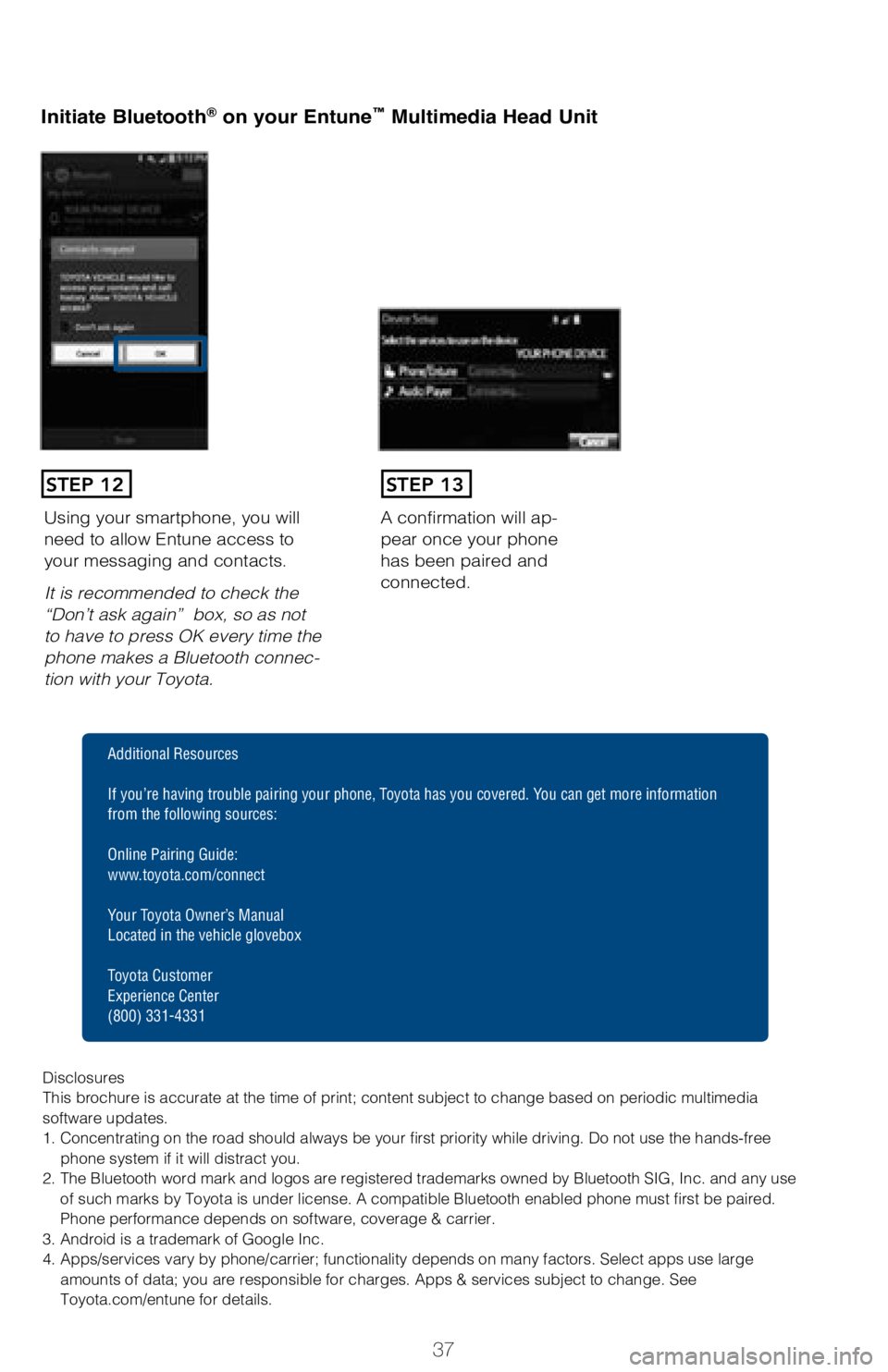
A confirmation will ap-
pear once your phone
has been paired and
connected.Using your smartphone, you will
need to allow Entune access to
your messaging and contacts.
It is recommended to check the
“Don’t ask again” box, so as not
to have to press OK every time the
phone makes a Bluetooth connec
-
tion with your Toyota.
STEP 12STEP 13
Additional Resources
If you’re having trouble pairing your phone, Toyota has you covered. You can get more information
from the following sources:
Online Pairing Guide:
www.toyota.com/connect
Your Toyota Owner’s Manual
Located in the vehicle glovebox
Toyota Customer
Experience Center
(800) 331-4331
Disclosures
This brochure is accurate at the time of print; content subject to chang\
e based on periodic multimedia
software updates.
1. Concentrating on the road should always be your first priority while driving. Do not use the hands-free phone system if it will distract you.
2. The Bluetooth word mark and logos are registered trademarks owned by \
Bluetooth SIG, Inc. and any use of such marks by Toyota is under license. A compatible Bluetooth enabled phone must first be paired.
Phone performance depends on software, coverage & carrier.
3. Android is a trademark of Google Inc.
4. Apps/services vary by phone/carrier; functionality depends on many fa\
ctors. Select apps use large amounts of data; you are responsible for charges. Apps & services subjec\
t to change. See
Toyota.com/entune for details.
Page 40 of 48
 38
Pairing your phone is the first step in connecting with your Toyota for \
hands-free
calling and for audio streaming via Bluetooth. This pairing process is q\
uick and
easy: all iPhone mobile dig")
38
Pairing your phone is the first step in connecting with your Toyota for \
hands-free
calling and for audio streaming via Bluetooth. This pairing process is q\
uick and
easy: all iPhone mobile digital devices have Bluetooth integrated; all y\
ou have to
do is setup the phone and multimedia system to “talk” to each othe\
r and form a
connection.
Initiate Bluetooth® on your iPhone®
From the HOME
SCREEN, select
SETTINGS. Select
BLUETOOTH. Ensure
BLUETOOTH
is
ON. Your iPhone will seek
out Bluetooth devices
while remaining
discoverable.
While your iPhone device is seeking
out Bluetooth devices, proceed to
your Entune Multimedia Head Unit on
your Toyota vehicle.
STEP 1STEP 2STEP 3STEP 4
STEP 5
Bluetooth® Pairing for iPhone and
Entune™ touch screen system
BLUETOOTH® DEVICE PAIRING
**Do not attempt the Bluetooth® Pairing process while driving.**
Page 42 of 48
40
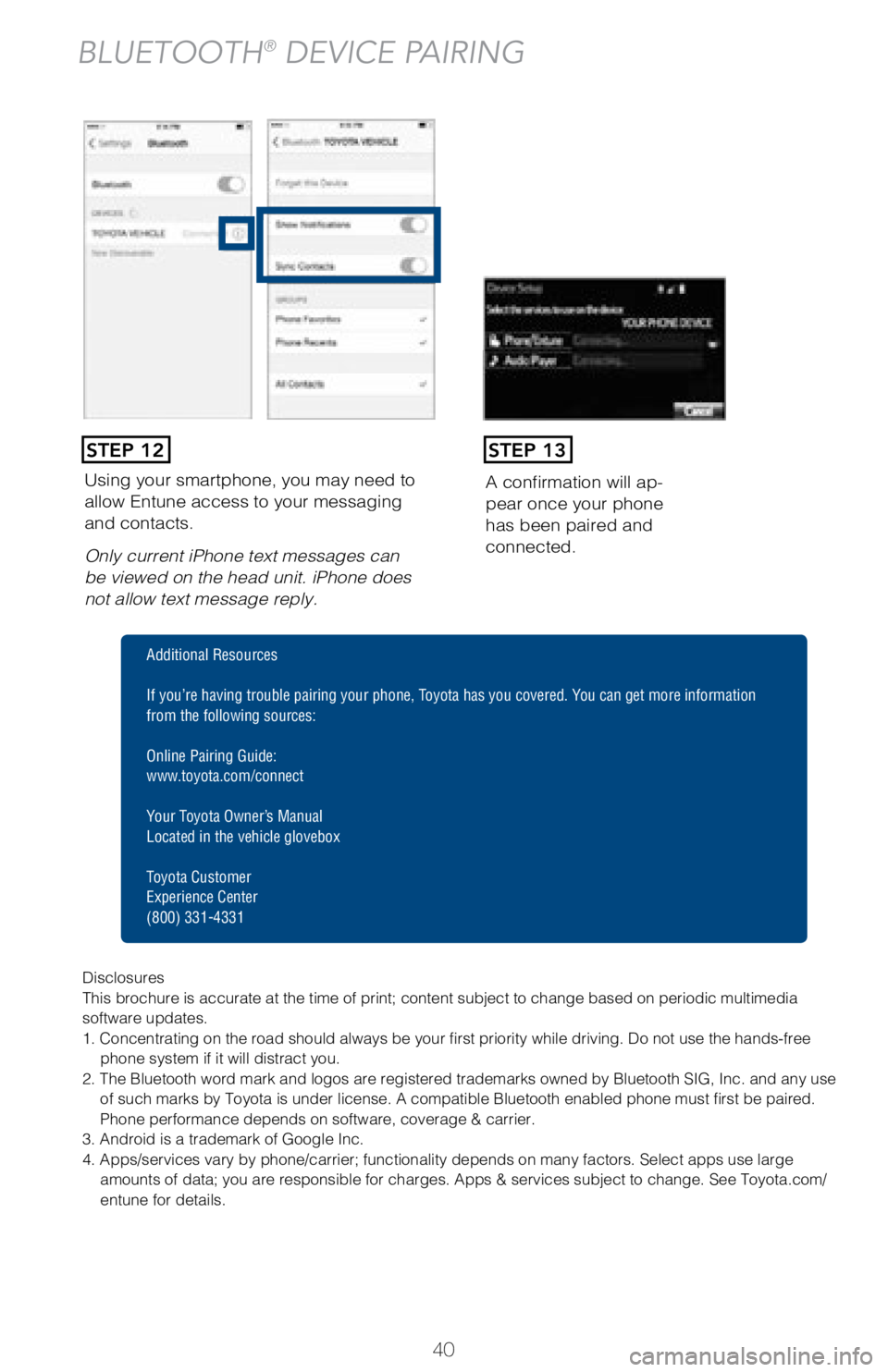
Using your smartphone, you may need to
allow Entune access to your messaging
and contacts.
Only current iPhone text messages can
be viewed on the head unit. iPhone does
not allow text message reply.A confirmation will ap
-
pear once your phone
has been paired and
connected.
STEP 12STEP 13
BLUETOOTH® DEVICE PAIRING
Disclosures
This brochure is accurate at the time of print; content subject to chang\
e based on periodic multimedia
software updates.
1. Concentrating on the road should always be your first priority while driving. Do not use the hands-free
phone system if it will distract you.
2. The Bluetooth word mark and logos are registered trademarks owned by \
Bluetooth SIG, Inc. and any use of such marks by Toyota is under license. A compatible Bluetooth enabled phone must first be paired.
Phone performance depends on software, coverage & carrier.
3. Android is a trademark of Google Inc.
4. Apps/services vary by phone/carrier; functionality depends on many fa\
ctors. Select apps use large amounts of data; you are responsible for charges. Apps & services subjec\
t to change. See Toyota.com/
entune for details.
Additional Resources
If you’re having trouble pairing your phone, Toyota has you covered. You can get more information
from the following sources:
Online Pairing Guide:
www.toyota.com/connect
Your Toyota Owner’s Manual
Located in the vehicle glovebox
Toyota Customer
Experience Center
(800) 331-4331
Page 43 of 48
 41
Pairing your phone is the first step in connecting with your Toyota for \
hands-free
calling and for audio streaming via Bluetooth. This pairing process is q\
uick and
easy: all Windows Phone mob")
41
Pairing your phone is the first step in connecting with your Toyota for \
hands-free
calling and for audio streaming via Bluetooth. This pairing process is q\
uick and
easy: all Windows Phone mobile digital devices have Bluetooth integrated\
; all you
have to do is setup the phone and multimedia system to “talk” to e\
ach other and
form a connection.
Initiate Bluetooth® on your Windows Phone®
From your APP LIST,
select SETTINGS.Select BLUETOOTH.
Ensure
BLUETOOTH
is ON.Phone will seek out
Bluetooth devices
while remaining
discoverable.
While your iPhone device is seeking
out Bluetooth devices, proceed to your
Entune Multimedia Head Unit on your
Toyota vehicle.
Bluetooth® Pairing for Windows Phone and
Entune™ touch screen system
STEP 1STEP 2STEP 3STEP 4
STEP 5
**Do not attempt the Bluetooth® Pairing process while driving.**
Page 44 of 48
42
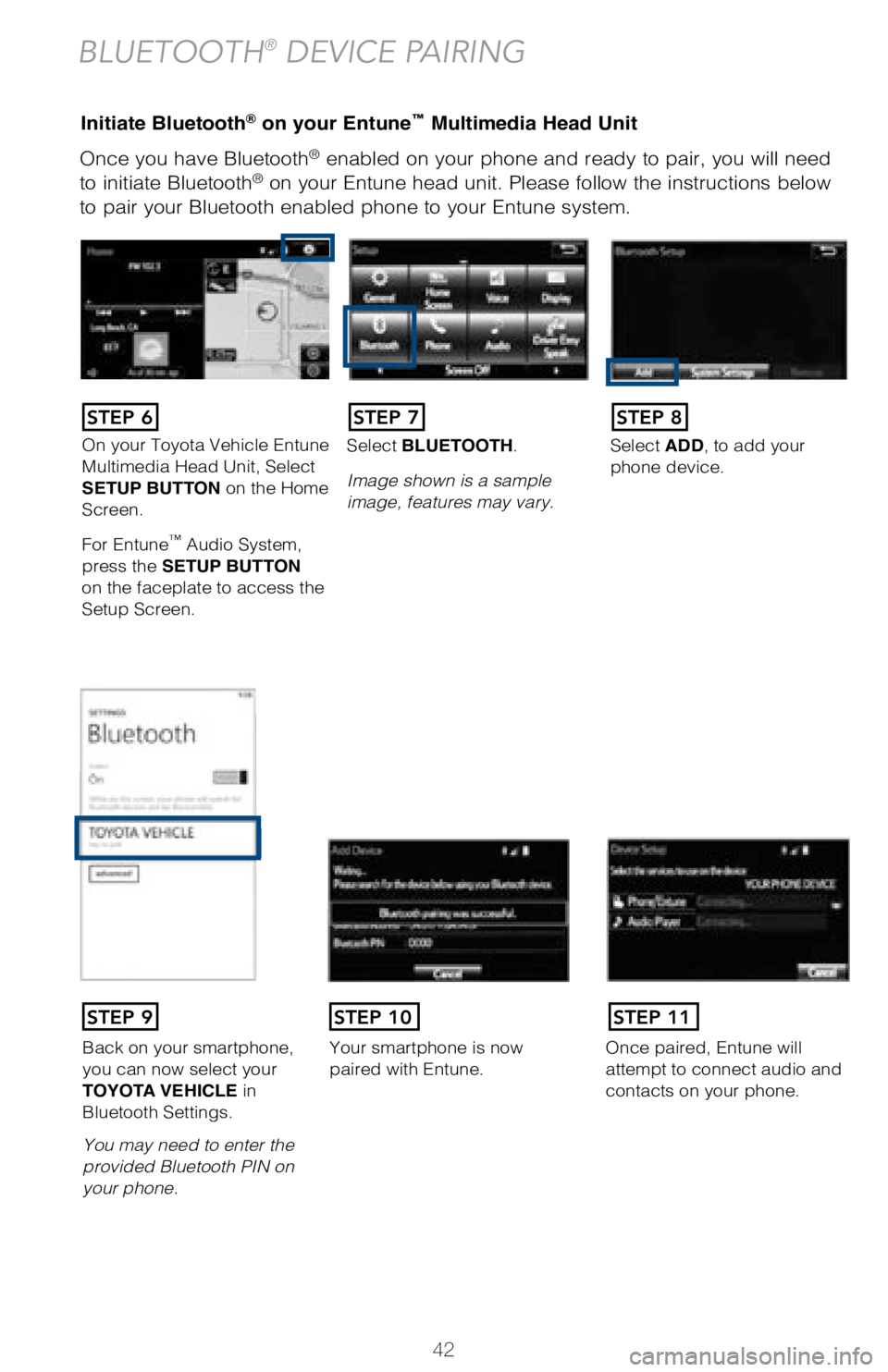
Once you have Bluetooth® enabled on your phone and ready to pair, you will need
to initiate Bluetooth® on your Entune head unit. Please follow the instructions below
to pair your Bluetooth enabled phone to your Entune system.
Initiate Bluetooth® on your Entun e™ Multimedia Head Unit
BLUETOOTH® DEVICE PAIRING
On your Toyota Vehicle Entune
Multimedia Head Unit, Select
SETUP BUTTON on the Home
Screen.
For Entune
™ Audio System,
press the SETUP BUTTON
on the faceplate to access the
Setup Screen. Select BLUETOOTH.
Image shown is a sample
image, features may vary.
Select ADD, to add your
phone device.
Back on your smartphone,
you can now select your
TOYOTA VEHICLE in
Bluetooth Settings.
You may need to enter the
provided Bluetooth PIN on
your phone.
Your smartphone is now
paired with Entune.Once paired, Entune will
attempt to connect audio and
contacts on your phone.
STEP 6STEP 7STEP 8
STEP 9STEP 11STEP 10
Page 45 of 48
43
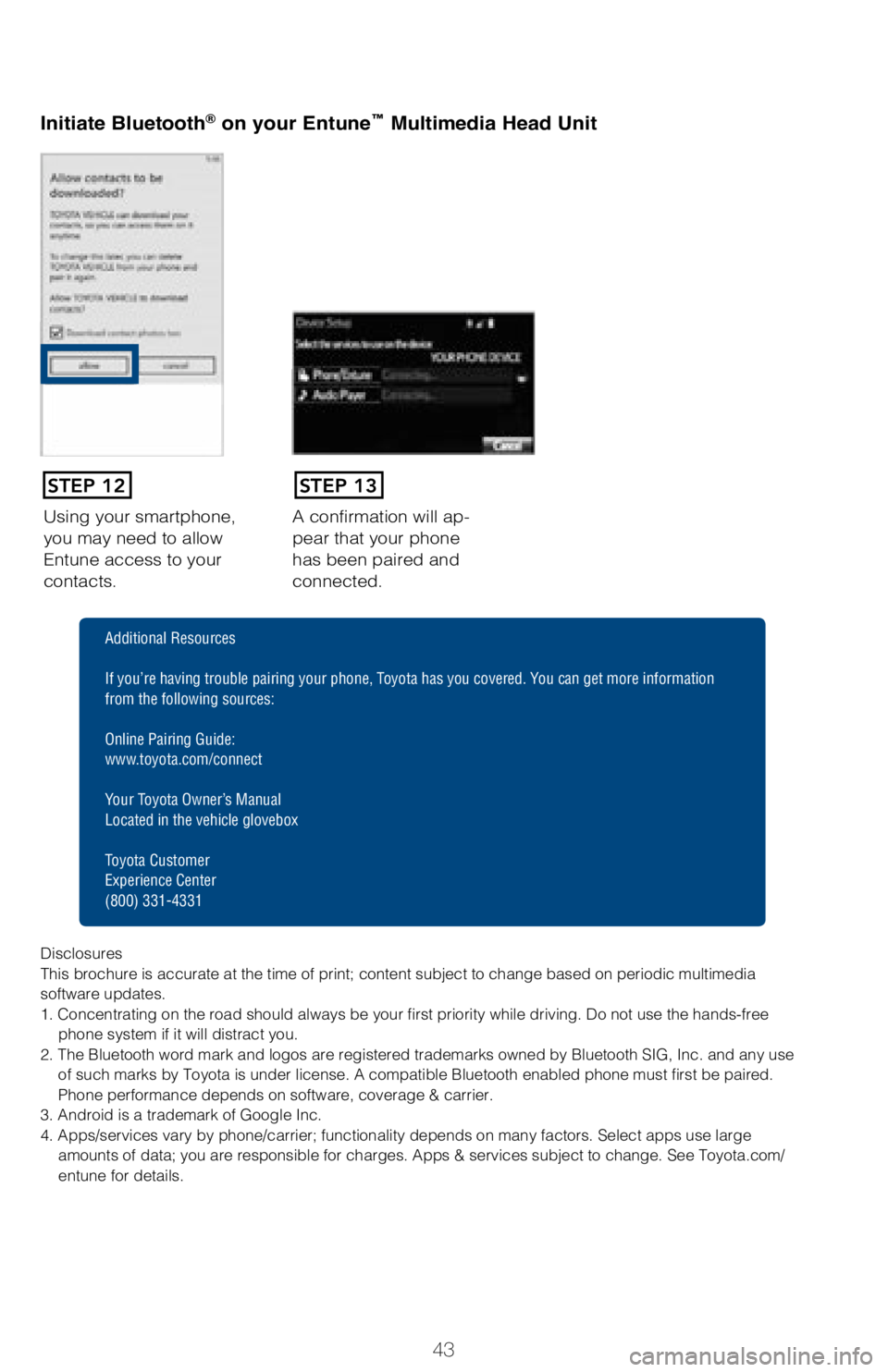
Using your smartphone,
you may need to allow
Entune access to your
contacts.A confirmation will ap-
pear that your phone
has been paired and
connected.
Initiate Bluetooth® on your Entun
e™ Multimedia Head Unit
STEP 12STEP 13
Disclosures
This brochure is accurate at the time of print; content subject to chang\
e based on periodic multimedia
software updates.
1. Concentrating on the road should always be your first priority while driving. Do not use the hands-free
phone system if it will distract you.
2. The Bluetooth word mark and logos are registered trademarks owned by \
Bluetooth SIG, Inc. and any use of such marks by Toyota is under license. A compatible Bluetooth enabled phone must first be paired.
Phone performance depends on software, coverage & carrier.
3. Android is a trademark of Google Inc.
4. Apps/services vary by phone/carrier; functionality depends on many fa\
ctors. Select apps use large amounts of data; you are responsible for charges. Apps & services subjec\
t to change. See Toyota.com/
entune for details.
Additional Resources
If you’re having trouble pairing your phone, Toyota has you covered. You can get more information
from the following sources:
Online Pairing Guide:
www.toyota.com/connect
Your Toyota Owner’s Manual
Located in the vehicle glovebox
Toyota Customer
Experience Center
(800) 331-4331