CD player TOYOTA PRIUS C 2020 User Guide
[x] Cancel search | Manufacturer: TOYOTA, Model Year: 2020, Model line: PRIUS C, Model: TOYOTA PRIUS C 2020Pages: 600, PDF Size: 12.02 MB
Page 317 of 600
317
5
Audio system
PRIUS c_U
5-8. Connecting Bluetooth® (Multimedia system)
■About Bluetooth®
Preparations to use wireless communica-
tion
The following can be performed using Bluetooth® wireless com-
munication:
■A portable audio player can be operated and listened to via
multimedia system
■Hands-free phone calls can be made via a cellular phone
In order to use wireless communication, register and connect a
Bluetooth
® device by performing the following procedures.
The Bluetooth® word mark and logos are
registered trademarks owned Bluetooth
SIG, Inc. and any use of such marks by
Fujitsu Ten Limited is under license.
Other trademarks and trade names are
those of their respective owners.
Page 322 of 600
3225-8. Connecting Bluetooth® (Multimedia system)
PRIUS c_U
Turn the Bluetooth® connection setting of your audio player on.
Press the “AUDIO” button.
Select “ Audio”.
Select “Select Device”.
Follow the steps in “How to register a Bluetooth
® device” from
“STEP 2”. ( P. 3 2 4 )
Registering a Bluetooth® audio player for
the first time
To use the Bluetooth® Audio, it is necessary t o register an audio
player with the system.
Once the player has been registered, it is possible to use the
Bluetooth
® Audio.
For details about regis tering a Bluetooth
® device (P. 324)
1
2
3
4
5
Page 324 of 600
3245-8. Connecting Bluetooth® (Multimedia system)
PRIUS c_U
Display the “Bluetooth* Setup” screen. (P. 321)
*: Bluetooth is a registered trademark of Bluetooth SIG, Inc.
Select “Add”.
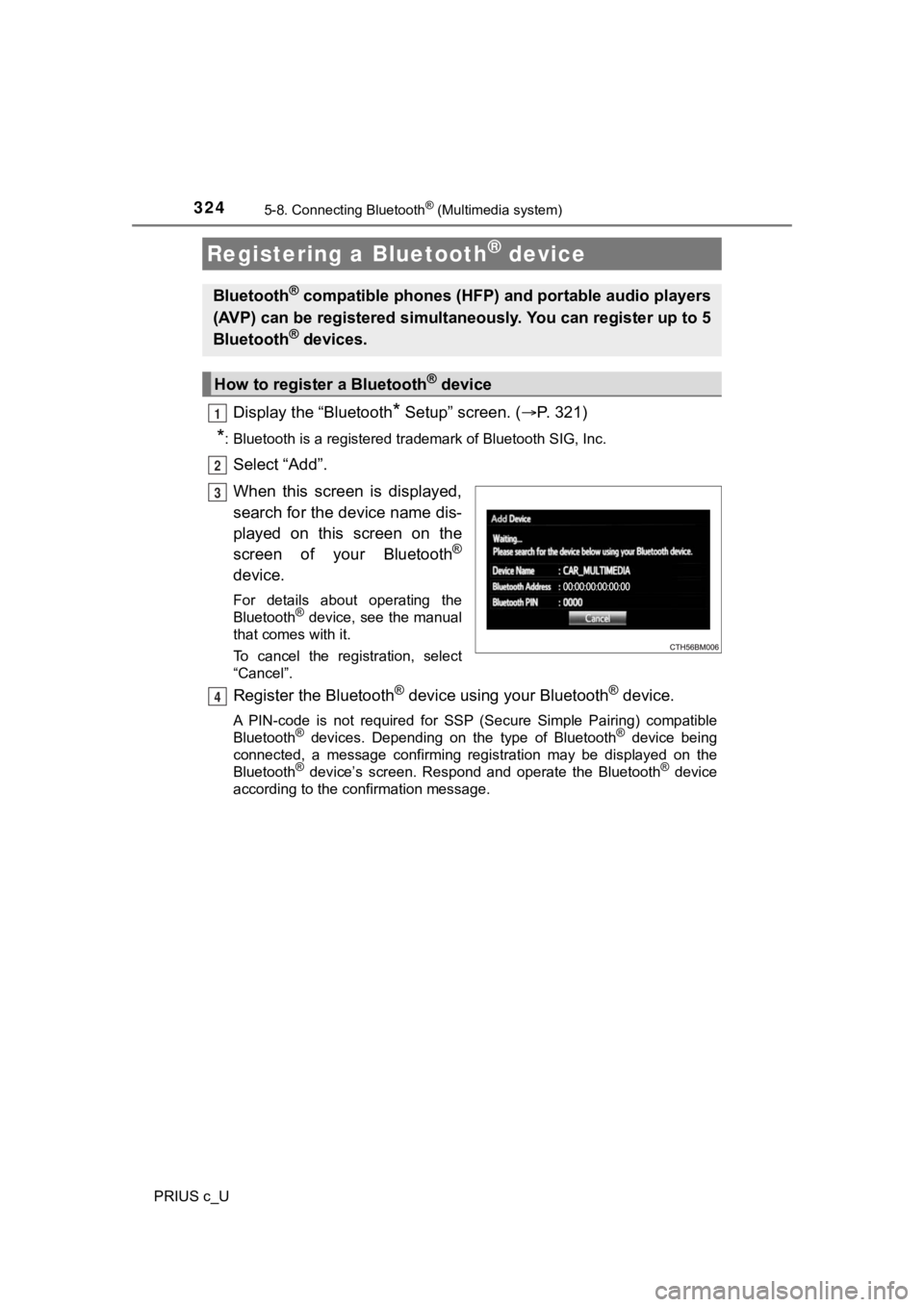
When this screen is displayed,
search for the device name dis-
played on this screen on the
screen of your Bluetooth
®
device.
For details about operating the
Bluetooth® device, see the manual
that comes with it.
To cancel the registration, select
“Cancel”.
Register the Bluetooth® device using your Bluetooth® device.
A PIN-code is not required for SS P (Secure Simple Pairing) compatible
Bluetooth® devices. Depending on the type of Bluetooth® device being
connected, a message confirming registration may be displayed o n the
Bluetooth
® device’s screen. Respond and operate the Bluetooth® device
according to the confirmation message.
Registering a Bluetooth® device
Bluetooth® compatible phones (HFP) a nd portable audio players
(AVP) can be registered simulta neously. You can register up to 5
Bluetooth
® devices.
How to registe r a Bluetooth® device
1
2
3
4
Page 326 of 600
3265-8. Connecting Bluetooth® (Multimedia system)
PRIUS c_U
Press the “SETUP” button.
Select “Bluetooth
*”.
*: Bluetooth is a registered trademark of Bluetooth SIG, Inc.
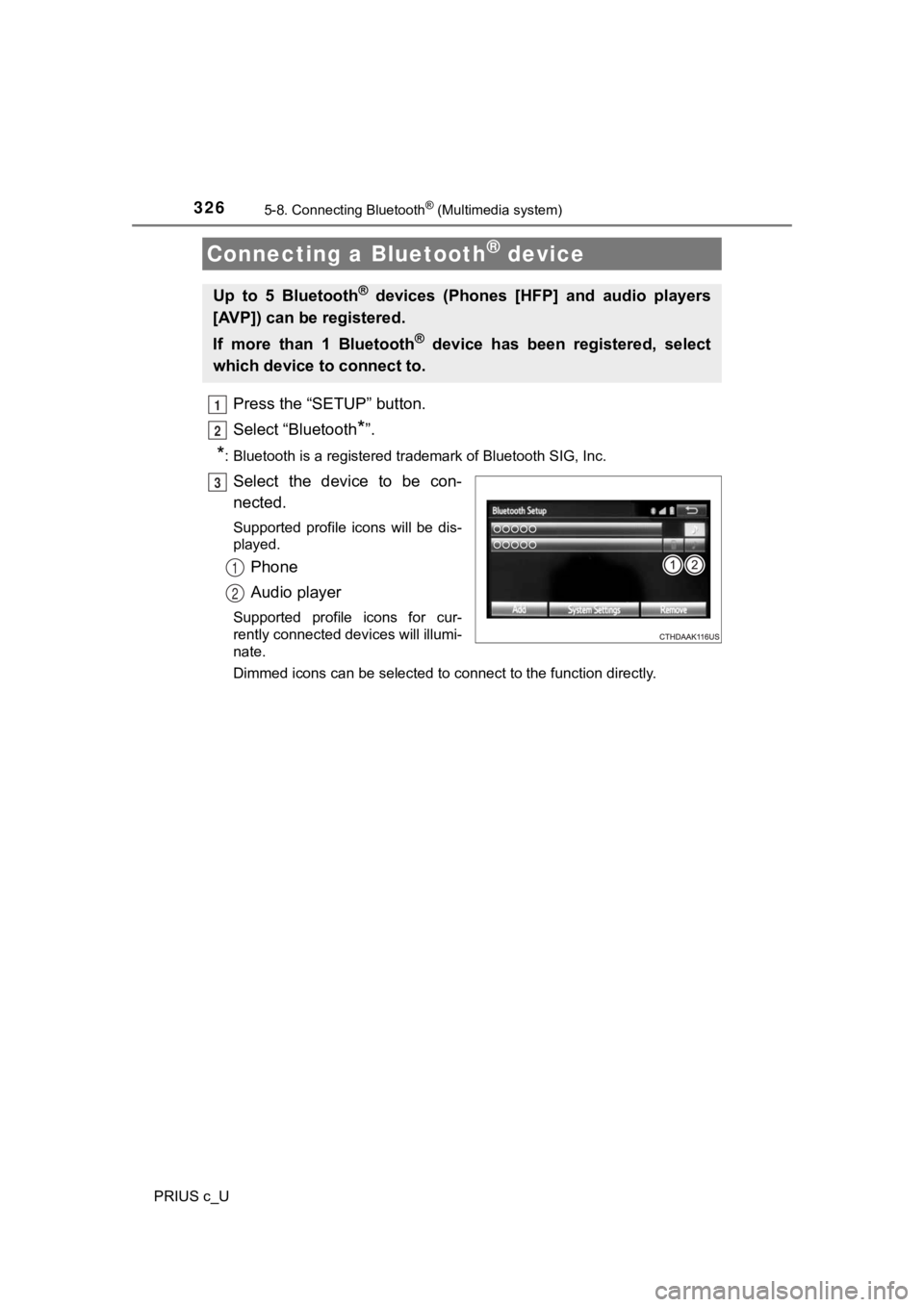
Select the device to be con-
nected.
Supported profile icons will be dis-
played.
Phone
Audio player
Supported profile icons for cur-
rently connected devices will illumi-
nate.
Dimmed icons can be selected to connect to the function directly.
Connecting a Bluetooth® device
Up to 5 Bluetooth® devices (Phones [HFP] and audio players
[AVP]) can be registered.
If more than 1 Bluetooth
® device has been registered, select
which device to connect to.
1
2
3
1
2
Page 327 of 600
3275-8. Connecting Bluetooth® (Multimedia system)
5
Audio system
PRIUS c_U
To turn auto connection mode on, set “Bluetooth* Power” to on.
( P. 329)
When you register a phone, auto connection will be activated. Always
set it to this mode and leave the Bluetooth
® phone in a place where a
connection can be established.
When the power switch is turned to the “ACC” or “ON” position ( vehicles
without a smart key system) or the power switch is turned to AC CESSORY
or ON mode (vehicles with a smart key system), the system will search for
a nearby cellular phone you have registered.
Next, the system automatically connects with the most recent of the
phones connected to in the past. Then, the connection result is displayed.
*: Bluetooth is a registered trademark of Bluetooth SIG, Inc.
When auto connection has failed or “Bluetooth* Power” is turned off,
you must connect the Bluetooth® device manually.
*: Bluetooth is a registered trademark of Bluetooth SIG, Inc.
Follow the steps in “Connecting a Bluetooth® device” from “STEP
1”. ( P. 326)
Registering an additional device
Select “Select Devic e” on the Bluetooth
® audio control screen.
For more information: P. 3 2 4
Selecting a registered device
Select “Select Devic e” on the Bluetooth
® audio control screen.
For more information: P. 3 2 6
■Reconnecting a Bluetooth® phone
If the system cannot connect due to poor signal strength with the power
switch is turned to the “ACC” or “ON” position (vehicles without a smart key
system) or the power switch is turned to ACCESSORY or ON mode ( vehicles
with a smart key system), the system will automatically attempt to reconnect.
If the system is attempting to connect to a Bluetooth
® phone and the
Bluetooth® phone is turned off and then back on, the system will attempt to
reconnect.
Auto connection
Manual connection
Connecting a Bluetooth® audio player
1
1
2
1
2
Page 328 of 600
3285-8. Connecting Bluetooth® (Multimedia system)
PRIUS c_U
Display the “Bluetooth* Setup” screen. (P. 321)
*: Bluetooth is a registered trademark of Bluetooth SIG, Inc.
Select the device.
Select “Device Info”.
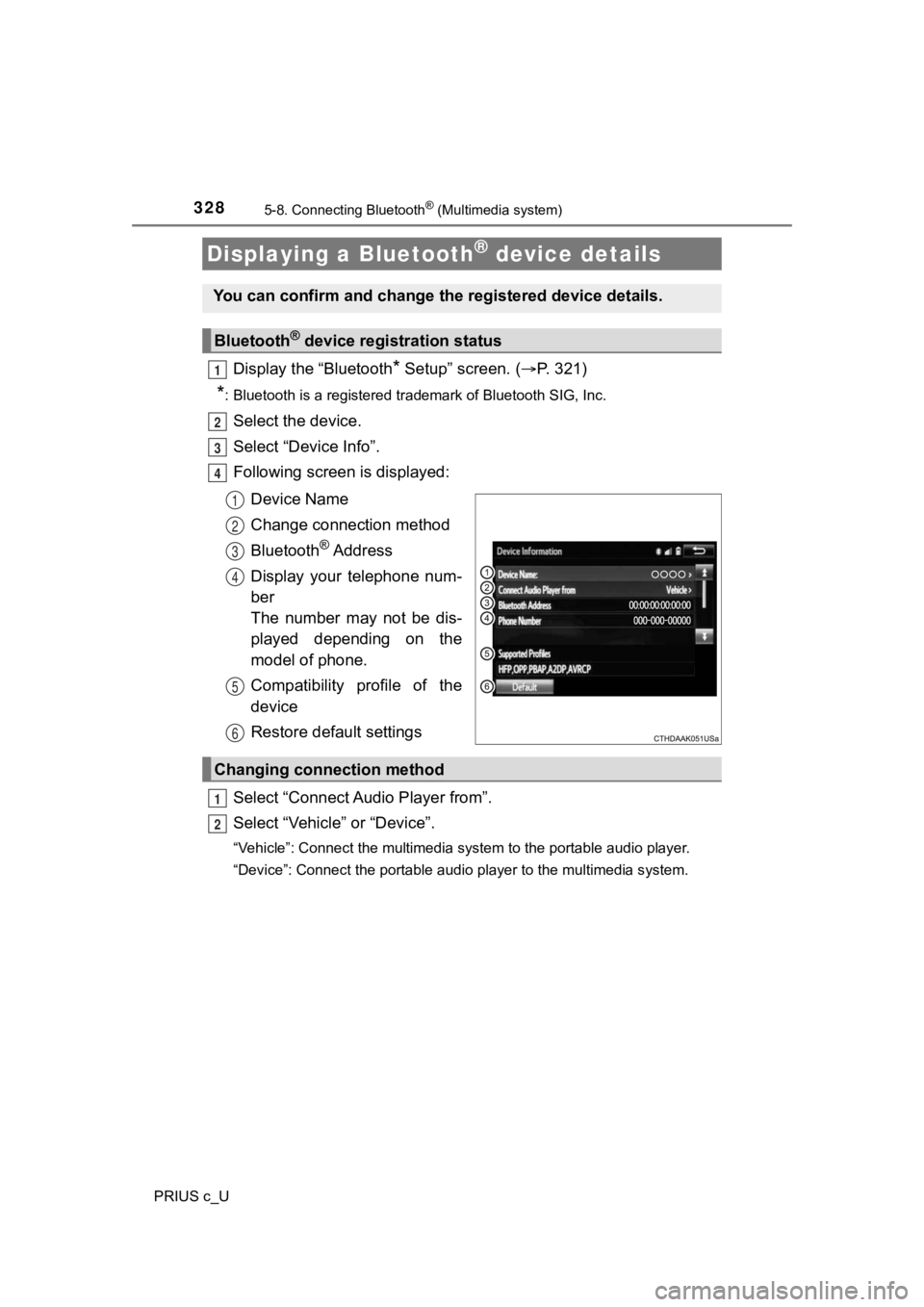
Following screen is displayed:
Device Name
Change connection method
Bluetooth
® A d d r e s s
Display your telephone num-
ber
The number may not be dis-
played depending on the
model of phone.
Compatibility profile of the
device
Restore default settings
Select “Connect Audio Player from”.
Select “Vehicle” or “Device”.
“Vehicle”: Connect the multimedia system to the portable audio player.
“Device”: Connect the portable audio player to the multimedia s ystem.
Displaying a Bluetooth® device details
You can confirm and change the registered device details.
Bluetooth® device registration status
1
2
3
4
1
2
3
4
5
6
Changing connection method
1
2
Page 329 of 600
3295-8. Connecting Bluetooth® (Multimedia system)
5
Audio system
PRIUS c_U
Display the “Bluetooth* Setup” screen. (P. 321)
Select “System Settings”.
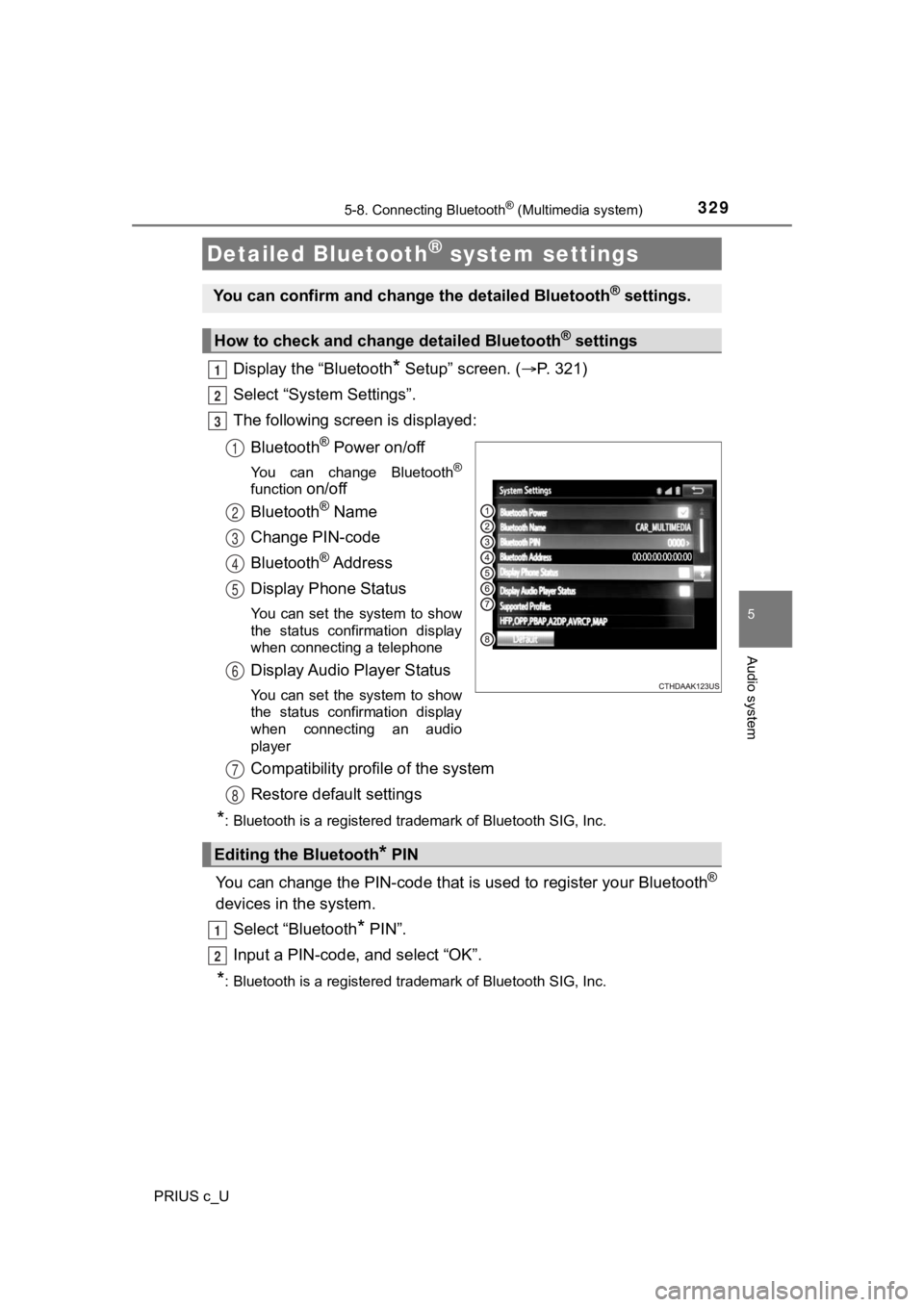
The following screen is displayed:
Bluetooth
® Power on/off
You can change Bluetooth®
function on/off
Bluetooth
® Name
Change PIN-code
Bluetooth
® A d d r e s s
Display Phone Status
You can set the system to show
the status confirmation display
when connecting a telephone
Display Audio Player Status
You can set the system to show
the status confirmation display
when connecting an audio
player
Compatibility profile of the system
Restore default settings
*: Bluetooth is a registered trademark of Bluetooth SIG, Inc.
You can change the PIN-code that is used to register your Bluet ooth®
devices in the system.
Select “Bluetooth
* PIN”.
Input a PIN-code, and select “OK”.
*: Bluetooth is a registered trademark of Bluetooth SIG, Inc.
Detailed Bluetooth® system settings
You can confirm and change the detailed Bluetooth® settings.
How to check and change detailed Bluetooth® settings
1
2
3
1
2
3
4
5
6
Editing the Bluetooth* PIN
7
8
1
2
Page 330 of 600
330
PRIUS c_U
5-9. Bluetooth® Audio (Multimedia system)
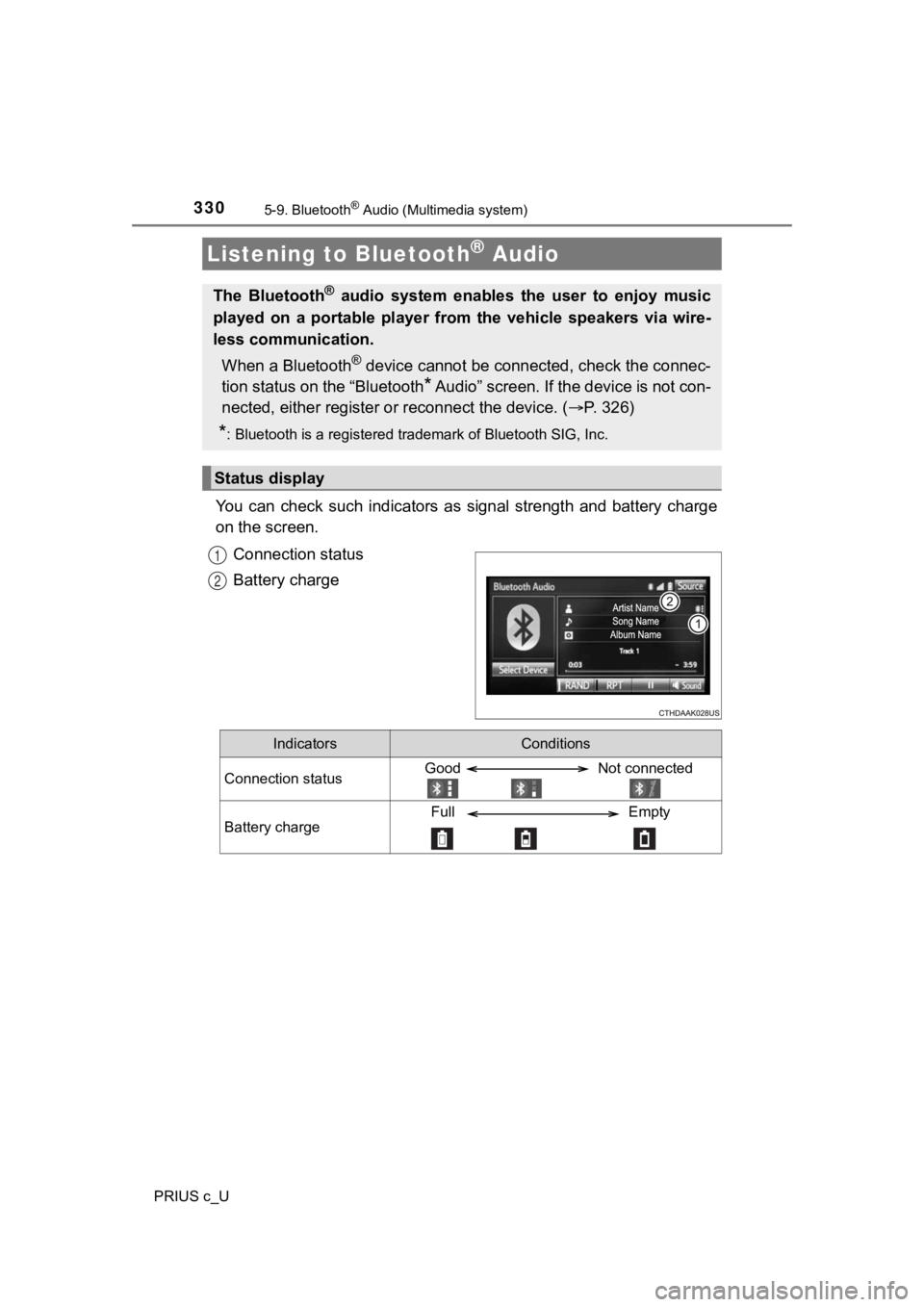
You can check such indicators as signal strength and battery charge
on the screen.
Connection status
Battery charge
Listening to Bluetooth® Audio
The Bluetooth® audio system enables the user to enjoy music
played on a portable player from the vehicle speakers via wire-
less communication.
When a Bluetooth
® device cannot be connected, check the connec-
tion status on the “Bluetooth
* Audio” screen. If the device is not con-
nected, either register o r reconnect the device. ( P. 3 2 6 )
*: Bluetooth is a registered trademark of Bluetooth SIG, Inc.
Status display
1
2
IndicatorsConditions
Connection statusGood Not connected
Battery chargeFull Empty
Page 365 of 600
365
5
Audio system
PRIUS c_U
5-11. Bluetooth® (Multimedia system)
■When using the Bluetooth® audio system
● In the following conditions, the system may not function.
• If the portable audio player is turned off
• If the portable audio player is not connected
• If the portable audio player’s battery is low
● There may be a delay if a cellular phone connection is made dur ing
Bluetooth
® audio play.
● Depending on the type of portable audio player that is connecte d to the sys-
tem, operation may differ slightly and certain functions may no t be available.
■ When using the hands-free system
●The multimedia system is muted when making a call.
● If both parties speak at the same time, it may be difficult to hear.
● If the received call volume is overly loud, an echo may be heard.
If the Bluetooth
® phone is too close to the system, quality of the sound may
deteriorate and connection status may deteriorate.
● In the following circumstances, it may be difficult to hear the other party:
• When driving on unpaved roads
• When driving at high speeds
• If a roof or window is open
• If the air conditioning is blowing directly on the microphone
• If there is interference from the network of the cellular phon e
■ Conditions under which the system will not operate
●If using a cellular phone that does not support Bluetooth
®
●If the cellular phone is turned off
● If you are outside of cellular phone service coverage
● If the cellular phone is not connected
● If the cellular phone’s battery is low
● When outgoing calls are controlled, due to heavy traffic on tel ephone lines,
etc.
● When the cellular phone itself cannot be used
● When transferring contact data from the cellular phone
Bluetooth®
Page 366 of 600

3665-11. Bluetooth® (Multimedia system)
PRIUS c_U■
Bluetooth
® antenna
The antenna is built into the display.
If the portable audio player is behind the seat or in the glove box or console
box, or is touching or covered by metal objects, the connection status may
deteriorate.
If the cellular phone is behind the seat or in the console box, or touching or
covered by metal objects, the connection status may deteriorate .
■ Battery charge/signal status
●This display may not correspond exactly with the portable audio player or
cellular phone itself.
● This system does not have a charging function.
● The portable audio player or cellular phone battery will be dep leted quickly
when the device is connected to Bluetooth
®.
■ When using the Bluetooth
® audio and hands-free system at the same
time
The following problems may occur.
● The Bluetooth
® audio connection may be interrupted.
● Noise may be heard during Bluetooth
® audio playback.
■ About the contact in this system
The following data is stored for every registered cellular phone. When
another phone is connecting, you cannot read the registered dat a.
● Contact data
● Call history
● Favorite
● Message
When removing a Bluetooth
® phone from the system, the above-mentioned
data is also deleted.