service TOYOTA PRIUS V 2012 Accessories, Audio & Navigation (in English)
[x] Cancel search | Manufacturer: TOYOTA, Model Year: 2012, Model line: PRIUS V, Model: TOYOTA PRIUS V 2012Pages: 24, PDF Size: 1.61 MB
Page 2 of 24
1
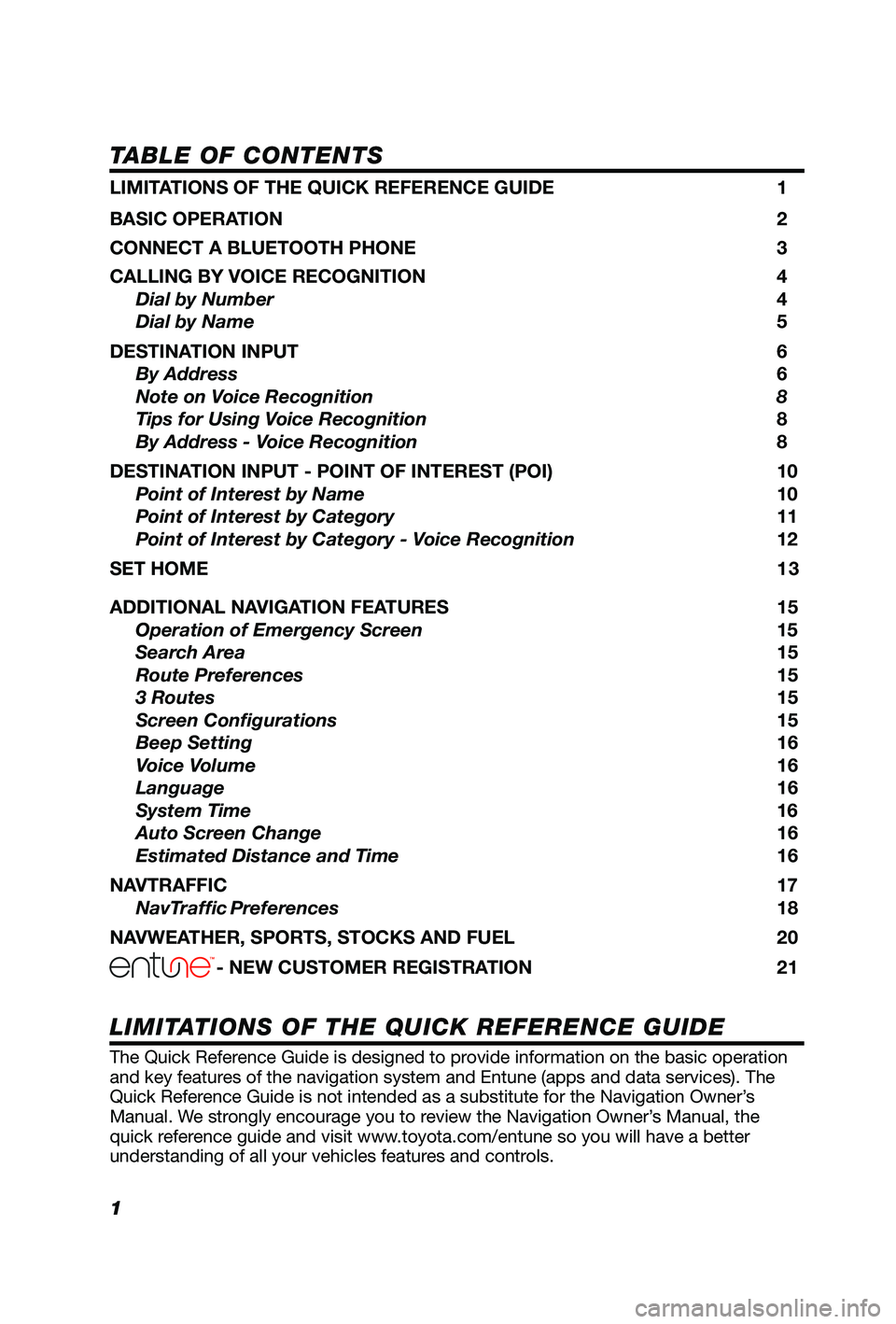
TABLE OF CONTENTS
The Quick Reference Guide is designed to provide information on the basic operation
and key features of the navigation system and Entune (apps and data services). The
Quick Reference Guide is not intended as a substitute for the Navigation Owner’s
Manual. We strongly encourage you to review the Navigation Owner’s Manual, the
quick reference guide and visit www.toyota.com/entune so you will have a better
understanding of all your vehicles features and controls.
LIMITATIONS OF THE QUICK REFERENCE GUIDE
LIMITATIONS OF THE QUICK REFERENCE GUIDE 1
BASIC OPERATION
2
CONNECT A BLUETOOTH PHONE
3
CALLING BY VOICE RECOGNITION
4
Dial by Number
4
Dial by Name
5
DESTINATION INPUT
6
By Address
6
Note on Voice Recognition
8
Tips for Using Voice Recognition 8
By Address - Voice Recognition
8
DESTINATION INPUT - POINT OF INTEREST (POI)
10
Point of Interest by Name
10
Point of Interest by Category
11
Point of Interest by Category - Voice Recognition
12
SET HOME
1 3
ADDITIONAL NAVIGATION FEATURES
15
Operation of Emergency Screen 15
Search Area 15
Route Preferences
15
3 Routes
15
Screen Configurations
15
Beep Setting
16
Voice Volume
16
Language
16
System Time
16
Auto Screen Change
16
Estimated Distance and Time
16
NAVTRAFFIC
17
NavTraffic Preferences 18
NAVWEATHER, SPORTS, STOCKS AND FUEL
20
- NEW CUSTOMER REGISTRATION 21
Page 20 of 24
19
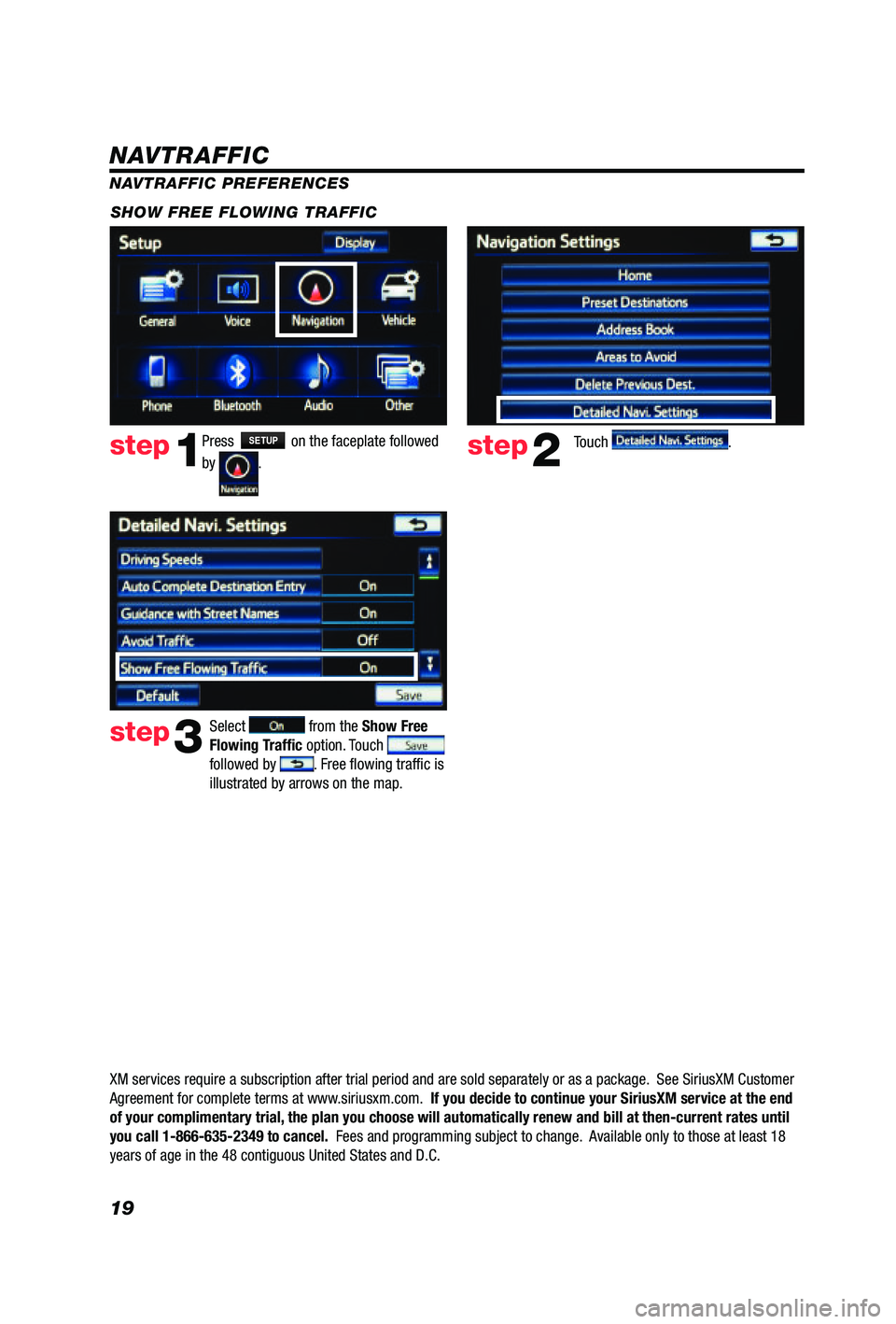
Press SETUP on the faceplate followed
by
. step1step2Touch .
SHOW FREE FLOWING TRAFFIC
step3
Select from the Show Free
Flowing Traffic option. Touch
followed by . Free flowing traffic is
illustrated by arrows on the map.
NAVTRAFFIC
NAVTRAFFIC PREFERENCES
XM services require a subscription after trial period and are sold separately or as a package. See SiriusXM Customer
Agreement for complete terms at www.siriusxm.com. If you decide to continue your SiriusXM service at the end
of your complimentary trial, the plan you choose will automatically renew and bill at then-current r\
ates until
you call 1-866-635-2349 to cancel. Fees and programming subject to change. Available only to those at least 18
years of age in the 48 contiguous United States and D.C.
Page 21 of 24
20
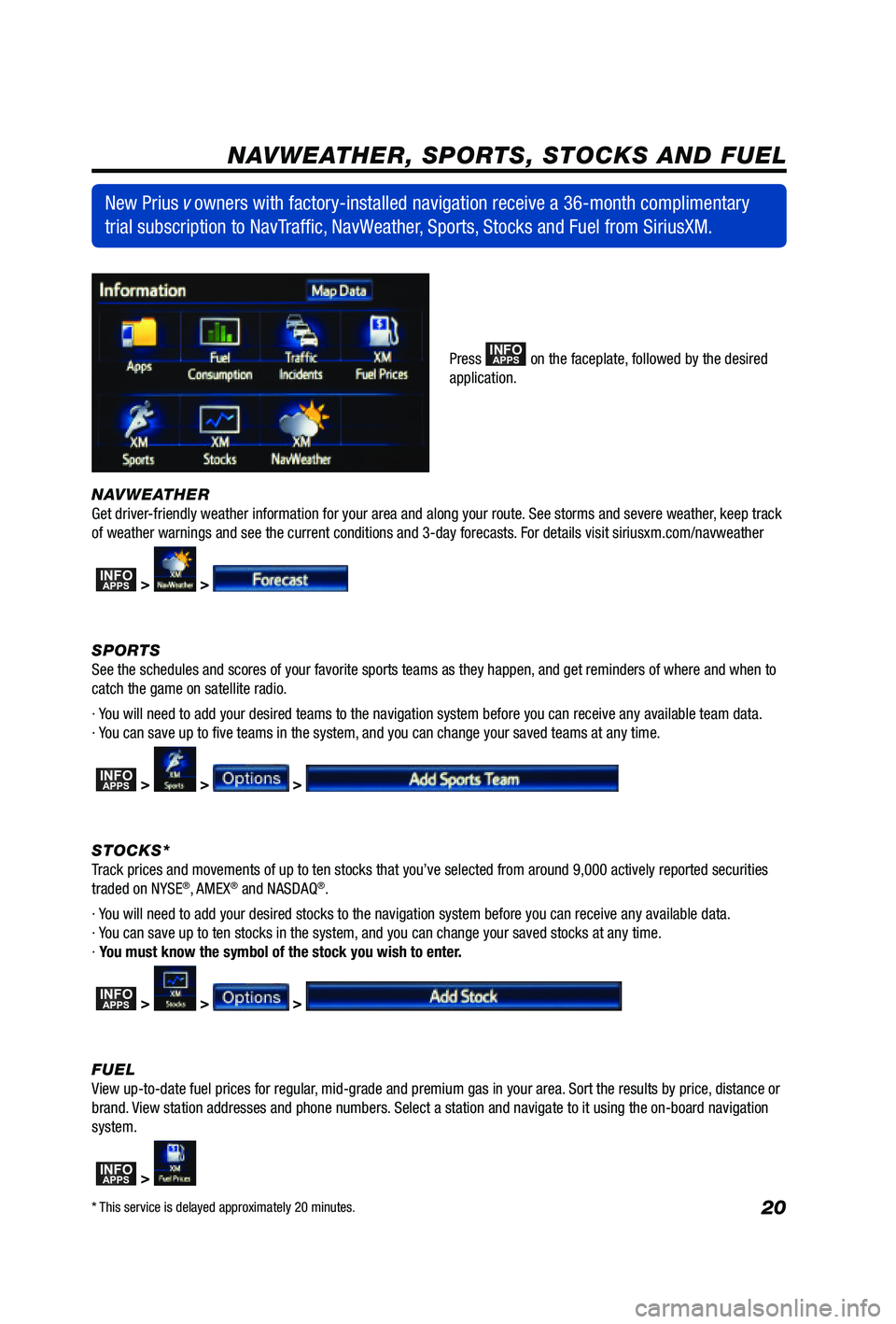
NAVWEATHER
Get driver-friendly weather information for your area and along your route. See storms and severe weather, keep track
of weather warnings and see the current conditions and 3-day forecasts. For details visit siriusxm.com/navweather
INFOAPPS > >
SPORTS
See the schedules and scores of your favorite sports teams as they happen, and get reminders of where and when to
catch the game on satellite radio.
· You will need to add your desired teams to the navigation system before you can receive any available team data.
· You can save up to five teams in the system, and you can change your saved teams at any time.
INFOAPPS > > >
STOCKS*
Track prices and movements of up to ten stocks that you’ve selected from around 9,000 actively reported securities
traded on NYSE
®, AMEX® and NASDAQ®.
· You will need to add your desired stocks to the navigation system before you can receive any available data.
· You can save up to ten stocks in the system, and you can change your saved stocks at any time.
· You must know the symbol of the stock you wish to enter.
INFOAPPS > > >
FUEL
View up-to-date fuel prices for regular, mid-grade and premium gas in your area. Sort the results by price, distance or
brand. View station addresses and phone numbers. Select a station and navigate to it using the on-board navigation
system.
INFOAPPS >
New Prius v owners with factory-installed navigation receive a 36-month complimentary
trial subscription to NavTraffic, NavWeather, Sports, Stocks and Fuel from SiriusXM.
Press INFOAPPS on the faceplate, followed by the desired
application.
NAVWEATHER, SPORTS, STOCKS AND FUEL
* This service is delayed approximately 20 minutes.
Page 22 of 24
21
- NEW CUSTOMER REGISTRATION
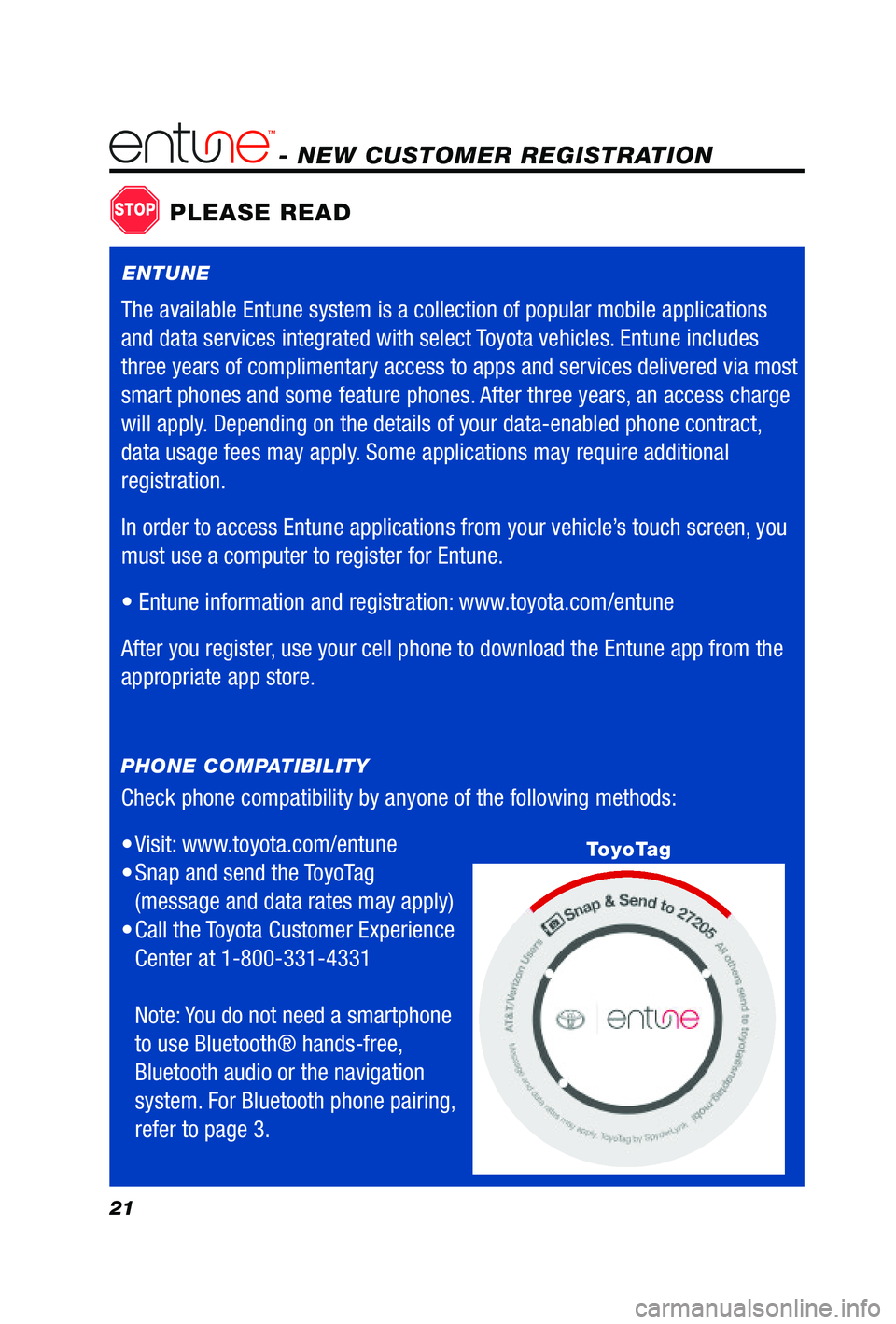
Check phone compatibility by anyone of the following methods:
• Visit:
www.toyota.com/entune
• Snap and send the ToyoTag
(message and data rates may apply)
• Call
the Toyota Customer Experience
Center at 1-800-331-4331
Note: You do not need a smartphone
to use Bluetooth® hands-free,
Bluetooth audio or the navigation
system. For Bluetooth phone pairing,
refer to page 3.
PHONE COMPATIBILITY
STOPPLEASE READ
ToyoTag
ENTUNE
The available Entune system is a collection of popular mobile applications
and data services integrated with select Toyota vehicles. Entune includes
three years of complimentary access to apps and services delivered via most
smart phones and some feature phones. After three years, an access charge
will apply. Depending on the details of your data-enabled phone contract,
data usage fees may apply. Some applications may require additional
registration.
In order to access Entune applications from your vehicle’s touch screen, you
must use a computer to register for Entune.
•
Entune information and registration: www.toyota.com/entune
After you register, use your cell phone to download the Entune app from the
appropriate app store.
Page 23 of 24
22
Follow the directions to ensure you have
a compatible phone and begin creating
your account.step4Click on "How Do I Use Entune?"
DOWNLOADING ENTUNE APP TO YOUR PHONE
Using your cell phone, connect to your app store (Apple App store, Blackberry
® App WorldTM, Android Market), search
for Entune and download. GETTING STARTED WITH ENTUNE
From a computer, access
www.toyota.com/entune
step1step2
Click on the "Getting Started" tab
located on the top of the page.
step3
- NEW CUSTOMER REGISTRATION
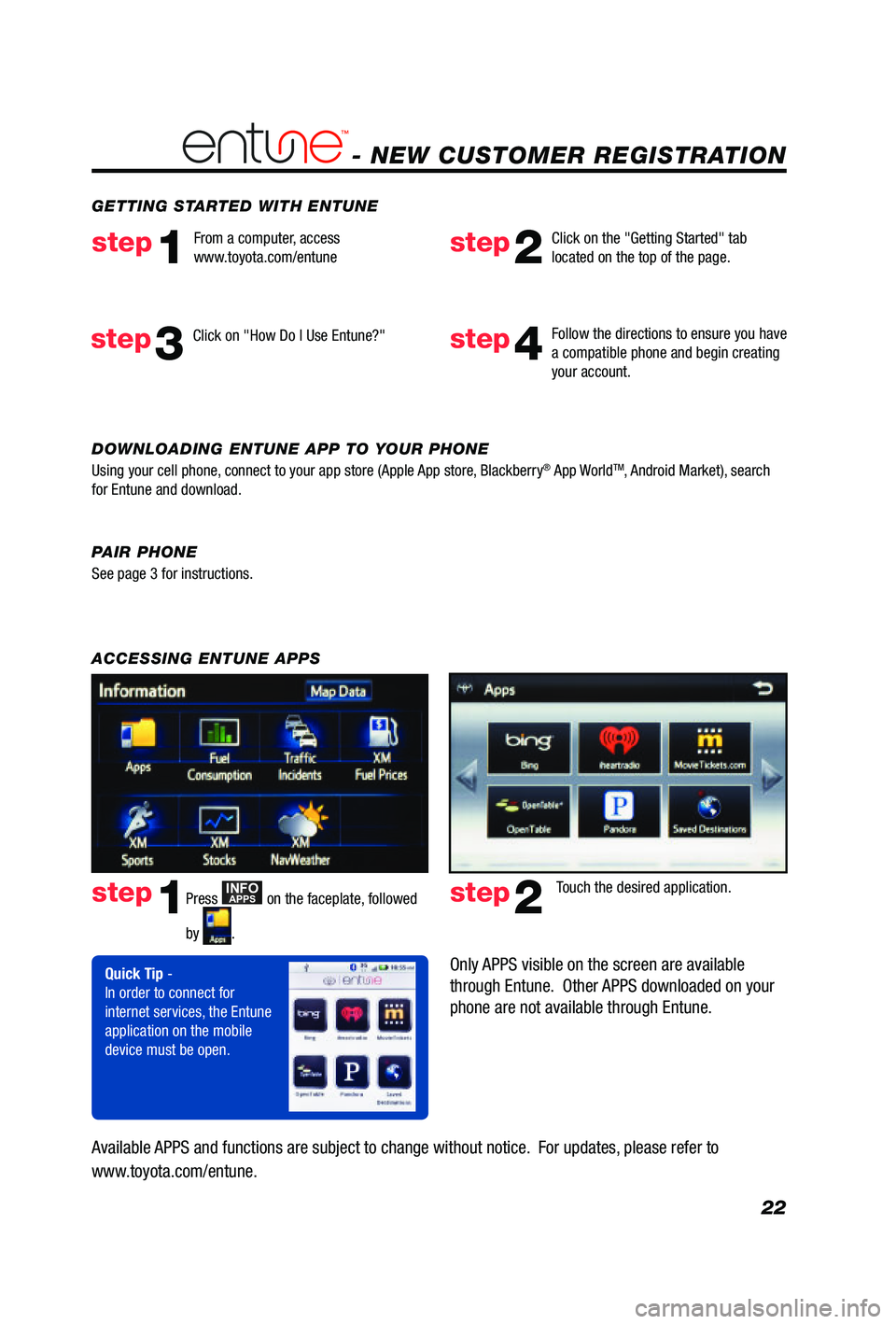
ACCESSING ENTUNE APPS
Touch the desired application.
Quick Tip -
In order to connect for
internet services, the Entune
application on the mobile
device must be open.
Available APPS and functions are subject to change without notice. For updates, please refer to
www.toyota.com/entune.
Only APPS visible on the screen are available
through Entune. Other APPS downloaded on your
phone are not available through Entune.
Press INFOAPPS on the faceplate, followed
by
.
step1step2
PAIR PHONE
See page 3 for instructions.