USB TOYOTA PROACE 2016 Owner's Manual
[x] Cancel search | Manufacturer: TOYOTA, Model Year: 2016, Model line: PROACE, Model: TOYOTA PROACE 2016Pages: 516, PDF Size: 91.65 MB
Page 448 of 516
448
1
21
1718192016
Level 1Level 2
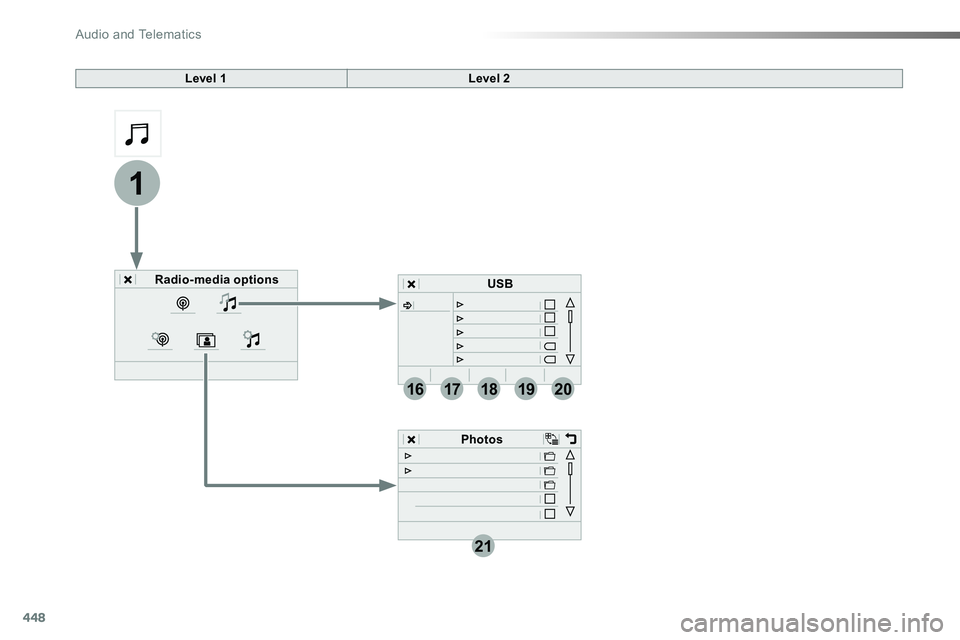
Radio-media options
Photos
USB
Audio and Telematics
Page 449 of 516
449
1
1
17
20
18
21
19
16
Level 1Level 2Comments
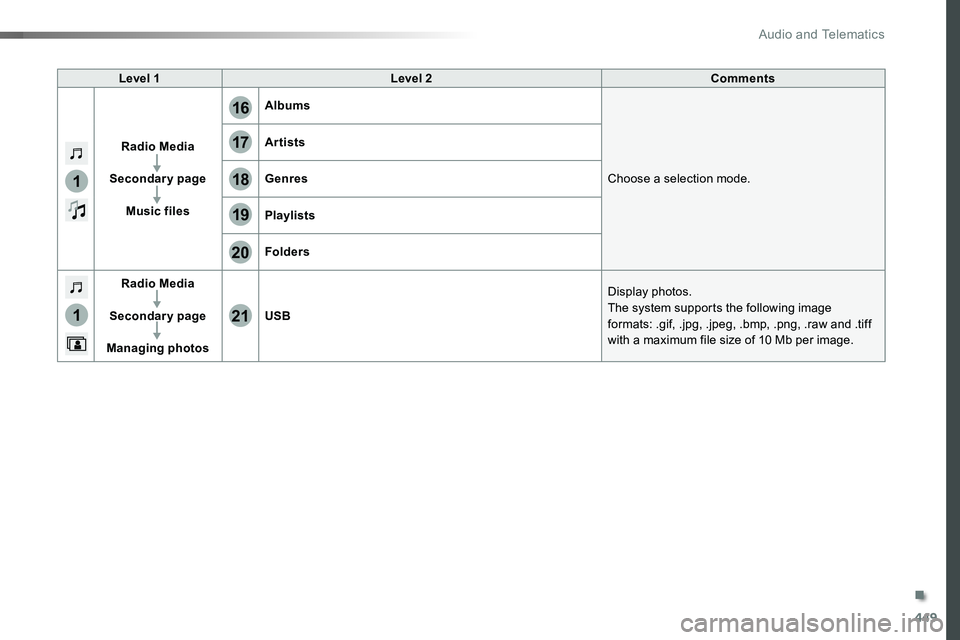
Radio Media
Secondary page
Music files
Albums
Choose a selection mode.
Artists
Genres
Playlists
Folders
Radio Media
Secondary page
Managing photos
USB
Display photos.The system supports the following image formats: .gif, .jpg, .jpeg, .bmp, .png, .raw and .tiff with a maximum file size of 10 Mb per image.
.
Audio and Telematics
Page 450 of 516
450
1
2
2
2
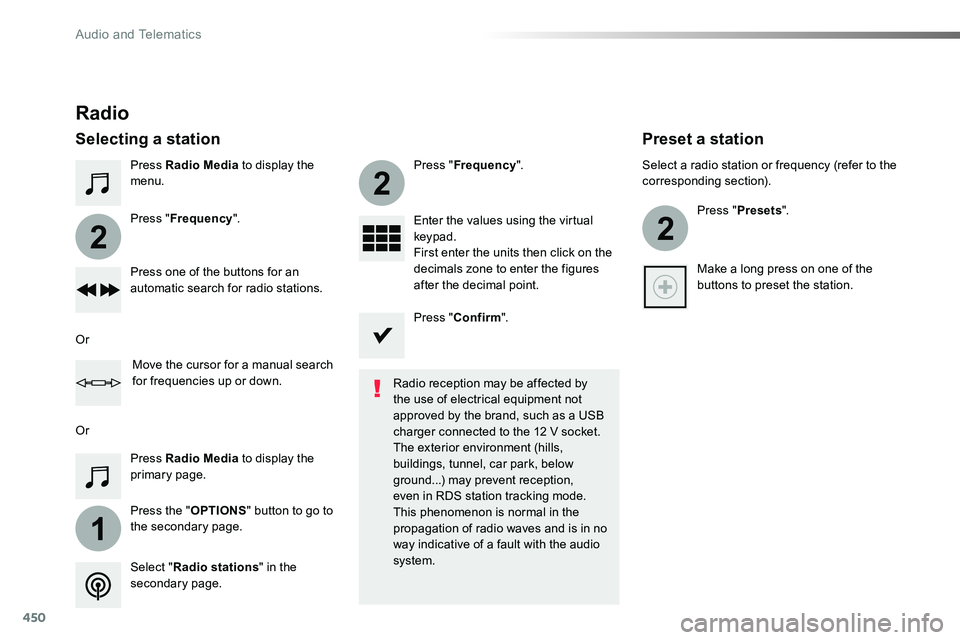
Press Radio Media to display the menu.
Press the "OPTIONS" button to go to the secondary page.
Press "Frequency".
Press "Frequency".
Enter the values using the virtual keypad.First enter the units then click on the decimals zone to enter the figures after the decimal point.Press one of the buttons for an automatic search for radio stations.
Press Radio Media to display the primary page.
Radio
Selecting a station
Radio reception may be affected by the use of electrical equipment not approved by the brand, such as a USB
charger connected to the 12 V socket.The exterior environment (hills, buildings, tunnel, car park, below ground...) may prevent reception, even in RDS station tracking mode. This phenomenon is normal in the propagation of radio waves and is in no way indicative of a fault with the audio system.Select "Radio stations" in the secondary page.
Or
Or
Move the cursor for a manual search for frequencies up or down.
Select a radio station or frequency (refer to the corresponding section).
Press "Presets".
Make a long press on one of the buttons to preset the station.
Preset a station
Press "Confirm".
Audio and Telematics
Page 454 of 516
454
Media
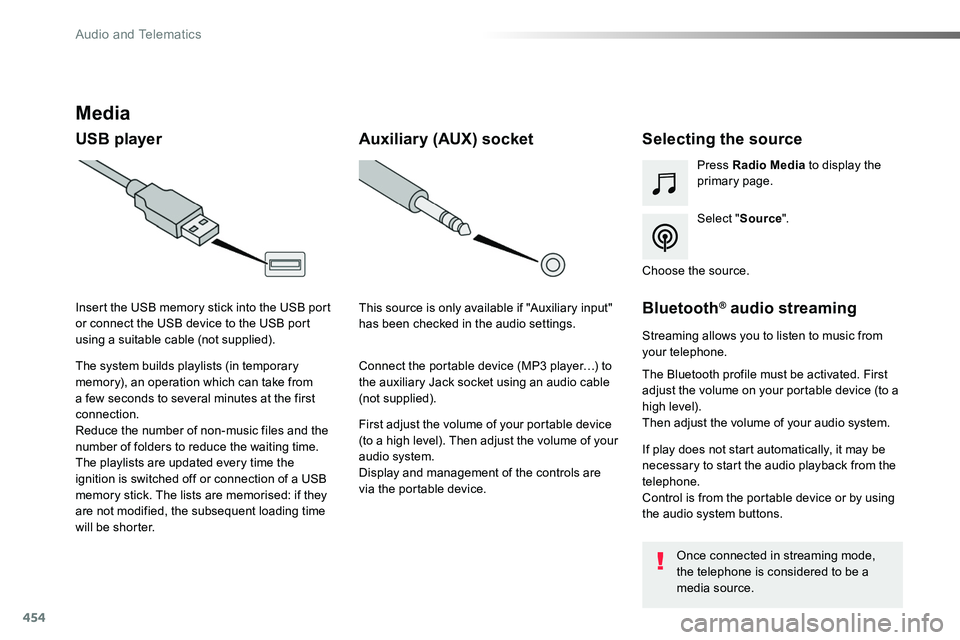
USB playerSelecting the source
Select "Source".
Press Radio Media to display the primary page.
The system builds playlists (in temporary memory), an operation which can take from a few seconds to several minutes at the first connection.
Reduce the number of non-music files and the number of folders to reduce the waiting time.The playlists are updated every time the ignition is switched off or connection of a USB memory stick. The lists are memorised: if they are not modified, the subsequent loading time will be shorter.
Insert the USB memory stick into the USB port or connect the USB device to the USB port using a suitable cable (not supplied).
Auxiliary (AUX) socket
First adjust the volume of your portable device (to a high level). Then adjust the volume of your audio system.Display and management of the controls are via the portable device.
This source is only available if "Auxiliary input" has been checked in the audio settings.
Connect the portable device (MP3 player…) to the auxiliary Jack socket using an audio cable (not supplied).
Choose the source.
Bluetooth® audio streaming
Streaming allows you to listen to music from your telephone.
The Bluetooth profile must be activated. First adjust the volume on your portable device (to a high level).Then adjust the volume of your audio system.
If play does not start automatically, it may be necessary to start the audio playback from the telephone.Control is from the portable device or by using the audio system buttons.
Once connected in streaming mode, the telephone is considered to be a media source.
Audio and Telematics
Page 455 of 516
455
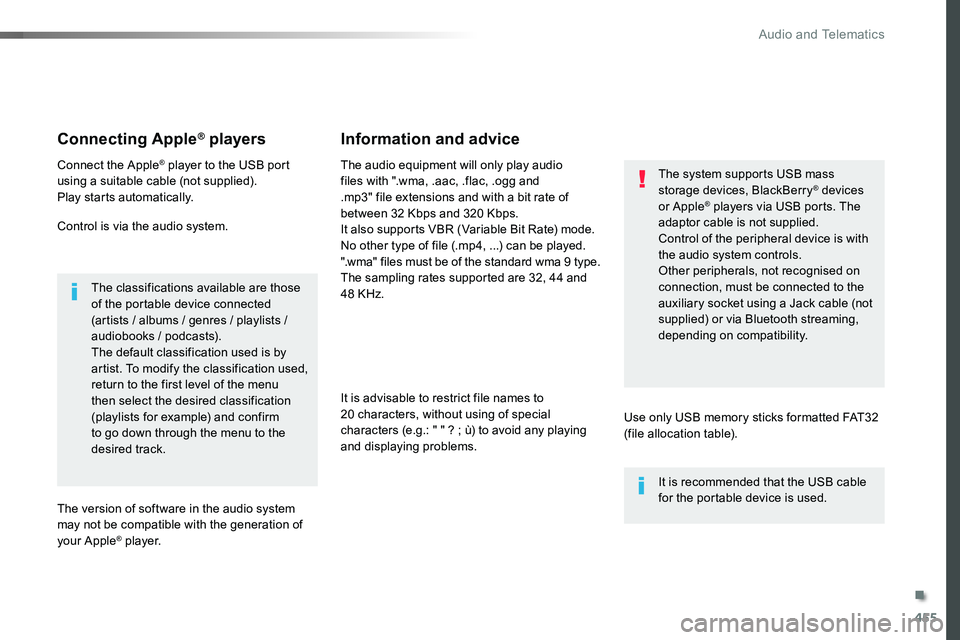
Connecting Apple® players
Connect the Apple® player to the USB port using a suitable cable (not supplied).Play starts automatically.
Control is via the audio system.
The classifications available are those of the portable device connected (artists / albums / genres / playlists / audiobooks / podcasts).The default classification used is by artist. To modify the classification used, return to the first level of the menu then select the desired classification (playlists for example) and confirm to go down through the menu to the desired track.
The version of software in the audio system may not be compatible with the generation of your Apple® p l aye r.
The audio equipment will only play audio files with ".wma, .aac, .flac, .ogg and .mp3" file extensions and with a bit rate of between 32 Kbps and 320 Kbps.It also supports VBR (Variable Bit Rate) mode.No other type of file (.mp4, ...) can be played.".wma" files must be of the standard wma 9 type.The sampling rates supported are 32, 44 and 48 KHz.
It is advisable to restrict file names to 20 characters, without using of special
characters (e.g.: " " ? ; ù) to avoid any playing and displaying problems.
Information and advice
Use only USB memory sticks formatted FAT32 (file allocation table).
The system supports USB mass storage devices, BlackBerry® devices or Apple® players via USB ports. The adaptor cable is not supplied.
Control of the peripheral device is with the audio system controls.Other peripherals, not recognised on connection, must be connected to the auxiliary socket using a Jack cable (not supplied) or via Bluetooth streaming, depending on compatibility.
It is recommended that the USB cable for the portable device is used.
.
Audio and Telematics
Page 475 of 516
475
3
2
4
5
6
7
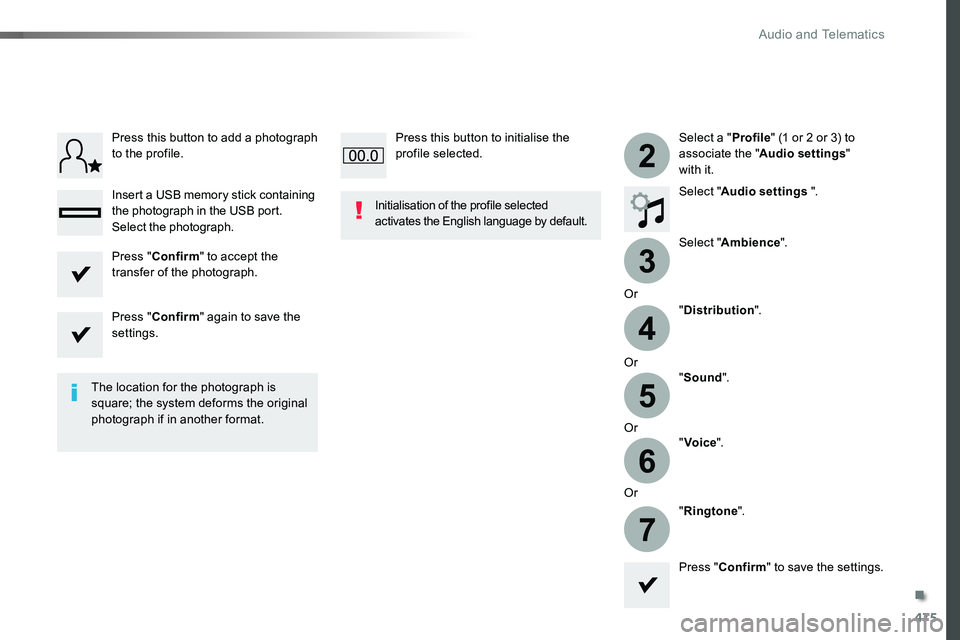
Select a "Profile" (1 or 2 or 3) to associate the "Audio settings" with it.
Select "Audio settings ".
Select "Ambience".
Or
"Distribution".
Or"Sound".
Or"Voice".
Or
"Ringtone".
The location for the photograph is square; the system deforms the original photograph if in another format.
Initialisation of the profile selected activates the English language by default.
Press "Confirm" to save the settings.
Press "Confirm" to accept the transfer of the photograph.
Press "Confirm" again to save the settings.
Press this button to add a photograph to the profile.
Insert a USB memory stick containing the photograph in the USB port.
Select the photograph.
Press this button to initialise the profile selected.
.
Audio and Telematics
Page 479 of 516
479
Media
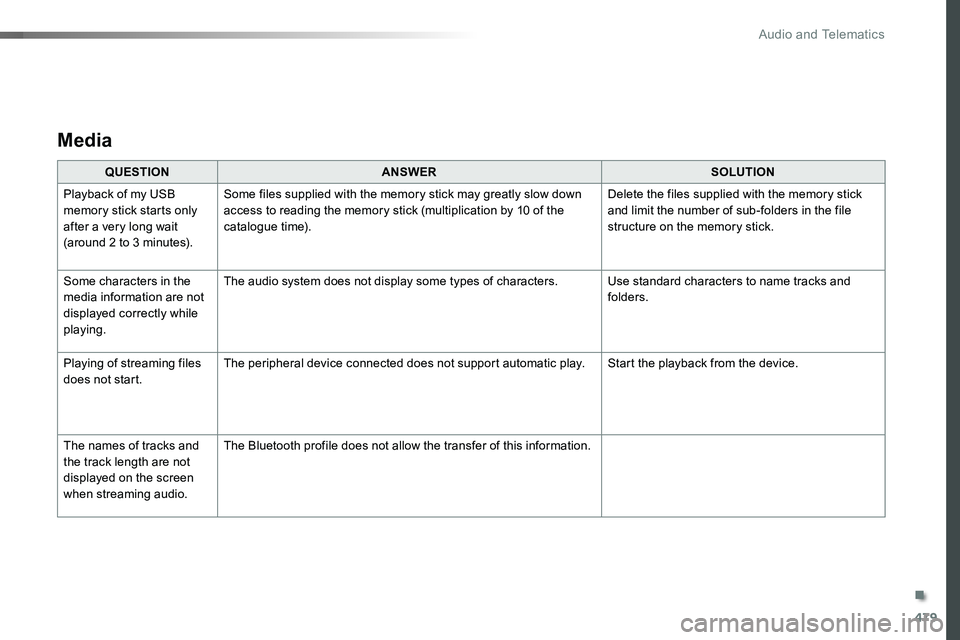
QUESTIONANSWERSOLUTION
Playback of my USB memory stick starts only after a very long wait (around 2 to 3 minutes).
Some files supplied with the memory stick may greatly slow down access to reading the memory stick (multiplication by 10 of the catalogue time).
Delete the files supplied with the memory stick and limit the number of sub-folders in the file structure on the memory stick.
Some characters in the media information are not displayed correctly while playing.
The audio system does not display some types of characters.Use standard characters to name tracks and folders.
Playing of streaming files does not start.The peripheral device connected does not support automatic play.Start the playback from the device.
The names of tracks and the track length are not displayed on the screen when streaming audio.
The Bluetooth profile does not allow the transfer of this information.
.
Audio and Telematics
Page 484 of 516
484
First steps
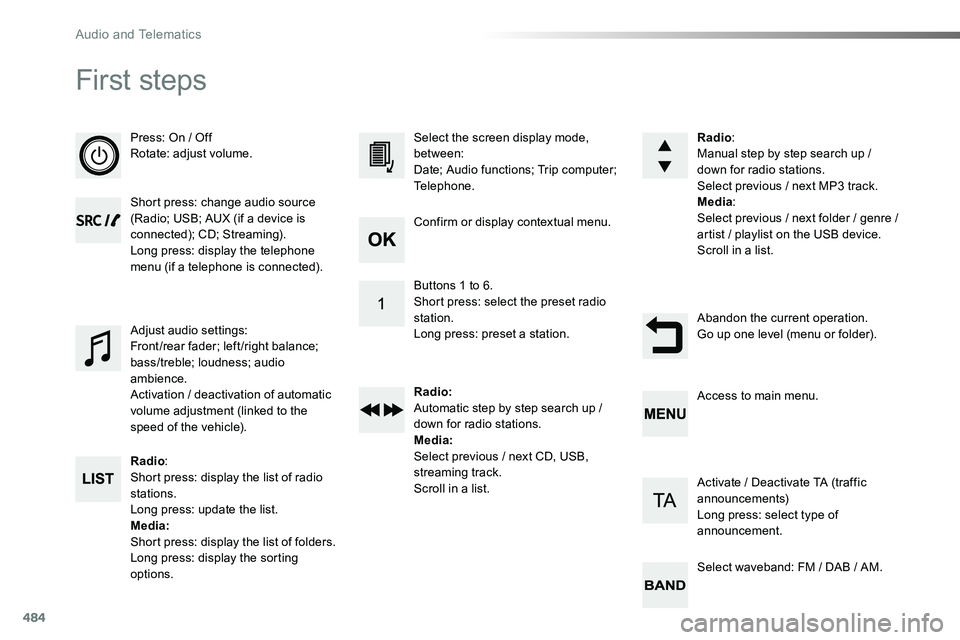
Press: On / OffRotate: adjust volume.
Short press: change audio source (Radio; USB; AUX (if a device is connected); CD; Streaming).Long press: display the telephone menu (if a telephone is connected).
Radio:Short press: display the list of radio stations.Long press: update the list.Media:Short press: display the list of folders.Long press: display the sorting options.
Select the screen display mode, between:Date; Audio functions; Trip computer; Telephone.
Adjust audio settings:Front/rear fader; left/right balance; bass/treble; loudness; audio ambience.Activation / deactivation of automatic volume adjustment (linked to the speed of the vehicle).
Radio:Manual step by step search up / down for radio stations.Select previous / next MP3 track.Media:Select previous / next folder / genre / artist / playlist on the USB device.Scroll in a list.
Abandon the current operation.Go up one level (menu or folder).
Confirm or display contextual menu.
Buttons 1 to 6.Short press: select the preset radio station.Long press: preset a station.
Radio:Automatic step by step search up / down for radio stations.Media:Select previous / next CD, USB, streaming track.Scroll in a list.
Access to main menu.
Activate / Deactivate TA (traffic announcements)Long press: select type of announcement.
Select waveband: FM / DAB / AM.
Audio and Telematics
Page 485 of 516
485
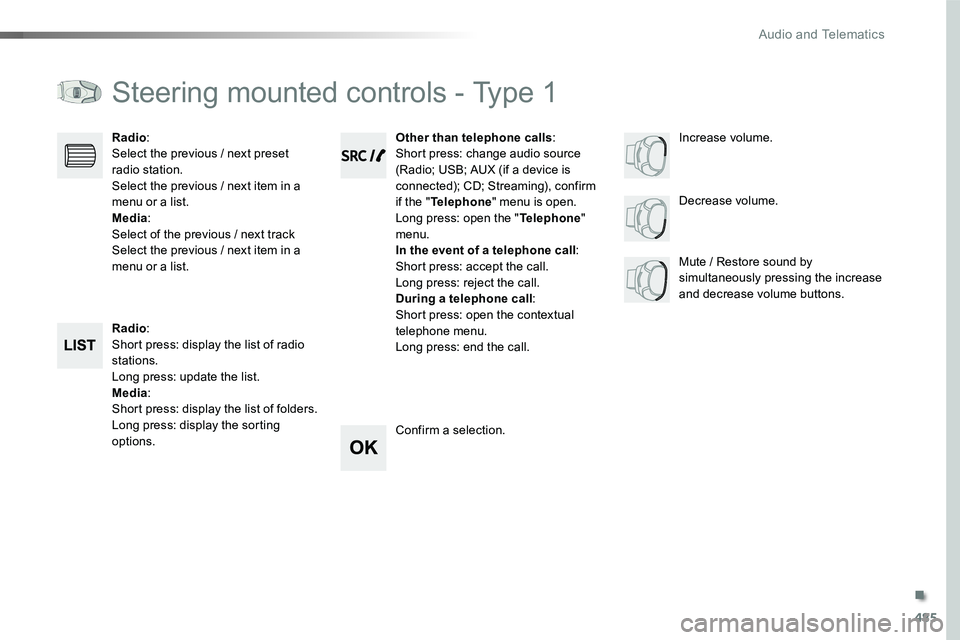
Steering mounted controls - Type 1
Radio:Short press: display the list of radio stations.Long press: update the list.Media:Short press: display the list of folders.Long press: display the sorting options.
Decrease volume.
Radio:Select the previous / next preset radio station.Select the previous / next item in a menu or a list.Media:Select of the previous / next trackSelect the previous / next item in a menu or a list.Mute / Restore sound by simultaneously pressing the increase and decrease volume buttons.
Other than telephone calls:Short press: change audio source (Radio; USB; AUX (if a device is connected); CD; Streaming), confirm if the "Telephone" menu is open.Long press: open the "Telephone" menu.In the event of a telephone call:Short press: accept the call.Long press: reject the call.During a telephone call:Short press: open the contextual telephone menu.Long press: end the call.
Confirm a selection.
Increase volume.
.
Audio and Telematics
Page 486 of 516
486
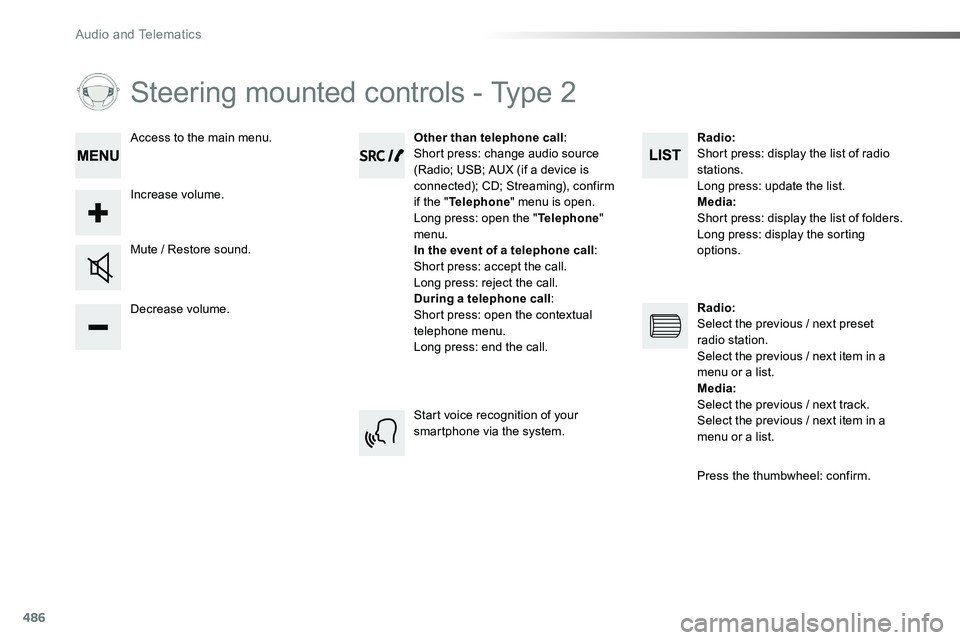
Steering mounted controls - Type 2
Decrease volume.
Mute / Restore sound.
Other than telephone call:Short press: change audio source (Radio; USB; AUX (if a device is connected); CD; Streaming), confirm if the "Telephone" menu is open.Long press: open the "Telephone" menu.In the event of a telephone call:Short press: accept the call.Long press: reject the call.During a telephone call:Short press: open the contextual telephone menu.Long press: end the call.
Increase volume.
Access to the main menu.
Start voice recognition of your smartphone via the system.
Radio:Short press: display the list of radio stations.Long press: update the list.Media:Short press: display the list of folders.Long press: display the sorting options.
Radio:Select the previous / next preset radio station.Select the previous / next item in a menu or a list.Media:Select the previous / next track.Select the previous / next item in a
menu or a list.
Press the thumbwheel: confirm.
Audio and Telematics