apple TOYOTA PROACE CITY EV 2022 Owners Manual
[x] Cancel search | Manufacturer: TOYOTA, Model Year: 2022, Model line: PROACE CITY EV, Model: TOYOTA PROACE CITY EV 2022Pages: 320, PDF Size: 75.81 MB
Page 260 of 320
260
Bluetooth®streaming
Streaming allows you to listen to music from your smartphone.The Bluetooth profile must be activated, first adjust the volume on the portable device (to a high level).Then adjust the volume of the system.If play does not start automatically, it may be necessary to start the audio playback from the smartphone.Control is from the portable device or by using the system's touch buttons.
WARNI NG
Once connected in Streaming mode, the smartphone is considered to be a media source.
Connecting Apple® players
Connect the Apple® player to the USB socket using a suitable cable (not supplied).Play starts automatically.Control is via the audio system.
NOTIC E
The classifications available are those of the portable device connected (artists/albums/
genres/playlists/audio books/podcasts). It is
also possible to use a classification structured in the form of a library.The default classification used is by artist. To modify the classification used, return to the first level of the menu then select the desired classification (playlists for example) and confirm to go down through the menu to the desired track.
The version of software in the audio system may not be compatible with the generation of the Apple® player.
Media settings
Press the "Media Settings" button.
Activate/deactivate track playback options and access the audio settings.
NOTIC E
The audio settings are the same as the audio settings for the radio. For more information on the "Audio settings", refer to the corresponding section.
Information and advice
The system supports USB mass storage devices, BlackBerry® devices or Apple® players via the USB ports. The adapter cable is not supplied.
Devices are managed using the audio system controls.Other devices, not recognised on connection, must be connected to the auxiliary socket using a jack cable (not supplied) or via Bluetooth streaming, if compatible.
WARNI NG
To protect the system, do not use a USB hub.
The audio system will only play audio files with ".wav", ".wma", ".aac", ".mp3", ".mp4", ".m4a", ".flac", ".ogg" file extensions and with a bit rate of between 32 Kbps and 320 Kbps (300 Kbps maximum for ".flac" files).It also supports VBR (Variable Bit Rate) mode.All ".wma" files must be standard WMA 9 files.The supported sampling rates are 11, 22, 44 and 48 KHz.To avoid reading and display problems, we recommend choosing file names less than 20 characters long that do not contain any special characters (e.g. “ ? . ; ù).Use only USB memory sticks in FAT or FAT32 format (File Allocation Table).
NOTIC E
We recommend using the original USB cable for the portable device.
Page 271 of 320
271
TOYOTA Connect Radio
11
Media
USB port
Insert the USB memory stick into the USB port or connect the USB device to the USB port using a suitable cable (not supplied).
WARNI NG
To protect the system, do not use a USB hub.
The system builds playlists (in temporary memory); this operation can take from a few seconds to several minutes at the first connection.Reduce the number of non-music files and the number of folders to reduce the waiting time.Playlists are updated whenever the ignition is switched off or a USB memory stick is connected. The audio system memorises these lists, which will subsequently load faster if they have not been changed.
Auxiliary (AUX) jack socket
Depending on equipmentConnect a portable device (MP3 player, etc.) to the auxiliary jack socket using an audio cable (not supplied).This source is only available if "Auxiliary input" has been selected in the audio settings.
First adjust the volume on the portable device (to a high level). Then adjust the volume of the audio system.Controls are managed via the portable device.
Selecting the source
Press Radio Media to display the main page.Press the "SOURCES" button.Select the source.
BluetoothStreaming®
Streaming allows you to listen to the audio feed from your smartphone.The Bluetooth profile must be activated.First adjust the volume on the portable device (to a high level). Then adjust the volume of the system.If play does not start automatically, it may be necessary to start the audio playback from the smartphone.Control is from the portable device or by using the system's touch buttons.
NOTIC E
Once connected in Streaming mode, the smartphone is considered to be a media source.
Connecting Apple® players
Connect the Apple® player to the USB socket using a suitable cable (not supplied).Play starts automatically.Control is via the audio system.
NOTIC E
The classifications available are those of the portable device connected (artists/albums/
genres/playlists/audio books/podcasts). It is also possible to use a classification structured in the form of a library.The default classification used is by artist. To modify the classification used, return to the first level of the menu then select the desired classification (playlists for example) and confirm to go down through the menu to the desired track.
The version of software in the audio system may not be compatible with the generation of the Apple® player.
Information and advice
The system supports USB mass storage devices, BlackBerry® devices or Apple® players via the USB ports. The adapter cable is not supplied.Devices are managed using the audio system controls.Other devices, not recognised on connection, must be connected to the auxiliary socket using
Page 278 of 320
278
The Bluetooth profile does not allow the transfer of this information.
Telephone
I cannot connect my Bluetooth telephone.The telephone's Bluetooth function may be switched off or the device may not be visible.► Check that the telephone has Bluetooth switched on.► Check in the telephone settings that it is "visible to all".The Bluetooth telephone is not compatible with the system.► Check the compatibility of the telephone on the Brand's website (services).Android Auto and/or CarPlay do not work.Android Auto and CarPlay may not activate if the USB cables are of poor quality.► Use genuine USB cables to ensure compatibility.Android Auto and/or CarPlay do not work.Android Auto and CarPlay are not available in all countries.
► Check the Google Android Auto or Apple website to see which countries are supported.The volume of the telephone connected in Bluetooth mode is inaudible.The volume depends on both the system and the telephone.► Increase the volume of the audio system, to maximum if required, and increase the volume of the telephone if necessary.
Ambient noise affects the quality of the telephone call.► Reduce ambient noise (close windows, turn down ventilation, slow down, etc.).The contacts are not listed in alphabetical order.Some telephones offer display options. Depending on the settings chosen, contacts can be transferred in a specific order.► Modify the telephone directory display settings.
Settings
When the treble and bass settings are changed, the ambience is deselected.When the ambience is changed, the treble and bass settings are reset.Selecting an ambience imposes the treble and bass settings, and vice versa.► Modify the treble and bass or ambience settings to obtain the desired musical ambience.When the balance settings are changed, the distribution is deselected.
When the distribution setting is changed, the balance settings are deselected.Selecting a distribution setting imposes the balance settings, and vice versa.► Modify the balance setting or the distribution setting to obtain the desired sound quality.There is a difference in sound quality between audio sources.To allow for optimal listening quality, the sound
settings can be tailored to different audio
sources, which can generate audible differences when changing source.► Check that the sound settings are appropriate to the sources listened to. Adjust the sound functions to the middle position.When the engine is off, the system switches off after several minutes of use.When the engine is switched off, the system's operating time depends on the state of charge of the battery.The switch-off is normal: the system automatically goes into energy economy mode and switches off to maintain an adequate charge in the battery.► Start the vehicle’s engine to increase the charge of the battery.
Page 297 of 320
297
TOYOTA Connect Nav
12
Connecting Apple® players
Connect the Apple® player to the USB port using a suitable cable (not supplied).Play starts automatically.Control is via the audio system.
NOTIC E
The classifications available are those of the portable device connected (artists/albums/
genres/playlists/audio books/podcasts).The default classification used is by artist. To modify the classification used, return to the first level of the menu then select the desired classification (playlists for example) and confirm to go down through the menu to the desired track.
The version of software in the audio system may not be compatible with the generation of the Apple® player.
Information and advice
The system supports USB mass storage devices, BlackBerry® devices and Apple® players via the USB ports. The adapter cable is not supplied.Devices are managed using the audio system controls.
Other devices, not recognised on connection, must be connected to the auxiliary socket using a jack cable (not supplied) or via Bluetooth streaming, if compatible.The audio system will only play audio files with ".wma", ".aac", ".flac", ".ogg" and ".mp3" file extensions, at bit rates between 32 Kbps and 320 Kbps.It also supports VBR (Variable Bit Rate) mode.No other file types (".mp4", etc.) can be read.All ".wma" files must be standard WMA 9 files.The supported sampling rates are 32, 44 and 48 KHz.To avoid reading and display problems, we recommend choosing file names less than 20 characters long that do not contain any special characters (e.g. “ ? . ; ù).Use only USB memory sticks in FAT32 format (File Allocation Table).
NOTIC E
We recommend using the original USB cable for the portable device.
Telephone
Pairing a Bluetooth®
telephone
WARNI NG
The services available depend on the network, the SIM card and the compatibility of
the Bluetooth devices used. Consult the telephone user guide and the service provider to check which services are available.
NOTIC E
The Bluetooth function must be activated and the telephone configured as "Visible to all” (in the telphone settings).
To complete the pairing, whichever procedure is used (from the telephone or from the system), ensure that the code is the same in the system and in the telephone.
NOTIC E
If the pairing procedure fails, we recommend deactivating and then reactivating the Bluetooth function on the telephone.
Page 304 of 320
304
Radio
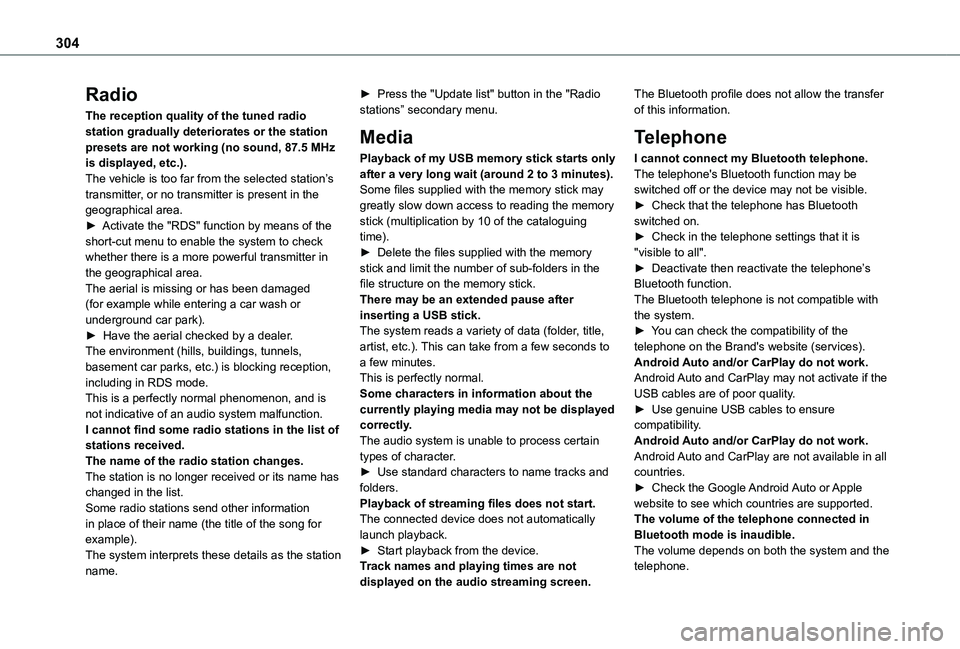
The reception quality of the tuned radio station gradually deteriorates or the station presets are not working (no sound, 87.5 MHz is displayed, etc.).The vehicle is too far from the selected station’s transmitter, or no transmitter is present in the geographical area.► Activate the "RDS" function by means of the short-cut menu to enable the system to check whether there is a more powerful transmitter in the geographical area.The aerial is missing or has been damaged (for example while entering a car wash or underground car park).► Have the aerial checked by a dealer.The environment (hills, buildings, tunnels, basement car parks, etc.) is blocking reception, including in RDS mode.This is a perfectly normal phenomenon, and is not indicative of an audio system malfunction.I cannot find some radio stations in the list of
stations received.The name of the radio station changes.The station is no longer received or its name has changed in the list.Some radio stations send other information in place of their name (the title of the song for example).The system interprets these details as the station name.
► Press the "Update list" button in the "Radio stations” secondary menu.
Media
Playback of my USB memory stick starts only after a very long wait (around 2 to 3 minutes).Some files supplied with the memory stick may greatly slow down access to reading the memory stick (multiplication by 10 of the cataloguing time).► Delete the files supplied with the memory stick and limit the number of sub-folders in the file structure on the memory stick.There may be an extended pause after inserting a USB stick.The system reads a variety of data (folder, title, artist, etc.). This can take from a few seconds to a few minutes.This is perfectly normal.Some characters in information about the currently playing media may not be displayed correctly.The audio system is unable to process certain
types of character.► Use standard characters to name tracks and folders.Playback of streaming files does not start.The connected device does not automatically launch playback.► Start playback from the device.Track names and playing times are not displayed on the audio streaming screen.
The Bluetooth profile does not allow the transfer of this information.
Telephone
I cannot connect my Bluetooth telephone.The telephone's Bluetooth function may be switched off or the device may not be visible.► Check that the telephone has Bluetooth switched on.► Check in the telephone settings that it is "visible to all".► Deactivate then reactivate the telephone’s Bluetooth function.The Bluetooth telephone is not compatible with the system.► You can check the compatibility of the telephone on the Brand's website (services).Android Auto and/or CarPlay do not work.Android Auto and CarPlay may not activate if the USB cables are of poor quality.► Use genuine USB cables to ensure compatibility.Android Auto and/or CarPlay do not work.
Android Auto and CarPlay are not available in all countries.► Check the Google Android Auto or Apple website to see which countries are supported.The volume of the telephone connected in Bluetooth mode is inaudible.The volume depends on both the system and the telephone.
Page 306 of 320
306
A
ABS 103Accelerated charging unit (Wallbox) 195Accessories 99Access to the 3rd row 61Access to the spare wheel 225Active Safety Brake 167–170AdBlue® 215AdBlue® tank 217Additive, Diesel 213–214Adjusting headlamps 95Adjusting head restraints 62Adjusting seat 53, 61Adjusting the air distribution 81Adjusting the air flow 81Adjusting the date 275, 300Adjusting the height and reach of the steering wheel 55Adjusting the lumbar support 53Adjusting the temperature 81Adjusting the time 261, 274, 300
Advice on care and maintenance 193, 219Advice on driving 6, 127–128Airbags 11 2, 11 4–11 5, 11 7Airbags, curtain 11 3–11 5Airbags, front 11 2–11 4, 11 8Airbags, lateral 11 3–11 4Air conditioning 78, 82, 85Air conditioning, digital 83Air conditioning, dual-zone automatic 81
Air conditioning, electronic (with display screen) 85Air conditioning, manual 79–80Air intake 81Air vents 78Alarm 47–48Alarm, volumetric 47Android Auto connection 271, 289Anti-lock braking system (ABS) 103Antitheft / Immobiliser 33Apple CarPlay connection 270, 289Applications 290Area, loading 33–34, 43, 71Armrest 53Armrest, front 63Assistance call 100Assistance, emergency braking 169Audible warning 102Audio streaming (Bluetooth) 257–258, 269, 294
B
Battery 235Battery, 12 V 204, 213, 235–238Battery, ancillaries 235Battery, charging 237Battery, remote control 40–41, 87Bench seat, one-piece, fixed 61Blind spot sensors 174
Bluetooth (hands-free) 259, 271–272, 295–296Bluetooth (telephone) 259–260, 271–272, 295–296Bodywork 220Bonnet 209–210Boot lid 37–38, 40Bottle holder 63Brake discs 214–215Brake lamps 233Brakes 214–215Braking 146Braking assistance system 103Braking, automatic emergency 167–170Braking, dynamic emergency 135–137Brightness 260, 273Bulbs 229Bulbs (changing) 228–229Bulbs (changing, type) 229
C
Cable, audio 294Cable, Jack 294Capacity, fuel tank 190–192Cap, fuel filler 191–192Care of the bodywork 220CD 257CD, MP3 257Central locking 31, 37–38Changing a bulb 228–229
Page 310 of 320
310
Oil change 2 11Oil consumption 2 11OIl, engine 2 11On-board tools 221–222Opening the bonnet 209Opening the boot 31–32Opening the doors 31–32Overhead storage 63
P
Pads, brake 214Paint 220, 252Paint colour code 252Park Assist 186Parking brake 134, 215Parking brake, electric 134–137, 215Parking sensors, audible and visual 177Parking sensors, front 178Parking sensors, rear 178Passenger compartment temperature
pre-conditioning (Electric) 87Pedestrian horn (Electric) 102, 128Plates, identification 252Player, Apple® 258, 269, 295Player, USB 257, 269, 294Port, USB 65, 257, 269–270, 289, 294Power indicator (Electric) 7Pressures, tyres 215, 224, 228, 252Pre-tensioning seat belts 111Priming the fuel system 221
Profiles 273, 299Programmable cruise control 160Protecting children 11 2–11 3, 11 5–11 8, 120, 124–126Public fast charging station 195, 201Puncture 223, 225
R
Radar (warnings) 153Radio 256–257, 266–267, 292Radio, digital (Digital Audio Broadcasting - DAB) 257, 268, 293Range, AdBlue 213RDS 256, 267, 292–293Rear screen, demisting 84Recharging the battery 237Recharging the traction battery 196Recharging the traction battery (Electric) 193, 200–201, 203Recirculation, air 81
Recovery 239Reduction of electrical load 204Regeneration of the particle filter 214Regenerative braking (deceleration by engine braking) 145–146Reinitialisation of the under-inflation detection system 150Reinitialising the remote control 41Reminder, key in ignition 132Reminder, lighting on 91
Remote control 31–35, 37, 39, 129Remote functions 202Remotely operable functions (Electric) 87Removing a wheel 226–227Removing the mat 63Replacing bulbs 228–229Replacing fuses 234Replacing the air filter 214Replacing the oil filter 214Replacing the passenger compartment filter 213Reservoir, screenwash 212Reversing camera 153, 180, 184Reversing lamps 233Roof 64Roof bars 208–209Roof flap 46Running out of fuel (Diesel) 221
S
Safety, children 11 2–11 3, 11 5–11 8, 120, 124–126Saturation of the particle filter (Diesel) 214Screen menu map 270Screenwash 96Screenwash, front 96Screenwash, rear 96–97SCR (Selective Catalytic Reduction) 215Seat belts 108–111, 11 9Seat, bench front, 2-seat 57, 59, 108