CD player TOYOTA PROACE VERSO 2020 User Guide
[x] Cancel search | Manufacturer: TOYOTA, Model Year: 2020, Model line: PROACE VERSO, Model: TOYOTA PROACE VERSO 2020Pages: 418, PDF Size: 39.32 MB
Page 374 of 418
374
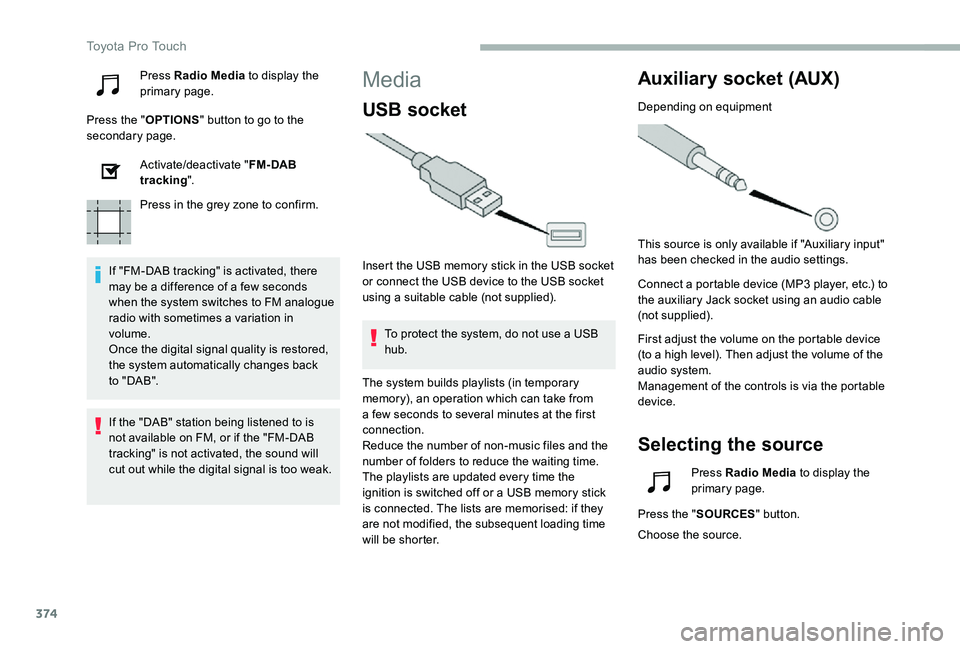
Press Radio Media to display the primary page.
Press the "OPTIONS" button to go to the secondary page.
Activate/deactivate "FM- DAB tracking".
Press in the grey zone to confirm.
If "FM-DAB tracking" is activated, there may be a difference of a few seconds when the system switches to FM analogue radio with sometimes a variation in volume.Once the digital signal quality is restored, the system automatically changes back to " DA B ".
Media
USB socket
Insert the USB memory stick in the USB socket or connect the USB device to the USB socket using a suitable cable (not supplied).
To protect the system, do not use a USB hub.
Auxiliary socket (AUX)
Depending on equipment
This source is only available if "Auxiliary input" has been checked in the audio settings.
Connect a portable device (MP3 player, etc.) to the auxiliary Jack socket using an audio cable (not supplied).
First adjust the volume on the portable device (to a high level). Then adjust the volume of the audio system.Management of the controls is via the portable device.
Selecting the source
If the "DAB" station being listened to is not available on FM, or if the "FM-DAB
tracking" is not activated, the sound will cut out while the digital signal is too weak.
The system builds playlists (in temporary memory), an operation which can take from a few seconds to several minutes at the first connection.Reduce the number of non-music files and the number of folders to reduce the waiting time.The playlists are updated every time the ignition is switched off or a USB memory stick is connected. The lists are memorised: if they are not modified, the subsequent loading time will be shorter.
Press Radio Media to display the primary page.
Press the "SOURCES" button.
Choose the source.
Toyota Pro Touch
Page 375 of 418
375
Bluetooth®streaming
Streaming allows you to listen to music from your smartphone.
The Bluetooth profile must be activated, first adjust the volume on the portable device (to a high level).Then adjust the volume of the system.
If play does not start automatically, it may be necessary to start the audio playback from the smartphone.
Control is from the portable device or by using the system's touch buttons.
Once connected in Streaming mode, the smartphone is considered to be a media source.
Connecting Apple® players
Connect the Apple® player to the USB socket using a suitable cable (not supplied).Play starts automatically.
Control is via the audio system.
The classifications available are those of the portable device connected (artists/albums/genres/playlists/audio books/podcasts). It is also possible to use a classification structured in the form of a library.The default classification used is by artist. To modify the classification used, return to the first level of the menu then select the desired classification (playlists for example) and confirm to go down through the menu to the desired track.
The version of software in the audio system may not be compatible with the generation of the Apple® player.To protect the system, do not use a USB hub.
The audio system will only play audio files with ".wav", ".wma", ".aac", ".ogg" and ".mp3" file extensions and with a bit rate of between 32 Kbps and 320 Kbps.It also supports VBR (Variable Bit Rate) mode.No other file types (".mp4", etc.) can be read.Files of the ".wma" type should be to the wma 9 standard.Sampling frequencies supported are 11, 22, 44
and 48 kHz.
Information and advice
The system supports USB mass storage devices, BlackBerry® devices or Apple® players via the USB sockets. The adapter cable is not supplied.Device management is via the audio system controls.Other devices, not recognised on connection, must be connected to the auxiliary socket using a Jack cable (not supplied) or via Bluetooth streaming, depending on compatibility.
.
Toyota Pro Touch
Page 396 of 418
396
Media
USB player
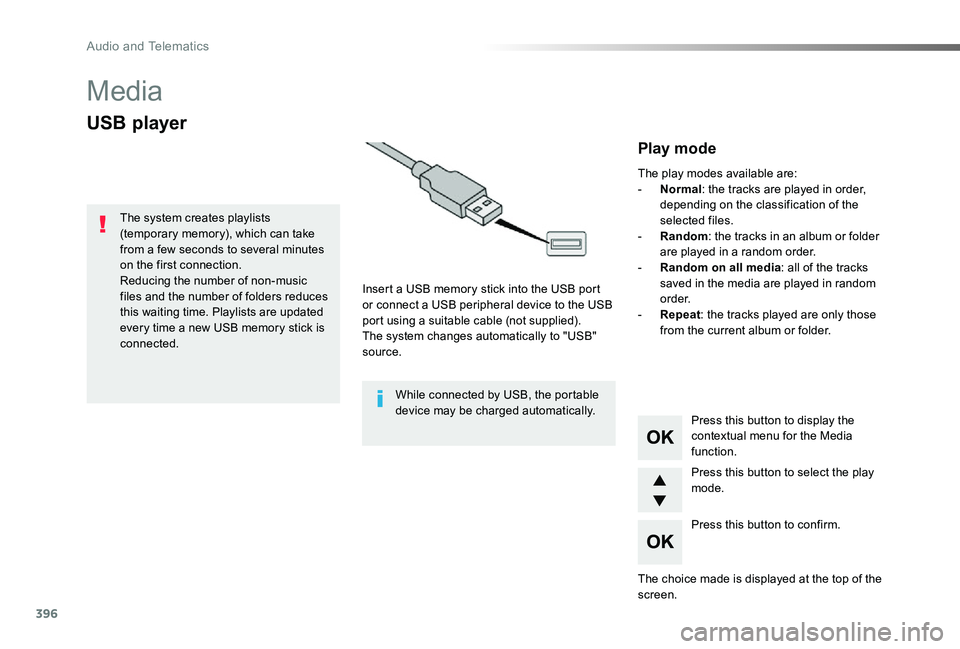
Insert a USB memory stick into the USB port or connect a USB peripheral device to the USB port using a suitable cable (not supplied).The system changes automatically to "USB" source.
The system creates playlists (temporary memory), which can take from a few seconds to several minutes on the first connection.Reducing the number of non-music files and the number of folders reduces this waiting time. Playlists are updated every time a new USB memory stick is connected.
Press this button to display the contextual menu for the Media function.
Press this button to select the play mode.
Press this button to confirm.
Play mode
The play modes available are:- Normal: the tracks are played in order, depending on the classification of the selected files.- Random: the tracks in an album or folder
are played in a random order.- Random on all media: all of the tracks saved in the media are played in random o r d e r.- Repeat: the tracks played are only those from the current album or folder.
The choice made is displayed at the top of the screen.
While connected by USB, the portable device may be charged automatically.
Audio and Telematics
Page 398 of 418
398
CD player
Insert circular compact discs only.Some anti-pirating systems, on original discs or CDs copied using a personal recorder, may cause faults which are no reflection on the quality of the vehicle's player.Insert a CD in the player, play begins automatically.
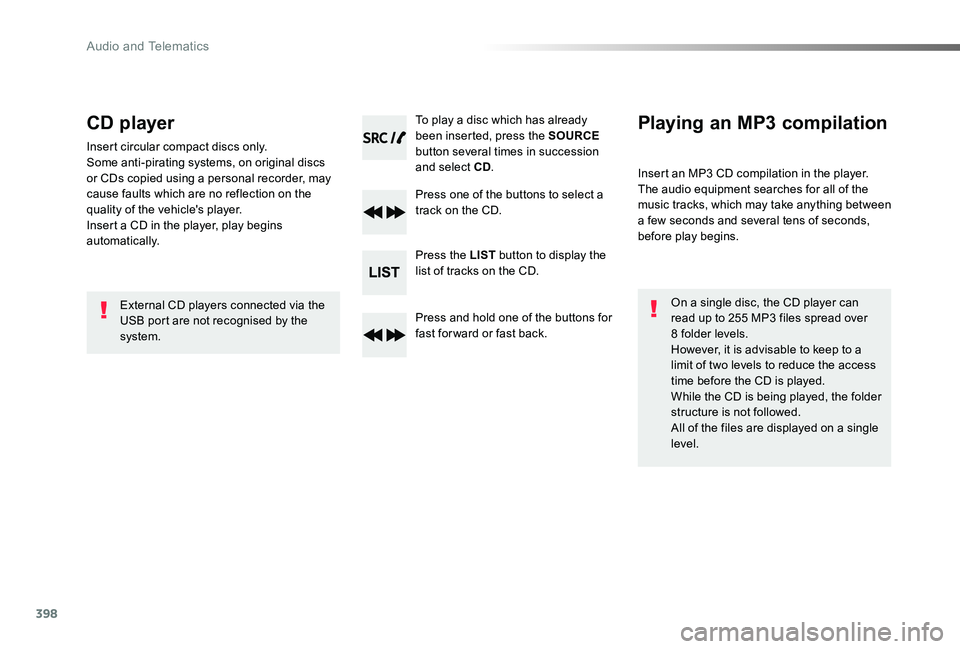
To play a disc which has already been inserted, press the SOURCE button several times in succession and select CD.
Press one of the buttons to select a track on the CD.
Press the LIST button to display the list of tracks on the CD.
Press and hold one of the buttons for fast for ward or fast back.
Playing an MP3 compilation
Insert an MP3 CD compilation in the player.The audio equipment searches for all of the music tracks, which may take anything between a few seconds and several tens of seconds, before play begins.
On a single disc, the CD player can read up to 255 MP3 files spread over 8 folder levels.However, it is advisable to keep to a limit of two levels to reduce the access time before the CD is played.While the CD is being played, the folder structure is not followed.All of the files are displayed on a single level.
External CD players connected via the USB port are not recognised by the system.
Audio and Telematics
Page 399 of 418
399
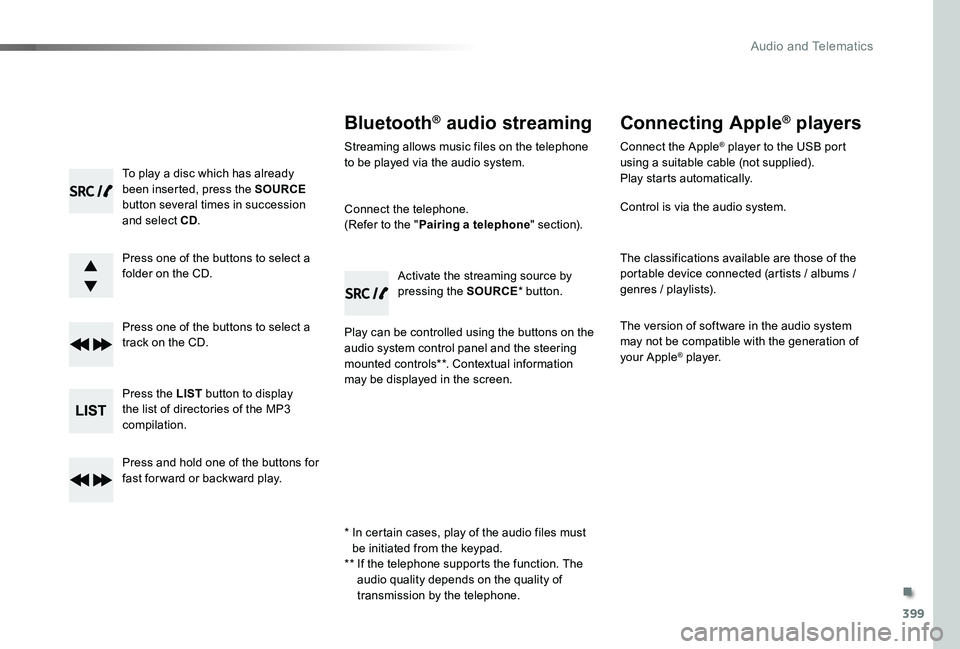
To play a disc which has already been inserted, press the SOURCE button several times in succession and select CD.
Press one of the buttons to select a folder on the CD.
Press one of the buttons to select a track on the CD.
Press the LIST button to display the list of directories of the MP3 compilation.
Press and hold one of the buttons for fast for ward or backward play.
Bluetooth® audio streaming
Streaming allows music files on the telephone to be played via the audio system.
Connect the telephone.(Refer to the "Pairing a telephone" section).
Play can be controlled using the buttons on the audio system control panel and the steering mounted controls**. Contextual information may be displayed in the screen.
Activate the streaming source by pressing the SOURCE* button.
Connecting Apple® players
Connect the Apple® player to the USB port using a suitable cable (not supplied).Play starts automatically.
Control is via the audio system.
The classifications available are those of the portable device connected (artists / albums / genres / playlists).
The version of software in the audio system may not be compatible with the generation of your Apple® player.
* In certain cases, play of the audio files must be initiated from the keypad.** If the telephone supports the function. The audio quality depends on the quality of
transmission by the telephone.
.
Audio and Telematics
Page 400 of 418
400
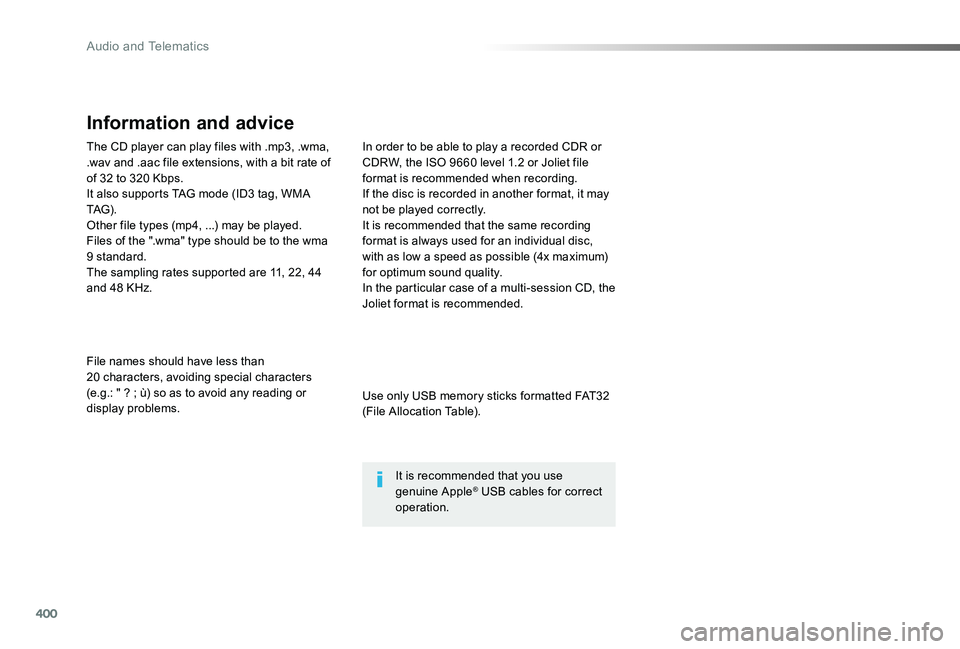
The CD player can play files with .mp3, .wma, .wav and .aac file extensions, with a bit rate of of 32 to 320 Kbps.It also supports TAG mode (ID3 tag, WMA TAG) .Other file types (mp4, ...) may be played.Files of the ".wma" type should be to the wma 9 standard.The sampling rates supported are 11, 22, 44 and 48 KHz.
File names should have less than 20 characters, avoiding special characters (e.g.: " ? ; ù) so as to avoid any reading or display problems.
In order to be able to play a recorded CDR or CDRW, the ISO 9660 level 1.2 or Joliet file format is recommended when recording.If the disc is recorded in another format, it may not be played correctly.It is recommended that the same recording format is always used for an individual disc, with as low a speed as possible (4x maximum) for optimum sound quality.In the particular case of a multi-session CD, the Joliet format is recommended.
Information and advice
Use only USB memory sticks formatted FAT32 (File Allocation Table).
It is recommended that you use genuine Apple® USB cables for correct operation.
Audio and Telematics
Page 402 of 418
402
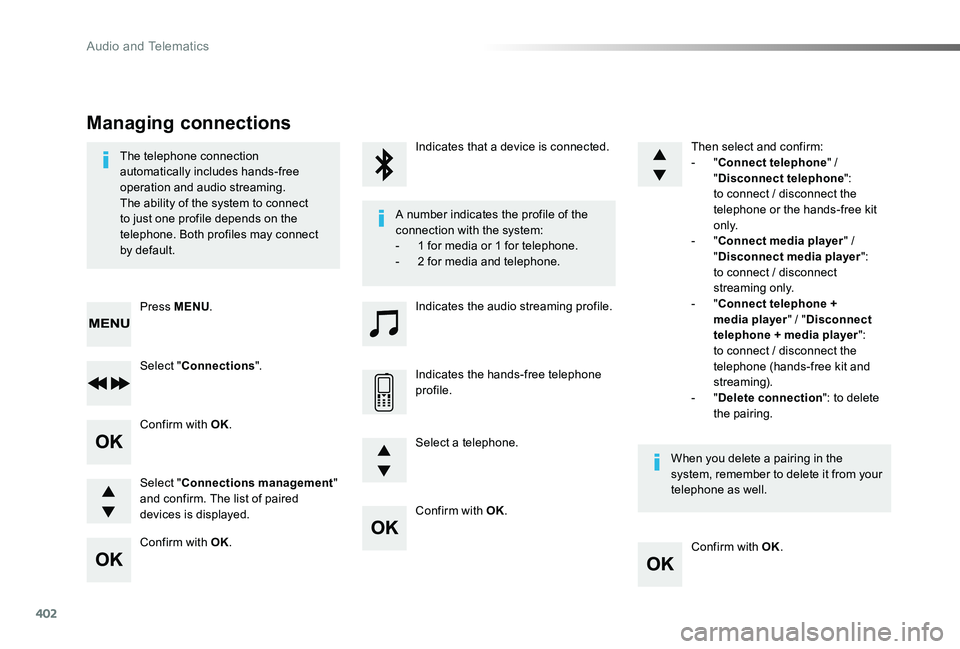
Confirm with OK.
Confirm with OK.
Confirm with OK.
Confirm with OK.
The telephone connection automatically includes hands-free operation and audio streaming.The ability of the system to connect to just one profile depends on the telephone. Both profiles may connect
by default.
A number indicates the profile of the connection with the system:
- 1 for media or 1 for telephone.- 2 for media and telephone.
When you delete a pairing in the system, remember to delete it from your telephone as well.
Indicates that a device is connected.
Indicates the audio streaming profile.
Indicates the hands-free telephone profile.
Press MENU.
Managing connections
Select "Connections".
Select "Connections management" and confirm. The list of paired devices is displayed.
Select a telephone.
Then select and confirm:- "Connect telephone" / "Disconnect telephone": to connect / disconnect the telephone or the hands-free kit o n l y.- "Connect media player" /
"Disconnect media player": to connect / disconnect streaming only.- "Connect telephone + media player" / "Disconnect telephone + media player": to connect / disconnect the telephone (hands-free kit and streaming).- "Delete connection": to delete the pairing.
Audio and Telematics
Page 408 of 418
408
Media
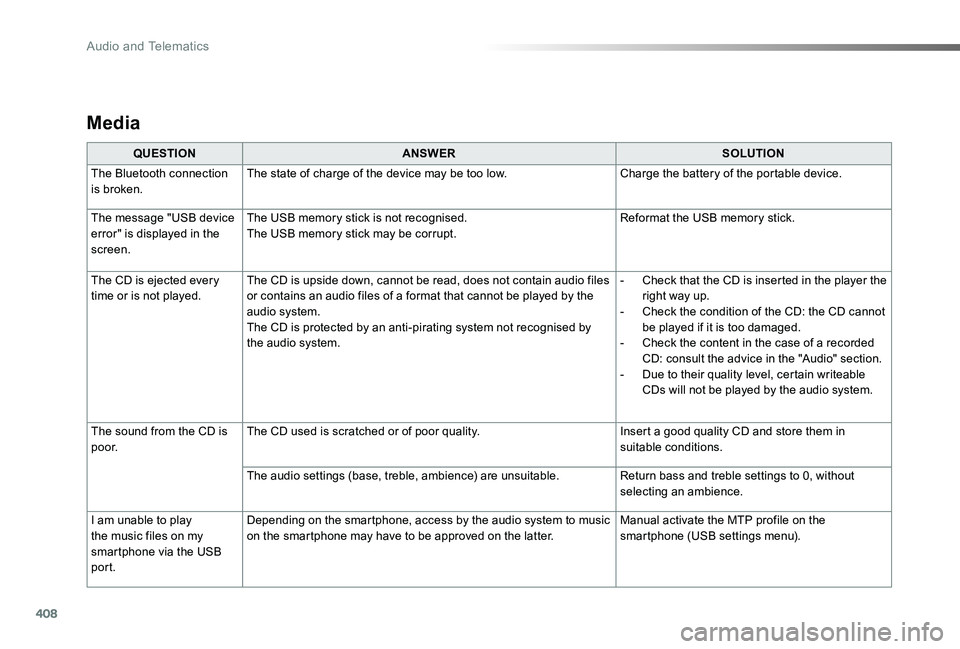
QUESTIONANSWERSOLUTION
The Bluetooth connection is broken.The state of charge of the device may be too low.Charge the battery of the portable device.
The message "USB device error" is displayed in the screen.
The USB memory stick is not recognised.The USB memory stick may be corrupt.Reformat the USB memory stick.
The CD is ejected every time or is not played.The CD is upside down, cannot be read, does not contain audio files or contains an audio files of a format that cannot be played by the audio system.The CD is protected by an anti-pirating system not recognised by the audio system.
- Check that the CD is inserted in the player the right way up.- Check the condition of the CD: the CD cannot be played if it is too damaged.- Check the content in the case of a recorded CD: consult the advice in the "Audio" section.- Due to their quality level, certain writeable CDs will not be played by the audio system.
The sound from the CD is p o o r.The CD used is scratched or of poor quality.Insert a good quality CD and store them in suitable conditions.
The audio settings (base, treble, ambience) are unsuitable.Return bass and treble settings to 0, without selecting an ambience.
I am unable to play the music files on my smartphone via the USB port.
Depending on the smartphone, access by the audio system to music on the smartphone may have to be approved on the latter.Manual activate the MTP profile on the smartphone (USB settings menu).
Audio and Telematics