reset TOYOTA PROACE VERSO 2020 User Guide
[x] Cancel search | Manufacturer: TOYOTA, Model Year: 2020, Model line: PROACE VERSO, Model: TOYOTA PROACE VERSO 2020Pages: 418, PDF Size: 39.32 MB
Page 247 of 418
247
Driver Attention Alert
The system resets itself if one of the following conditions is met:- engine running, the vehicle has been stationary for more than 15 minutes,- the ignition has been switched off for a few minutes,- the driver's seat belt is unfastened and their door is open.
As soon as the speed of the vehicle drops below 40 mph (65 km/h), the system goes into standby.The driving time is counted again once the speed is above 40 mph (65 km/h).
The system cannot in any circumstances replace the need for vigilance on the part of the driver.
Do not take the wheel if you are tired.
The system triggers an alert once it detects that the driver has not taken a break after two hours of driving at a speed above 40 mph (65 km/h).
It is recommended that you take a break as soon as you feel tired or at least every two hours.Depending on version, the vehicle either has the "Driving time warning system" only, or this combined with the "Driver Attention Alert".
Driving time warning
Activation / Deactivation
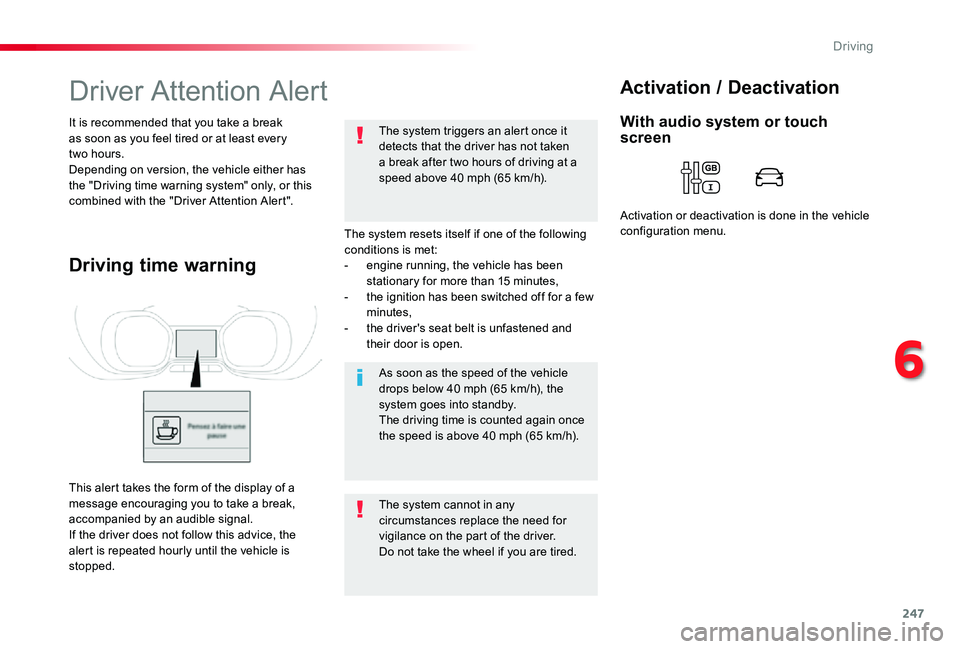
This alert takes the form of the display of a message encouraging you to take a break, accompanied by an audible signal.If the driver does not follow this advice, the alert is repeated hourly until the vehicle is stopped.
With audio system or touch screen
Activation or deactivation is done in the vehicle configuration menu.
6
Driving
Page 319 of 418
319
Do not force the lever as locking will not be possible if the clamp is not positioned correctly; start the procedure again.
Disconnecting the battery
In order to maintain an adequate state of charge for starting the engine, it is recommended that the battery be disconnected if the vehicle is taken out of ser vice for a long period.Wait 2 minutes after switching off the ignition before disconnecting the battery.
F close the windows and the doors before disconnecting the battery,F switch off all electrical consumers (audio system, wipers, lighting, ...),F switch off the ignition and wait for four minutes.Having exposed the battery, it is only necessary to disconnect the (+) terminal.
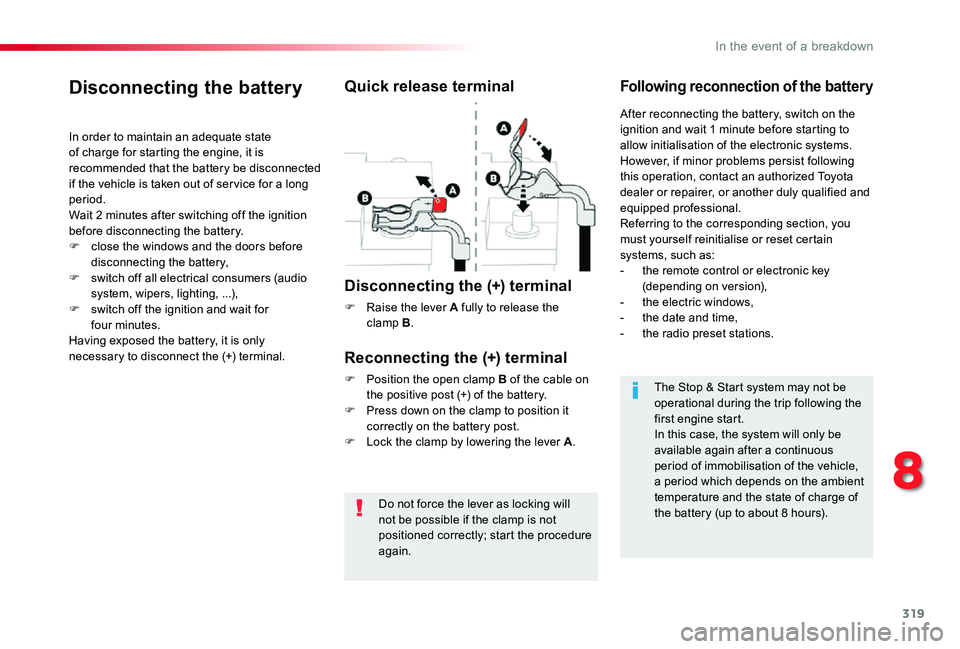
Quick release terminal
Disconnecting the (+) terminal
F Raise the lever A fully to release the clamp B.
Following reconnection of the battery
Reconnecting the (+) terminal
F Position the open clamp B of the cable on the positive post (+) of the battery.F Press down on the clamp to position it correctly on the battery post.F Lock the clamp by lowering the lever A.
After reconnecting the battery, switch on the ignition and wait 1 minute before starting to allow initialisation of the electronic systems.However, if minor problems persist following this operation, contact an authorized Toyota dealer or repairer, or another duly qualified and equipped professional.Referring to the corresponding section, you must yourself reinitialise or reset certain
systems, such as:- the remote control or electronic key (depending on version),- the electric windows,- the date and time,- the radio preset stations.
The Stop & Start system may not be operational during the trip following the first engine start.In this case, the system will only be
available again after a continuous period of immobilisation of the vehicle, a period which depends on the ambient temperature and the state of charge of the battery (up to about 8 hours).
8
In the event of a breakdown
Page 332 of 418
332
The touch screen is of the "capacitive" type.To clean the screen, use a soft, non-abrasive cloth (e.g. spectacles cloth) with no additional product.Do not use sharp objects on the screen.Do not touch the screen with wet hands.
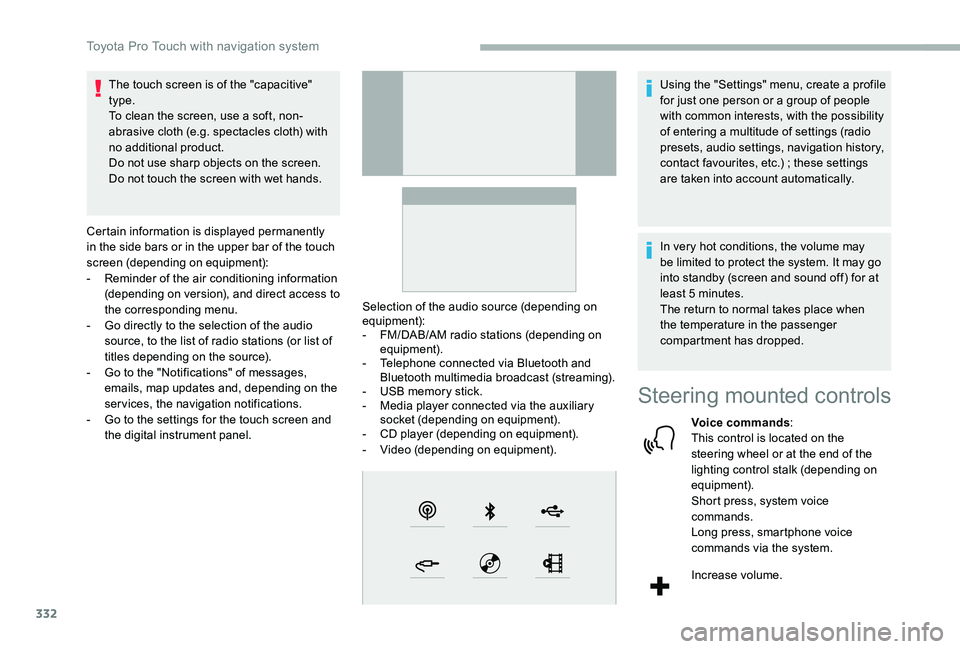
Certain information is displayed permanently in the side bars or in the upper bar of the touch screen (depending on equipment):- Reminder of the air conditioning information (depending on version), and direct access to the corresponding menu.- Go directly to the selection of the audio source, to the list of radio stations (or list of titles depending on the source).- Go to the "Notifications" of messages, emails, map updates and, depending on the services, the navigation notifications.- Go to the settings for the touch screen and the digital instrument panel.
Selection of the audio source (depending on equipment):- FM/DAB/AM radio stations (depending on equipment).- Telephone connected via Bluetooth and Bluetooth multimedia broadcast (streaming).- USB memory stick.- Media player connected via the auxiliary socket (depending on equipment).- CD player (depending on equipment).- Video (depending on equipment).
Using the "Settings" menu, create a profile for just one person or a group of people with common interests, with the possibility of entering a multitude of settings (radio presets, audio settings, navigation history, contact favourites, etc.) ; these settings are taken into account automatically.
In very hot conditions, the volume may be limited to protect the system. It may go into standby (screen and sound off) for at least 5 minutes.The return to normal takes place when the temperature in the passenger compartment has dropped.
Steering mounted controls
Voice commands:This control is located on the steering wheel or at the end of the lighting control stalk (depending on equipment).Short press, system voice commands.Long press, smartphone voice commands via the system.
Increase volume.
Toyota Pro Touch with navigation system
Page 333 of 418
333
FM 87.5 MHz
Decrease volume.Mute by pressing the volume increase and decrease buttons simultaneously (depending on equipment).Restore the sound by pressing one of the two volume buttons.
Media (short press): change the multimedia source.
Telephone (short press): start telephone call.Call in progress (short press): access telephone menu.Telephone (long press): reject an incoming call, end call ; when no call is in progress, access telephone menu.
Radio (rotate): automatic search for the previous/next station.Media (rotate): previous/next track, move in a list.Short press: confirm a selection ; if nothing selected, access to presets.
Applications
Depending on equipment/Depending on version.Operate certain applications on a smartphone connected via CarPlay®, MirrorLinkTM (available depending on the country) or Android Auto.Check the state of the Bluetooth®
and Wi-Fi connections.
Menus
Connected navigation
Depending on equipment/Depending on version.
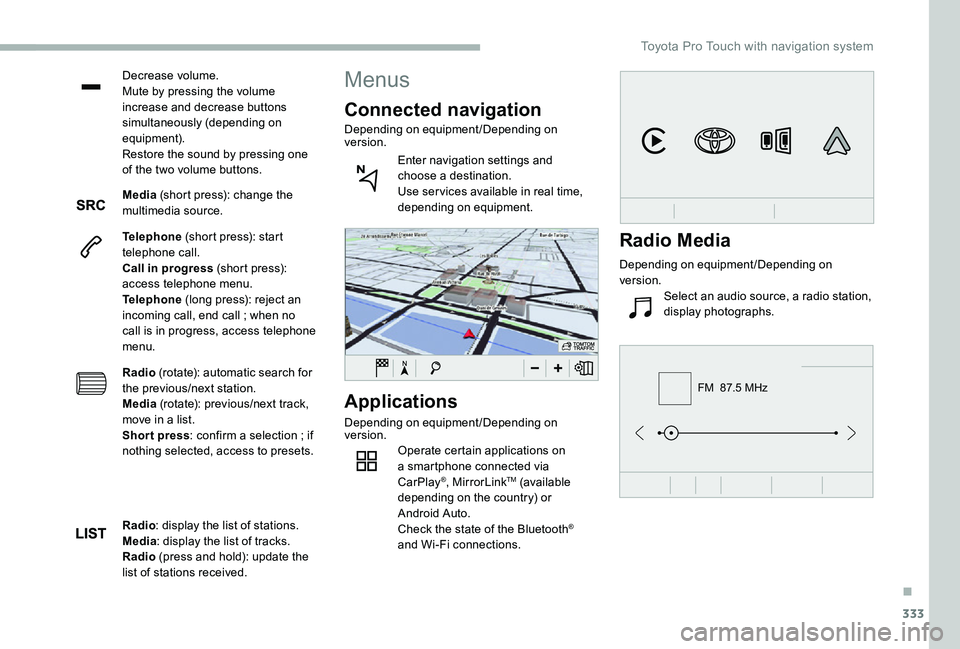
Enter navigation settings and choose a destination.Use ser vices available in real time, depending on equipment.
Radio: display the list of stations.Media: display the list of tracks.Radio (press and hold): update the list of stations received.
Radio Media
Depending on equipment/Depending on version.
Select an audio source, a radio station, display photographs.
.
Toyota Pro Touch with navigation system
Page 339 of 418
339
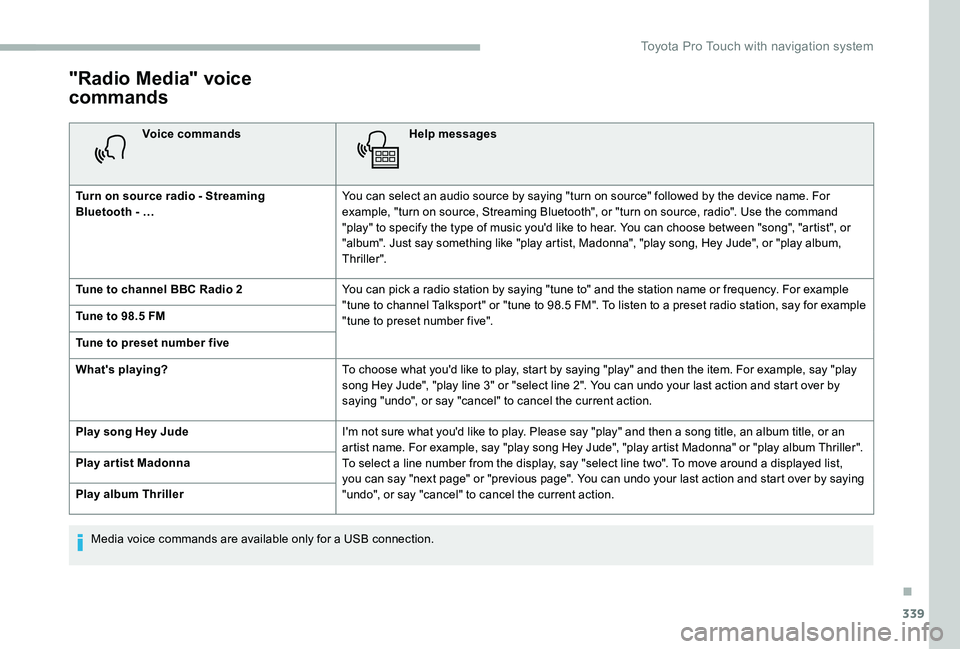
"Radio Media" voice
commands
Voice commandsHelp messages
Turn on source radio - Streaming Bluetooth - …You can select an audio source by saying "turn on source" followed by the device name. For example, "turn on source, Streaming Bluetooth", or "turn on source, radio". Use the command "play" to specify the type of music you'd like to hear. You can choose between "song", "artist", or "album". Just say something like "play artist, Madonna", "play song, Hey Jude", or "play album, Thriller".
Tune to channel BBC Radio 2You can pick a radio station by saying "tune to" and the station name or frequency. For example "tune to channel Talksport" or "tune to 98.5 FM". To listen to a preset radio station, say for example "tune to preset number five". Tune to 98.5 FM
Tune to preset number five
What's playing?To choose what you'd like to play, start by saying "play" and then the item. For example, say "play song Hey Jude", "play line 3" or "select line 2". You can undo your last action and start over by saying "undo", or say "cancel" to cancel the current action.
Play song Hey JudeI'm not sure what you'd like to play. Please say "play" and then a song title, an album title, or an artist name. For example, say "play song Hey Jude", "play artist Madonna" or "play album Thriller". To select a line number from the display, say "select line two". To move around a displayed list, you can say "next page" or "previous page". You can undo your last action and start over by saying "undo", or say "cancel" to cancel the current action.
Play ar tist Madonna
Play album Thriller
Media voice commands are available only for a USB connection.
.
Toyota Pro Touch with navigation system
Page 342 of 418
342
Select "My destinations".
Select the "Recent" tab.
Select the address chosen in the list to display the "Guidance criteria".
Press "OK" to start navigation.
Select "Position" to visualise the arrival point geographically.
To "My home" or "My work"
Press Navigation to display the primary page.
Press the "MENU" button to go to the secondary page.
Select "My destinations".
Select the "Preferred" tab.
Select "My home".
Or
Select "My work".
Or
Select a preset favourite destination.
To a contact
Press Navigation to display the primary page.
Press the "MENU" button to go to the secondary page.
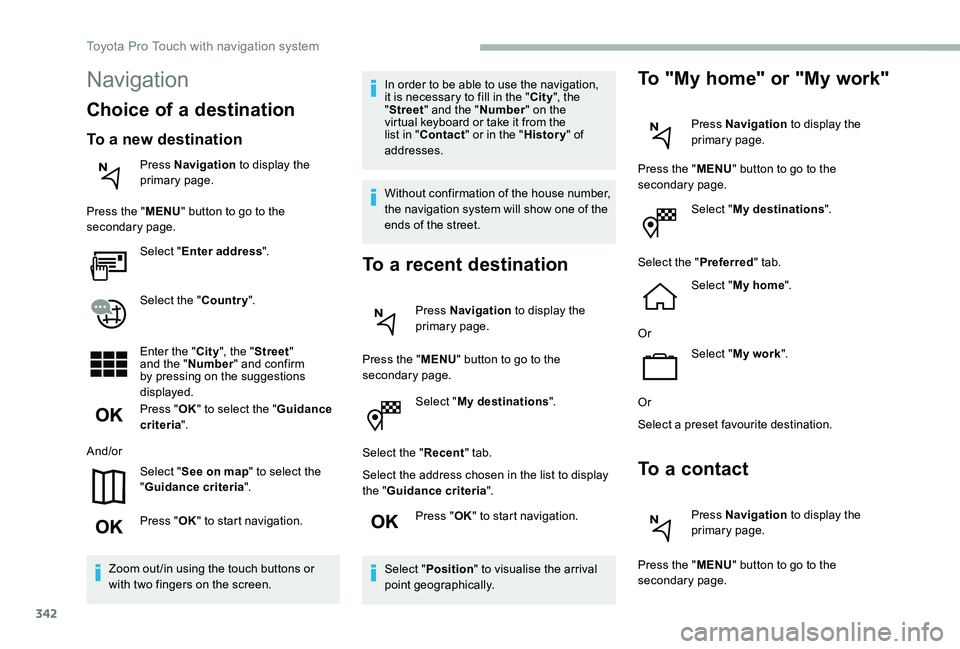
Navigation
Choice of a destination
To a new destination
Press Navigation to display the primary page.
Press the "MENU" button to go to the secondary page.
Select "Enter address".
Select the "Country".
Enter the "City", the "Street" and the "Number" and confirm by pressing on the suggestions displayed.
Press "OK" to select the "Guidance criteria".
And/or
Select "See on map" to select the "Guidance criteria".
Press "OK" to start navigation.
Zoom out /in using the touch buttons or with two fingers on the screen.
In order to be able to use the navigation, it is necessary to fill in the "City", the "Street" and the "Number" on the virtual keyboard or take it from the list in "Contact" or in the "History" of addresses.
Without confirmation of the house number, the navigation system will show one of the ends of the street.
To a recent destination
Press Navigation to display the primary page.
Press the "MENU" button to go to the secondary page.
Toyota Pro Touch with navigation system
Page 351 of 418
351
Press "OK" to confirm.
Radio reception may be affected by the use of electrical equipment not approved by the Brand, such as a USB charger connected to the 12 V socket.The exterior environment (hills, buildings, tunnels, basement car parks, etc.) may block reception, including in RDS mode. This behaviour is normal in the propagation of radio waves and does not indicate any failure of the audio system.
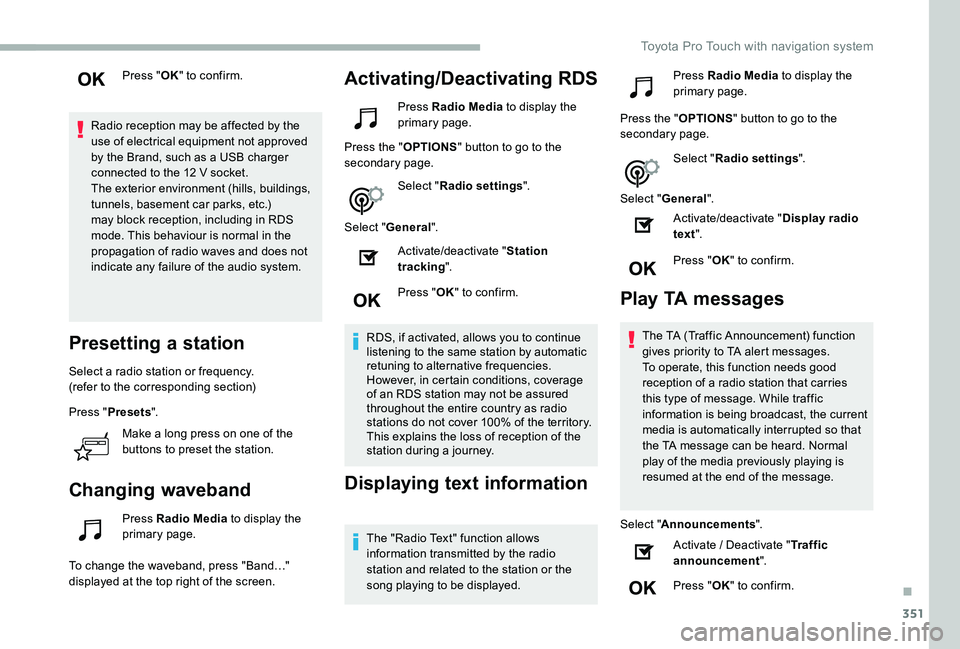
Presetting a station
Select a radio station or frequency.(refer to the corresponding section)
Press "Presets".
Make a long press on one of the
buttons to preset the station.
Changing waveband
Press Radio Media to display the primary page.
To change the waveband, press "Band…" displayed at the top right of the screen.
Activating/Deactivating RDS
Press Radio Media to display the primary page.
Press the "OPTIONS" button to go to the secondary page.
Select "Radio settings".
Select "General".
Activate/deactivate "Station tracking".
Press "OK" to confirm.
RDS, if activated, allows you to continue listening to the same station by automatic retuning to alternative frequencies. However, in certain conditions, coverage of an RDS station may not be assured throughout the entire country as radio stations do not cover 100% of the territory. This explains the loss of reception of the station during a journey.
Displaying text information
The "Radio Text" function allows information transmitted by the radio station and related to the station or the song playing to be displayed.
Press Radio Media to display the primary page.
Press the "OPTIONS" button to go to the secondary page.
Select "Radio settings".
Select "General".
Activate/deactivate "Display radio text".
Press "OK" to confirm.
Play TA messages
The TA (Traffic Announcement) function gives priority to TA alert messages. To operate, this function needs good reception of a radio station that carries this type of message. While traffic information is being broadcast, the current media is automatically interrupted so that
the TA message can be heard. Normal play of the media previously playing is resumed at the end of the message.
Select "Announcements".
Activate / Deactivate "Traffic announcement".
Press "OK" to confirm.
.
Toyota Pro Touch with navigation system
Page 359 of 418
359
The location for the photograph is square ; the system reshapes the original photograph if in another format.
Press this button to reinitialise the profile selected.
Reinitialisation of the profile selected activates the English language by default.
Select "Audio settings".
Select "Ambiences".
Or
"Position".
Or
"Sound".
Or
"Voice".
Or
"Ringtone".
Press "OK" to save the settings.
Select a "Profile" (1 or 2 or 3) to associate the "Audio settings" with it.
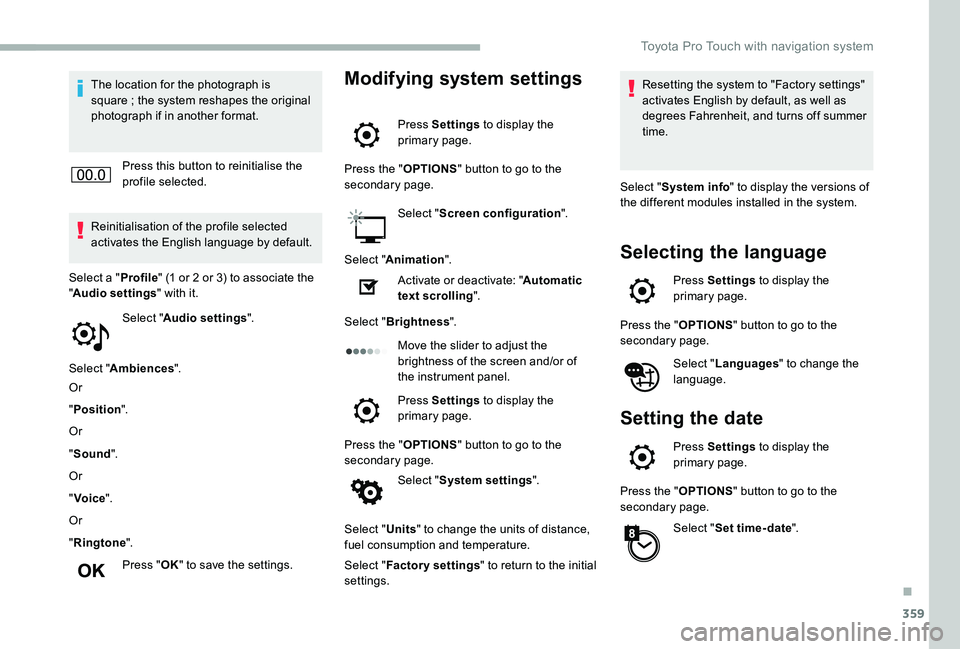
Modifying system settings
Press Settings to display the primary page.
Press the "OPTIONS" button to go to the secondary page.
Select "Screen configuration".
Select "Animation".
Activate or deactivate: "Automatic text scrolling".
Select "Brightness".
Move the slider to adjust the brightness of the screen and/or of the instrument panel.
Press Settings to display the primary page.
Press the "OPTIONS" button to go to the secondary page.
Select "System settings".
Select "Units" to change the units of distance, fuel consumption and temperature.
Select "Factory settings" to return to the initial settings.
Resetting the system to "Factory settings" activates English by default, as well as degrees Fahrenheit, and turns off summer time.
Select "System info" to display the versions of the different modules installed in the system.
Selecting the language
Press Settings to display the primary page.
Press the "OPTIONS" button to go to the secondary page.
Select "Languages" to change the language.
Setting the date
Press Settings to display the primary page.
Press the "OPTIONS" button to go to the secondary page.
Select "Set time-date".
.
Toyota Pro Touch with navigation system
Page 366 of 418
366
Settings
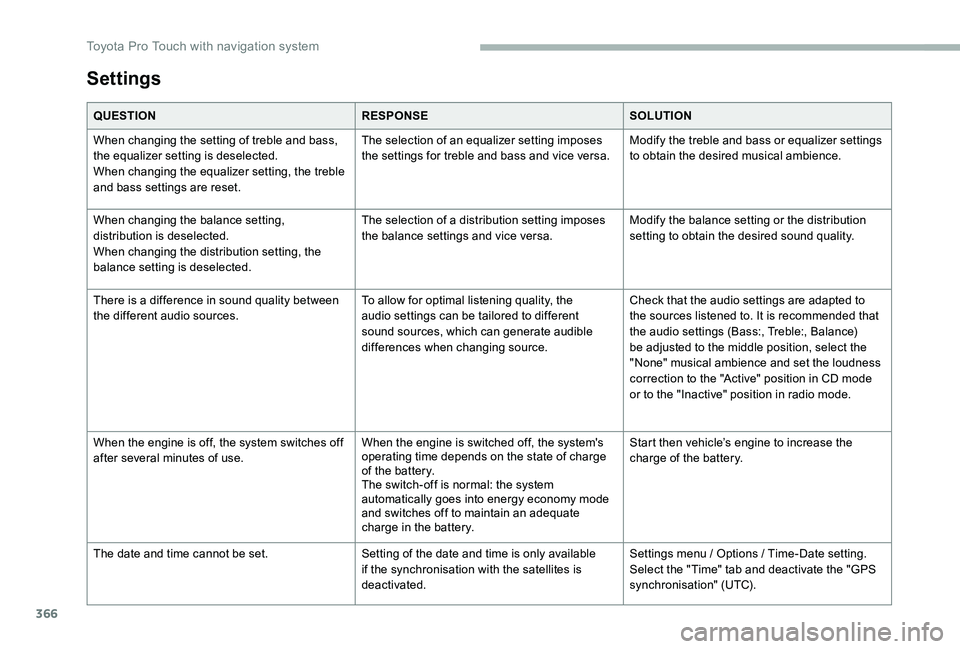
QUESTIONRESPONSESOLUTION
When changing the setting of treble and bass, the equalizer setting is deselected.When changing the equalizer setting, the treble and bass settings are reset.
The selection of an equalizer setting imposes the settings for treble and bass and vice versa.Modify the treble and bass or equalizer settings to obtain the desired musical ambience.
When changing the balance setting, distribution is deselected.When changing the distribution setting, the balance setting is deselected.
The selection of a distribution setting imposes the balance settings and vice versa.Modify the balance setting or the distribution setting to obtain the desired sound quality.
There is a difference in sound quality between the different audio sources.To allow for optimal listening quality, the audio settings can be tailored to different sound sources, which can generate audible differences when changing source.
Check that the audio settings are adapted to the sources listened to. It is recommended that the audio settings (Bass:, Treble:, Balance) be adjusted to the middle position, select the "None" musical ambience and set the loudness correction to the "Active" position in CD mode or to the "Inactive" position in radio mode.
When the engine is off, the system switches off after several minutes of use.When the engine is switched off, the system's operating time depends on the state of charge of the battery.The switch-off is normal: the system automatically goes into energy economy mode and switches off to maintain an adequate charge in the battery.
Start then vehicle’s engine to increase the charge of the battery.
The date and time cannot be set.Setting of the date and time is only available if the synchronisation with the satellites is deactivated.
Settings menu / Options / Time-Date setting. Select the "Time" tab and deactivate the "GPS synchronisation" (UTC).
Toyota Pro Touch with navigation system
Page 368 of 418
368
The touch screen is of the "capacitive" type.To clean the screen, use a soft, non-abrasive cloth (e.g. spectacles cloth) with no additional product.Do not use sharp objects on the screen.Do not touch the screen with wet hands.
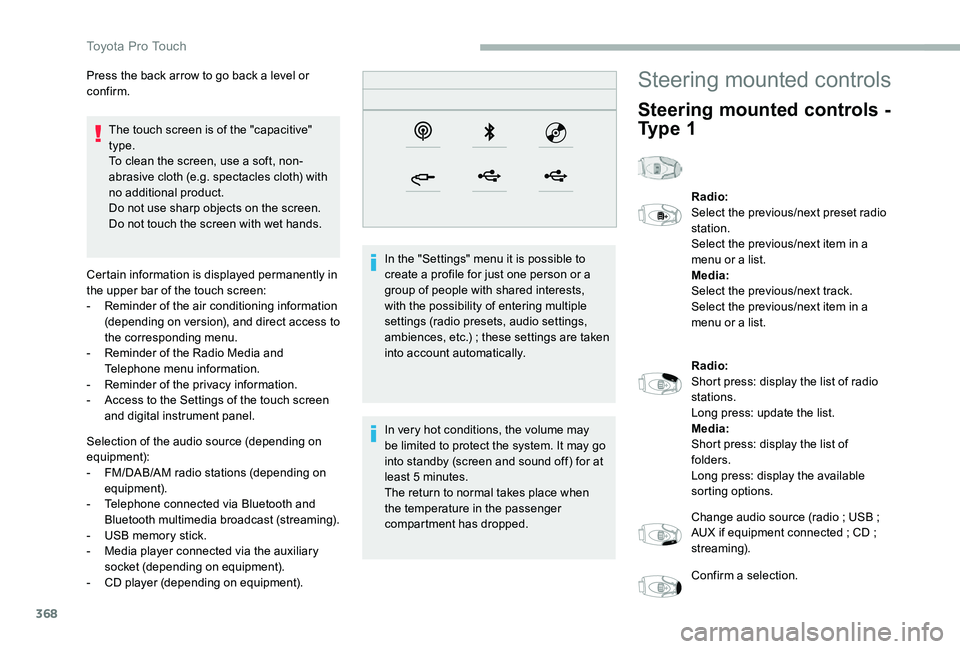
Certain information is displayed permanently in the upper bar of the touch screen:- Reminder of the air conditioning information (depending on version), and direct access to the corresponding menu.- Reminder of the Radio Media and Telephone menu information.- Reminder of the privacy information.- Access to the Settings of the touch screen and digital instrument panel.
Selection of the audio source (depending on
equipment):- FM/DAB/AM radio stations (depending on equipment).- Telephone connected via Bluetooth and Bluetooth multimedia broadcast (streaming).- USB memory stick.- Media player connected via the auxiliary socket (depending on equipment).- CD player (depending on equipment).
In the "Settings" menu it is possible to create a profile for just one person or a group of people with shared interests, with the possibility of entering multiple settings (radio presets, audio settings, ambiences, etc.) ; these settings are taken into account automatically.
In very hot conditions, the volume may
be limited to protect the system. It may go into standby (screen and sound off) for at least 5 minutes.The return to normal takes place when the temperature in the passenger compartment has dropped.
Press the back arrow to go back a level or confirm.Steering mounted controls
Steering mounted controls -
Ty p e 1
Radio:Select the previous/next preset radio station.Select the previous/next item in a menu or a list.Media:Select the previous/next track.Select the previous/next item in a menu or a list.
Radio:Short press: display the list of radio stations.Long press: update the list.Media:Short press: display the list of folders.Long press: display the available sorting options.
Change audio source (radio ; USB ; AUX if equipment connected ; CD ; streaming).
Confirm a selection.
Toyota Pro Touch