lock TOYOTA PROACE VERSO EV 2021 Owners Manual
[x] Cancel search | Manufacturer: TOYOTA, Model Year: 2021, Model line: PROACE VERSO EV, Model: TOYOTA PROACE VERSO EV 2021Pages: 360, PDF Size: 68.91 MB
Page 274 of 360
274
NOTIC E
Voice recognition requires the use of a compatible smartphone first connected to the vehicle by Bluetooth.
Frequently asked
questions
The following information groups together the answers to the most frequently asked questions concerning your audio system.With the engine off, the audio system switches off after a few minutes of use.When the engine is switched off, the audio system operating time depends on the state of charge of the battery.The switch-off is normal: the audio system switches to economy mode and switches off to avoid discharging the vehicle's battery.► Start the vehicle’s engine to increase the
charge of the battery.The message "the audio system is overheated" is displayed onscreen.To protect the installation if the ambient temperature is too high, the audio system switches to an automatic thermal protection mode, in which the volume may be decreased or the CD player stopped.► Switch the audio system off for a few minutes to allow the system to cool.
Radio
There is a difference in sound quality between the different audio sources (radio, CD, etc.).For optimal listening quality, the audio settings (Volume, Bass, Treble, Ambience and Loudness) can be adjusted to different audio sources, resulting in audible differences when switching between sources (radio, CD, etc.).► Check that the audio settings (Volume, Bass, Treble, Ambience and Loudness) are appropriate to the sources being listened to. We recommend setting the audio functions (Bass, Treble, Fr-Re balance and Le-Ri balance) to the middle position, setting the musical ambience to "None", setting loudness correction to "Active" in CD mode and "Inactive" in Radio mode.The preset stations do not function (no sound, 87.5 MHz is displayed, etc.).The wrong waveband is selected.► Press the BAND button to return to the waveband (FM, FM2, DAB, AM) on which the
stations are preset.Traffic announcement (TA) is shown but I receive no traffic information.The radio station is not part of the regional traffic information network.► Tune to a radio station that broadcasts traffic information.The reception quality of the tuned radio station gradually deteriorates or the station
presets are inoperative (no sound, 87.5 MHz is displayed, etc.).The vehicle is too far from the selected station’s transmitter, or no transmitter is present in the geographical area.► Activate the RDS function to allow the system to check for a more powerful transmitter in the area.The environment (hills, buildings, tunnels, basement car parks, etc.) may block reception, including in RDS mode.This is a perfectly normal phenomenon, and is not indicative of an audio system malfunction.The aerial is absent or has been damaged (for example when going through an automatic car wash or in an underground car park).► Have the aerial checked by a dealer.The sound intermittently cuts out for 1 or 2 seconds in radio mode.During this brief sound cut-out, the RDS searches for another frequency giving better reception of the station.► Switch off the RDS function if the
phenomenon occurs too frequently and always on the same route.
Media
The Bluetooth connection is cut.The battery in the peripheral device may not be sufficiently charged.► Charge the battery in the peripheral device.The message "USB device error" is displayed
in the screen.
Page 280 of 360
280
Press this button to select the display settings for messages.Press this button to search and select a recipient.Select the "Quick messages” tab.
Press this button to select the display settings for messages.Press this button to write a new message.
Press the bin alongside the selected message to delete it.Press this button alongside the selected message to display the secondary page.Press this button to edit and modify the existing text.Press this button to write a new message.
Press the bin to delete the message.
Radio
Selecting a station
Press Radio Media to display the main page.Press one of the buttons to perform an automatic search for radio stations.OrMove the slider to manually search for frequencies up or down.OrPress the frequency.
Enter the FM and AM waveband values using the virtual keypad.Press "OK" to confirm.
WARNI NG
Radio reception may be affected by the use of electrical equipment not approved by the Brand, such as a USB charger connected to the 12 V socket.The exterior environment (hills, buildings, tunnels, basement car parks, etc.) may block reception, including in RDS mode. This phenomenon is perfectly normal in the context of radio wave transmission, and in no way indicative of an audio system malfunction.
Changing the waveband
Press Radio Media to display the main page. Press the "OPTIONS" button to access the secondary page.Press "Band" to change waveband.
Press in the shaded area to confirm.
Presetting a station
Select a radio station or frequency.Make a short press on the star outline. If the star is solid, the radio station is already preset.OrSelect a radio station or frequency.Press "Preset".Make a long press on one of the buttons to preset the station.
Activating/Deactivating RDS
RDS, if activated, allows you to continue listening to the same station by automatically retuning to alternative frequencies.Press Radio Media to display the main page.Press the "OPTIONS" button to access the secondary page.Activate/deactivate "RDS".
Page 284 of 360
284
Telephone
USB sockets
Depending on equipment, for more information on the USB sockets compatible with CarPlay® or Android Auto applications, refer to the "Ease of use and comfort" section.
NOTIC E
For the list of compatible smartphones, visit the Manufacturer's website in your country.
NOTIC E
Synchronising a smartphone enables users to display applications that support the smartphone’s CarPlay® or Android Auto technology on the vehicle’s screen. For CarPlay® technology, the CarPlay® function must first be activated on the smartphone.Unlock the smartphone for the communication process between the smartphone and the system to work.As principles and standards are constantly changing, we recommend keeping the smartphone's operating system up-to-date, together with the date and time on the smartphone and the system.
CarPlay® smartphone
connection
Depending on country.
NOTIC E
On connecting the USB cable, the CarPlay® function deactivates the system's Bluetooth® mode.
The "CarPlay" function requires the use of a compatible smartphone and compatible applications.
Connect the USB cable. The smartphone charges when connected by the USB cable.From the system, press Telephone to display the CarPlay® interface.OrIf the smartphone has already connected by Bluetooth®.Connect the USB cable. The smartphone charges when connected by the USB cable.From the system, press "Telephone" to display the main page.Press the "PHONE" button to go to the secondary page.Press "CarPlay" to display the CarPlay® interface.
NOTIC E
When the USB cable is disconnected and the ignition is switched off then back on, the system will not automatically switch to Radio Media mode; the source must be changed manually.
The CarPlay® navigation can be accessed at any time by pressing the system's Navigation button.
Android Auto smartphone
connection
Depending on country.On the smartphone, download the Android Auto application.
NOTIC E
The "Android Auto" function requires the use of a compatible smartphone and applications.
Telephone not connected by
Bluetooth®
Connect a USB cable. The smartphone charges when connected by a USB cable.From the system, press "Telephone" to display the main page.Press "Android Auto" to start the application in the system.
Page 289 of 360
289
TOYOTA Pro Touch
11
Frequently asked
questions
The following information groups together the answers to the most frequently asked questions concerning the system.
Radio
The reception quality of the tuned radio station gradually deteriorates or the station presets are not working (no sound, 87.5 MHz is displayed, etc.).The vehicle is too far from the selected station’s transmitter, or no transmitter is present in the geographical area.► Activate the "RDS" function in the upper bar to enable the system to check whether there is a more powerful transmitter in the geographical area.The environment (hills, buildings, tunnels, basement car parks, etc.) is blocking reception, including in RDS mode.This is a perfectly normal phenomenon, and is
not indicative of an audio system malfunction.The aerial is missing or has been damaged (for example while entering a car wash or underground car park).► Have the aerial checked by a dealer.I cannot find some radio stations in the list of received stations.The name of the radio station changes.The station is no longer received or its name has
changed in the list.
► Press the round arrow on the "List" tab on the "Radio" page.Some radio stations send other information in place of their name (the title of the song for example).The system interprets these details as the station name.► Press the round arrow on the "List" tab on the "Radio" page.
Media
Playback of my USB memory stick starts only after a very long wait (around 2 to 3 minutes).Some files supplied with the memory stick may greatly slow down access to reading the memory stick (multiplication by 10 of the cataloguing time).► Delete the files supplied with the memory stick and limit the number of sub-folders in the file structure on the memory stick. Some characters in information about the currently playing media are not displayed correctly.
The audio system is unable to process certain types of character.► Use standard characters to name tracks and folders.Playback of streaming files does not start.The connected device does not automatically launch playback.► Start playback from the device.Track names and playing times are not
displayed on the audio streaming screen.
The Bluetooth profile does not allow the transfer of this information.
Telephone
I cannot connect my Bluetooth telephone.The telephone's Bluetooth function may be switched off or the device may not be visible.► Check that the telephone has Bluetooth switched on.► Check in the telephone settings that it is "visible to all".The Bluetooth telephone is not compatible with the system.► Check the compatibility of the telephone on the Brand's website (services).Android Auto and/or CarPlay do not work.Android Auto and CarPlay may not activate if the USB cables are of poor quality.► Use genuine USB cables to ensure compatibility.Android Auto and/or CarPlay do not work.Android Auto and CarPlay are not available in all countries.
► Check the Google Android Auto or Apple website to see which countries are supported.The volume of the telephone connected in Bluetooth mode is inaudible.The volume depends on both the system and the telephone.► Increase the volume of the audio system, to maximum if required, and increase the volume of the telephone if necessary.
Page 303 of 360
303
TOYOTA Pro Touch with navigation system
12
Activate/deactivate "Stations".
Press this button to display a secondary page.Select the "Settings” tab.
Select the desired fuel.
Press "OK" to save.
Displaying charging station
details
Press Navigation to display the main page.Press this button to display the list of services.Press "POI on map" to display the list of points of interest.Press one of the buttons to search for "Stations".Activate/deactivate "Stations".
Press this button to display a secondary page.Select the "Settings" tab.
Select the desired connector type.
Press "OK" to save.
Displaying weather
information
Press Navigation to display the main page.Press this button to display the list of services.Select "View map".
Select "Weather".
Press this button to display basic information.Press this button to display detailed weather information.
NOTIC E
The temperature displayed at 6 a.m. will be the maximum temperature for the day.The temperature displayed at 6 p.m. will be the minimum temperature for the night.
Applications
USB sockets
Depending on equipment, for more information on the USB sockets compatible with CarPlay® or Android Auto applications, refer to the "Ease of use and comfort" section.
NOTIC E
For the list of compatible smartphones, visit the Manufacturer's website in your country.
NOTIC E
Synchronising a smartphone enables users to display applications that support the smartphone’s CarPlay® or Android Auto technology on the vehicle’s screen. For CarPlay® technology, the CarPlay® function must first be activated on the smartphone.Unlock the smartphone for the communication process between the smartphone and the system to work.As principles and standards are constantly changing, we recommend keeping the smartphone's operating system up-to-date, together with the date and time on the smartphone and the system.
Page 307 of 360
307
TOYOTA Pro Touch with navigation system
12
WARNI NG
Radio reception may be affected by the use of electrical equipment not approved by the Brand, such as a USB charger connected to the 12 V socket.The exterior environment (hills, buildings, tunnels, basement car parks, etc.) may block reception, including in RDS mode. This phenomenon is perfectly normal in the context of radio wave transmission, and in no way indicative of an audio system malfunction.
Presetting a station
Select a radio station or frequency.(refer to the corresponding section)Press "Presets".Make a long press on one of the buttons to preset the station.
Changing the waveband
Press Radio Media to display the main page.To change the waveband, press "Band…", displayed at the top right of the screen.
Activating/Deactivating RDS
RDS, if activated, allows you to continue listening to the same station by automatic retuning to alternative frequencies.Press Radio Media to display the main page.Press the "OPTIONS" button to access the secondary page.Select "Radio settings".
Select "General".Activate/deactivate "Station follow".
Press "OK" to confirm.
NOTIC E
RDS station tracking may not be available nationwide, as many radio stations do not cover 100 % of the country. This explains the loss of reception of the station during a journey.
Displaying text information
The "Radio Text" function displays information transmitted by the radio station relating to the station or the currently playing song.Press Radio Media to display the main page.Press the "OPTIONS" button to access the secondary page.
Select "Radio settings".
Select "General".Activate/deactivate "Display radio text".
Press "OK" to confirm.
Playing TA messages
The TA (Traffic Announcement) function gives priority to TA alert messages. To operate, this function needs good reception of a radio station that carries this type of message. While traffic information is being broadcast, the current media is automatically interrupted so that the TA message can be heard. Normal play of the previously playing media resumes at the end of the message.Select "Announcements".Activate/deactivate "Traffic announcement".Press "OK" to confirm.
Page 316 of 360
316
In certain countries, only major routes (motorways, etc.) are listed for the traffic information.This is perfectly normal. The system is dependent on the traffic information available.The altitude is not displayed.On starting, GPS initialisation may take up to 3 minutes to receive more than 4 satellites correctly.► Wait until the system has started up completely so that there is GPS coverage by at least 4 satellites.Depending on the geographical environment (tunnel, etc.) or the weather, the conditions of reception of the GPS signal may vary.This behaviour is normal. The system is dependent on the GPS signal reception conditions.My navigation is no longer connected.During start-up and in certain geographical areas, the connection may be unavailable.► Check that the online services are activated (settings, contract).
Radio
The reception quality of the tuned radio station gradually deteriorates or the station presets are not working (no sound, 87.5 MHz is displayed, etc.).The vehicle is too far from the selected station’s transmitter, or no transmitter is present in the geographical area.
► Activate the "RDS" function by means of the short-cut menu to enable the system to check whether there is a more powerful transmitter in the geographical area.The aerial is missing or has been damaged (for example while entering a car wash or underground car park).► Have the aerial checked by a dealer.The environment (hills, buildings, tunnels, basement car parks, etc.) is blocking reception, including in RDS mode.This is a perfectly normal phenomenon, and is not indicative of an audio system malfunction.I cannot find some radio stations in the list of stations received.The name of the radio station changes.The station is no longer received or its name has changed in the list.Some radio stations send other information in place of their name (the title of the song for example).The system interprets these details as the station name.
► Press the "Update list" button in the "Radio stations” secondary menu.
Media
Playback of my USB memory stick starts only after a very long wait (around 2 to 3 minutes).Some files supplied with the memory stick may greatly slow down access to reading the memory stick (multiplication by 10 of the cataloguing
time).
► Delete the files supplied with the memory stick and limit the number of sub-folders in the file structure on the memory stick.There may be an extended pause after inserting a USB stick.The system reads a variety of data (folder, title, artist, etc.). This can take from a few seconds to a few minutes.This is perfectly normal.Some characters in information about the currently playing media may not be displayed correctly.The audio system is unable to process certain types of character.► Use standard characters to name tracks and folders.Playback of streaming files does not start.The connected device does not automatically launch playback.► Start playback from the device.Track names and playing times are not displayed on the audio streaming screen.The Bluetooth profile does not allow the transfer
of this information.
Telephone
I cannot connect my Bluetooth telephone.The telephone's Bluetooth function may be switched off or the device may not be visible.► Check that the telephone has Bluetooth switched on.► Check in the telephone settings that it is
"visible to all".
Page 318 of 360
318
A
ABS 11 2Accelerated charging unit (Wallbox) 202Accessories 109, 154Access to the 3rd row 64, 66Access to the spare wheel 234Active Safety Brake 185–187AdBlue® 19, 221AdBlue® tank 222Additive, Diesel 218–219Adjusting head restraints 54Adjusting seat 52–54Adjusting the air distribution 89–90Adjusting the air flow 89–90Adjusting the date 29, 288, 314Adjusting the height and reach of the steering wheel 57Adjusting the lumbar support 52Adjusting the seat angle 52, 54Adjusting the seat belt height 11 7Adjusting the temperature 89–90
Adjusting the time 29, 288, 314Advice on care and maintenance 200, 225Advice on driving 8, 148–149Airbags 120, 122–123, 126Airbags, curtain 122–123Airbags, front 121, 123, 127Airbags, lateral 121, 123Air conditioning 87, 90, 92, 92–93Air conditioning, digital 91Air conditioning, dual-zone automatic 89–90
Air conditioning, manual 88, 91Air intake 89–91Air vents 87Alarm 49–50Android Auto connection 284, 304Anti-lock braking system (ABS) 11 2Anti-pinch 82Antitheft / Immobiliser 31Apple CarPlay connection 284, 304Applications 304Area, loading 32–33, 40–41, 80Armrest, front 55, 75Assistance call 11 0–111Assistance, emergency braking 11 2, 186Audible warning 111Audio streaming (Bluetooth) 270, 282–283, 309
B
Battery 2 11, 246
Battery, 12 V 218, 246–249Battery, ancillaries 246Battery, charging 247–248Battery, remote control 38–39, 95Bench seat, one-piece, fixed 64–65Blind, panoramic roof 82Blind spot monitoring system 191Blind spot sensors 190Blinds, side 82Bluetooth (hands-free) 271, 285–286, 310
Bluetooth (telephone) 285–286, 310–3 11Bodywork 225Bonnet 214–215Boot 48Boot lid 35–36, 38, 48Bottle holder 75Brake discs 220Brake lamps 241, 243Brakes 219–220Braking 165Braking assistance system 11 2Braking, automatic emergency 185–187Braking, dynamic emergency 156–158Brightness 287Bulbs 238Bulbs (changing) 237, 241
C
Capacity, fuel tank 197, 199Cap, fuel filler 197, 199
Care of the bodywork 225CD 269, 282CD, MP3 269, 282Central locking 30, 35, 39Changing a bulb 237, 241, 243Changing a bulb (side-hinged doors) 241Changing a fuse 243–245Changing a wheel 233Changing a wiper blade 107–108Changing the remote control battery 38
Page 319 of 360
319
Alphabetical index
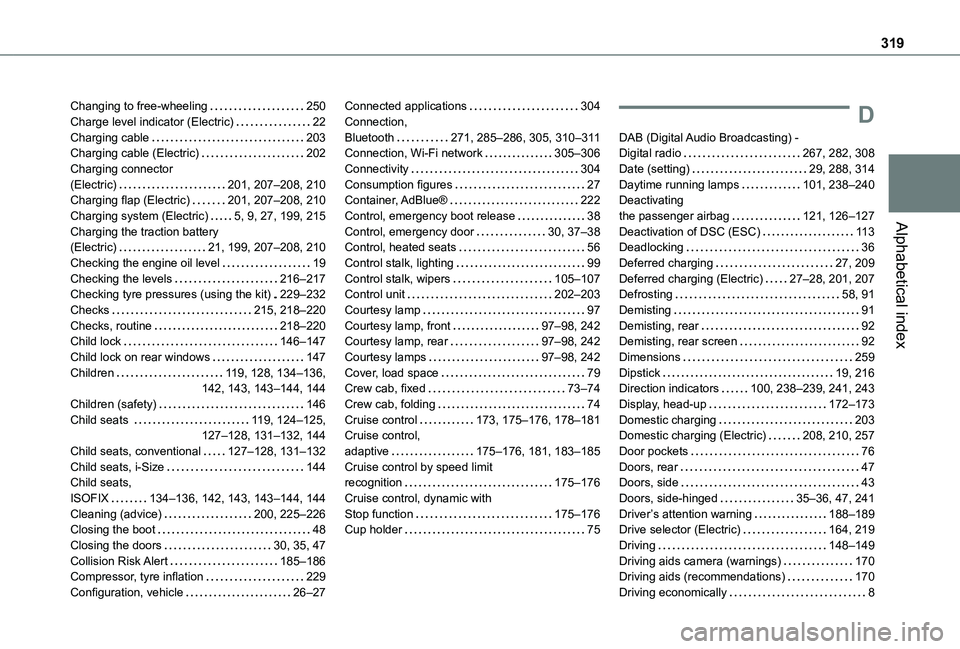
Changing to free-wheeling 250Charge level indicator (Electric) 22Charging cable 203Charging cable (Electric) 202Charging connector (Electric) 201, 207–208, 210Charging flap (Electric) 201, 207–208, 210Charging system (Electric) 5, 9, 27, 199, 215Charging the traction battery (Electric) 21, 199, 207–208, 210Checking the engine oil level 19Checking the levels 216–217Checking tyre pressures (using the kit) 229–232Checks 215, 218–220Checks, routine 218–220Child lock 146–147Child lock on rear windows 147Children 11 9, 128, 134–136, 142, 143, 143–144, 144Children (safety) 146Child seats 11 9, 124–125, 127–128, 131–132, 144
Child seats, conventional 127–128, 131–132Child seats, i-Size 144Child seats, ISOFIX 134–136, 142, 143, 143–144, 144Cleaning (advice) 200, 225–226Closing the boot 48Closing the doors 30, 35, 47Collision Risk Alert 185–186Compressor, tyre inflation 229Configuration, vehicle 26–27
Connected applications 304Connection, Bluetooth 271, 285–286, 305, 310–3 11Connection, Wi-Fi network 305–306Connectivity 304Consumption figures 27Container, AdBlue® 222Control, emergency boot release 38Control, emergency door 30, 37–38Control, heated seats 56Control stalk, lighting 99Control stalk, wipers 105–107Control unit 202–203Courtesy lamp 97Courtesy lamp, front 97–98, 242Courtesy lamp, rear 97–98, 242Courtesy lamps 97–98, 242Cover, load space 79Crew cab, fixed 73–74Crew cab, folding 74Cruise control 173, 175–176, 178–181Cruise control,
adaptive 175–176, 181, 183–185Cruise control by speed limit recognition 175–176Cruise control, dynamic with Stop function 175–176Cup holder 75
D
DAB (Digital Audio Broadcasting) - Digital radio 267, 282, 308Date (setting) 29, 288, 314Daytime running lamps 101, 238–240Deactivating the passenger airbag 121, 126–127Deactivation of DSC (ESC) 11 3Deadlocking 36Deferred charging 27, 209Deferred charging (Electric) 27–28, 201, 207Defrosting 58, 91Demisting 91Demisting, rear 92Demisting, rear screen 92Dimensions 259Dipstick 19, 216Direction indicators 100, 238–239, 241, 243Display, head-up 172–173Domestic charging 203Domestic charging (Electric) 208, 210, 257
Door pockets 76Doors, rear 47Doors, side 43Doors, side-hinged 35–36, 47, 241Driver’s attention warning 188–189Drive selector (Electric) 164, 219Driving 148–149Driving aids camera (warnings) 170Driving aids (recommendations) 170Driving economically 8
Page 321 of 360
321
Alphabetical index
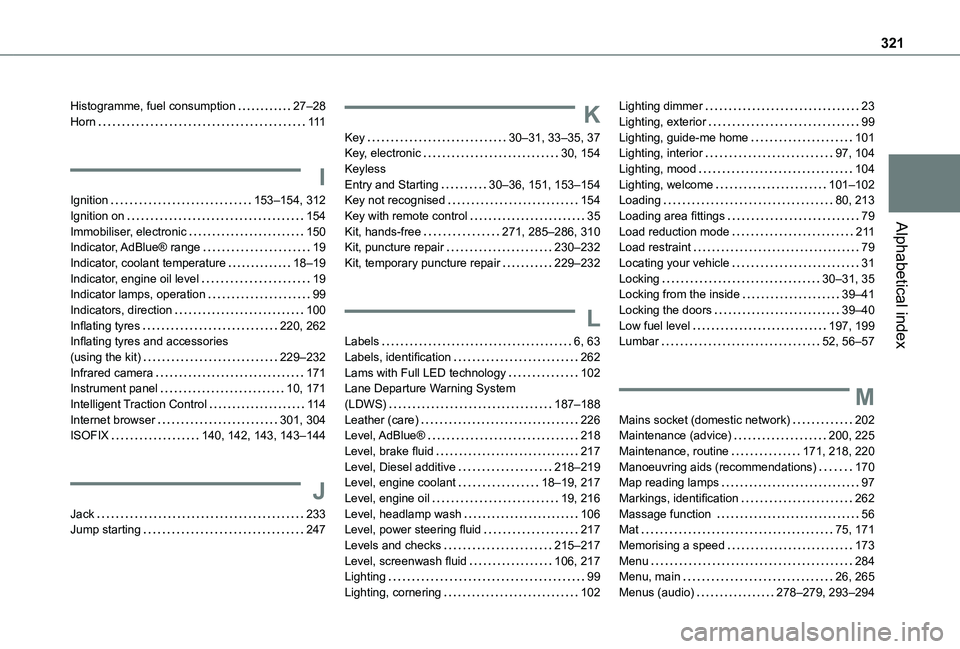
Histogramme, fuel consumption 27–28Horn 111
I
Ignition 153–154, 312Ignition on 154Immobiliser, electronic 150Indicator, AdBlue® range 19Indicator, coolant temperature 18–19Indicator, engine oil level 19Indicator lamps, operation 99Indicators, direction 100Inflating tyres 220, 262Inflating tyres and accessories (using the kit) 229–232Infrared camera 171Instrument panel 10, 171Intelligent Traction Control 11 4Internet browser 301, 304ISOFIX 140, 142, 143, 143–144
J
Jack 233Jump starting 247
K
Key 30–31, 33–35, 37Key, electronic 30, 154Keyless Entry and Starting 30–36, 151, 153–154Key not recognised 154Key with remote control 35Kit, hands-free 271, 285–286, 310Kit, puncture repair 230–232Kit, temporary puncture repair 229–232
L
Labels 6, 63Labels, identification 262Lams with Full LED technology 102Lane Departure Warning System (LDWS) 187–188Leather (care) 226Level, AdBlue® 218
Level, brake fluid 217Level, Diesel additive 218–219Level, engine coolant 18–19, 217Level, engine oil 19, 216Level, headlamp wash 106Level, power steering fluid 217Levels and checks 215–217Level, screenwash fluid 106, 217Lighting 99Lighting, cornering 102
Lighting dimmer 23Lighting, exterior 99Lighting, guide-me home 101Lighting, interior 97, 104Lighting, mood 104Lighting, welcome 101–102Loading 80, 213Loading area fittings 79Load reduction mode 2 11Load restraint 79Locating your vehicle 31Locking 30–31, 35Locking from the inside 39–41Locking the doors 39–40Low fuel level 197, 199Lumbar 52, 56–57
M
Mains socket (domestic network) 202Maintenance (advice) 200, 225
Maintenance, routine 171, 218, 220Manoeuvring aids (recommendations) 170Map reading lamps 97Markings, identification 262Massage function 56Mat 75, 171Memorising a speed 173Menu 284Menu, main 26, 265Menus (audio) 278–279, 293–294