phone TOYOTA RAV4 2021 Accessories, Audio & Navigation (in English)
[x] Cancel search | Manufacturer: TOYOTA, Model Year: 2021, Model line: RAV4, Model: TOYOTA RAV4 2021Pages: 240, PDF Size: 9.35 MB
Page 143 of 240

1434-3. Media operation
4
Audio/visual system
4Follow the steps in “Register-
ing a Bluetooth
® phone for
the first time” from step 5.
( P.36)
Selecting a registered device
1 Display the Bluetooth
® audio
control screen. ( P.140)
2 Select “Connect”.
3 Select the desired device to
be connected.
4 Check that a confirmation
screen is displayed when the
connection is complete.
If an error message is dis-
played, follow the guidance
on the screen to try again.
Page 144 of 240
1444-4. Audio/visual remote controls
4-4.Audio/visual remote controls
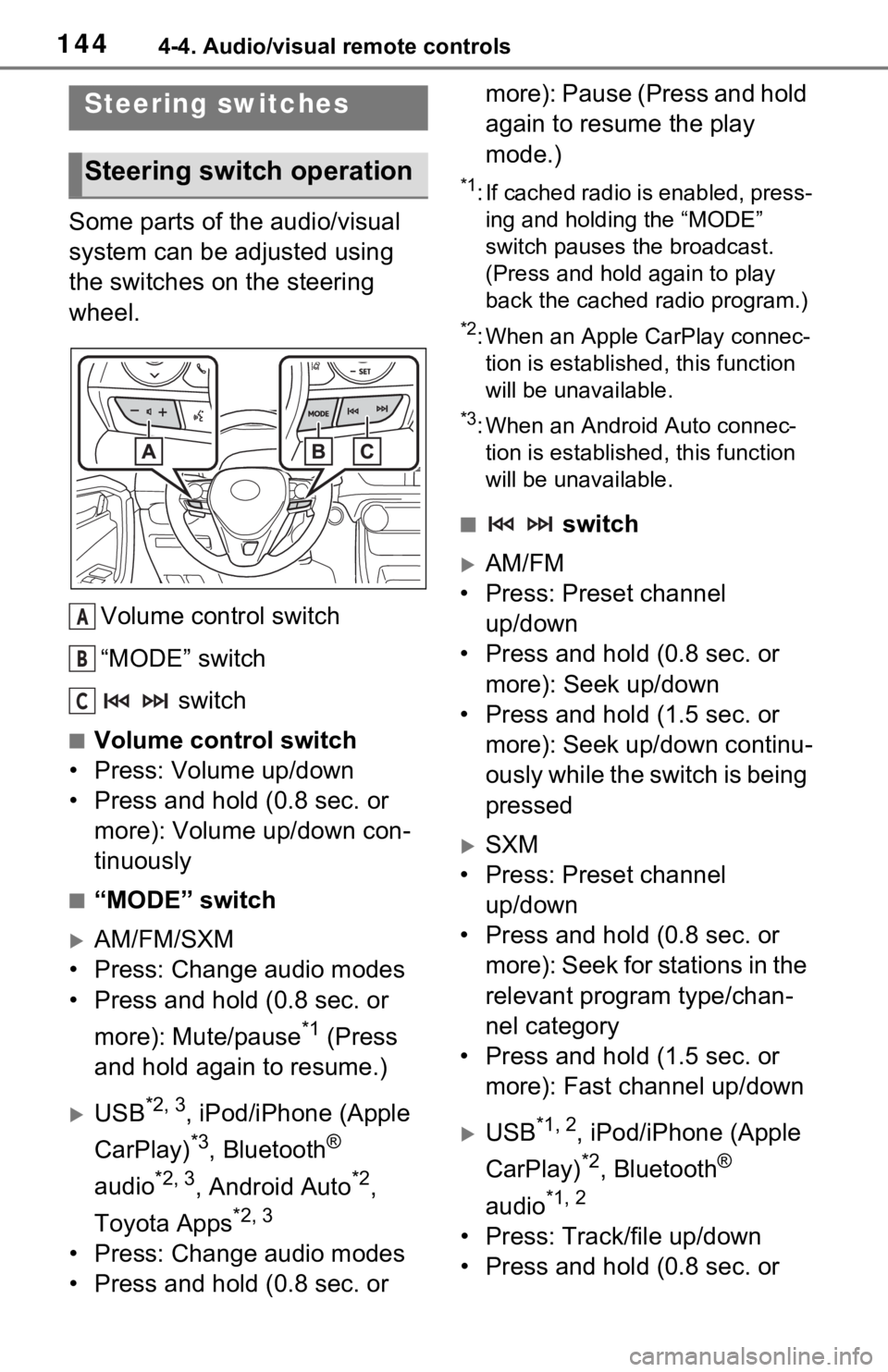
Some parts of the audio/visual
system can be adjusted using
the switches on the steering
wheel.Volume control switch
“MODE” switch switch
■Volume control switch
• Press: Volume up/down
• Press and hold (0.8 sec. or more): Volume up/down con-
tinuously
■“MODE” switch
AM/FM/SXM
• Press: Change audio modes
• Press and hold (0.8 sec. or
more): Mute/pause
*1 (Press
and hold again to resume.)
USB*2, 3, iPod/iPhone (Apple
CarPlay)
*3, Bluetooth®
audio
*2, 3, Android Auto*2,
Toyota Apps
*2, 3
• Press: Change audio modes
• Press and hold (0.8 sec. or more): Pause (Press and hold
again to resume the play
mode.)
*1: If cached radio is enabled, press-
ing and holding the “MODE”
switch pauses the broadcast.
(Press and hold again to play
back the cached radio program.)
*2: When an Apple CarPlay connec-tion is establishe d, this function
will be unavailable.
*3: When an Android Auto connec- tion is establishe d, this function
will be unavailable.
■ switch
AM/FM
• Press: Preset channel up/down
• Press and hold (0.8 sec. or more): Seek up/down
• Press and hold (1.5 sec. or more): Seek up/down continu-
ously while the switch is being
pressed
SXM
• Press: Preset channel up/down
• Press and hold (0.8 sec. or more): Seek for stations in the
relevant program type/chan-
nel category
• Press and hold (1.5 sec. or more): Fast channel up/down
USB*1, 2, iPod/iPhone (Apple
CarPlay)
*2, Bluetooth®
audio
*1, 2
• Press: Track/file up/down
• Press and hold (0.8 sec. or
Steering switches
Steering switch operation
A
B
C
Page 148 of 240
1484-6. Tips for operating the audio/visual system
4-6.Tips for operating the audio/visual system
●The use of a cellular phone inside
or near the vehicle may cause a
noise from the speakers of the
audio/visual system which you are
listening to. However, this does
not indicate a malfunction.
Usually, a problem with radio
reception does not mean there
is a problem with the radio it
is just the normal result of condi-
tions outside the vehicle.
For example, nearby buildings
and terrain can interfere with FM
reception. Power lines or phone
wires can interfere with AM sig-
nals. And of course, radio sig-
nals have a limited range. The
farther the vehicle is from a sta-
tion, the weaker i ts signal will
be. In addition, reception condi-
tions change constantly as the
vehicle moves.
Here are some common recep-
tion problems that may not indi-
cate a problem with the radio as
described.
■FM
Fading and drifting stations:
Generally, the effective range of FM is about 25 miles (40 km).
Once outside this range, you
may notice fading and drifting,
which increase with the distance
from the radio transmitter. They
are often accompanied by dis-
tortion.
Multi-path: FM signals are
reflective, making it possible for
2 signals to reach the vehicle’s
antenna at the same time. If this
happens, the signals will cancel
each other out, causing a
momentary flutter or loss of
reception.
Static and fluttering: These
occur when signals are blocked
by buildings, trees or other large
objects. Increasing the bass
level may reduce static and flut-
tering.
Station swapping: If the FM sig-
nal being listened to is inter-
rupted or weakened, and there
is another strong station nearby
on the FM band, the radio may
tune in the second station until
the original signal can be picked
up again.
■AM
Fading: AM broadcasts are
reflected by the upper atmo-
sphere especially at night.
These reflected signals can
interfere with those received
directly from the radio station,
causing the radio station to
sound alternately strong and
weak.
Operating information
NOTICE
●To avoid damage to the
audio/visual system, be careful
not to spill beverages over the
audio/visual system.
Radio
Page 149 of 240
1494-6. Tips for operating the audio/visual system
4
Audio/visual system
Station interference: When a
reflected signal and a signal
received directly from a radio
station are very nearly the same
frequency, they can interfere
with each other, making it diffi-
cult to hear the broadcast.
Static: AM is easily affected by
external sources of electrical
noise, such as high tension
power lines, lightening or electri-
cal motors. This results in static.
■SiriusXM
Cargo loaded on the roof lug-
gage carrier, especially metal
objects, may adversely affect
the reception of SiriusXM Sat-
ellite Radio.
Alternation or modifications
carried out without appropri-
ate authorization may invali-
date the user’s right to
operate the equipment.
■Certification
Use of the Made for Apple
badge means that an acces-
sory has been designed to
connect specifically to the
Apple product(s) identified in
the badge, and has been cer-
tified by the developer to meet
Apple performance stan-
dards. Apple is not responsi-
ble for the operation of this
device or its compliance with
safety and regulatory stan-
dards. Please note that the
use of this accessory with an
Apple product may affect
wireless performance.
iPhone, iPod, iPod classic,
iPod nano, iPod touch, and
Lightning are trademarks of
Apple Inc., registered in the
U.S. and other countries.
■Compatible models
The following iPod nano
®, iPod
touch
® and iPhone® devices
can be used with this system.
Made for
• iPhone XS Max
• iPhone XS
• iPhone XR
• iPhone X
• iPhone 8
• iPhone 8 Plus
iPod/iPhone
Page 150 of 240
1504-6. Tips for operating the audio/visual system
• iPhone 7
• iPhone 7 Plus
• iPhone SE
• iPhone 6s
• iPhone 6s Plus
• iPhone 6
• iPhone 6 Plus
• iPhone 5s
• iPhone 5c
• iPhone 5
• iPod touch (6th generation)
• iPod touch (5th generation)
• iPod nano (7th generation)
●This system only supports audio
playback.
●Depending on difference between
models or software versions etc.,
some models might be incompati-
ble with this system.
This device supports high-reso-
lution sound sources.
The definition of high-resolution
is based on the standards of
groups such as the CTA (Con-
sumer Technology Association).
Supported formats and play-
able media are as follows.
■Supported formats
WAV, FLAC, ALAC, OGG Vor-
bis
■Playable media
USB
*: USB video only
High-resolution sound
source
File information
Compatible USB devices
USB communi-
cation formatsUSB 2.0 HS (480
Mbps)
File formatsFAT 16/32
Correspon-
dence classMass storage
class
Compatible audio format
Compatible compressed files
ItemUSB
Compatible file format
MP3/WMA/AAC
WAV(LPCM)/FLAC/ALAC/OGG Vorbis
Compatible file
format (video)
*MP4/AVI/WMV
Folders in the deviceMaximum3000
Files in the deviceMaximum 9999
Files per folderMaximum 255
Page 158 of 240
1585-1. Voice command system operation
5-1.Voice command system operation
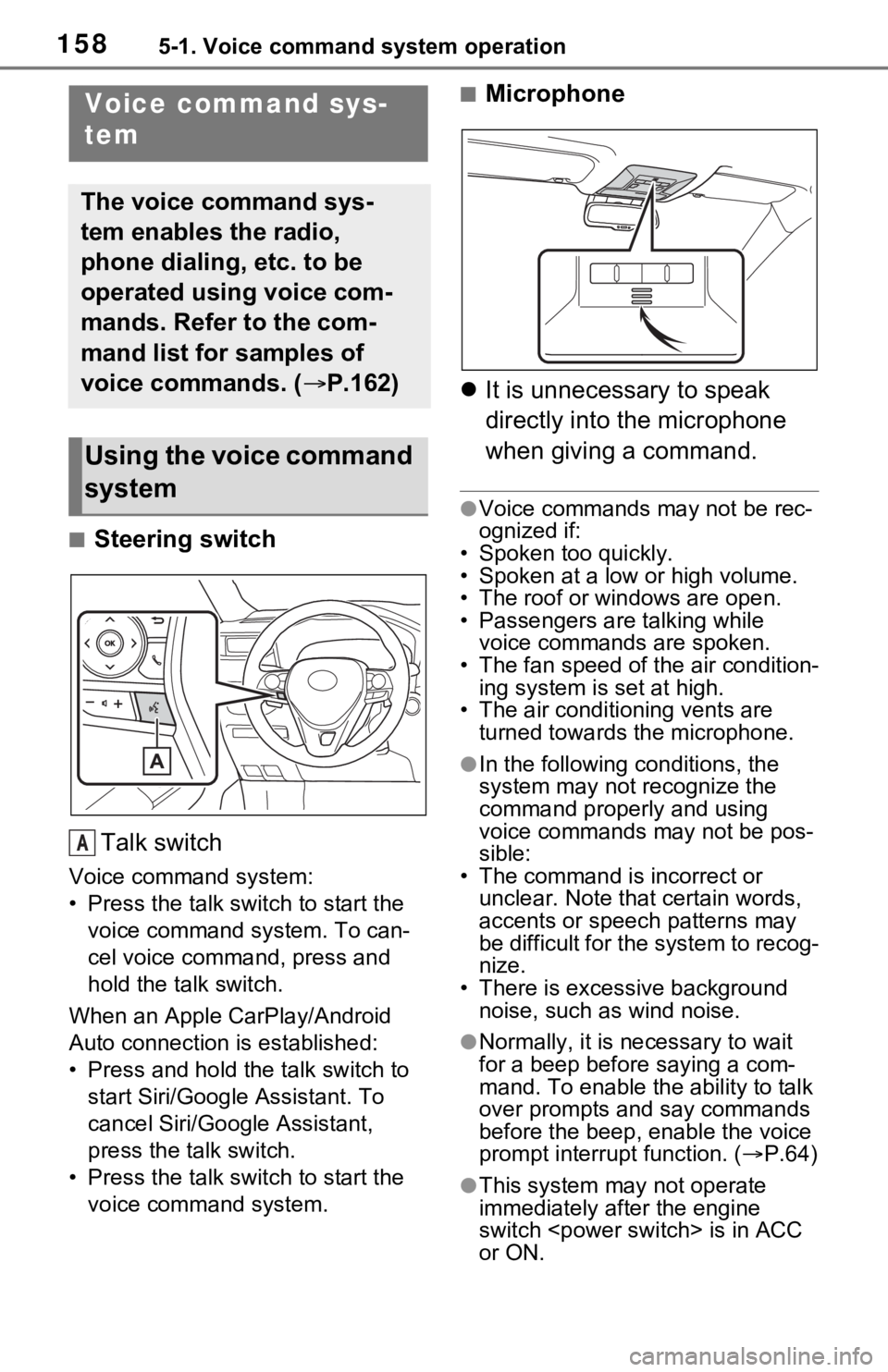
■Steering switchTalk switch
Voice command system:
• Press the talk switch to start the voice command system. To can-
cel voice command, press and
hold the talk switch.
When an Apple CarPlay/Android
Auto connection is established:
• Press and hold the talk switch to start Siri/Google Assistant. To
cancel Siri/Google Assistant,
press the talk switch.
• Press the talk switch to start the voice command system.
■Microphone
It is unnecessary to speak
directly into the microphone
when giving a command.
●Voice commands may not be rec-
ognized if:
• Spoken too quickly.
• Spoken at a low or high volume.
• The roof or windows are open.
• Passengers are talking while voice commands are spoken.
• The fan speed of the air condition-
ing system is set at high.
• The air conditioning vents are turned towards the microphone.
●In the following c onditions, the
system may not recognize the
command properly and using
voice commands may not be pos-
sible:
• The command is incorrect or unclear. Note that certain words,
accents or speech patterns may
be difficult for the system to recog-
nize.
• There is excessive background
noise, such as wind noise.
●Normally, it is n ecessary to wait
for a beep before saying a com-
mand. To enable the ability to talk
over prompts and say commands
before the beep, enable the voice
prompt interrupt function. ( P.64)
●This system may not operate
immediately after the engine
switch
or ON.
Voice command sys-
tem
The voice command sys-
tem enables the radio,
phone dialing, etc. to be
operated using voice com-
mands. Refer to the com-
mand list for samples of
voice commands. ( P.162)
Using the voice command
system
A
Page 159 of 240
1595-1. Voice command system operation
5
Voice command system
The voice command system is
operated by saying commands
which correspond to a sup-
ported function. To display
examples of commands for sup-
ported functions, select a func-
tion button on the screen after
starting the voice command sys-
tem.
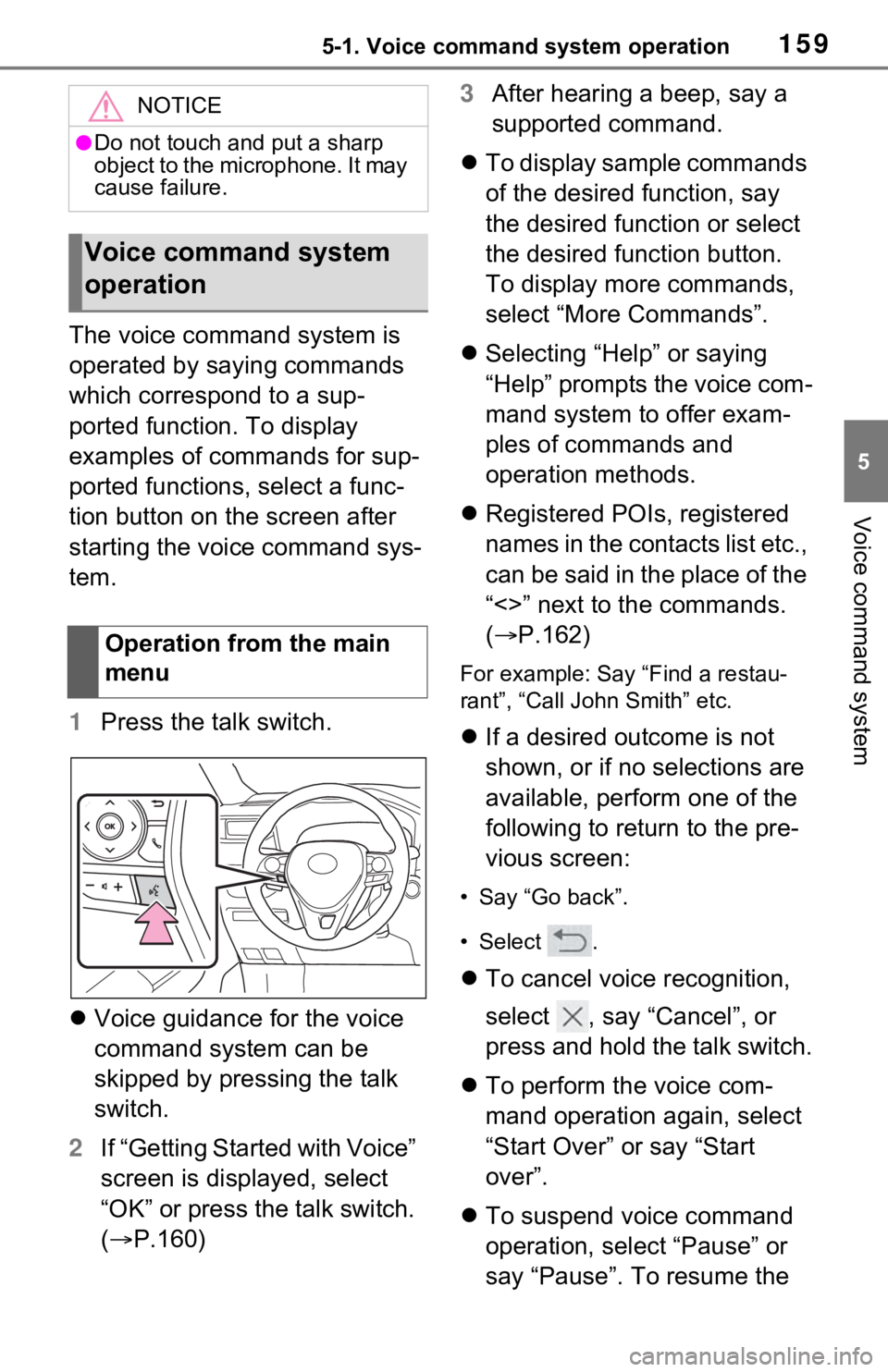
1Press the talk switch.
Voice guidance for the voice
command system can be
skipped by pressing the talk
switch.
2 If “Getting Started with Voice”
screen is displayed, select
“OK” or press the talk switch.
( P.160) 3
After hearing a beep, say a
supported command.
To display sample commands
of the desired function, say
the desired function or select
the desired function button.
To display more commands,
select “More Commands”.
Selecting “Help” or saying
“Help” prompts the voice com-
mand system to offer exam-
ples of commands and
operation methods.
Registered POIs, registered
names in the contacts list etc.,
can be said in the place of the
“<>” next to the commands.
( P.162)
For example: Say “Find a restau-
rant”, “Call John Smith” etc.
If a desired outcome is not
shown, or if no selections are
available, perform one of the
following to return to the pre-
vious screen:
• Say “Go back”.
•Select .
To cancel voice recognition,
select , say “Cancel”, or
press and hold the talk switch.
To perform the voice com-
mand operation again, select
“Start Over” or say “Start
over”.
To suspend voice command
operation, select “Pause” or
say “Pause”. To resume the
NOTICE
●Do not touch and put a sharp
object to the microphone. It may
cause failure.
Voice command system
operation
Operation from the main
menu
Page 161 of 240
1615-1. Voice command system operation
5
Voice command system
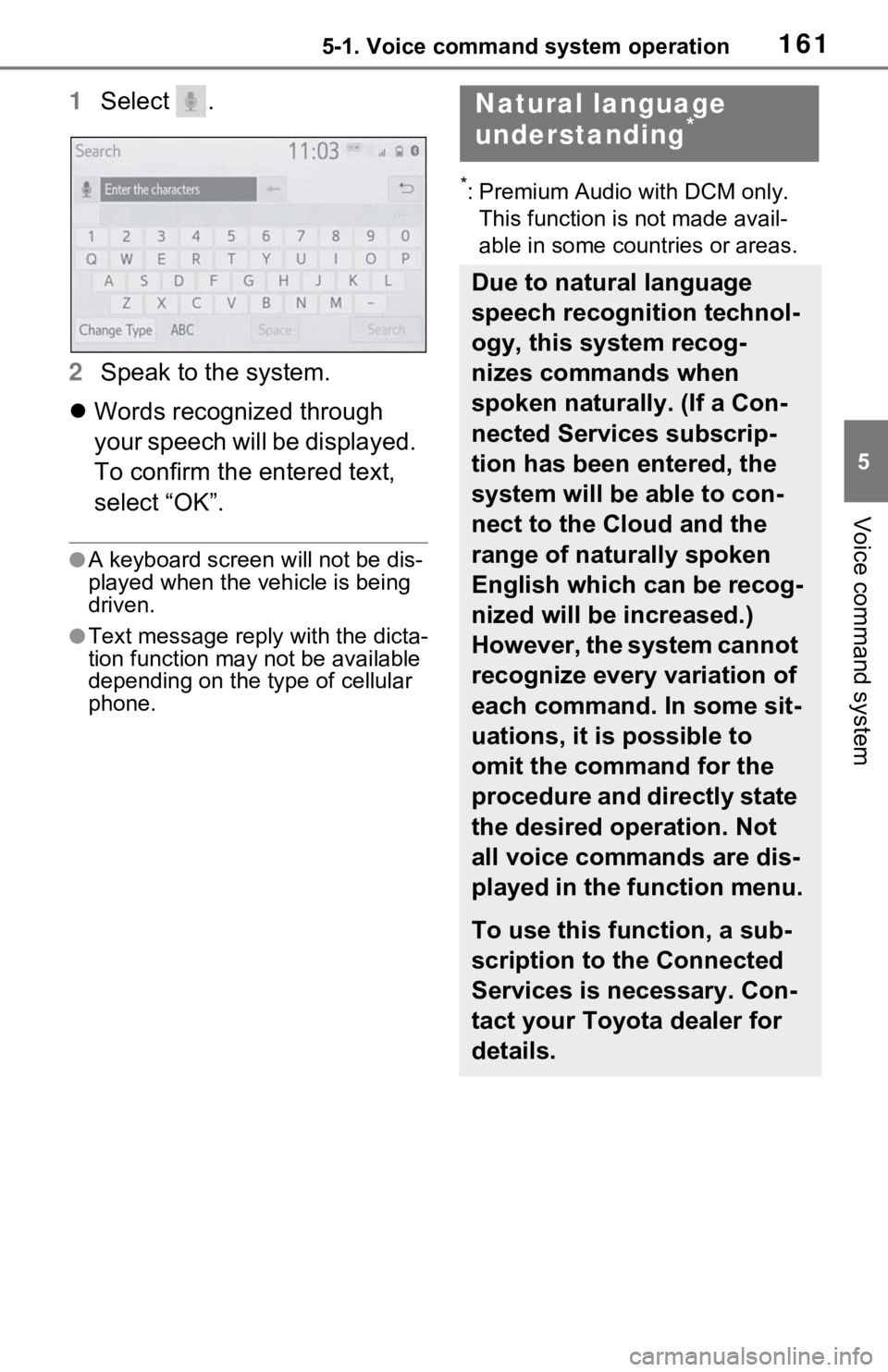
1Select .
2 Speak to the system.
Words recognized through
your speech will be displayed.
To confirm the entered text,
select “OK”.
●A keyboard screen will not be dis-
played when the vehicle is being
driven.
●Text message reply with the dicta-
tion function may n ot be available
depending on the type of cellular
phone.
*: Premium Audio with DCM only.
This function is not made avail-
able in some countries or areas.
Natural language
understanding*
Due to natural language
speech recognition technol-
ogy, this system recog-
nizes commands when
spoken naturally. (If a Con-
nected Services subscrip-
tion has been entered, the
system will be able to con-
nect to the Cloud and the
range of naturally spoken
English which can be recog-
nized will be increased.)
However, the system cannot
recognize every variation of
each command. In some sit-
uations, it is possible to
omit the command for the
procedure and directly state
the desired operation. Not
all voice commands are dis-
played in the function menu.
To use this function, a sub-
scription to the Connected
Services is necessary. Con-
tact your Toyota dealer for
details.
Page 164 of 240
1645-1. Voice command system operation
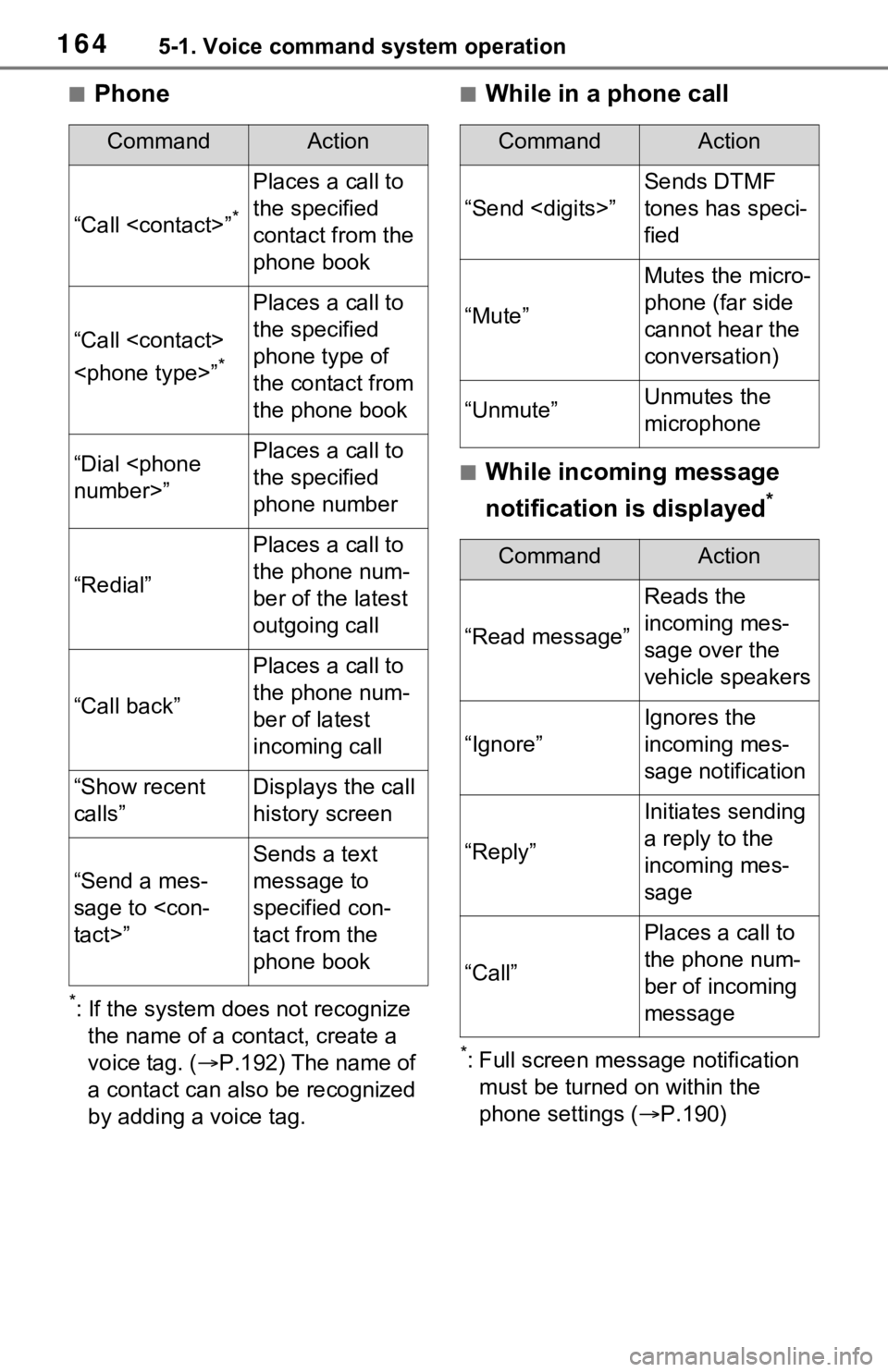
■Phone
*: If the system does not recognize the name of a contact, create a
voice tag. ( P.192) The name of
a contact can also be recognized
by adding a voice tag.
■While in a phone call
■While incoming message
notification is displayed
*
*: Full screen message notification must be turned on within the
phone settings ( P.190)
CommandAction
“Call
Places a call to
the specified
contact from the
phone book
“Call
*
Places a call to
the specified
phone type of
the contact from
the phone book
“Dial
the specified
phone number
“Redial”
Places a call to
the phone num-
ber of the latest
outgoing call
“Call back”
Places a call to
the phone num-
ber of latest
incoming call
“Show recent
calls”Displays the call
history screen
“Send a mes-
sage to
Sends a text
message to
specified con-
tact from the
phone book
CommandAction
“Send
Sends DTMF
tones has speci-
fied
“Mute”
Mutes the micro-
phone (far side
cannot hear the
conversation)
“Unmute”Unmutes the
microphone
CommandAction
“Read message”
Reads the
incoming mes-
sage over the
vehicle speakers
“Ignore”
Ignores the
incoming mes-
sage notification
“Reply”
Initiates sending
a reply to the
incoming mes-
sage
“Call”
Places a call to
the phone num-
ber of incoming
message
Page 167 of 240
1675-2. Mobile Assistant operation
5
Voice command system
5-2.Mobile Assistant operation
*: This function is not made avail-
able in some countries or areas.
Mobile Assist supports the Siri
Eyes Free Mode and Google
App. The available features and
functions may vary based on the
iOS/Android version installed on
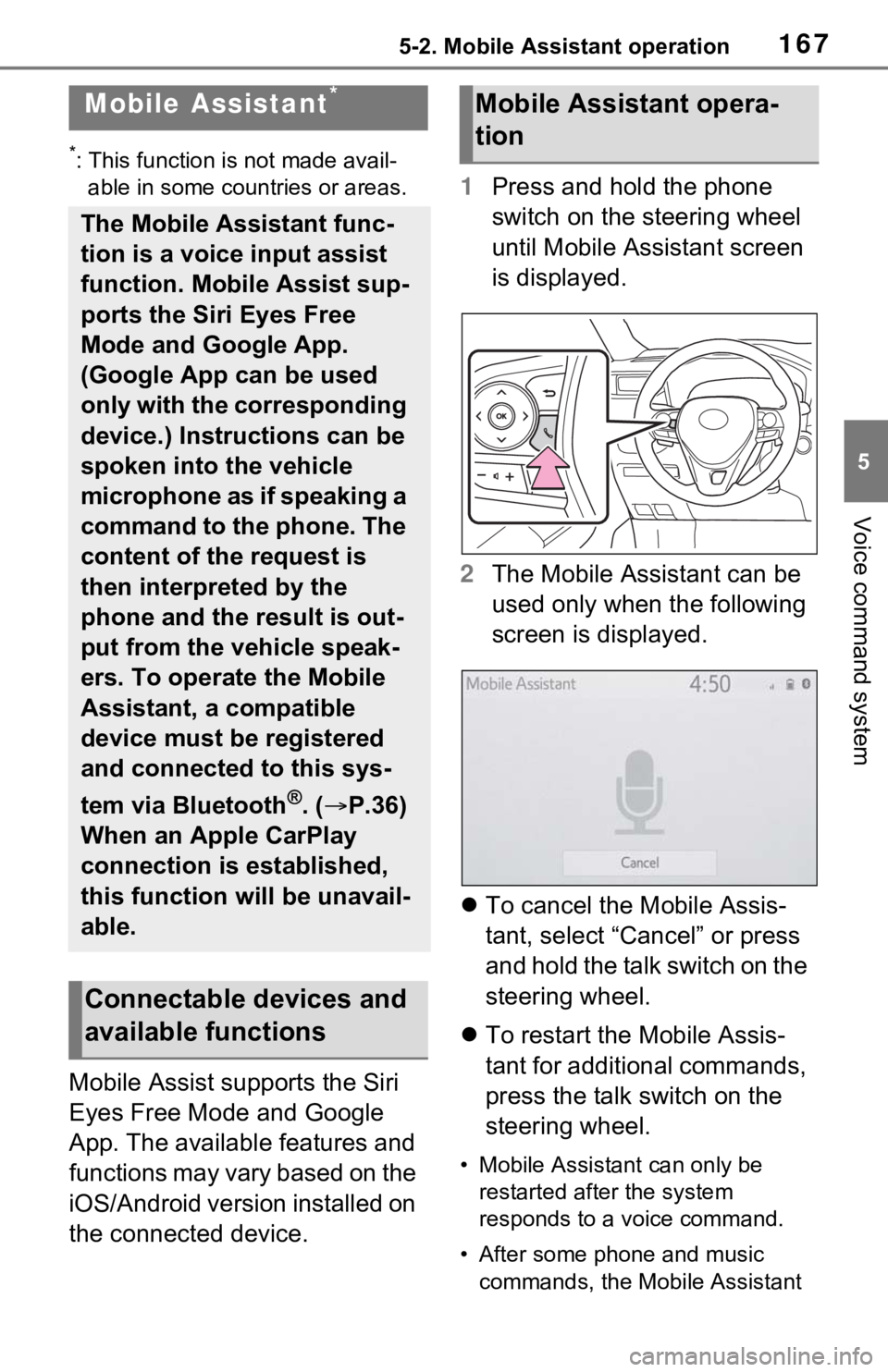
the connected device. 1
Press and hold the phone
switch on the steering wheel
until Mobile Assistant screen
is displayed.
2 The Mobile Assistant can be
used only when the following
screen is displayed.
To cancel the Mobile Assis-
tant, select “Cancel” or press
and hold the talk switch on the
steering wheel.
To restart the Mobile Assis-
tant for additional commands,
press the talk switch on the
steering wheel.
• Mobile Assistant can only be
restarted after the system
responds to a voice command.
• After some phone and music commands, the Mobile Assistant
Mobile Assistant*
The Mobile Assistant func-
tion is a voice input assist
function. Mobile Assist sup-
ports the Siri Eyes Free
Mode and Google App.
(Google App can be used
only with the corresponding
device.) Instructions can be
spoken into the vehicle
microphone as if speaking a
command to the phone. The
content of the request is
then interpreted by the
phone and the result is out-
put from the vehicle speak-
ers. To operate the Mobile
Assistant, a compatible
device must be registered
and connected to this sys-
tem via Bluetooth
®. ( P.36)
When an Apple CarPlay
connection is established,
this function will be unavail-
able.
Connectable devices and
available functions
Mobile Assistant opera-
tion