USB TOYOTA RAV4 HYBRID 2017 XA40 / 4.G Owners Manual
[x] Cancel search | Manufacturer: TOYOTA, Model Year: 2017, Model line: RAV4 HYBRID, Model: TOYOTA RAV4 HYBRID 2017 XA40 / 4.GPages: 676, PDF Size: 18.91 MB
Page 4 of 676

TABLE OF CONTENTS4
RAV4-HV_OM_OM42B03U_(U)5-1. Basic Operations
Audio system types ........... 328
Audio system..................... 329
Steering wheel audio switches .......................... 333
AUX port/USB port ............ 334
Basic audio operations ...... 335
5-2. Setup Setup menu ....................... 337
General settings ................ 338
Audio settings.................... 341
Display settings ................. 342
Voice settings .................... 344
5-3. Using the audio system Selecting the audio source ............................. 345
List screen operation ......... 346
Optimal use of the audio system............................. 348
5-4. Using the radio Radio operation ................. 349
5-5. Playing an audio CD and MP3/WMA/AAC discs
CD player operation .......... 351
CD player and disc information ...................... 352
5-6. Using an external device iPod player operation ........ 358
USB memory device player operation .............. 363
Using the AUX port ........... 368 5-7. Connecting Bluetooth
®
Preparations to
use wireless
communication ................ 369
Registering a Bluetooth
®
audio player for the
first time ........................... 372
Registering a Bluetooth
®
phone for the
first time ........................... 373
Registering a Bluetooth
®
device .............................. 374
Connecting a Bluetooth
®
device .............................. 376
Displaying a Bluetooth
®
device details................... 378
Detailed Bluetooth
®
settings ............................ 379
5-8. Bluetooth
® Audio
Listening to Bluetooth®
Audio ............................... 381
5-9. Bluetooth
® Phone
Using a Bluetooth®
Phone .............................. 383
Making a call...................... 385
Receiving a call ................. 388
Speaking on the phone...... 389
Bluetooth
® phone
message function ............ 392
Using the steering wheel switches ................ 397
Bluetooth
® phone
settings ............................ 398
5Audio system
Page 22 of 676
22Pictorial index
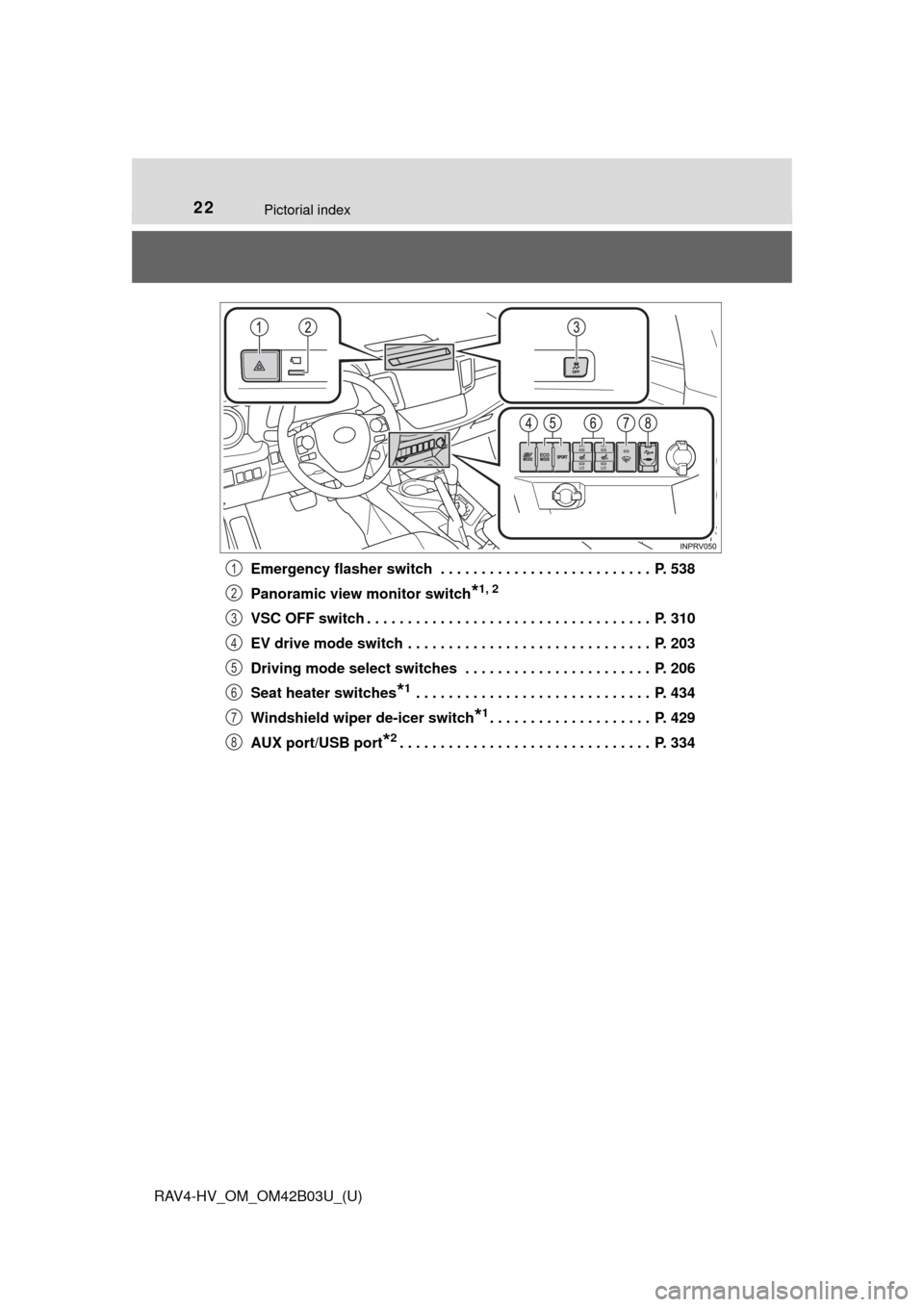
RAV4-HV_OM_OM42B03U_(U)Emergency flasher switch . . . . . . . . . . . . . . . . . . . . . . . . . . P. 538
Panoramic view monitor switch
*1, 2
VSC OFF switch . . . . . . . . . . . . . . . . . . . . . . . . . . . . . . . . . . . P. 310
EV drive mode switch . . . . . . . . . . . . . . . . . . . . . . . . . . . . . . P. 203
Driving mode select switches . . . . . . . . . . . . . . . . . . . . . . . P. 206
Seat heater switches
*1 . . . . . . . . . . . . . . . . . . . . . . . . . . . . . P. 434
Windshield wiper de-icer switch
*1. . . . . . . . . . . . . . . . . . . . P. 429
AUX port/USB port
*2. . . . . . . . . . . . . . . . . . . . . . . . . . . . . . . P. 334
1
2
3
4
5
6
7
8
Page 326 of 676
326
RAV4-HV_OM_OM42B03U_(U)
5-1. Basic OperationsAudio system types ........... 328
Audio system .................... 329
Steering wheel audio switches .......................... 333
AUX port/USB port ............ 334
Basic audio operations...... 335
5-2. Setup Setup menu....................... 337
General settings ................ 338
Audio settings ................... 341
Display settings ................. 342
Voice settings.................... 344
5-3. Using the audio system Selecting the audio source ............................. 345
List screen operation......... 346
Optimal use of the audio system ............................ 348
5-4. Using the radio Radio operation................. 349
5-5. Playing an audio CD and MP3/WMA/AAC discs
CD player operation .......... 351
CD player and disc information ...................... 352
5Audio system
Page 327 of 676
327
RAV4-HV_OM_OM42B03U_(U)
5Audio system
5-6. Using an external deviceiPod player operation ........ 358
USB memory device player operation .............. 363
Using the AUX port ........... 368
5-7. Connecting Bluetooth
®
Preparations to use wireless
communication ................ 369
Registering a Bluetooth
®
audio player for the
first time .......................... 372
Registering a Bluetooth
®
phone for the
first time .......................... 373
Registering a Bluetooth
®
device.............................. 374
Connecting a Bluetooth
®
device.............................. 376
Displaying a Bluetooth
®
device details .................. 378
Detailed Bluetooth
®
settings............................ 379
5-8. Bluetooth
® Audio
Listening to Bluetooth®
Audio ............................... 381 5-9. Bluetooth
® Phone
Using a Bluetooth®
Phone ............................. 383
Making a call ..................... 385
Receiving a call ................. 388
Speaking on the phone ..... 389
Bluetooth
® phone
message function ............ 392
Using the steering wheel switches ................ 397
Bluetooth
® phone
settings ........................... 398
5-10. Phonebook Contact/Call History Settings ........................... 400
5-11. Bluetooth
®
What to do if... (Troubleshooting) ............ 410
Bluetooth
®......................... 414
5-12. Other function Voice command system ............................ 420
Page 329 of 676
329
RAV4-HV_OM_OM42B03U_(U)
5-1. Basic Operations
5
Audio system
Audio system∗
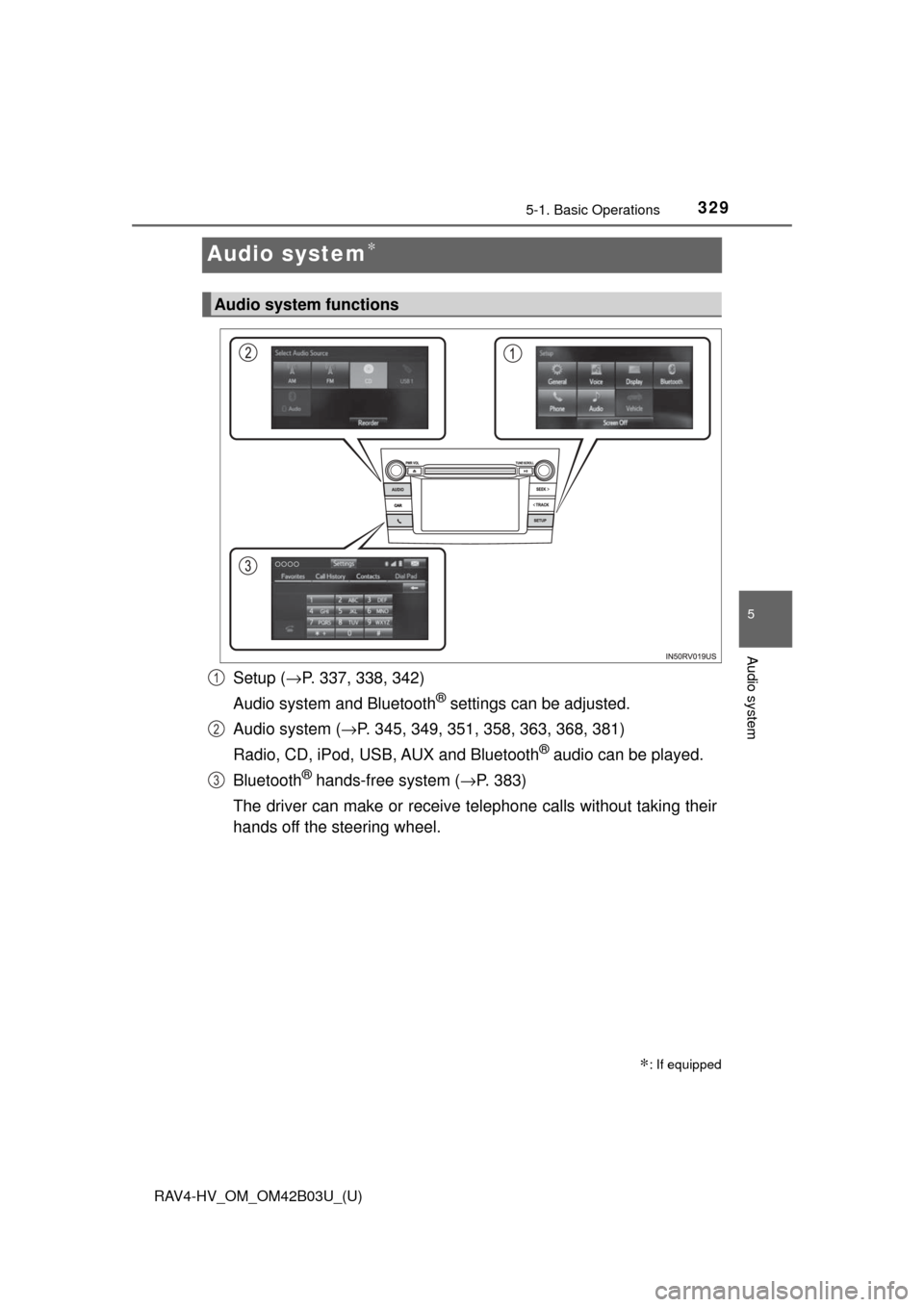
Setup (→P. 337, 338, 342)
Audio system and Bluetooth
® settings can be adjusted.
Audio system ( →P. 345, 349, 351, 358, 363, 368, 381)
Radio, CD, iPod, USB, AUX and Bluetooth
® audio can be played.
Bluetooth
® hands-free system (→ P. 383)
The driver can make or receive telephone calls without taking their
hands off the steering wheel.
∗: If equipped
Audio system functions
1
2
3
Page 333 of 676
333
RAV4-HV_OM_OM42B03U_(U)
5-1. Basic Operations
5
Audio system
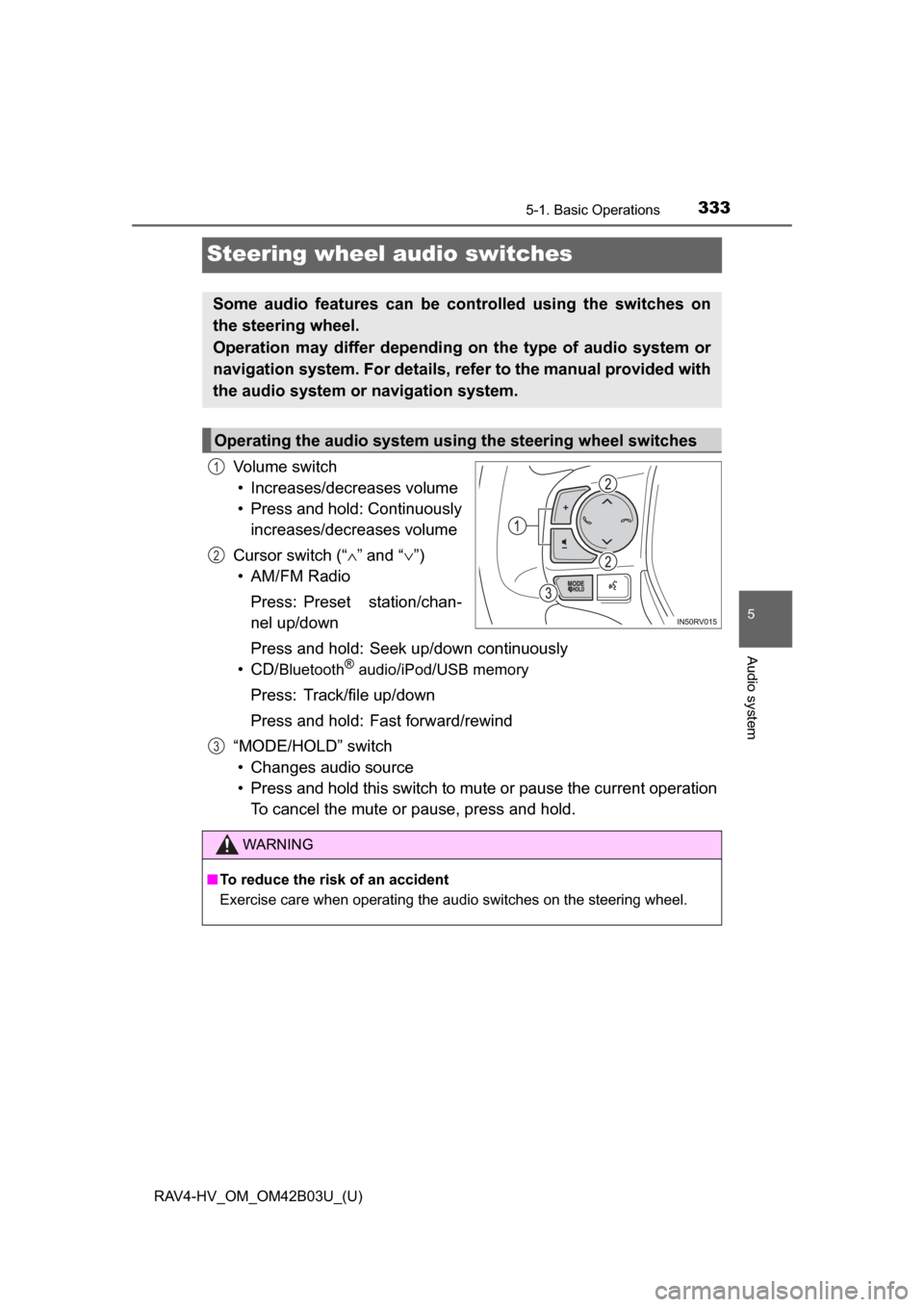
Steering wheel audio switches
Volume switch• Increases/decreases volume
• Press and hold: Continuously increases/decreases volume
Cursor switch (“ ∧” and “ ∨”)
• AM/FM Radio
Press: Preset station/chan-
nel up/down
Press and hold: Seek up/down continuously
• CD/
Bluetooth®audio/iPod/USB memory
Press: Track/file up/down
Press and hold: Fast forward/rewind
“MODE/HOLD” switch • Changes audio source
• Press and hold this switch to mute or pause the current operation To cancel the mute or pause, press and hold.
Some audio features can be controlled using the switches on
the steering wheel.
Operation may differ depending on the type of audio system or
navigation system. For details, refer to the manual provided with
the audio system or navigation system.
Operating the audio system using the steering wheel switches
1
2
3
WARNING
■ To reduce the risk of an accident
Exercise care when operating the audio switches on the steering wheel.
Page 334 of 676
334
RAV4-HV_OM_OM42B03U_(U)
5-1. Basic Operations
AUX port/USB port
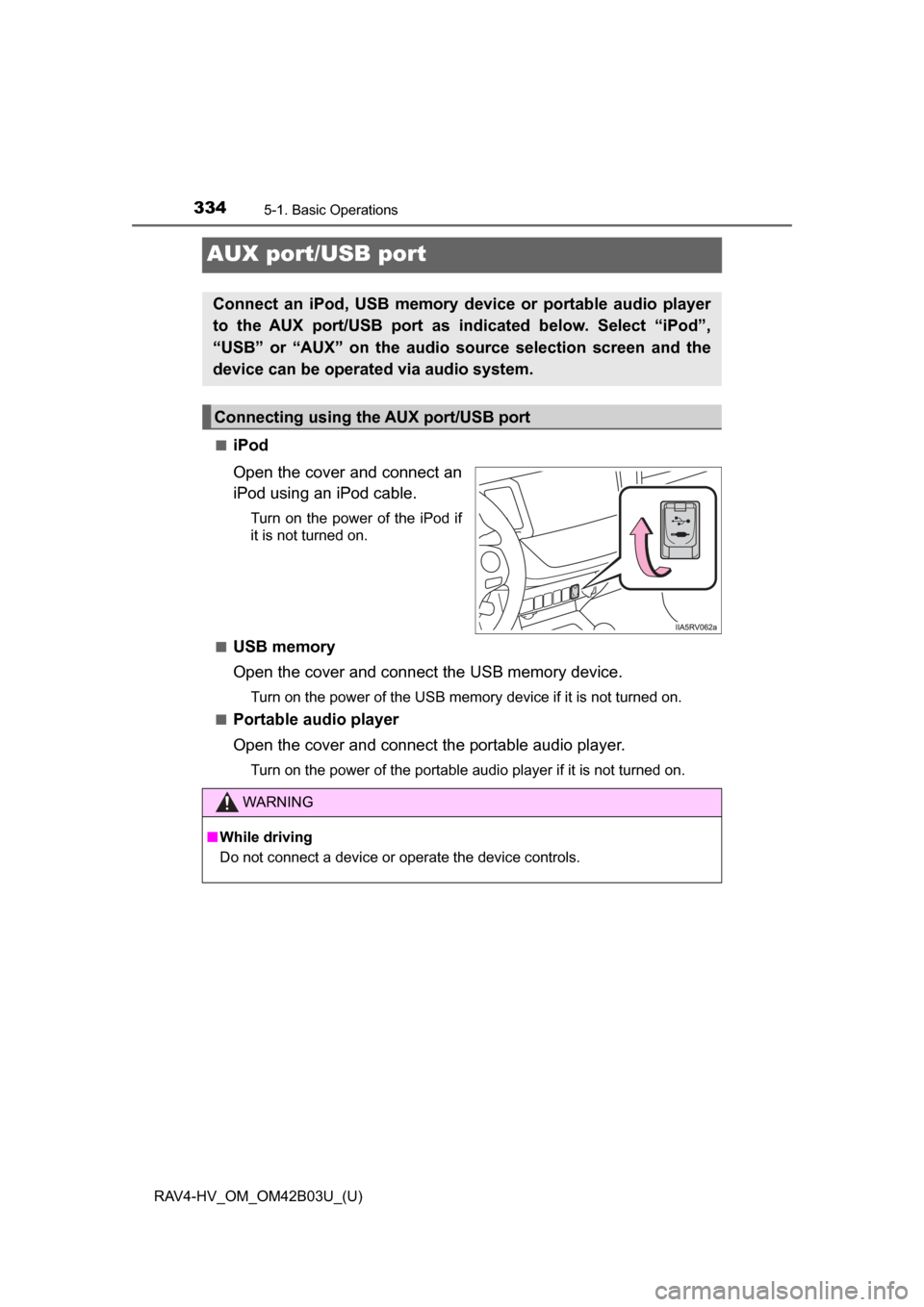
■iPod
Open the cover and connect an
iPod using an iPod cable.
Turn on the power of the iPod if
it is not turned on.
■
USB memory
Open the cover and connect the USB memory device.
Turn on the power of the USB memory device if it is not turned on.
■
Portable audio player
Open the cover and connect the portable audio player.
Turn on the power of the portable audio player if it is not turned on.
Connect an iPod, USB memory device or portable audio player
to the AUX port/USB port as indicated below. Select “iPod”,
“USB” or “AUX” on the audio source selection screen and the
device can be operated via audio system.
Connecting using the AUX port/USB port
WARNING
■ While driving
Do not connect a device or operate the device controls.
Page 347 of 676
RAV4-HV_OM_OM42B03U_(U)
3475-3. Using the audio system
5
Audio system
■Selecting a track/file/song
Press the “SEEK >” button or “< TRACK” button, or turn the
“TUNE•SCROLL” knob to select the desired track/file/song number.
To fast-forward or reverse, press and hold the “SEEK >” button or
“< TRACK” button.
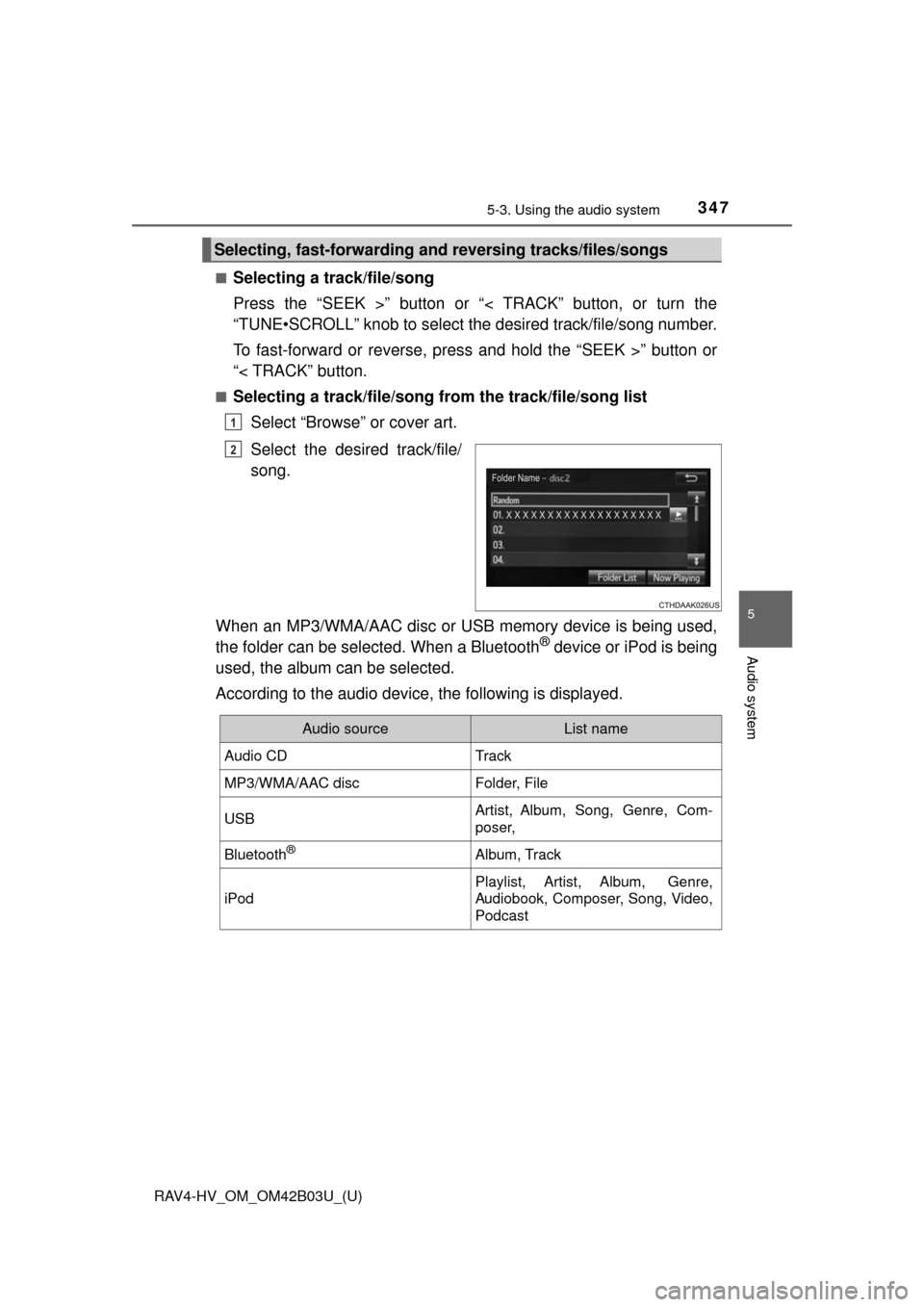
■Selecting a track/file/song from the track/file/song list
Select “Browse” or cover art.
Select the desired track/file/
song.
When an MP3/WMA/AAC disc or USB memory device is being used,
the folder can be selected. When a Bluetooth
® device or iPod is being
used, the album can be selected.
According to the audio device, the following is displayed.
Selecting, fast-forwarding a nd reversing tracks/files/songs
1
2
Audio sourceList name
Audio CDTrack
MP3/WMA/AAC discFolder, File
USBArtist, Album, Song, Genre, Com-
poser,
Bluetooth®Album, Track
iPod
Playlist, Artist, Album, Genre,
Audiobook, Composer, Song, Video,
Podcast
Page 363 of 676
363
RAV4-HV_OM_OM42B03U_(U)
5-6. Using an external device
5
Audio system
USB memory device player operation
→P. 3 3 4
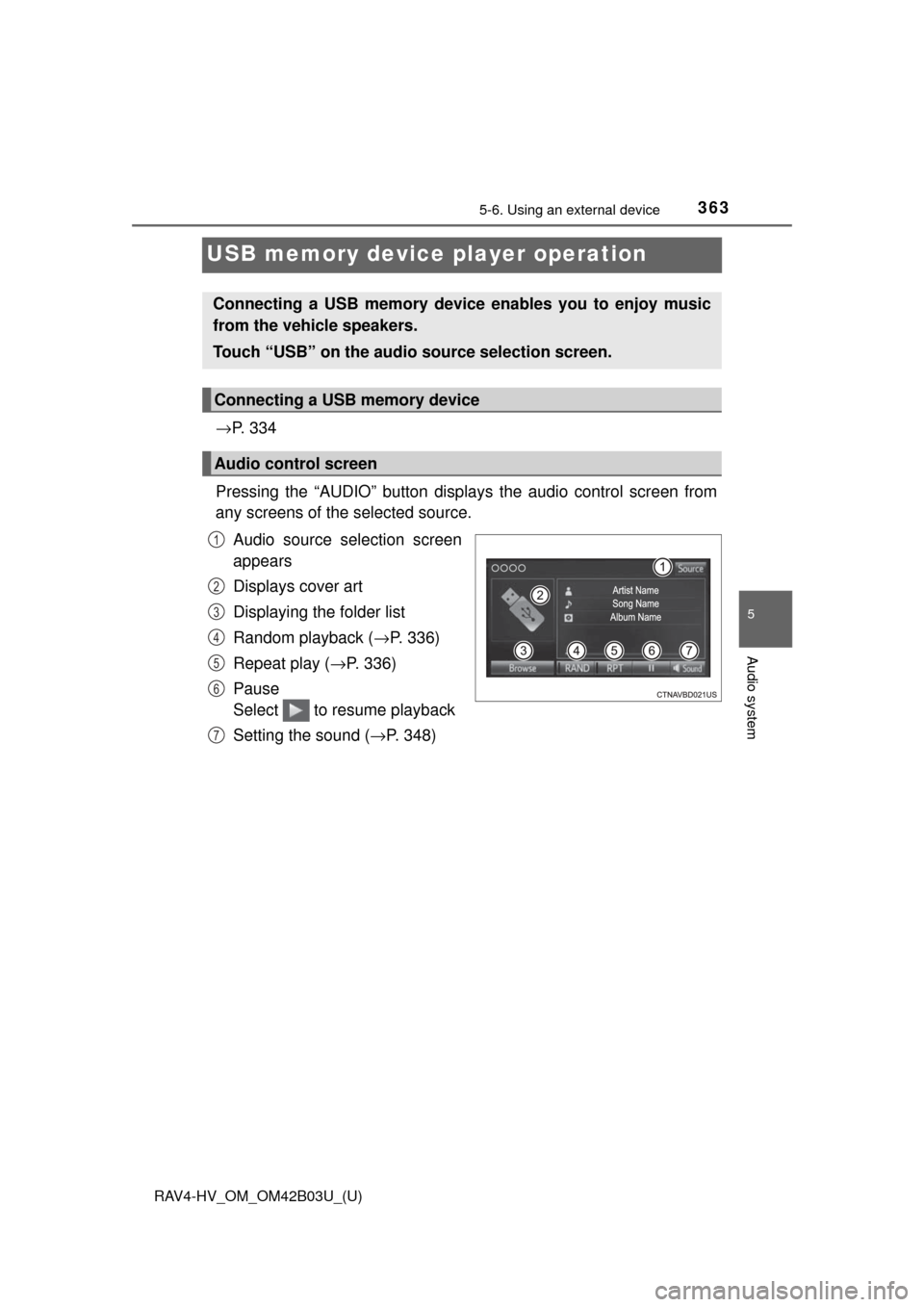
Pressing the “AUDIO” button disp lays the audio control screen from
any screens of the selected source.
Audio source selection screen
appears
Displays cover art
Displaying the folder list
Random playback ( →P. 336)
Repeat play ( →P. 336)
Pause
Select to resume playback
Setting the sound ( →P. 348)
Connecting a USB memory device enables you to enjoy music
from the vehicle speakers.
Touch “USB” on the audio source selection screen.
Connecting a USB memory device
Audio control screen
1
2
3
4
5
6
7
Page 364 of 676
364
RAV4-HV_OM_OM42B03U_(U)
5-6. Using an external device
■USB memory functions
●Depending on the USB memory device that is connected to the system, the
device itself may not be operable and certain functions may not be avail-
able. If the device is inoperable or a function is unavailable due to a mal-
function (as opposed to a system specification), disconnecting the device
and reconnecting it may resolve the problem.
● If the USB memory device still does not begin operation after being discon-
nected and reconnected, format the memory.
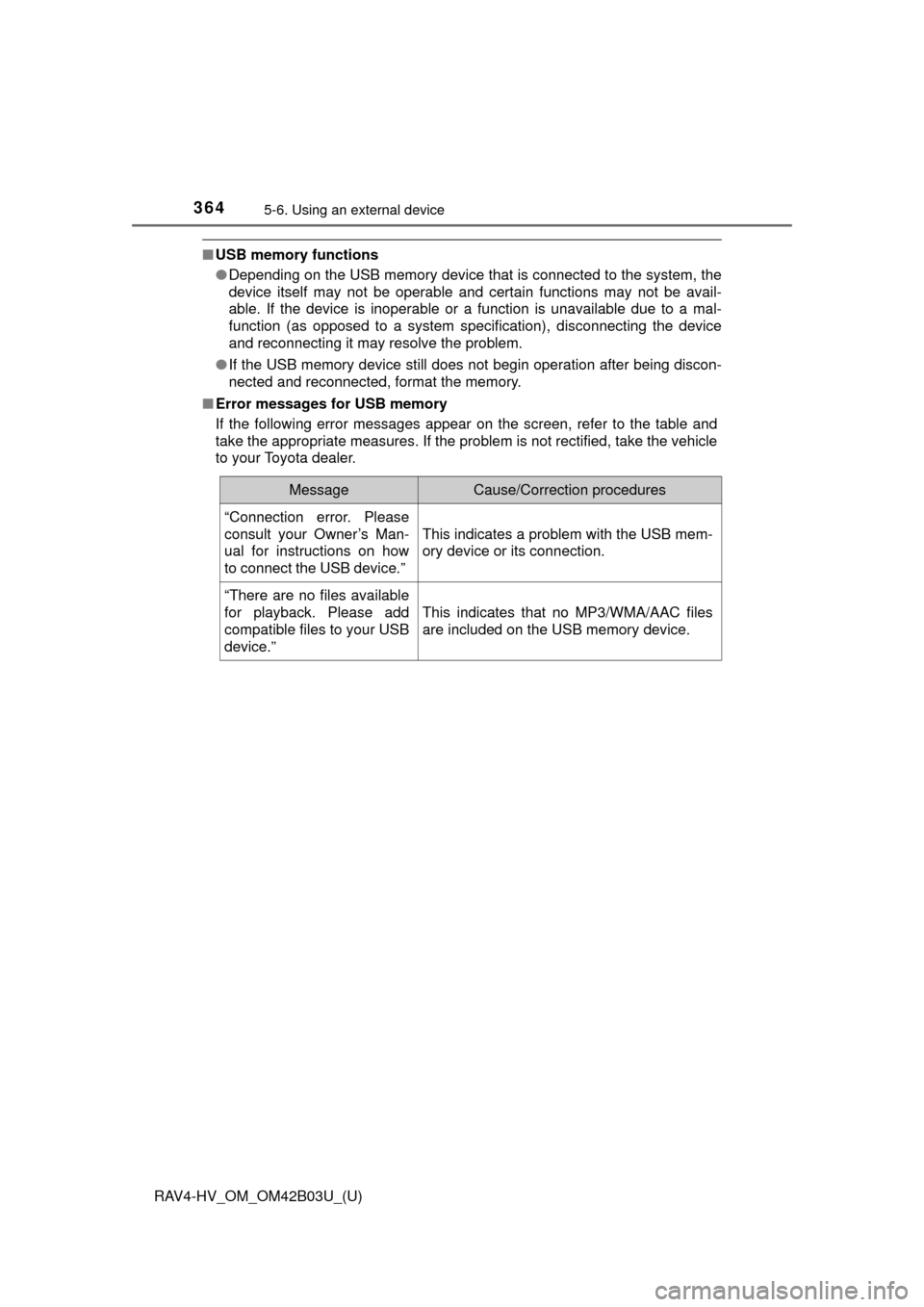
■ Error messages for USB memory
If the following error messages appear on the screen, refer to the table and
take the appropriate measures. If the problem is not rectified, take the vehicle
to your Toyota dealer.
MessageCause/Correction procedures
“Connection error. Please
consult your Owner’s Man-
ual for instructions on how
to connect the USB device.”
This indicates a problem with the USB mem-
ory device or its connection.
“There are no files available
for playback. Please add
compatible files to your USB
device.”
This indicates that no MP3/WMA/AAC files
are included on the USB memory device.