ad blue TOYOTA RAV4 HYBRID 2019 Accessories, Audio & Navigation (in English)
[x] Cancel search | Manufacturer: TOYOTA, Model Year: 2019, Model line: RAV4 HYBRID, Model: TOYOTA RAV4 HYBRID 2019Pages: 244, PDF Size: 6.8 MB
Page 200 of 244
2007-3. What to do if...
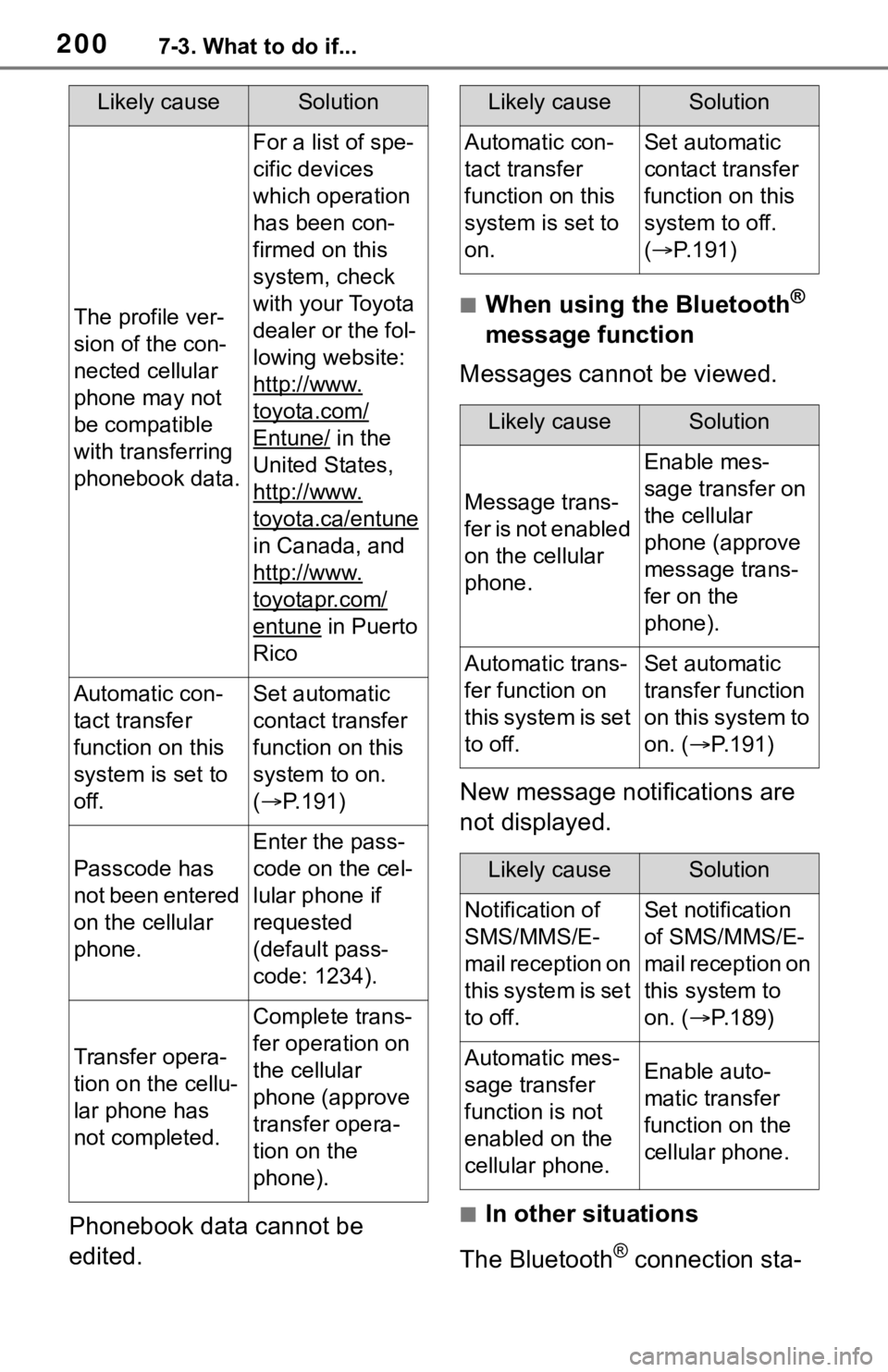
Phonebook data cannot be
edited.
■When using the Bluetooth®
message function
Messages cannot be viewed.
New message notifications are
not displayed.
■In other situations
The Bluetooth
® connection sta-
Likely causeSolution
The profile ver-
sion of the con-
nected cellular
phone may not
be compatible
with transferring
phonebook data.
For a list of spe-
cific devices
which operation
has been con-
firmed on this
system, check
with your Toyota
dealer or the fol-
lowing website:
http://www.
toyota.com/
Entune/ in the
United States,
http://www.
toyota.ca/entune
in Canada, and
http://www.
toyotapr.com/
entune in Puerto
Rico
Automatic con-
tact transfer
function on this
system is set to
off.Set automatic
contact transfer
function on this
system to on.
( P.191)
Passcode has
not been entered
on the cellular
phone.
Enter the pass-
code on the cel-
lular phone if
requested
(default pass-
code: 1234).
Transfer opera-
tion on the cellu-
lar phone has
not completed.
Complete trans-
fer operation on
the cellular
phone (approve
transfer opera-
tion on the
phone).
Likely causeSolution
Automatic con-
tact transfer
function on this
system is set to
on.Set automatic
contact transfer
function on this
system to off.
( P.191)
Likely causeSolution
Message trans-
f e r i s n o t e n a b l e d
on the cellular
phone.
Enable mes-
sage transfer on
the cellular
phone (approve
message trans-
fer on the
phone).
Automatic trans-
fer function on
this system is set
to off.Set automatic
transfer function
on this system to
on. ( P.191)
Likely causeSolution
Notification of
SMS/MMS/E-
mail reception on
this system is set
to off.Set notification
of SMS/MMS/E-
mail reception on
this system to
on. ( P.189)
Automatic mes-
sage transfer
function is not
enabled on the
cellular phone.Enable auto-
matic transfer
function on the
cellular phone.
Page 201 of 244
2017-3. What to do if...
7
Phone
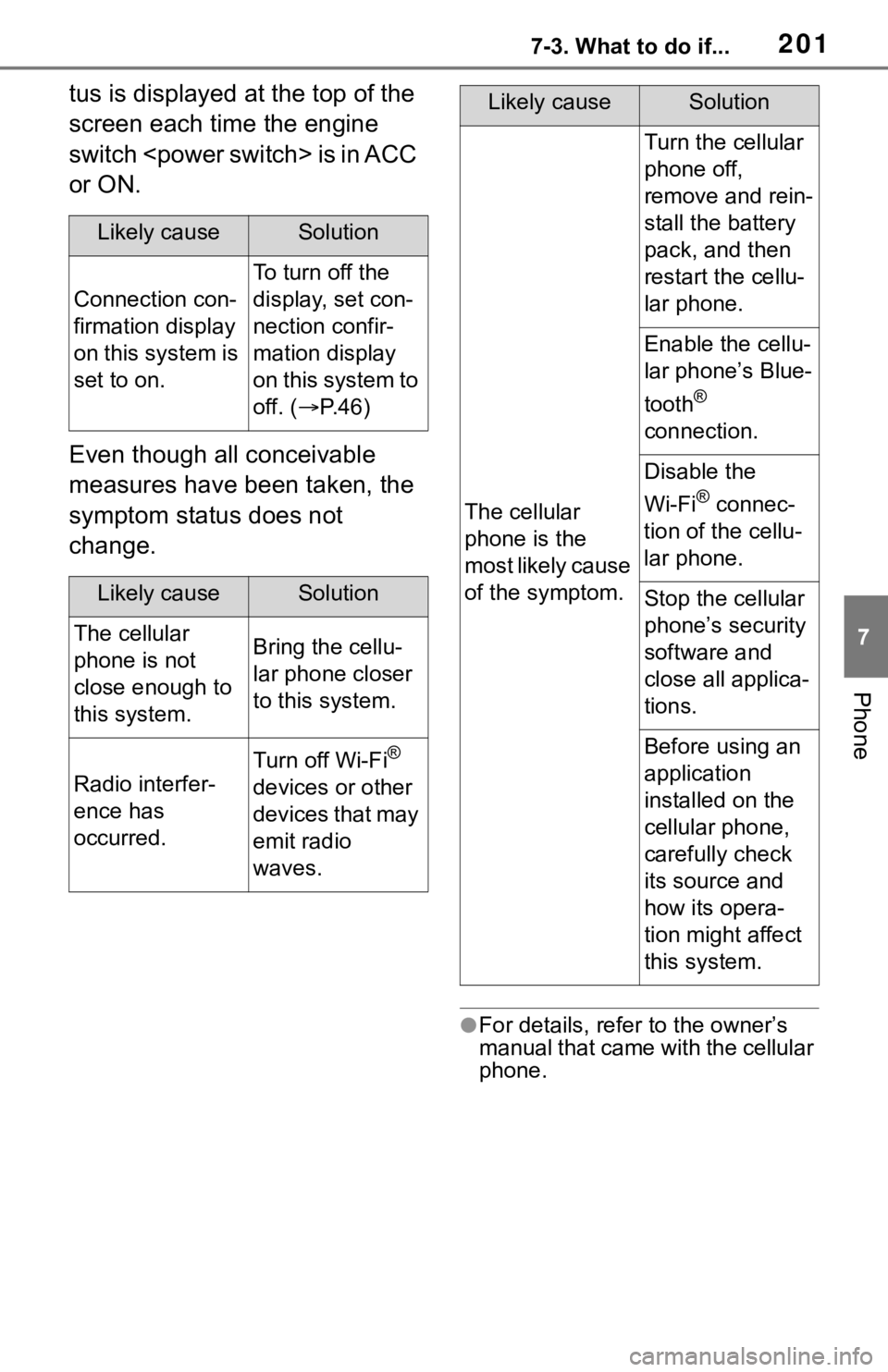
tus is displayed at the top of the
screen each time the engine
switch
or ON.
Even though all conceivable
measures have been taken, the
symptom status does not
change.
●For details, refer to the owner’s
manual that came with the cellular
phone.
Likely causeSolution
Connection con-
firmation display
on this system is
set to on.
To turn off the
display, set con-
nection confir-
mation display
on this system to
off. (P. 4 6 )
Likely causeSolution
The cellular
phone is not
close enough to
this system.Bring the cellu-
lar phone closer
to this system.
Radio interfer-
ence has
occurred.
Turn off Wi-Fi®
devices or other
devices that may
emit radio
waves.
The cellular
phone is the
most likely cause
of the symptom.
Turn the cellular
phone off,
remove and rein-
stall the battery
pack, and then
restart the cellu-
lar phone.
Enable the cellu-
lar phone’s Blue-
tooth
®
connection.
Disable the
Wi-Fi
® connec-
tion of the cellu-
lar phone.
Stop the cellular
phone’s security
software and
close all applica-
tions.
Before using an
application
installed on the
cellular phone,
carefully check
its source and
how its opera-
tion might affect
this system.
Likely causeSolution
Page 206 of 244
2068-1. Toyota Entune overview
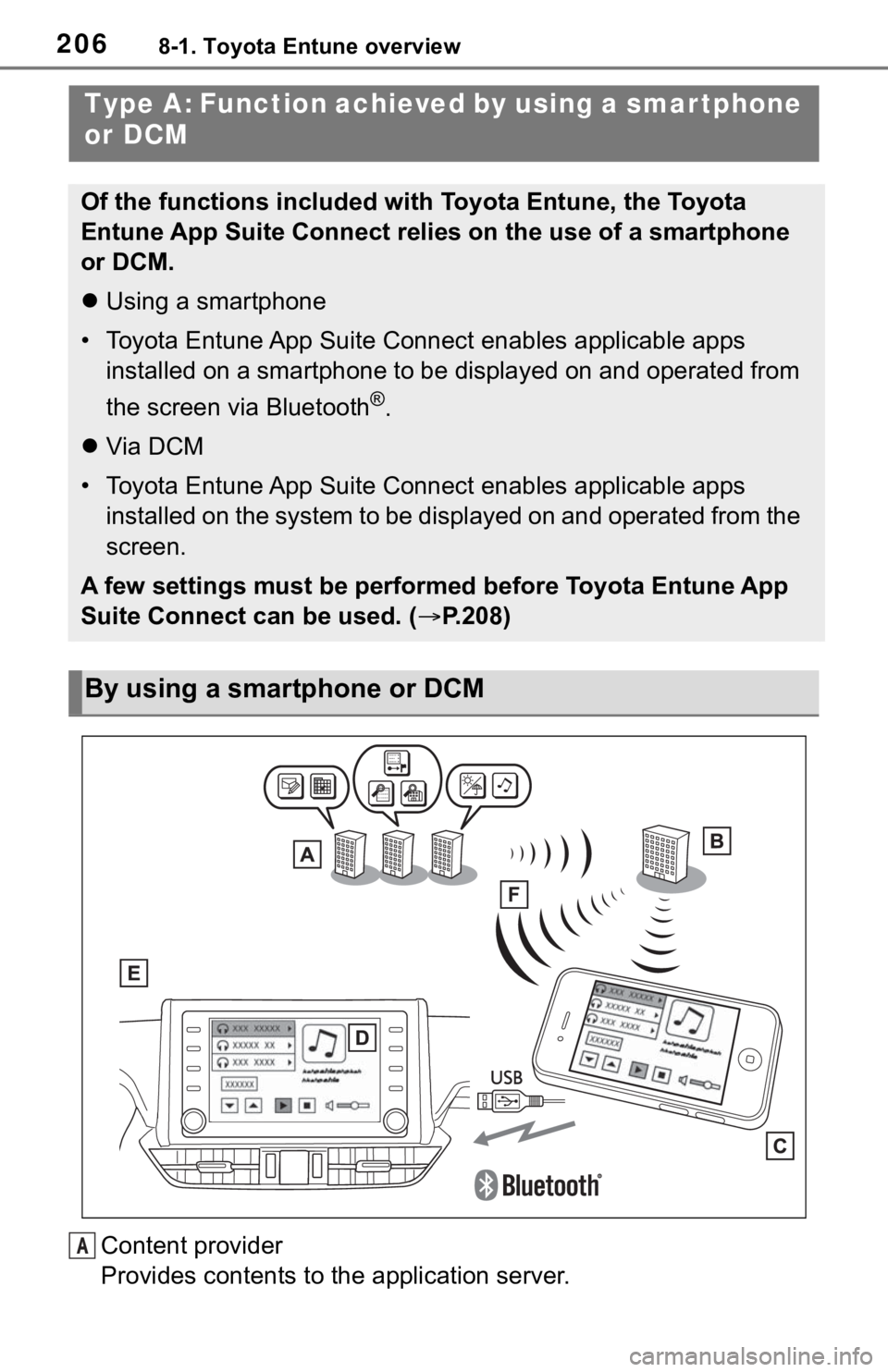
Content provider
Provides contents to the application server.
Type A: Function achieved by using a smar tphone
or DCM
Of the functions included with Toyota Entune, the Toyota
Entune App Suite Connect relies on the use of a smartphone
or DCM.
Using a smartphone
• Toyota Entune App Suite Connect enables applicable apps installed on a smartphone to be displayed on and operated from
the screen via Bluetooth
®.
Via DCM
• Toyota Entune App Suite Connect enables applicable apps installed on the system to be displayed on and operated from th e
screen.
A few settings must be performed before Toyota Entune App
Suite Connect can be used. ( P.208)
By using a smartphone or DCM
A
Page 208 of 244
2088-1. Toyota Entune overview
Toyota Entune App Suite
Connect is not available in the
United States Virgin Islands.
●Data usage fees may apply while
using Toyota Entune App Suite
Connect function. Confirm data
usage fees before using this func-
tion.
●For details regarding operation of
the Toyota Entune App Suite Con-
nect and the applications, refer to
http://www.toyota.com/Entune/
in the United States,
http://www.toyota.ca/entune
in Canada, and
http://www.toyo tapr.com/entune
in Puerto Rico.
●These functions are not made
available in some countries or
areas. Availability of functions of
the Toyota Entune App Suite Con-
nect service is dependent on net-
work reception level.
■Initializing personal data
The personal data used in appli-
cations can be reset. ( P.59)
The following personal data
can be deleted and returned
to their default settings:
• Downloaded contents
• Radio stations that were listened
to
●Once initialized, the data and set-
tings will be erased. Pay much
attention when initializing the data.
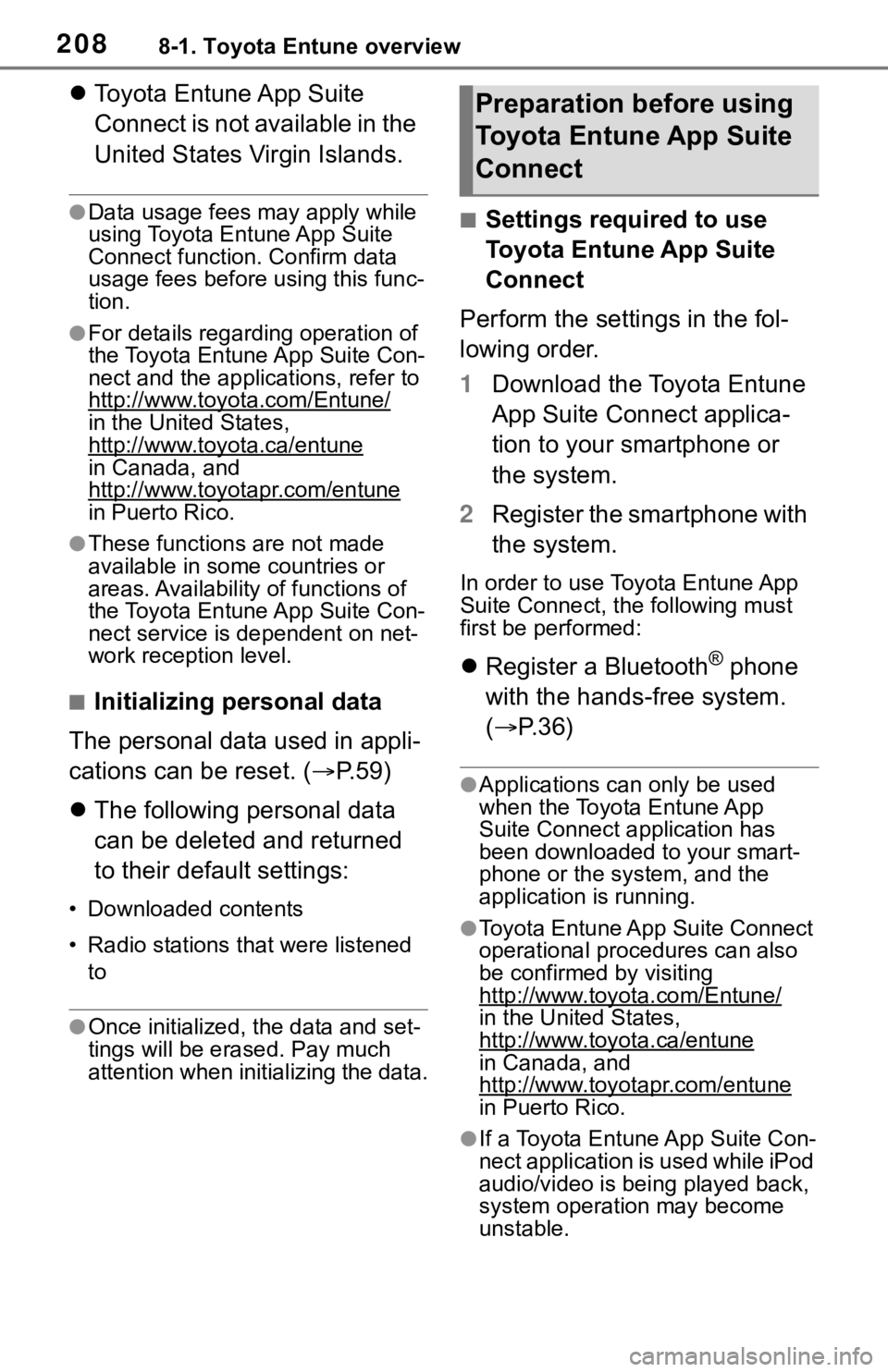
■Settings required to use
Toyota Entune App Suite
Connect
Perform the settings in the fol-
lowing order.
1 Download the Toyota Entune
App Suite Connect applica-
tion to your smartphone or
the system.
2 Register the smartphone with
the system.
In order to use Toyota Entune App
Suite Connect, the following must
first be performed:
Register a Bluetooth® phone
with the hands-free system.
( P.36)
●Applications can only be used
when the Toyota Entune App
Suite Connect application has
been downloaded to your smart-
phone or the system, and the
application is running.
●Toyota Entune App Suite Connect
operational procedures can also
be confirmed by visiting
http://www.toyota.com/Entune/
in the United States,
http://www.toyota.ca/entune
in Canada, and
http://www.toyotapr.com/entune
in Puerto Rico.
●If a Toyota Entune App Suite Con-
nect application is used while iPod
audio/video is being played back,
system operation may become
unstable.
Preparation before using
Toyota Entune App Suite
Connect
Page 216 of 244
2168-2. Toyota Entune operation
■Downloading update
If an update is available,
“Update” can be selected.
1 Select “Update” on the appli-
cation screen. ( P.215)
2 Check that downloading
starts.
“Download in Background”: Select
to operate other functions while
downloading.
“Cancel”: Select to cancel updating.
3Check that downloading is
complete.
“Later”: Select to install later. When
this screen button is selected, the
screen will re turn to the last dis-
played screen. To install the update
data: ( P.216)
“See Detail”: Select to display
detailed information on the update
data.
“Install”: Select to install the update
data. Follow the steps “Installing
the update data” from step 2.
( P.216)
■Installing the update data
After the downloading is com-
plete, “Update” will be changed
to “Install”.
1 Select “Install” on the appli-
cation screen. ( P.215)
2 Select “Continue”.
“Later”: Select to postpone the
installation of the update data and
go back to the previous screen.
3Check that installing is
started.
“Install in Background”: Select to
operate other functions while
installing.
4Select “OK” after the install-
ing is complete.
●The Toyota Entune App Suite
Connect function cannot be oper-
ated while installing.
Order of the applications can be
changed.
1Display the application
screen. ( P.215)
2 Select “App Catalog”.
3 Select the desired application
to be moved.
4 Select “<<” or “>>” to move
the application, and then
select the done button.
When problems occur with start-
ing the application player, a
message will appear on the
screen. Referring to the follow-
ing items, identify the problem
and take the suggested correc-
tive action.
“When it is safe and legal to
do so, please ensure your
Entune App Suite application
is running and logged in on
your phone.”
The Toyota Entune App Suite Con-
nect application cannot be con-
nected to Bluetooth
® SPP.
Refer to
Reordering the applica-
tions
If a message appears on
the screen
Page 217 of 244
2178-2. Toyota Entune operation
8
Toyota Entune
http://www.toyota.com/Entune/
in the United States,
http://www.toyota.ca/entune
in Canada, and
http://www.toyotapr.com/entune
in Puerto Rico, to confirm if the
phone is Bluetooth
® SPP compati-
ble or not, and then activate the
Toyota Entune App Suite Connect
application.
“Installation failed, please try
again”
Installation can be attempted again
by changing to the application
screen and pressing the “Install”
switch.
“Application download error.
Please try again later.”
Downloading can be attempted
again by checking the communica-
tion status, chang ing to the applica-
tion screen and pressing the
“Download” switch again.
“Download error, some
Entune App Suite functions
may not work as expected.
Please reinitiate the download
process.”
The Toyota Entune App Suite Con-
nect application cannot be con-
nected to Bluetooth
® SPP.
Refer to
http://www.toyota.com/Entune/
in the United States,
http://www.toyota.ca/entune
in Canada, and
http://www.toyotapr.com/entune
in Puerto Rico, to confirm if the
phone is Bluetooth
® SPP compati-
ble or not, and then activate the
Toyota Entune App Suite Connect application.
Please ensure your Toyota Entune
App Suite Connec
t application is
running and logged in on your
phone while vehicle is not moving.
“To use the services, Entune
APP Suite Connect applica-
tion needs to be running on
your phone. For more infor-
mation, please visit
toyota.com or call 1-800-331-
4331 in the United States, 1-
888-869-6828 in Canada, and
1-877-855-8377 in Puerto
Rico.”
The Toyota Entune App Suite Con-
nect application cannot be con-
nected to Bluetooth
® SPP.
Refer to
http://www.toyota.com/Entune/
in the United States,
http://www.toyota.ca/entune
in Canada, and
http://www.toyotapr.com/entune
in Puerto Rico, to confirm if the
phone is Bluetooth
® SPP compati-
ble or not, and then activate the
Toyota Entune App Suite Connect
application.
“Communication unsuccess-
ful. Please try again.”
Communication was disconnected.
After a few moments, retry the
operation.
A keyword can be entered to an
application by the software key-
Entering keyword opera-
tion
Page 224 of 244
224Alphabetical Index
Alphabetical Index
A
AM/FM/SiriusXM (SXM) radio 123
Available HD Radio™ technol- ogy ..................................... 127
Caching a radio program...... 124
Displaying the radio ID ......... 129
How to Subscribe to SiriusXM Satellite Radio .................... 128
Overview .............................. 123
Presetting a station .............. 124
Radio broadcast data system126
Radio options ....................... 125
Refer to the table below to iden- tify the problem and take the
suggested corrective action ........................................... 129
Selecting a station from the list ........................................... 125
Smart favorites ..................... 129
Troubleshooting guide .......... 127
Using HD Radio™ technology ........................................... 126
Apple CarPlay ........................... 52 Establishing an Apple CarPlay connection ............................ 52
Troubleshooting...................... 54
“Apple CarPlay” button (“Menu” screen) .............................. 14, 52
“Apps” button (“Menu” screen) ......................................... 14, 215
“APPS” button ..... .............12, 215
Audio/visual remote controls 142
“Audio” button (“Menu” screen) ......................................... 14, 118
“Audio” button (“Setup” screen) ......................................... 18, 144
“AUDIO” button ........ 12, 118, 119
Audio settings ........................ 144 Audio settings screen ........... 144
Displaying the audio settings screen ................................ 144 AUX ..........................................140
Overview ..............................140
B
Basic function ...........................12
Basic information before opera-tion ...........................................26
Basic operation................. 68, 118
Bluetooth
® audio ....................137
Overview ..............................137
Registering/Connecting a Blue-
tooth
® device ......................139
Bluetooth
® phone message func-
tion .........................................184 Calling the message sender .187
Checking received messages ...........................................185
Displaying the message screen ...........................................184
Receiving a mess age ...........184
Replying to a message (dicta- tion reply)............................186
Replying to a message (quick reply) ..................................186
“Bluetooth” button (“Setup” screen) ...............................18, 40
Buttons overview......................12 Operations of each part ..........12
C
Clock settings .....................14, 57
Command list ..........................160Command list overview ........160
Connectivity settings ...............36
D
“Data Services” button (“Setup”
screen) .............................18, 170
Data services settings............170 Setting download methods ...170
Page 227 of 244
Alphabetical Index227
Sounds settings screen ........ 188
Placing a call u sing the Blue-
tooth
® hands-free system ... 177
By call history ....................... 177
By contacts list ..................... 178
By favorites list ..................... 178
By home screen ................... 180
By keypad ............................ 179
Calling methods on the Blue-
tooth
® phone ...................... 177
“POWER VOLUME” knob . 12, 26, 11 9
“Projection” button (“Menu” screen) .................................... 14
Q
Quick reference ... ........... 118, 172
Functional overview ............. 118
Phone screen operation ....... 172
R
Radio operation ...................... 123
Receiving a call using the Blue-
tooth
® hands-free system ... 180
Incoming calls ...................... 180
Receiving weather information ............................................... 168Displaying weather screen ... 168
Weather guidance service.... 169
Registering/Connecting a Blue-
tooth
® device .......................... 36
Profiles ................................... 39
Registering a Bluetooth
® audio
player for the first time.......... 38
Registering a Bluetooth
® phone
for the first time .................... 36
Registering home ..................... 23 Setting home as the destination............................................. 24
Route guidance ........................ 91 Route guidance screen ............91
During freeway driving ............92
Screen for route guidance ......91
Turn list screen .......................94
Turn-by-turn arrow screen ......94
When approaching intersection.............................................93
S
Screen adjustment ...................33 Displaying the screen adjust-ment screen..........................33
“SEEK TRACK” button ............12 AM/FM/SiriusXM (SXM) radio...........................................123
Bluetooth
® audio ..................138
iPod/iPhone ..........................135
USB memory ........................133
Setting Bluetooth
® details .......40
“Detailed Settings” screen ......45
Bluetooth
® setup screen.........40
Connecting a Bluetooth
® device
.............................................41
Deleting a Bluetooth
® device..43
Displaying the Bluetooth
® setup
screen...................................40
Editing the Bluetooth
® device
information............................43
Registering a Bluetooth
® device
.............................................42
Setup..................98, 144, 188, 221
“Setup” button (“Menu” screen) ...........................................14, 18
“Setup” screen .........................18
Some basics.................... 119, 173 About the contacts in the contact list .......................................176
Audio screen adjustment ......122
Registering/Connecting a Blue-
tooth
® phone ......................174
Page 228 of 244
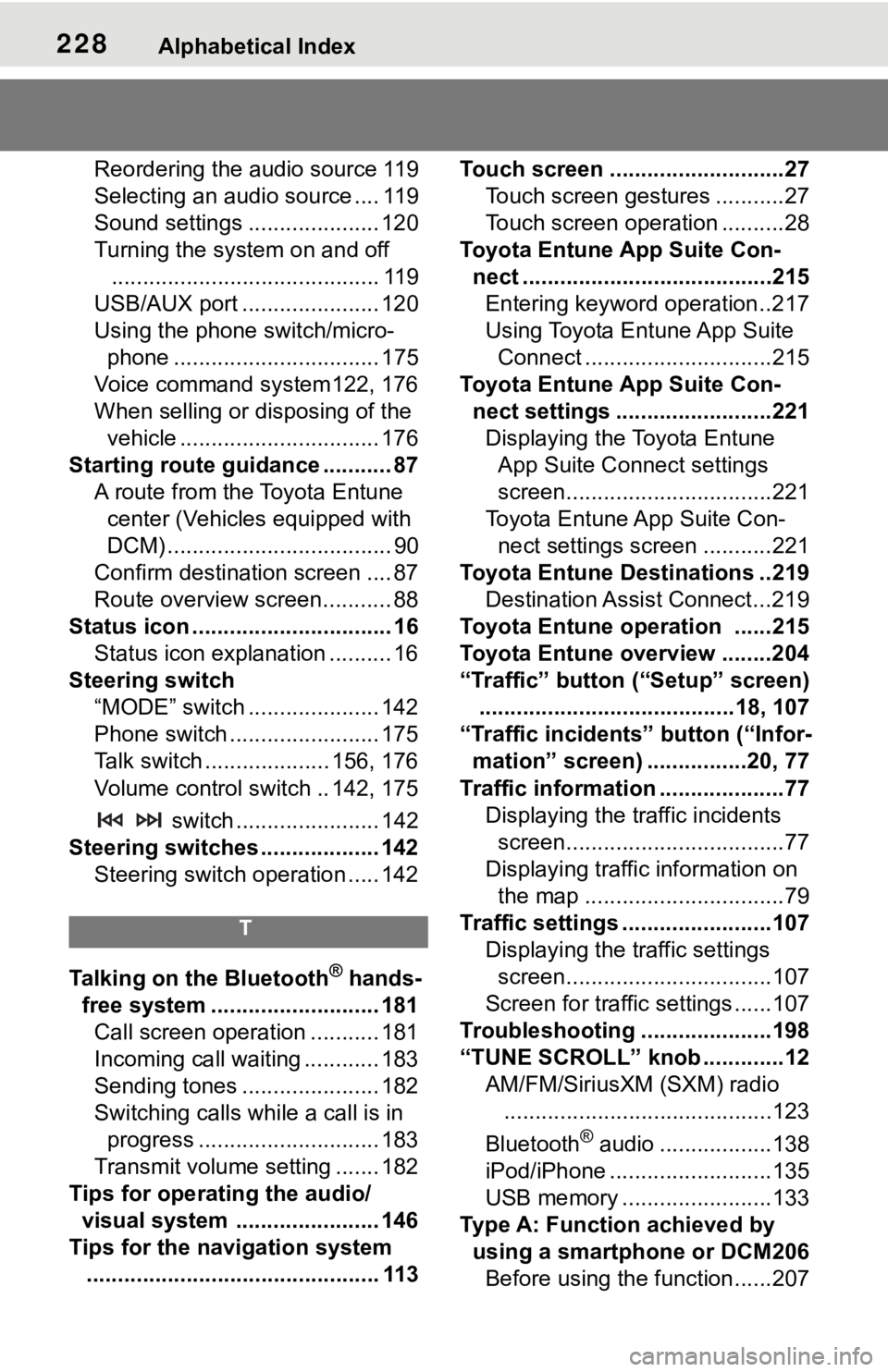
228Alphabetical Index
Reordering the audio source 119
Selecting an audio source .... 119
Sound settings ..................... 120
Turning the system on and off........................................... 119
USB/AUX port ...................... 120
Using the phone switch/micro- phone ................................. 175
Voice command system122, 176
When selling or disposing of the vehicle ................................ 176
Starting route guidance ........... 87 A route from the Toyota Entune center (Vehicles equipped with
DCM) .................................... 90
Confirm destinat ion screen .... 87
Route overview screen........... 88
Status icon ................................ 16 Status icon explanation .......... 16
Steering switch “MODE” switch ..................... 142
Phone switch ........................ 175
Talk switch .................... 156, 176
Volume control s witch .. 142, 175
switch ....................... 142
Steering switches ................... 142 Steering switch operation ..... 142
T
Talking on the Bluetooth® hands-
free system ........................... 181 Call screen operation ........... 181
Incoming call waiting ............ 183
Sending tones ...................... 182
Switching calls while a call is in progress ............................. 183
Transmit volume setting ....... 182
Tips for operating the audio/ visual system ....................... 146
Tips for the navigation system ............................................... 113 Touch screen ............................27
Touch screen gestures ...........27
Touch screen operation ..........28
Toyota Entune App Suite Con- nect ........................................215Entering keyword operation ..217
Using Toyota Entune App Suite Connect ..............................215
Toyota Entune App Suite Con- nect settings .........................221Displaying the Toyota Entune App Suite Connect settings
screen.................................221
Toyota Entune App Suite Con- nect settings screen ...........221
Toyota Entune Destinations ..219 Destination Assist Connect...219
Toyota Entune operation ......215
Toyota Entune overview ........204
“Traffic” button (“Setup” screen) .........................................18, 107
“Traffic incidents” button (“Infor- mation” screen) ................20, 77
Traffic information ....................77 Displaying the traffic incidents screen...................................77
Displaying traffic information on the map ................................79
Traffic settings ........................107 Displaying the traffic settings screen.................................107
Screen for traffic settings ......107
Troubleshooting ...... ...............198
“TUNE SCROLL” knob .............12 AM/FM/SiriusXM (SXM) radio...........................................123
Bluetooth
® audio ..................138
iPod/iPhone ..........................135
USB memory ........................133
Type A: Function achieved by using a smartphone or DCM206Before using the f unction......207