steering TOYOTA RAV4 HYBRID 2019 Accessories, Audio & Navigation (in English)
[x] Cancel search | Manufacturer: TOYOTA, Model Year: 2019, Model line: RAV4 HYBRID, Model: TOYOTA RAV4 HYBRID 2019Pages: 244, PDF Size: 6.8 MB
Page 3 of 244

3TABLE OF CONTENTS
1
2
3
4
5
6
7
8
4-1. Basic operationQuick reference............. 118
Some basics ................. 119
4-2. Radio operation AM/FM/SiriusXM (SXM) radio.................................... 123
Internet radio ................. 131
4-3. Media operation USB memory................. 132
iPod/iPhone................... 134
Bluetooth
® audio ........... 137
AUX............................... 140
4-4. Audio/visual remote con- trols
Steering switches .......... 142
4-5. Setup Audio settings ............... 144
4-6. Tips for operating the audio/visual system
Operating information ... 146
5-1. Voice command system operation
Voice command system 156
Natural language under- standing....................... 159
Command list ................ 160
5-2. Mobile Assistant operation Mobile Assistant ............ 1656-1. Information display
Receiving weather informa-tion............................... 168
Data services settings ... 170
7-1. Phone operation (Hands- free system for cellular
phones)
Quick reference ............. 172
Some basics .................. 173
Placing a call using the Blue- tooth
® hands-free system
.................................... 177
Receiving a call using the Bluetooth
® hands-free sys-
tem .............................. 180
Talking on the Bluetooth
®
hands-free system ....... 181
Bluetooth
® phone message
function ........................ 184
7-2. Setup Phone settings............... 188
7-3. What to do if... Troubleshooting............. 198
8-1. Toyota Entune overview Functional overview....... 204
Type A: Function achieved by using a smartphone or DCM.................................... 206
4Audio/visual system
5Voice command system
6Information
7Phone
8Toyota Entune
Page 35 of 244
352-1. Basic information before operation
2
Basic function
Linking multi-infor ma-
tion display and the
system
The following functions of
the system are linked with
the multi-information dis-
play in the instrument clus-
ter:
Audio
Phone
*
etc.
These functions can be
operated using multi-infor-
mation display control
switches on the steering
wheel. For details, refer to
“OWNER’S MANUAL”.
*: When an Apple CarPlay con-
nection is established, this
function will be unavailable.
Page 117 of 244

117
4
4
Audio/visual system
Audio/visual system
4-1. Basic operationQuick reference........... 118
Some basics ............... 119
4-2. Radio operation AM/FM/SiriusXM (SXM) radio .......................... 123
Internet radio ............... 131
4-3. Media operation USB memory............... 132
iPod/iPhone................. 134
Bluetooth
® audio ......... 137
AUX............................. 140
4-4. Audio/visual remote con- trols
Steering switches ........ 142
4-5. Setup Audio settings ............. 144
4-6. Tips for operating the audio/visual system
Operating information . 146
Page 118 of 244
1184-1. Basic operation
4-1.Basic operation
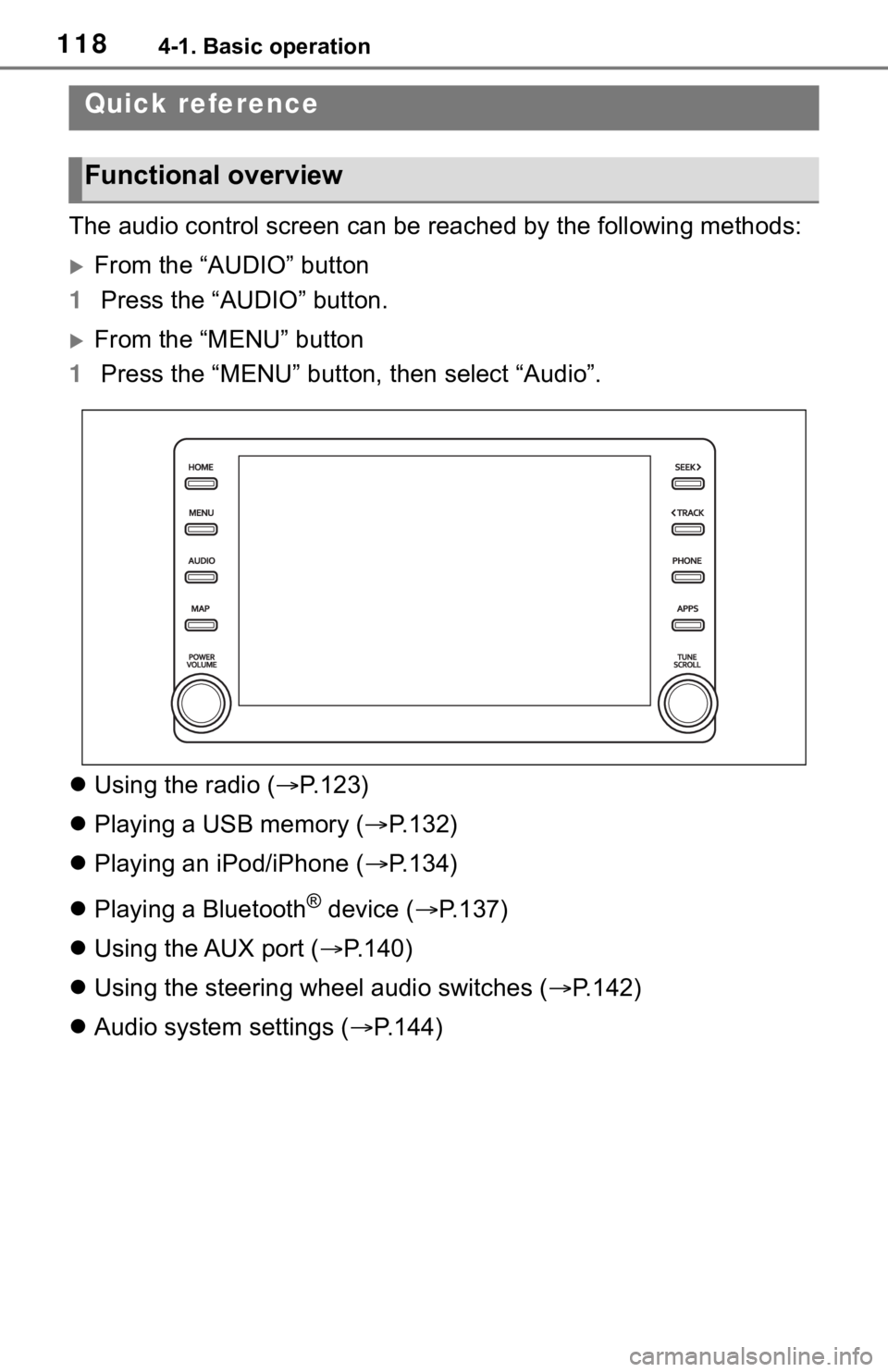
The audio control screen can be reached by the following methods:
From the “AUDIO” button
1 Press the “AUDIO” button.
From the “MENU” button
1 Press the “MENU” button, then select “Audio”.
Using the radio ( P.123)
Playing a USB memory ( P.132)
Playing an iPod/iPhone ( P.134)
Playing a Bluetooth
® device ( P.137)
Using the AUX port ( P.140)
Using the steering wheel audio switches ( P.142)
Audio system settings ( P.144)
Quick reference
Functional overview
Page 131 of 244
1314-2. Radio operation
4
Audio/visual system
*: This function is not made avail-able in some countries or areas.
1 Display the audio source
selection screen. ( P.119)
2 Select the desired application
screen button.
The internet radio application
screen is displayed.
Perform operations accord-
ing to the displayed applica-
tion screen.
For the instrument panel
operation method: P. 1 1 9
If a compatible phone is
already registered, it will be
connected automatically.
●Other applications can be acti-
vated while listening to internet
radio.
●Some parts of applications can be
adjusted using the switches on the
steering wheel.
●For additional info rmation, refer to
http://www.toyota.com/Entune/
or
call
1-800-331-4331 in the United States,
http://www.toyota.ca/entune
or call
1-888-869-6828 in Canada, and
http://www.toyotapr.com/entune
o r
call
1-877-855-8377 in Puerto Rico.
Internet radio*
One of Toyota Entune App
Suite Connect features is
the ability to listen to inter-
net radio. In order to use
this service, a compatible
phone and the system
needs to be set up. For
details: P.215
Listening to internet radio
Page 142 of 244
1424-4. Audio/visual remote controls
4-4.Audio/visual remote controls
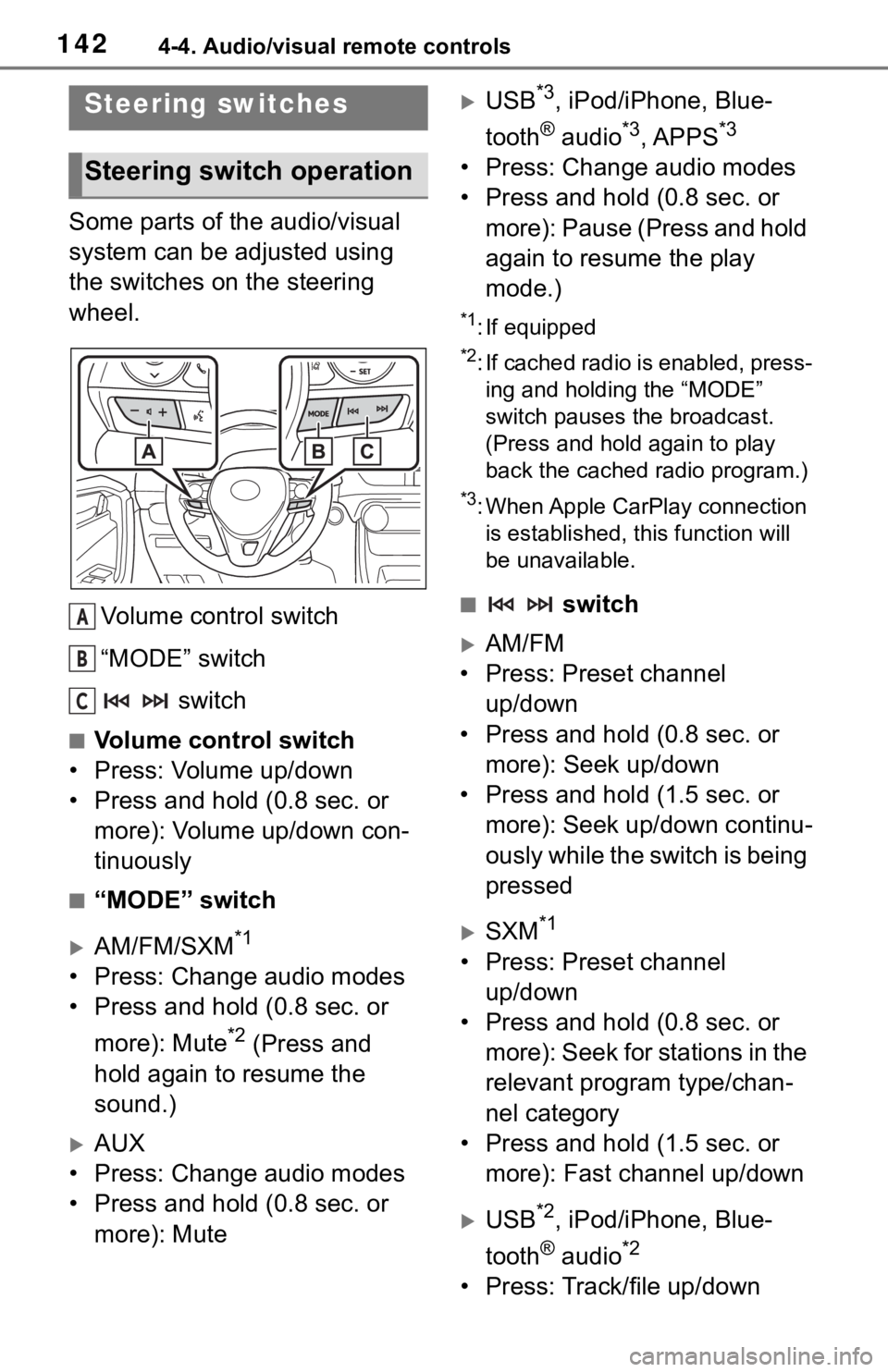
Some parts of the audio/visual
system can be adjusted using
the switches on the steering
wheel.Volume control switch
“MODE” switch switch
■Volume control switch
• Press: Volume up/down
• Press and hold (0.8 sec. or more): Volume up/down con-
tinuously
■“MODE” switch
AM/FM/SXM*1
• Press: Change audio modes
• Press and hold (0.8 sec. or
more): Mute
*2 (Press and
hold again to resume the
sound.)
AUX
• Press: Change audio modes
• Press and hold (0.8 sec. or more): Mute
USB*3, iPod/iPhone, Blue-
tooth
® audio*3, APPS*3
• Press: Change audio modes
• Press and hold (0.8 sec. or more): Pause (Press and hold
again to resume the play
mode.)
*1: If equipped
*2: If cached radio is enabled, press-ing and holding the “MODE”
switch pauses the broadcast.
(Press and hold again to play
back the cached radio program.)
*3: When Apple CarPlay connection is established, this function will
be unavailable.
■ switch
AM/FM
• Press: Preset channel up/down
• Press and hold (0.8 sec. or more): Seek up/down
• Press and hold (1.5 sec. or more): Seek up/down continu-
ously while the switch is being
pressed
SXM*1
• Press: Preset channel up/down
• Press and hold (0.8 sec. or more): Seek for stations in the
relevant program type/chan-
nel category
• Press and hold (1.5 sec. or more): Fast channel up/down
USB*2, iPod/iPhone, Blue-
tooth
® audio*2
• Press: Track/file up/down
Steering switches
Steering switch operation
A
B
C
Page 156 of 244
1565-1. Voice command system operation
5-1.Voice command system operation
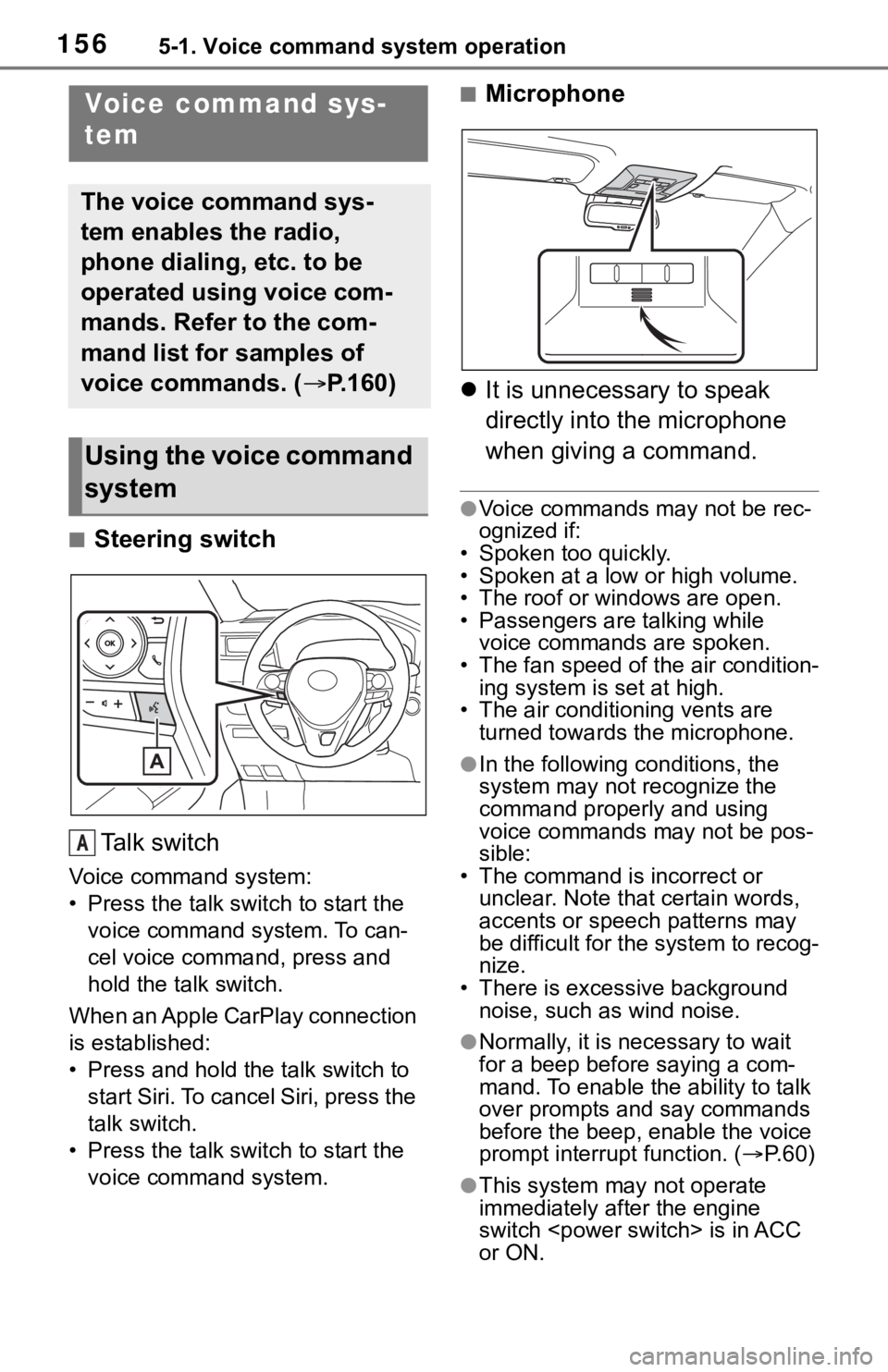
■Steering switchTa l k s w i t c h
Voice command system:
• Press the talk switch to start the voice command system. To can-
cel voice command, press and
hold the talk switch.
When an Apple CarPlay connection
is established:
• Press and hold the talk switch to start Siri. To cancel Siri, press the
talk switch.
• Press the talk switch to start the voice command system.
■Microphone
It is unnecessary to speak
directly into the microphone
when giving a command.
●Voice commands may not be rec-
ognized if:
• Spoken too quickly.
• Spoken at a low or high volume.
• The roof or windows are open.
• Passengers are talking while voice commands are spoken.
• The fan speed of the air condition-
ing system is set at high.
• The air conditioning vents are turned towards the microphone.
●In the following c onditions, the
system may not recognize the
command properly and using
voice commands may not be pos-
sible:
• The command is incorrect or unclear. Note that certain words,
accents or speech patterns may
be difficult for the system to recog-
nize.
• There is excessive background
noise, such as wind noise.
●Normally, it is necessary to wait
for a beep before saying a com-
mand. To enable th e ability to talk
over prompts and say commands
before the beep, enable the voice
prompt interrupt function. ( P. 6 0 )
●This system may not operate
immediately after the engine
switch
or ON.
Voice command sys-
tem
The voice command sys-
tem enables the radio,
phone dialing, etc. to be
operated using voice com-
mands. Refer to the com-
mand list for samples of
voice commands. ( P.160)
Using the voice command
system
A
Page 165 of 244
1655-2. Mobile Assistant operation
5
Voice command system
5-2.Mobile Assistant operation
Mobile Assist supports the Siri
Eyes Free Mode and Google
App. The available features and
functions may vary based on the
iOS/Android version installed on
the connected device.
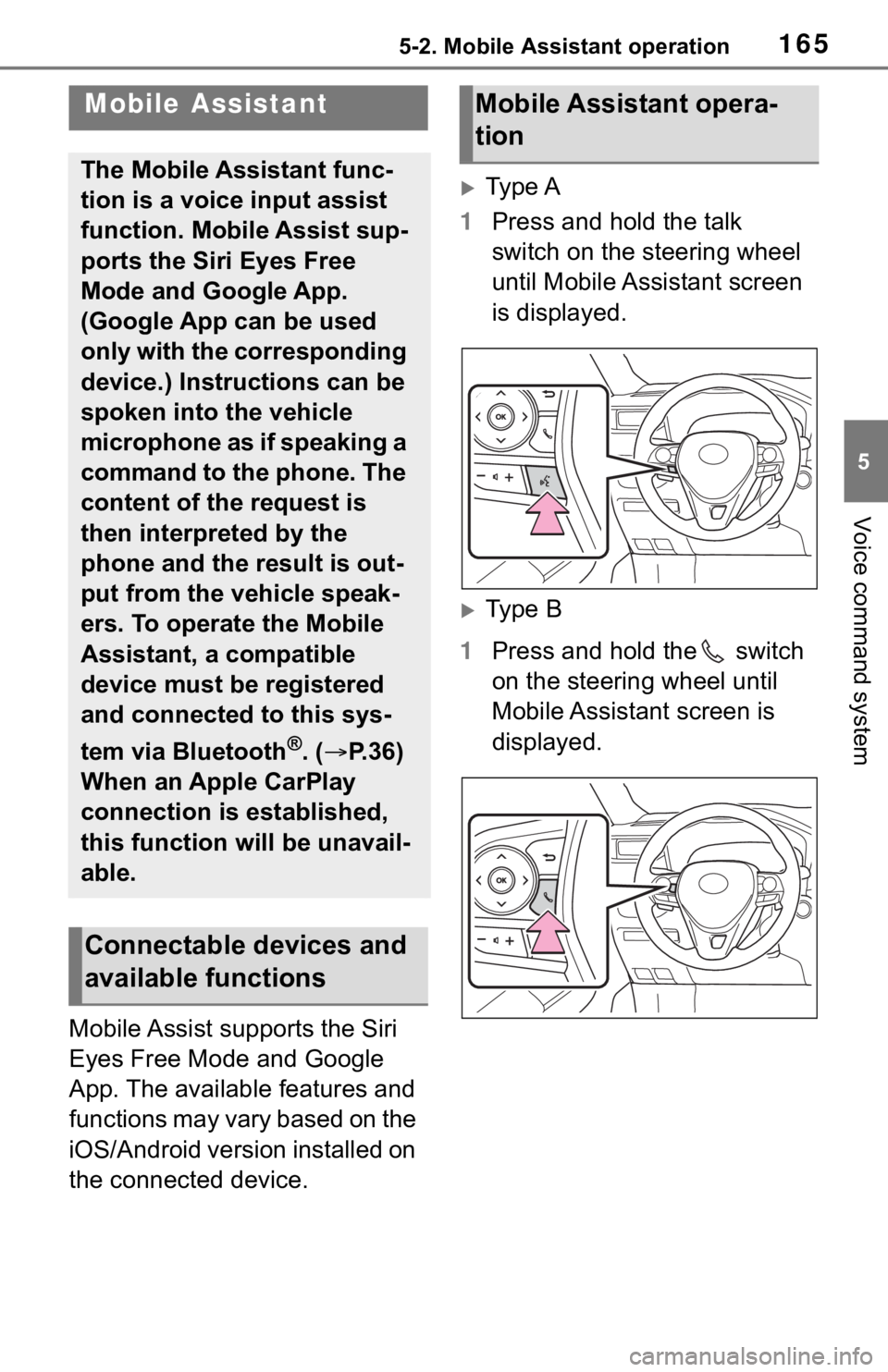
Type A
1 Press and hold the talk
switch on the steering wheel
until Mobile Assistant screen
is displayed.
Type B
1 Press and hold the switch
on the steering wheel until
Mobile Assistant screen is
displayed.
Mobile Assistant
The Mobile Assistant func-
tion is a voice input assist
function. Mobile Assist sup-
ports the Siri Eyes Free
Mode and Google App.
(Google App can be used
only with the corresponding
device.) Instructions can be
spoken into the vehicle
microphone as if speaking a
command to the phone. The
content of the request is
then interpreted by the
phone and the result is out-
put from the vehicle speak-
ers. To operate the Mobile
Assistant, a compatible
device must be registered
and connected to this sys-
tem via Bluetooth
®. ( P.36)
When an Apple CarPlay
connection is established,
this function will be unavail-
able.
Connectable devices and
available functions
Mobile Assistant opera-
tion
Page 166 of 244
1665-2. Mobile Assistant operation
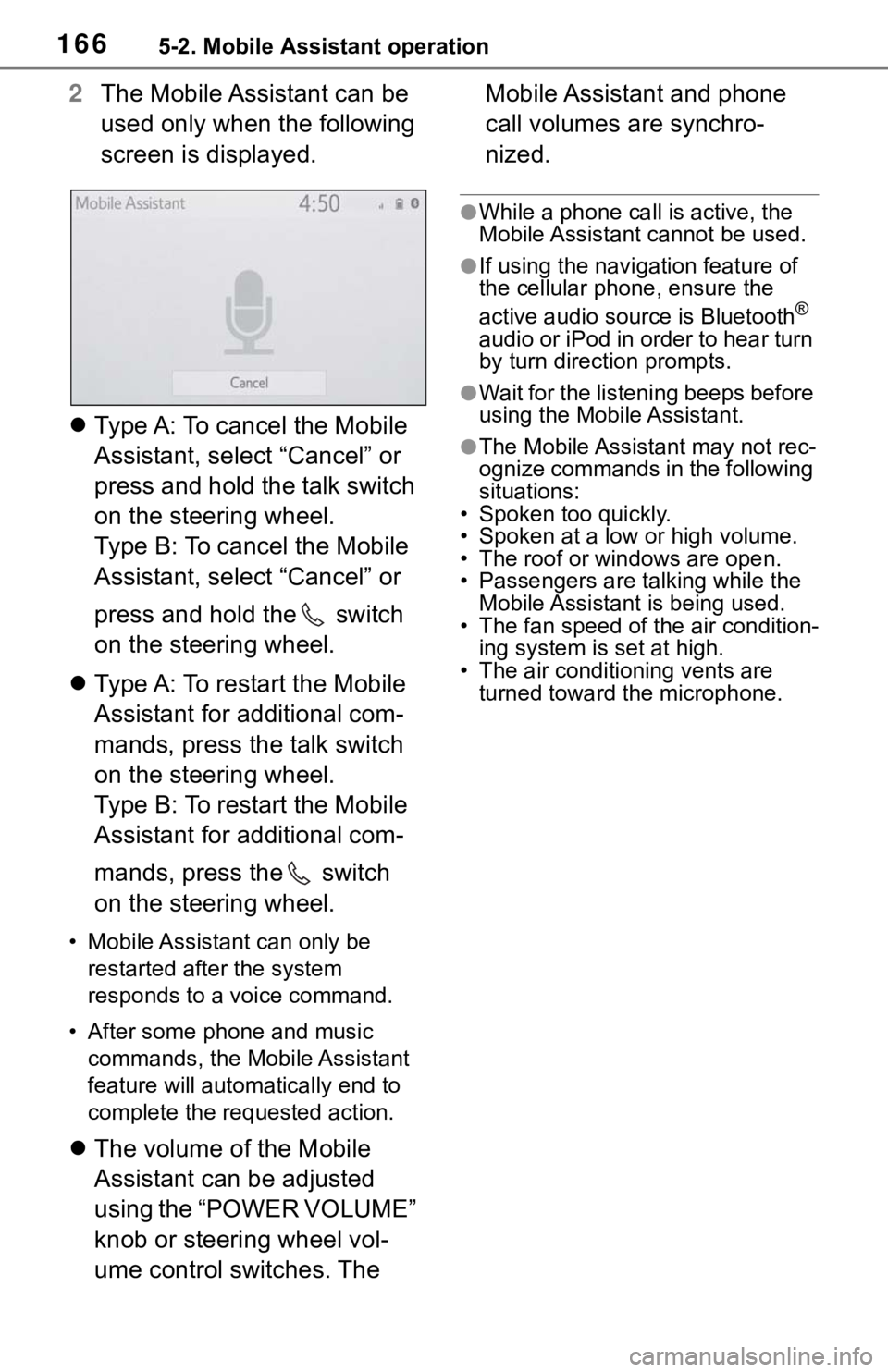
2The Mobile Assistant can be
used only when the following
screen is displayed.
Type A: To cancel the Mobile
Assistant, select “Cancel” or
press and hold the talk switch
on the steering wheel.
Type B: To cancel the Mobile
Assistant, select “Cancel” or
press and hold the switch
on the steering wheel.
Type A: To restart the Mobile
Assistant for additional com-
mands, press the talk switch
on the steering wheel.
Type B: To restart the Mobile
Assistant for additional com-
mands, press the switch
on the steering wheel.
• Mobile Assistant can only be
restarted after the system
responds to a voice command.
• After some phone and music commands, the Mobile Assistant
feature will automatically end to
complete the re quested action.
The volume of the Mobile
Assistant can be adjusted
using the “POWER VOLUME”
knob or steering wheel vol-
ume control switches. The Mobile Assistant and phone
call volumes are synchro-
nized.
●While a phone call is active, the
Mobile Assistant cannot be used.
●If using the navigation feature of
the cellular phone, ensure the
active audio source is Bluetooth
®
audio or iPod in order to hear turn
by turn direction prompts.
●Wait for the listening beeps before
using the Mobile Assistant.
●The Mobile Assistant may not rec-
ognize commands in the following
situations:
• Spoken too quickly.
• Spoken at a low or high volume.
• The roof or windows are open.
• Passengers are talking while the
Mobile Assistant is being used.
• The fan speed of the air condition- ing system is set at high.
• The air conditioning vents are turned toward the microphone.
Page 173 of 244
1737-1. Phone operation (Hands-free system for cellular phones)
7
Phone
●This system is not guaranteed to
operate with all Bluetooth®
devices.
●If your cellular phone does not
support Bluetooth®, this system
cannot function.
●In the following conditions, the
system may not function:
• The cellular phone is turned off.
• The current position is outside the communication area.
• The cellular phone is not con- nected.
• The cellular phone has a low bat-
tery.
●Depending on the type of Blue-
tooth® phone, some function is
not available.
●When using the hands-free sys-
tem or Bluetooth® audio and
Wi-Fi® Hotspot functions at the
same time, the following problems
may occur:
• The Bluetooth
® connection may
be cut.
• Noise may be heard on the Blue-
tooth
® audio playback.
• A noise may be heard during
phone calls.
●Bluetooth® uses the 2.4 GHz fre-
quency band. If both a Wi-Fi® con-
nection and Bluetooth®
connection are being used simul-
taneously, each connection may
be affected.
●If a Bluetooth® device is attempt-
ing to connect to the vehicle while
another device is connected as a
Bluetooth
® audio device or con-
nected using the hands-free sys-
tem or Wi-Fi
® Hotspot function,
the communication speed may
decrease or malfunctions may
occur, such as image distortion or
audio skipping. If a Bluetooth
®
device is connected to the system,
the interference it may cause will
be reduced. When carrying a
device with its Bluetooth
® connec-
tion enabled, make sure to regis-
ter it to the system and connect it
or disable its Bluetooth
® function.
●When a device is connected via
Bluetooth®, the Bluetooth® icon
on the status bar will be displayed
in blue. ( P. 1 6 )
Some basics
The hands-free system
enables calls to be made
and received without having
to take your hands off the
steering wheel.
This system supports Blue-
tooth
®. Bluetooth® is a wire-
less data system that
enables cellular phones to
be used without being con-
nected by a cable or placed
in a cradle.
The operating procedure of
the phone is explained here.
When an Apple CarPlay
connection is established,
phone functions will be per-
formed by Apple CarPlay
instead of the hands-free
system.
WARNING
●While driving, do not operate a
cellular phone.