change time TOYOTA RAV4 HYBRID 2021 (in English) Owner's Guide
[x] Cancel search | Manufacturer: TOYOTA, Model Year: 2021, Model line: RAV4 HYBRID, Model: TOYOTA RAV4 HYBRID 2021Pages: 752, PDF Size: 31.15 MB
Page 322 of 752
3224-5. Using the driving support systems
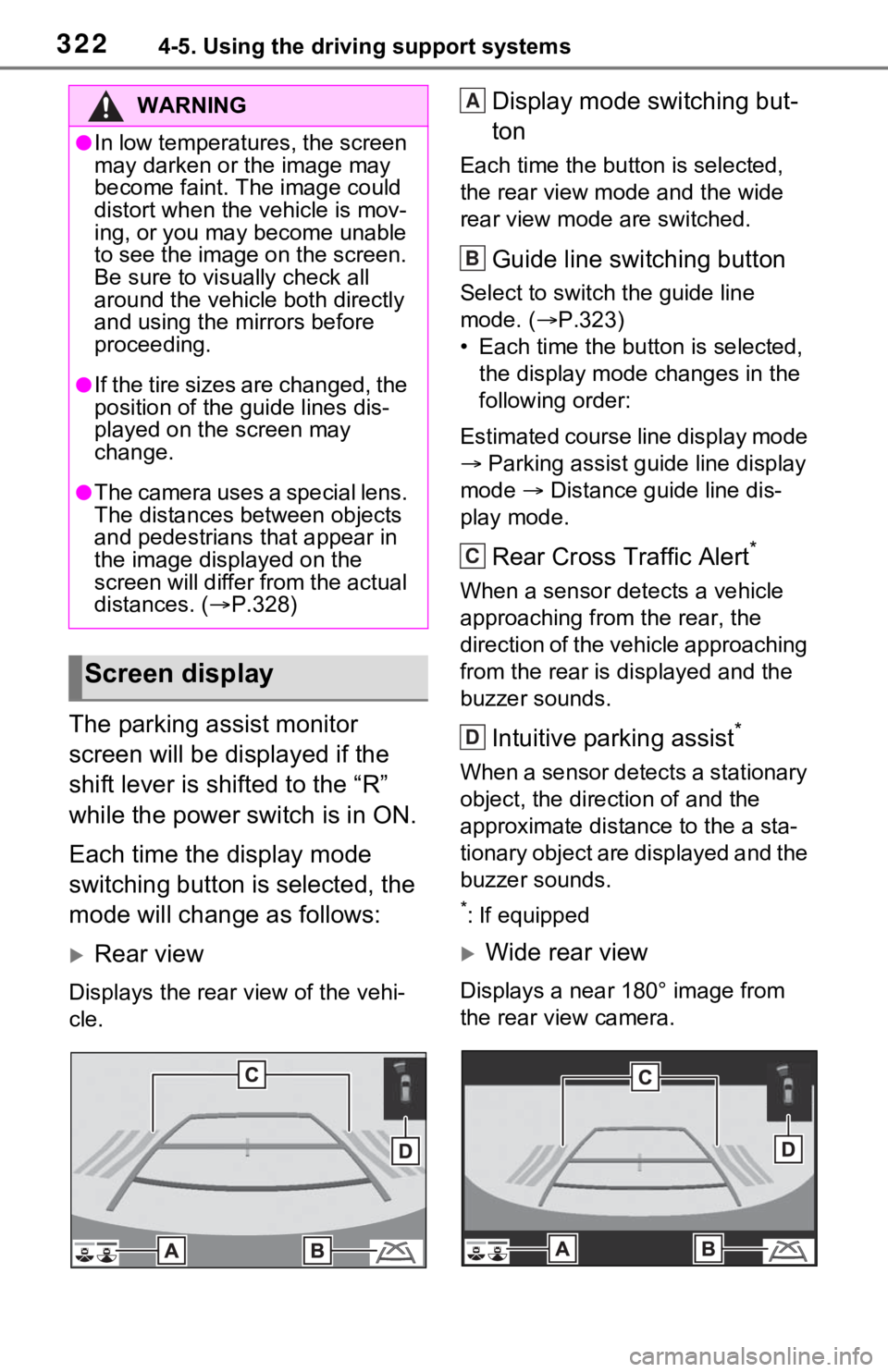
The parking assist monitor
screen will be displayed if the
shift lever is shifted to the “R”
while the power switch is in ON.
Each time the display mode
switching button is selected, the
mode will change as follows:
Rear view
Displays the rear view of the vehi-
cle.
Display mode switching but-
ton
Each time the button is selected,
the rear view mode and the wide
rear view mode are switched.
Guide line switching button
Select to switch the guide line
mode. ( P.323)
• Each time the bu tton is selected,
the display mode changes in the
following order:
Estimated course line display mode
Parking assist guide line display
mode Distance guide line dis-
play mode.
Rear Cross Traffic Alert*
When a sensor detects a vehicle
approaching from the rear, the
direction of the vehicle approaching
from the rear is d isplayed and the
buzzer sounds.
Intuitive parking assist*
When a sensor detects a stationary
object, the direction of and the
approximate distan ce to the a sta-
tionary object are displayed and the
buzzer sounds.
*: If equipped
Wide rear view
Displays a near 180° image from
the rear view camera.
WARNING
●In low temperatures, the screen
may darken or the image may
become faint. The image could
distort when the vehicle is mov-
ing, or you may become unable
to see the image on the screen.
Be sure to visually check all
around the vehicle both directly
and using the mirrors before
proceeding.
●If the tire sizes are changed, the
position of the guide lines dis-
played on the screen may
change.
●The camera uses a special lens.
The distances between objects
and pedestrians that appear in
the image displayed on the
screen will differ from the actual
distances. ( P.328)
Screen display
A
B
C
D
Page 323 of 752
3234-5. Using the driving support systems
4
Driving
Display mode switching but-
ton
Each time the button is selected,
the rear view mode and the wide
rear view mode are switched.
Guide line switching button
Select to switch the guide line
mode. ( P.323)
• Each time the button is selected, the display mode changes in the
following order:
Estimated course line display mode
Parking assist guide line display
mode Distance guide line dis-
play mode.
Rear Cross Traffic Alert*
When a sensor detects a stationary
object, the direction of stationary
object is displayed and the buzzer
sounds.
Intuitive parking assist*
When a sensor detects an obsta-
cle, the direction of and the approx-
imate distance to the obstacle are
displayed and the buzzer sounds.
*: If equipped
●For details about the Rear Cross
Traffic Alert function ( P.288)
and intuitive parking assist.
( P.291)
The parking assist monitor is
canceled when the shift lever is
shifted into any position other
than the “R”.
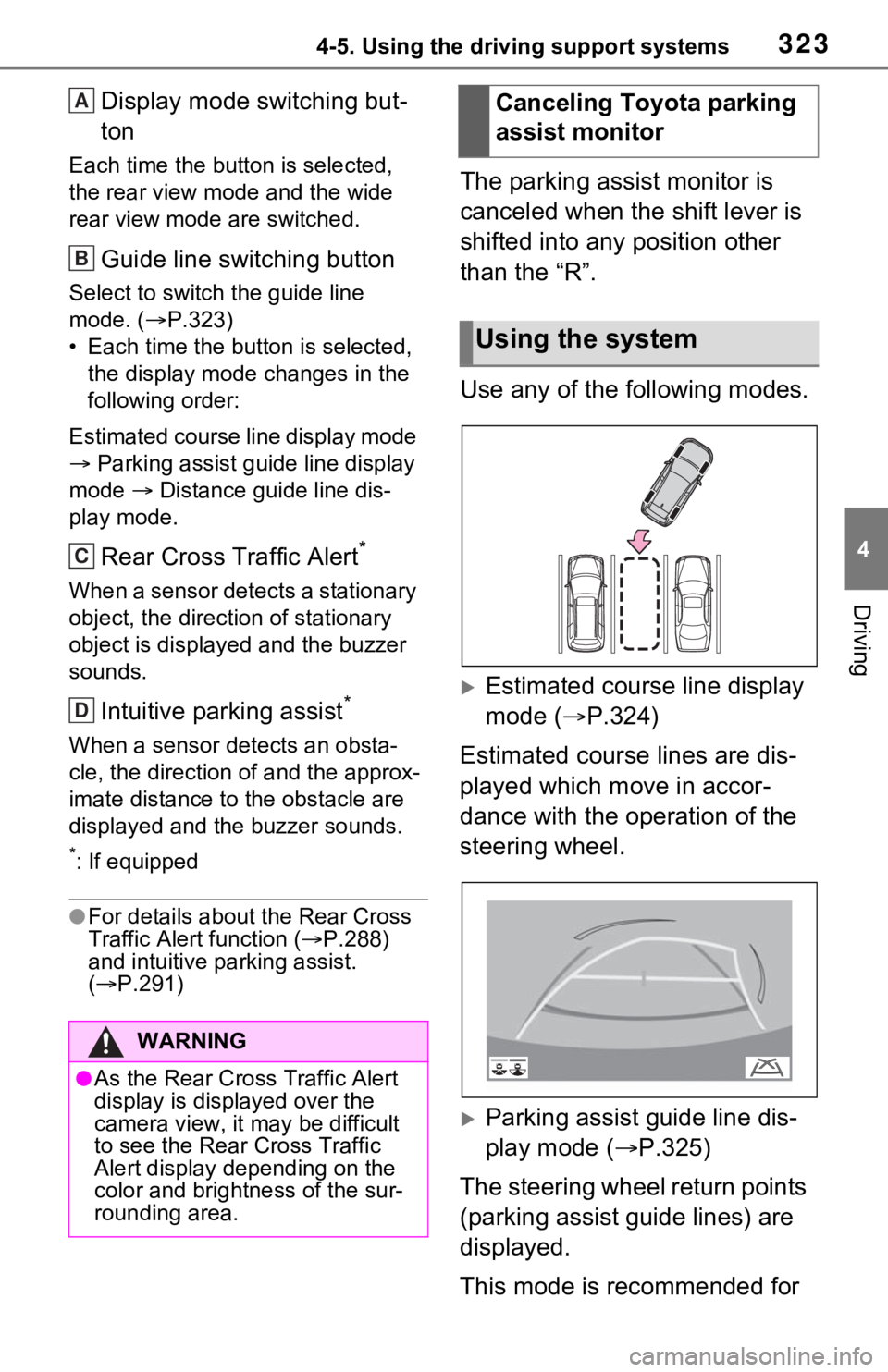
Use any of the following modes.
Estimated course line display
mode ( P.324)
Estimated course lines are dis-
played which move in accor-
dance with the operation of the
steering wheel.
Parking assist guide line dis-
play mode ( P.325)
The steering wheel return points
(parking assist guide lines) are
displayed.
This mode is recommended for
WARNING
●As the Rear Cross Traffic Alert
display is displayed over the
camera view, it may be difficult
to see the Rear Cross Traffic
Alert display depending on the
color and brightness of the sur-
rounding area.
A
B
C
D
Canceling Toyota parking
assist monitor
Using the system
Page 342 of 752
3424-5. Using the driving support systems
*: If equipped
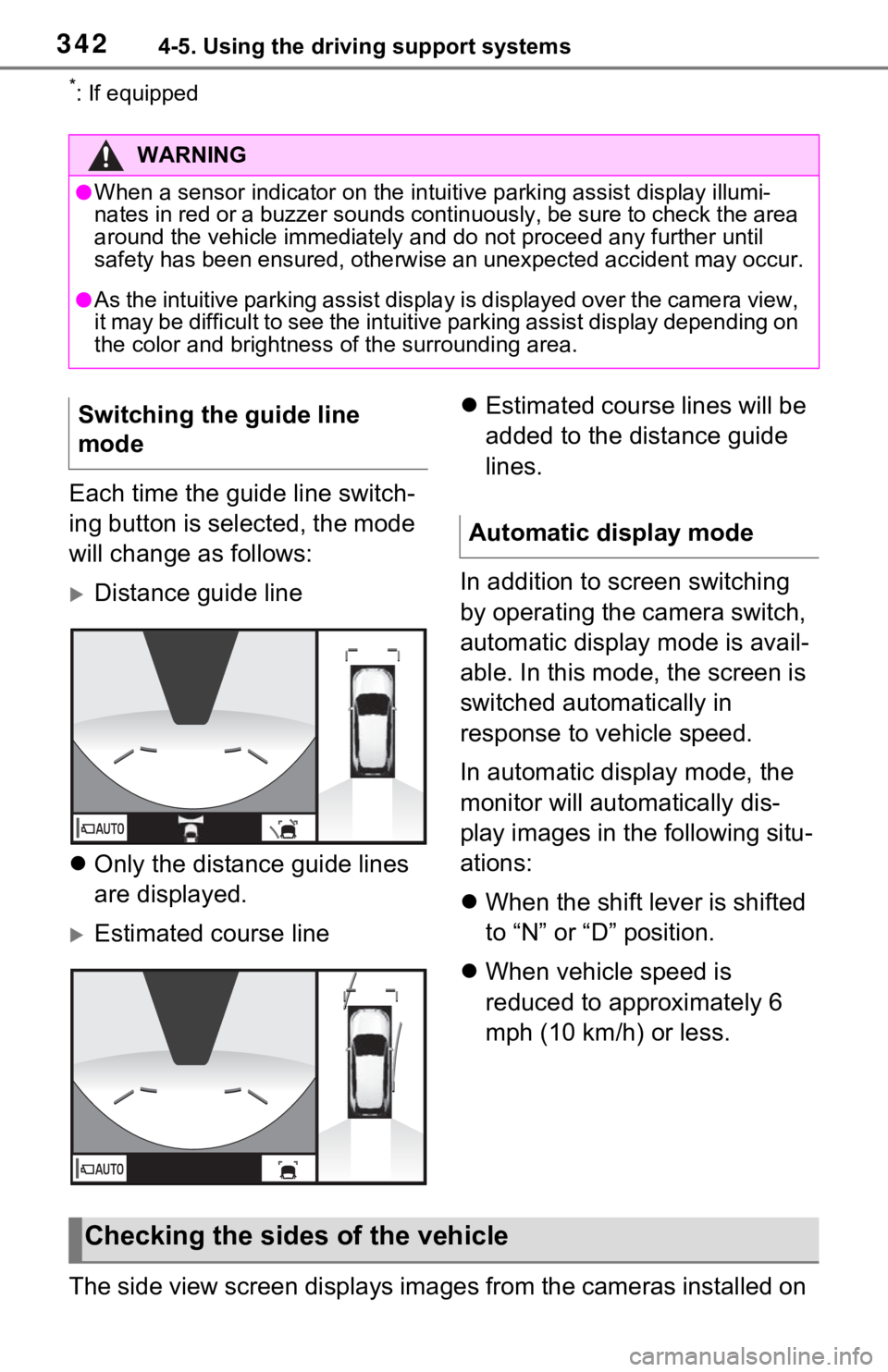
Each time the guide line switch-
ing button is selected, the mode
will change as follows:
Distance guide line
Only the distance guide lines
are displayed.
Estimated course line
Estimated course lines will be
added to the distance guide
lines.
In addition to screen switching
by operating the camera switch,
automatic display mode is avail-
able. In this mode, the screen is
switched automatically in
response to vehicle speed.
In automatic display mode, the
monitor will automatically dis-
play images in the following situ-
ations:
When the shift lever is shifted
to “N” or “D” position.
When vehicle speed is
reduced to approximately 6
mph (10 km/h) or less.
The side view screen displays images from the cameras installed on
WARNING
●When a sensor indicator on the intuitive parking assist display illumi-
nates in red or a buzzer sounds continuously, be sure to check the area
around the vehicle immediately a nd do not proceed any further until
safety has been ensured, otherwise an unexpected accident may o ccur.
●As the intuitive parking assist display is displayed over the camera view,
it may be difficult to see the intuitive parking assist display depending on
the color and brightness of the surrounding area.
Switching the guide line
mode
Automatic display mode
Checking the sides of the vehicle
Page 345 of 752
3454-5. Using the driving support systems
4
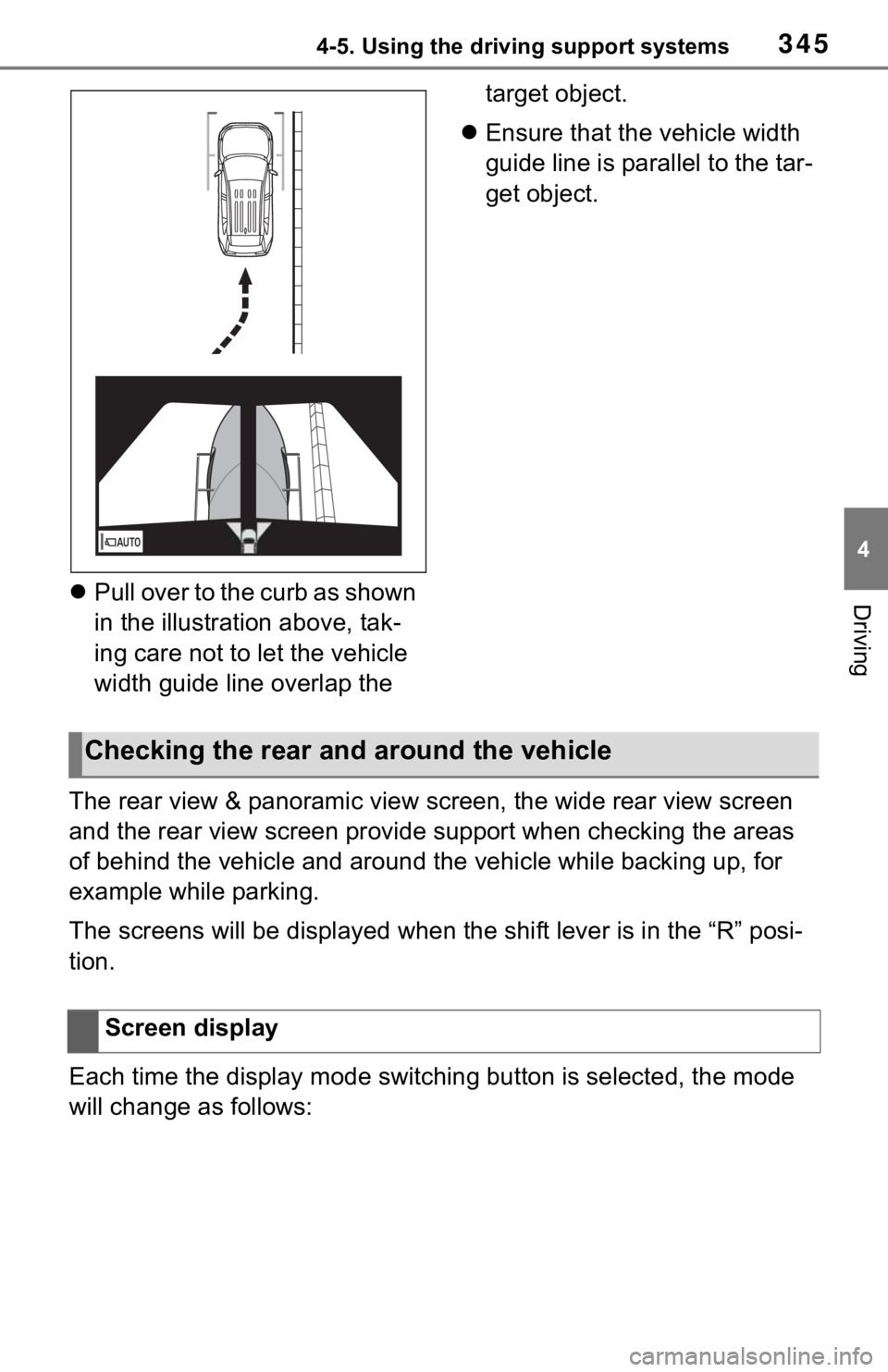
DrivingPull over to the curb as shown
in the illustration above, tak-
ing care not to let the vehicle
width guide line overlap the target object.
Ensure that the vehicle width
guide line is parallel to the tar-
get object.
The rear view & panoramic view screen, the wide rear view scree n
and the rear view screen provide support when checking the areas
of behind the vehicle and around the vehicle while backing up, for
example while parking.
The screens will be displayed when the shift lever is in the “R” posi-
tion.
Each time the display mode switching button is selected, the mo de
will change as follows:
Checking the rear and around the vehicle
Screen display
Page 346 of 752
3464-5. Using the driving support systems
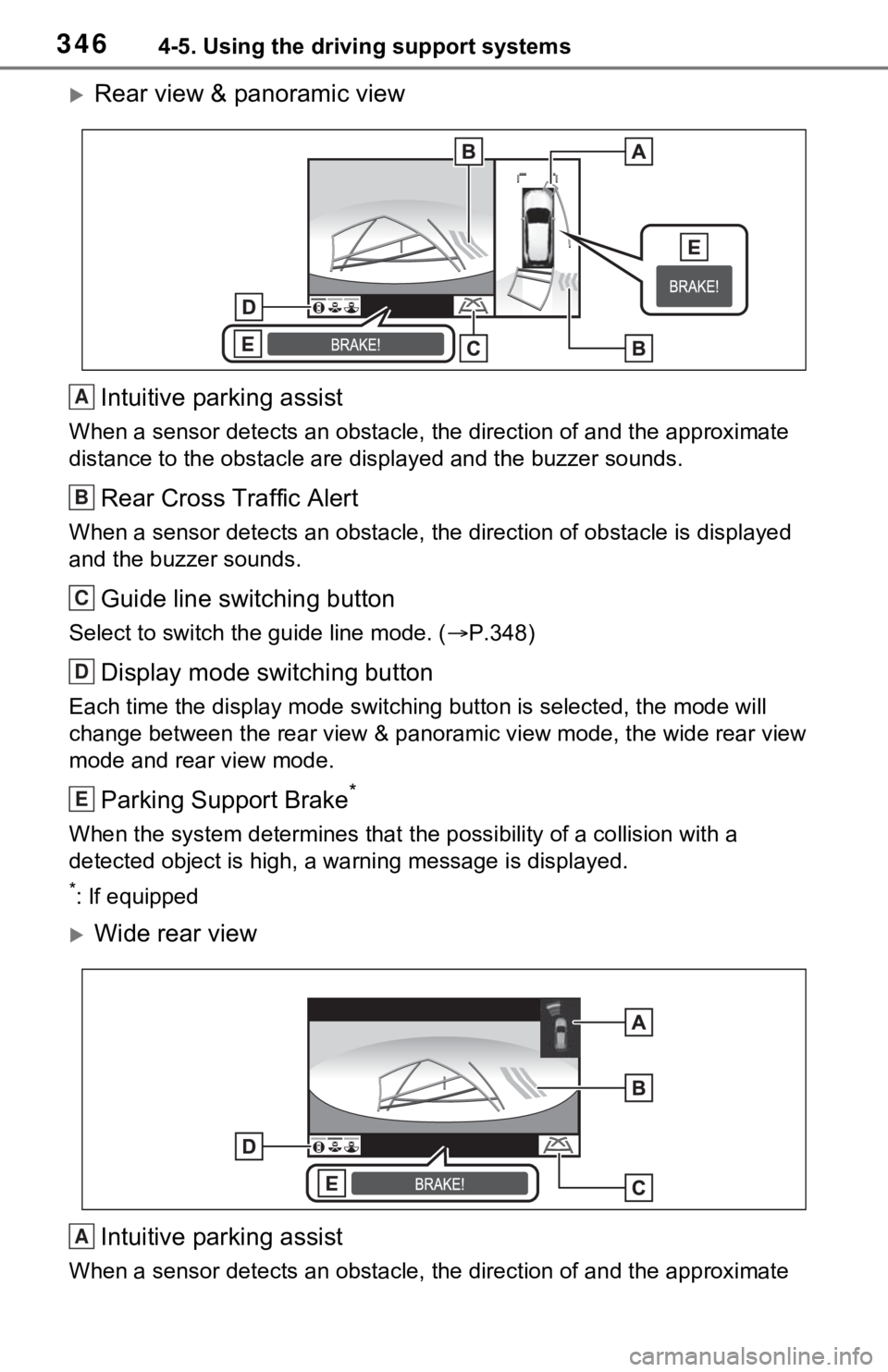
Rear view & panoramic viewIntuitive parking assist
When a sensor detects an obstacle, the direction of and the app roximate
distance to the obsta cle are displayed and the buzzer sounds.
Rear Cross Traffic Alert
When a sensor detects an obstacle, the direction of obstacle is displayed
and the buzzer sounds.
Guide line switching button
Select to switch the guide line mode. ( P.348)
Display mode switching button
Each time the display mode swit ching button is selected, the mode will
change between the rear view & panoramic view mode, the wide rear view
mode and rear view mode.
Parking Support Brake*
When the system determines that the possibility of a collision with a
detected object is high, a warning message is displayed.
*: If equipped
Wide rear view
Intuitive parking assist
When a sensor detects an obstacle, the direction of and the app roximate
A
B
C
D
E
A
Page 347 of 752
3474-5. Using the driving support systems
4
Driving
distance to the obstacle are displayed and the buzzer sounds.
Rear Cross Traffic Alert
When a sensor detects an obstacle, the direction of obstacle is displayed
and the buzzer sounds.
Guide line switching button
Select to switch the guide line mode. ( P.348)
Display mode switching button
Each time the display mode swit ching button is selected, the mode will
change between the rear view & panoramic view mode, the wide rear view
mode and rear view mode.
Parking Support Brake*
When the system determines that the possibility of a collision with a
detected object is high, a warning message is displayed.
*: If equipped
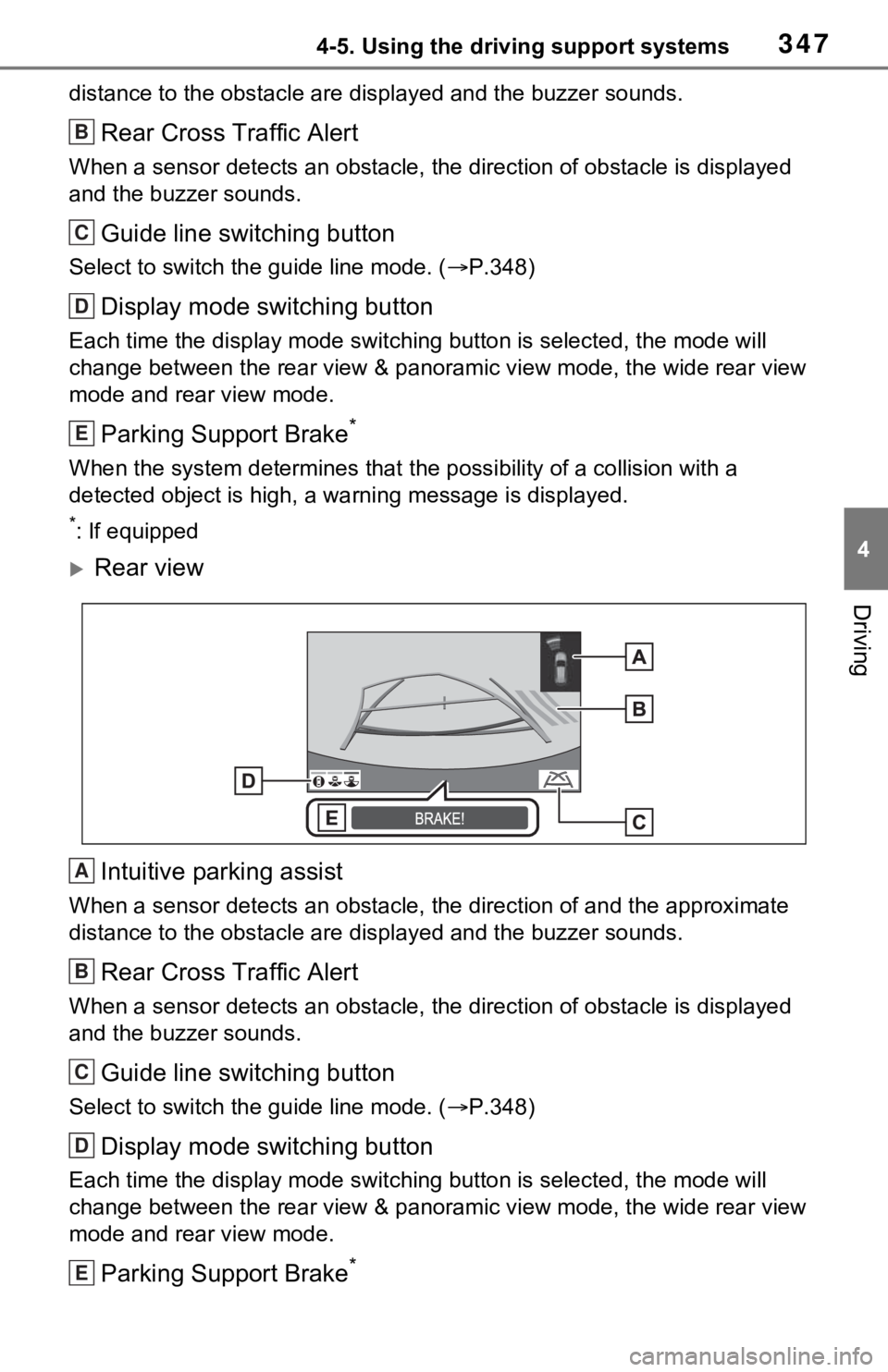
Rear view
Intuitive parking assist
When a sensor detects an obstacle, the direction of and the app roximate
distance to the obsta cle are displayed and the buzzer sounds.
Rear Cross Traffic Alert
When a sensor detects an obstacle, the direction of obstacle is displayed
and the buzzer sounds.
Guide line switching button
Select to switch the guide line mode. ( P.348)
Display mode switching button
Each time the display mode swit ching button is selected, the mode will
change between the rear view & panoramic view mode, the wide rear view
mode and rear view mode.
Parking Support Brake*
B
C
D
E
A
B
C
D
E
Page 348 of 752
3484-5. Using the driving support systems
When the system determines that the possibility of a collision with a
detected object is high, a warning message is displayed.
*: If equipped
●The monitor is canceled when the shift lever is shifted into any position
other than the “R” position.
●For details about the intuitive parking assist ( P.291), Rear Cross Traffic
Alert function ( P.288) and Parking Support Brake* function. ( P.298)
●The display position of the intuitive parking assist and the po sition of
obstacles displayed in the camera image do not match.
*: If equipped
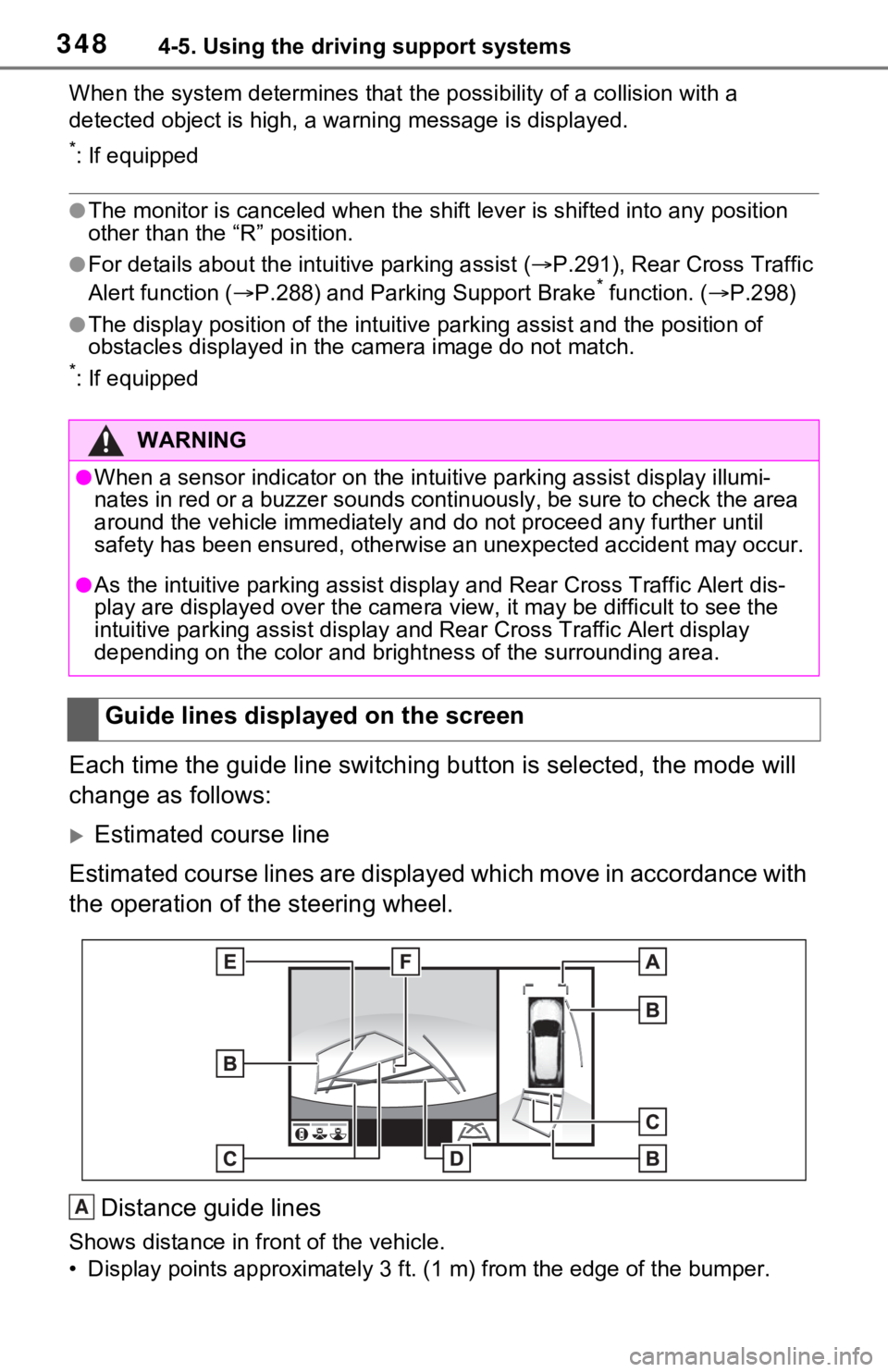
Each time the guide line switching button is selected, the mode will
change as follows:
Estimated course line
Estimated course lines are displ ayed which move in accordance w ith
the operation of the steering wheel.
Distance guide lines
Shows distance in front of the vehicle.
• Display points approximately 3 ft. (1 m) from the edge of the bumper.
WARNING
●When a sensor indicator on the intuitive parking assist display illumi-
nates in red or a buzzer sounds continuously, be sure to check the area
around the vehicle immediately a nd do not proceed any further until
safety has been ensured, otherwise an unexpected accident may o ccur.
●As the intuitive parking assist display and Rear Cross Traffic Alert dis-
play are displayed over the came ra view, it may be difficult to see the
intuitive parking assist display and Rear Cross Traffic Alert d isplay
depending on the color and brigh tness of the surrounding area.
Guide lines displayed on the screen
A
Page 368 of 752
3684-5. Using the driving support systems
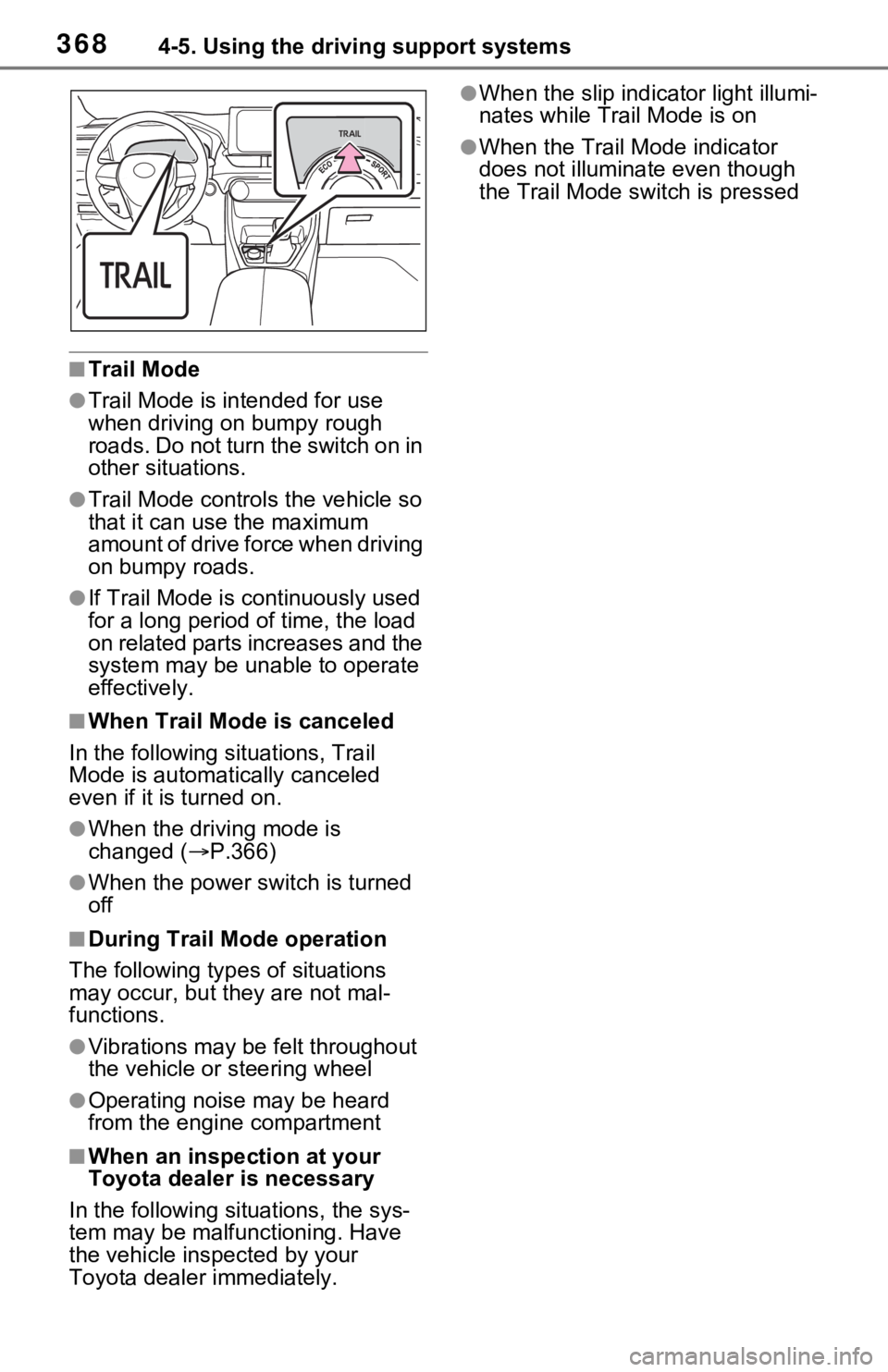
■Trail Mode
●Trail Mode is intended for use
when driving on bumpy rough
roads. Do not turn the switch on in
other situations.
●Trail Mode controls the vehicle so
that it can use the maximum
amount of drive force when driving
on bumpy roads.
●If Trail Mode is continuously used
for a long period of time, the load
on related parts increases and the
system may be un able to operate
effectively.
■When Trail Mode is canceled
In the following situations, Trail
Mode is automatically canceled
even if it is turned on.
●When the driving mode is
changed (P.366)
●When the power switch is turned
off
■During Trail Mode operation
The following types of situations
may occur, but they are not mal-
functions.
●Vibrations may be felt throughout
the vehicle or steering wheel
●Operating noise may be heard
from the engine compartment
■When an inspection at your
Toyota dealer is necessary
In the following si tuations, the sys-
tem may be malfunctioning. Have
the vehicle insp ected by your
Toyota dealer immediately.
●When the slip indica tor light illumi-
nates while Trail Mode is on
●When the Trail Mode indicator
does not illuminat e even though
the Trail Mode switch is pressed
Page 387 of 752
3875-1. Basic function
5
Audio
5-1.Basic function
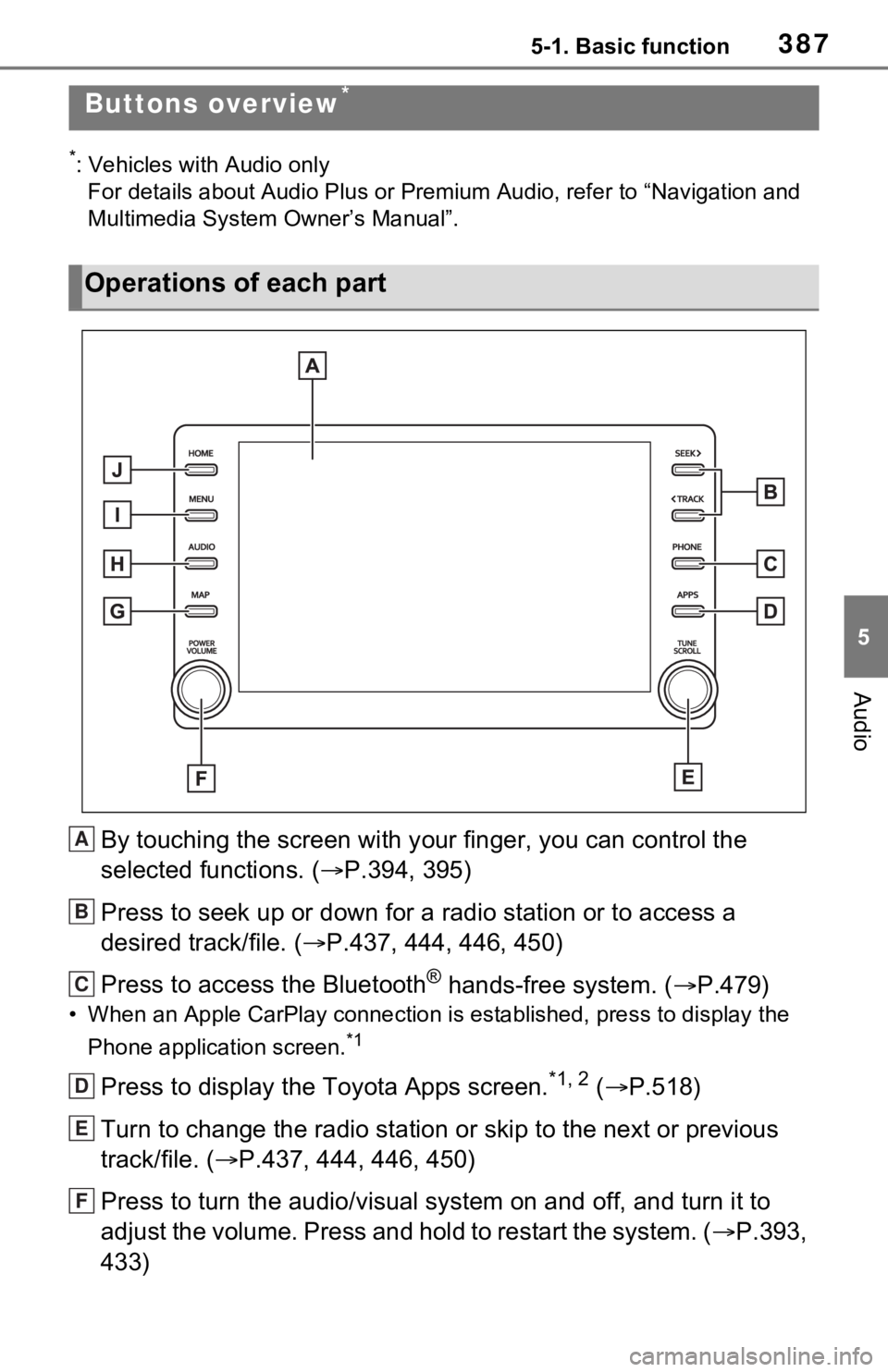
*: Vehicles with Audio onlyFor details about Audio Plus or Premium Audio, refer to “Navigation and
Multimedia System Owner’s Manual”.
By touching the screen with y our finger, you can control the
selected functions. ( P.394, 395)
Press to seek up or down for a radio station or to access a
desired track/file. ( P.437, 444, 446, 450)
Press to access the Bluetooth
® hands-free system. ( P.479)
• When an Apple CarPlay connecti on is established, press to display the
Phone application screen.
*1
Press to display the Toyota Apps screen.*1, 2 ( P.518)
Turn to change the radio station or skip to the next or previou s
track/file. ( P.437, 444, 446, 450)
Press to turn the audio/visual system on and off, and turn it t o
adjust the volume. Press and hold to restart the system. ( P.393,
433)
Buttons overview*
Operations of each part
A
B
C
D
E
F
Page 408 of 752
4085-3. Connectivity settings
is not currently connected will
switch the connection to the
function.
If the desired Bluetooth
®
device is not on the list, select
“Add New Device” to register
the device. ( P.409)
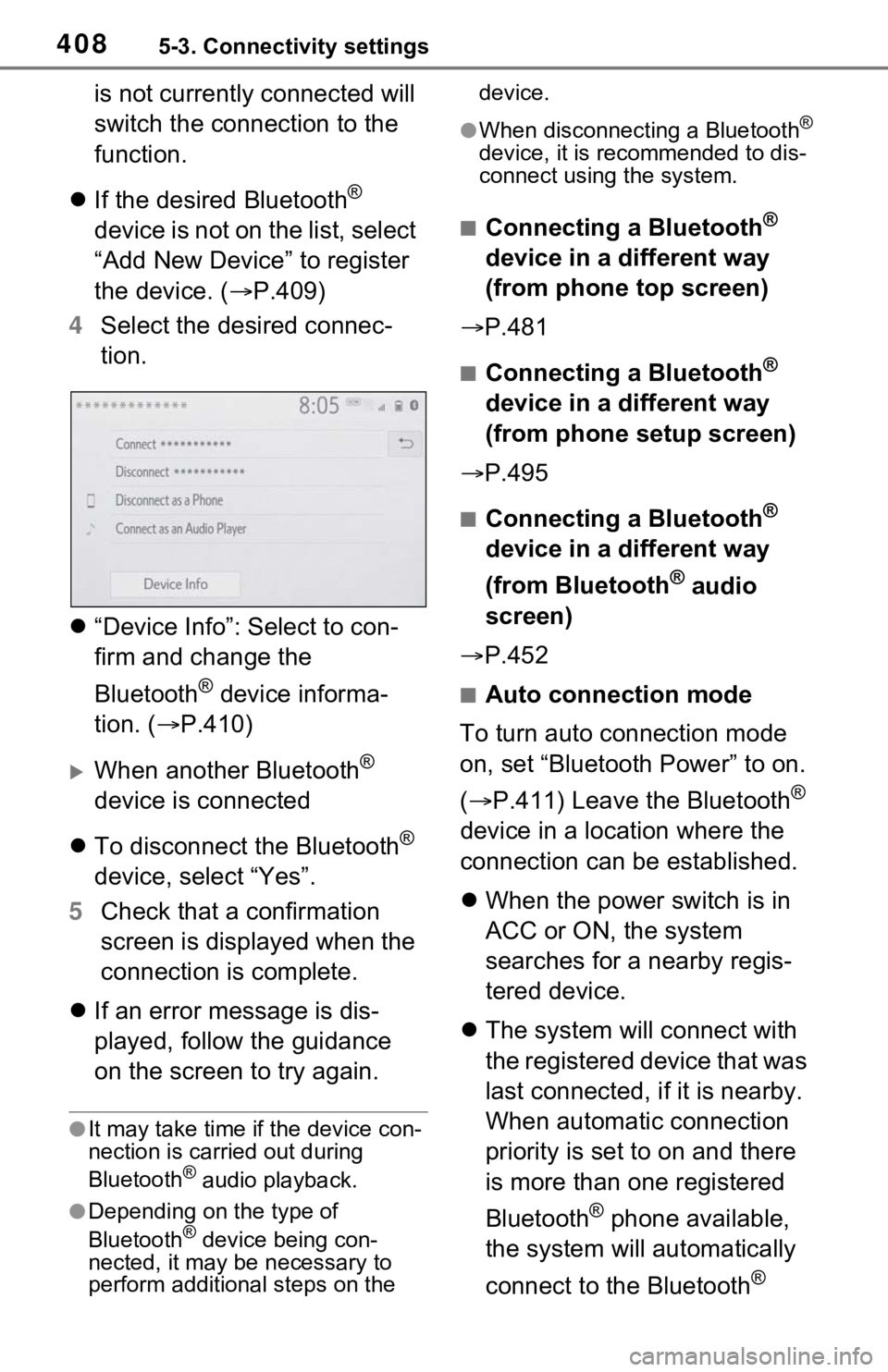
4 Select the desired connec-
tion.
“Device Info”: Select to con-
firm and change the
Bluetooth
® device informa-
tion. ( P.410)
When another Bluetooth®
device is connected
To disconnect the Bluetooth
®
device, select “Yes”.
5 Check that a confirmation
screen is displayed when the
connection is complete.
If an error message is dis-
played, follow the guidance
on the screen to try again.
●It may take time if the device con-
nection is carried out during
Bluetooth
® audio playback.
●Depending on the type of
Bluetooth® device being con-
nected, it may be necessary to
perform additional steps on the device.
●When disconnecting a Bluetooth®
device, it is recommended to dis-
connect using the system.
■Connecting a Bluetooth®
device in a different way
(from phone top screen)
P.481
■Connecting a Bluetooth®
device in a different way
(from phone setup screen)
P.495
■Connecting a Bluetooth®
device in a different way
(from Bluetooth
® audio
screen)
P.452
■Auto connection mode
To turn auto connection mode
on, set “Bluetooth Power” to on.
( P.411) Leave the Bluetooth
®
device in a location where the
connection can be established.
When the power switch is in
ACC or ON, the system
searches for a nearby regis-
tered device.
The system will connect with
the registered device that was
last connected, i f it is nearby.
When automatic connection
priority is set to on and there
is more than one registered
Bluetooth
® phone available,
the system will automatically
connect to the Bluetooth
®