audio TOYOTA RAV4 PRIME 2022 User Guide
[x] Cancel search | Manufacturer: TOYOTA, Model Year: 2022, Model line: RAV4 PRIME, Model: TOYOTA RAV4 PRIME 2022Pages: 624, PDF Size: 24.01 MB
Page 158 of 624
1582-2. Charging
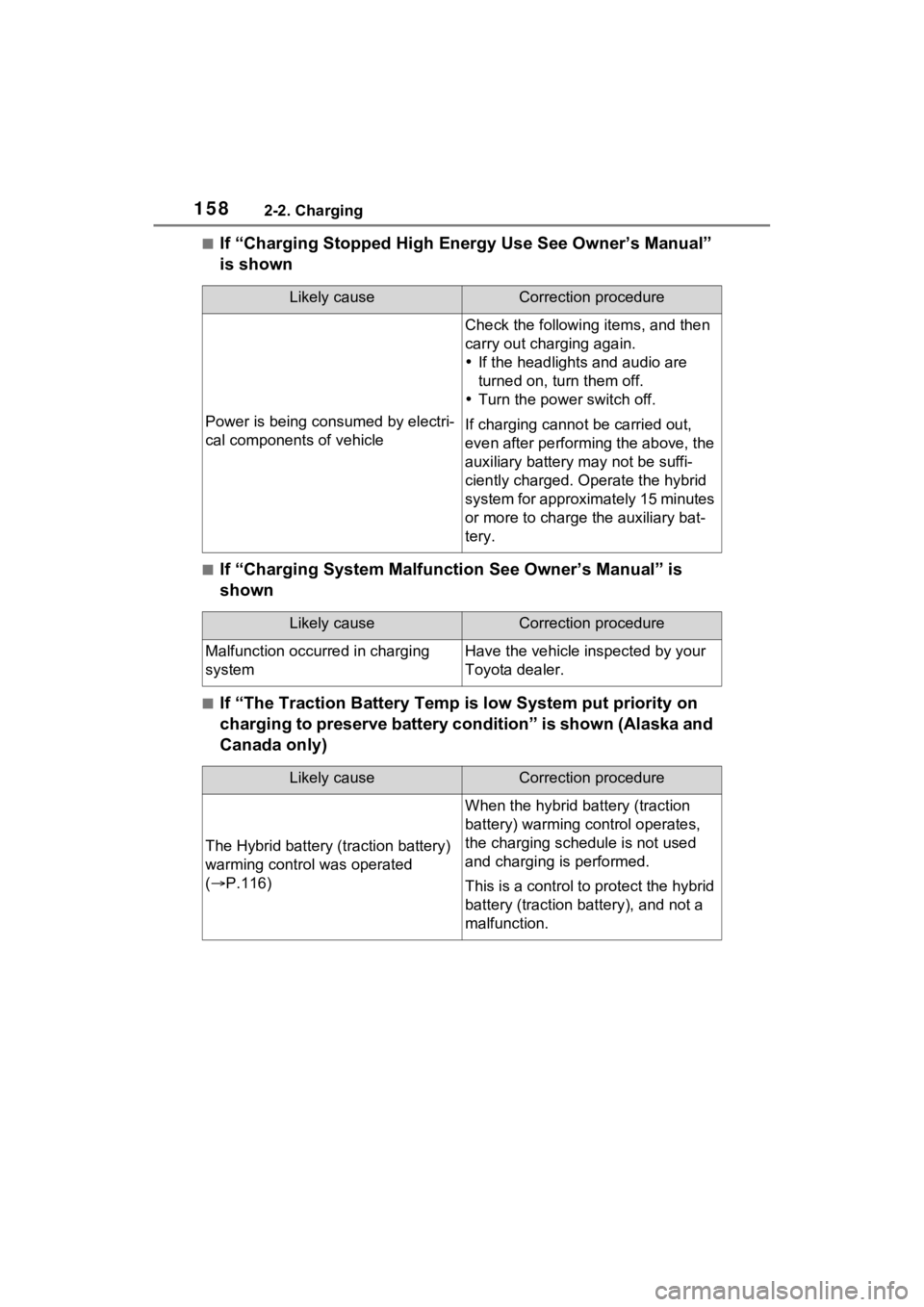
■If “Charging Stopped High Energy Use See Owner’s Manual”
is shown
■If “Charging System Malfunction See Owner’s Manual” is
shown
■If “The Traction Battery Temp is low System put priority on
charging to preserve battery condition” is shown (Alaska and
Canada only)
Likely causeCorrection procedure
Power is being consumed by electri-
cal components of vehicle
Check the following items, and then
carry out charging again.
If the headlights and audio are
turned on, t urn them off.
Turn the power switch off.
If charging cannot be carried out,
even after performing the above, the
auxiliary battery may not be suffi-
ciently charged. Op erate the hybrid
system for approximately 15 minutes
or more to charge the auxiliary bat-
tery.
Likely causeCorrection procedure
Malfunction occurred in charging
systemHave the vehicle inspected by your
Toyota dealer.
Likely causeCorrection procedure
The Hybrid battery ( traction battery)
warming control was operated
( P.116)
When the hybrid battery (traction
battery) warming control operates,
the charging schedule is not used
and charging is performed.
This is a control to protect the hybrid
battery (traction battery), and not a
malfunction.
Page 170 of 624
1703-1. Instrument cluster
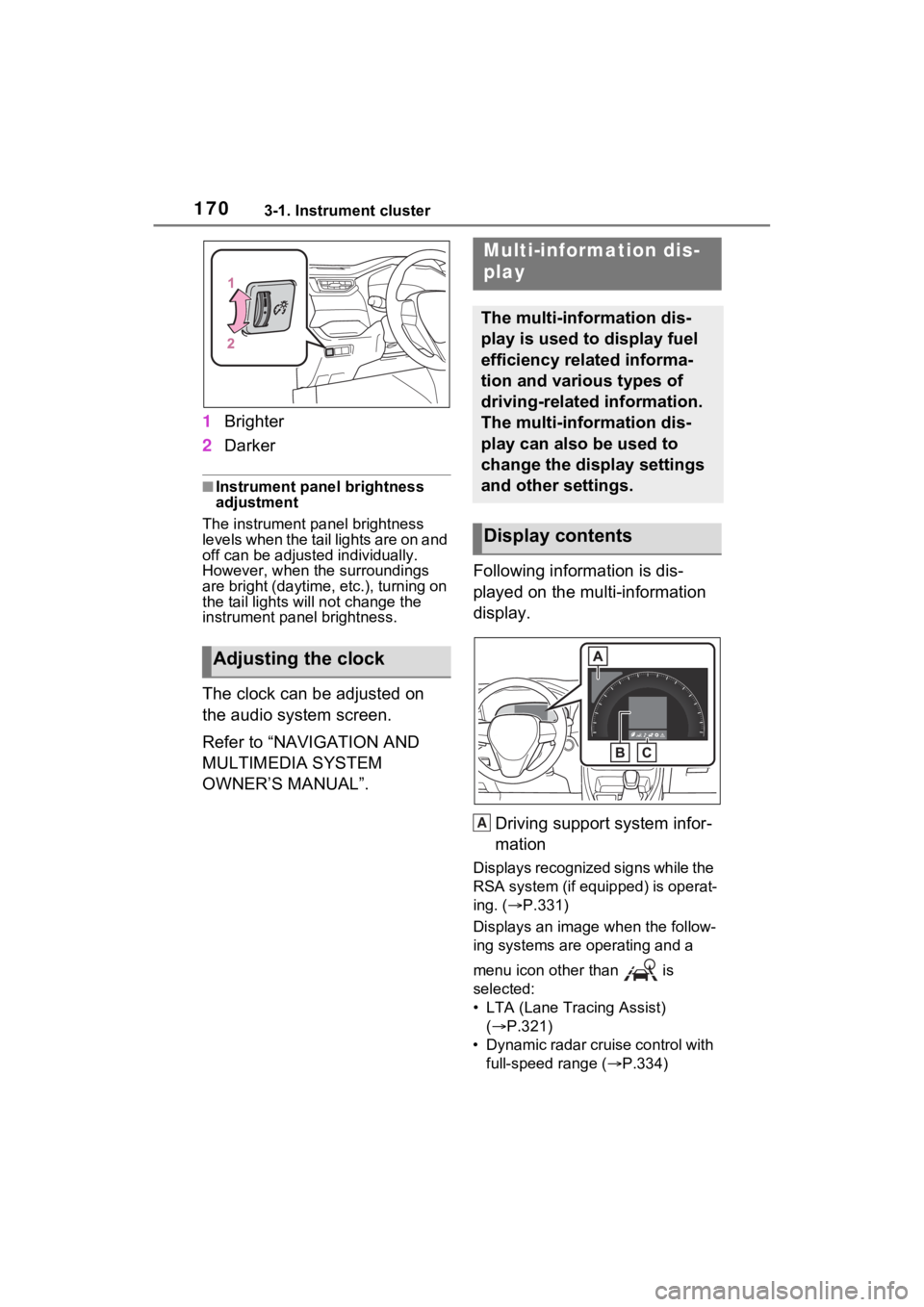
1Brighter
2 Darker
■Instrument panel brightness
adjustment
The instrument panel brightness
levels when the tail lights are on and
off can be adjusted individually.
However, when the surroundings
are bright (daytime, etc.), turning on
the tail lights will not chan ge the
instrument panel brightness.
The clock can be adjusted on
the audio system screen.
Refer to “NAVIGATION AND
MULTIMEDIA SYSTEM
OWNER’S MANUAL”. Following information is dis-
played on the multi-information
display.
Driving support system infor-
mation
Displays recognized signs while the
RSA system (if equipped) is operat-
ing. ( P.331)
Displays an image when the follow-
ing systems are operating and a
menu icon other than is
selected:
• LTA (Lane Tracing Assist) ( P.321)
• Dynamic radar cruise control with full-speed range ( P.334)
Adjusting the clock
Multi-information dis-
play
The multi-information dis-
play is used to display fuel
efficiency related informa-
tion and various types of
driving-related information.
The multi-information dis-
play can also be used to
change the display settings
and other settings.
Display contents
A
Page 172 of 624
1723-1. Instrument cluster
Select to display fuel consump-
tion data in various forms.
■Power Consumption/Fuel
Economy
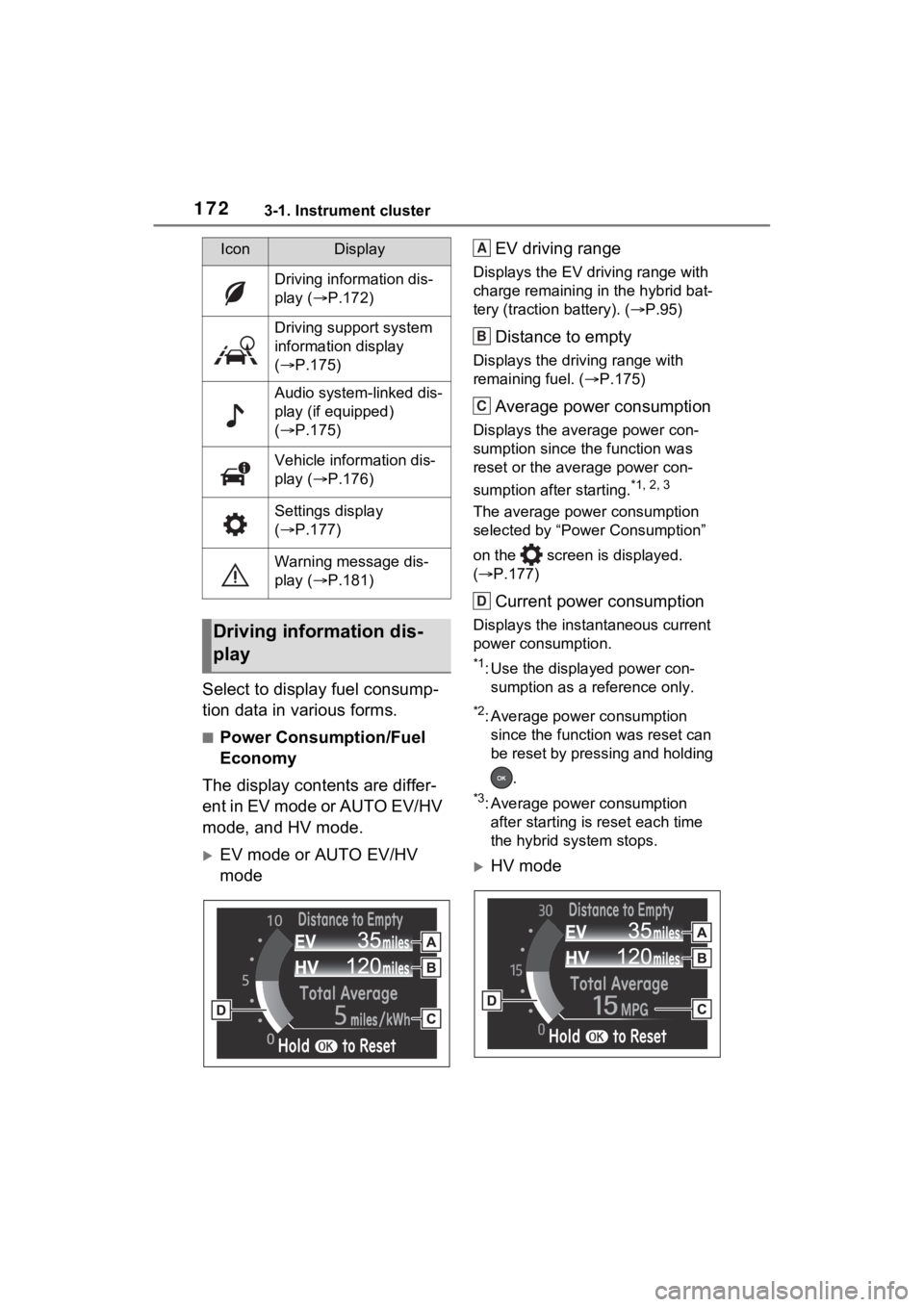
The display contents are differ-
ent in EV mode or AUTO EV/HV
mode, and HV mode.
EV mode or AUTO EV/HV
mode EV driving range
Displays the EV driving range with
charge remaining in the hybrid bat-
tery (traction
battery). (P.95)
Distance to empty
Displays the driving range with
remaining fuel. ( P.175)
Average power consumption
Displays the average power con-
sumption since the function was
reset or the average power con-
sumption after starting.
*1, 2, 3
The average power consumption
selected by “Power Consumption”
on the screen is displayed.
( P.177)
Current power consumption
Displays the instantaneous current
power consumption.
*1: Use the displayed power con-
sumption as a reference only.
*2: Average power consumption since the function was reset can
be reset by pressing and holding
.
*3: Average power consumption after starting is reset each time
the hybrid system stops.
HV mode
IconDisplay
Driving information dis-
play ( P.172)
Driving support system
information display
( P.175)
Audio system-linked dis-
play (if equipped)
( P.175)
Vehicle information dis-
play ( P.176)
Settings display
( P.177)
Warning message dis-
play ( P.181)
Driving information dis-
play
A
B
C
D
Page 175 of 624
1753-1. Instrument cluster
3
Vehicle status information and indicators
■Electricity consumption
When the unit is set to “MPH”:
Electricity consum ption is the con-
sumption rate of the electricity when
EV driving is performed and equiva-
lent to the fuel c onsumption for the
gasoline vehicles. F or this vehicle,
driven distance per kWh of electric-
ity consumed (“mile s/kWh”) is dis-
played as electricity consumption on
each screen.
When the unit is set to “km/h”:
Electricity consum ption is the con-
sumption rate of the electricity when
EV driving is performed and equiva-
lent to the fuel c onsumption for the
gasoline vehicles. F or this vehicle,
electricity consumed per 100 km
(“kWh/100 km”) i s displayed as
electricity consumption on each
screen.
■EV driving range
●When the air conditioning system
is operating, is displayed next
to the EV driving range and the
EV driving range with the air con-
ditioning system on is displayed.
●The EV driving range may shorten
even when not driving due to
power consumption by the sys-
tem.
●For details, refer to “EV driving
range” ( P.95)
■Distance to empty
●This distance is computed based
on your averag e fuel consump-
tion. As a result, the actual dis-
tance that can be driven may
differ from tha t displayed.
●When only a small amount of fuel
is added to the tank, the display
may not be updated. When refuel-
ing, turn the power switch off. If
the vehicle is refueled without
turning the power switch off, the
display may not be updated.
●When “Refuel” is displayed, the remaining fuel amount is low and
the distance that can be driven
with the remaining fuel cannot be
calculated.
Refuel immediately.
■ECO Accelerator Guid-
ance/“Eco Score” will not oper-
ate when
The ECO Accelerator Guid-
ance/“Eco Score” will not operate in
the following situations:
●The Hybrid System Indicator is not
operating.
●The vehicle is bei ng driven using
the dynamic radar cruise control
with full-speed range.
■Driving support system
information display
Select to display the operational
status of the following systems:
LTA (Lane Tracing Assist)
( P.321)
Dynamic radar cruise control
with full-speed range
( P.334)
■Navigation system-linked
display (if equipped)
Select to display the following
navigation system-linked infor-
mation.
Route guidance
Compass display
Select to enable selection of an
Driving support system
information display
Audio system-linked dis-
play (if equipped)
Page 176 of 624
1763-1. Instrument cluster
audio source or track on the dis-
play.
■Drive information
2 items that are selected using
the “Drive Info Items” setting
(average speed, distance and
total time) can be displayed ver-
tically.
The displayed information
changes according to the “Drive
Info Type” setting (since the sys-
tem was started or between
resets). ( P.177)
Use the displayed information as a
reference only.
Following items will be displayed.
“Trip”
• “Average Speed”: Displays the
average vehicl e speed since
hybrid system start
*
• “Distance”: Displ ays the distance
driven since hybrid system start
*
• “Total Time”: Displays the elapsed time since hybrid system
start
*
*
: These items are reset each time the hybrid system stops.
“Total”
• “Average Speed”: Displays the
average vehicle speed since the
display was reset
*
• “Distance”: Displ ays the distance
driven since the display was
reset
*
• “Total Time”: Displays the elapsed time since the display
was reset
*
*
: To reset, display the desired item and press and hold .
■Energy monitor
P.187
■Tire pressure
P.467
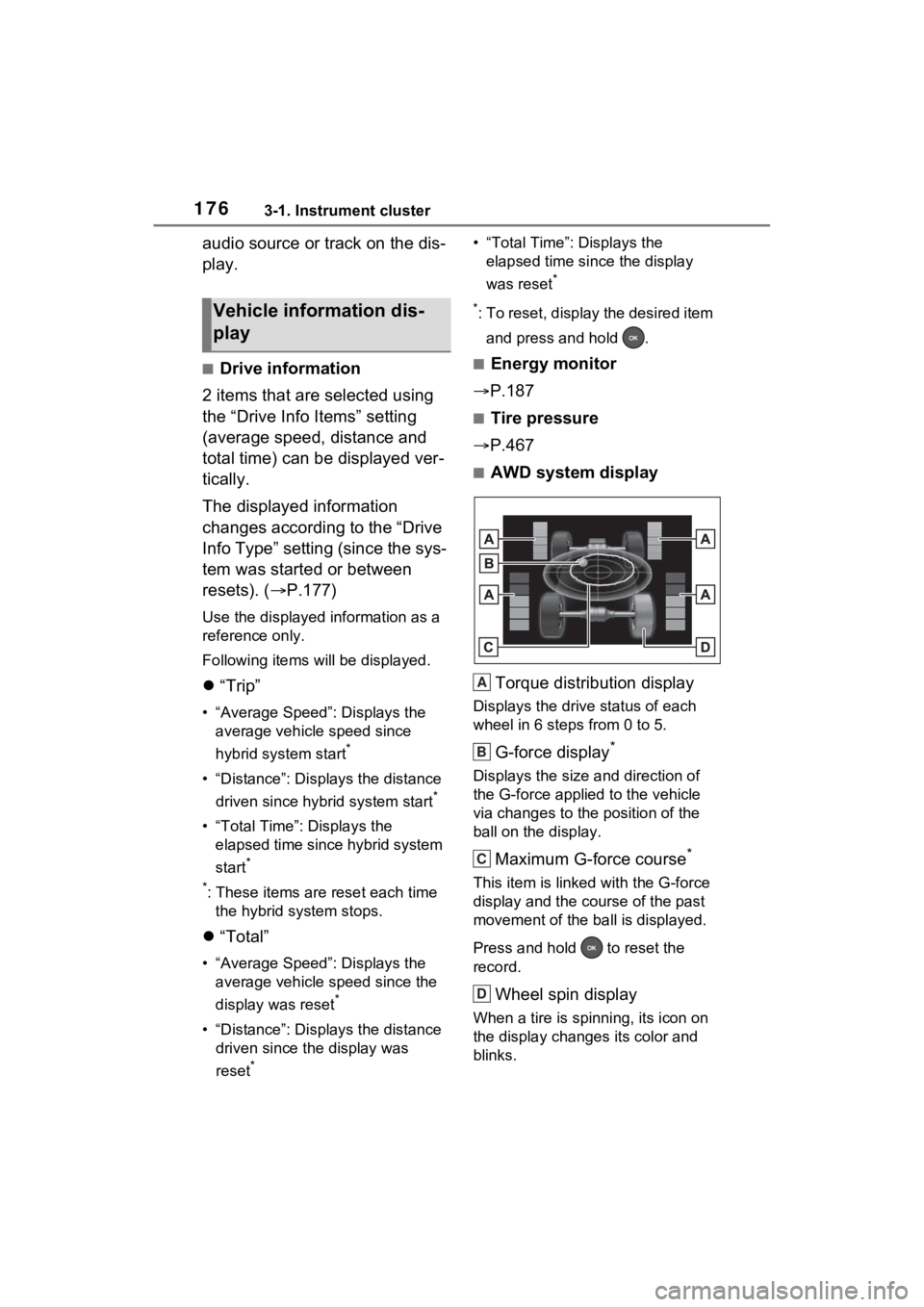
■AWD system display
Torque distribution display
Displays the drive status of each
wheel in 6 steps from 0 to 5.
G-force display*
Displays the size a nd direction of
the G-force applied to the vehicle
via changes to the position of the
ball on the display.
Maximum G-force course*
This item is linke d with the G-force
display and the co urse of the past
movement of the ba ll is displayed.
Press and hold to reset the
record.
Wheel spin display
When a tire is spi nning, its icon on
the display changes its color and
blinks.
Vehicle information dis-
play
A
B
C
D
Page 180 of 624

1803-1. Instrument cluster
Select to set up the following items.
• “Hybrid System”
Select to enable/disable the ECO
Accelerator Guidance (P.173).
• “Fuel Economy”
Select to change the display on
Fuel Economy ( P.172).
• “Power Consumption”
Select to change the display on
Power Consumption ( P.172).
(Audio settings) (if
equipped)
Select to enable/disable
screen.
(Vehicle information dis-
play settings)
• “Display Contents”
Select to set up the following items.
“Energy monitor”:
Select to enable/disable the Energy
monitor ( P.187)
“AWD”:
Select to enable/disable the AWD
system display ( P.176).
• “Drive Info Type”
Select to change the drive informa-
tion type display between trip and
total. ( P.176).
• “Drive Info Items”
Select to set the items on the upper
and lower side of the drive informa-
tion screen from three items, aver-
age speed, distance and total time.
“Closing Display”
Select to set the i tems displayed
when the power switch is turned off.
“Pop-Up Display” (if
equipped)
Select to enable/d isable the follow-
ing pop-up displays, which may
appear in some situations.
• Intersection guidance display of the navigation s ystem-linked sys-
tem (if equipped)
• Incoming call display of the hands-free phone system (if
equipped)
• Audio operation (if equipped)
• Volume operation (if equipped)
• Voice control (if equipped)
“Calender”
Select to set up the calender.
This can only be set if GPS calibra-
tion of clock is turn ed off in the mul-
timedia system settings.
“MID OFF”
A blank screen is displayed.
“Default Settings”
Select to reset the meter display
settings.
■Suspension of the settings dis-
play
●In the following situations, opera-
tion of the settings display will be
temporarily suspended.
• When a warning message appears on the multi-information
display
• When the vehicle begins to move
●Settings for functions not
equipped to the vehicle are not
displayed.
●When a function is turned off, the
related settings for that function
are not selectable.
Page 184 of 624
1843-1. Instrument cluster
Vehicle settings and the content
displayed on the head-up dis-
play can be changed by using
the meter control switches.
1Operate or of the
meter control switches and
select on the multi-infor-
mation display.
2 Operate or of the
meter control switches and
select “HUD Main” to set up
the following items.
■Enabling/disabling the
head-up display
Press to enable/disable the
head-up display.
■Changing the head-up dis-
play settings
Press and hold to display the
setting screen and change the
following settings:
Brightness and vertical posi-
tion of the head-up display
Select to adjust t he brightness or
vertical position of the head-up dis-
play.
Display content
Select to change the display
between the following:
• No content
• Hybrid System Indicator
• Tachometer
Select to enable/d isable the follow-
ing items: • Route guidance to destination (if
equipped)
• Driving support system informa- tion display
• Compass (if equipped)
• Audio system operation status (if equipped)
Display angle
Select to adjus t the angle of the
head-up display.
■Enabling/disabling of the head-
up display
If the head-up display is disabled, it
will remain disabled when the power
switch is turned off then back to ON.
■Display brightness
The brightness of the head-up dis-
play can be adjusted on screen
of the multi-information display.
Also, it is automatically adjusted
according to the ambient brightness.
Using the head-up display
WARNING
■Caution for changing settings
of the head-up display
If the hybrid system is operating
when changing the display set-
tings, ensure that the vehicle is
parked in a place with adequate
ventilation. In a closed area such
as a garage, exhaust gases
including harmful carbon monox-
ide (CO) may collect and enter
the vehicle. This may lead to
death or a serious health hazard.
Page 186 of 624
1863-1. Instrument cluster
that displayed on the multi-informa-
tion display. For details, refer to the
explanations of each system.
■Audio system operation
status (if equipped)
Displayed when an audio
remote control switch on the
steering wheel is operated.
■Hands-free system status
(if equipped)
Displayed when the hands-free
system is operated.
■Outside temperature dis-
play
Displayed when the power
switch is turned to ON or when
the low outside temperature
indicator is flashing.
■When a pop-up display is dis-
played
When a pop-up display is displayed,
a current display may no longer be
displayed. In this case, the display
will return after the pop-up display
disappears.
■Outside temperature display
●When the ambient temperature is
approximately 3°C (37°F) or
lower, will flash for approxi-
mately 10 seconds and the out-
side temperature display will turn
off.
●In the following si tuations, the cor-
rect outside tempe rature may not
be displayed, or the display may
take longer than normal to
change:
• When stopped (including when using “My Room Mode”), or driv-
ing at low speeds (less than 20
km/h [12 mph])
• When the outside temperature has changed suddenly (at the
entrance/exit of a
garage, tunnel,
etc.)
●When “--” or “E” i s displayed, the
system may be malfunctioning.
Take your vehicle to your Toyota
dealer.
Display content selected by
“HUD Driving Support” on the
screen is displayed.
( P.184)
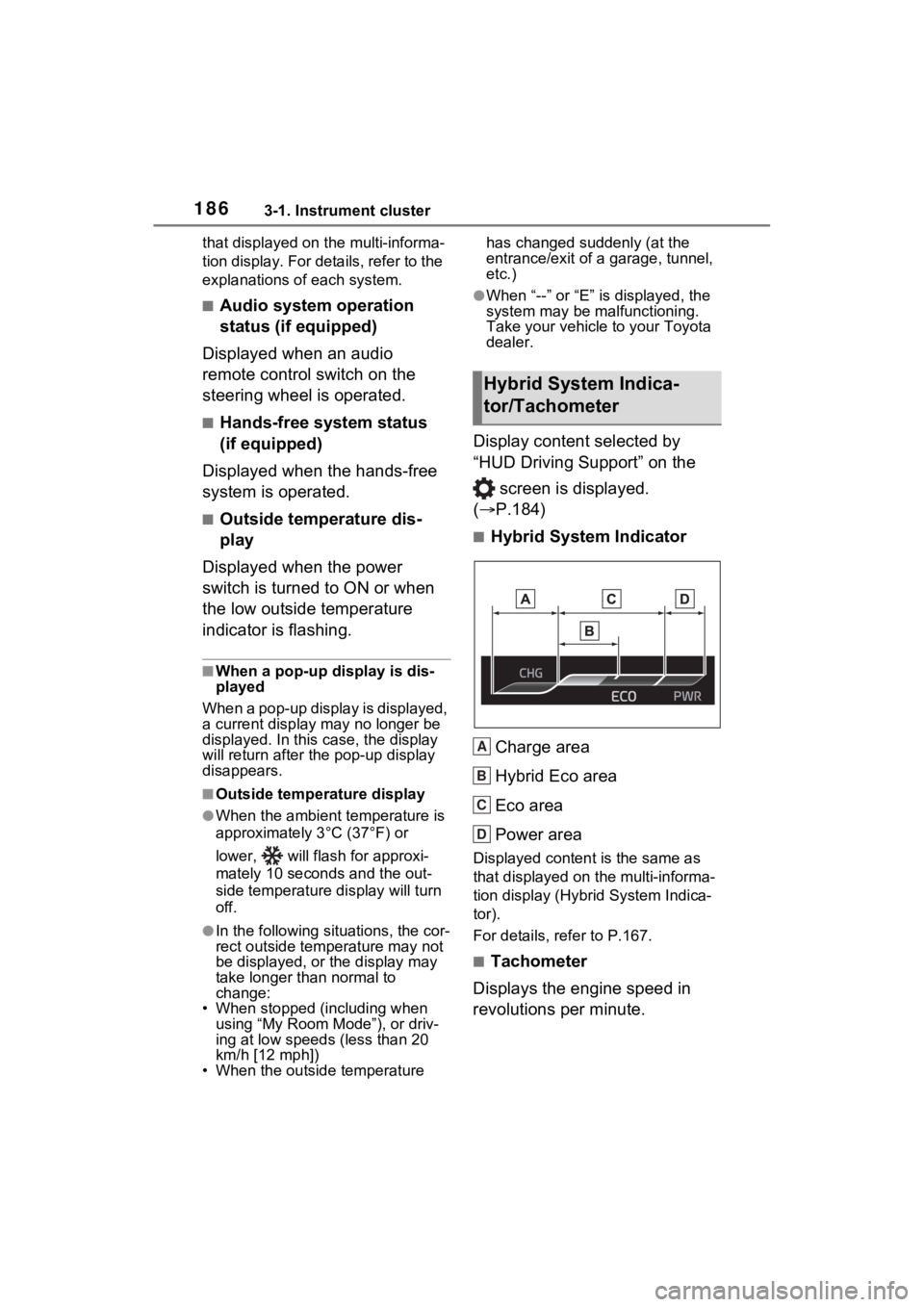
■Hybrid System Indicator
Charge area
Hybrid Eco area
Eco area
Power area
Displayed content is the same as
that displayed on the multi-informa-
tion display (Hybrid System Indica-
tor).
For details, refer to P.167.
■Tachometer
Displays the engine speed in
revolutions per minute.
Hybrid System Indica-
tor/Tachometer
A
B
C
D
Page 187 of 624
1873-1. Instrument cluster
3
Vehicle status information and indicators
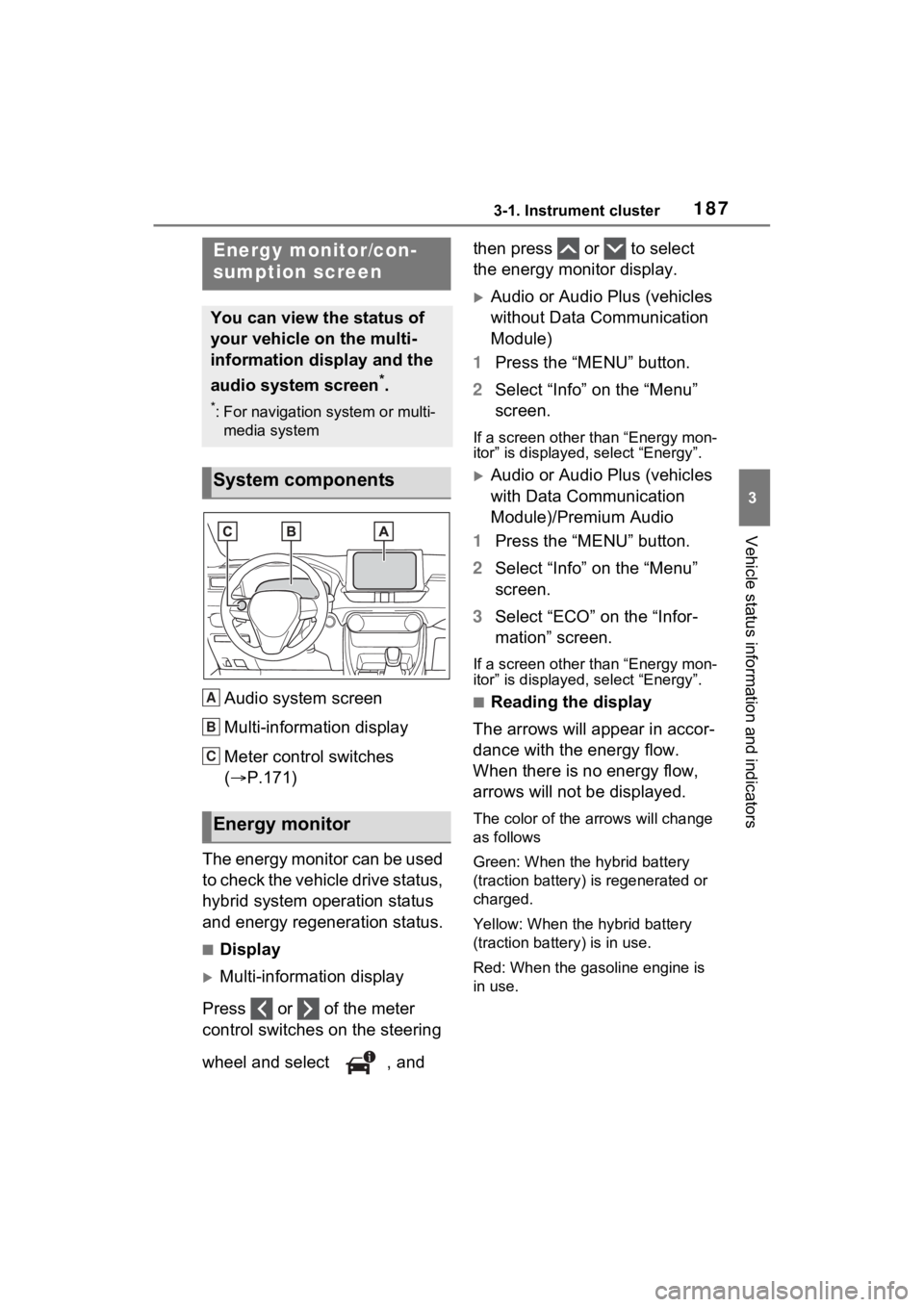
Audio system screen
Multi-information display
Meter control switches
(P.171)
The energy monitor can be used
to check the vehicle drive status,
hybrid system operation status
and energy regeneration status.
■Display
Multi-information display
Press or of the meter
control switches on the steering
wheel and select , and then press or to select
the energy monitor display.
Audio or Audio Plus (vehicles
without Data Communication
Module)
1 Press the “MENU” button.
2 Select “Info” on the “Menu”
screen.
If a screen other than “Energy mon-
itor” is displayed, select “Energy”.
Audio or Audio Plus (vehicles
with Data Communication
Module)/Premium Audio
1 Press the “MENU” button.
2 Select “Info” on the “Menu”
screen.
3 Select “ECO” on the “Infor-
mation” screen.
If a screen other than “Energy mon-
itor” is displayed, select “Energy”.
■Reading the display
The arrows will appear in accor-
dance with the energy flow.
When there is no energy flow,
arrows will not be displayed.
The color of the arrows will change
as follows
Green: When the hybrid battery
(traction battery) is regenerated or
charged.
Yellow: When the hybrid battery
(traction battery) is in use.
Red: When the gasoline engine is
in use.
Energy monitor/con-
sumption screen
You can view the status of
your vehicle on the multi-
information display and the
audio system screen
*.
*: For navigation system or multi-
media system
System components
Energy monitor
A
B
C
Page 188 of 624
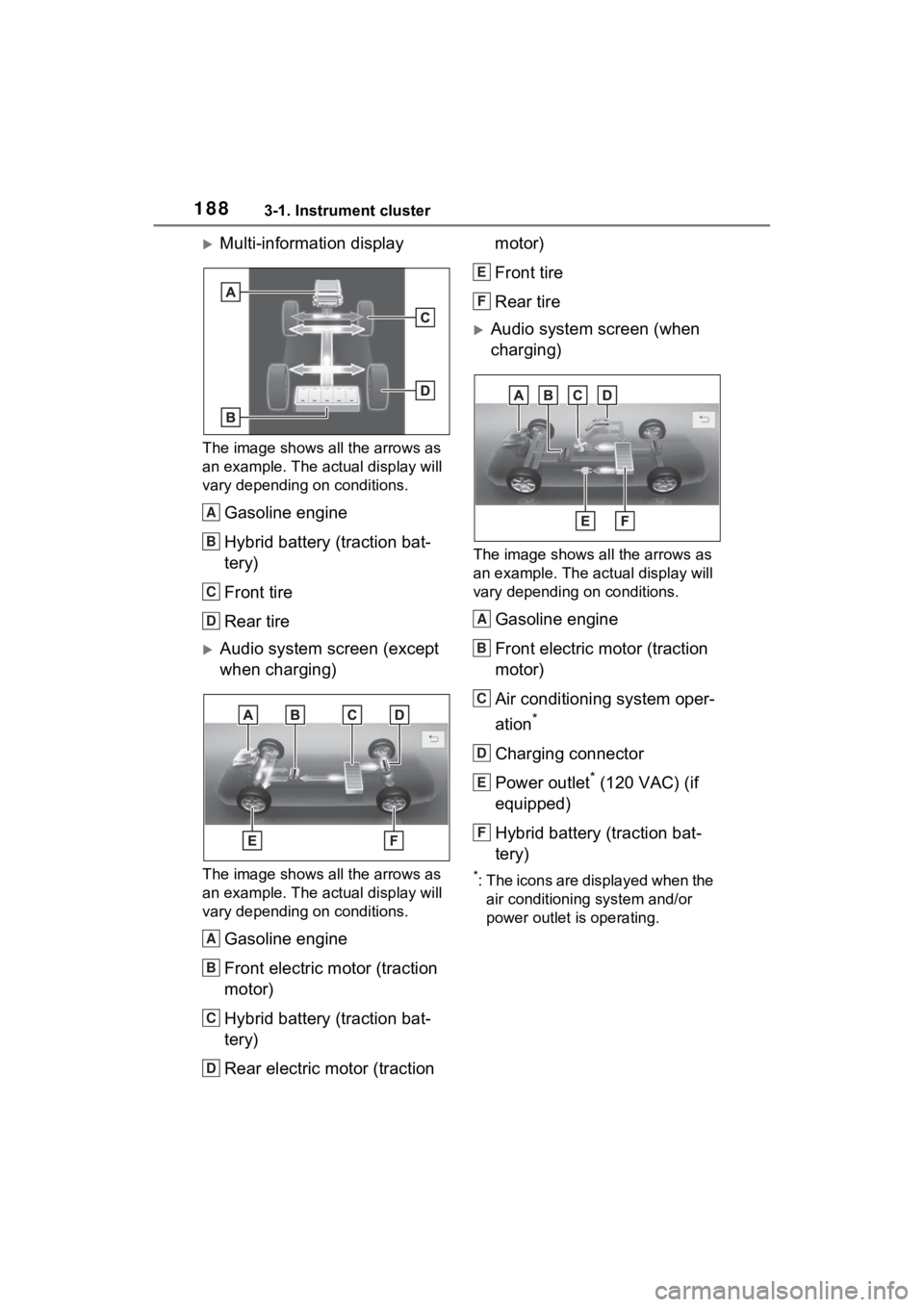
1883-1. Instrument cluster
Multi-information display
The image shows all the arrows as
an example. The actual display will
vary depending on conditions.
Gasoline engine
Hybrid battery (traction bat-
tery)
Front tire
Rear tire
Audio system screen (except
when charging)
The image shows all the arrows as
an example. The actual display will
vary depending on conditions.
Gasoline engine
Front electric motor (traction
motor)
Hybrid battery (traction bat-
tery)
Rear electric motor (traction motor)
Front tire
Rear tire
Audio system screen (when
charging)
The image shows all the arrows as
an example. The ac
tual display will
vary depending on conditions.
Gasoline engine
Front electric motor (traction
motor)
Air conditioning system oper-
ation
*
Charging connector
Power outlet
* (120 VAC) (if
equipped)
Hybrid battery (traction bat-
tery)
*: The icons are displayed when the air conditioning system and/or
power outlet is operating.
A
B
C
D
A
B
C
D
E
F
A
B
C
D
E
F