ECO mode TOYOTA SEQUOIA 2010 2.G User Guide
[x] Cancel search | Manufacturer: TOYOTA, Model Year: 2010, Model line: SEQUOIA, Model: TOYOTA SEQUOIA 2010 2.GPages: 660, PDF Size: 12.29 MB
Page 247 of 660
247
2-5. Driving information
2
When driving
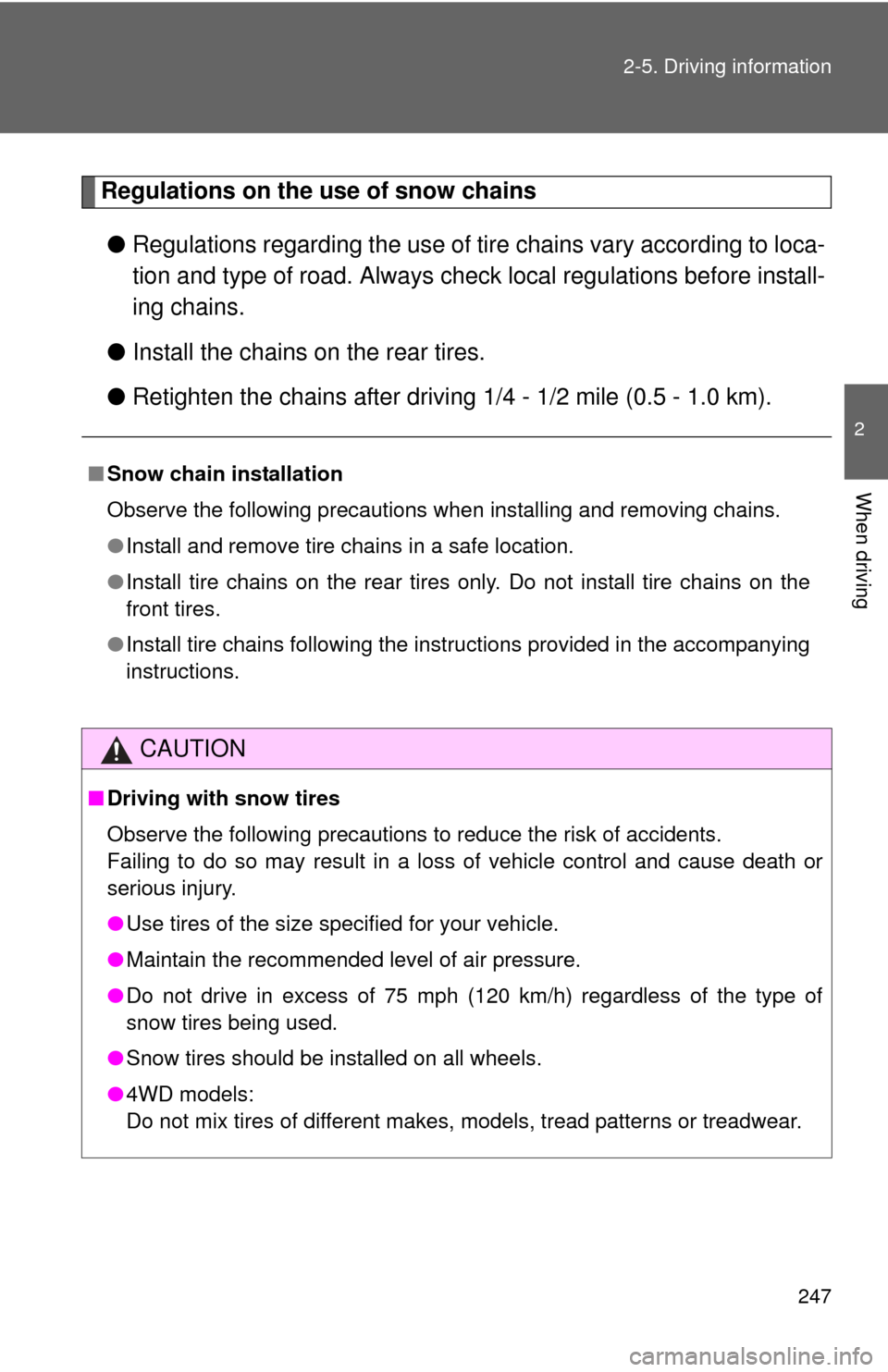
Regulations on the use of snow chains
● Regulations regarding the use of tire chains vary according to loca-
tion and type of road. Always check local regu lations before install-
ing chains.
● Install the chains on the rear tires.
● Retighten the chains after drivi ng 1/4 - 1/2 mile (0.5 - 1.0 km).
■Snow chain installation
Observe the following precautions when installing and removing chains.
●Install and remove tire chains in a safe location.
● Install tire chains on the rear tires only. Do not install tire chains on the
front tires.
● Install tire chains following the instructions provided in the accompanying
instructions.
CAUTION
■Driving with snow tires
Observe the following precautions to reduce the risk of accidents.
Failing to do so may result in a loss of vehicle control and cause death or
serious injury.
●Use tires of the size specified for your vehicle.
● Maintain the recommended level of air pressure.
● Do not drive in excess of 75 mph (120 km/h) regardless of the type of
snow tires being used.
● Snow tires should be installed on all wheels.
● 4WD models:
Do not mix tires of different makes, models, tread patterns or treadwear.
Page 260 of 660

260 2-5. Driving information
■Before towing
Check that the following conditions are met:
●Ensure that your vehicle’s tires are properly inflated. ( P. 615)
● Trailer tires should be inflated according to the trailer manufacturer’s rec-
ommendation.
● All trailer lights work to be legal.
● All lights work each time you connect them.
● The trailer ball is set up at the proper height for the coupler on the t\
railer.
● The vehicle remains level when a loaded or unloaded trailer is hitched.
Do not drive if the vehicle is not level, and check for improper tongue
load, overloading, worn suspension, or other possible causes.
● The trailer cargo is securely loaded.
● The rear view mirrors conform to all applicable federal, state/provincial or
local regulations. If they do not, install rear view mirrors appropriate for
towing purposes.
● Depress TOW/HAUL button (if equipped)
■ When connecting and disconnecting a trailer
Set the electronically modulated air suspension system to MAN., or turn off
the engine, when the system is in N mode. (if equipped)
■ AVS (adaptive variable suspension system) (if equipped)
The suspension can be switched for improvement in driveability. ( P. 221)
■ Break-in schedule
If your vehicle is new or equipped with any new power train components
(such as an engine, transmission, differential and wheel bearing), Toyota
recommends that you do not tow a trailer until it has been driven for over 500
miles (800 km).
However, avoid full throttle acceleration.
■ Maintenance
●If you tow a trailer, your vehicle will require more frequent maintenance
due to the additional load. (See “Scheduled Maintenance Guide” or
“Owner’s Manual Supplement”.)
● Retighten the fixing bolts of the towing ball and bracket after approxi-
mately 600 miles (1000 km).
Page 311 of 660
311
3-2. Using the audio system
3
Interior features
■
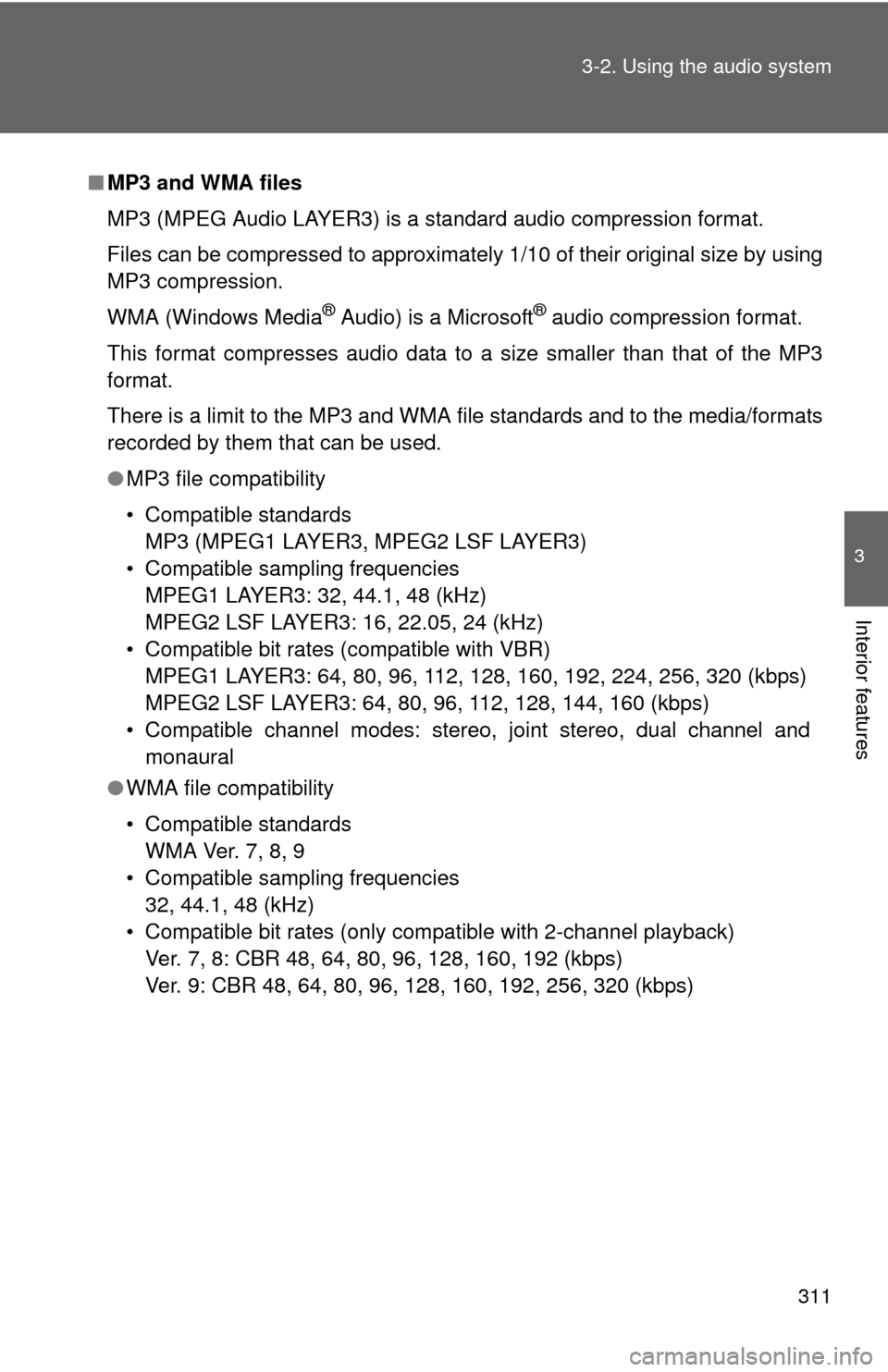
MP3 and WMA files
MP3 (MPEG Audio LAYER3) is a standard audio compression format.
Files can be compressed to approximately 1/10 of their original size by using
MP3 compression.
WMA (Windows Media
® Audio) is a Microsoft® audio compression format.
This format compresses audio data to a size smaller than that of the MP3
format.
There is a limit to the MP3 and WMA file standards and to the media/formats
recorded by them that can be used.
● MP3 file compatibility
• Compatible standards
MP3 (MPEG1 LAYER3, MPEG2 LSF LAYER3)
• Compatible sampling frequencies MPEG1 LAYER3: 32, 44.1, 48 (kHz)
MPEG2 LSF LAYER3: 16, 22.05, 24 (kHz)
• Compatible bit rates (compatible with VBR) MPEG1 LAYER3: 64, 80, 96, 112, 128, 160, 192, 224, 256, 320 (kbps)
MPEG2 LSF LAYER3: 64, 80, 96, 112, 128, 144, 160 (kbps)
• Compatible channel modes: stereo, joint stereo, dual channel and monaural
● WMA file compatibility
• Compatible standards
WMA Ver. 7, 8, 9
• Compatible sampling frequencies 32, 44.1, 48 (kHz)
• Compatible bit rates (only compatible with 2-channel playback) Ver. 7, 8: CBR 48, 64, 80, 96, 128, 160, 192 (kbps)
Ver. 9: CBR 48, 64, 80, 96, 128, 160, 192, 256, 320 (kbps)
Page 312 of 660

312 3-2. Using the audio system
●Compatible media
Media that can be used for MP3 and WMA playback are CD-Rs and CD-
RWs.
Playback in some instances may not be possible, depending on the status
of the CD-R or CD-RW. Playback may not be possible or the audio may
jump if the disc is scratched or marked with fingerprints.
● Compatible disc formats
The following disc formats can be used.
• Disc formats: CD-ROM Mode 1 and Mode 2
CD-ROM XA Mode 2, Form 1 and Form 2
• File formats: ISO9660 Level 1, Level 2, (Romeo, Joliet) MP3 and WMA files written in any format other than those listed above
may not play correctly, and their file names and folder names may not
be displayed correctly.
Items related to standards and limitations are as follows.
• Maximum directory hierarchy: 8 levels
• Maximum length of folder names/file names: 32 characters
• Maximum number of folders: 192 (including the root)
• Maximum number of files per disc: 255
● File names
The only files that can be recognized as MP3/WMA and played are those
with the extension .mp3 or .wma.
● Multi-sessions
As the audio system is compatible with multi-sessions, it is possible to play
discs that contain MP3 and WMA files. However, only the first session can
be played.
● ID3 and WMA tags
ID3 tags can be added to MP3 files, making it possible to record the track
title and artist name, etc.
The system is compatible with ID3 Ver. 1.0, 1.1, and Ver. 2.2, 2.3 ID3 tags.
(The number of characters is based on ID3 Ver. 1.0 and 1.1.)
WMA tags can be added to WMA files, making it possible to record the
track title and artist name in the same way as with ID3 tags.
Page 315 of 660
315
3-2. Using the audio system
3
Interior features
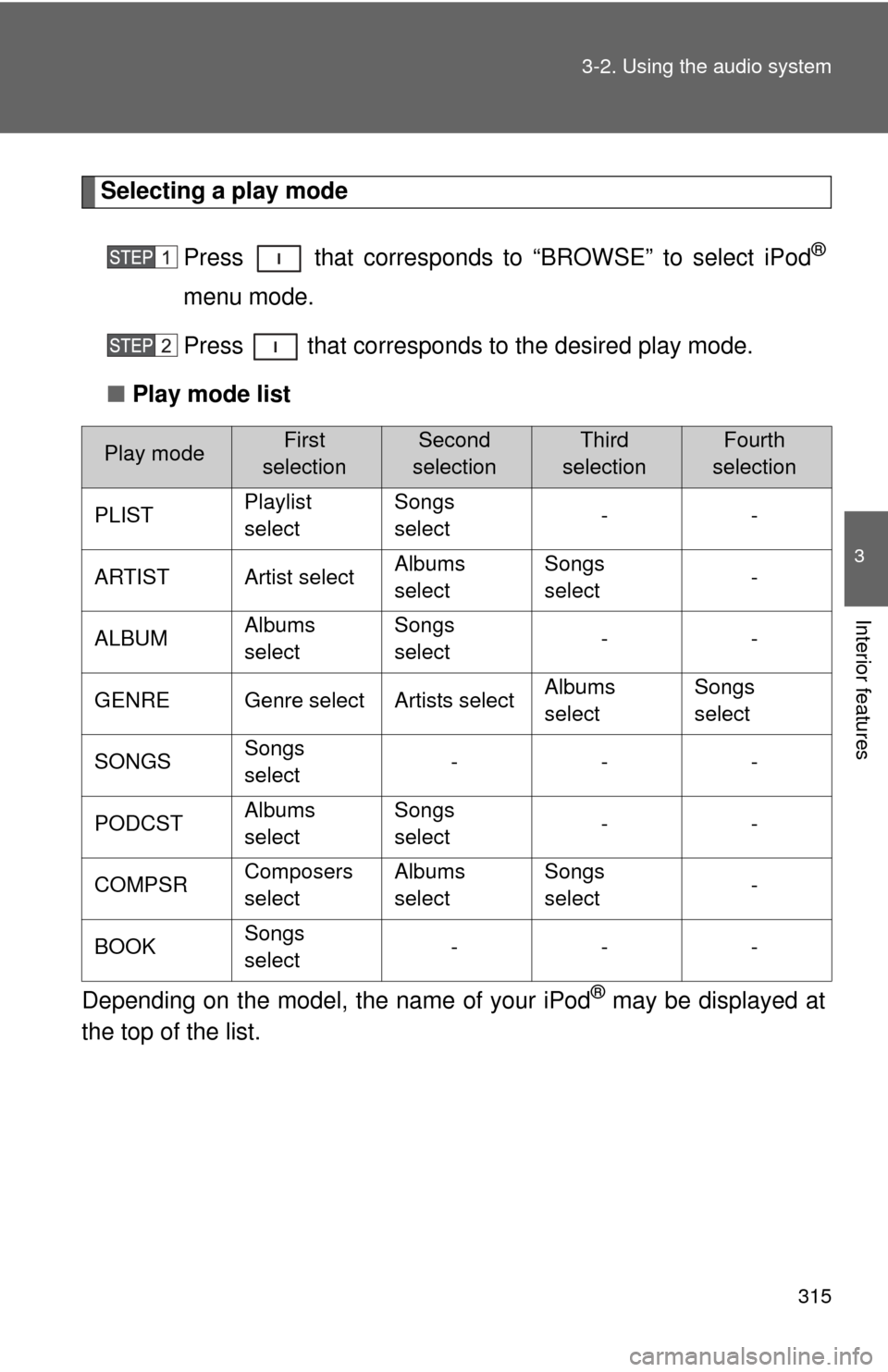
Selecting a play mode
Press that corresponds to “BROWSE” to select iPod
®
menu mode.
Press that corresponds to the desired play mode.
■ Play mode list
Depending on the model, the name of your iPod
® may be displayed at
the top of the list.
Play modeFirst
selectionSecond
selectionThird
selectionFourth
selection
PLIST Playlist
selectSongs
select
--
ARTIST Artist select Albums
selectSongs
select
-
ALBUM Albums
selectSongs
select
--
GENRE Genre select Artists select Albums
selectSongs
select
SONGS Songs
select ---
PODCST Albums
selectSongs
select
--
COMPSR Composers
selectAlbums
selectSongs
select
-
BOOK Songs
select ---
Page 318 of 660
318 3-2. Using the audio system
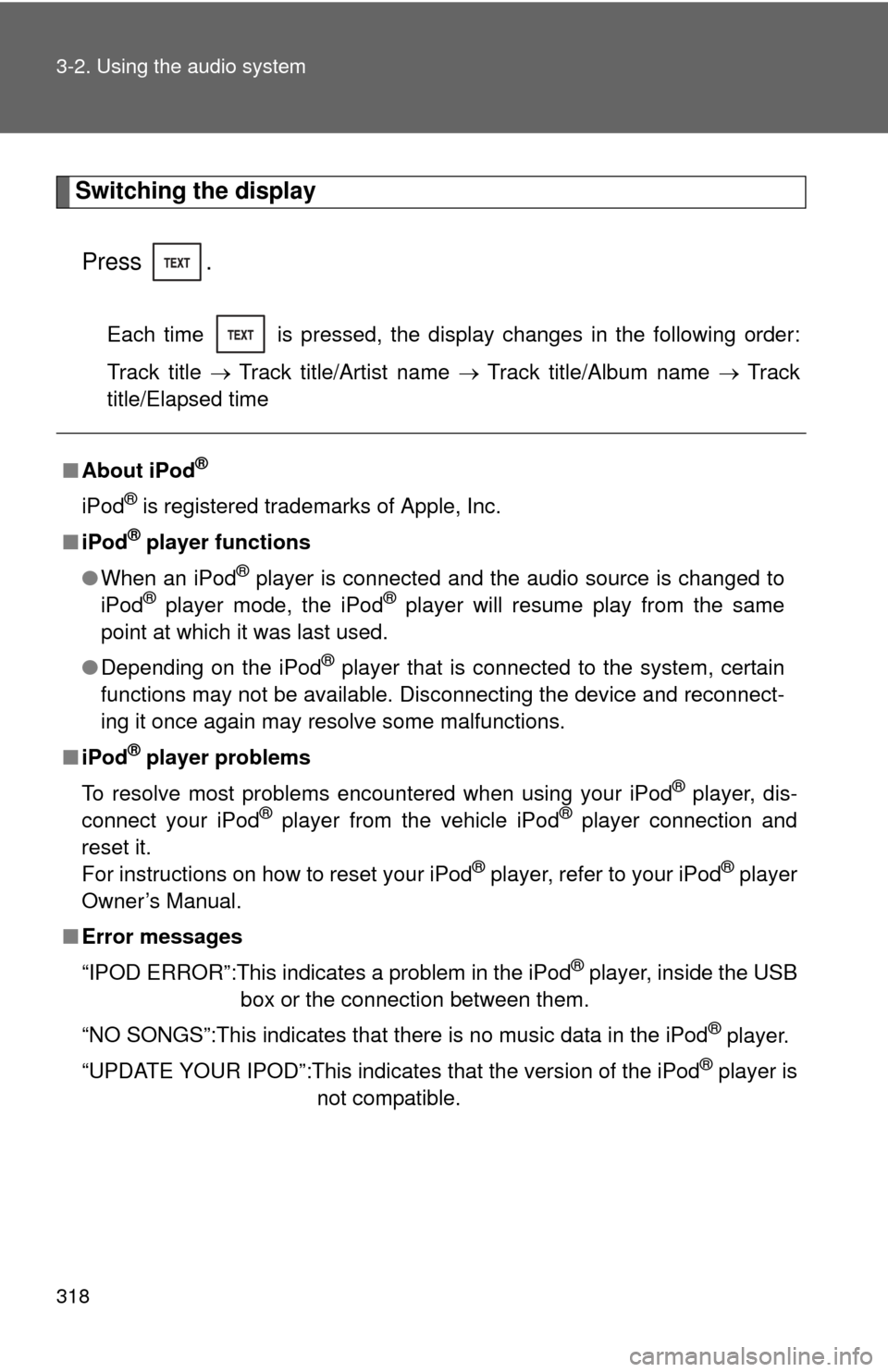
Switching the displayPress .
Each time is pressed, the display changes in the following order:
Track title Track title/Artist name Track title/Album name Track
title/Elapsed time
■ About iPod®
iPod® is registered trademarks of Apple, Inc.
■ iPod
® player functions
● When an iPod
® player is connected and the audio source is changed to
iPod® player mode, the iPod® player will resume play from the same
point at which it was last used.
● Depending on the iPod
® player that is connected to the system, certain
functions may not be available. Disconnecting the device and reconnect-
ing it once again may resolve some malfunctions.
■ iPod
® player problems
To resolve most problems encountered when using your iPod
® player, dis-
connect your iPod® player from the vehicle iPod® player connection and
reset it.
For instructions on how to reset your iPod
® player, refer to your iPod® player
Owner’s Manual.
■ Error messages
“IPOD ERROR”:This indicates a problem in the iPod
® player, inside the USB
box or the connection between them.
“NO SONGS”:This indicates that there is no music data in the iPod
® player.
“UPDATE YOUR IPOD”:This indicates that the version of the iPod
® player is
not compatible.
Page 319 of 660
319
3-2. Using the audio system
3
Interior features
■
Compatible models
●iPod
® 5th generation Version 1.2 or later
● iPod
® nano 3rd generation Version 1.0 or later
● iPod
® nano 2nd generation Version 1.1.2 or later
● iPod
® nano Version 1.2 or later
● iPod
® touch Version 1.1 or later
● iPod
® classic Version 1.0 or later
iPhone
®, iPod® mini, iPod® shuffle, iPod® photo and 4th generation and ear-
lier models of iPod® are not compatible with this system.
Items related to standards and limitations are as follows:
● Maximum number of lists in device: 9999
● Maximum number of songs in device: 65,025
● Maximum number of songs per list: 65,025
CAUTION
■Caution while driving
Do not connect iPod
® players or operate the controls.
NOTICE
■To prevent damage to iPod® players
● Do not leave iPod
® players in the vehicle. The temperature inside the vehi-
cle may become high, resulting in damage to the player.
● Do not push down on or apply unnecessary pressure to the iPod
® player
while it is connected as this may damage the iPod® player or its terminal.
● Do not insert foreign objects into the port as this may damage the iPod
®
player or its terminal.
Page 325 of 660
325
3-2. Using the audio system
3
Interior features
●
MP3 file compatibility
• Compatible standards
MP3 (MPEG1 AUDIO LAYERII, III, MPEG2 AUDIO LAYERII, III,
MPEG2.5)
• Compatible sampling frequencies MPEG1 AUDIO LAYERII, III: 32, 44.1, 48 (kHz)
MPEG2 AUDIO LAYERII, III: 16, 22.05, 24 (kHz)
MPEG2.5: 8, 11.025, 12 (kHz)
• Compatible bit rates (compatible with VBR) MPEG1 AUDIO LAYERII, III: 32-320 (kbps)
MPEG2 AUDIO LAYERII, III: 32-160 (kbps)
MPEG2.5: 32-160 (kbps)
• Compatible channel modes: stereo, joint stereo, dual channel and monaural
● WMA file compatibility
• Compatible standards
WMA Ver. 9
• Compatible sampling frequencies HIGH PROFILE 32, 44.1, 48 (kHz)
• Compatible bit rates HIGH PROFILE 32-320 (kbps, VBR)
● File names
The only files that can be recognized as MP3/WMA and played are those
with the extension .mp3 or .wma.
● ID3 and WMA tags
ID3 tags can be added to MP3 files, making it possible to record the track
title, artist name, etc.
The system is compatible with ID3 Ver. 1.0, 1.1, and Ver. 2.2, 2.3, 2.4 ID3
tags. (The number of characters is based on ID3 Ver. 1.0 and 1.1.)
WMA tags can be added to WMA files, making it possible to record the
track title and artist name in the same way as with ID3 tags.
● MP3 and WMA playback
When a device containing MP3 or WMA files is plugged, all files in the
USB memory device are first checked. Once the file check is finished, the
first MP3 or WMA file is played. To make the file check finish more quickly,
we recommend you do not write in any files other than MP3 or WMA files
or create any unnecessary folders.
Page 337 of 660
337
3-3. Using the Bluetooth® audio system
3
Interior features
■
When transferring ownership of the vehicle
Be sure to initialize the system to prevent personal data from being improp-
erly accessed. ( P. 410)
■ About Bluetooth
®
■Compatible models
●Bluetooth
® specifications:
Ve r. 1 . 2
● Following Profiles:
• A2DP (Advanced Audio Distribution Profile) Ver. 1.0
• AVRCP (Audio/Video Remote Control Profile) Ver. 1.0 or higher (Ver.
1.3 or higher recommended)
Portable players must correspond to the above specifications in order to be
connected to the Bluetooth
® audio system. However, please note that some
functions may be limited depending on the type of portable player.
■ Certification for the Bluetooth
® audio system
FCC ID: ACJ932C5ZZZ035
IC ID: 216J-C5ZZZ035
MADE IN JAPAN
This device complies with Part 15 of the FCC Rules and RSS-210 Rules.
Operation is subject to the following two conditions; (1) This device may not
cause harmful interference, and (2) This device must accept any interfer-
ence received, including interference that may cause undesired operation.
Bluetooth is a registered trademark of
Bluetooth SIG. Inc.
Page 447 of 660

447
3-8. Other interior features
3
Interior features
■
When – –°C or – –°F is displayed
The system may be malfunctioning. Take your vehicle to your Toyota dealer.
■ The outside air temperature is displayed when
The engine switch is in the ON position.
■ When disconnecting and reco nnecting battery terminals
The display will automatically be set to the initial mode.
■ Display
In the following situations, the correct outside temperature may not be dis-
played, or the display may take longer than normal to change.
●When stopped, or driving at low speeds (less than 16 mph [25 km/h])
● When the outside temperature has changed suddenly (at the entrance/
exit of a garage, tunnel, etc.)