remote control TOYOTA SEQUOIA 2010 2.G User Guide
[x] Cancel search | Manufacturer: TOYOTA, Model Year: 2010, Model line: SEQUOIA, Model: TOYOTA SEQUOIA 2010 2.GPages: 660, PDF Size: 12.29 MB
Page 37 of 660
37
1
1-2. Opening, closing and locking the doors
Before driving
Side doors
The vehicle can be locked and unlocked using the wireless remote
control, key or door lock switch.
■Wireless remote control
P. 3 3
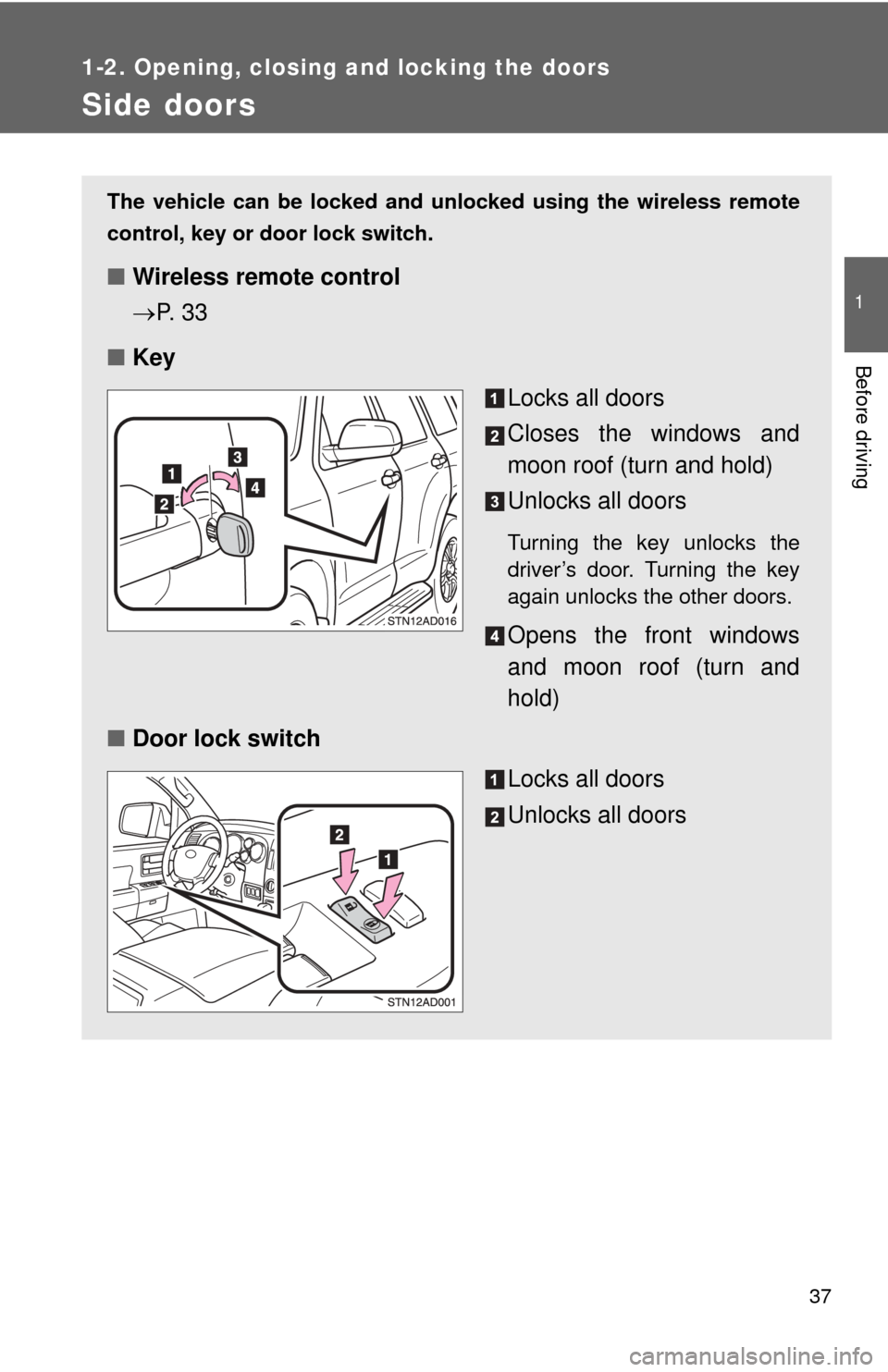
■ Key
Locks all doors
Closes the windows and
moon roof (turn and hold)
Unlocks all doors
Turning the key unlocks the
driver’s door. Turning the key
again unlocks the other doors.
Opens the front windows
and moon roof (turn and
hold)
■ Door lock switch
Locks all doors
Unlocks all doors
Page 42 of 660
42
1-2. Opening, closing and locking the doors
Back door
The back door can be locked/unlocked and opened by the following
procedures.
■Locking and unlocking the back door
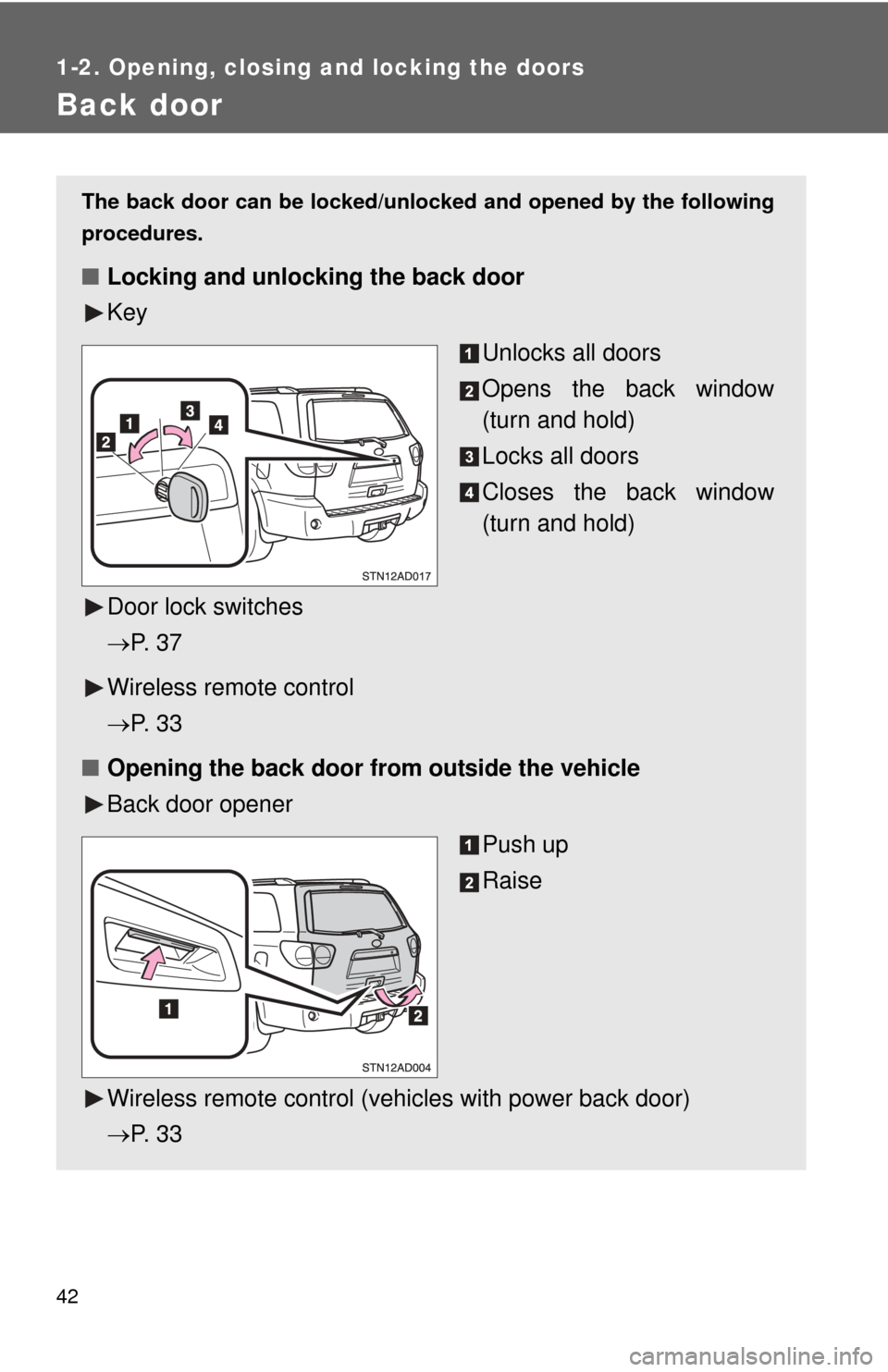
Key
Unlocks all doors
Opens the back window
(turn and hold)
Locks all doors
Closes the back window
(turn and hold)
Door lock switches
P. 3 7
Wireless remote control
P. 3 3
■ Opening the back door from outside the vehicle
Back door opener
Push up
Raise
Wireless remote control (vehicles with power back door)
P. 3 3
Page 44 of 660
44 1-2. Opening, closing and locking the doors
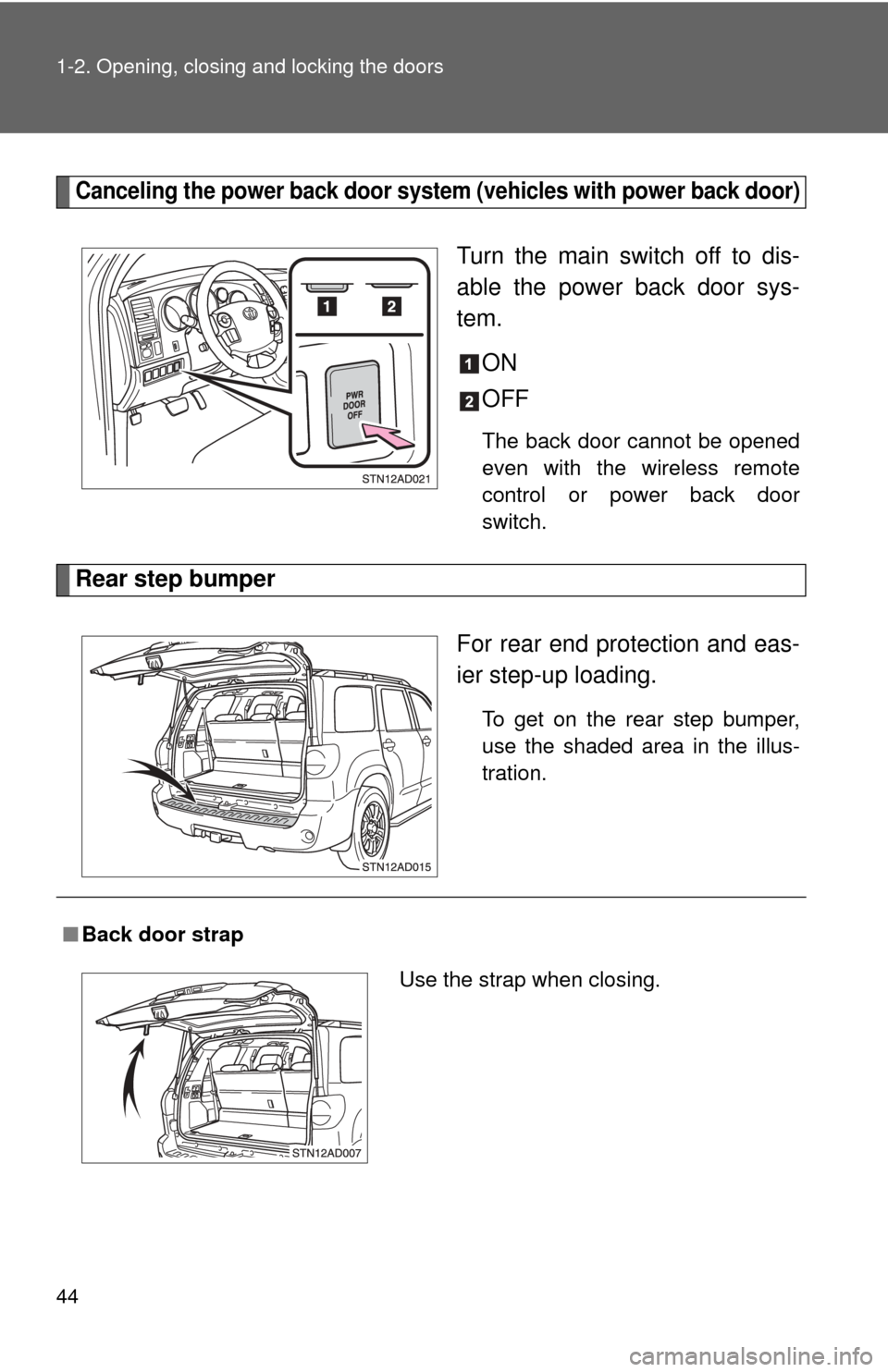
Canceling the power back door system (vehicles with power back door)
Turn the main switch off to dis-
able the power back door sys-
tem.
ON
OFF
The back door cannot be opened
even with the wireless remote
control or power back door
switch.
Rear step bumper
For rear end protection and eas-
ier step-up loading.
To get on the rear step bumper,
use the shaded area in the illus-
tration.
■Back door strap
Use the strap when closing.
Page 62 of 660
62 1-3. Adjustable components (seats, mirrors, steering wheel)
Linking driving position memory with door unlock operation
Memorized driving positions can be recalled when you unlock the
driver’s door using the wireless remote control and open the driver’s
door.
■ Setting the linked door unlock operation
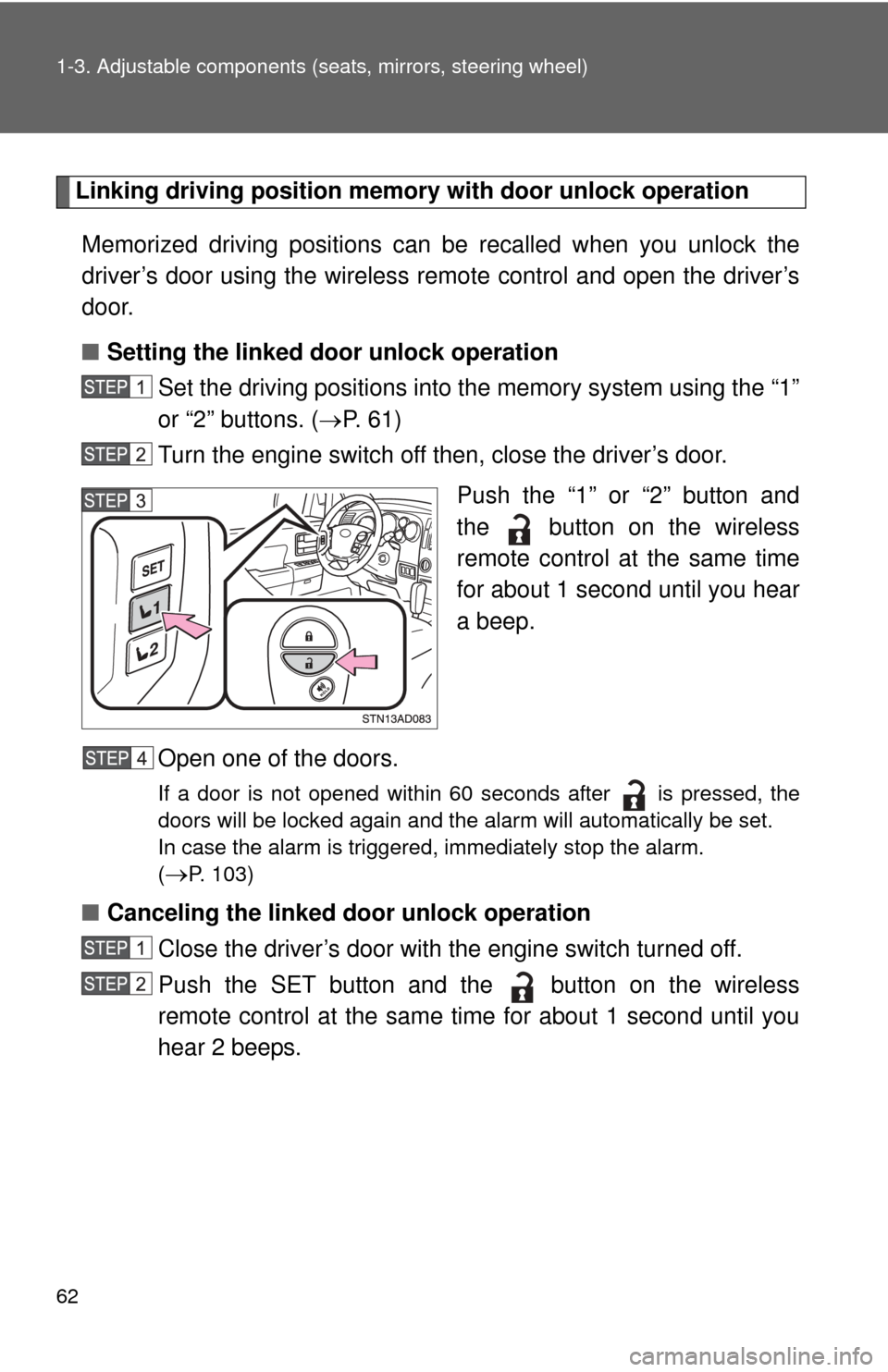
Set the driving positions into the memory system using the “1”
or “2” buttons. ( P. 6 1 )
Turn the engine switch off then, close the driver’s door.
Push the “1” or “2” button and
the button on the wireless
remote control at the same time
for about 1 second until you hear
a beep.
Open one of the doors.
If a door is not opened within 60 seconds after is pressed, the
doors will be locked again and the alarm will automatically be set.
In case the alarm is triggered, immediately stop the alarm.
(
P. 103)
■ Canceling the linked door unlock operation
Close the driver’s door with the engine switch turned off.
Push the SET button and the button on the wireless
remote control at the same time for about 1 second until you
hear 2 beeps.
Page 103 of 660
103
1
1-6. Theft deterrent system
Before driving
Alarm
The system sounds the alarm and flashes lights when forcible entry
is detected.
■ Triggering of the alarm
The alarm is triggered in the following situations.
●A locked door is unlocked or opened in any way other than
using the wireless remote control door lock function or key.
The doors will lock again automatically.
● The hood is opened while t he vehicle is locked.
● Vehicles with the glass breakage sensor (if equipped): The
side windows are tapped or broken.
● The battery is reconnected.
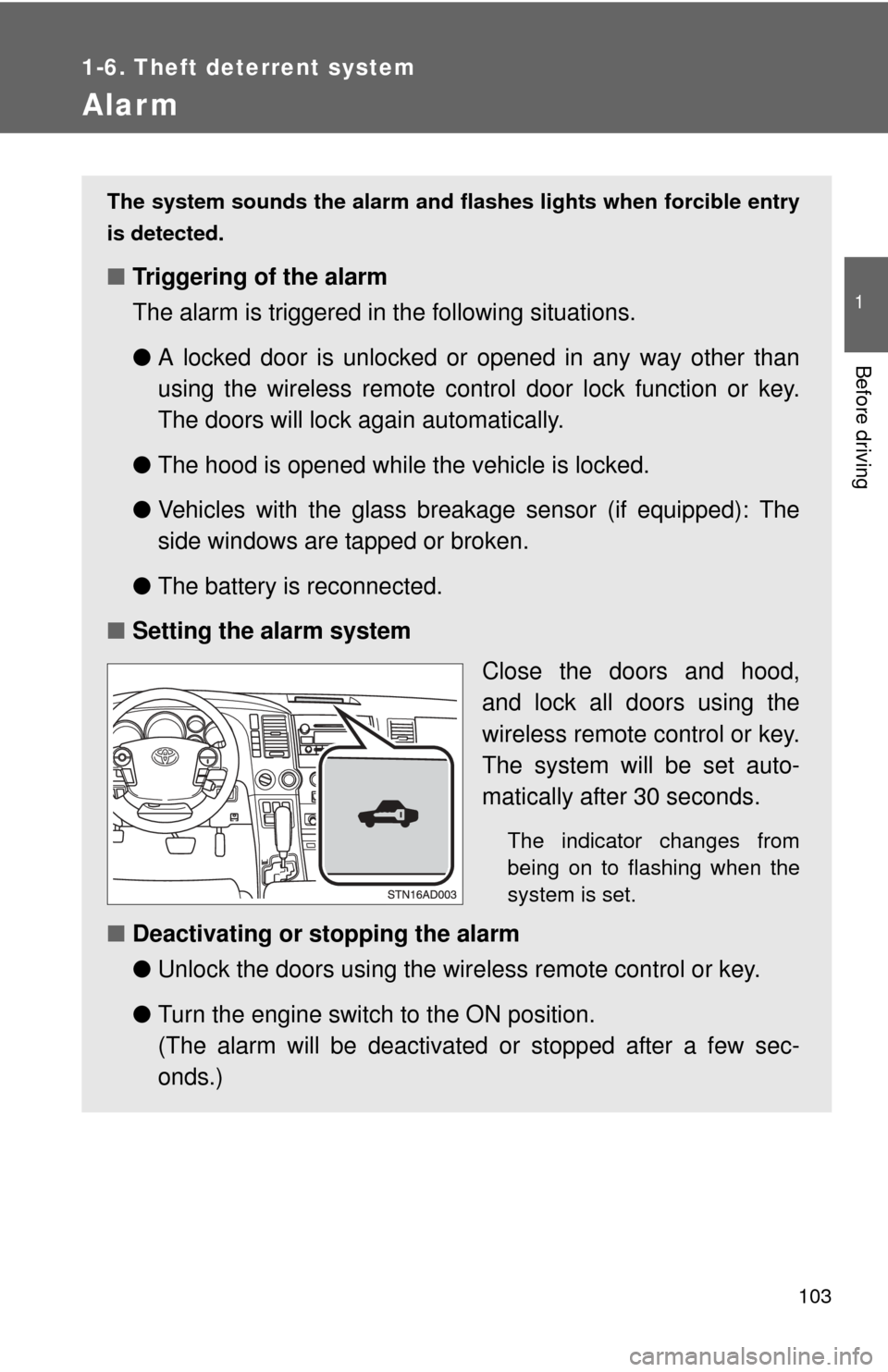
■ Setting the alarm system
Close the doors and hood,
and lock all doors using the
wireless remote control or key.
The system will be set auto-
matically after 30 seconds.
The indicator changes from
being on to flashing when the
system is set.
■Deactivating or stopping the alarm
●Unlock the doors using the wire less remote control or key.
● Turn the engine switch to the ON position.
(The alarm will be deactivated or stopped after a few sec-
onds.)
Page 183 of 660
183
2-3. Operating the lights and wipers
2
When driving
■
Daytime running light system (if equipped)
To make your vehicle more visible to other drivers, the front turn signal lights
turn on automatically whenever the engine is started and the parking brake
is released. Daytime running lights are not designed for use at night.
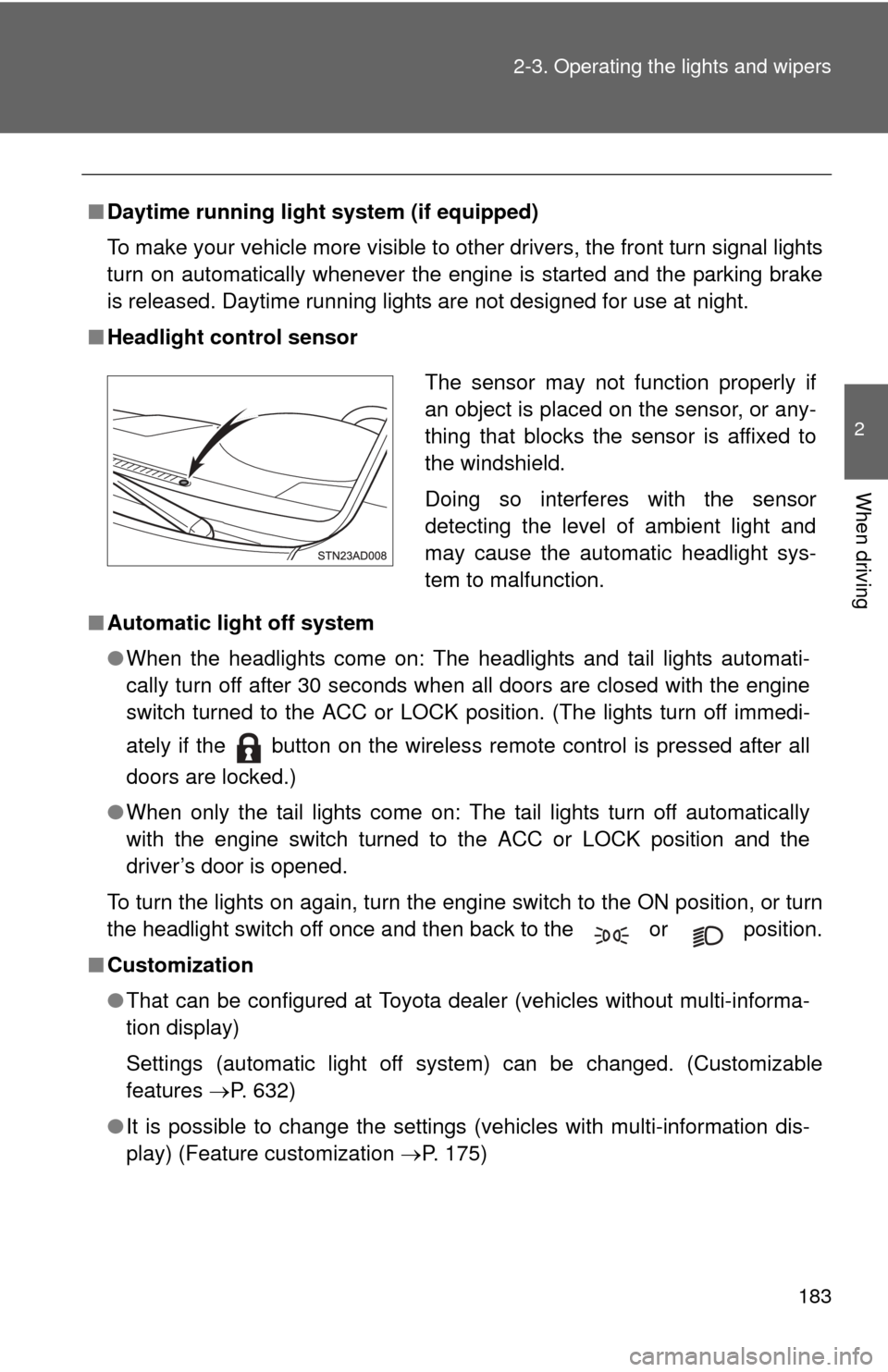
■ Headlight control sensor
■ Automatic light off system
●When the headlights come on: The headlights and tail lights automati-
cally turn off after 30 seconds when all doors are closed with the engine
switch turned to the ACC or LOCK position. (The lights turn off immedi-
ately if the button on the wireless remote control is pressed after all
doors are locked.)
● When only the tail lights come on: The tail lights turn off automatically
with the engine switch turned to the ACC or LOCK position and the
driver’s door is opened.
To turn the lights on again, turn the engine switch to the ON position, or turn
the headlight switch off once and then back to the or position.
■ Customization
●That can be configured at Toyota dealer (vehicles without multi-informa-
tion display)
Settings (automatic light off system) can be changed. (Customizable
features P. 632)
● It is possible to change the settings (vehicles with multi-information dis-
play) (Feature customization P. 175)
The sensor may not function properly if
an object is placed on the sensor, or any-
thing that blocks the sensor is affixed to
the windshield.
Doing so interferes with the sensor
detecting the level of ambient light and
may cause the automatic headlight sys-
tem to malfunction.
Page 266 of 660
266
3-1. Using the air conditioning system and defogger
Front air conditioning system ........................... 268
Rear air conditioning system ........................... 276
Rear window and outside rear view mirror
defoggers ....................... 280
Windshield wiper de-icer ............................ 282
Using the steering wheel climate remote control
switches ......................... 283
3-2. Using the audio system Audio system ................... 285
Using the radio ................. 289
Using the CD player ......... 297
Playing MP3 and WMA discs............................... 306
Operating an iPod
®
player ............................. 314
Operating a USB memory player ........................... 320
Optimal use of the audio system ........................... 327
Using the AUX adapter .... 331
Using the steering wheel audio switches ............... 333 3-3. Using the Bluetooth
® audio
system
Bluetooth
® audio
system ........................... 336
Using the Bluetooth
®
audio system.................. 339
Operating a Bluetooth
®
enabled portable
player ............................. 344
Setting up a Bluetooth
®
enabled portable
player ............................. 346
Bluetooth
® audio system
setup .............................. 351
3-4. Using the rear audio/video system
Rear seat entertainment system .......................... 352
Using the DVD player (DVD video) ................... 360
Using the DVD player (video CD)...................... 369
Using the DVD player (audio CD/CD text) ........ 372
Using the DVD player (MP3 discs) .................... 374
Using the video mode ...... 377
Changing the Setup Menu settings ................ 379
Interior features3
Page 283 of 660
283
3-1. Using the air conditioning system and defogger
3
Interior features
Using the steering wheel climate remote control switches
Using the automatic modePress .
The air conditioning system will operate, and air outlets and
fan speed will be set automatically.
Press “ ” on to increase the temperature and “ ” to
decrease the temperature.
Adjusting the temperature setting
Press “ ” on to increase the temperature and “ ” to decrease
the temperature.
: If equipped
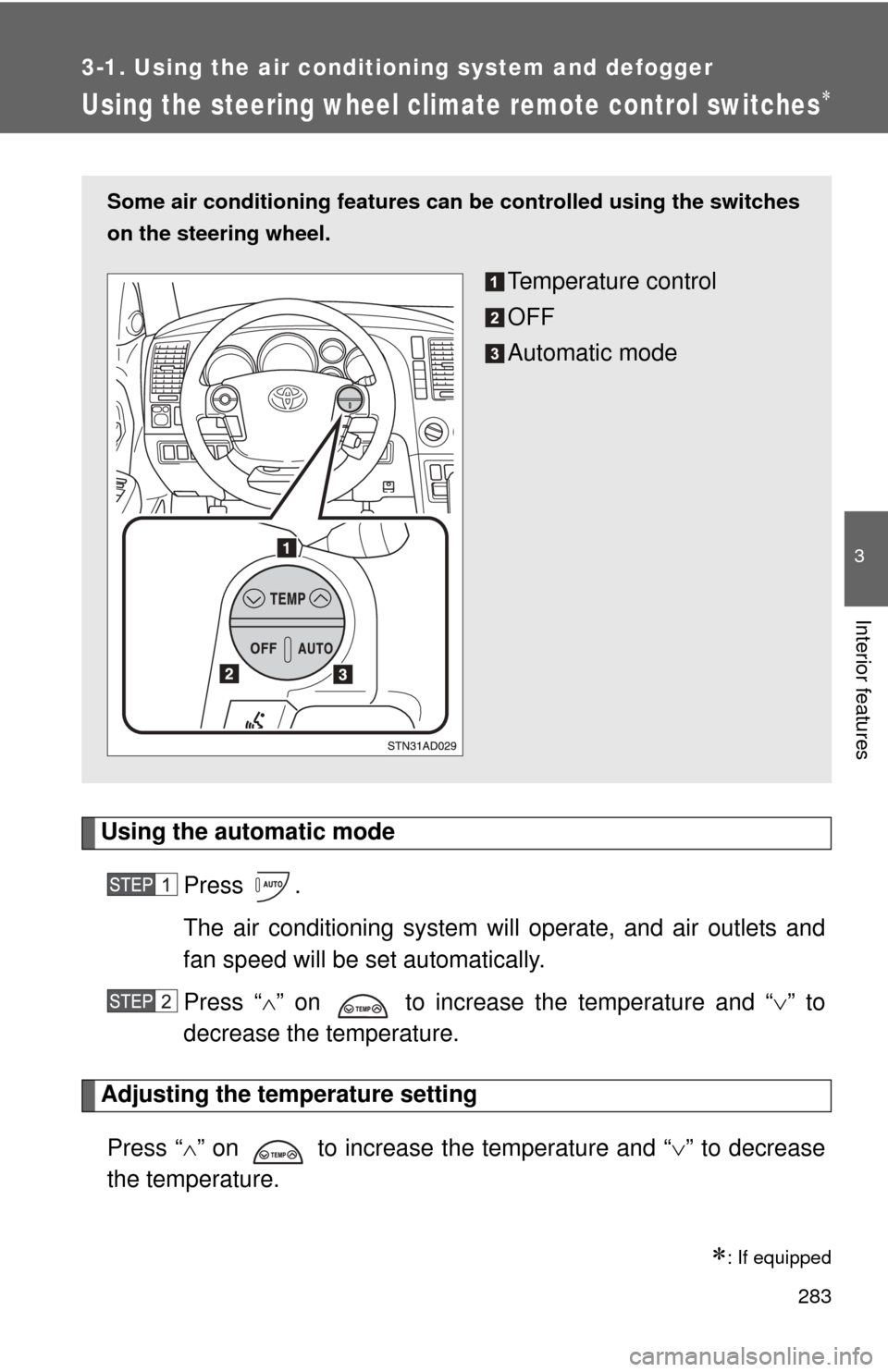
Some air conditioning features can be controlled using the switches
on the steering wheel.
Temperature control
OFF
Automatic mode
Page 337 of 660
337
3-3. Using the Bluetooth® audio system
3
Interior features
■
When transferring ownership of the vehicle
Be sure to initialize the system to prevent personal data from being improp-
erly accessed. ( P. 410)
■ About Bluetooth
®
■Compatible models
●Bluetooth
® specifications:
Ve r. 1 . 2
● Following Profiles:
• A2DP (Advanced Audio Distribution Profile) Ver. 1.0
• AVRCP (Audio/Video Remote Control Profile) Ver. 1.0 or higher (Ver.
1.3 or higher recommended)
Portable players must correspond to the above specifications in order to be
connected to the Bluetooth
® audio system. However, please note that some
functions may be limited depending on the type of portable player.
■ Certification for the Bluetooth
® audio system
FCC ID: ACJ932C5ZZZ035
IC ID: 216J-C5ZZZ035
MADE IN JAPAN
This device complies with Part 15 of the FCC Rules and RSS-210 Rules.
Operation is subject to the following two conditions; (1) This device may not
cause harmful interference, and (2) This device must accept any interfer-
ence received, including interference that may cause undesired operation.
Bluetooth is a registered trademark of
Bluetooth SIG. Inc.
Page 352 of 660
352
3-4. Using the rear audio/video system
Rear seat entertainment system
: If equipped
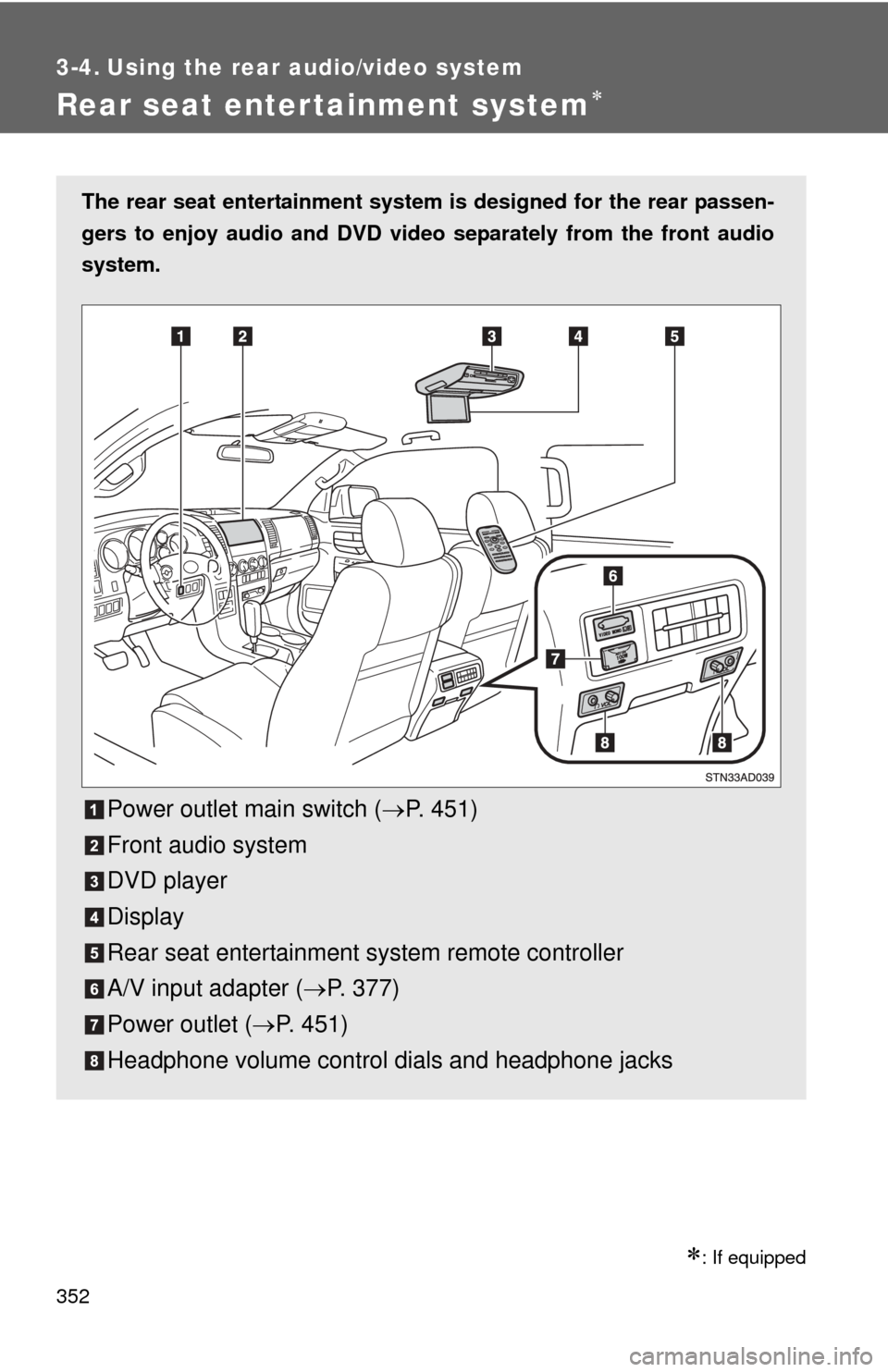
The rear seat entertainment system is designed for the rear passen-
gers to enjoy audio and DVD vide o separately from the front audio
system.
Power outlet main switch ( P. 451)
Front audio system
DVD player
Display
Rear seat entertainment system remote controller
A/V input adapter ( P. 377)
Power outlet ( P. 451)
Headphone volume control dials and headphone jacks