change time TOYOTA SEQUOIA 2011 2.G User Guide
[x] Cancel search | Manufacturer: TOYOTA, Model Year: 2011, Model line: SEQUOIA, Model: TOYOTA SEQUOIA 2011 2.GPages: 688, PDF Size: 14.76 MB
Page 305 of 688
305
3-2. Using the audio system
3
Interior features
■
Displaying text information
Press .
Each time is pressed, the display changes in the following order:
Type A
Channel name Title (song/program title) Name (artist name/feature)
Channel number.
Type B and C
Title (song/program title) Title (song/program title) Name (artist name/
feature).
Page 307 of 688
307
3-2. Using the audio system
3
Interior features
■
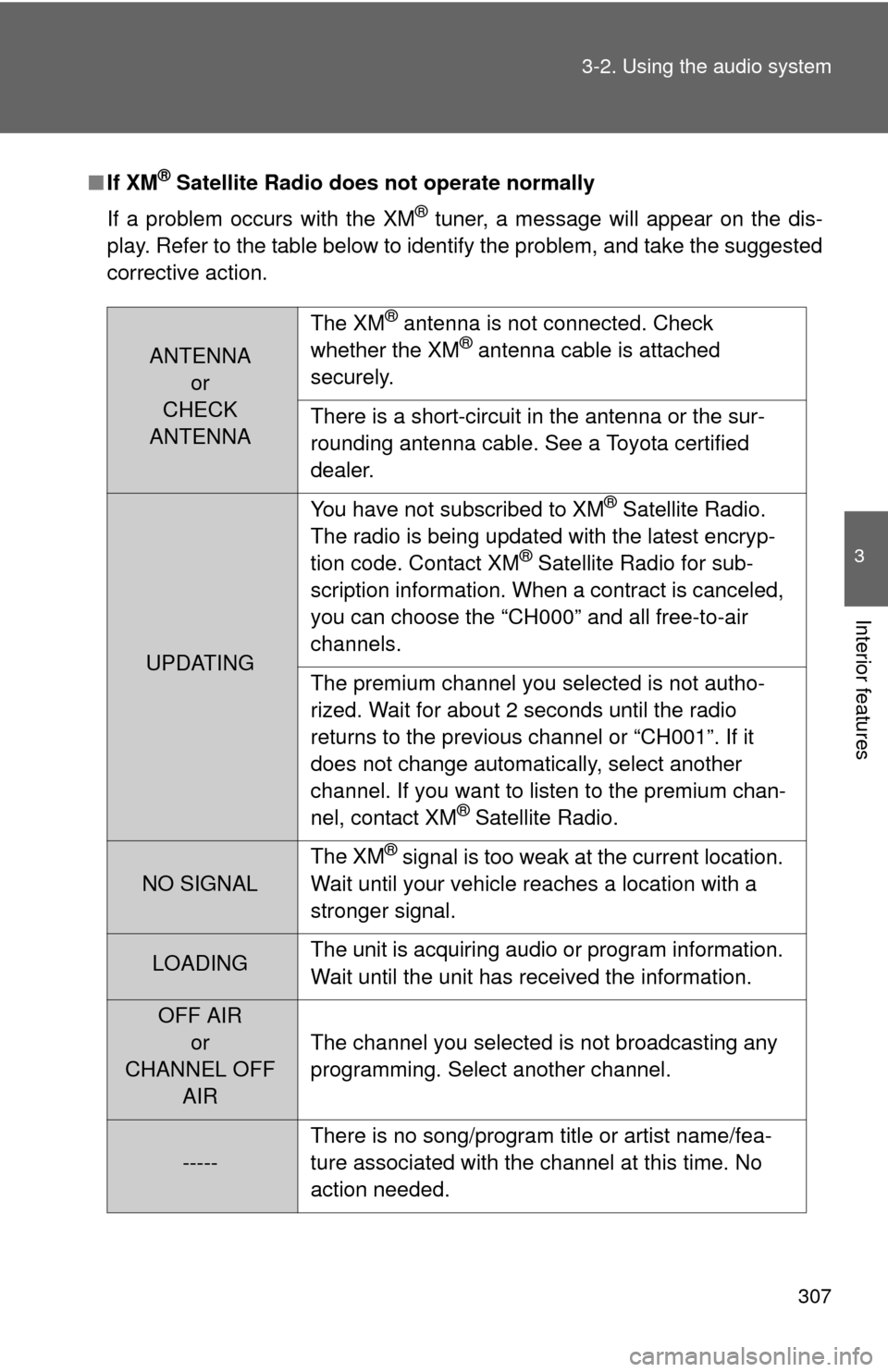
If XM® Satellite Radio does not operate normally
If a problem occurs with the XM
® tuner, a message will appear on the dis-
play. Refer to the table below to identify the problem, and take the suggested
corrective action.
ANTENNA or
CHECK
ANTENNA The XM
® antenna is not connected. Check
whether the XM® antenna cable is attached
securely.
There is a short-circuit in the antenna or the sur-
rounding antenna cable. See a Toyota certified
dealer.
UPDATING You have not subscribed to XM
® Satellite Radio.
The radio is being updated with the latest encryp-
tion code. Contact XM
® Satellite Radio for sub-
scription information. When a contract is canceled,
you can choose the “CH000” and all free-to-air
channels.
The premium channel you selected is not autho-
rized. Wait for about 2 seconds until the radio
returns to the previous channel or “CH001”. If it
does not change automatically, select another
channel. If you want to listen to the premium chan-
nel, contact XM
® Satellite Radio.
NO SIGNAL The XM
® signal is too weak at the current location.
Wait until your vehicle reaches a location with a
stronger signal.
LOADING The unit is acquiring audio or program information.
Wait until the unit has received the information.
OFF AIR
or
CHANNEL OFF AIR The channel you selected is not broadcasting any
programming. Select another channel.
-----
There is no song/program title or artist name/fea-
ture associated with the channel at this time. No
action needed.
Page 314 of 688
314 3-2. Using the audio system
Switching the displayPress .
Each time is pressed, the display changes in the following order: Type A
Track no./Elapsed time CD title Track name.
Type B and C
Track title Track name/Artist name Track name/Elapsed time.
■Display (type A only)
Up to 12 characters can be displayed at a time.
If there are 13 characters or more, pressing and holding for 1 second
or more will display the remaining characters.
A maximum of 24 characters can be displayed.
If is pressed for 1 second or more again or has not been pressed for 6
seconds or more, the display will return to the first 12 characters.
Depending on the contents recorded, the characters may not be displayed
properly or may not be displayed at all.
■ Error messages
“CD CHECK”: This indicates a problem either with the CD or inside the
player. The CD may be dirty, damaged or inserted up-side
down.
“WAIT” or “PLEASE WAIT”:Operation has stopped due to a high tempera- ture inside the player. Wait for a while and then
press or . Contact your Toyota
dealer if the CD still cannot be played back.
Page 321 of 688
321
3-2. Using the audio system
3
Interior features
Repeat play
■ Repeating a file
Press or that corresponds to “RPT”.
To cancel, press the button again.
■Repeating all of the files in a folder
Type A
Press and hold until you hear a beep.
To cancel, press the button again.
Type B and C
Press that corresponds to “RPT” twice.
To cancel, press the button again.
■Repeating all of the files in a disc (type B only)
Press that corresponds to “RPT” three times.
To cancel, press the button again.
Switching the display
Press .
Each time is pressed, the display changes in the following order: Type A
Folder no./File no./Elapsed time Folder name File name Album
title (MP3 only) Track title Artist name.
Type B and C
Track title Track title/Artist name Track title/Album name Track
title/Elapsed time.
Page 329 of 688
329
3-2. Using the audio system
3
Interior features
Fast-forwarding and reversing songs
Press and hold “
” or “ ” on .
Shuffle playback
■ Playing songs from one playlis t or album in random order
Press that corresponds to “RDM”.
To cancel, press the button twice.
■ Playing songs from a ll the playlists or albums in random order
Press that corresponds to “RDM” twice.
To cancel, press the button again.
Repeat play
Press that corresponds to “RPT”.
To cancel, press the button again.
Even when the repeat play option has not been selected, playback will
automatically continue from the first song in the current play list once the
last song has ended.
Switching the display
Press .
Each time is pressed, the display changes in the following order:
Track title Track title/Artist name Track title/Album name Track
title/Elapsed time
Page 335 of 688
335
3-2. Using the audio system
3
Interior features
Switching the display
Press .
Each time is pressed, the display changes in the following order:
Track title Track title/Artist name Track title/Album name Track
title/Elapsed time
■ USB memory functions
Depending on the USB memory that is connected to the system, certain
functions may not be available. Disconnecting the device and reconnecting it
once again may resolve some malfunctions.
■ Error messages
“USB ERROR”:This indicates a problem in the USB memory, in the USB box
or connection between them.
“NO MUSIC”: This indicates that no MP3/WMA files are included in the USB memory.
■ USB memory
●Compatible device
USB memory that can be used for MP3 and WMA playback.
Depending on the type of USB device, playback may not be possible.
● Compatible device formats
The following device formats can be used:
• USB communication formats: USB2.0 FS (12 mbps)
• File formats: FAT16/32 (Windows
®)
• Correspondence class: Mass storage class MP3 and WMA files written in any format other than those listed above
may not play correctly, and their file names and folder names may not
be displayed correctly.
Page 346 of 688
346 3-2. Using the audio system
Turning the power onPress when the audio system is turned off.
The audio system can be turned off by holding the switch down until you
hear a beep.
Changing the audio sourcePress when the audio system is turned on. The audio source
changes as follows each time the switch is pressed.
If no discs are inserted in the player, that mode will be skipped.
Type B:
FM SAT CD changer RSE*Bluetooth® audio AUX
USB/iPodAM
Type C:
FM SAT CDBluetooth® audio AUXUSB/iPodAM
*: Vehicles with rear seat entertainment system
Adjusting the volume
Press “+” on to increase the volume and “-” to decrease the
volume.
Press and hold the switch to continue increasing or decreasing the vol-
ume.
Selecting a radio station Press to select the radio mode.
Press “” or “ ” on to select a radio station.
To scan for receivable stations, press and hold “ ” or “ ” on
until you hear a beep.
Page 350 of 688
350 3-3. Using the Bluetooth
® audio system
CAUTION
■FCC WARNING
Changes or modifications in construction not expressly approved by the
party responsible for compliance could void the user’s authority to operate
the equipment.
Radio frequency exposure. This device is approved for Mobile Application
only and, to comply with applicable FCC radio frequency exposure regula-
tions, must be used with a distance of at least 7.9 in. (20 cm) between the
antenna and the body of any person at all time during use.
■ Caution while driving
Do not connect portable players or operate the controls.
NOTICE
■To prevent damage to portable players
Do not leave portable players in the vehicle. The temperature inside the
vehicle may become high, resulting in damage to the player.
Page 357 of 688
357
3-3. Using the Bluetooth
® audio system
3
Interior features
Fast-forwarding and reversing tracks
Press and hold “
” or “ ” on .
Switching the display
Press .
Each time is pressed, the display changes in the following order:
Track title Track title/Artist name Track title/Album name Track
title/Elapsed time
Using the steering wheel audio switches
P. 3 4 5
■Bluetooth® audio system functions
Depending on the portable player that is connected to the system, certain
functions may not be available.
■ Error messages
“BT AUDIO ERROR”: This indicates a problem in the system.
Page 378 of 688
378 3-4. Using the rear audio/video system
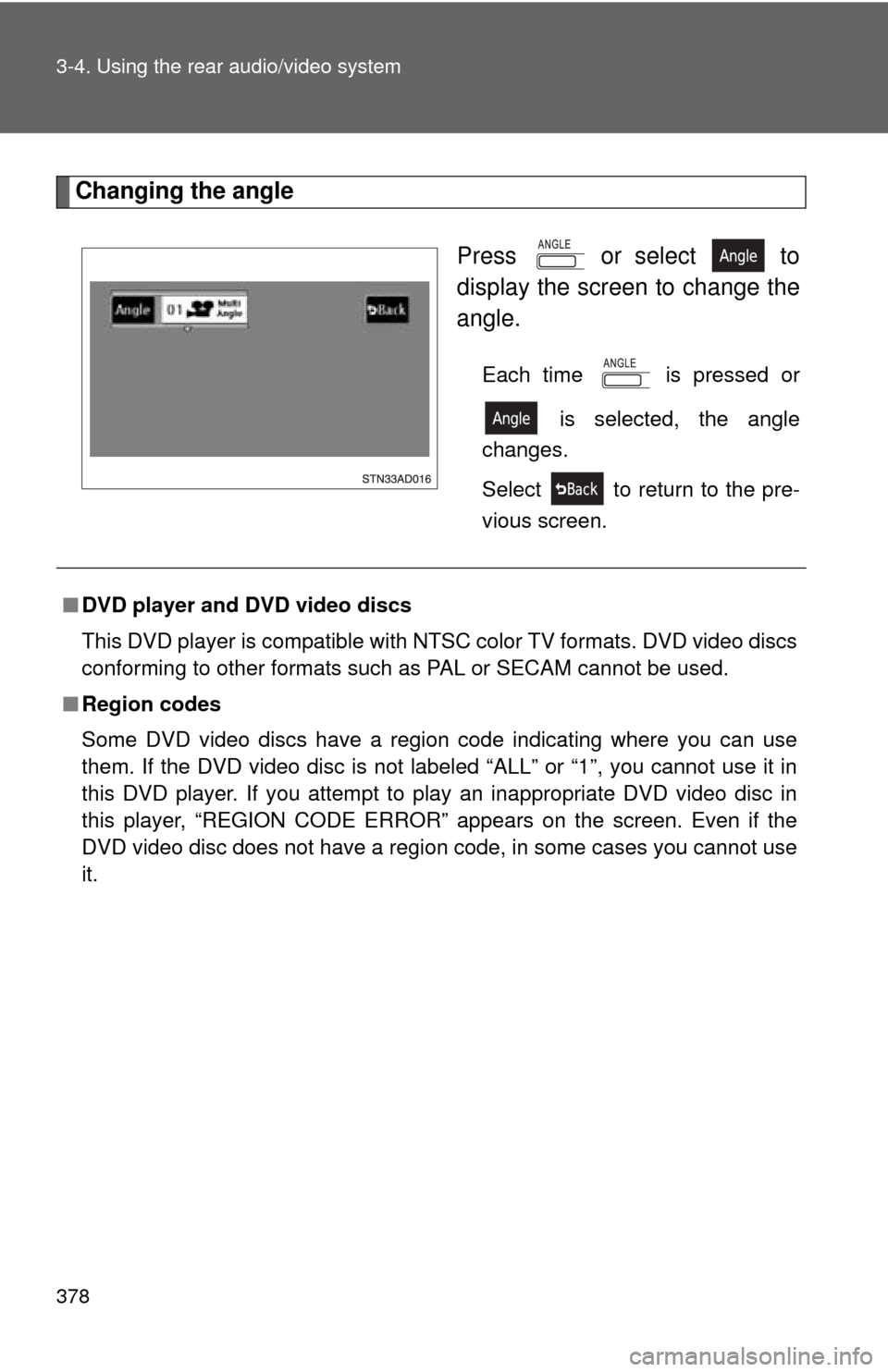
Changing the angle Press or select to
display the screen to change the
angle.
Each time is pressed or is selected, the angle
changes.
Select to return to the pre-
vious screen.
■ DVD player and DVD video discs
This DVD player is compatible with NTSC color TV formats. DVD video discs
conforming to other formats such as PAL or SECAM cannot be used.
■ Region codes
Some DVD video discs have a region code indicating where you can use
them. If the DVD video disc is not labeled “ALL” or “1”, you cannot use it in
this DVD player. If you attempt to play an inappropriate DVD video disc in
this player, “REGION CODE ERROR” appears on the screen. Even if the
DVD video disc does not have a region code, in some cases you cannot use
it.