lock TOYOTA SEQUOIA 2012 2.G Owners Manual
[x] Cancel search | Manufacturer: TOYOTA, Model Year: 2012, Model line: SEQUOIA, Model: TOYOTA SEQUOIA 2012 2.GPages: 708, PDF Size: 15.12 MB
Page 307 of 708
307
3-1. Using the air conditioning system
and defogger
3
Interior features
■When outside temperature approaches 32 F (0 C)
The air conditioning system may not operate even when is pressed.
■ When the indicator on
flashes
Press
and turn off the air conditioning system before turning it on
once more. There may be a problem in the air conditioning system if the indi-
cator continues to flash. Turn the air conditioning system off and have it
inspected by your Toyota dealer.
■ Air conditioning odors
●During use, various odors from inside and outside the vehicle may enter
into and accumulate in the air conditioning system. This may then cause
odor to be emitted from the vents.
● To reduce potential odors from occurring:
• It is recommended that the air conditioning system be set to outside air
mode prior to turning the vehicle off.
• The start timing of the blower may be delayed for a short period of time immediately after the air conditioning system is started in automatic
mode.
CAUTION
■ To prevent the windshield from fogging up
Do not use during cool air operation in extremely humid weather. The
difference between the temperature of the outside air and that of the wind-
shield can cause the outer surface of the windshield to fog up, blocking your
vision.
NOTICE
■To prevent battery discharge
Do not leave the air conditioning system on longer than necessary when the
engine is stopped.
Page 308 of 708
308
3-1. Using the air conditioning system and defogger
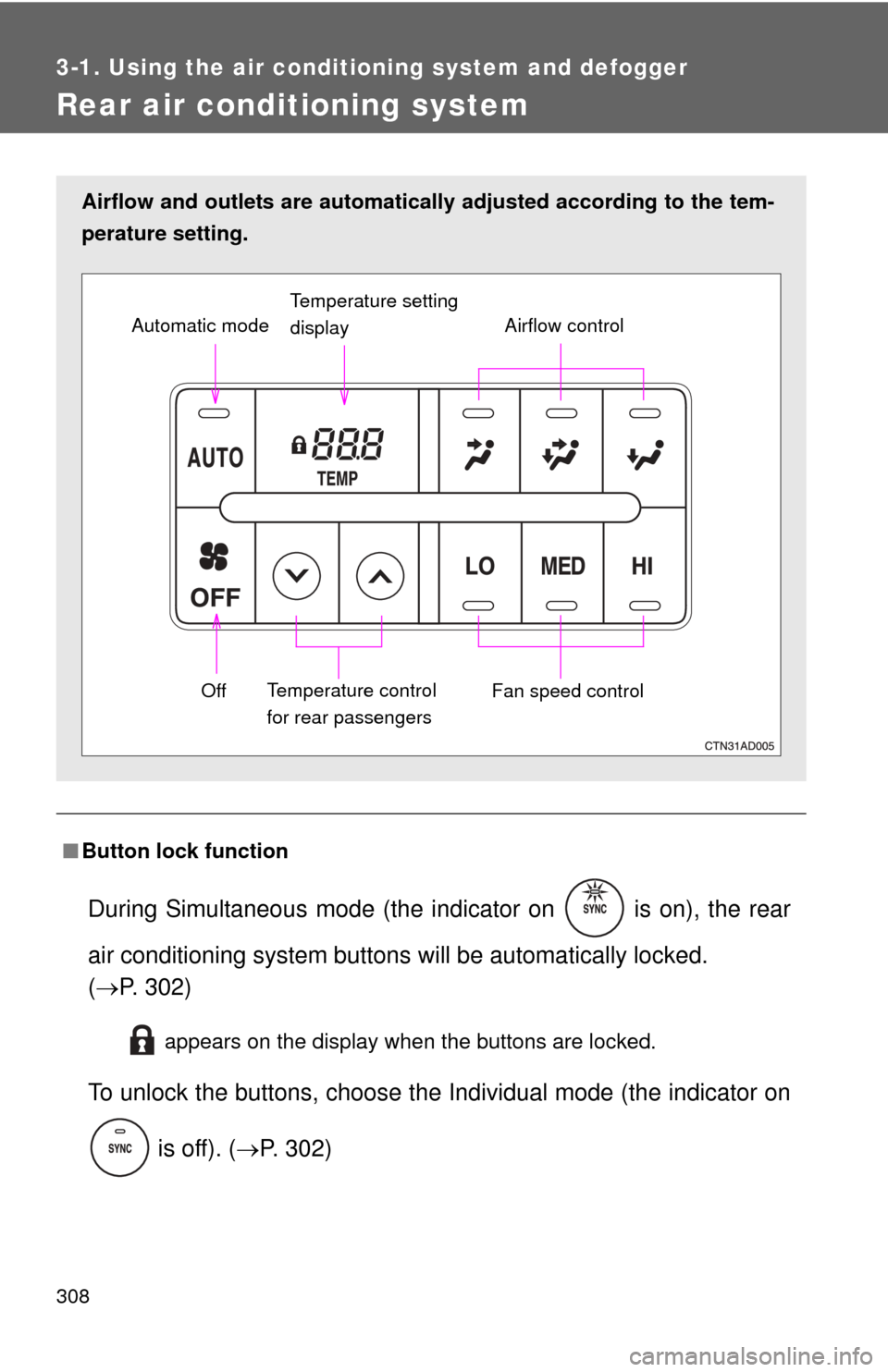
Rear air conditioning system
■Button lock function
During Simultaneous mode (the indicator on is on), the rear
air conditioning system button s will be automatically locked.
( P. 302)
appears on the display when the buttons are locked.
To unlock the buttons, c hoose the Individual mode (the indicator on
is off). ( P. 302)
Airflow and outlets are automatica lly adjusted according to the tem-
perature setting.
Airflow control
Temperature setting
display
Fan speed control
Off
Automatic mode
Temperature control
for rear passengers
Page 385 of 708
385
3-4. Using the rear audio/video system
3
Interior features
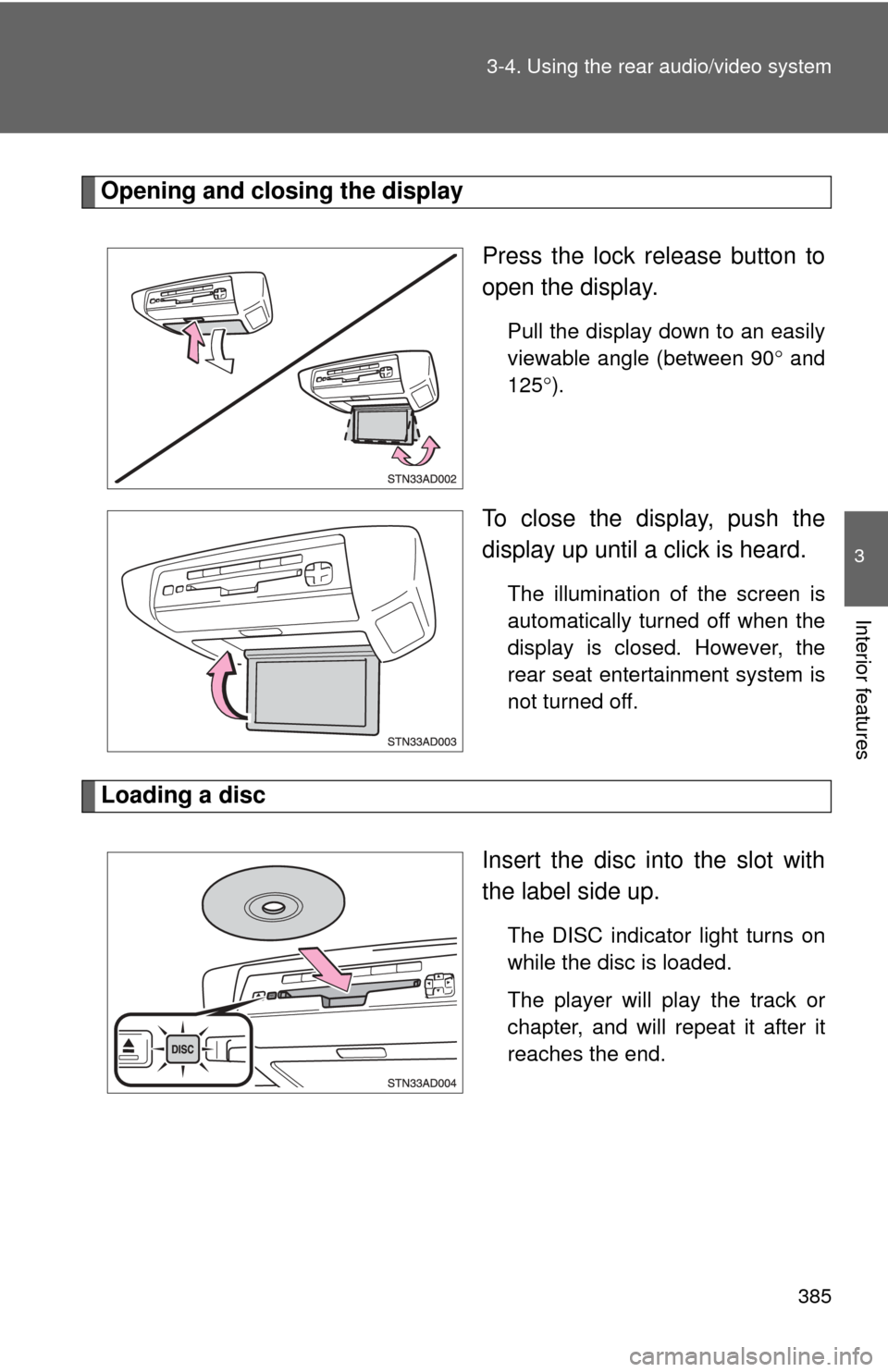
Opening and closing the display
Press the lock release button to
open the display.
Pull the display down to an easily
viewable angle (between 90 and
125 ).
To close the display, push the
display up until a click is heard.
The illumination of the screen is
automatically turned off when the
display is closed. However, the
rear seat entertainment system is
not turned off.
Loading a disc
Insert the disc into the slot with
the label side up.
The DISC indicator light turns on
while the disc is loaded.
The player will play the track or
chapter, and will repeat it after it
reaches the end.
Page 387 of 708
387
3-4. Using the rear audio/video system
3
Interior features
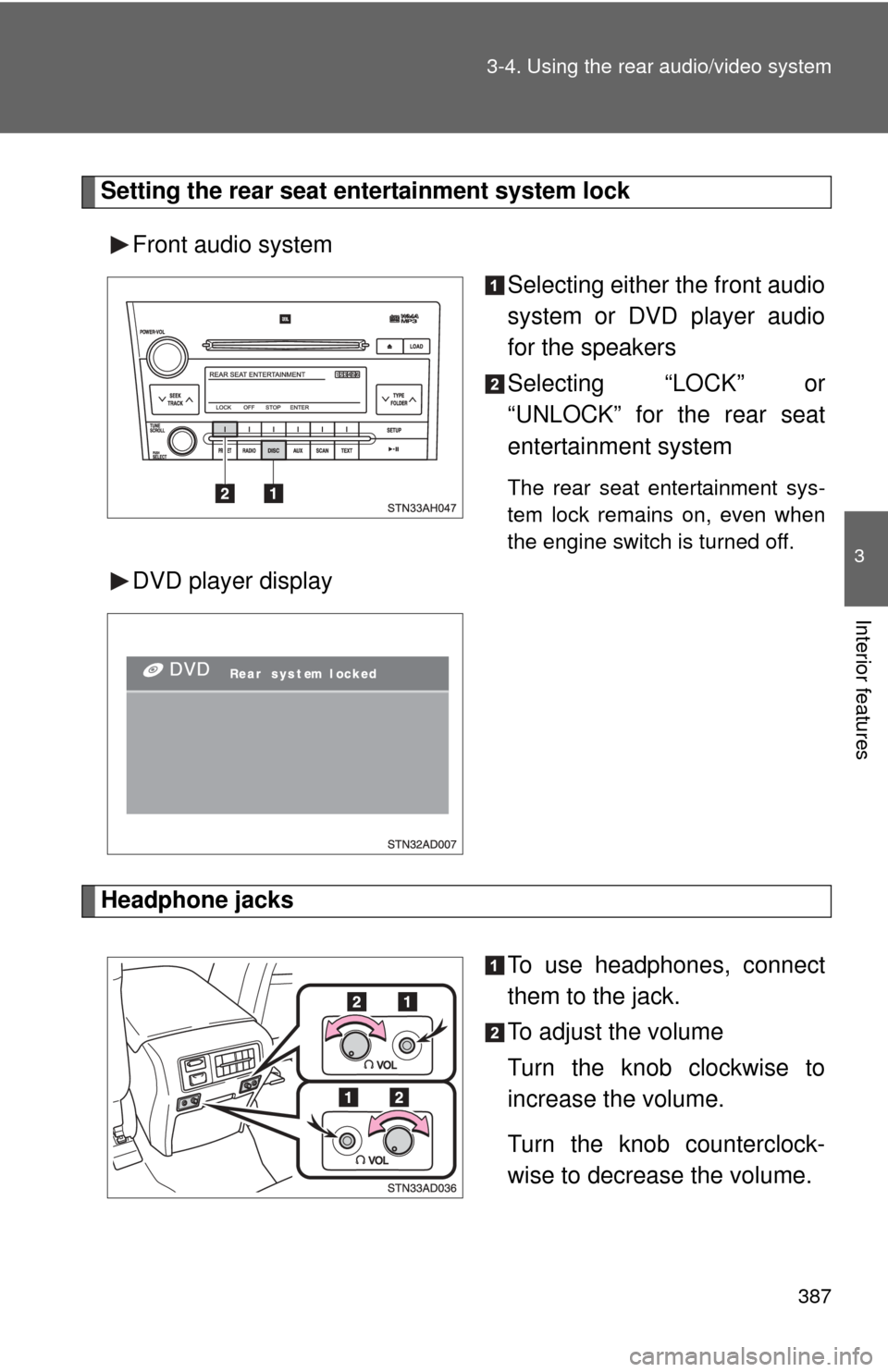
Setting the rear seat entertainment system lock
Front audio system Selecting either the front audio
system or DVD player audio
for the speakers
Selecting “LOCK” or
“UNLOCK” for the rear seat
entertainment system
The rear seat entertainment sys-
tem lock remains on, even when
the engine switch is turned off.
DVD player display
Headphone jacks
To use headphones, connect
them to the jack.
To adjust the volume
Turn the knob clockwise to
increase the volume.
Turn the knob counterclock-
wise to decrease the volume.
Page 411 of 708
411
3-4. Using the rear audio/video system
3
Interior features
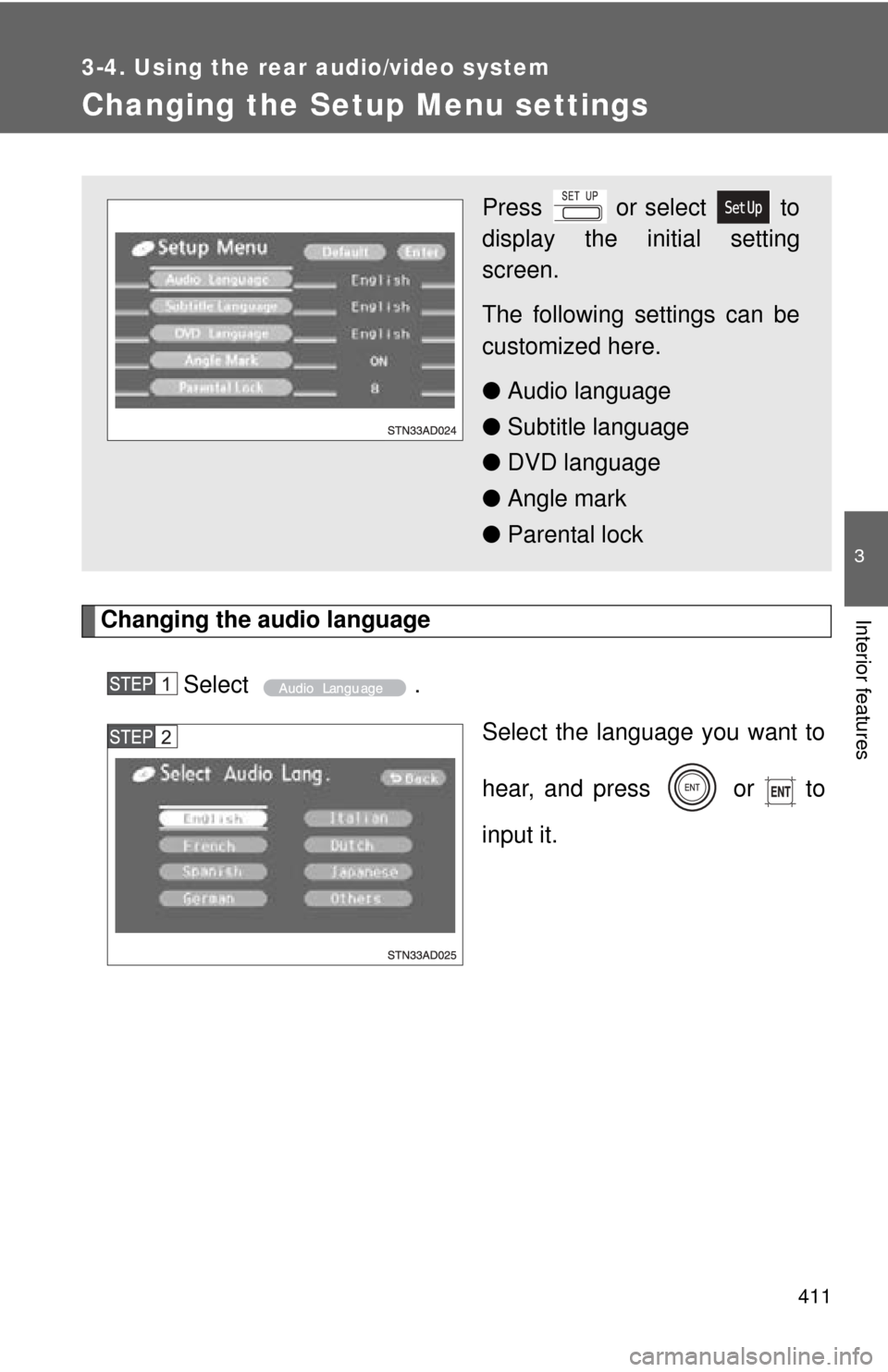
Changing the Setup Menu settings
Changing the audio languageSelect . Select the language you want to
hear, and press or to
input it.
Press or select to
display the initial setting
screen.
The following settings can be
customized here.
●Audio language
● Subtitle language
● DVD language
● Angle mark
● Parental lock
Page 420 of 708
420 3-5. Using the hands-free phone system (for cellular phone)
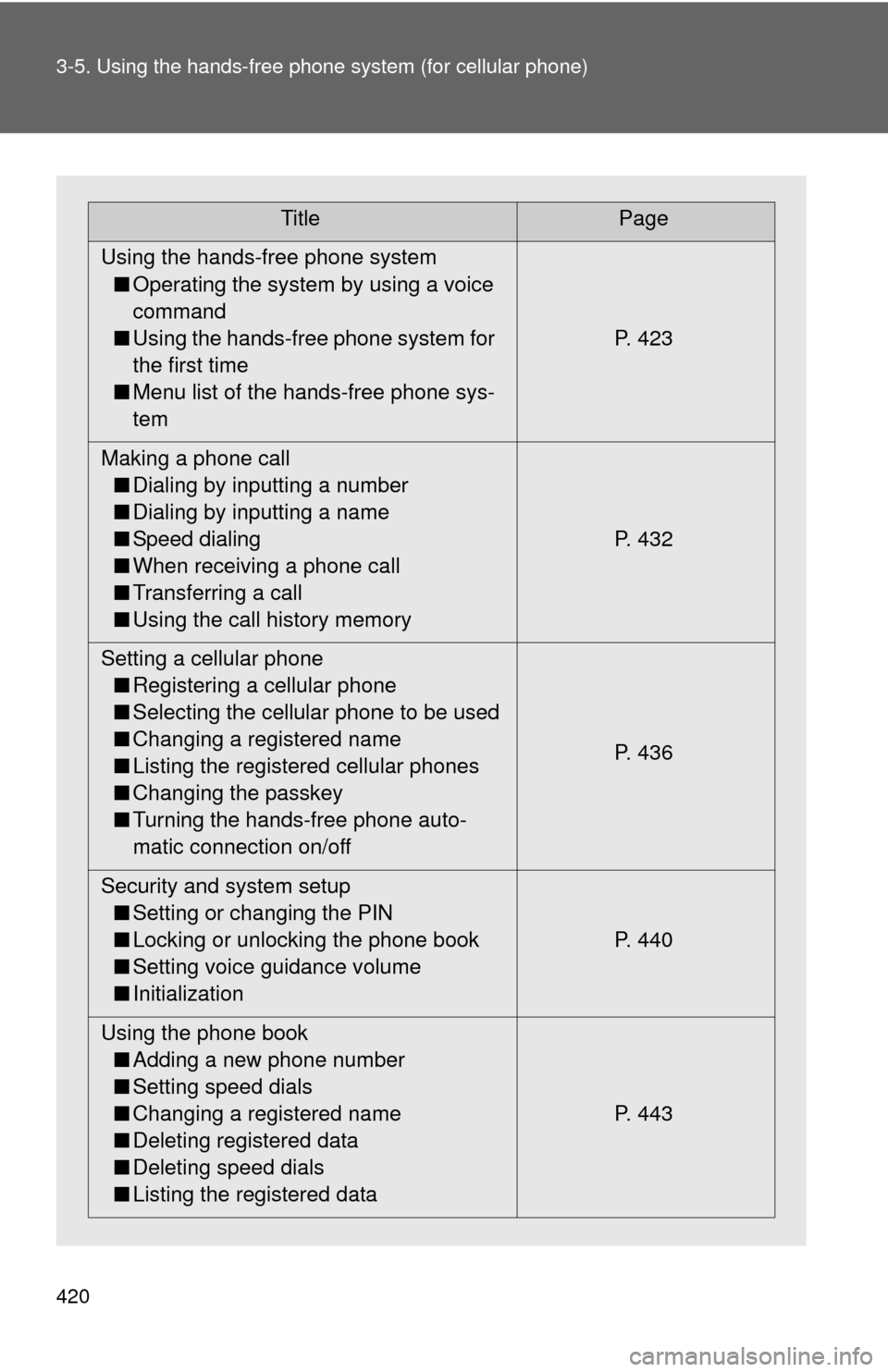
TitlePage
Using the hands-free phone system ■ Operating the system by using a voice
command
■ Using the hands-free phone system for
the first time
■ Menu list of the hands-free phone sys-
tem P. 423
Making a phone call ■ Dialing by inputting a number
■ Dialing by inputting a name
■ Speed dialing
■ When receiving a phone call
■ Transferring a call
■ Using the call history memory P. 432
Setting a cellular phone ■ Registering a cellular phone
■ Selecting the cellular phone to be used
■ Changing a registered name
■ Listing the registered cellular phones
■ Changing the passkey
■ Turning the hands-free phone auto-
matic connection on/off P. 436
Security and system setup ■ Setting or changing the PIN
■ Locking or unlocking the phone book
■ Setting voice guidance volume
■ Initialization P. 440
Using the phone book ■ Adding a new phone number
■ Setting speed dials
■ Changing a registered name
■ Deleting registered data
■ Deleting speed dials
■ Listing the registered data P. 443
Page 429 of 708
429
3-5. Using the hand
s-free phone system (for cellular phone)
3
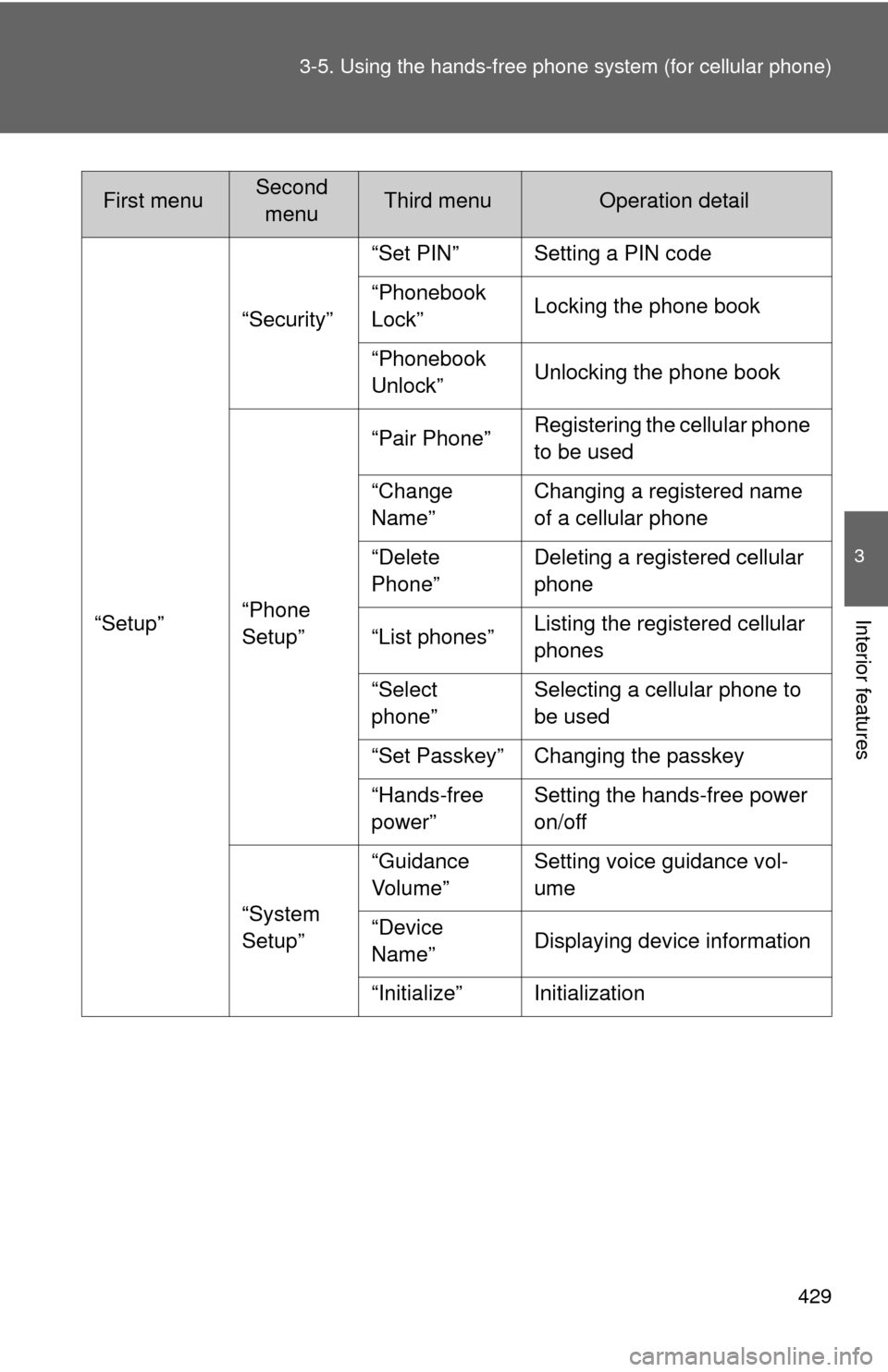
Interior features“Setup”“Security”
“Set PIN” Setting a PIN code
“Phonebook
Lock”
Locking the phone book
“Phonebook
Unlock” Unlocking the phone book
“Phone
Setup” “Pair Phone”
Registering the cellular phone
to be used
“Change
Name” Changing a registered name
of a cellular phone
“Delete
Phone” Deleting a registered cellular
phone
“List phones” Listing the registered cellular
phones
“Select
phone” Selecting a cellular phone to
be used
“Set Passkey” Changing the passkey
“Hands-free
power” Setting the hands-free power
on/off
“System
Setup” “Guidance
Vol u me ”
Setting voice guidance vol-
ume
“Device
Name” Displaying device information
“Initialize” Initialization
First menuSecond menuThird menuOperation detail
Page 430 of 708
430 3-5. Using the hands-free phone system (for cellular phone)
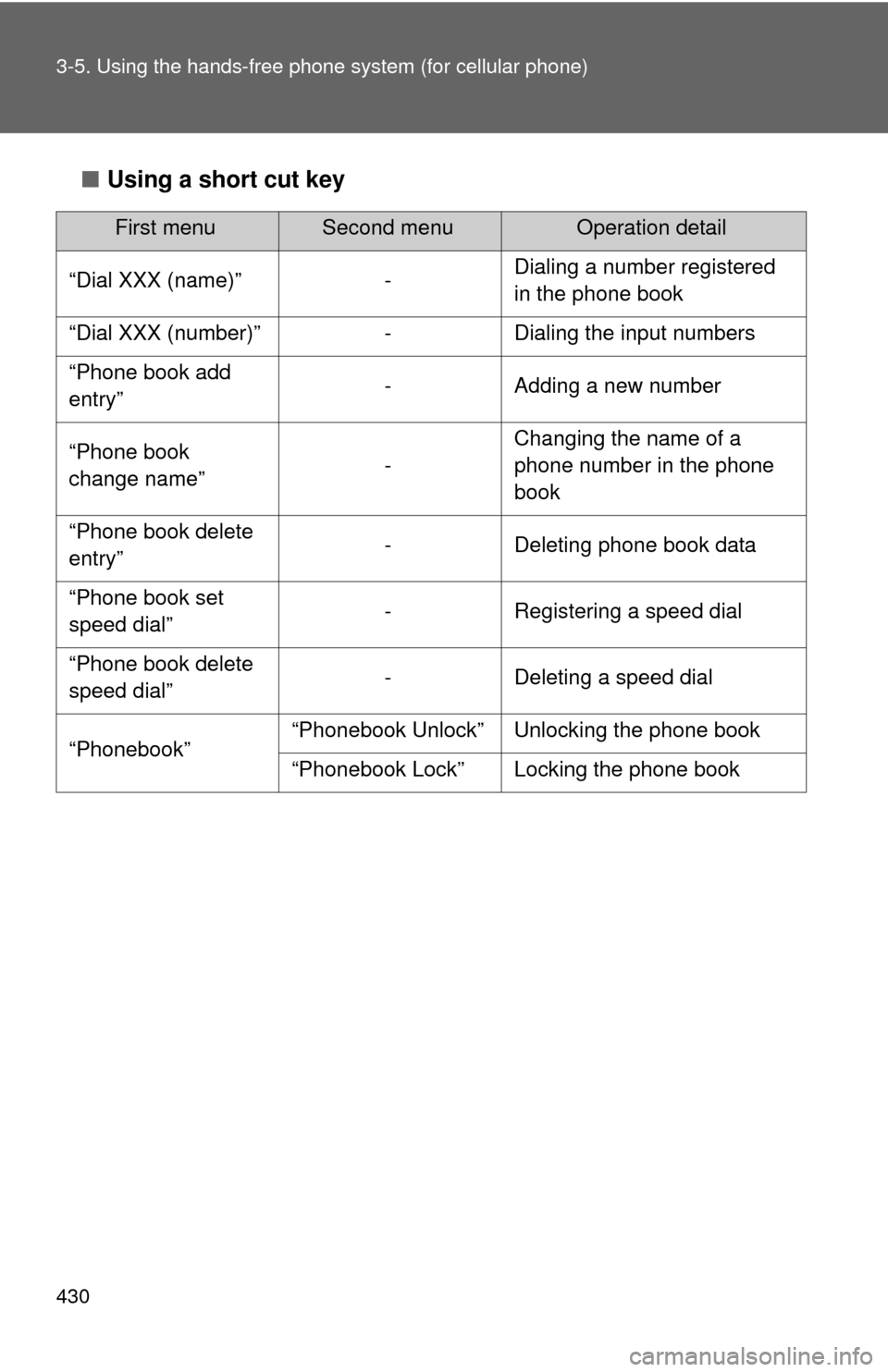
■Using a short cut key
First menuSecond menuOperation detail
“Dial XXX (name)” - Dialing a number registered
in the phone book
“Dial XXX (number)” - Dialing the input numbers
“Phone book add
entry” - Adding a new number
“Phone book
change name” -Changing the name of a
phone number in the phone
book
“Phone book delete
entry” - Deleting phone book data
“Phone book set
speed dial” - Registering a speed dial
“Phone book delete
speed dial” - Deleting a speed dial
“Phonebook” “Phonebook Unlock” Unlocking the phone book
“Phonebook Lock” Locking the phone book
Page 440 of 708
440
3-5. Using the hands-free phone system (for cellular phone)
Security and system setup
Setting or changing the PIN■ Setting a PIN
Select “Set PIN” by using a voice command or .
Enter a PIN by using a voice command or .
When using , input the code 1 digit at a time.
To enter the menu of each setting, follow the steps below:
■ Security setting items and operation procedure
● Setting or changing t he PIN (Personal Identification Number)
1. “Setup” 2. “Security” 3. “Set PIN”
● Locking the phone book
1. “Setup” 2. “Security” 3. “Phonebook Lock”
● Unlocking the phone book
1. “Setup” 2. “Security” 3. “Phonebook Unlock”
■ System setup items and operation procedure
●Setting voice guidance volume
1. “Setup” 2. “System Setup” 3. “Guidance Volume”
● Displaying the Bluetooth
® device address and name
1. “Setup” 2. “System Setup” 3. “Device Name”
● Initialization
1. “Setup” 2. “System Setup” 3. “Initialize”
can only be used for system setup operation.
Page 441 of 708
441
3-5. Using the hand
s-free phone system (for cellular phone)
3
Interior features
■Changing the PIN
Select “Set PIN” by using a voice command or .
Enter the registered PIN by using a voice command or
.
Enter a new PIN by using a voice command or .
When using , input the code 1 digit at a time.
Locking or unlocking the phone book Select “Phonebook lock” or “Phonebook unlock” by using a
voice command or .
Input the PIN by either of the following methods and select
“Confirm” by using a voice command or :
a. Press the talk switch and say the registered PIN.
b. Input a new PIN by using .
Setting voice guidance volume
Select “Guidance Volume” by using .
Change the voice guidance volume.
To decrease the volume: Turn counterclockwise.
To increase the volume: Turn clockwise.