USB TOYOTA SEQUOIA 2013 2.G Navigation Manual
[x] Cancel search | Manufacturer: TOYOTA, Model Year: 2013, Model line: SEQUOIA, Model: TOYOTA SEQUOIA 2013 2.GPages: 328, PDF Size: 8.3 MB
Page 207 of 328
207
1. AUDIO/VIDEO SYSTEM OPERATION
5
AUDIO/VIDEO SYSTEM
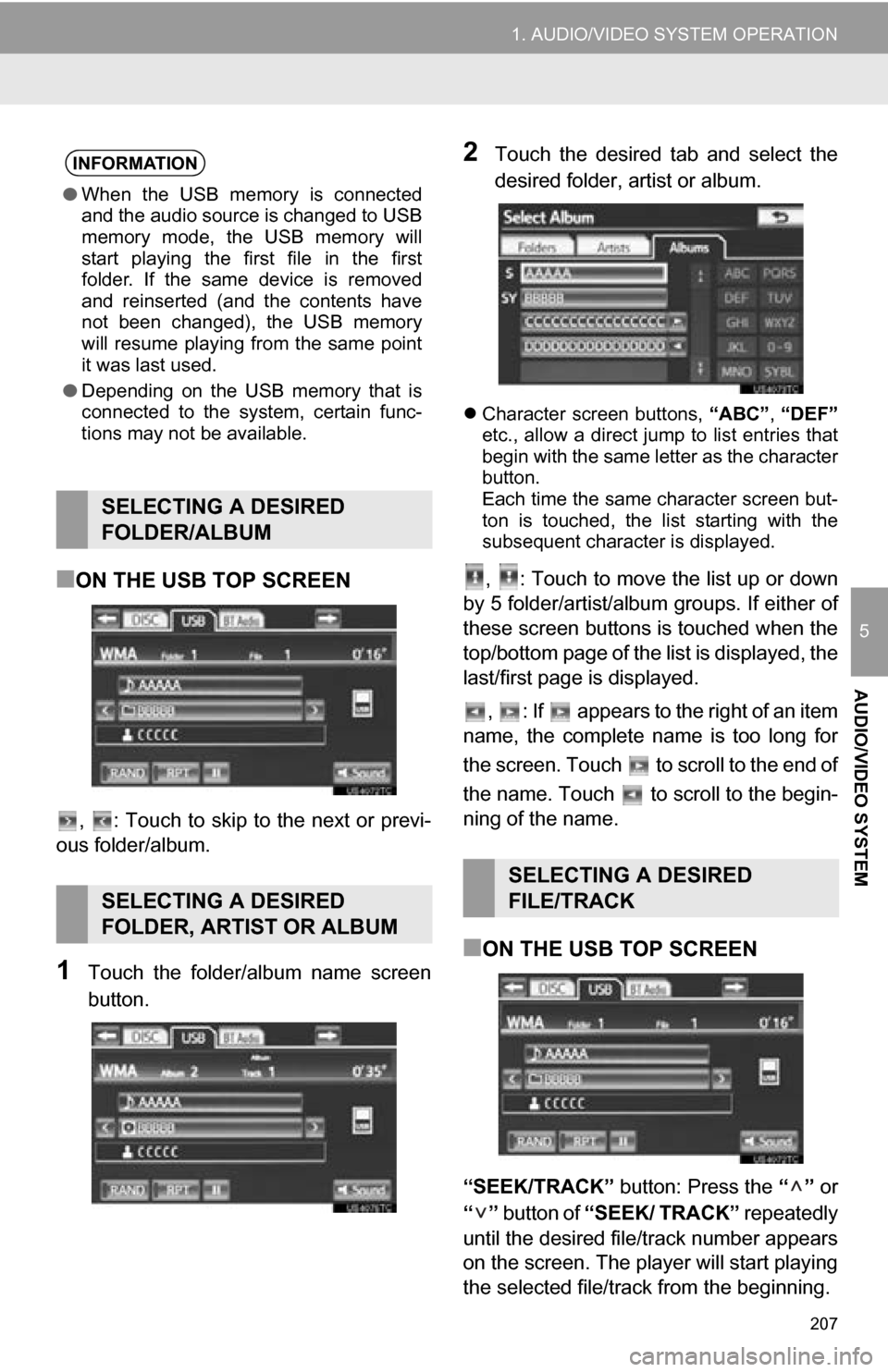
■ON THE USB TOP SCREEN
, : Touch to skip to the next or previ-
ous folder/album.
1Touch the folder/album name screen
button.
2Touch the desired tab and select the
desired folder, artist or album.
Character screen buttons, “ABC”, “DEF”
etc., allow a direct jump to list entries that
begin with the same letter as the character
button.
Each time the same character screen but-
ton is touched, the list starting with the
subsequent character is displayed.
, : Touch to move the list up or down
by 5 folder/artist/album groups. If either of
these screen buttons is touched when the
top/bottom page of the lis t is displayed, the
last/first page is displayed.
, : If appears to the right of an item
name, the complete name is too long for
the screen. Touch to scroll to the end of
the name. Touch to scroll to the begin-
ning of the name.
■ON THE USB TOP SCREEN
“SEEK/TRACK” button: Press the “” or
“” button of “SEEK/ TRACK” repeatedly
until the desired file/track number appears
on the screen. The player will start playing
the selected file/track from the beginning.
INFORMATION
● When the USB memory is connected
and the audio source is changed to USB
memory mode, the USB memory will
start playing the first file in the first
folder. If the same device is removed
and reinserted (and the contents have
not been changed), the USB memory
will resume playing from the same point
it was last used.
● Depending on the USB memory that is
connected to the system, certain func-
tions may not be available.
SELECTING A DESIRED
FOLDER/ALBUM
SELECTING A DESIRED
FOLDER, ARTIST OR ALBUM
SELECTING A DESIRED
FILE/TRACK
Page 223 of 328
223
1. AUDIO/VIDEO SYSTEM OPERATION
5
AUDIO/VIDEO SYSTEM
12. AUDIO/VIDEO REMOTE CONTROLS (STEERING SWITCHES)
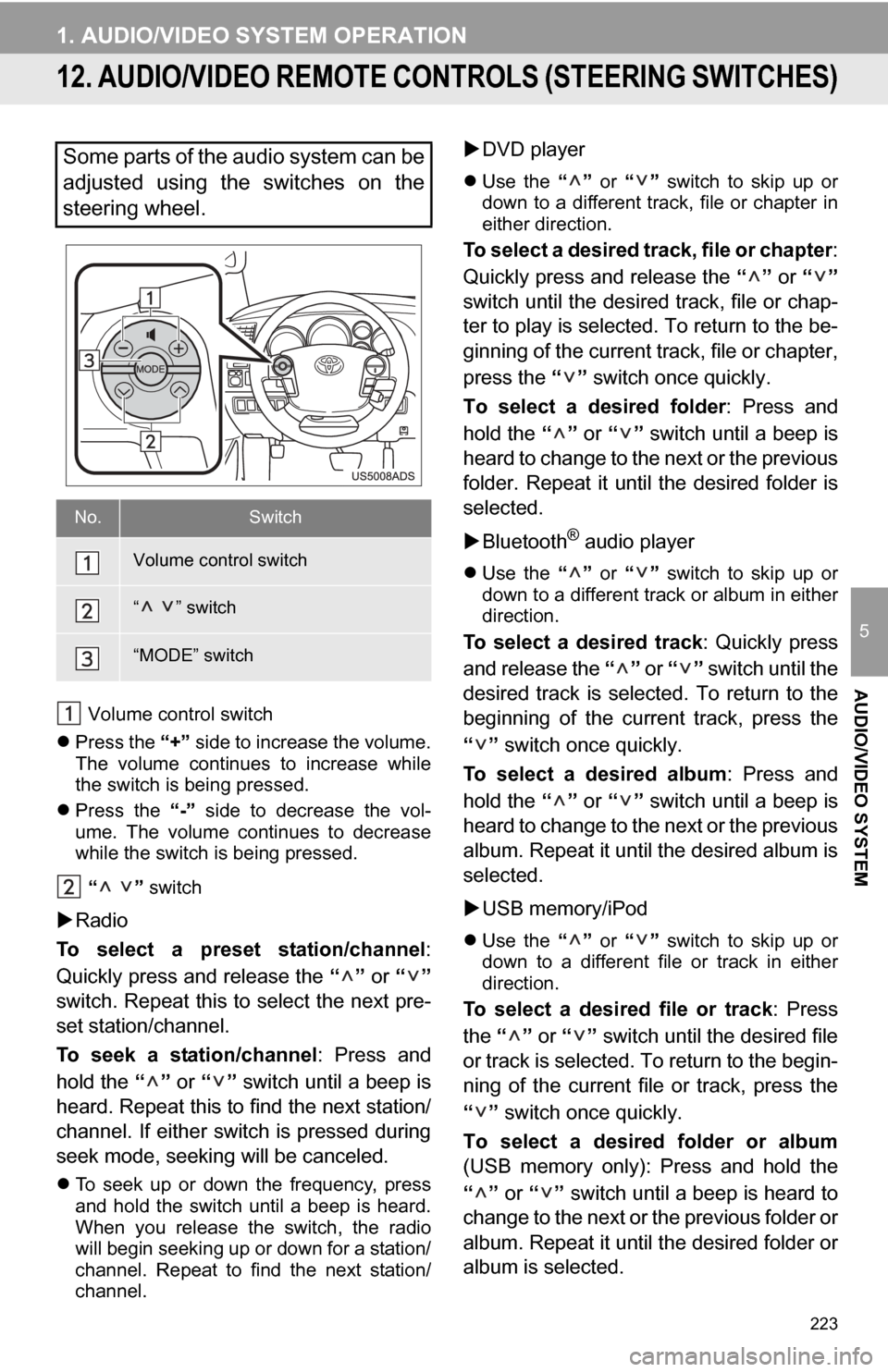
Volume control switch
Press the “+” side to increase the volume.
The volume continues to increase while
the switch is being pressed.
Press the “-” side to decrease the vol-
ume. The volume continues to decrease
while the switch is being pressed.
“ ” switch
Radio
To select a preset station/channel :
Quickly press and release the “” or “”
switch. Repeat this to select the next pre-
set station/channel.
To seek a station/channel : Press and
hold the “” or “” switch until a beep is
heard. Repeat this to find the next station/
channel. If either switch is pressed during
seek mode, seeking will be canceled.
To seek up or down the frequency, press
and hold the switch until a beep is heard.
When you release the switch, the radio
will begin seeking up or down for a station/
channel. Repeat to find the next station/
channel.
DVD player
Use the “” or “” switch to skip up or
down to a different track, file or chapter in
either direction.
To select a desired track, file or chapter :
Quickly press and release the “” or “”
switch until the desir ed track, file or chap-
ter to play is selected. To return to the be-
ginning of the current track, file or chapter,
press the “” switch once quickly.
To select a desired folder : Press and
hold the “” or “” switch until a beep is
heard to change to the next or the previous
folder. Repeat it until the desired folder is
selected.
Bluetooth
® audio player
Use the “” or “” switch to skip up or
down to a different track or album in either
direction.
To select a desired track : Quickly press
and release the “” or “” switch until the
desired track is selected. To return to the
beginning of the current track, press the
“” switch once quickly.
To select a desired album : Press and
hold the “” or “” switch until a beep is
heard to change to the next or the previous
album. Repeat it until the desired album is
selected.
USB memory/iPod
Use the “” or “” switch to skip up or
down to a different file or track in either
direction.
To select a desired file or track : Press
the “” or “” switch until the desired file
or track is selected. To return to the begin-
ning of the current file or track, press the
“” switch once quickly.
To select a desired folder or album
(USB memory only): Press and hold the
“” or “” switch until a beep is heard to
change to the next or the previous folder or
album. Repeat it until the desired folder or
album is selected.
Some parts of the audio system can be
adjusted using the switches on the
steering wheel.
No.Switch
Volume control switch
“ ” switch
“MODE” switch
Page 226 of 328
226
1. AUDIO/VIDEO SYSTEM OPERATION
“Made for iPod” and “Made for iPhone”
mean that an electronic accessory has
been designed to connect specifically to
iPod, or iPhone, respectively, and has
been certified by the developer to meet
Apple performance standards.
Apple is not responsible for the operation
of this device or its compliance with safety
and regulatory standards. Please note
that the use of this accessory with iPod or
iPhone may affect wireless performance.
iPhone, iPod, iPod classic, iPod nano and
iPod touch are trademarks of Apple Inc.,
registered in the U.S. and other countries.
The following iPod, iPod nano, iPod
classic, iPod touch and iPhone devic-
es can be used with this system.
Made for
• iPod touch (4th generation)
• iPod touch (3rd generation)
• iPod touch (2nd generation)
• iPod touch (1st generation)
•iPod classic
• iPod with video
• iPod nano (6th generation)
• iPod nano (5th generation)
• iPod nano (4th generation)
• iPod nano (3rd generation)
• iPod nano (2nd generation)
• iPod nano (1st generation)
• iPhone 4
• iPhone 3GS
• iPhone 3G
•iPhone
Depending on differences between mod-
els or software versions etc., some models
might be incompatible with this system.
USB memory that can be used for MP3
and WMA playback:
• USB communication formats: USB 2.0
HS (480 Mbps) and FS (12 Mbps)
• File formats: FAT 16/32
• Correspondence class: Mass storage
class
This DVD player is intended for use with
4.7 in. (12 cm) discs only.
Extremely high temperatures can keep the
DVD player from working. On hot days,
use the air conditioning system to cool the
inside of the vehicle before using the
player.
Bumpy roads or other vibrations may
make the DVD player skip.
If moisture gets into the DVD player, the
discs may not be able to be played.
Remove the discs from the player and
wait until it dries.
iPod
COMPATIBLE MODELS
USB MEMORY
CARING FOR YOUR DVD
PLAYER AND DISC
Page 229 of 328
229
1. AUDIO/VIDEO SYSTEM OPERATION
5
AUDIO/VIDEO SYSTEM
MP3 (MPEG Audio Layer 3) and WMA
(Windows Media Audio) are audio com-
pression standards.
The MP3/WMA player can play MP3 and
WMA files on CD-ROM, CD-R and CD-
RW discs.
The unit can play disc recordings compati-
ble with ISO 9660 level 1 and level 2 and
with the Romeo and Joliet file system.
When naming an MP3 or WMA file, add
the appropriate file extension (.mp3 or
.wma).
The MP3/WMA player plays back files
with .mp3 or .wma file extensions as MP3
or WMA files. To prevent noise and play-
back errors, use the appropriate file exten-
sions.
The MP3/WMA player can play only the
first session when using multi-session
compatible CDs.
MP3 player: MP3 files are compatible with
the ID3 Tag Ver. 1.0, Ver. 1.1, Ver. 2.2 and
Ver. 2.3 formats. The unit cannot display
disc title, track title and artist name in
other formats.
USB memory: MP3 files are compatible
with the ID3 Tag Ver. 1.0, Ver. 1.1, Ver.
2.2, Ver. 2.3 and Ver. 2.4 formats. The unit
cannot display track title and artist name
in other formats.
WMA files can contain a WMA tag that is
used in the same way as an ID3 tag. WMA
tags carry information such as track title
and artist name.
The emphasis function is available only
when playing MP3/WMA files recorded at
32, 44.1 and 48 kHz.
MP3 files for MP3 player:
MPEG 1 LAYER 3 — 32, 44.1, 48 kHz
MPEG 2 LSF LAYER 3 — 16, 22.05, 24
kHz
MP3 files for USB memory:
MPEG 1 AUDIO LAYER 2, 3 — 32, 44.1,
48 kHz
MPEG 2 AUDIO LAYER 2, 3 — 16, 22.05,
24 kHz
WMA files for WMA player:
Ver. 7, 8, 9 CBR — 32, 44.1, 48 kHz
WMA files for USB memory:
Ver. 9 — HIGH PROFILE 32, 44.1, 48 kHz
The sound quality of MP3/WMA files gen-
erally improves with higher bit rates. In
order to achieve a reasonable level of
sound quality, discs recorded with a bit
rate of at least 128 kbps are recom-
mended.
MP3 files for MP3 player:
MPEG1 LAYER3 — 32 to 320 kbps
MPEG2 LSF LAYER3 — 8 to 160 kbps
MP3 files for USB memory:
MPEG 1 AUDIO LAYER 2, 3 — 32 to 320
kbps
MPEG 2 AUDIO LAYER 2, 3 — 8 to 160
kbps
WMA files for WMA player:
Ver. 7, 8 CBR — 48 to 192 kbps
Ver. 9 CBR — 48 to 320 kbps
WMA files for USB memory:
Ver. 9 HIGH PROFILE 32 to 320 kbps,
VBR (Variable Bit Rate)
The MP3/WMA player does not play back
MP3/WMA files from discs recorded using
packet write data transfer (UDF format).
Discs should be recorded using “pre-mas-
tering” software rather than packet-write
software.
M3u playlists are not compatible with the
audio player.
MP3i (MP3 interactive) and MP3PRO for-
mats are not compatible with the audio
player.
The player is compatible with VBR (Vari-
able Bit Rate).
MP3/WMA FILESSAMPLING FREQUENCY
PLAYABLE BIT RATES
Page 230 of 328
230
1. AUDIO/VIDEO SYSTEM OPERATION
When playing back files recorded as VBR
(Variable Bit Rate) files, the play time will
not be correctly displayed if the fast for-
ward or reverse operations are used.
It is not possible to check folders that do
not include MP3/WMA files.
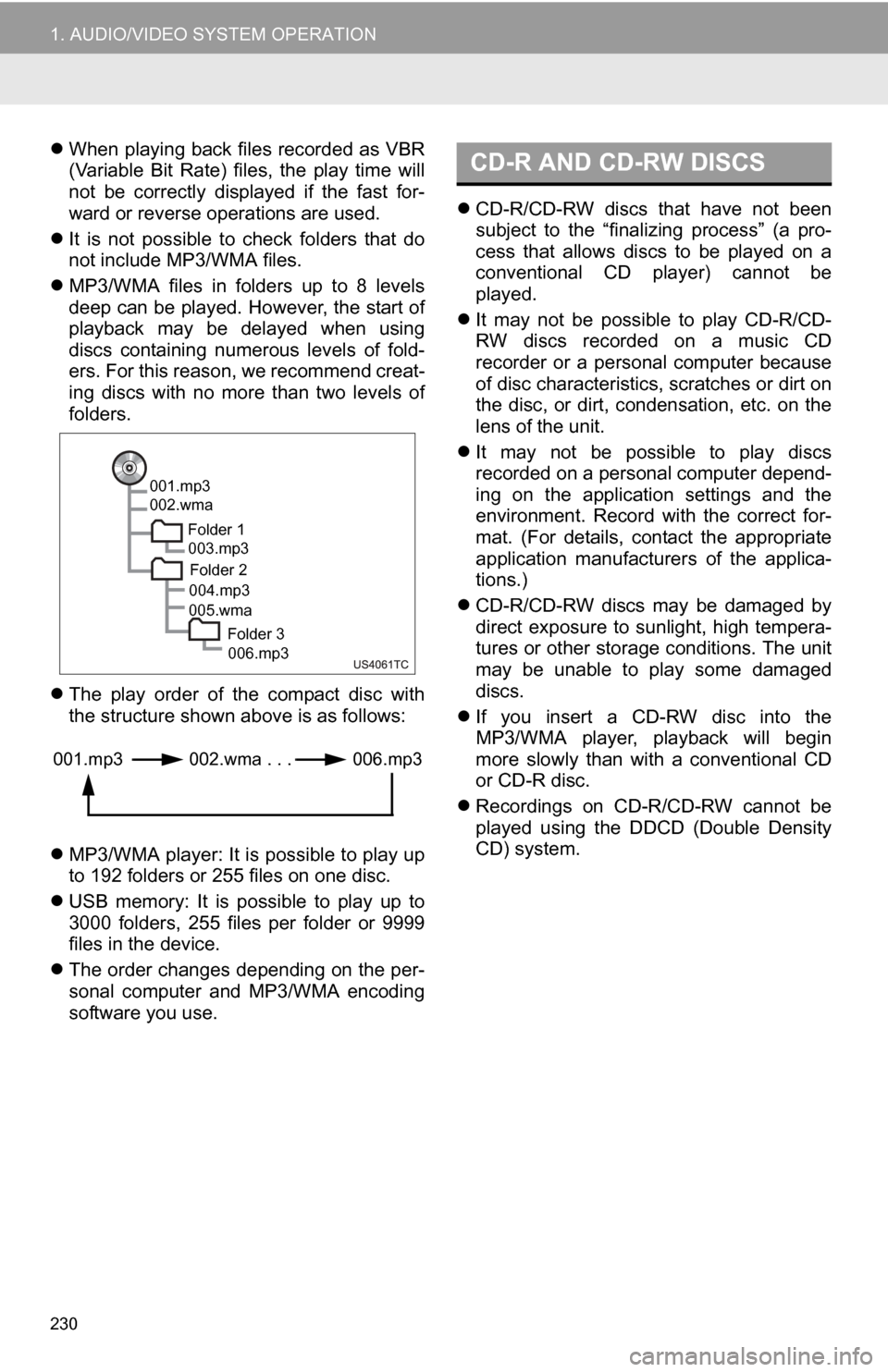
MP3/WMA files in folders up to 8 levels
deep can be played. However, the start of
playback may be delayed when using
discs containing numerous levels of fold-
ers. For this reason, we recommend creat-
ing discs with no more than two levels of
folders.
The play order of the compact disc with
the structure shown above is as follows:
MP3/WMA player: It is possible to play up
to 192 folders or 255 files on one disc.
USB memory: It is possible to play up to
3000 folders, 255 files per folder or 9999
files in the device.
The order changes depending on the per-
sonal computer and MP3/WMA encoding
software you use.
CD-R/CD-RW discs that have not been
subject to the “finalizing process” (a pro-
cess that allows discs to be played on a
conventional CD player) cannot be
played.
It may not be possible to play CD-R/CD-
RW discs recorded on a music CD
recorder or a personal computer because
of disc characteristics, scratches or dirt on
the disc, or dirt, condensation, etc. on the
lens of the unit.
It may not be possible to play discs
recorded on a personal computer depend-
ing on the application settings and the
environment. Record with the correct for-
mat. (For details, contact the appropriate
application manufacturers of the applica-
tions.)
CD-R/CD-RW discs may be damaged by
direct exposure to sunlight, high tempera-
tures or other storage conditions. The unit
may be unable to play some damaged
discs.
If you insert a CD-RW disc into the
MP3/WMA player, playback will begin
more slowly than with a conventional CD
or CD-R disc.
Recordings on CD-R/CD-RW cannot be
played using the D DCD (Double Density
CD) system.
001.mp3
002.wma
Folder 1003.mp3
Folder 2
004.mp3
005.wma
Folder 3006.mp3
001.mp3 002.wma . . . 006.mp3
CD-R AND CD-RW DISCS
Page 243 of 328
243
1. VOICE COMMAND SYSTEM OPERATION
6
VOICE COMMAND SYSTEM
INFORMATION
●A USB memory or iPod must be con-
nected to enable track searching and
playback. (See “USB MEMORY OPER-
ATION” on page 206 and “iPod OPERA-
TION” on page 210.)
● When a USB memory or iPod is con-
nected, recognition data is created so
tracks can be searched using voice
commands.
● Recognition data is updated under the
following conditions:
• When the USB memory or iPod data
has changed.
• When the voice recognition language is changed. (See page 42.)
● While the recognition data is being cre-
ated or being updated, a track search
cannot be performed using a voice com-
mand.
● While “Play Music” is displayed in the
“Shortcut menu” screen, say “Play
music” to display the music screen from
which searching for a track using a voice
command can be performed.
● When “Play Music” is dimmed in the
“Shortcut Menu” screen, it is not possi-
ble to search for a track using a voice
command. In this situation, reduce the
amount of music data in the USB mem-
ory or iPod and update the recognition
data to enable searching by voice com-
mand.
Page 248 of 328
248
1. VOICE COMMAND SYSTEM OPERATION
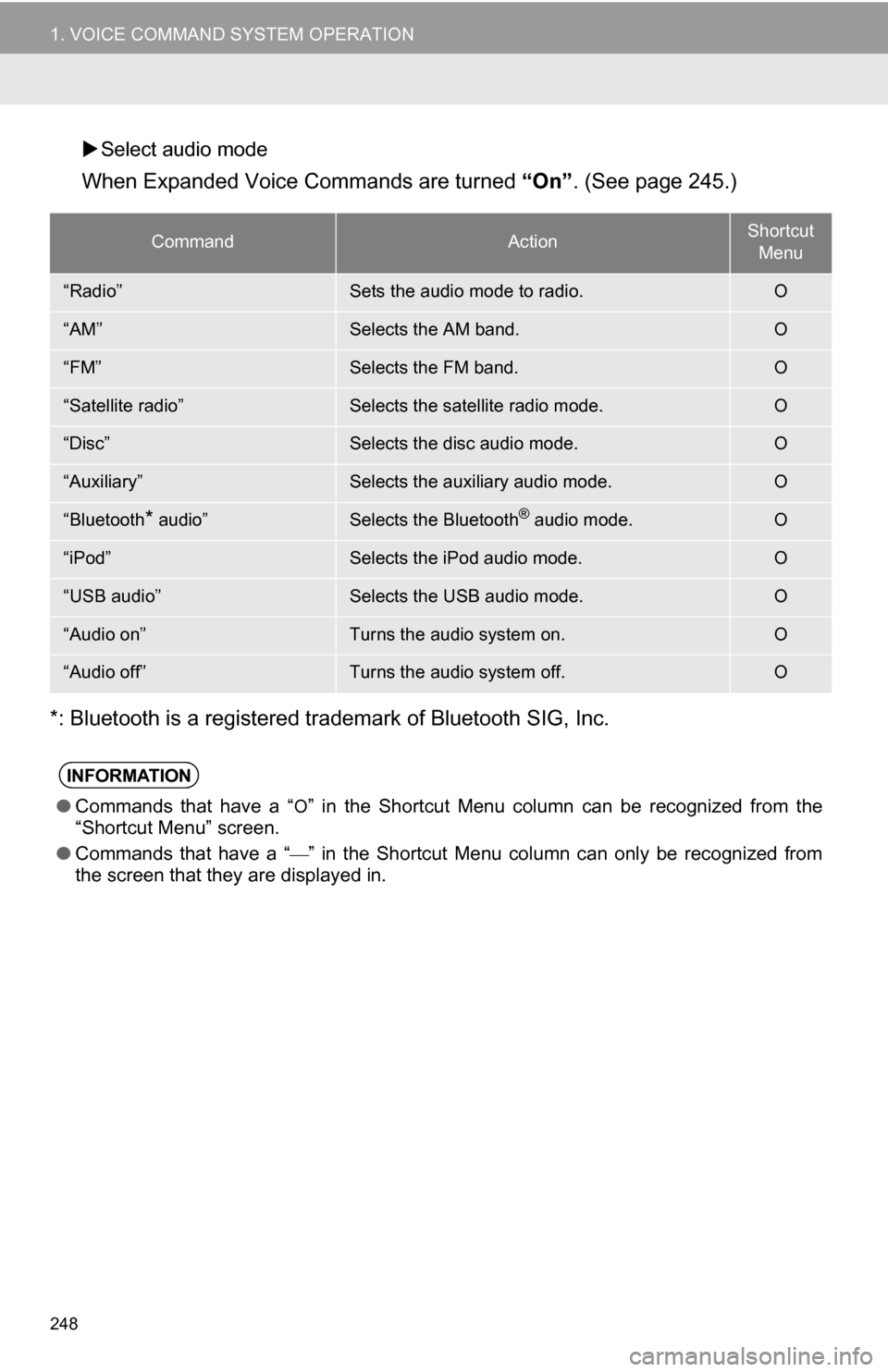
Select audio mode
When Expanded Voice Commands are turned “On”. (See page 245.)
*: Bluetooth is a registered trademark of Bluetooth SIG, Inc.
CommandActionShortcut Menu
“Radio”Sets the audio mode to radio.O
“AM”Selects the AM band.O
“FM”Selects the FM band.O
“Satellite radio”Selects the satellite radio mode.O
“Disc”Selects the disc audio mode.O
“Auxiliary”Selects the auxiliary audio mode.O
“Bluetooth* audio”Selects the Bluetooth® audio mode.O
“iPod”Selects the iPod audio mode.O
“USB audio”Selects the USB audio mode.O
“Audio on”Turns the audio system on.O
“Audio off”Turns the audio system off.O
INFORMATION
● Commands that have a “O” in the Shortcut Menu column can be recognized from the
“Shortcut Menu” screen.
● Commands that have a “
” in the Shortcut Menu column can only be recognized from
the screen that they are displayed in.
Page 272 of 328
272
1. ENTUNE-OVERVIEW
2. BEFORE USING ENTUNE
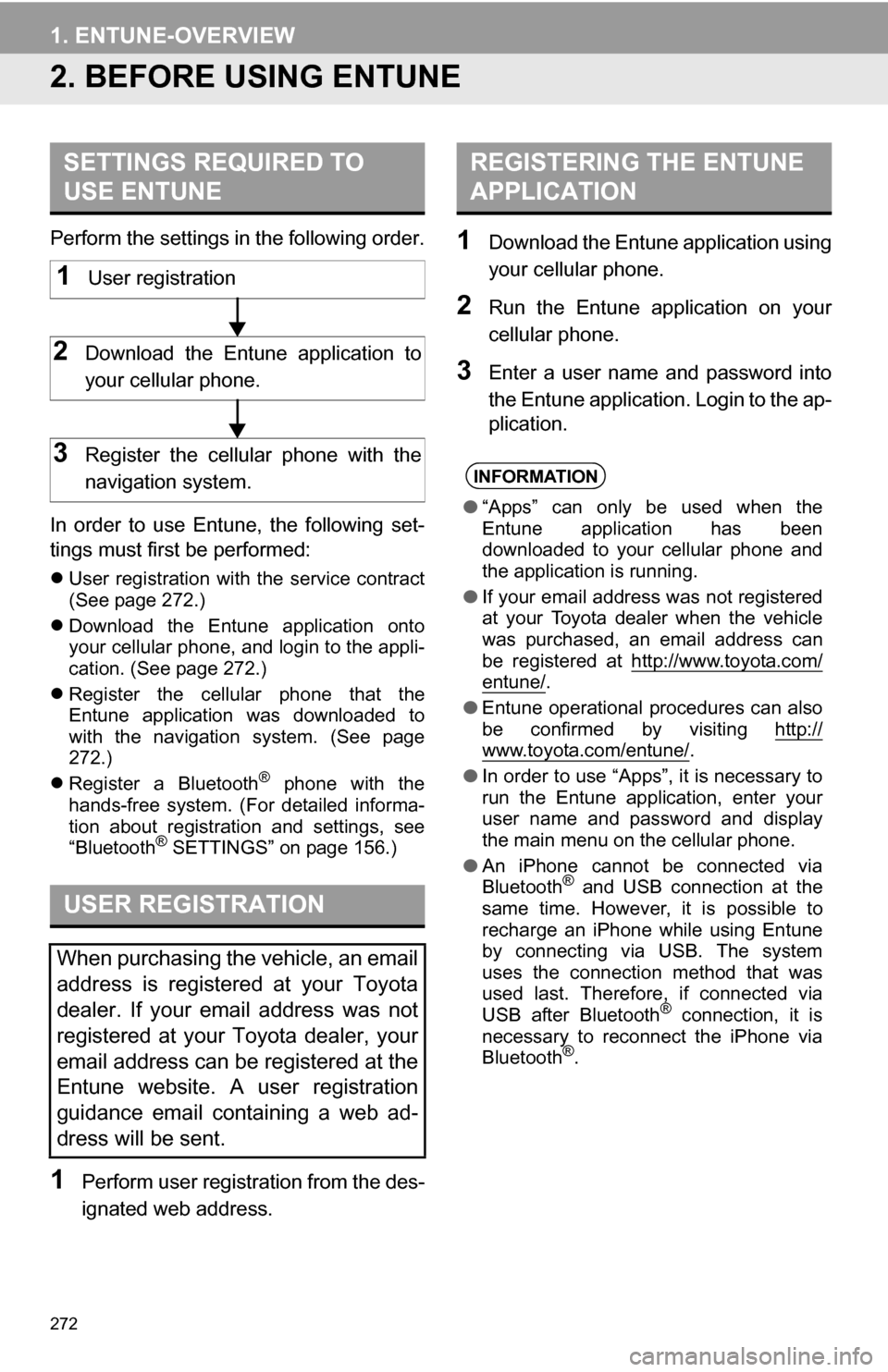
Perform the settings in the following order.
In order to use Entune, the following set-
tings must first be performed:
User registration with the service contract
(See page 272.)
Download the Entune application onto
your cellular phone, and login to the appli-
cation. (See page 272.)
Register the cellular phone that the
Entune application was downloaded to
with the navigation system. (See page
272.)
Register a Bluetooth
® phone with the
hands-free system. (For detailed informa-
tion about registration and settings, see
“Bluetooth
® SETTINGS” on page 156.)
1Perform user registration from the des-
ignated web address.
1Download the Entune application using
your cellular phone.
2Run the Entune application on your
cellular phone.
3Enter a user name and password into
the Entune application. Login to the ap-
plication.
SETTINGS REQUIRED TO
USE ENTUNE
USER REGISTRATION
When purchasing the vehicle, an email
address is registered at your Toyota
dealer. If your email address was not
registered at your Toyota dealer, your
email address can be registered at the
Entune website. A user registration
guidance email containing a web ad-
dress will be sent.
1User registration
2Download the Entune application to
your cellular phone.
3Register the cellular phone with the
navigation system.
REGISTERING THE ENTUNE
APPLICATION
INFORMATION
● “Apps” can only be used when the
Entune application has been
downloaded to your cellular phone and
the application is running.
● If your email address was not registered
at your Toyota dealer when the vehicle
was purchased, an email address can
be registered at http://www.toyota.com/
entune/.
● Entune operational procedures can also
be confirmed by visiting http://
www.toyota.com/entune/.
● In order to use “Apps”, it is necessary to
run the Entune application, enter your
user name and password and display
the main menu on the cellular phone.
● An iPhone cannot be connected via
Bluetooth
® and USB connection at the
same time. However, it is possible to
recharge an iPhone while using Entune
by connecting via USB. The system
uses the connection method that was
used last. Therefore, if connected via
USB after Bluetooth
® connection, it is
necessary to reconnect the iPhone via
Bluetooth
®.
Page 294 of 328

294
ALPHABETICAL INDEX
A
Adding destinations.................................. 76
Address book ............................................ 91
Address book entries ................................ 91
AM........................................................... 175
Apps ........................................................ 270
Audio ....................................................... 168
Audio language code .............................. 200
Audio settings ........................................ 234HD Radio system settings .. ............. 234
iPod settings ........................................ 235
Audio/video remote controls (steering switches) ............................. 223
Audio/video system ......... ..................... ... 168
Audio/video system operating hints ....... 225 Caring for your DVD player and disc .......................................... 226
CD-R and CD-RW discs ..................... 230
iPod .................................................... 226
MP3/WMA files ................................... 229
Radio reception .................................. 225
Terms ................................................. 231
USB memory ...................................... 226
Automatic Sound Levelizer (ASL) ........... 172
AUX port ................................................ 174
B
Basic function ............................................26
Bluetooth®...............................................114
Bluetooth® audio .....................................213
Connecting a Bluetooth®
audio player .................................... 216
Playing Bluetooth
® audio.................... 218
Bluetooth® phone ....................................121
Bluetooth® phone message function...... 134
Checking messages ........................... 134
New message notification................... 136
Replying (quick reply) ......................... 135
Bluetooth
® settings ................................ 156
Detailed Bluetooth® settings............... 162
Registered devices ............................. 156
Selecting a Bluetooth
® phone ............ 159
Selecting portable player .................... 161
Brightness .........................................31, 198
C
Call on the Bluetooth® phone................. 125
By call history ..................................... 127
By dial ................................................. 125
By phonebook..................................... 125
By POI call .......................................... 130
By speed dial ...................................... 127
By voice recognition ........................... 128
Calling using an SMS/MMS message ......................................... 130
CD ...........................................................188
CLOSE button .........................................168
Color..................................................43, 198
Command list ......................................... 246
Contrast.............................................31, 198
Current position calibration .....................104
Current position display............................ 32
Page 298 of 328
298
ALPHABETICAL INDEX
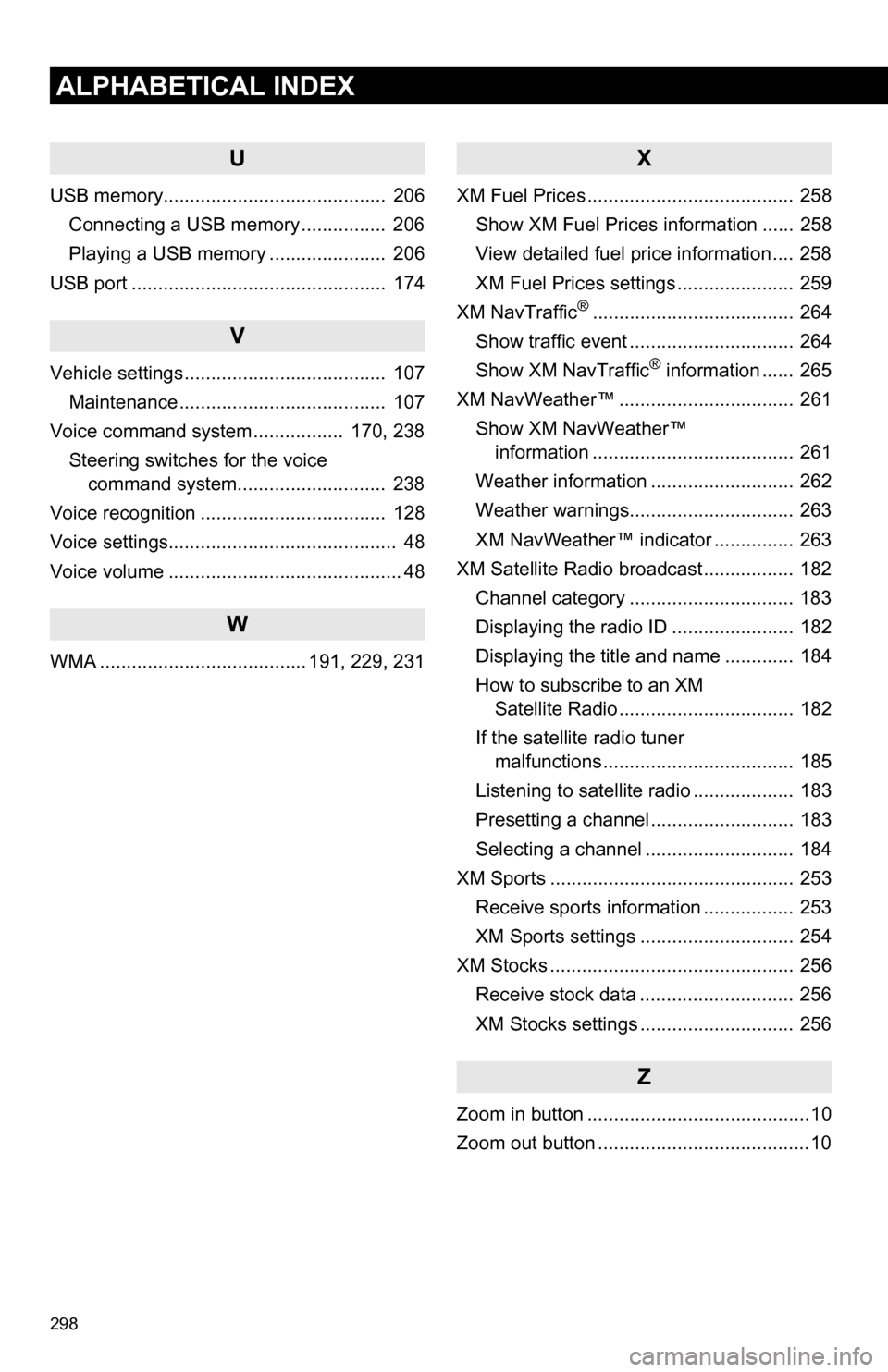
U
USB memory.......................................... 206Connecting a USB memory ................ 206
Playing a USB memory ...................... 206
USB port ................................................ 174
V
Vehicle settings ...................................... 107 Maintenance ....................................... 107
Voice command system ................. 170, 238
Steering switches for the voice command system.......... .................. 238
Voice recognition ................................... 128
Voice settings........................................... 48
Voice volume ............................................ 48
W
WMA ....................................... 191, 229, 231
X
XM Fuel Prices ....................................... 258 Show XM Fuel Prices information ...... 258
View detailed fuel price information .... 258
XM Fuel Prices settings ...................... 259
XM NavTraffic
®...................................... 264
Show traffic event ............................... 264
Show XM NavTraffic
® information ...... 265
XM NavWeather™ ................................. 261
Show XM NavWeather™ information ...................................... 261
Weather information ........................... 262
Weather warnings............................... 263
XM NavWeather™ indicator ............... 263
XM Satellite Radio broadcast ................. 182 Channel category ............................... 183
Displaying the radio ID ....................... 182
Displaying the title and name ............. 184
How to subscribe to an XM Satellite Radio ................................. 182
If the satellite radio tuner malfunctions .................................... 185
Listening to satellite radio ................... 183
Presetting a channel ........................... 183
Selecting a channel ............................ 184
XM Sports .............................................. 253 Receive sports information ................. 253
XM Sports settings ............................. 254
XM Stocks .............................................. 256 Receive stock data ............................. 256
XM Stocks settings ............................. 256
Z
Zoom in button ..........................................10
Zoom out button ........................................10