audio TOYOTA SEQUOIA 2013 2.G Owners Manual
[x] Cancel search | Manufacturer: TOYOTA, Model Year: 2013, Model line: SEQUOIA, Model: TOYOTA SEQUOIA 2013 2.GPages: 740, PDF Size: 15.34 MB
Page 433 of 740
433
3-4. Using the rear seat entertainment system
3
Interior features
Turning on the audio CD and MP3/WMA mode
Insert a disc or Press the “DIS C” button with a disc inserted.
The player will start to play the disc automatically.
Selecting a track/file
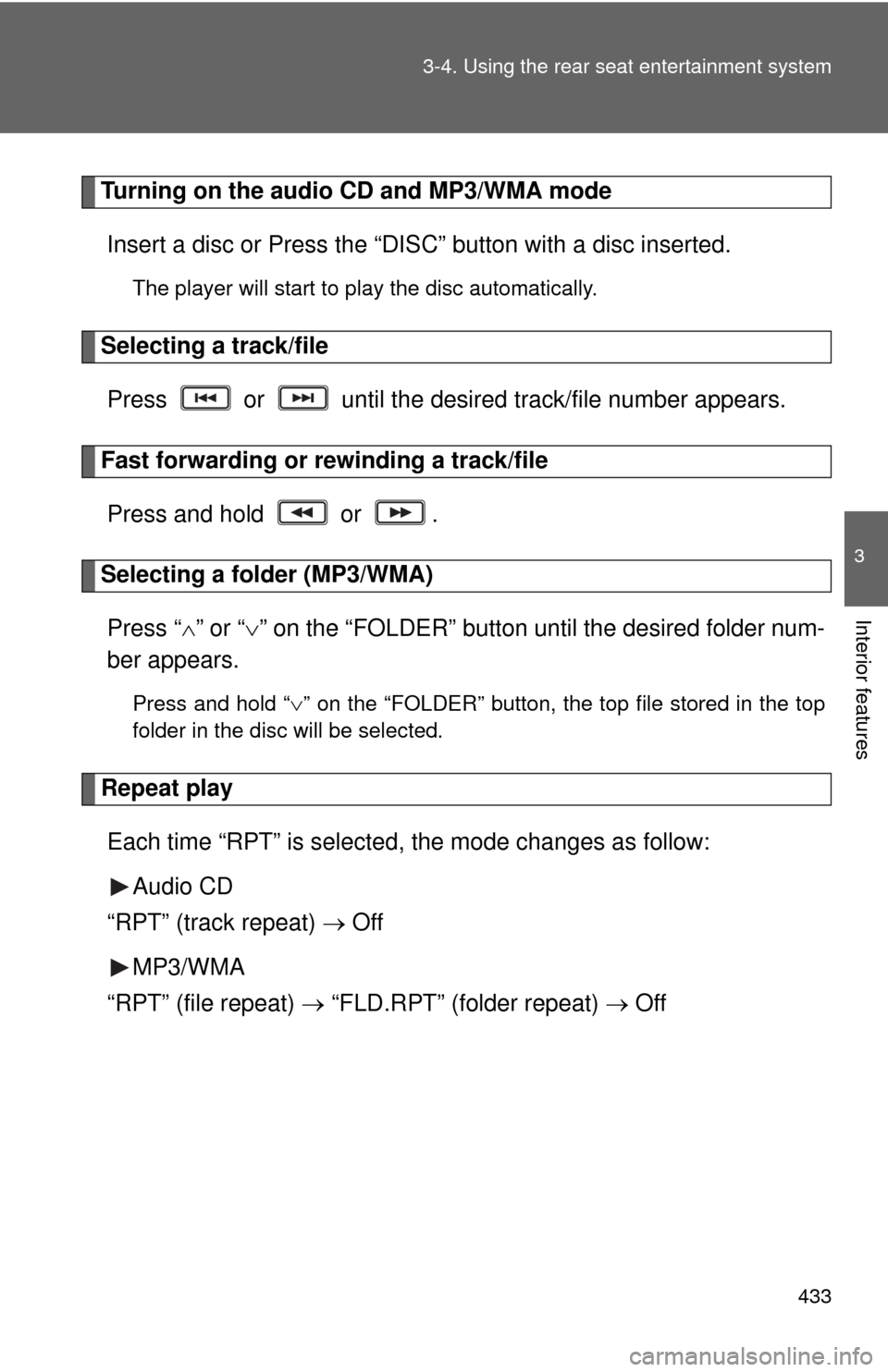
Press or until the desired track/file number appears.
Fast forwarding or rewinding a track/filePress and hold or .
Selecting a folder (MP3/WMA)Press “ ” or “ ” on the “FOLDER” button until the desired folder num-
ber appears.
Press and hold “ ” on the “FOLDER” button, the top file stored in the top
folder in the disc will be selected.
Repeat play
Each time “RPT” is selected , the mode changes as follow:
Audio CD
“RPT” (track repeat) Off
MP3/WMA
“RPT” (file repeat) “FLD.RPT” (folder repeat) Off
Page 434 of 740
434 3-4. Using the rear seat entertainment system
Random playbackEach time “RAND” is selected , the mode changes as follow:
Audio CD
“RAND” (random) Off
MP3/WMA
“RAND” (1 folder random) “FLD.RAND” (1 disc random) Off
■Discs that can be used ( P. 397)
■ Displaying the title and artist name
If a CD-TEXT disc is inserted, the titles of the disc and track will be dis-
played.
■ MP3 and WMA files
MP3 (MPEG Audio LAYER3) is a standard audio compression format.
Files can be compressed to approximately 1/10 of their original size by using
MP3 compression.
WMA (Windows Media Audio) is a Microsoft audio compression format.
This format compresses audio data to a size smaller than that of the MP3
format.
There is a limit to the MP3 and WMA file standards and to the media/formats
recorded by them that can be used.
●MP3 file compatibility
• Compatible standards
MP3 (MPEG1 LAYER3, MPEG2 LSF LAYER3)
• Compatible sampling frequencies MPEG1 LAYER3: 32, 44.1, 48 (kHz)
MPEG2 LSF LAYER3: 16, 22.05, 24 (kHz)
• Compatible bit rates (compatible with VBR) MPEG1 LAYER3: 64, 80, 96, 112, 128, 160, 192, 224, 256, 320 (kbps)
MPEG2 LSF LAYER3: 64, 80, 96, 112, 128, 144, 160 (kbps)
• Compatible channel modes: stereo, joint stereo, dual channel and mono
Page 435 of 740
435
3-4. Using the rear seat entertainment system
3
Interior features
●
WMA file compatibility
• Compatible standards
WMA Ver. 7, 8, 9
• Compatible sampling frequencies 32, 44.1, 48 (kHz)
• Compatible bit rates (only compatible with 2-channel playback) Ver. 7, 8, 9: CBR 48, 64, 80, 96, 128, 160, 192 (kbps)
● Compatible media
Media that can be used for MP3 and WMA playback:
• CD-ROM/R/RW
• DVD-ROM/R/RW
Playback in some instances may not be possible, depending on the status
of the disc. Playback may not be possible or the audio may jump if the disc
is scratched or marked with fingerprints.
● Compatible disc formats
The following disc formats can be used.
• Disc formats: CD-ROM Mode 1
CD-ROM XA Mode 2 Form 1
• File formats: ISO9660 Level 1, Level 2 (Romeo, Joliet) UDF (2.01 or lower)
MP3 and WMA files written in any format other than those listed above
may not play correctly, and their file names and folder names may not be
displayed correctly.
Items related to standards and limitations are as follows.
• Maximum directory hierarchy: 8 levels
• Maximum length of folder names/file names: 20 characters
• Maximum number of folders: 255 (including the root)
• Maximum number of files per disc: 512
● File names
The only files that can be recognized as MP3/WMA and played are those
with the extension .mp3 or .wma.
● Multi-sessions
As the audio system is compatible with multi-sessions, it is possible to play
discs that contain MP3 and WMA files.
Page 446 of 740
446
3-4. Using the rear seat entertainment system
Using the video mode
: If equipped
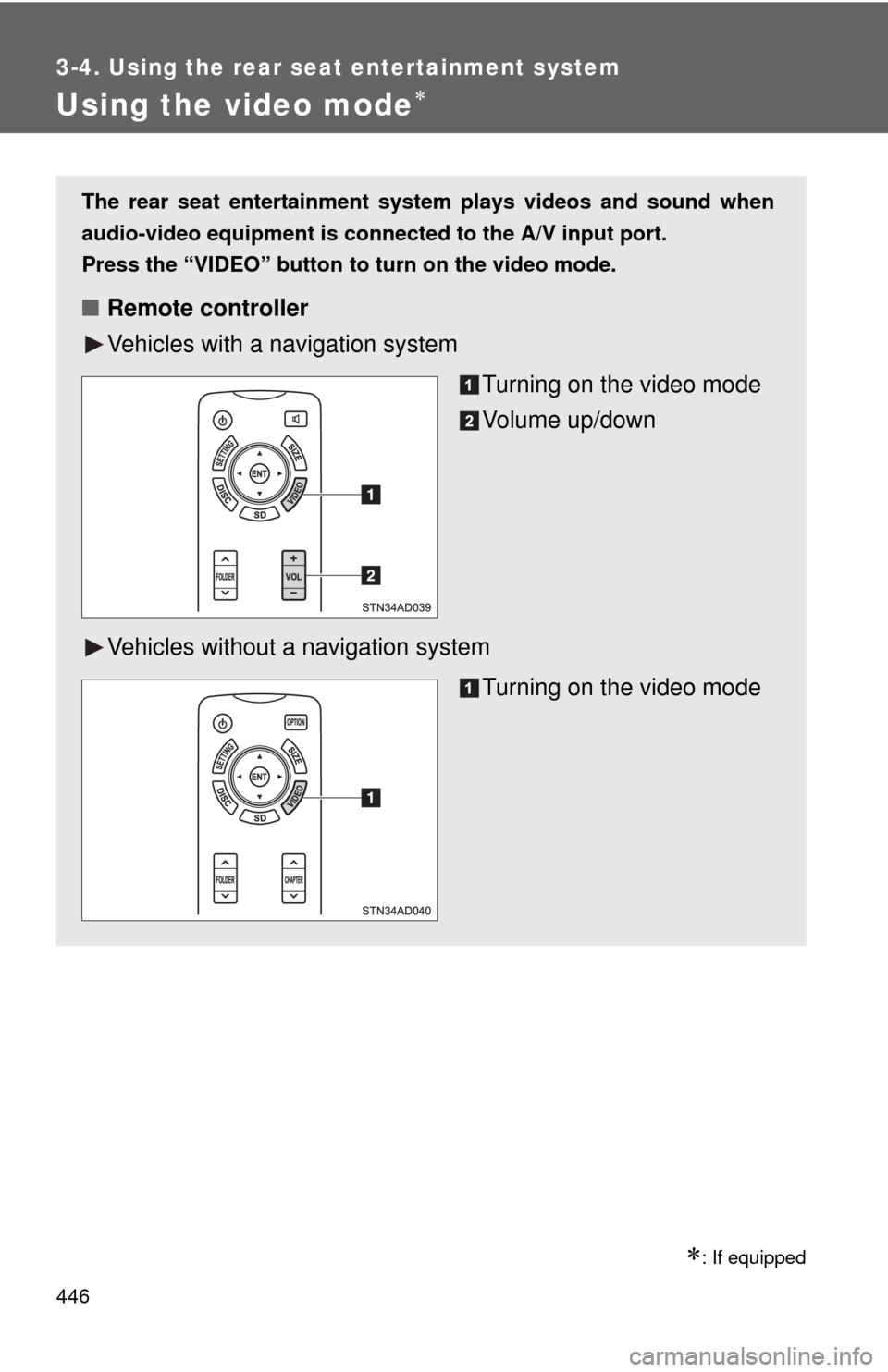
The rear seat entertainment system plays videos and sound when
audio-video equipment is conn ected to the A/V input port.
Press the “VIDEO” button
to turn on the video mode.
■ Remote controller
Vehicles with a navigation system
Turning on the video mode
Volume up/down
Vehicles without a navigation system
Turning on the video mode
Page 447 of 740
447
3-4. Using the rear seat entertainment system
3
Interior features
■
Operating the audio-video equi pment connected to the system
The volume can be adjusted using the vehicle’s audio controls. All other
operations must be made on the audio-video equipment itself.
For details about operation of audio-video equipment, refer to the manufac-
turer’s instructions.
NOTICE
■ When the A/V input port is not in use
Keep the A/V input port cover closed.
Inserting anything other than an appropriate plug may cause electrical fail-
ure or a short circuit.
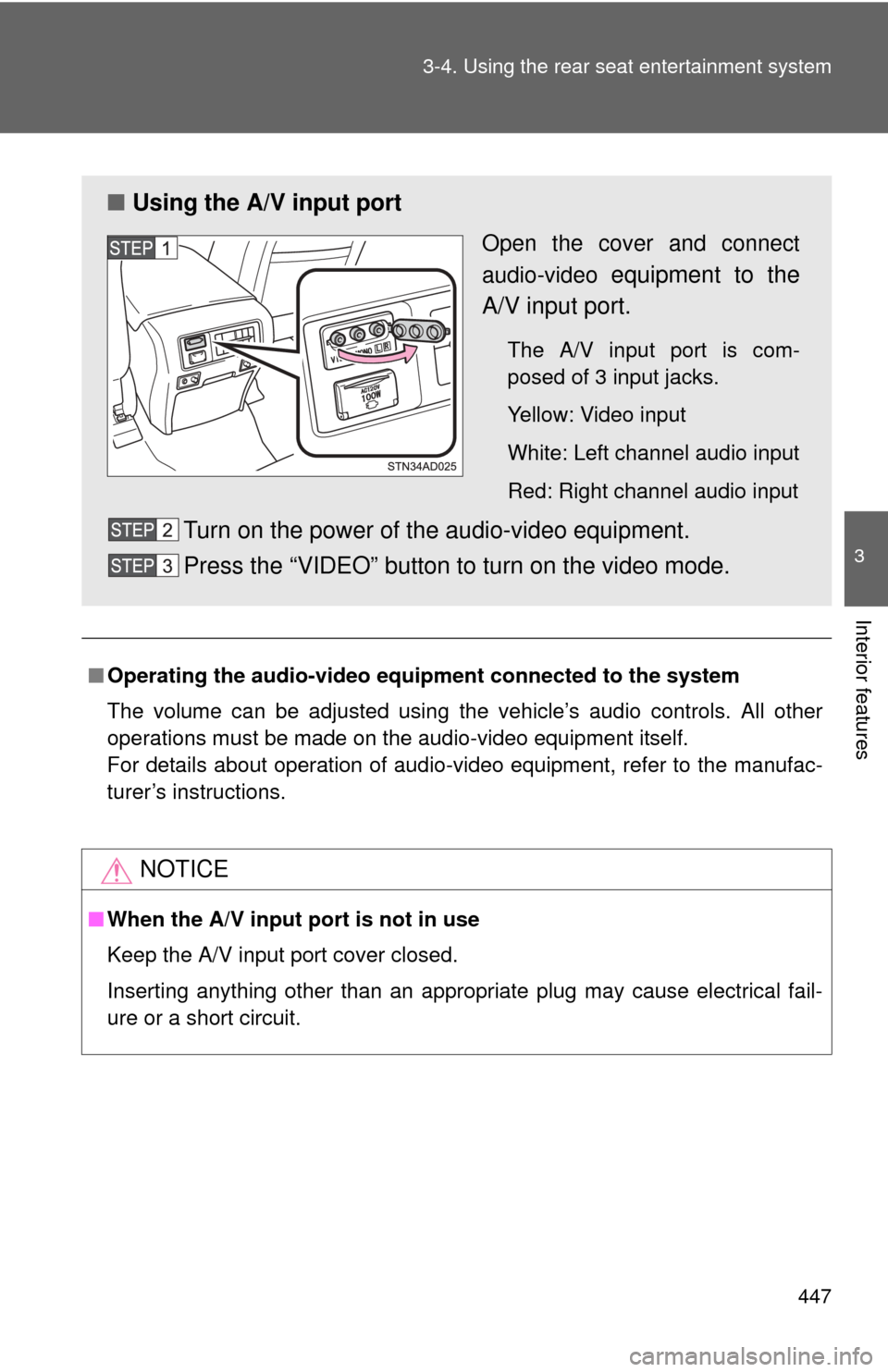
■ Using the A/V input port
Open the cover and connect
audio-video
equipment to the
A/V input port.
The A/V input port is com-
posed of 3 input jacks.
Yellow: Video input
White: Left channel audio input
Red: Right channel audio input
Turn on the power of the audio-video equipment.
Press the “VIDEO” button to turn on the video mode.
Page 452 of 740
452
3-5. Using the hands-free phone system (for cellular phone)
Using the hands-free phone system
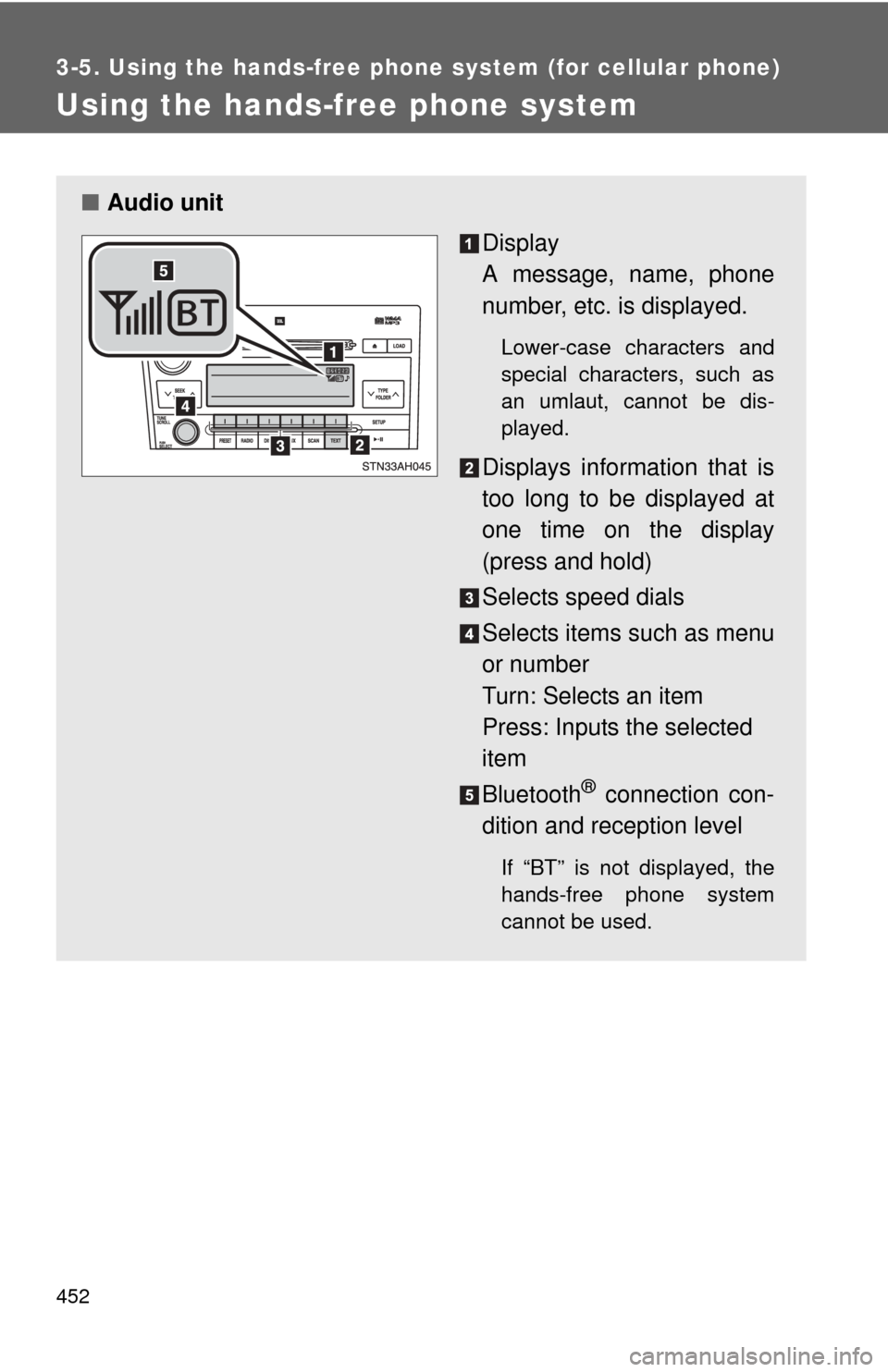
■Audio unit
Display
A message, name, phone
number, etc. is displayed.
Lower-case characters and
special characters, such as
an umlaut, cannot be dis-
played.
Displays information that is
too long to be displayed at
one time on the display
(press and hold)
Selects speed dials
Selects items such as menu
or number
Turn: Selects an item
Press: Inputs the selected
item
Bluetooth
® connection con-
dition and reception level
If “BT” is not displayed, the
hands-free phone system
cannot be used.
Page 456 of 740
456 3-5. Using the hands-free phone system (for cellular phone)
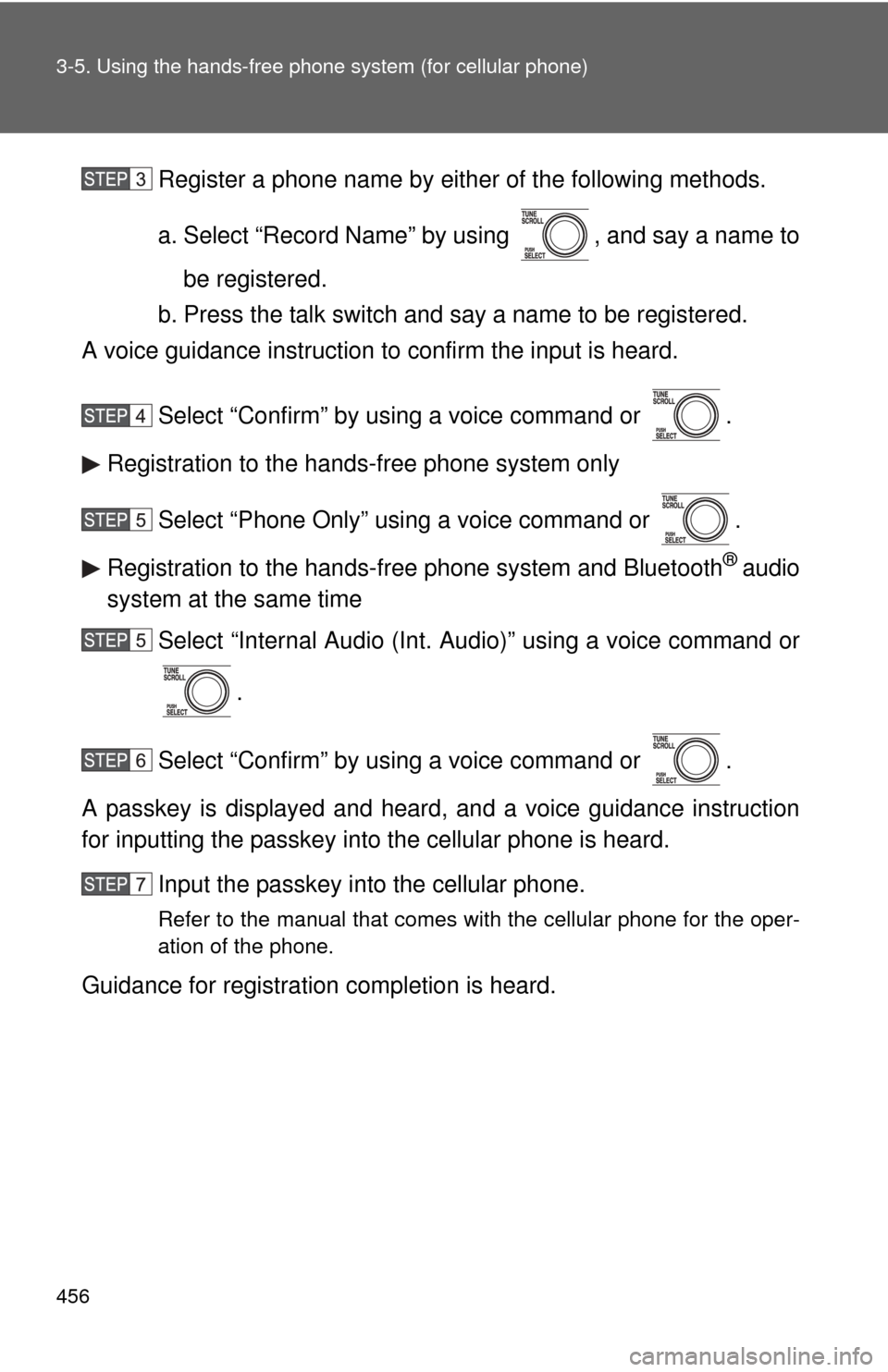
Register a phone name by either of the following methods.
a. Select “Record Name” by using , and say a name to
be registered.
b. Press the talk switch and say a name to be registered.
A voice guidance instruction to confirm the input is heard.
Select “Confirm” by using a voice command or .
Registration to the hands-free phone system only
Select “Phone Only” using a voice command or .
Registration to the hands-free phone system and Bluetooth
® audio
system at the same time
Select “Internal Audio (Int. Audio)” using a voice command or
.
Select “Confirm” by using a voice command or .
A passkey is displayed and heard, and a voice guidance instruction
for inputting the passkey into the cellular phone is heard. Input the passkey into the cellular phone.
Refer to the manual that comes with the cellular phone for the oper-
ation of the phone.
Guidance for registration completion is heard.
Page 552 of 740
552 4-1. Maintenance and care
NOTICE
■Cleaning detergents
●Do not use organic substances such as benzene or gasoline, acidic or
alkaline solutions, dye, bleach or other detergent. Doing so may discolor
the vehicle interior or cause streaks or damage to painted surfaces.
● Do not use polish wax or polish cleaner. The instrument panel’s or other
interior part’s painted surface may be damaged.
■ Preventing damage to leather surfaces
Observe the following precautions to avoid damage to and deterioration o\
f
leather surfaces.
●Remove any dust or dirt on leather surfaces immediately.
● Do not expose the vehicle to direct sunlight for extended periods of time.
Park the vehicle in the shade, especially during summer.
● Do not place items made of vinyl or plastic, or that contain wax on the
upholstery, as they may stick to the leather surface if the vehicle interior
heats up significantly.
■ Water on the floor
Do not wash the vehicle floor with water.
Vehicle systems such as the audio system may be damaged if water comes
into contact with electrical components under the floor of the vehicle, and
may also cause the body to rust.
■ Cleaning the inside of the back window and the rear quarter windows
●Do not use glass cleaner to clean the back window and the rear quarter
windows, as this may cause damage to the rear window defogger heater
wires or antennas. Use a cloth dampened with lukewarm water to gently
wipe the window clean. Wipe the window in strokes running parallel to the
heater wires.
● Be careful not to scratch or damage the heater wires or antennas.
Page 603 of 740
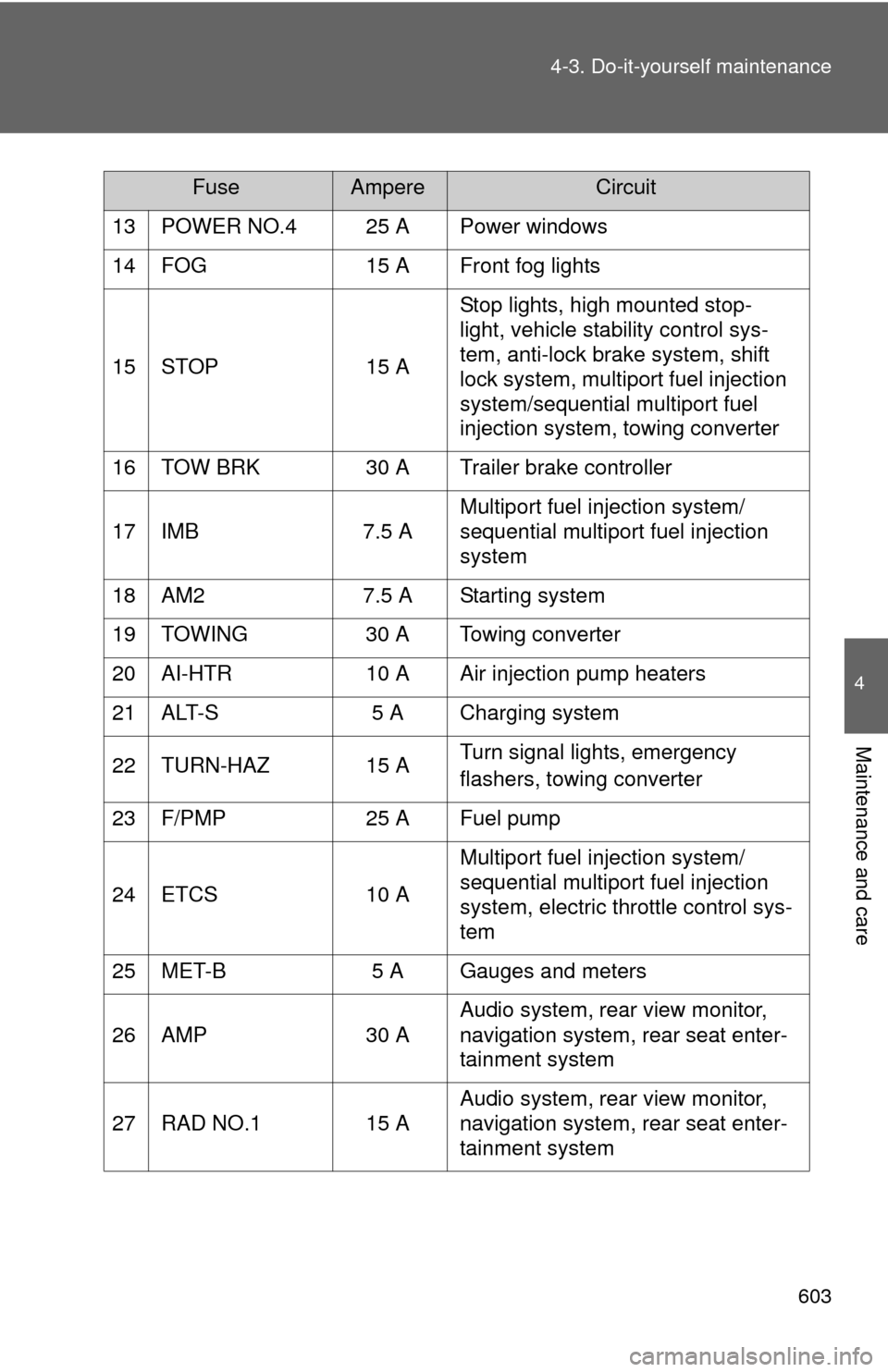
603
4-3. Do-it-yourself maintenance
4
Maintenance and care
13 POWER NO.4 25 A Power windows
14 FOG 15 A Front fog lights
15 STOP 15 A
Stop lights, high mounted stop-
light, vehicle stability control sys-
tem, anti-lock brake system, shift
lock system, multiport fuel injection
system/sequential multiport fuel
injection system, towing converter
16 TOW BRK 30 A Trailer brake controller
17 IMB 7.5 A Multiport fuel injection system/
sequential multiport fuel injection
system
18 AM2 7.5 A Starting system
19 TOWING 30 A Towing converter
20 AI-HTR 10 A Air injection pump heaters
21 ALT-S 5 A Charging system
22 TURN-HAZ 15 A Turn signal lights, emergency
flashers, towing converter
23 F/PMP 25 A Fuel pump
24 ETCS 10 A Multiport fuel injection system/
sequential multiport fuel injection
system, electric throttle control sys-
tem
25 MET-B 5 A Gauges and meters
26 AMP 30 A Audio system, rear view monitor,
navigation system, rear seat enter-
tainment system
27 RAD NO.1 15 A Audio system, rear view monitor,
navigation system, rear seat enter-
tainment system
FuseAmpereCircuit
Page 609 of 740
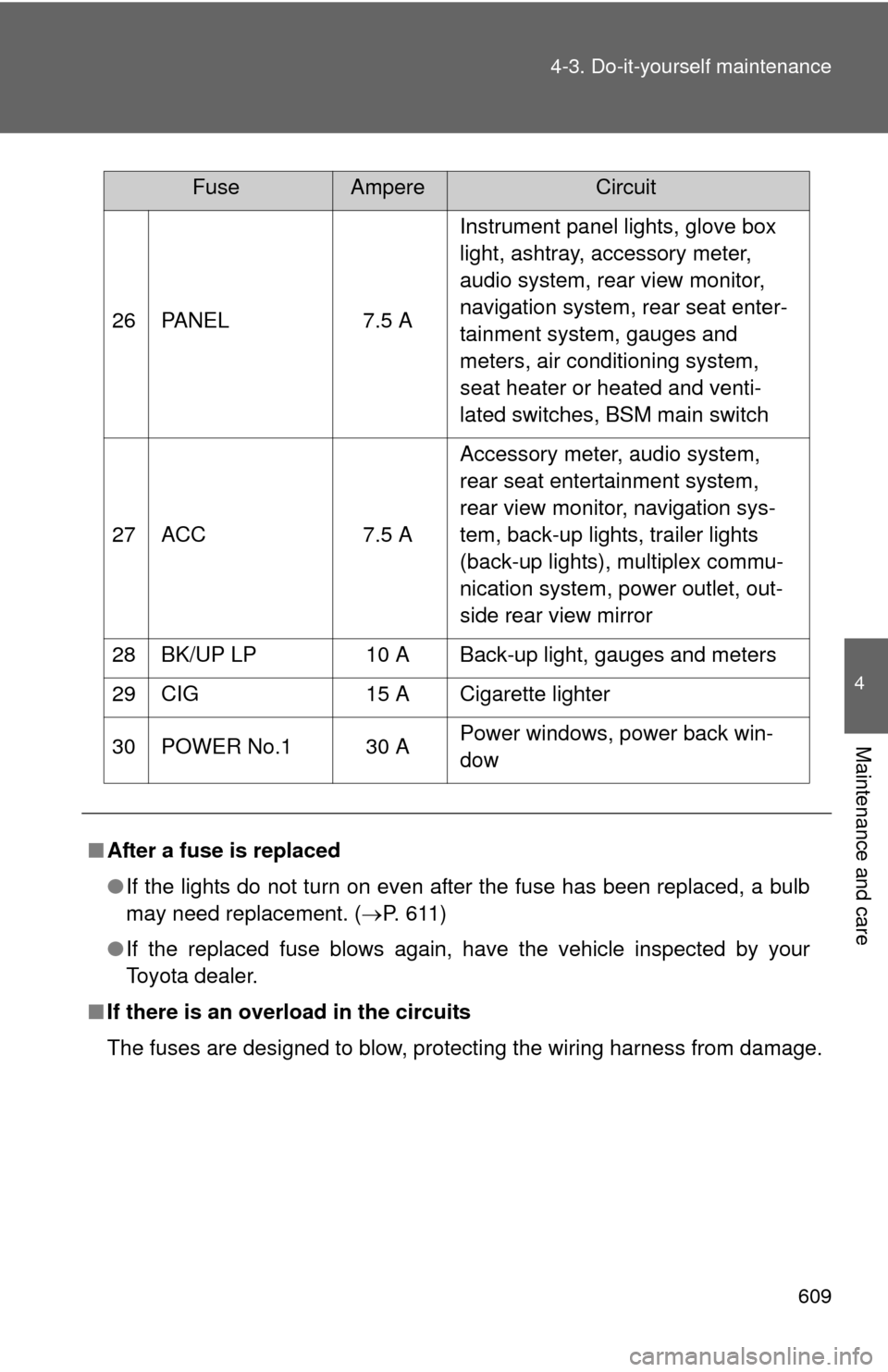
609
4-3. Do-it-yourself maintenance
4
Maintenance and care
26 PANEL
7.5 AInstrument panel lights, glove box
light, ashtray, accessory meter,
audio system, rear view monitor,
navigation system, rear seat enter-
tainment system, gauges and
meters, air conditioning system,
seat heater or heated and venti-
lated switches, BSM main switch
27 ACC 7.5 AAccessory meter, audio system,
rear seat entertainment system,
rear view monitor, navigation sys-
tem, back-up lights, trailer lights
(back-up lights), multiplex commu-
nication system, power outlet, out-
side rear view mirror
28 BK/UP LP 10 A Back-up light, gauges and meters
29 CIG 15 A Cigarette lighter
30 POWER No.1 30 A Power windows, power back win-
dow
■ After a fuse is replaced
●If the lights do not turn on even after the fuse has been replaced, a bulb
may need replacement. ( P. 611)
● If the replaced fuse blows again, have the vehicle inspected by your
Toyota dealer.
■ If there is an overload in the circuits
The fuses are designed to blow, protecting the wiring harness from damage.
FuseAmpereCircuit