navigation system TOYOTA SEQUOIA 2013 2.G User Guide
[x] Cancel search | Manufacturer: TOYOTA, Model Year: 2013, Model line: SEQUOIA, Model: TOYOTA SEQUOIA 2013 2.GPages: 740, PDF Size: 15.34 MB
Page 398 of 740
398 3-4. Using the rear seat entertainment system
■SD card functions
●This system can play JPEG pictures and AVCHD video images that are
stored in an SD card. It does not support music playback.
● Local storage
• Some BD videos have a feature to memorize disc information, such as a
resume point, in a local storage. The rear seat entertainment system
uses an SD card as a local storage device. To use this function, insert an
SD card into the SD card slot.
• The SD card memory function may differ depending on the BD videos played.
• When an SD card that contains any kind of data is inserted, BD video disc information will not be stored into the SD card to protect the existing
data in the card. To use an SD card as a local storage, use another SD
card that does not contain any data.
■ Changing the color of the screen buttons (vehicles with a navigation
system)
By customizing the screen button colors of the navigation system, those of\
the rear seat entertainment system will also change.
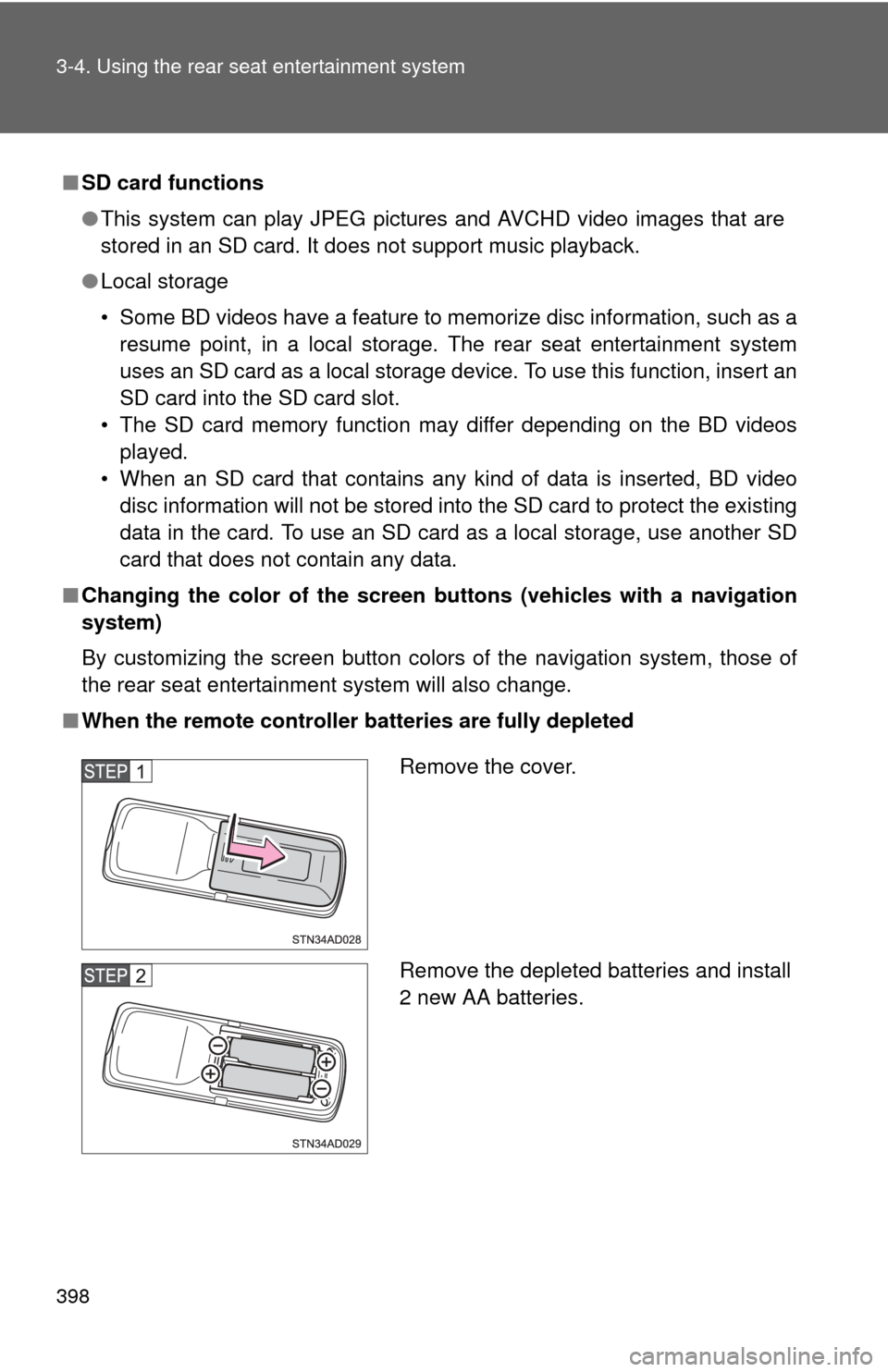
■ When the remote controller batteries are fully depleted
Remove the cover.
Remove the depleted batteries and install
2 new AA batteries.
Page 405 of 740
405
3-4. Using the rear seat entertainment system
3
Interior features
Playing a Blu-ray Disc™ (BD) and DVD disc
: If equipped
This system can play Blu-ray Disc™ (BD) videos with digital sound.
In addition to commercial BD and DVD titles, AVCHD and BDAV vid-
eos can be played on this system, so digital TV recorded by home
digital video recorders and BD/DV D home videos recorded by home
digital video cameras can also be played on this system.
Press the “DISC” button
if a disc has already been loaded in the disc
slot.
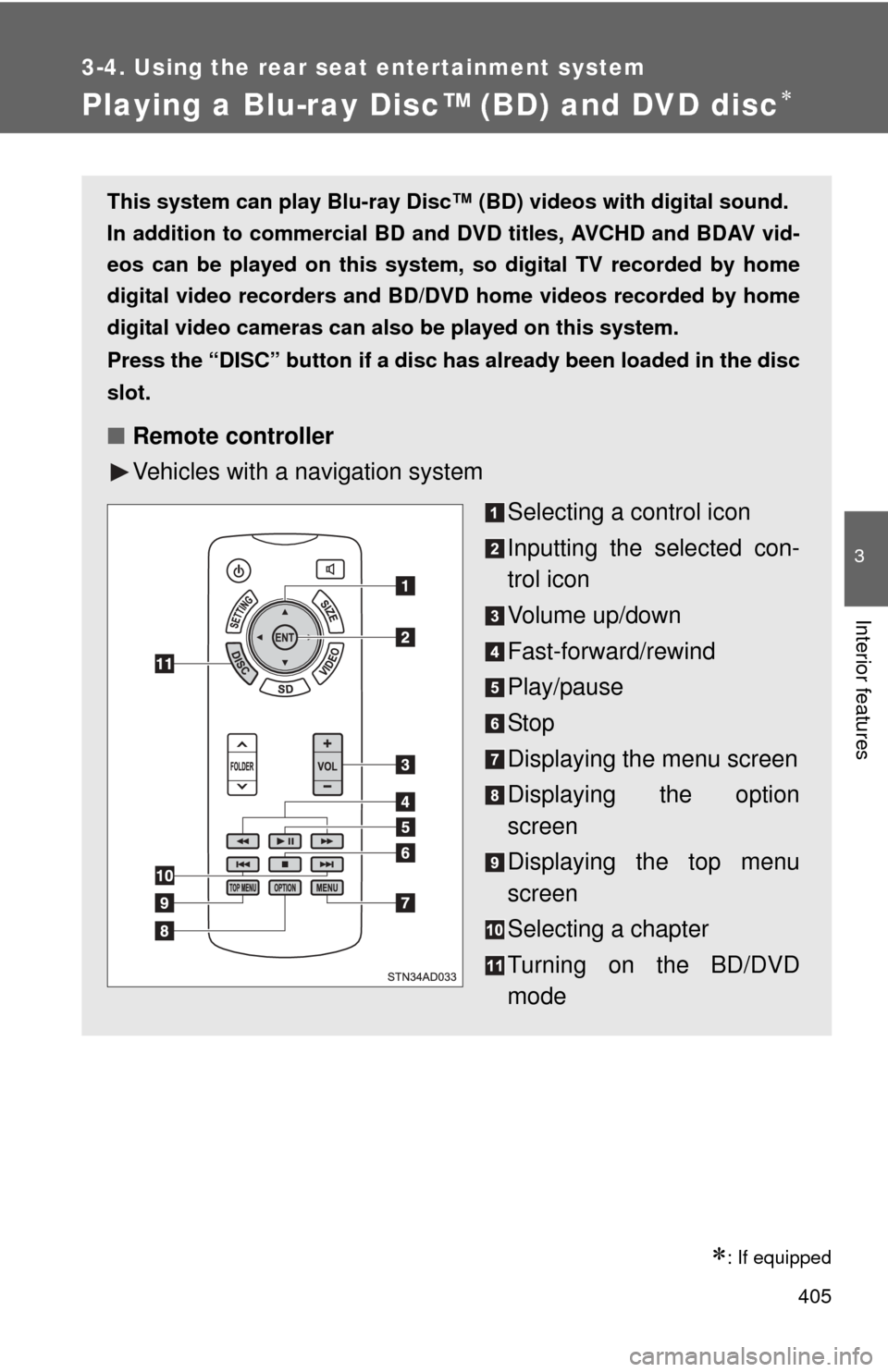
■ Remote controller
Vehicles with a navigation system
Selecting a control icon
Inputting the selected con-
trol icon
Volume up/down
Fast-forward/rewind
Play/pause
Stop
Displaying the menu screen
Displaying the option
screen
Displaying the top menu
screen
Selecting a chapter
Turning on the BD/DVD
mode
Page 406 of 740
406 3-4. Using the rear seat entertainment system
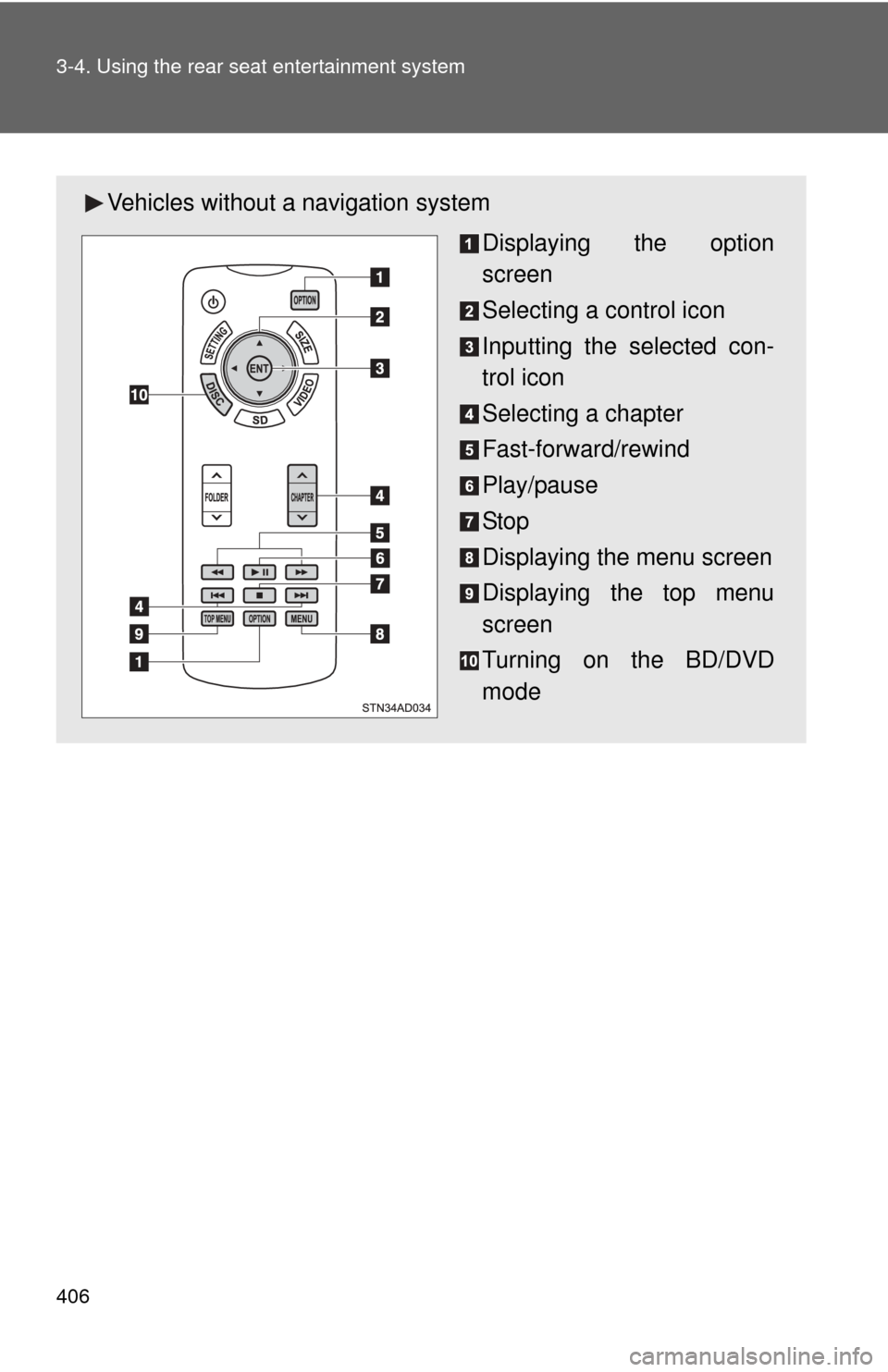
Vehicles without a navigation system
Displaying the option
screen
Selecting a control icon
Inputting the selected con-
trol icon
Selecting a chapter
Fast-forward/rewind
Play/pause
Stop
Displaying the menu screen
Displaying the top menu
screen
Turning on the BD/DVD
mode
Page 411 of 740
411
3-4. Using the rear seat entertainment system
3
Interior features
Turning on the BD/DVD mode
Insert a disc or Press the “DIS C” button with a disc inserted.
The player will start to play the disc automatically.
Playing/pausing a disc
Press to play/pause.
Press and hold while pausing, the video is played slowly.
Selecting a chapter Vehicles with a navigation system
Press or until the desired chapter appears.
Vehicles without a navigation system
Press / or “ ” / “ ” on the “CHAPTER” button until the
desired chapter appears.
Fast forwarding/rewinding a disc
Press and hold or .
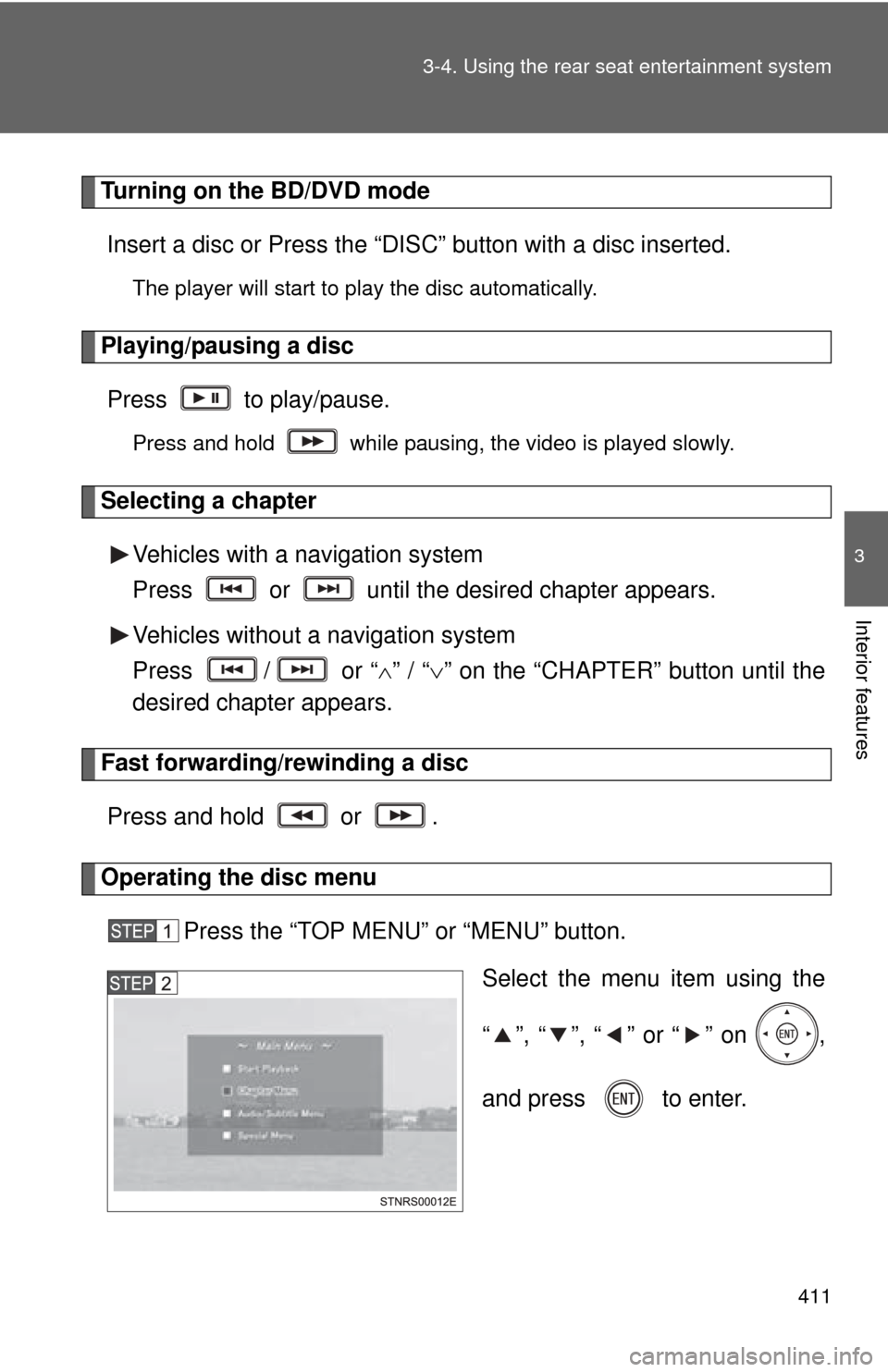
Operating the disc menu Press the “TOP MENU” or “MENU” button. Select the menu item using the
“ ”, “ ”, “ ” or “ ” on ,
and press to enter.
Page 412 of 740
412 3-4. Using the rear seat entertainment system
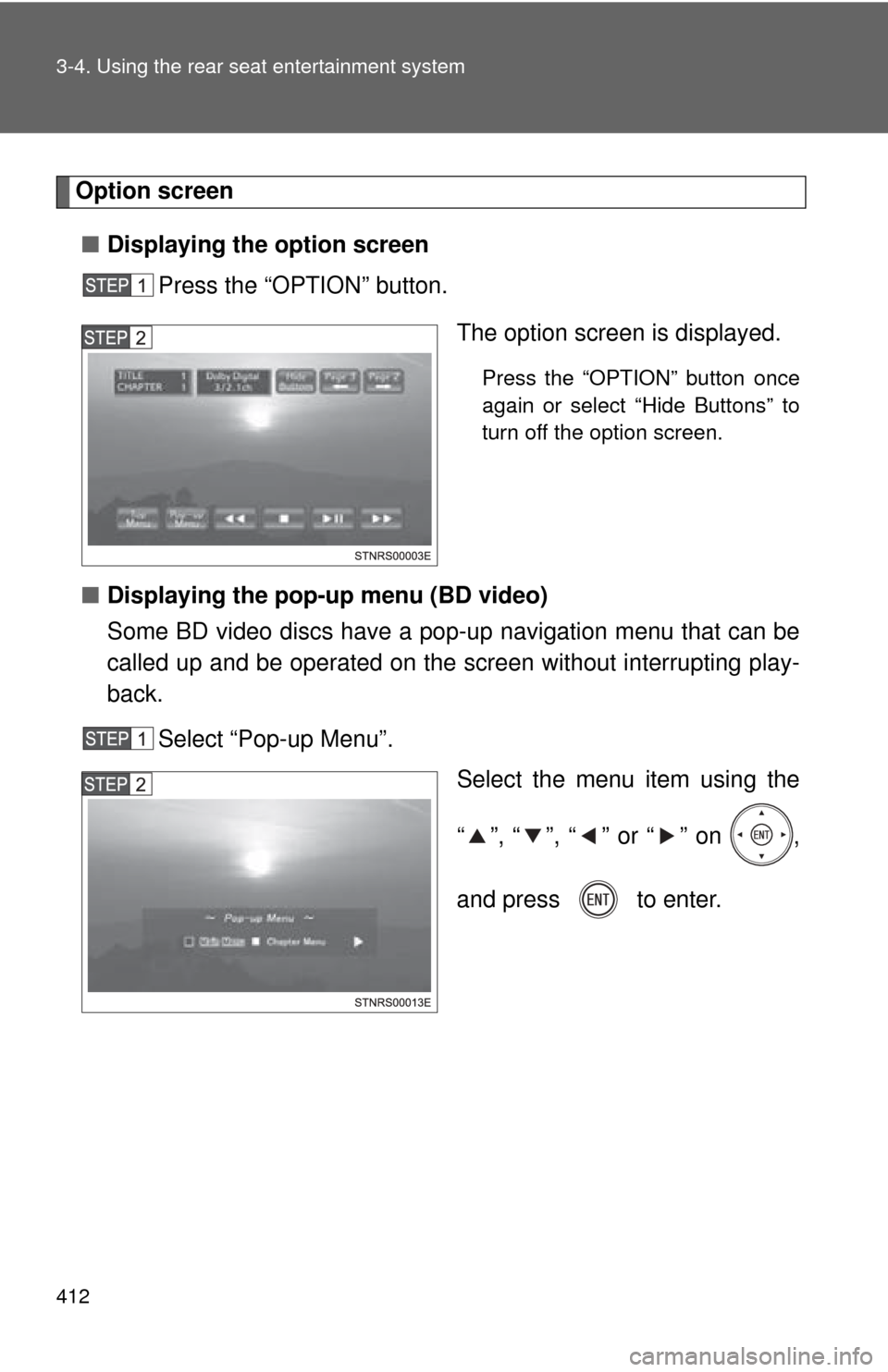
Option screen■ Displaying the option screen
Press the “OPTION” button.
The option screen is displayed.
Press the “OPTION” button once
again or select “Hide Buttons” to
turn off the option screen.
■ Displaying the pop-up menu (BD video)
Some BD video discs have a pop-up navigation menu that can be
called up and be operated on the screen without interrupting play-
back.
Select “Pop-up Menu”. Select the menu item using the
“ ”, “ ”, “ ” or “ ” on ,
and press to enter.
Page 425 of 740
425
3-4. Using the rear seat entertainment system
3
Interior features
●
AVCHD
AVCHD is a new format (standard) for high definition video cameras that
can record and play high-resolution HD images.
DVDs and SD cards with videos recorded in AVCHD format can playback
on this system.
● BDAV (Blu-ray Disc™ Audio/Visual)
BDAV is one of the audio/video recording formats for Blu-ray Disc™, has
been made primarily for the purpose of broadcasting the recording.
It is used when recording to BD-R and BD-RE by Blu-ray™ recorder.
● BD-J
Some BD video discs contain Java applications, and these applications
are called BD-J. You can enjoy various interactive features in addition to
playing normal video.
● Pop-up menu
Some BD video discs have a pop-up navigation menu that can be called
up and be operated on the screen without interrupting playback.
● Picture-in-picture
This is a function of BD video that plays the primary video and secondary
video simultaneously. For instance, the function is capable of playing the
original movie as the primary video while playing video commentary from
the film director on a small screen as a secondary video.
● DUBA (Disc Unbound BD-J Application)
For BD videos that come as a 2 disc set or more, after finishing and eject-
ing one of the discs, continuation of the video can be seen shortly after
replacing the disc with the proper disc.
● Playlist (BDAV only)
A playlist of favorite scenes by Blu-ray™ recorder can be created and the
scenes can playback via playlist.
■ Audio
This player can play liner PCM, Dolby digital, DTS and MPEG audio format.
Other decoded types cannot be played.
Page 431 of 740
431
3-4. Using the rear seat entertainment system
3
Interior features
Playing an audio CD and MP3/WMA discs
: If equipped
Press the “DISC” button if a disc has already been loaded in the disc
slot. The player will start to play the disc automatically.
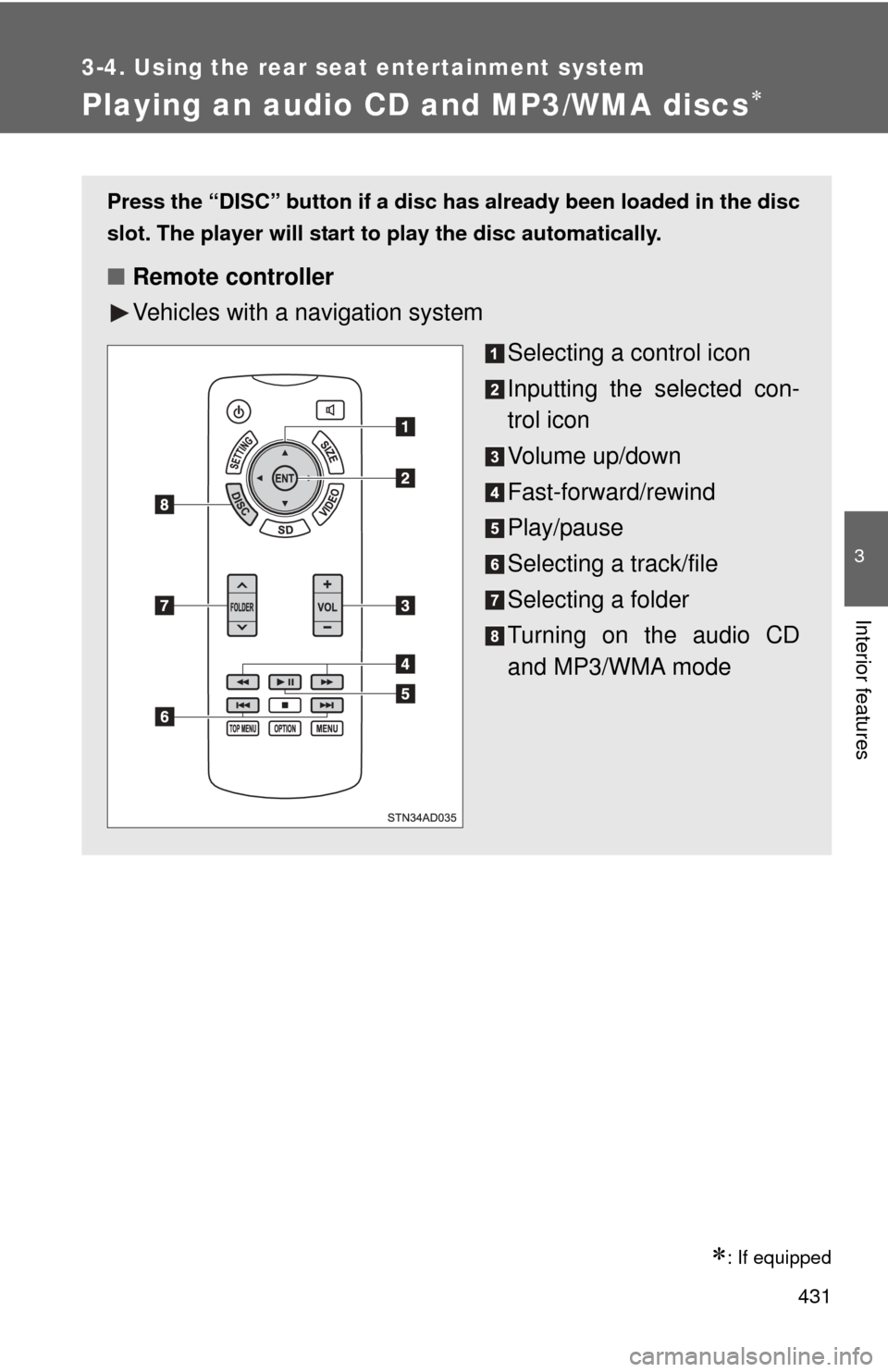
■ Remote controller
Vehicles with a navigation system
Selecting a control icon
Inputting the selected con-
trol icon
Volume up/down
Fast-forward/rewind
Play/pause
Selecting a track/file
Selecting a folder
Turning on the audio CD
and MP3/WMA mode
Page 432 of 740
432 3-4. Using the rear seat entertainment system
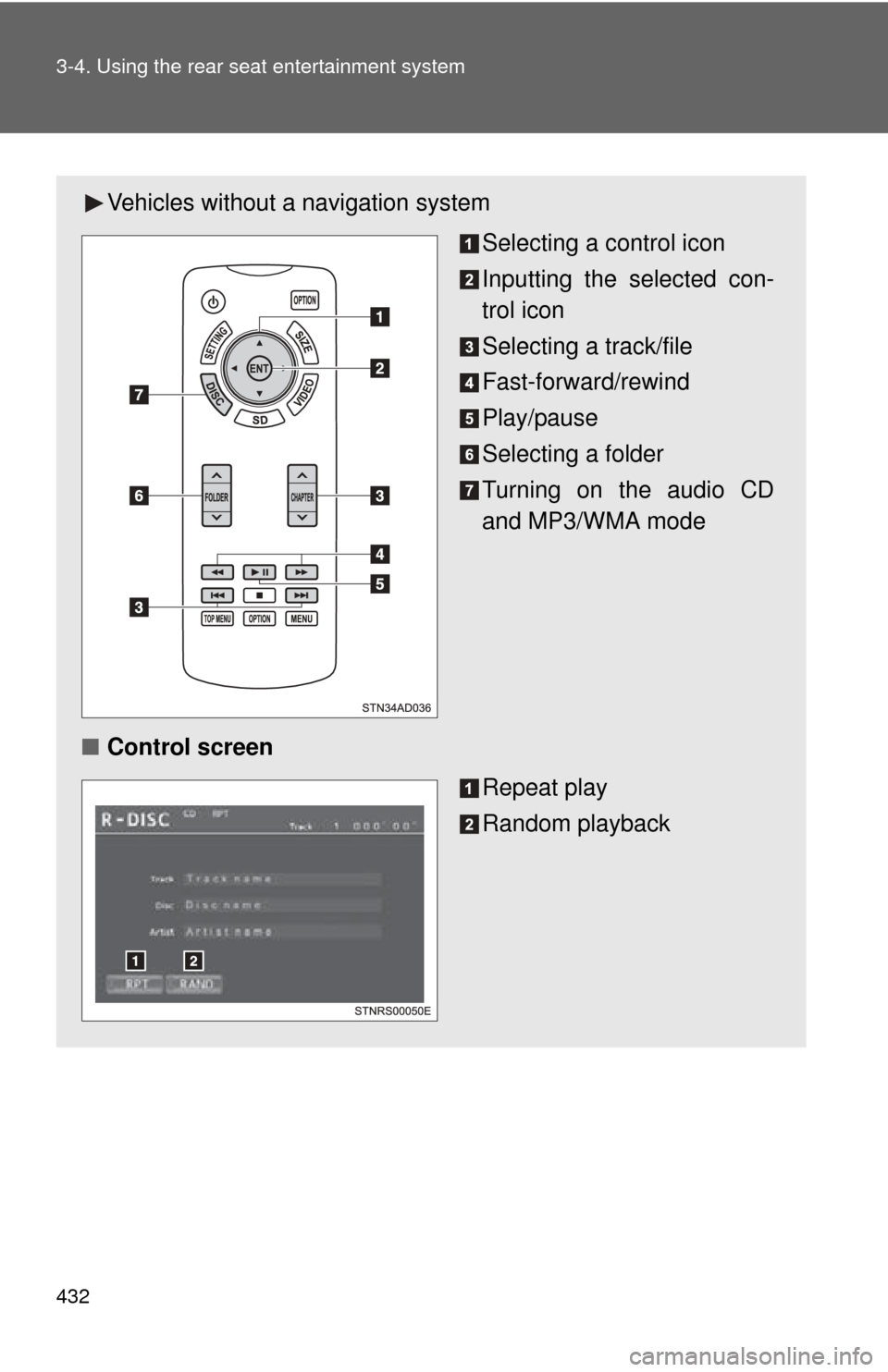
Vehicles without a navigation system
Selecting a control icon
Inputting the selected con-
trol icon
Selecting a track/file
Fast-forward/rewind
Play/pause
Selecting a folder
Turning on the audio CD
and MP3/WMA mode
■ Control screen
Repeat play
Random playback
Page 438 of 740
438
3-4. Using the rear seat entertainment system
Playing an SD card
: If equipped
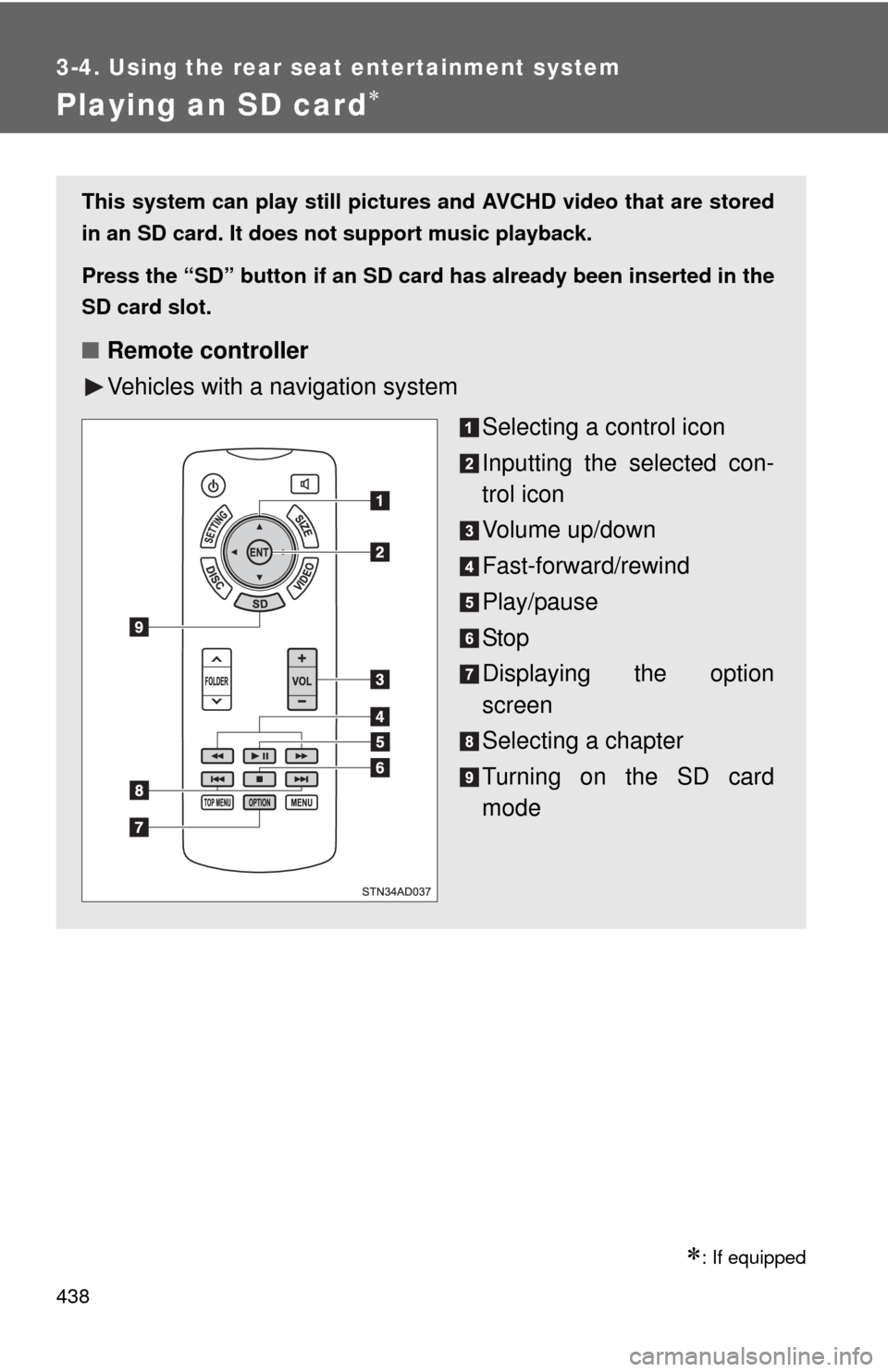
This system can play still pictures and AVCHD video that are stored
in an SD card. It does not support music playback.
Press the “SD” button
if an SD card has already been inserted in the
SD card slot.
■ Remote controller
Vehicles with a navigation system
Selecting a control icon
Inputting the selected con-
trol icon
Volume up/down
Fast-forward/rewind
Play/pause
Stop
Displaying the option
screen
Selecting a chapter
Turning on the SD card
mode
Page 439 of 740
439
3-4. Using the rear seat entertainment system
3
Interior features
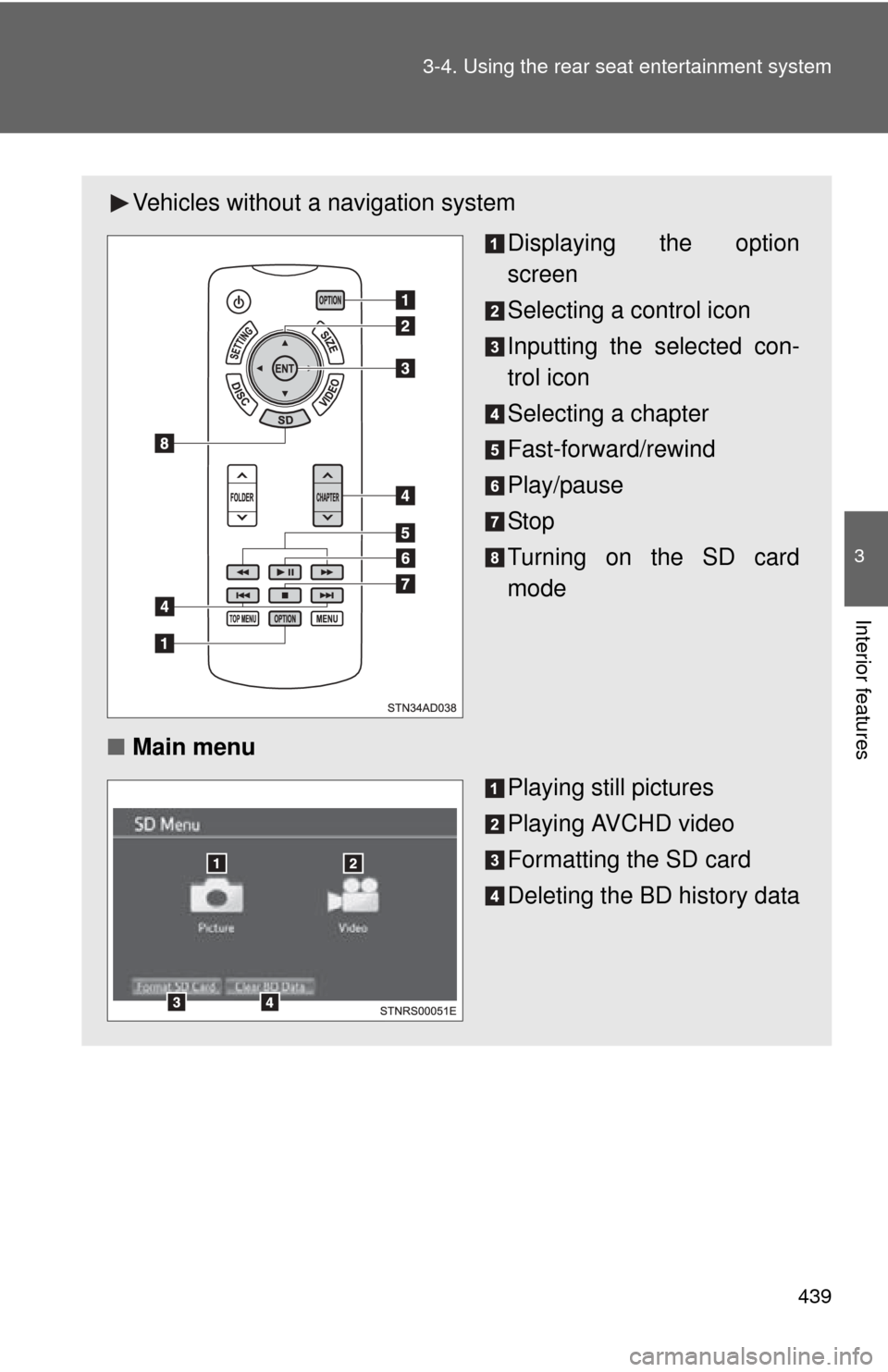
Vehicles without
a navigation system
Displaying the option
screen
Selecting a control icon
Inputting the selected con-
trol icon
Selecting a chapter
Fast-forward/rewind
Play/pause
Stop
Turning on the SD card
mode
■ Main menu
Playing still pictures
Playing AVCHD video
Formatting the SD card
Deleting the BD history data