change time TOYOTA SEQUOIA 2013 2.G Owner's Manual
[x] Cancel search | Manufacturer: TOYOTA, Model Year: 2013, Model line: SEQUOIA, Model: TOYOTA SEQUOIA 2013 2.GPages: 740, PDF Size: 15.34 MB
Page 369 of 740
369
3-2. Using the audio system
3
Interior features
Turning the power on
Press when the audio system is turned off.
The audio system can be turned off by holding the switch down until you
hear a beep.
Changing the audio sourcePress when the audio system is turned on. The audio source
changes as follows each time the switch is pressed.
If no discs are inserted in the player, that mode will be skipped.
Type B:
FM SAT CD changer Bluetooth® audioAUX
USB/iPodAM
Type C:
FM SAT CDBluetooth® audio AUXUSB/iPodAM
Adjusting the volume
Press “+” on to increase the volume and “-” to decrease the
volume.
Press and hold the switch to continue increasing or decreasing the vol-
ume.
Selecting a radio station Press to select the radio mode.
Press “” or “ ” on to select a radio station.
To scan for receivable stations, press and hold “ ” or “ ” on
until you hear a beep.
Page 373 of 740
373
3-3. Using the Bluetooth
® audio system
3
Interior features
CAUTION
■
FCC WARNING
Changes or modifications in construction not expressly approved by the
party responsible for compliance could void the user’s authority to operate
the equipment.
Radio frequency exposure. This device is approved for Mobile Application
only and, to comply with applicable FCC radio frequency exposure regula-
tions, must be used with a distance of at least 7.9 in. (20 cm) between the
antenna and the body of any person at all time during use.
■ Caution while driving
Do not connect portable players or operate the controls.
NOTICE
■To prevent damage to portable players
Do not leave portable players in the vehicle. The temperature inside the
vehicle may become high, resulting in damage to the player.
Page 380 of 740
380 3-3. Using the Bluetooth
® audio system
Fast-forwarding and reversing tracksPress and hold “
” or “ ” on .
Switching the display
Press .
Each time is pressed, the display changes in the following order:
Track title Track title/Artist name Track title/Album name Track
title/Elapsed time
Using the steering wheel audio switches
P. 3 6 8
■Bluetooth® audio system functions
Depending on the portable player that is connected to the system, certain
functions may not be available.
■ Error messages
“BT AUDIO ERROR”: This indicates a problem in the system.
Page 393 of 740
393
3-4. Using the rear seat entertainment system
3
Interior features
Turning on/off the rear seat entertainment system
Press to turn on the rear seat entertainment system.
Press once again to turn off the system.
Adjusting the volume (vehicles with a navigation system)
Press “+” or “-” on the “VOL” button to adjust the volume.
When the speaker output is off, the volume cannot be adjusted.
Turning on/off the speaker output (vehicles with a navigation system)
Press to turn on/off the speaker output.
On: The sound is available from both vehicle speakers and headphones.
Off: The sound is available from the headphones only.
Selecting a control icon Press “ ”, “ ”, “ ” or “ ” on to select the control icon on the
screen.
Then press to enter.
Changing the screen sizeEach time the “SIZE” button is pressed, the screen size changes in
the following order:
Normal: Displays the screen at the original ratio
Wide 1: Widens the 4:3 aspect screen horizontally to fill the screen
Wide 2: Widens the screen vertically and horizontally, at the same ratio, to fill th e entire screen
The screen size can be changed for each media mode individually.
Page 413 of 740
413
3-4. Using the rear seat entertainment system
3
Interior features
■
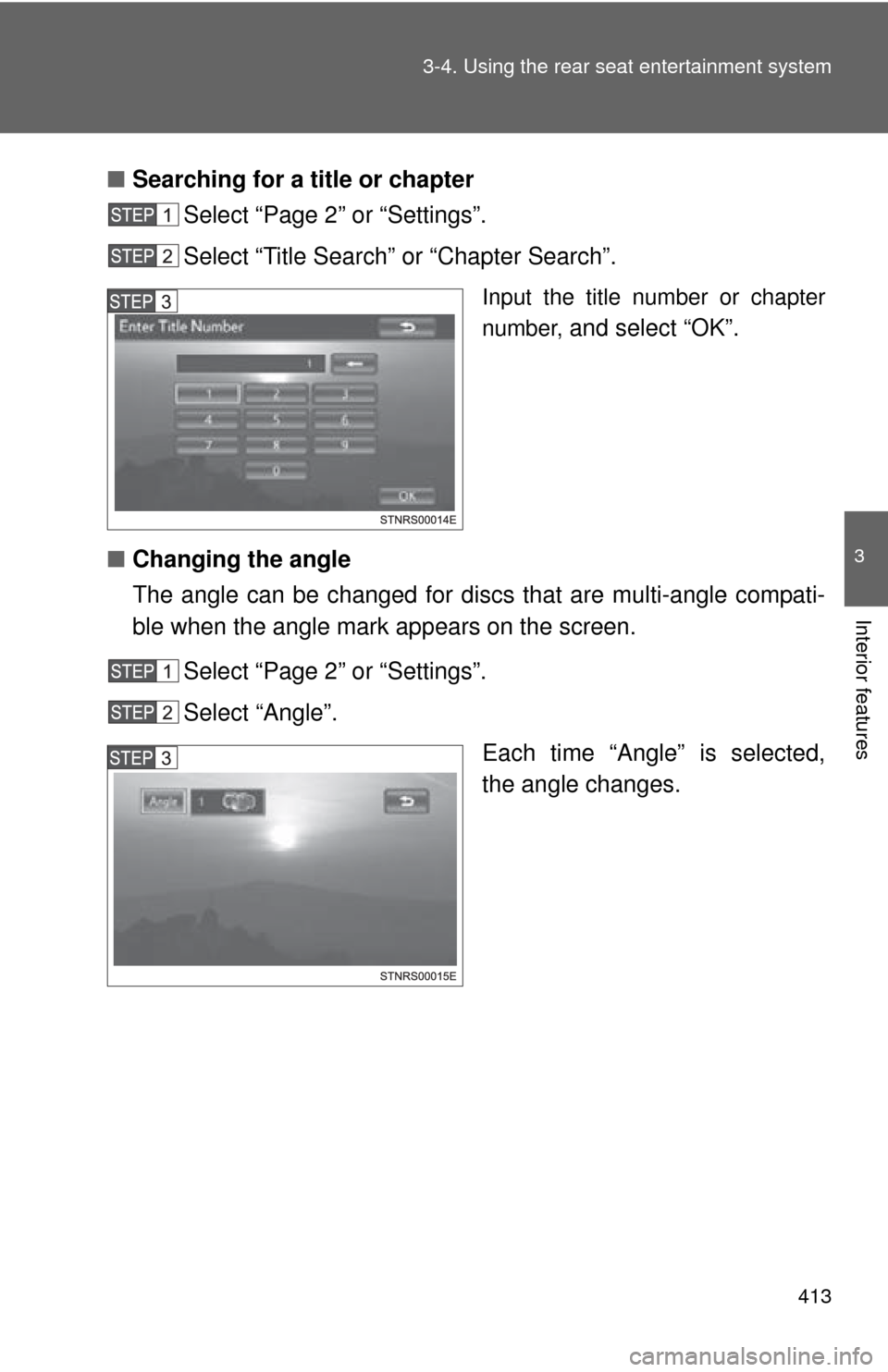
Searching for a title or chapter
Select “Page 2” or “Settings”.
Select “Title Search” or “Chapter Search”.
Input the title number or chapter
number,
and select “OK”.
■ Changing the angle
The angle can be changed for discs that are multi-angle compati-
ble when the angle mark appears on the screen.
Select “Page 2” or “Settings”.
Select “Angle”. Each time “Angle” is selected,
the angle changes.
Page 414 of 740
414 3-4. Using the rear seat entertainment system
■Changing the subtitle language
The subtitle language can be chang ed for discs with multiple subti-
tle languages.
Select “Page 2” or “Settings”.
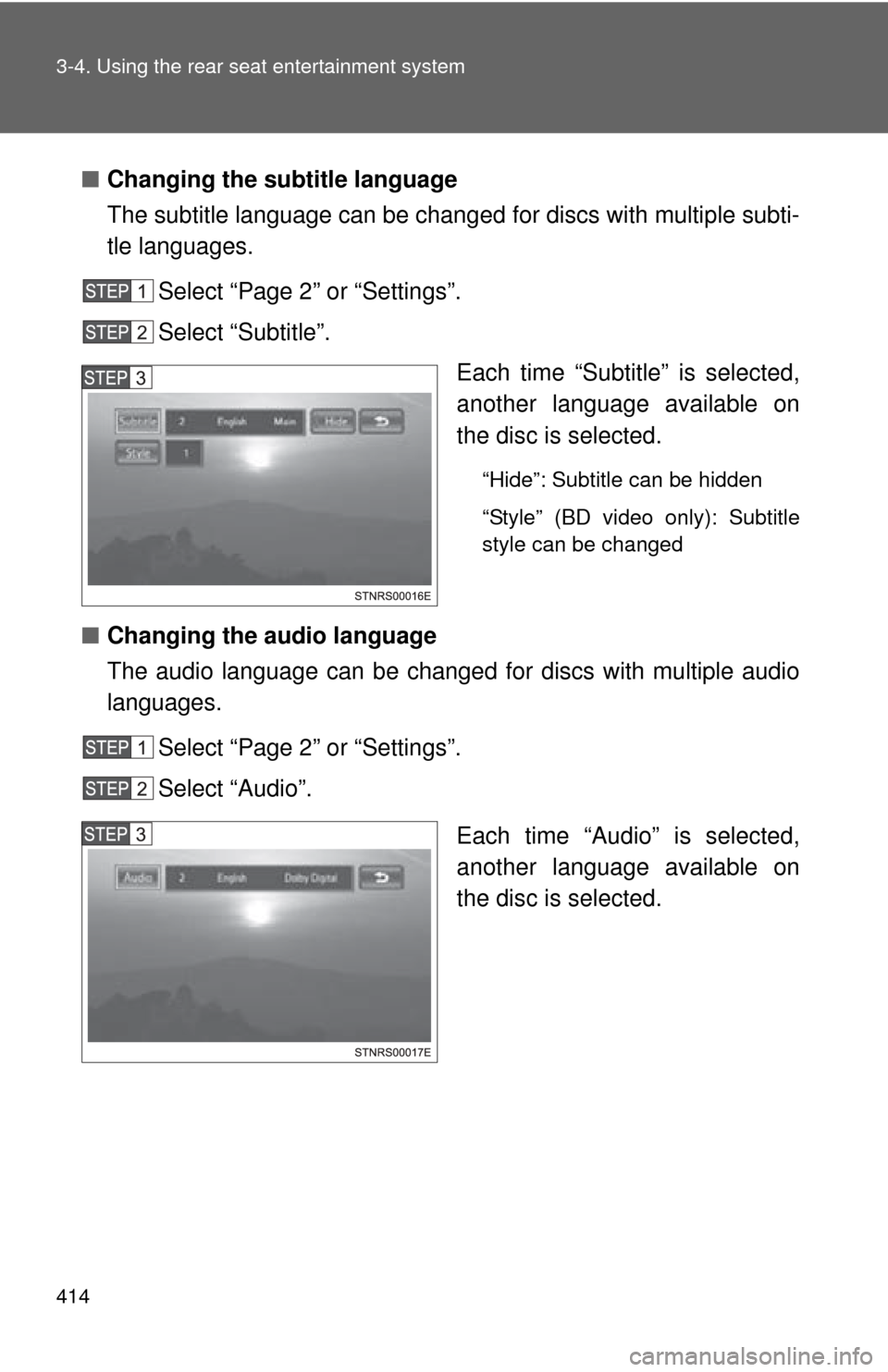
Select “Subtitle”. Each time “Subtitle” is selected,
another language available on
the disc is selected.
“Hide”: Subtitle can be hidden
“Style” (BD video only): Subtitle
style can be changed
■Changing the audio language
The audio language can be changed for discs with multiple audio
languages.
Select “Page 2” or “Settings”.
Select “Audio”.
Each time “Audio” is selected,
another language available on
the disc is selected.
Page 415 of 740
415
3-4. Using the rear seat entertainment system
3
Interior features
■
Changing the audio channel (BDAV)
The audio channel can be changed for discs with multiple audio
channels.
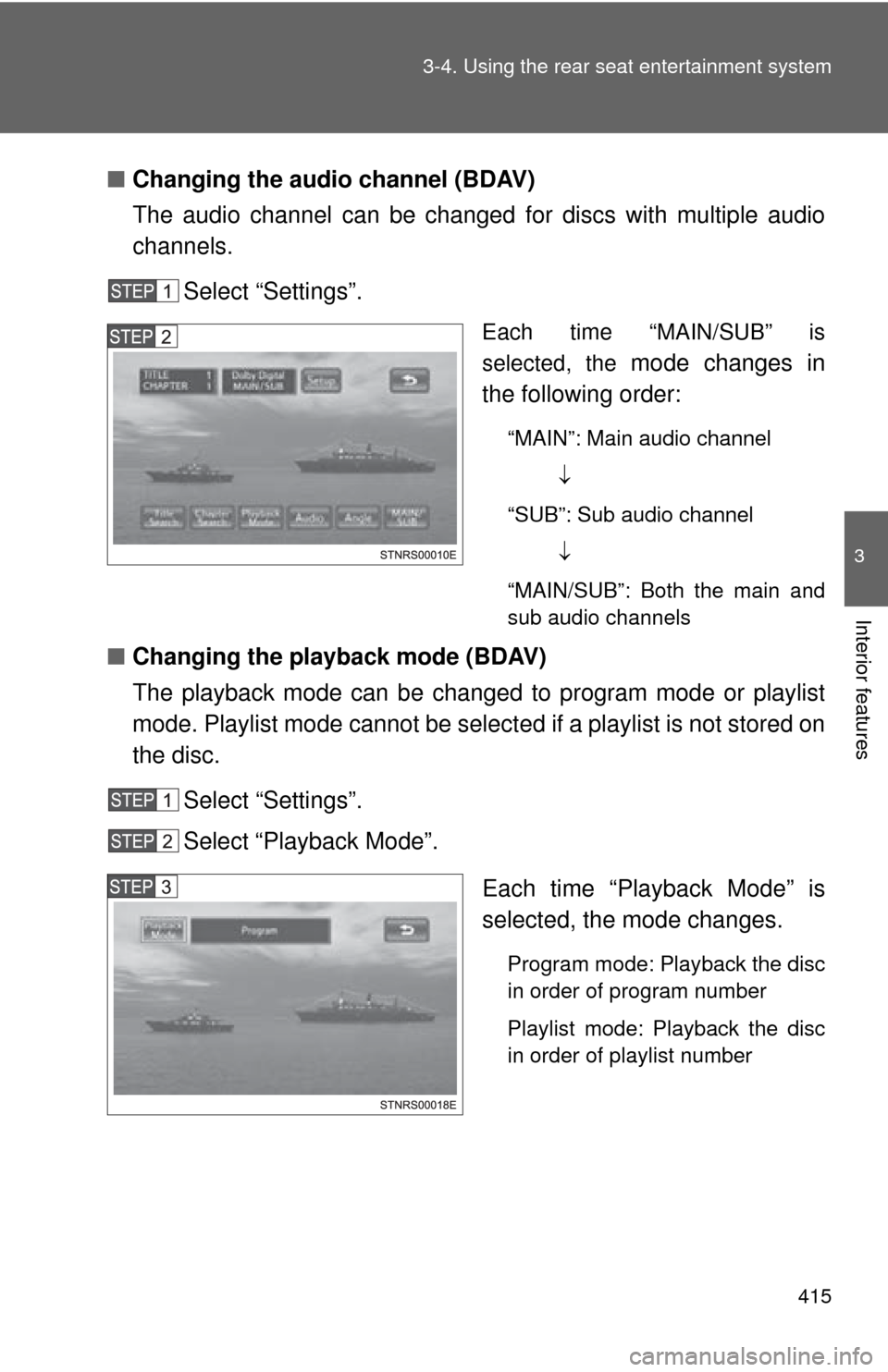
Select “Settings”.
Each time “MAIN/SUB” is
selected, the
mode changes in
the following order:
“MAIN”: Main audio channel
“SUB”: Sub audio channel
“MAIN/SUB”: Both the main and
sub audio channels
■ Changing the playback mode (BDAV)
The playback mode can be changed to program mode or playlist
mode. Playlist mode cannot be select ed if a playlist is not stored on
the disc.
Select “Settings”.
Select “Playback Mode”.
Each time “Playback Mode” is
selected, the mode changes.
Program mode: Playback the disc
in order of program number
Playlist mode: Playback the disc
in order of playlist number
Page 416 of 740
416 3-4. Using the rear seat entertainment system
■Displaying the secondary video (Picture-in-picture) (BD video)
Picture-in-picture is a secondary video that plays embedded in the
primary video. The secondary video can be played from a disc
compatible with the picture-in-picture function.
Select “Page 3”.
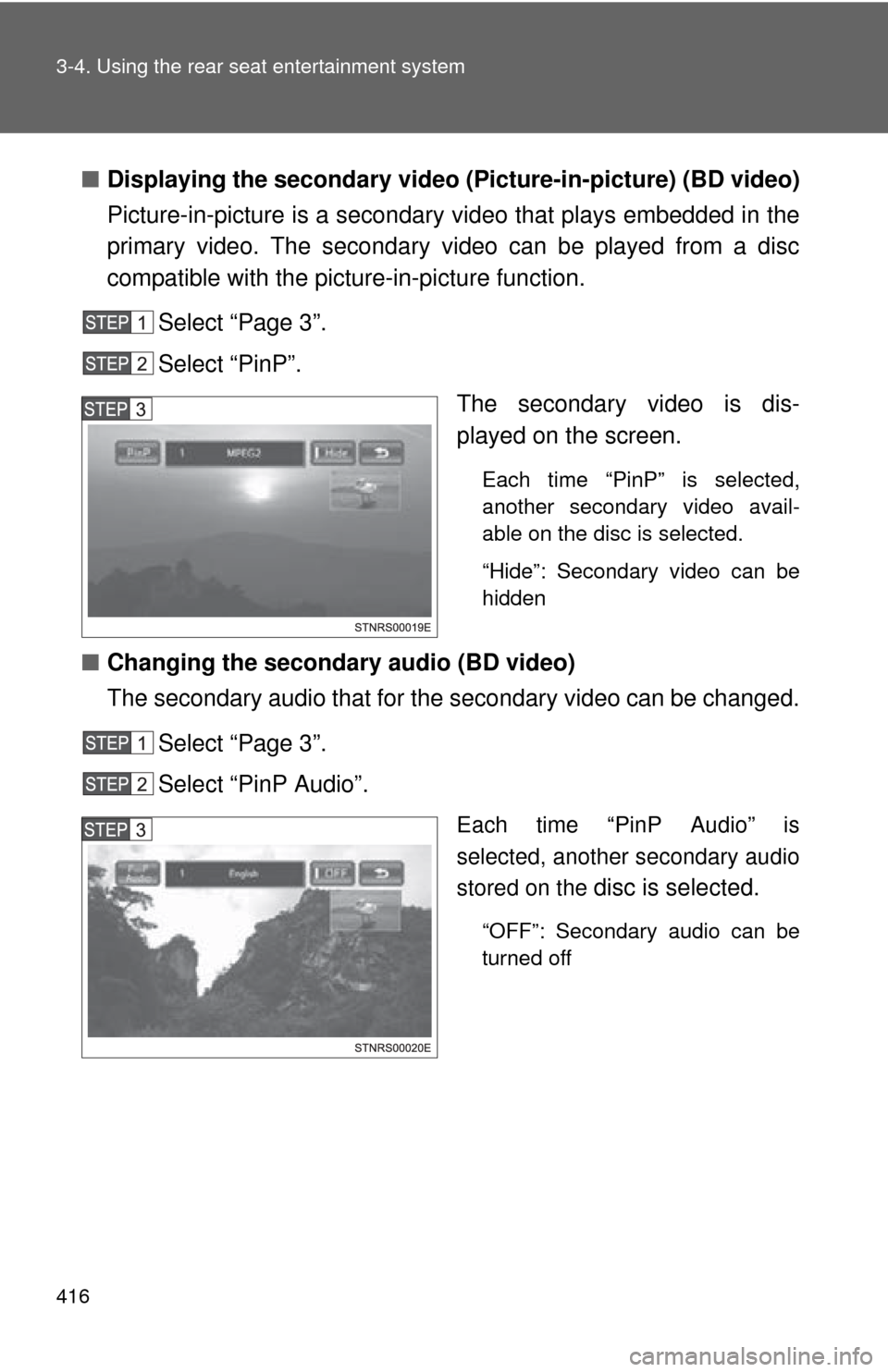
Select “PinP”. The secondary video is dis-
played on the screen.
Each time “PinP” is selected,
another secondary video avail-
able on the disc is selected.
“Hide”: Secondary video can be
hidden
■Changing the secondary audio (BD video)
The secondary audio that for the secondary video can be changed.
Select “Page 3”.
Select “PinP Audio”.
Each time “PinP Audio” is
selected, another secondary audio
stored on the
disc is selected.
“OFF”: Secondary audio can be
turned off
Page 422 of 740
422 3-4. Using the rear seat entertainment system
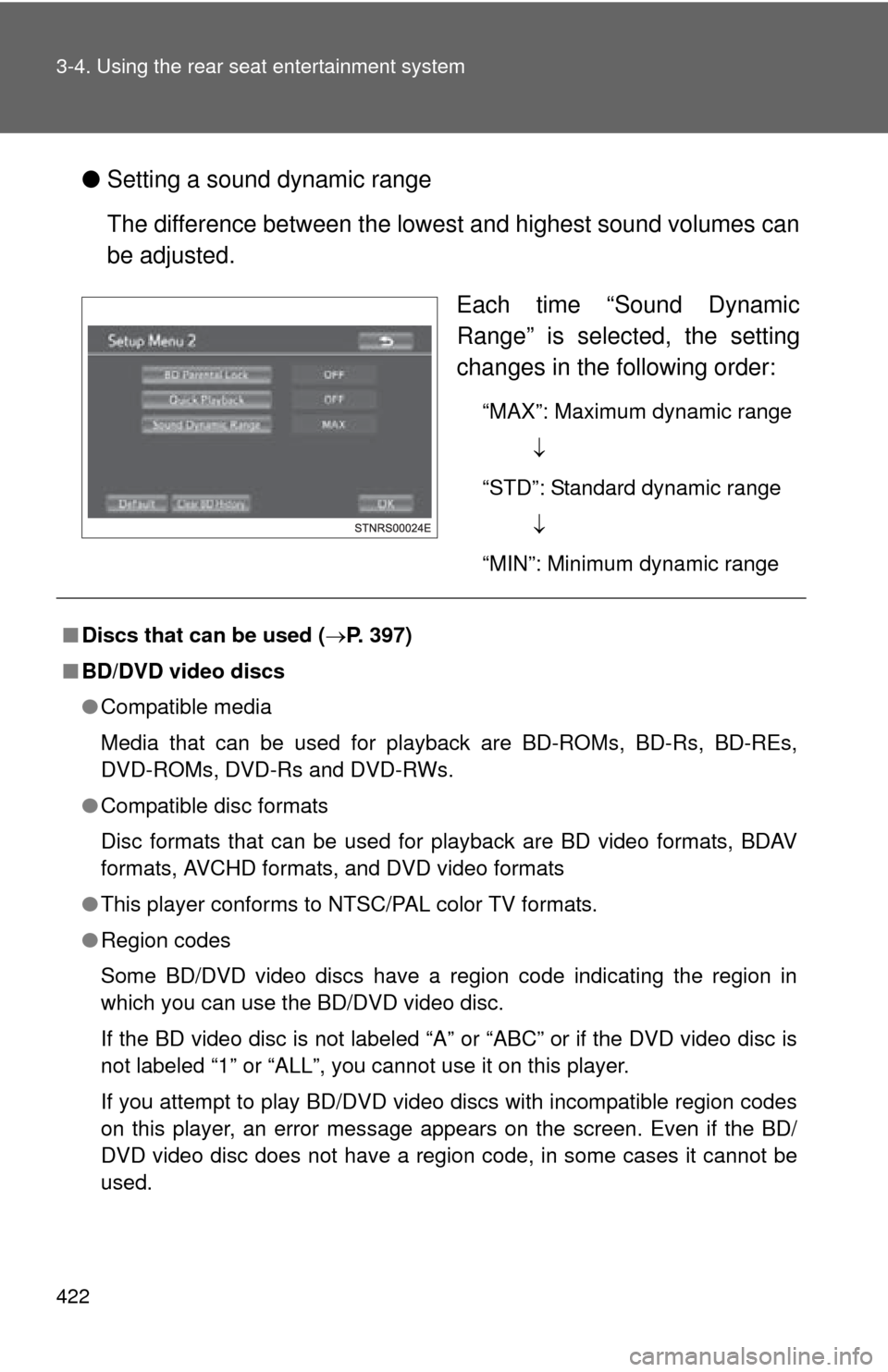
●Setting a sound dynamic range
The difference between the lowest and highest sound volumes can
be adjusted.
Each time “Sound Dynamic
Range” is selected, the setting
changes in the following order:
“MAX”: Maximum dynamic range
“STD”: Standard dynamic range
“MIN”: Minimum dynamic range
■ Discs that can be used ( P. 397)
■ BD/DVD video discs
●Compatible media
Media that can be used for playback are BD-ROMs, BD-Rs, BD-REs,
DVD-ROMs, DVD-Rs and DVD-RWs.
● Compatible disc formats
Disc formats that can be used for playback are BD video formats, BDAV
formats, AVCHD formats, and DVD video formats
● This player conforms to NTSC/PAL color TV formats.
● Region codes
Some BD/DVD video discs have a region code indicating the region in
which you can use the BD/DVD video disc.
If the BD video disc is not labeled “A” or “ABC” or if the DVD video disc is
not labeled “1” or “ALL”, you cannot use it on this player.
If you attempt to play BD/DVD video discs with incompatible region codes
on this player, an error message appears on the screen. Even if the BD/
DVD video disc does not have a region code, in some cases it cannot be
used.
Page 433 of 740
433
3-4. Using the rear seat entertainment system
3
Interior features
Turning on the audio CD and MP3/WMA mode
Insert a disc or Press the “DIS C” button with a disc inserted.
The player will start to play the disc automatically.
Selecting a track/file
Press or until the desired track/file number appears.
Fast forwarding or rewinding a track/filePress and hold or .
Selecting a folder (MP3/WMA)Press “ ” or “ ” on the “FOLDER” button until the desired folder num-
ber appears.
Press and hold “ ” on the “FOLDER” button, the top file stored in the top
folder in the disc will be selected.
Repeat play
Each time “RPT” is selected , the mode changes as follow:
Audio CD
“RPT” (track repeat) Off
MP3/WMA
“RPT” (file repeat) “FLD.RPT” (folder repeat) Off