service TOYOTA SIENNA 2017 XL30 / 3.G Navigation Manual
[x] Cancel search | Manufacturer: TOYOTA, Model Year: 2017, Model line: SIENNA, Model: TOYOTA SIENNA 2017 XL30 / 3.GPages: 366, PDF Size: 10.33 MB
Page 9 of 366
9
SIENNA_Navi+MM_OM08009U_(U)
16.01.25 16:40
1
2
3
4
5
6
7
8
9
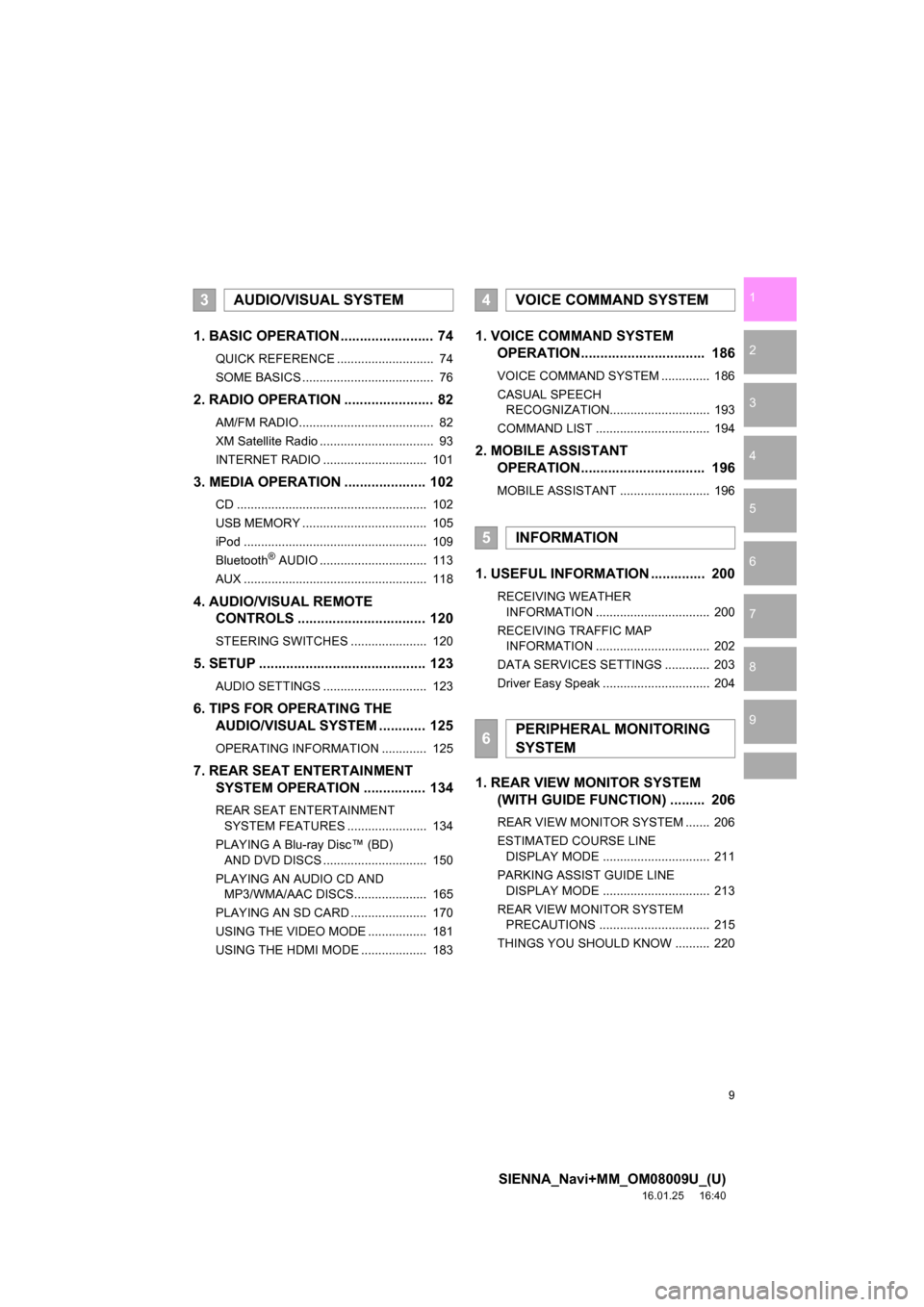
1. BASIC OPERATION ........................ 74
QUICK REFERENCE ............................ 74
SOME BASICS ...................................... 76
2. RADIO OPERATION ....................... 82
AM/FM RADIO....................................... 82
XM Satellite Radio ................................. 93
INTERNET RADIO .............................. 101
3. MEDIA OPERATION ..................... 102
CD ....................................................... 102
USB MEMORY .................................... 105
iPod ..................................................... 109
Bluetooth
® AUDIO ............................... 113
AUX ..................................................... 118
4. AUDIO/VISUAL REMOTE CONTROLS ................................. 120
STEERING SWITCHES ...................... 120
5. SETUP ........................................... 123
AUDIO SETTINGS .............................. 123
6. TIPS FOR OPERATING THE AUDIO/VISUAL SYSTEM ............ 125
OPERATING INFORMATION ............. 125
7. REAR SEAT ENTERTAINMENT SYSTEM OPERATION ................ 134
REAR SEAT ENTERTAINMENT
SYSTEM FEATURES ....................... 134
PLAYING A Blu-ray Disc™ (BD) AND DVD DISCS .............................. 150
PLAYING AN AUDIO CD AND MP3/WMA/AAC DISCS..................... 165
PLAYING AN SD CARD ...................... 170
USING THE VIDEO MODE ................. 181
USING THE HDMI MODE ................... 183
1. VOICE COMMAND SYSTEM OPERATION................................ 186
VOICE COMMAND SYSTEM .............. 186
CASUAL SPEECH
RECOGNIZATION............................. 193
COMMAND LIST ................................. 194
2. MOBILE ASSISTANT OPERATION................................ 196
MOBILE ASSISTANT .......................... 196
1. USEFUL INFORMATION .............. 200
RECEIVING WEATHER
INFORMATION ................................. 200
RECEIVING TRAFFIC MAP INFORMATION ................................. 202
DATA SERVICES SETTINGS ............. 203
Driver Easy Speak ............................... 204
1. REAR VIEW MONITOR SYSTEM (WITH GUIDE FUNCTION) ......... 206
REAR VIEW MONITOR SYSTEM ....... 206
ESTIMATED COURSE LINE
DISPLAY MODE ............................... 211
PARKING ASSIST GUIDE LINE DISPLAY MODE ............................... 213
REAR VIEW MONITOR SYSTEM PRECAUTIONS ................................ 215
THINGS YOU SHOULD KNOW .......... 220
3AUDIO/VISUAL SYSTEM4VOICE COMMAND SYSTEM
5INFORMATION
6PERIPHERAL MONITORING
SYSTEM
Page 10 of 366
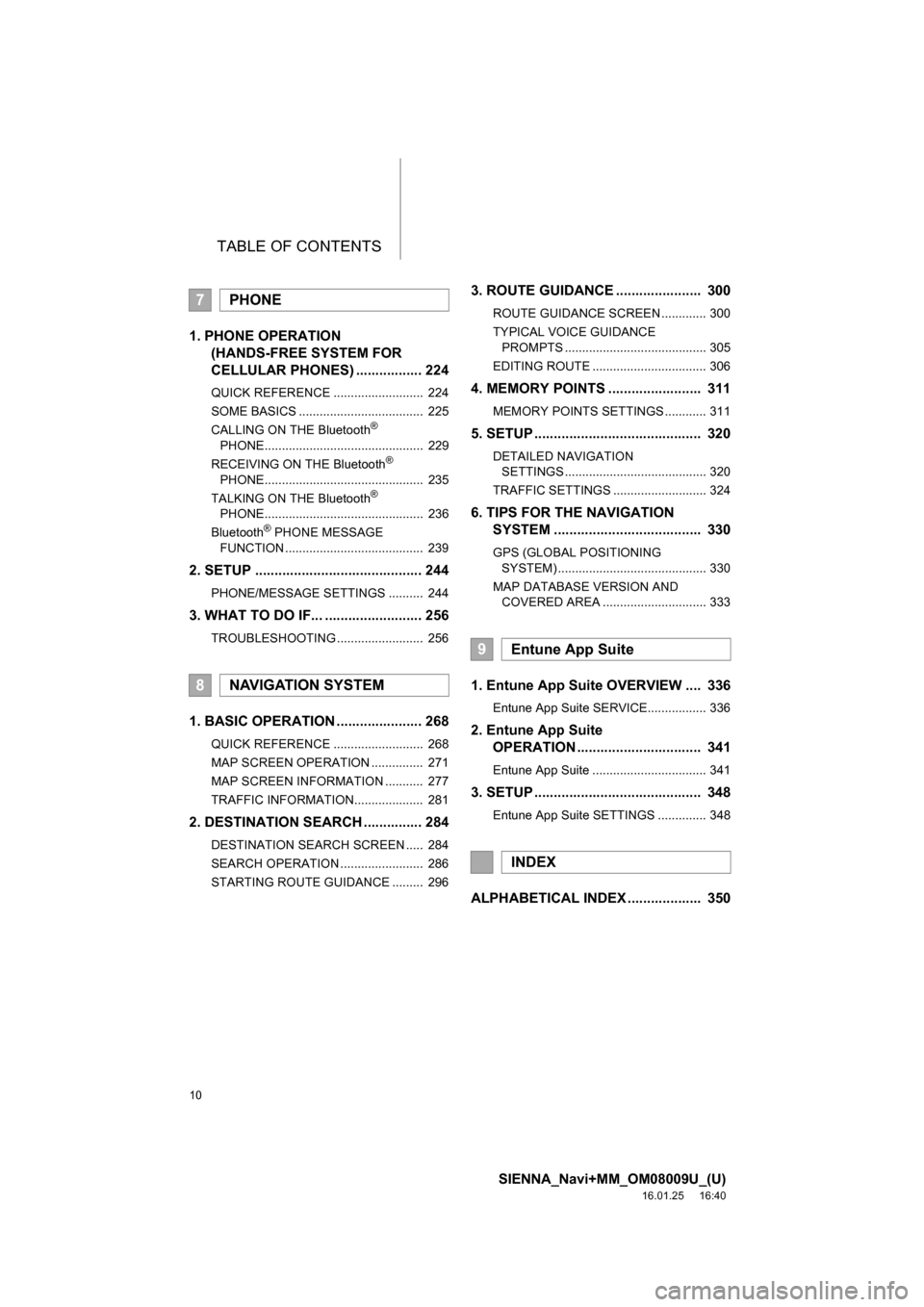
TABLE OF CONTENTS
10
SIENNA_Navi+MM_OM08009U_(U)
16.01.25 16:40
1. PHONE OPERATION (HANDS-FREE SYSTEM FOR
CELLULAR PHONES) ................. 224
QUICK REFERENCE .......................... 224
SOME BASICS .................................... 225
CALLING ON THE Bluetooth
®
PHONE.............................................. 229
RECEIVING ON THE Bluetooth
®
PHONE.............................................. 235
TALKING ON THE Bluetooth
®
PHONE.............................................. 236
Bluetooth
® PHONE MESSAGE
FUNCTION ........................................ 239
2. SETUP ........................................... 244
PHONE/MESSAGE SETTINGS .......... 244
3. WHAT TO DO IF... ......................... 256
TROUBLESHOOTING ......................... 256
1. BASIC OPERATION ...................... 268
QUICK REFERENCE .......................... 268
MAP SCREEN OPERATION ............... 271
MAP SCREEN INFORMATION ........... 277
TRAFFIC INFORMATION.................... 281
2. DESTINATION SEARCH ............... 284
DESTINATION SEARCH SCREEN ..... 284
SEARCH OPERATION ........................ 286
STARTING ROUTE GUIDANCE ......... 296
3. ROUTE GUIDANCE ...................... 300
ROUTE GUIDANCE SCREEN ............. 300
TYPICAL VOICE GUIDANCE PROMPTS ......................................... 305
EDITING ROUTE ................................. 306
4. MEMORY POINTS ........................ 311
MEMORY POINTS SETTINGS ............ 311
5. SETUP ........................................... 320
DETAILED NAVIGATION SETTINGS ......................................... 320
TRAFFIC SETTINGS ........................... 324
6. TIPS FOR THE NAVIGATION SYSTEM ...................................... 330
GPS (GLOBAL POSITIONING
SYSTEM) ........................................... 330
MAP DATABASE VERSION AND COVERED AREA .............................. 333
1. Entune App Suite OVERVIEW .... 336
Entune App Suite SERVICE................. 336
2. Entune App Suite OPERATION ................................ 341
Entune App Suite ................................. 341
3. SETUP ........................................... 348
Entune App Suite SETTINGS .............. 348
ALPHABETICAL INDEX ................... 350
7PHONE
8NAVIGATION SYSTEM
9Entune App Suite
INDEX
Page 19 of 366
19
1. BASIC FUNCTION
SIENNA_Navi+MM_OM08009U_(U)
16.01.25 16:40
QUICK GUIDE
1
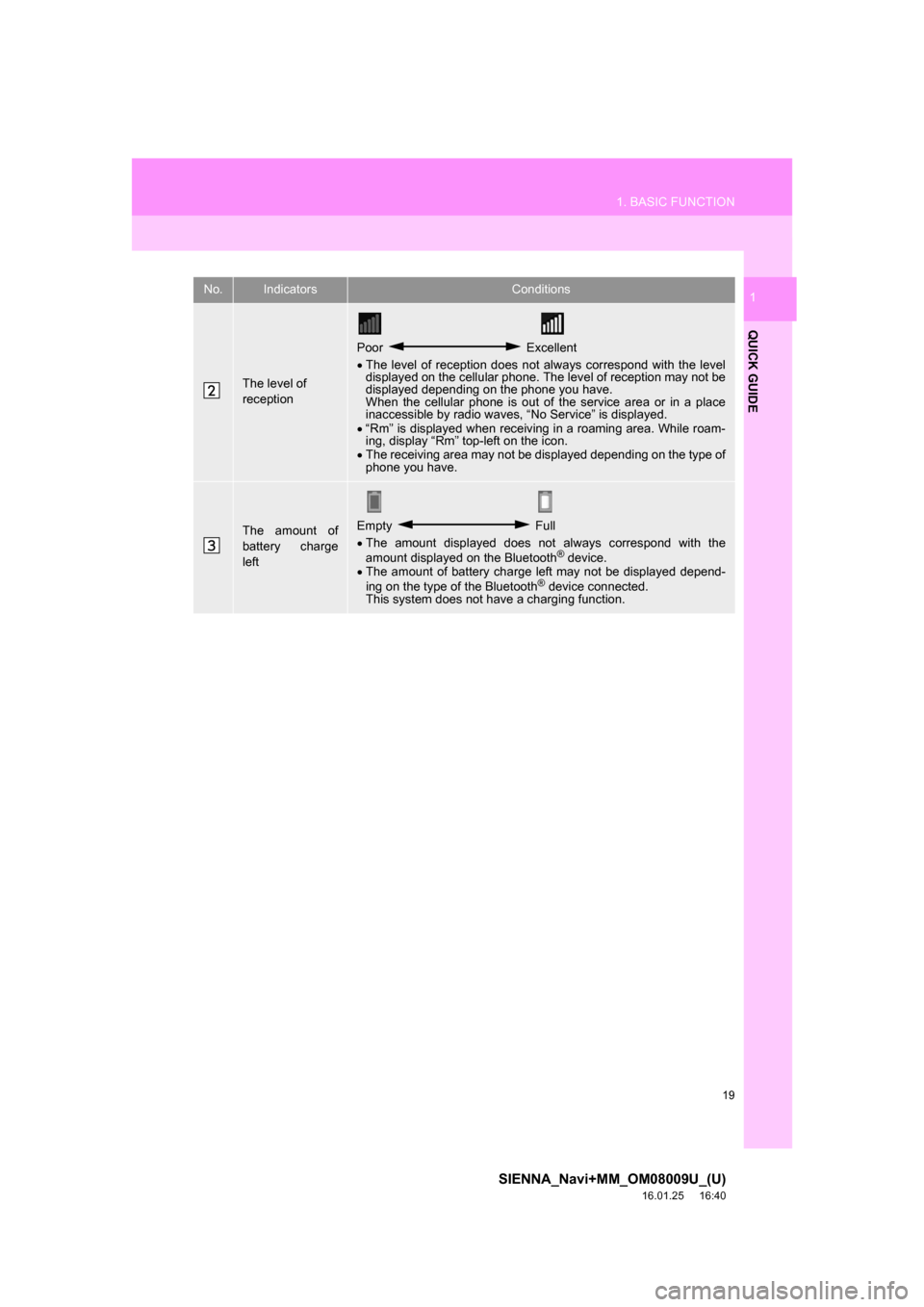
The level of
reception
Poor Excellent
The level of reception does not always correspond with the level
displayed on the cellular phone. The level of reception may not be
displayed depending on the phone you have.
When the cellular phone is out of the service area or in a place
inaccessible by radio waves, “No Service” is displayed.
“Rm” is displayed when receiving in a roaming area. While roam-
ing, display “Rm” top-left on the icon.
The receiving area may not be displayed depending on the type of
phone you have.
The amount of
battery charge
leftEmpty Full
The amount displayed does not always correspond with the
amount displayed on the Bluetooth
® device.
The amount of battery charge left may not be displayed depend-
ing on the type of the Bluetooth
® device connected.
This system does not have a charging function.
No.IndicatorsConditions
Page 21 of 366
21
2. QUICK REFERENCE
SIENNA_Navi+MM_OM08009U_(U)
16.01.25 16:40
QUICK GUIDE
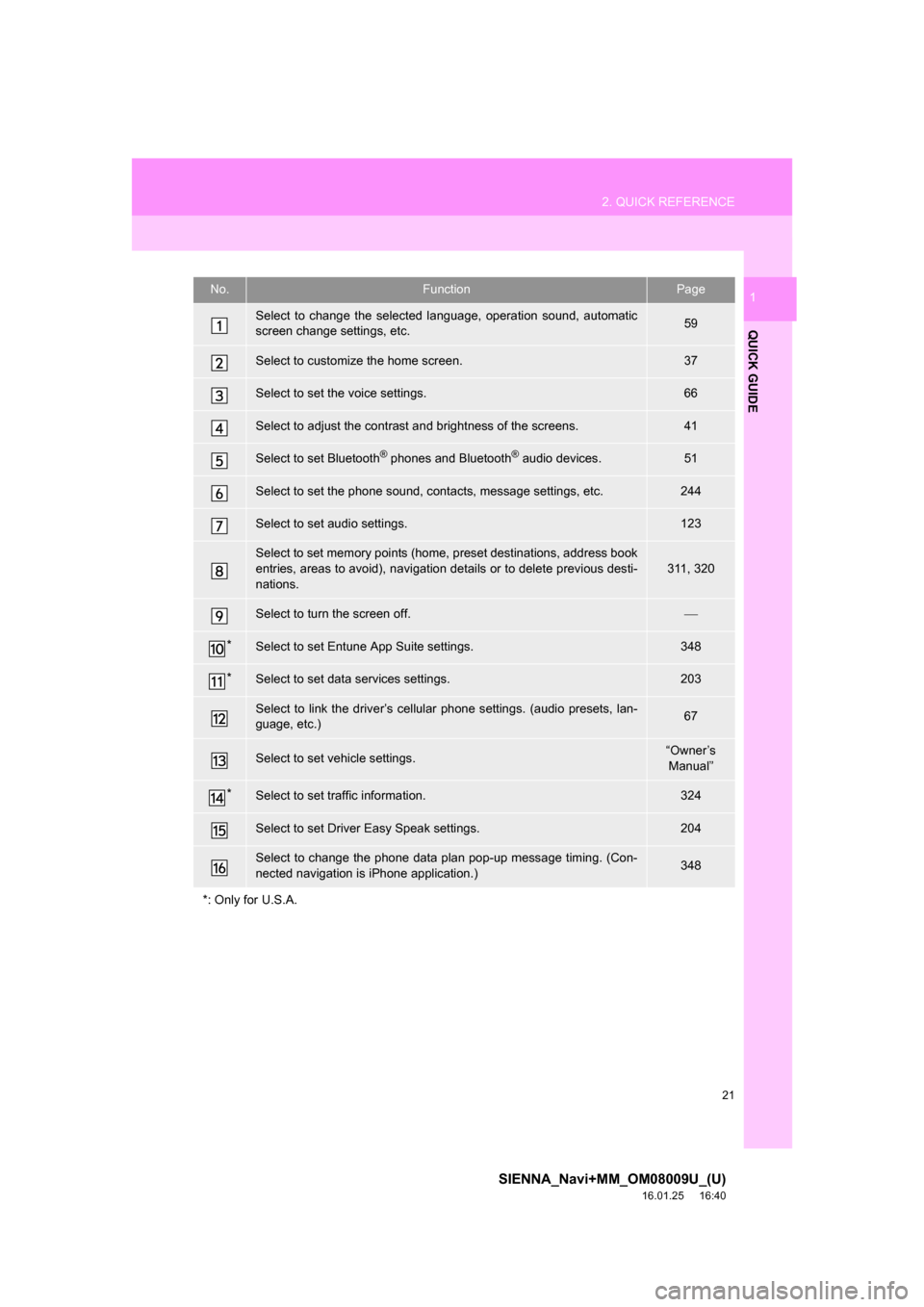
1No.FunctionPage
Select to change the selected language, operation sound, automatic
screen change settings, etc.59
Select to customize the home screen.37
Select to set the voice settings.66
Select to adjust the contrast and brightness of the screens.41
Select to set Bluetooth® phones and Bluetooth® audio devices.51
Select to set the phone sound, contacts, message settings, etc.244
Select to set audio settings.123
Select to set memory points (home, preset destinations, address book
entries, areas to avoid), navigation details or to delete previous desti-
nations.311, 320
Select to turn the screen off.
*Select to set Entune App Suite settings.348
*Select to set data services settings.203
Select to link the driver’s cellul ar phone settings. (audio presets, lan-
guage, etc.)67
Select to set vehicle settings.“Owner’s Manual”
*Select to set traffic information.324
Select to set Driver Easy Speak settings.204
Select to change the phone data plan pop-up message timing. (Con-
nected navigation is iPhone application.)348
*: Only for U.S.A.
Page 46 of 366
46
2. Bluetooth® SETTINGS
SIENNA_Navi+MM_OM08009U_(U)
16.01.25 16:40
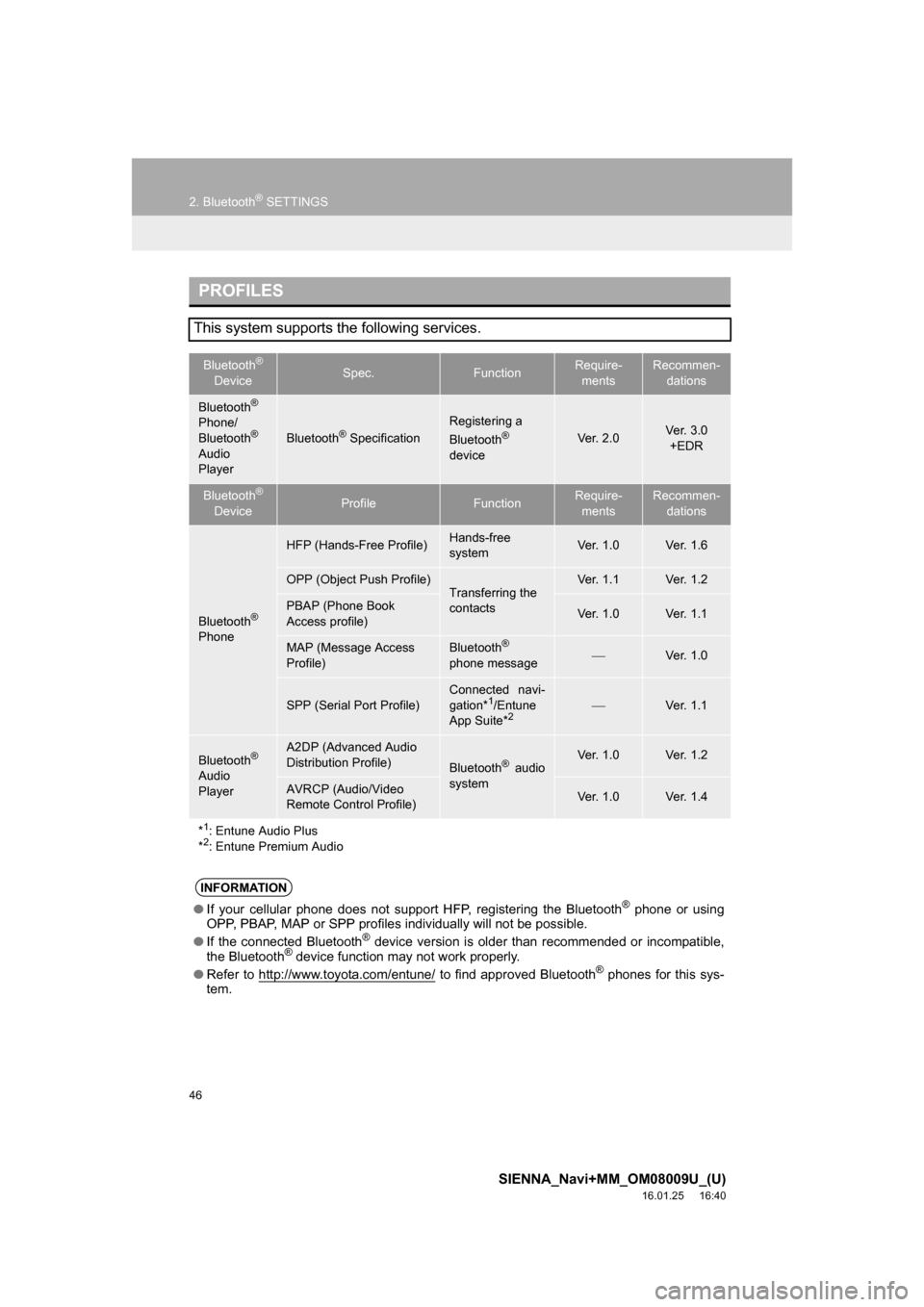
PROFILES
This system supports the following services.
Bluetooth®
DeviceSpec.FunctionRequire- mentsRecommen- dations
Bluetooth®
Phone/
Bluetooth®
Audio
Player
Bluetooth® Specification
Registering a
Bluetooth®
deviceVe r. 2 . 0Ve r. 3 . 0 +EDR
Bluetooth®
DeviceProfileFunctionRequire- mentsRecommen- dations
Bluetooth®
Phone
HFP (Hands-Free Profile)Hands-free
systemVe r. 1 . 0Ve r. 1 . 6
OPP (Object Push Profile)Transferring the
contactsVe r. 1 . 1Ve r. 1 . 2
PBAP (Phone Book
Access profile)Ve r. 1 . 0Ve r. 1 . 1
MAP (Message Access
Profile)Bluetooth®
phone messageVe r. 1 . 0
SPP (Serial Port Profile)
Connected navi-
gation*1/Entune
App Suite*2Ve r. 1 . 1
Bluetooth®
Audio
Player
A2DP (Advanced Audio
Distribution Profile)
Bluetooth® audio
systemVe r. 1 . 0Ve r. 1 . 2
AVRCP (Audio/Video
Remote Control Profile)Ve r. 1 . 0Ve r. 1 . 4
*
1: Entune Audio Plus
*2: Entune Premium Audio
INFORMATION
● If your cellular phone does not support HFP, registering the Bluetooth® phone or using
OPP, PBAP, MAP or SPP profiles in dividually will not be possible.
● If the connected Bluetooth
® device version is older than recommended or incompatible,
the Bluetooth® device function may not work properly.
● Refer to http://www.toyota.com/entune/
to find approved Bluetooth® phones for this sys-
tem.
Page 54 of 366
54
2. Bluetooth® SETTINGS
SIENNA_Navi+MM_OM08009U_(U)
16.01.25 16:40
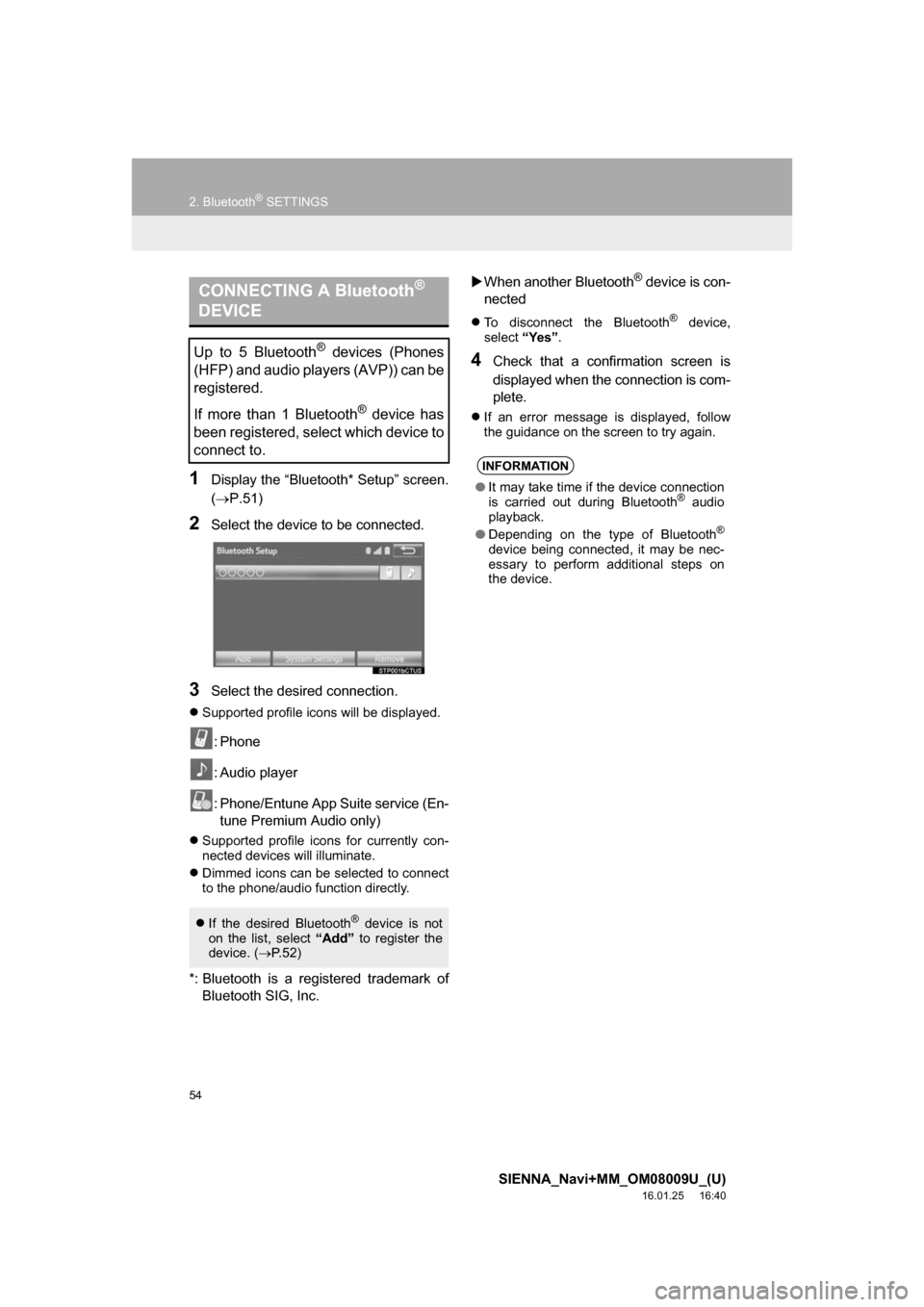
1Display the “Bluetooth* Setup” screen.
(P.51)
2Select the device to be connected.
3Select the desired connection.
Supported profile icons will be displayed.
: Phone
: Audio player
: Phone/Entune App Suite service (En-
tune Premium Audio only)
Supported profile icons for currently con-
nected devices will illuminate.
Dimmed icons can be selected to connect
to the phone/audio function directly.
*: Bluetooth is a regi stered trademark of
Bluetooth SIG, Inc.
When another Bluetooth
® device is con-
nected
To disconnect the Bluetooth® device,
select “Yes”.
4Check that a confirmation screen is
displayed when the connection is com-
plete.
If an error message is displayed, follow
the guidance on the screen to try again.
CONNECTING A Bluetooth®
DEVICE
Up to 5 Bluetooth® devices (Phones
(HFP) and audio players (AVP)) can be
registered.
If more than 1 Bluetooth
® device has
been registered, select which device to
connect to.
If the desired Bluetooth® device is not
on the list, select “Add” to register the
device. ( P. 5 2 )
INFORMATION
● It may take time if the device connection
is carried out during Bluetooth® audio
playback.
● Depending on the type of Bluetooth
®
device being connected, it may be nec-
essary to perform additional steps on
the device.
Page 68 of 366
68
3. OTHER SETTINGS
SIENNA_Navi+MM_OM08009U_(U)
16.01.25 16:40
4. MAINTENANCE*
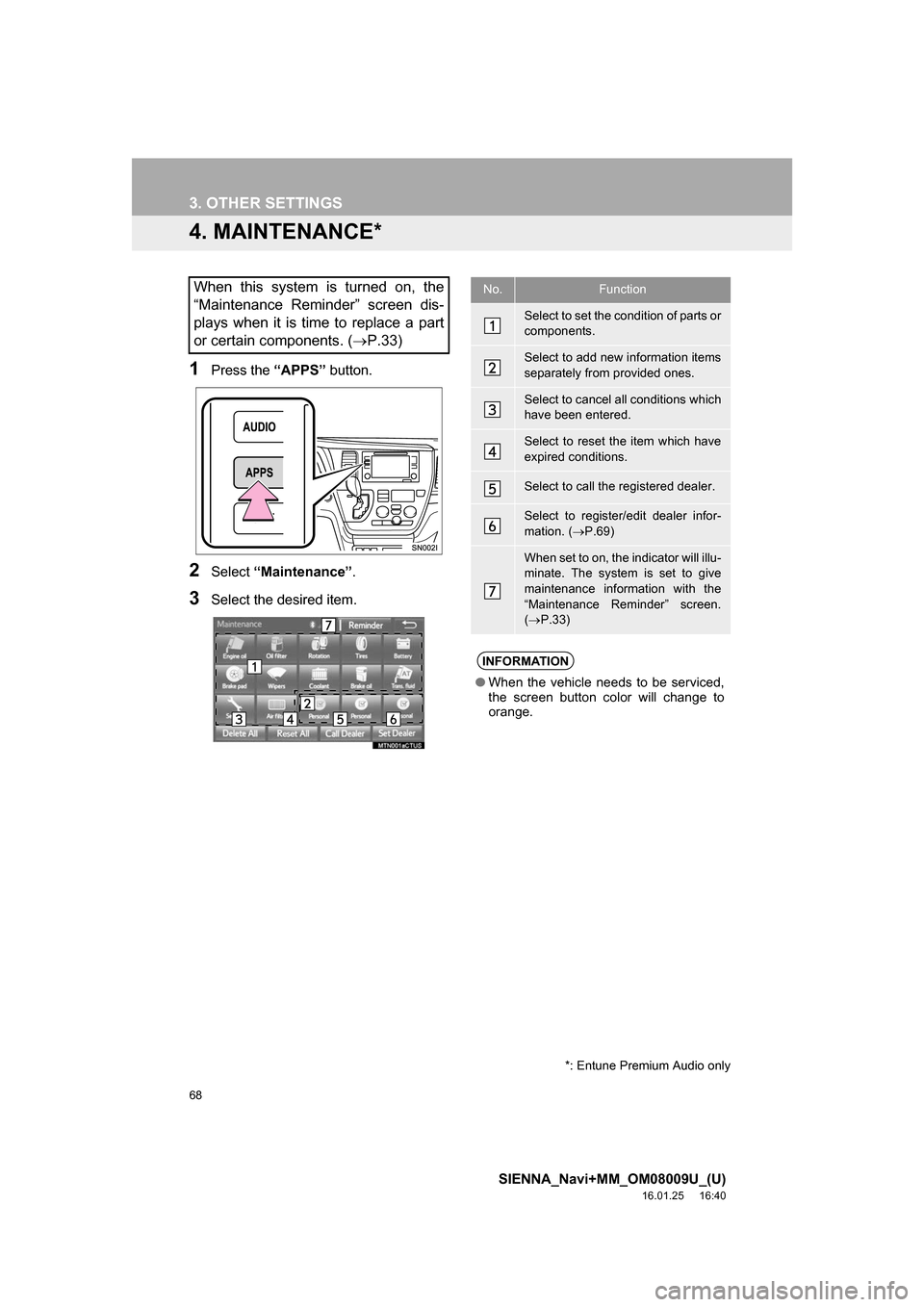
1Press the “APPS” button.
2Select “Maintenance” .
3Select the desired item.
When this system is turned on, the
“Maintenance Reminder” screen dis-
plays when it is time to replace a part
or certain components. ( P.33)No.Function
Select to set the condition of parts or
components.
Select to add new information items
separately from provided ones.
Select to cancel all conditions which
have been entered.
Select to reset the item which have
expired conditions.
Select to call the registered dealer.
Select to register/edit dealer infor-
mation. (P.69)
When set to on, the indicator will illu-
minate. The system is set to give
maintenance information with the
“Maintenance Reminder” screen.
( P.33)
INFORMATION
● When the vehicle needs to be serviced,
the screen button color will change to
orange.
*: Entune Premium Audio only
Page 69 of 366

69
3. OTHER SETTINGS
SIENNA_Navi+MM_OM08009U_(U)
16.01.25 16:40
BASIC FUNCTION
21Select the desired part or component
screen button.
When the vehicle needs to be serviced,
the screen button color will change to
orange.
2Set the conditions.
3Select “OK” after entering the condi-
tions.
1Select “Set Dealer” .
2Select the desired item to search for
the location. ( P.284)
The editing dealer screen appears after
setting the location.
MAINTENANCE INFORMATION
SETTING
No.Function
Select to enter the next maintenance
date.
Select to enter the driving distance
until the next maintenance check.
Select to cancel the conditions which
have been entered.
Select to reset the conditions which
have expired.
INFORMATION
●For scheduled maintenance information,
refer to “Scheduled Maintenance Guide”
or “Owner’s Manual Supplement”.
● Depending on driving or road conditions,
the actual date and distance that main-
tenance should be performed may differ
from the stored date and distance in the
system.
DEALER SETTING
Dealer information can be registered in
the system. With dealer information
registered, route guidance to the deal-
er is available.
Page 92 of 366
92
2. RADIO OPERATION
SIENNA_Navi+MM_OM08009U_(U)
16.01.25 16:40
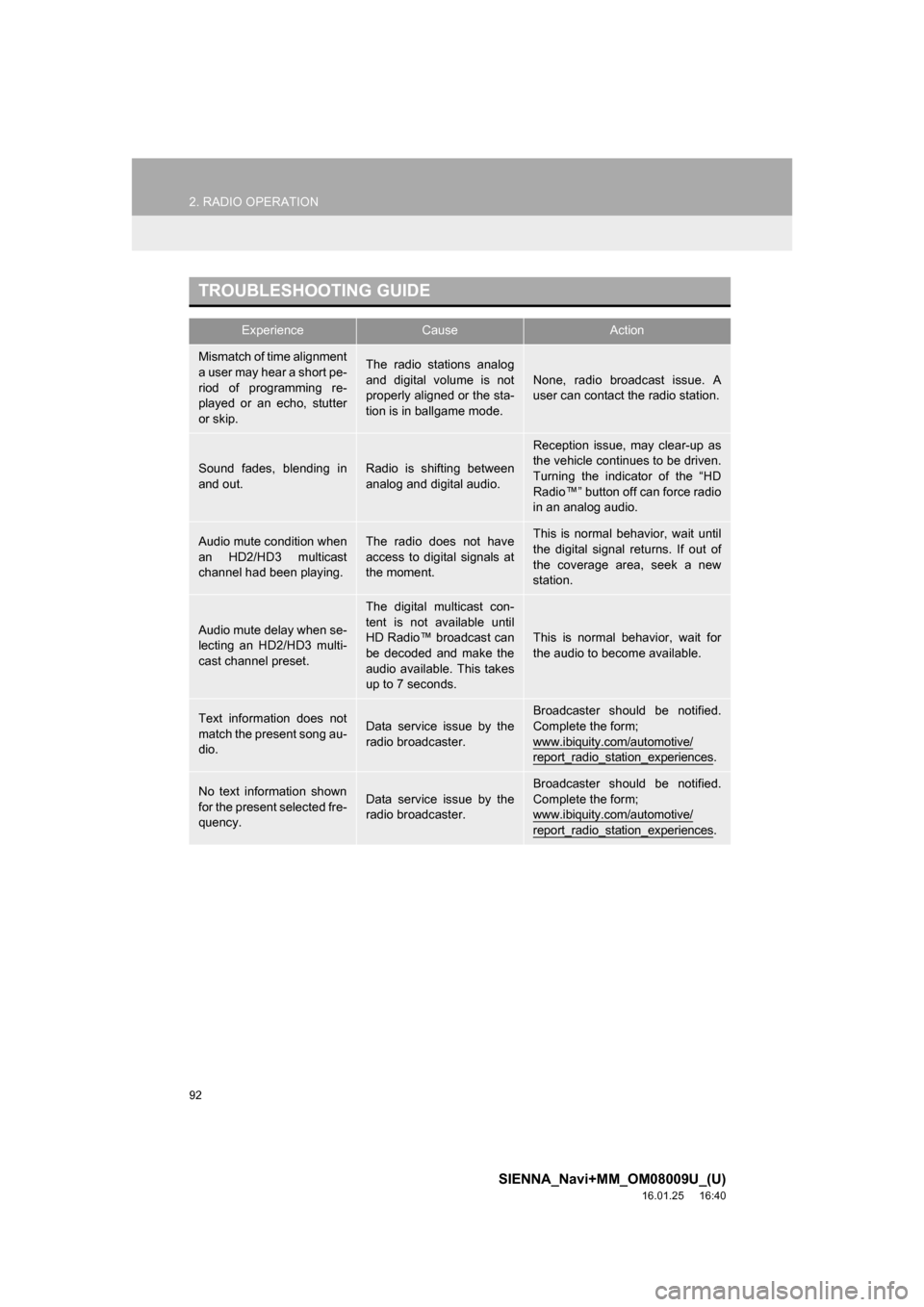
TROUBLESHOOTING GUIDE
ExperienceCauseAction
Mismatch of time alignment
a user may hear a short pe-
riod of programming re-
played or an echo, stutter
or skip.The radio stations analog
and digital volume is not
properly aligned or the sta-
tion is in ballgame mode.None, radio broadcast issue. A
user can contact the radio station.
Sound fades, blending in
and out.Radio is shifting between
analog and digital audio.
Reception issue, may clear-up as
the vehicle continues to be driven.
Turning the indicator of the “HD
Radio™” button off can force radio
in an analog audio.
Audio mute condition when
an HD2/HD3 multicast
channel had been playing.The radio does not have
access to digital signals at
the moment.This is normal behavior, wait until
the digital signal returns. If out of
the coverage area, seek a new
station.
Audio mute delay when se-
lecting an HD2/HD3 multi-
cast channel preset.
The digital multicast con-
tent is not available until
HD Radio™ broadcast can
be decoded and make the
audio available. This takes
up to 7 seconds.
This is normal behavior, wait for
the audio to become available.
Text information does not
match the present song au-
dio.Data service issue by the
radio broadcaster.
Broadcaster should be notified.
Complete the form;
www.ibiquity.com/automotive/
report_radio_station_experiences.
No text information shown
for the present selected fre-
quency.Data service issue by the
radio broadcaster.Broadcaster should be notified.
Complete the form;
www.ibiquity.com/automotive/
report_radio_station_experiences.
Page 95 of 366
95
2. RADIO OPERATION
SIENNA_Navi+MM_OM08009U_(U)
16.01.25 16:40
AUDIO/VISUAL SYSTEM
3
HOW TO SUBSCRIBE TO AN
XM Satellite Radio
To listen to a satellite radio broadcast
in the vehicle, a subscription to the XM
Satellite Radio service is necessary.
An XM Satellite Radio is a tuner de-
signed exclusively to receive broad-
casts provided under a separate
subscription. Availability is limited to
the 48 contiguous U.S. states and
some Canadian provinces.
HOW TO SUBSCRIBE
It is necessary to enter into a separate
service agreement with XM Satellite
Radio in order to receive satellite
broadcast programming in the vehicle.
Additional activation and service sub-
scription fees apply that are not includ-
ed in the purchase price of the vehicle
and digital satellite tuner.
For complete information on subscrip-
tion rates and terms, or to subscribe to
XM Satellite Radio:
U.S.A.
Refer to www.siriusxm.com
or call
1-877-447-0011.
Canada
Refer to www.xmradio.ca
or call
1-877-438-9677.
NOTICE
● XM Radio Services Legal Disclaimers
and Warnings
• Fees and Taxes Subscription fee,
taxes, one time activation fee, and
other fees may apply. Subscription fee
is consumer only. All fees and pro-
gramming subject to change.
Subscriptions subject to Customer
Agreement available at
www.siriusxm.com. (U.S.A.) or
www.xmradio.ca (Canada) XM service
only available in the 48 contiguous
United States and Canada.
Explicit Language Notice Channels
with frequent explicit language are indi-
cated with an “XL” preceding the chan-
nel name. Channel blocking is
available for XM Satellite Radio receiv-
ers by notifying XM at;
U.S.A. Customers:
Visit www.siriusxm.com or calling
1-877-447-0011
Canadian Customers:
Visit www.xmradio.ca or calling
1-877-438-9677